Update browser drivers
Update browser drivers automatically
The driver automatic update feature allows automatic updates of specific browser driver software on an RPA server without stopping the environment.
Currently, the driver automatic update is applicable for the Chrome and Microsoft Edge browsers.
Prerequisites
For correct work of the driver automatic update feature, RPA servers must have access to the following Internet resources:
For the Chrome driver update:
For the Edge driver update:
Locate auto-aupdated drivers
You can find the auto-updated drivers using the following paths:
- Chrome:
C:/Users/[User folder]/.cache/selenium/chromedriver/win32/[version]/chromedriver.exe - Edge:
C:/Users/[User folder]/.cache/selenium/msedgedriver/win64/[version]/msedgedriver.exe
Enable auto-updates
To enable the feature, do as follows:
Go to Control Tower > Bot Manager and select the RPA server where you want to enable the driver automatic update.
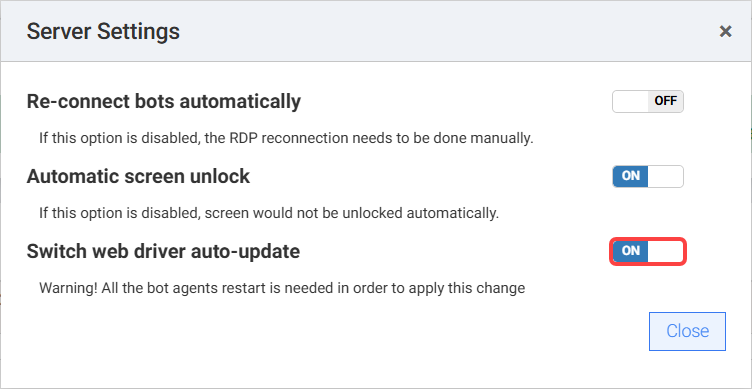
Open the Server Settings menu.

Switch on the Switch web driver auto-update toggle.
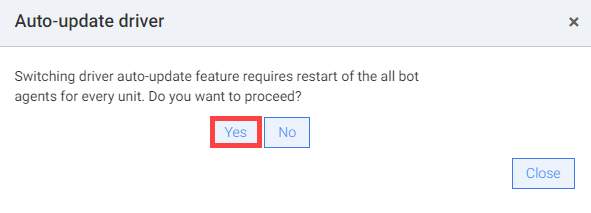
Restart the RPA infrastructure on the affected server. In the Auto-update driver window that follows, click Yes to proceed with the restart of Bot Agents.
You can configure automatic updates for each server separately: turn it ON for the servers where you need it and OFF for the rest. By default, the automatic update feature is disabled for all servers.
View logs
The following logs appear in the Worker log file when the driver is updating:
com.workfusion.universal.factory.UniversalDriverFactory.createDriverSession[:124] - Current browser version is not compatible with WebDriver! Trying to automatically update.
io.github.bonigarcia.wdm.online.Downloader.downloadAndExtract[:127] - Downloading https://chromedriver.storage.googleapis.com/104.0.5112.79/chromedriver_win32.zip
Or:
io.github.bonigarcia.wdm.WebDriverManager.manage[:1184] - Driver chromedriver 104.0.5112.79 found in cache
To check if the driver automatic update feature is turned on or off, search for the following logs:
The feature is turned on:
rpa.driver.auto-update=trueThe feature is turned off:
rpa.driver.auto-update=false
View sample use case
When the automatic update feature is turned on, you can run a Business Process in Control Tower. Even if the driver is outdated, no error should occur in Control Tower, since the driver is automatically updated. The information about the outdated driver is visible in the Worker log file:
2022-08-30 14:17:21,449 INFO [pool-19-thread-1] org.openqa.selenium.grid.session.remote.ServicedSession$Factory.apply[:205] - session not created: This version of ChromeDriver only supports Chrome version 99
Update browser drivers manually
If your RPA scripts stopped working after the browser update, you can update drivers manually.
Update ChromeDriver
To update ChromeDriver, do as follows:
- Download the latest driver.
- Replace the old one in
RPA/rpa-grid/drivers/windows/x32.
Update Firefox WebDriver
To update the Firefox WebDriver, do as follows:
- Download the latest drivers (both x32 and x64).
- Replace the old drivers in the following directories:
geckodriver-vx-win32.zipinRPA/rpa-grid/drivers/windows/x32geckodriver-vx-win64.zipinRPA/rpa-grid/drivers/windows/x64
In case of any issues with browsers or drivers, see Issues related to browser or driver.