Handle iFrames
Handle IFrames with Robotics WebDriver
Iframe is an HTML document embedded inside an HTML document. Iframe is defined by the <iframe></iframe> tag in HTML. With this tag, you can identify an iFrame while inspecting the HTML tree.
Here is a sample HTML code of a HTML page which contains two iFrames:
<tr>
    <td>
        <iframe name="iframe0" id="IF0" src="form.html" width="400" height="800"></iframe>
    </td>
    <td>
        <iframe name="iframe1" id="IF1" src="https://wikipedia.org" width="400" height="800"></iframe>
    </td>
</tr>
Sample Iframe test page: https://rpa-tutorial.s3.amazonaws.com/trainings/iframe/iframe-test.html
We will use this to learn iFrame handling logic. Before starting, we have to understand that to work with different iFrames on a page we need to switch between these iFrames. To Switch between iFrames we have to use the driver’s switchTo().frame command. You can switch to an iframe in the following ways:
switchTo.frame(int frameNumber): pass the frame index, and the driver switches to that frame.switchTo.frame(string frameNameOrId): pass the frame element Name or ID, and the driver switches to that frame.switchTo.frame(WebElement frameElement): pass the frame web element, and the driver switches to that frame.switchTo().parentFrame(): the driver switches to its parent frame if it exists.driver.switchTo().defaultContent(): the driver switches to the main page.
Let's see how each of these work but before that we have to know answers to the following questions: – What is an frame index? – How to get total number of frames on a webpage?
Find total number of iFrames on webpage
There are two ways to find total number of iFrames in a web page. First by executing a JavaScript and second is by finding total number of web elements with a tag name of iFrame. Here is the code using both these methods:
import com.workfusion.odf2.compiler.BotTask;
import com.workfusion.odf2.core.task.AdHocTask;
import com.workfusion.odf2.core.task.TaskInput;
import com.workfusion.odf2.core.task.output.TaskRunnerOutput;
import com.workfusion.odf2.core.webharvest.rpa.RpaDriver;
import com.workfusion.odf2.core.webharvest.rpa.RpaFactory;
import com.workfusion.odf2.core.webharvest.rpa.RpaRunner;
import com.workfusion.rpa.driver.Driver;
import com.workfusion.rpa.helpers.RPA;
import org.openqa.selenium.By;
import org.openqa.selenium.JavascriptExecutor;
import org.openqa.selenium.WebElement;
import org.slf4j.Logger;
import javax.inject.Inject;
import java.util.List;

@BotTask(requireRpa = true)
public class HandleIFrames implements AdHocTask {

    private final RpaRunner rpaRunner;
    private final Logger logger;

    @Inject
    public HandleIFrames(RpaFactory rpaFactory, Logger logger) {
        this.rpaRunner = rpaFactory
                .builder(RpaDriver.UNIVERSAL)
                .closeOnCompletion(true)
                .build();
        this.logger = logger;
    }

    @Override
    public TaskRunnerOutput run(TaskInput taskInput) {

        rpaRunner.execute(driver -> {
            this.findTotalNumberOfIFramesInWebPageExample(driver);
        });

        return taskInput.asResult()
                .withColumn("example_bot_task_output", "completed_successfully");
    }

    private int findTotalNumberOfIFramesInWebPageExample(Driver driver){

        RPA.pageLoadTimeout(10000);
        RPA.openChrome("https://rpa-tutorial.s3.amazonaws.com/trainings/iframe/iframe-test.html");
        List<WebElement> iframeList = driver.findElements(By.tagName("iframe"));
        logger.debug("Total Number Of IFrame - " + iframeList.size());
        this.popAlert(driver,"Total Number Of IFrame - " + iframeList.size());
        return iframeList.size();
    }

    private void popAlert(Driver driver,String popupMessage){

        driver.switchDriver("chrome");
        //Switch to default content inorder to work with alert if already on a IFrame
        RPA.switchTo().defaultContent();
        String script = popupMessage;
        driver.executeScript("alert(arguments[0])",script);
        RPA.sleep(3000);
        RPA.switchTo().alert().accept();

    }

}
This code sample will find only iframes that are on the top-level. Nested iframes will be ignored. To find nested iframes, you need to switch to their child iframes. See the example below:
Recursive iframe search
<?xml version="1.0" encoding="UTF-8"?>
<config xmlns="http://web-harvest.sourceforge.net/schema/1.0/config" scriptlang="groovy">
    <robotics-flow>
        <robot name="ie" driver="internet explorer" close-on-completion="true">
            <script><![CDATA[

                pageLoadTimeout(10000)
                open('https://rpa-tutorial.s3.amazonaws.com/trainings/iframe/iframe-test.html')

                // Find iframes on top level
                def numberOfFrames = Integer.parseInt(executeScript("return window.length").toString())

                // Recursive search for all nested iframes
                def countFrames
                countFrames = {elements ->
                    int size = elements.size()
                    elements.each {
                        switchTo().frame(it)
                        frames = $$(byTagName('iframe'))
                        size += countFrames(frames)
                        switchTo().parentFrame()
                    }
                    return size;
                }

                def iframeElements = $$(byTagName('iframe'))
                int totalFrames = countFrames(iframeElements)

                println("    Number of iframes on the page (top level): ${numberOfFrames}")
                println("    The total number of iframes (all levels): ${totalFrames}")

            ]]></script>
        </robot>
    </robotics-flow>
    <export include-original-data="false" />
</config>
Switch to Frames by index
The index of an iFrame is the position at which it occurs in the HTML page. In the above example, we have found total number of iFrames. In the sample page, we have two IFrames on top level and one nested iFrame, index of iFrame starts from 0.
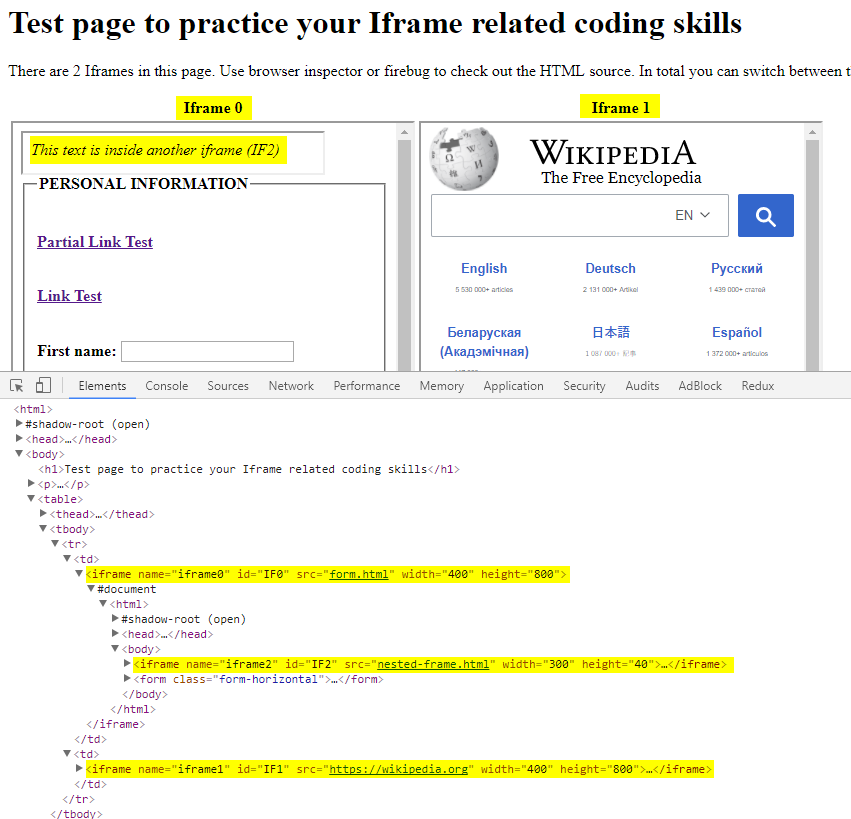
To switch to the 0th iFrame, write driver.switchTo().frame(0). Here is the sample code:
open('https://rpa-tutorial.s3.amazonaws.com/trainings/iframe/iframe-test.html')
switchTo().frame(0)
Switch to iFrame by name
Now, if you take a look at the HTMLcode of iFrame you will find that it has a name attribute. The name attribute has the iframe0 value. You can switch to the iFrame using the name by the switchTo().frame(“iframe0″) command:
open('https://rpa-tutorial.s3.amazonaws.com/trainings/iframe/iframe-test.html')
switchTo().frame('frame0')
Switch to iFrame by ID
Similar to the name attribute in the iFrame tag, you also have the ID attribute that you can use to switch to the frame. Pass the ID to the switchTo command, for example, SwitchTo().frame(“IF1″):
open('https://rpa-tutorial.s3.amazonaws.com/trainings/iframe/iframe-test.html')
switchTo().frame('IF0')
Switch to iFrame by WebElement
Now, you can switch to an iFrame by simply passing the iFrame WebElement to the switchTo().frame() command. First, find the iFrame element using any of the locator strategies and then pass it to the switchTo command:
open('https://rpa-tutorial.s3.amazonaws.com/trainings/iframe/iframe-test.html')
iframeElement = $(byId('IF0'))
switchTo().frame(iframeElement)
Switch back to main page from iFrame
There is an important command used to get back to the main page. The main page is the page where two iFrames are embedded. Once you finish your task in a particular iFrame, you can switch back to the main page using switchTo().defaultContent():
import com.workfusion.odf2.compiler.BotTask;
import com.workfusion.odf2.core.task.AdHocTask;
import com.workfusion.odf2.core.task.TaskInput;
import com.workfusion.odf2.core.task.output.TaskRunnerOutput;
import com.workfusion.odf2.core.webharvest.rpa.RpaDriver;
import com.workfusion.odf2.core.webharvest.rpa.RpaFactory;
import com.workfusion.odf2.core.webharvest.rpa.RpaRunner;
import com.workfusion.rpa.driver.Driver;
import com.workfusion.rpa.helpers.RPA;
import org.openqa.selenium.By;
import org.openqa.selenium.JavascriptExecutor;
import org.openqa.selenium.WebElement;
import org.slf4j.Logger;
import javax.inject.Inject;
import java.util.List;

@BotTask(requireRpa = true)
public class HandleIFrames implements AdHocTask {

    private final RpaRunner rpaRunner;
    private final Logger logger;

    @Inject
    public HandleIFrames(RpaFactory rpaFactory, Logger logger) {
        this.rpaRunner = rpaFactory
                .builder(RpaDriver.UNIVERSAL)
                .closeOnCompletion(true)
                .build();
        this.logger = logger;
    }

    @Override
    public TaskRunnerOutput run(TaskInput taskInput) {

        rpaRunner.execute(driver -> {
            this.switchToMainPageFromAFrameExample(driver);
        });

        return taskInput.asResult()
                .withColumn("example_bot_task_output", "completed_successfully");
    }


    private void switchToMainPageFromAFrameExample(Driver driver){
        RPA.pageLoadTimeout(10000);
        RPA.openChrome("https://rpa-tutorial.s3.amazonaws.com/trainings/iframe/iframe-test.html");
        RPA.switchTo().frame("iframe0");
        logger.debug(" Frame switch by name - " + driver.findElement(By.xpath("//span[@class='bcd']")).getText());
        this.popAlert(driver," Frame switch by name - " + driver.findElement(By.xpath("//span[@class='bcd']")).getText());


        // switching to the Nested Frame
        RPA.switchTo().defaultContent();
        RPA.switchTo().frame("iframe0");
        RPA.switchTo().frame(0);
        logger.debug("Nested Frame Text - " + driver.findElement(By.xpath("//cite")).getText());
        this.popAlert(driver,"Nested Frame Text - " + driver.findElement(By.xpath("//cite")).getText());

        // switching to the main page
        RPA.switchTo().defaultContent();
        logger.debug("Main Page Text - " + driver.findElement(By.xpath("/html/body/h1")).getText());
        this.popAlert(driver,"Main Page Text - " + driver.findElement(By.xpath("/html/body/h1")).getText());
    }
    private void popAlert(Driver driver,String popupMessage){

        driver.switchDriver("chrome");
        //Switch to default content inorder to work with alert if already on a IFrame
        RPA.switchTo().defaultContent();
        String script = popupMessage;
        driver.executeScript("alert(arguments[0])",script);
        RPA.sleep(3000);
        RPA.switchTo().alert().accept();

    }

}
Interact with elements inside Iframe
Now, let's learn how to interact with elements inside an iFrame. Once we have switched to a particular iFrame everything else after that can be done using regular WebDriver command. Lets first create a hypothetical test case, here are the steps that we would take in our test.
- Switch to the first frame. See the image above.
- Find the First Name and Last name elements.
- Fill some value in the First name and Last name fields.
- Switch to the nested frame, get its text.
- Switch to the second frame.
- Find the search field and perform search.
- Try to click elements in another iframe.
Once you switch to the frame, you can access the html elements that are inside the frame. Any attempt to access the elements which are inside iFrame without switching to that ifFrame will result in WebDriver exception. At the end of this script, we will reproduce the exception for learning purpose.
Also, notice that once you have switch to the frame, the find element commands are exactly same as what we would use normally.
Interacting with elements inside iframes:
import com.workfusion.odf2.compiler.BotTask;
import com.workfusion.odf2.core.task.AdHocTask;
import com.workfusion.odf2.core.task.TaskInput;
import com.workfusion.odf2.core.task.output.TaskRunnerOutput;
import com.workfusion.odf2.core.webharvest.rpa.RpaDriver;
import com.workfusion.odf2.core.webharvest.rpa.RpaFactory;
import com.workfusion.odf2.core.webharvest.rpa.RpaRunner;
import com.workfusion.rpa.driver.Driver;
import com.workfusion.rpa.helpers.RPA;
import org.openqa.selenium.By;
import org.openqa.selenium.JavascriptExecutor;
import org.openqa.selenium.WebElement;
import org.slf4j.Logger;
import javax.inject.Inject;
import java.util.List;

@BotTask(requireRpa = true)
public class HandleIFrames implements AdHocTask {

    private final RpaRunner rpaRunner;
    private final Logger logger;

    @Inject
    public HandleIFrames(RpaFactory rpaFactory, Logger logger) {
        this.rpaRunner = rpaFactory
                .builder(RpaDriver.UNIVERSAL)
                .closeOnCompletion(true)
                .build();
        this.logger = logger;
    }

    @Override
    public TaskRunnerOutput run(TaskInput taskInput) {

        rpaRunner.execute(driver -> {
            this.interactingWithElementsInsideIFrames(driver);
        });

        return taskInput.asResult()
                .withColumn("example_bot_task_output", "completed_successfully");
    }

    private void interactingWithElementsInsideIFrames(Driver driver){
        RPA.pageLoadTimeout(10000);
        RPA.openChrome("https://rpa-tutorial.s3.amazonaws.com/trainings/iframe/iframe-test.html");
        this.popAlert(driver,"In this example in first frame bot will enter First Name and Last Name and in Second Frame of wikipedia bot will search for RPA");

        driver.switchTo().defaultContent();

        // Step 1: Switching to the 1st frame, frame index 0
        RPA.switchTo().frame(0);

        // Step 2: Find the First and Last name fields
        WebElement firstName = driver.findElement(By.xpath("//form/fieldset//input[1]"));
        WebElement lastName = driver.findElement(By.xpath("//form/fieldset/div[11]/input"));

        // Step 3: Fill some value in the fields
        firstName.sendKeys("Sanal");
        lastName.sendKeys("Singh");

        // Step 4: Switching to the nested frame, getting its text
        WebElement nestedFrame = driver.findElement(By.xpath("//iframe"));
        RPA.switchTo().frame(nestedFrame);
        RPA.sleep(2000);
        String nestedFrameText = driver.findElement(By.xpath("//cite")).getText();

        // Step 5: Switching to the 2nd frame using its id
        RPA.switchTo().defaultContent();
        RPA.switchTo().frame("IF1");

        // Step 6: Find the search field and perform search
        driver.findElement(By.xpath("//input[@id='searchInput']")).sendKeys("Robotic Process Automation");
        RPA.pressEnter();

        try{
            firstName.sendKeys("New Name");
        }
        catch (Exception ex){
            this.popAlert(driver,"Cannot click on other iframe elements! Switch to that iframe first");
        }
    }

    private void popAlert(Driver driver,String popupMessage){

        driver.switchDriver("chrome");
        //Switch to default content inorder to work with alert if already on a IFrame
        RPA.switchTo().defaultContent();
        String script = popupMessage;
        driver.executeScript("alert(arguments[0])",script);
        RPA.sleep(3000);
        RPA.switchTo().alert().accept();

    }
}
For troubleshooting tips, see the following support guides: