Activate RDS licensing for multiple bots
While the platform supports running multiple bots on a single server concurrently, it is important to ensure you have the correct infrastructure, operating system, and Microsoft licenses.
View system requirements
To run multiple bots on one machine, your Window Server OS must be one of the following versions:
- Windows Server 2019
- Windows Server 2022
You may also need RDS Per User Client Access Licenses (CALs) for your Windows Server.
We recommend running no more than 16 bots per Window Server concurrently to ensure smooth performance. Each bot requires at least 1 CPU and 2 GB RAM.
Ensure that the following ports are open for Remote Desktop Session Hosts to obtain licenses:
- TCP/135: Microsoft RPC
- UDP/137: NetBIOS Datagram Service
- UDP/138: NetBIOS Name Resolutio
- TCP/139: NetBIOS Session Service
- TCP/445: SMB
- TCP/49152–65535: RPC dynamic address range
To check open ports, use PortQry or Test-NetConnection.
Use RDS CALs
To use Windows Server OS and Remote Desktop Services (RDS) to manage bot sessions, you must purchase licenses. Each bot on the server requires a User CAL. RDS CALs are installed on the RD licensing server that keeps track of license usage. When a bot tries to connect to the RD Session Host server, the server checks if it has a valid CAL. For more details, refer to License Remote Desktop Services with Client Access Licenses.
The Work.AI platform needs RDS Per User CALs and not RDS Per Device CALs.
You can purchase CALs for Windows Server 2019 or 2022 from a reseller.
Each bot requires a license for each application it uses, for example, Microsoft Office.
You can run the platform with multiple concurrent bots without RDS CALs during the 120-day RDS grace period. The installer activates bots automatically. However, you must purchase RDS CALs before the grace period expires to remain compliant.
Activate RDS license
There are two scenarios to activate an RDS license:
- When there is only one server and no RDS CALs were previously activated
- When an RDS license server already exists on another machine
Scenario 1. Activate RDS license for the first time
Follow these steps to activate an RDS license for the first time. The platform should be installed on this server.
The example below is based on Windows Server 2016. Other versions can have slightly different menus and interfaces.
Install roles and features
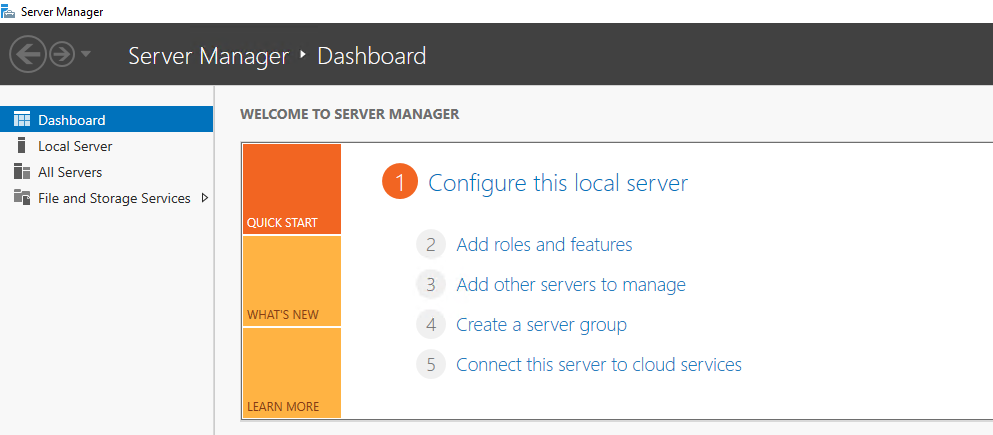
Open Server Manager.
Click Add roles and features.
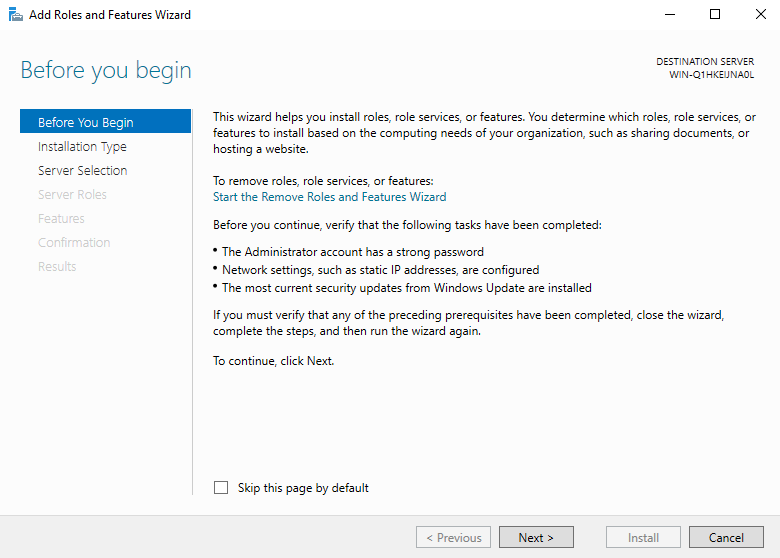
On the Before You Begin tab, click Next.
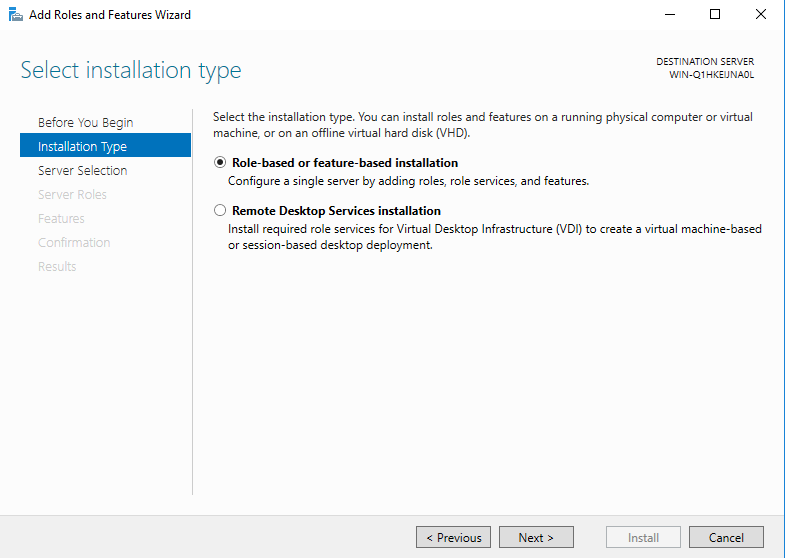
On the Installation type tab, select Role-based or feature-based installation and click Next.
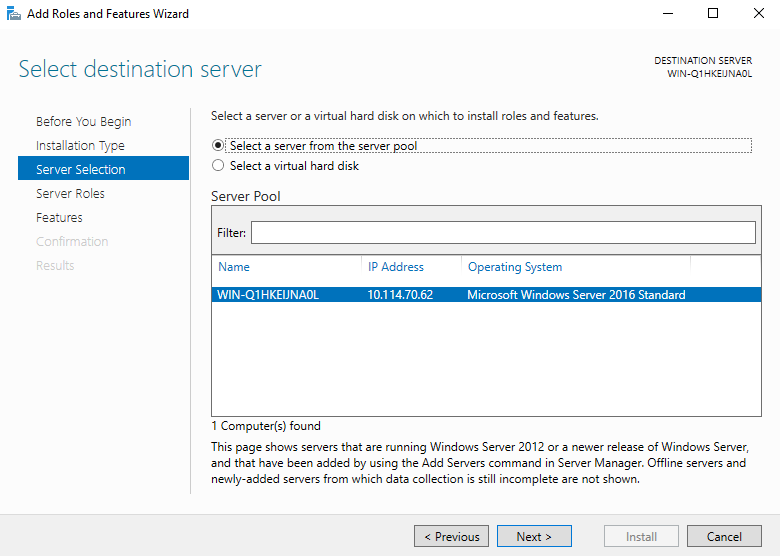
On Server Selection, choose Select a server from the server pool, select your server, and click Next.
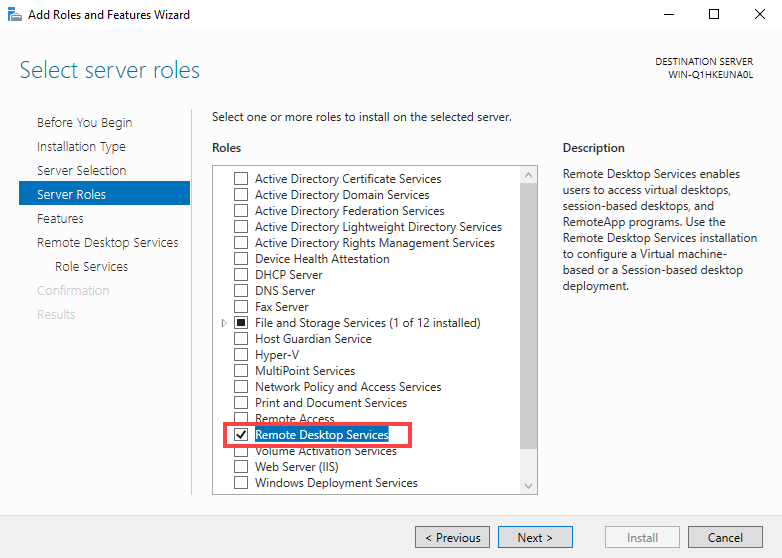
On the Server roles tab, select Remote Desktop Services and click Next.
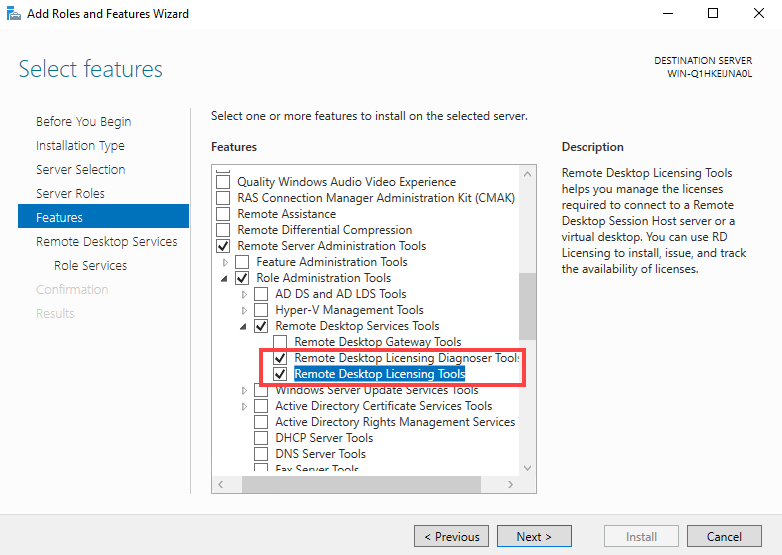
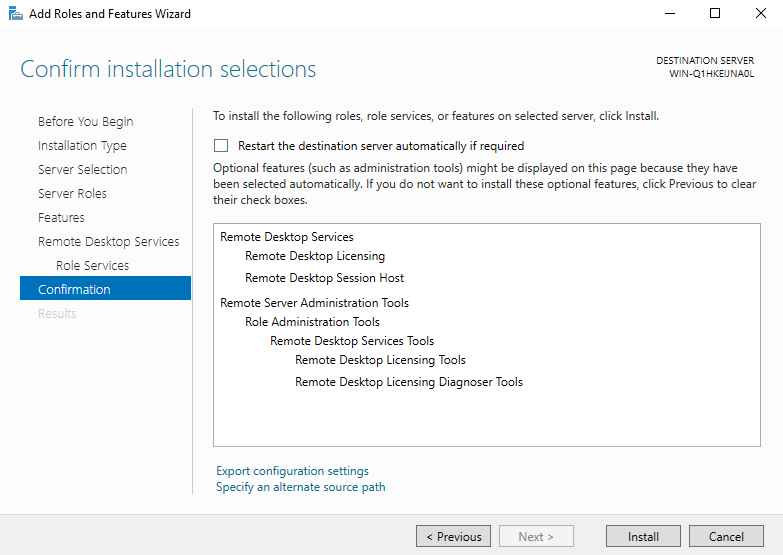
Go Features > Remote Server Administration Tools > Role Administration Tools > Remote Desktop Services Tools and select the Remote Desktop Licensing Diagnoser Tools and Remote Desktop Licensing Tools options. Click Next.
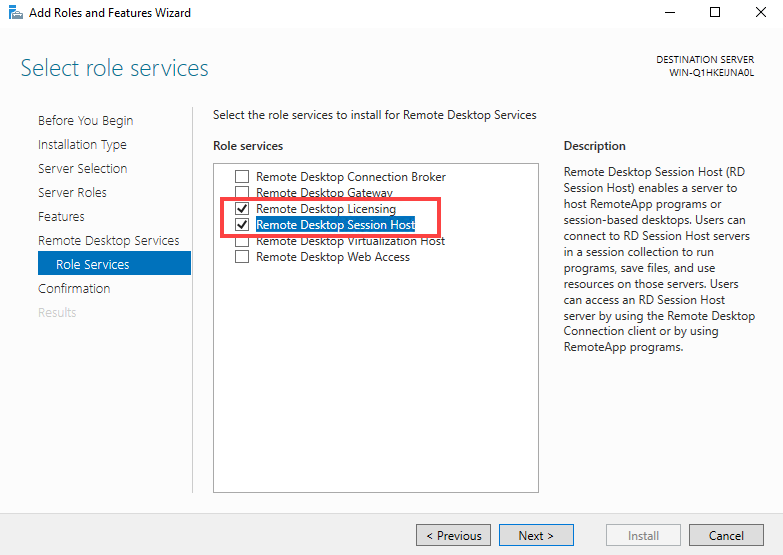
Go to Remote Desktop Services > Role services and select the Remote Desktop Licensing and Remote Desktop Session Host options. Click Next.
On the Confirmation tab, click Install.
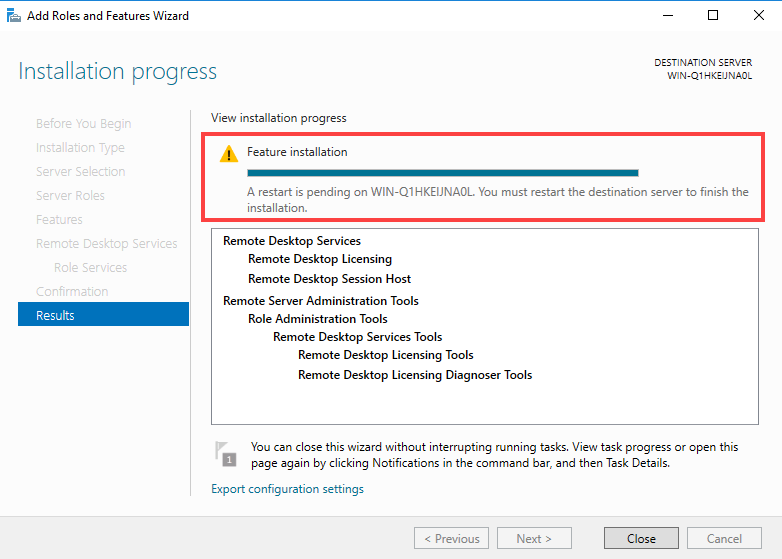
Once installation is complete, click Close and restart your server.
Edit group policies
Open Server Manager.
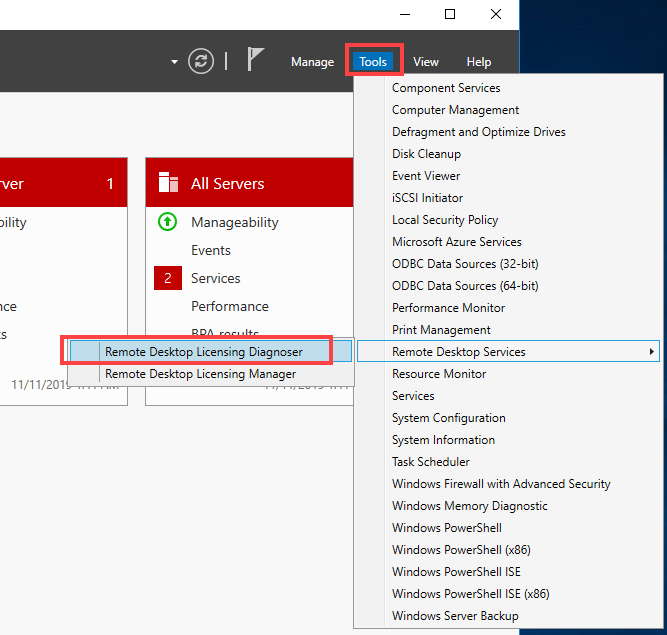
Go to Tools > Remote Desktop Services and open Remote Desktop Licensing Diagnoser.
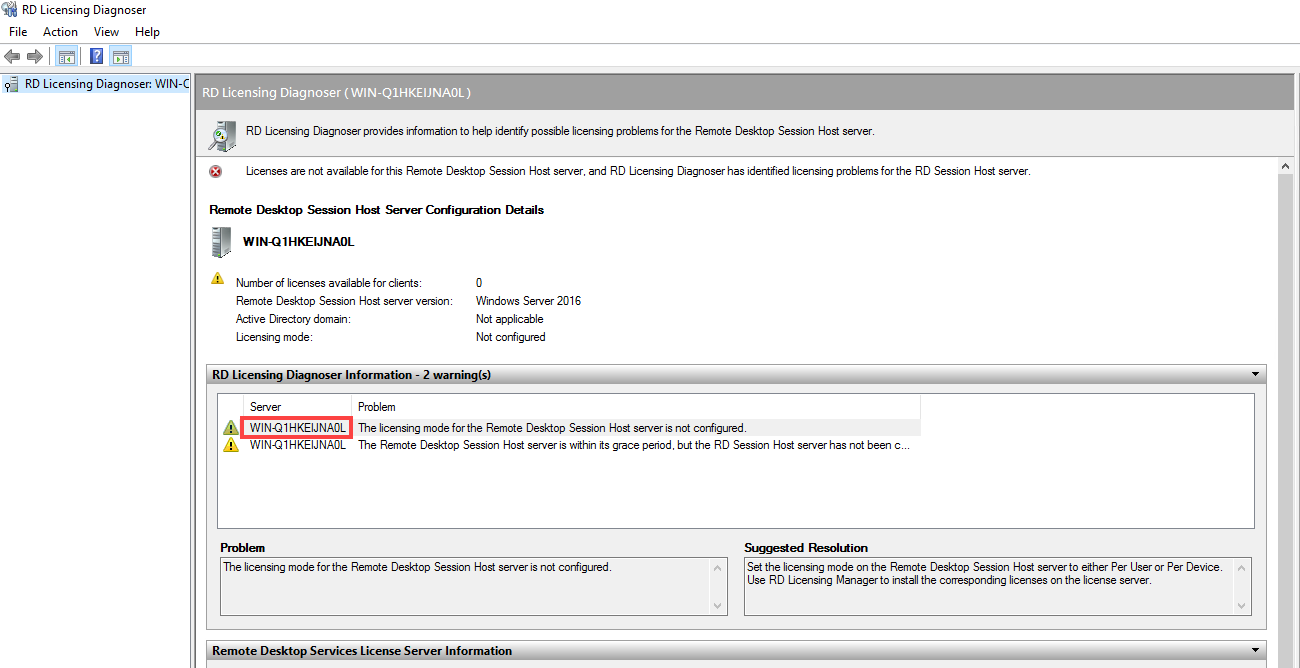
Note the name of your server.
Open Edit group policy.
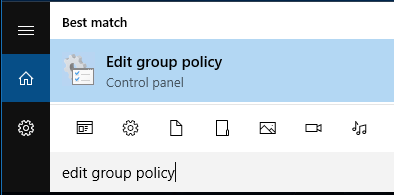
Navigate to Computer Configuration > Administrative Templates > Windows Components > Remote Desktop Services > Remote Desktop Session Host > Licensing.
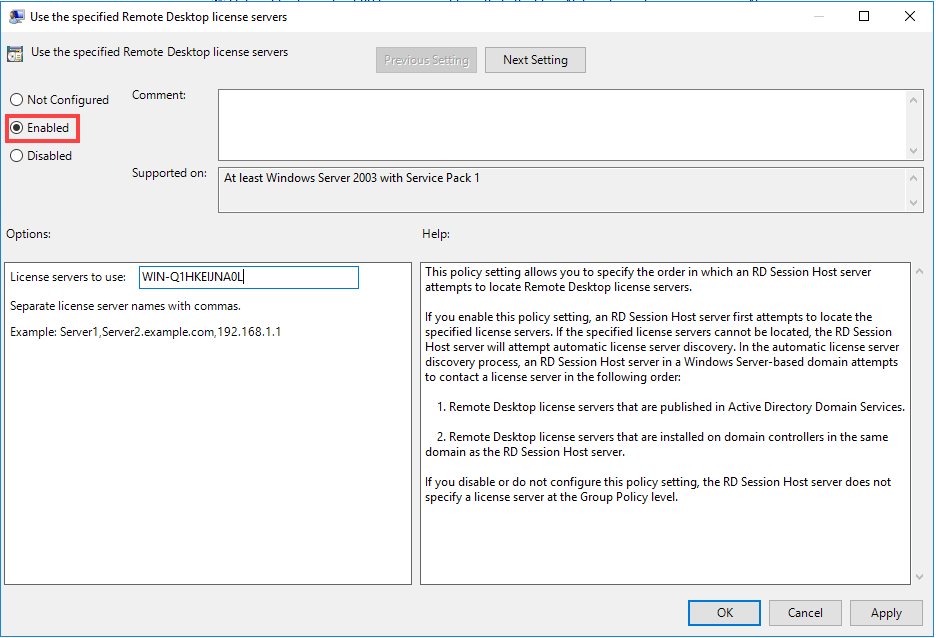
Open Use the specified Remote Desktop license servers.

Select Enabled, enter your server name in the License servers to use text box, and click Apply > OK.
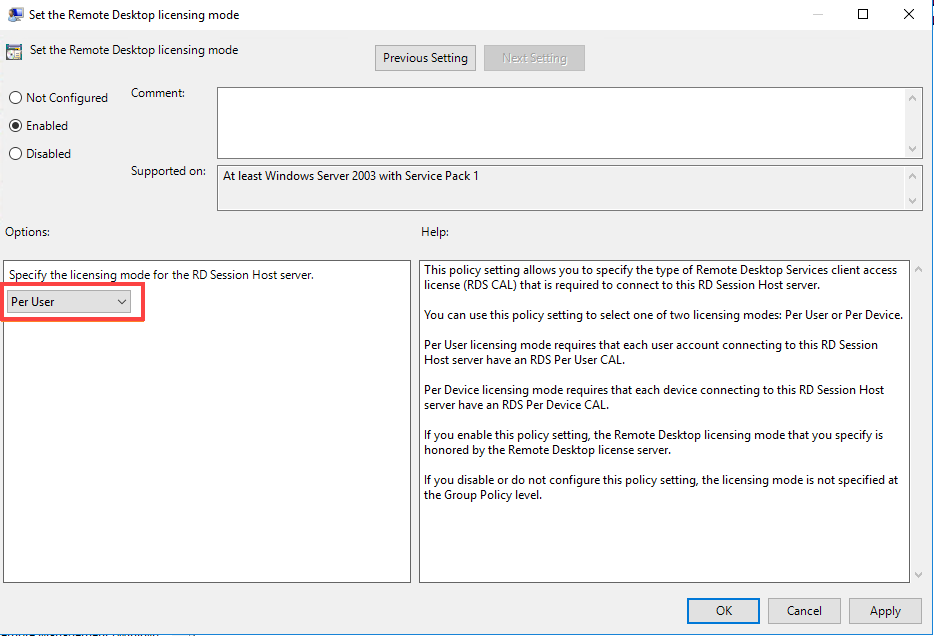
Open Set the remote Desktop licensing mode.

Select Enabled, choose Per User, and click Apply > OK.
Activate license server and install RDS license
Open Server Manager.
Go to Tools > Remote Desktop Services and open Remote Desktop Licensing Manager.
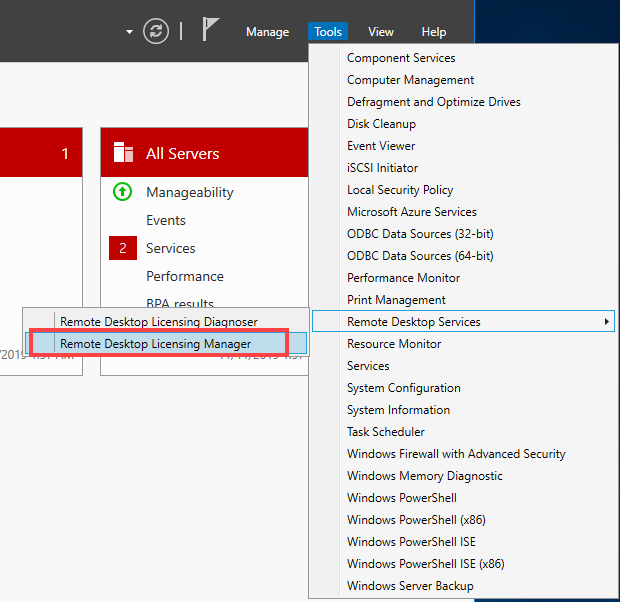
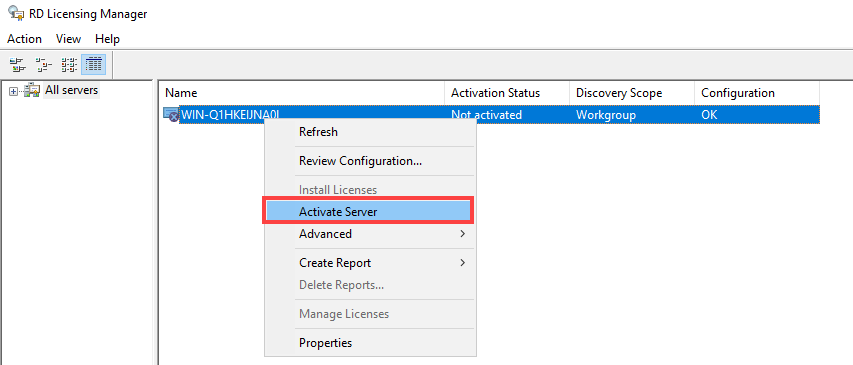
Right-click your server and select Activate Server.
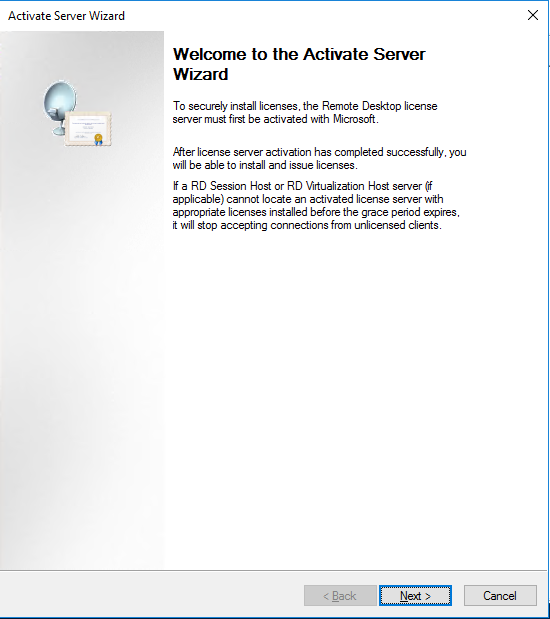
In the Activate Server wizard, click Next.
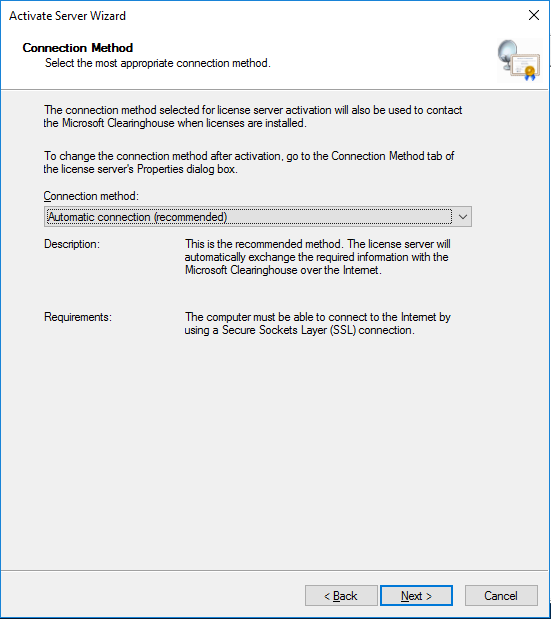
On the Connection Method screen, select Automatic connection (recommended) and click Next.
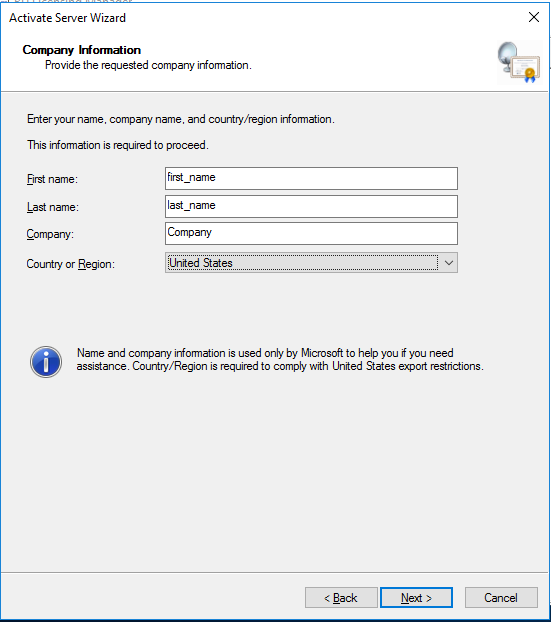
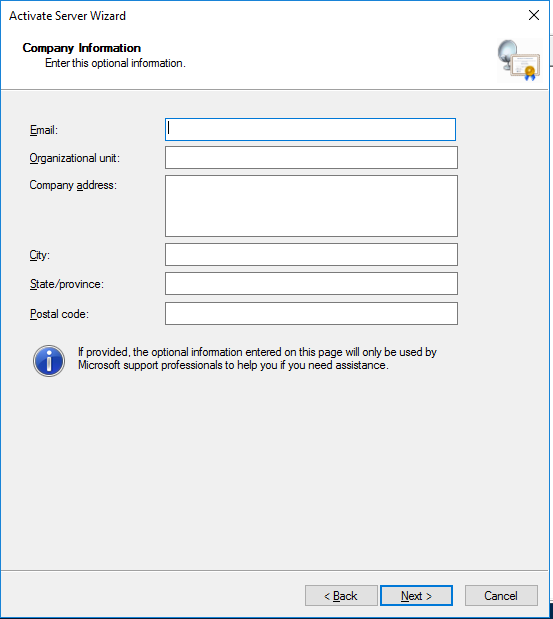
On the Company Information screen, enter the required information and click Next.
Provide optional information if needed and click Next.
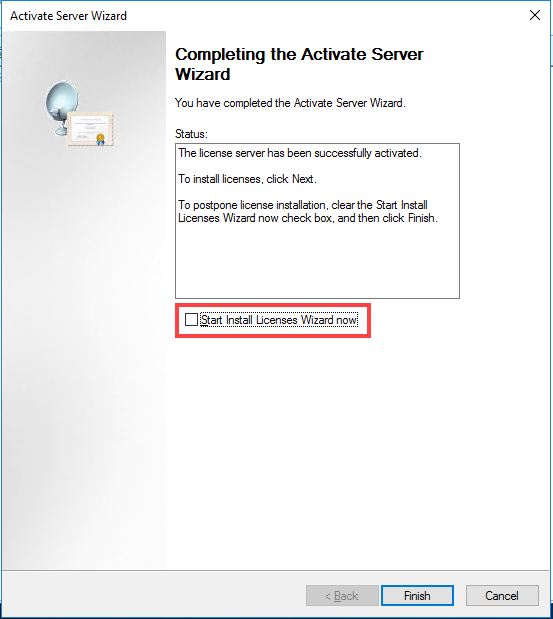
On the Completing the Activate Server Wizard screen, uncheck Start Install Licenses Wizard now and click Finish.
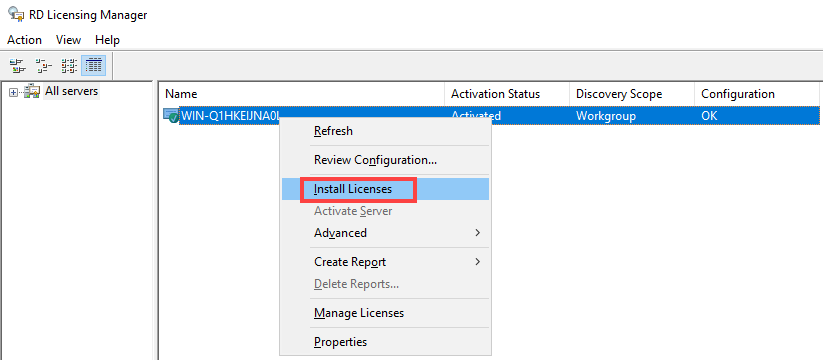
Your server status should now show as Activated.

Right-click your server and select Install Licenses.
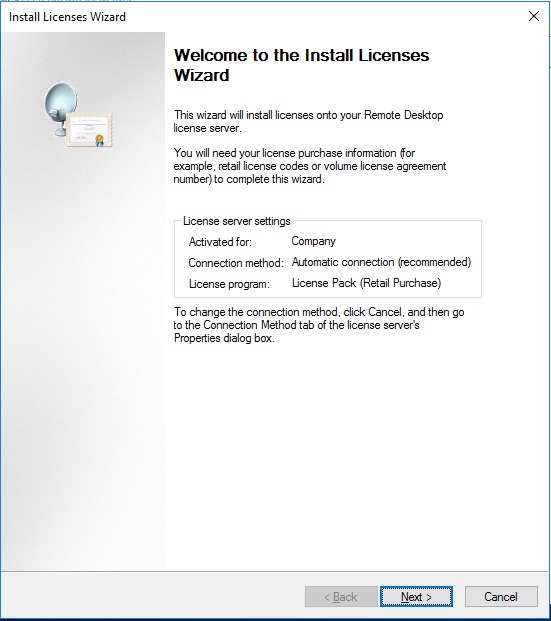
In the Install Licenses wizard, click Next.
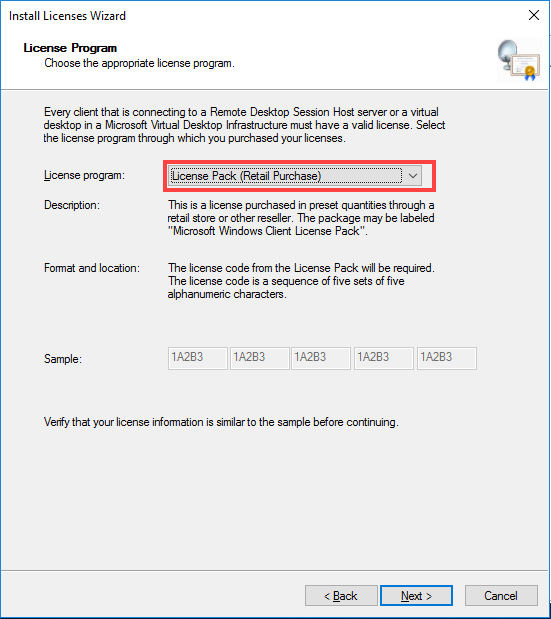
On the License Program screen, select License Pack (Retail Purchase) and click Next.
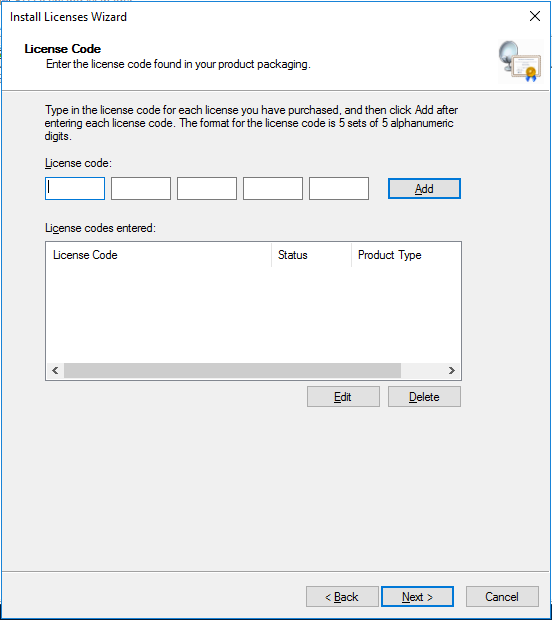
On the License Code screen, enter your license code, click Add, then Next.
Complete the installation.
Scenario 2. Configure RDS license using existing license server
If your organization already has an RDS license server, you can use it.
Once the RDS license server is activated and running on another machine in your organization, reconfigure the RD session host to obtain CALs from it. You can set the licensing mode and specify the license server name using the Server Manager GUI, PowerShell, or Group Policy (GPO).
- Server Manager GUI
- PowerShell
- GPO
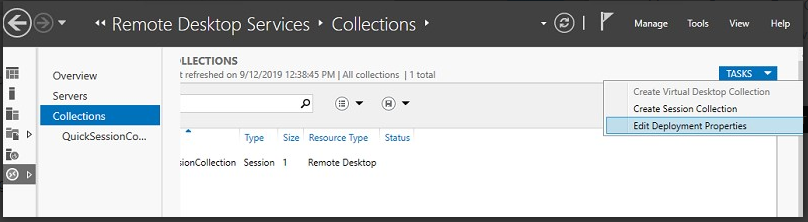
Open Server Manager > Remote Desktop Services > Collections. In the Tasks menu, select Edit Deployment Properties.
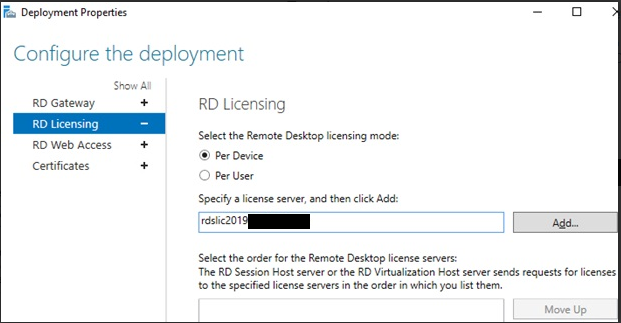
On the RD Licensing tab, select the remote desktop licensing mode and the RDS license server. Click Add, then OK.
If licensing type is not configured, you can see the error: "The licensing mode for the Remote Desktop Session Host server is not configured".

Run the following command:
$obj = gwmi -namespace "Root/CIMV2/TerminalServices" Win32_TerminalServiceSettingSpecify the license type you need:
$obj.ChangeMode(4)Where
4corresponds to the Per User licensing mode, and2is used for Per Device.
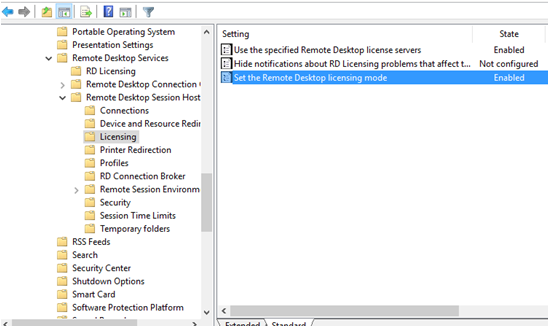
Create a new GPO and link it to the OU with RDS servers or the local Group Policy editor gpedit.msc.
Navigate to Computer Configuration > Policies > Admin Templates > Windows Components > Remote Desktop Services > Remote Desktop Session Host > Licensing.
Configure the following RD policies:
- Use the specified Remote Desktop license servers. Enter the license server address.
- Set the Remote Desktop licensing mode. Select the RDS CAL type.
Verify license server status
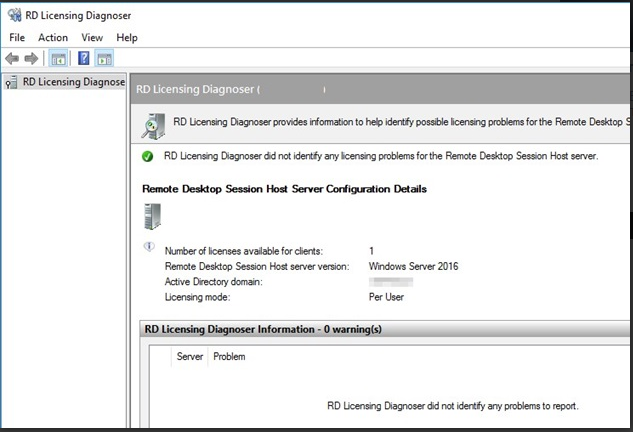
To check the license server status and issued licenses, go to Administrative Tools > Remote Desktop Services > RD Licensing Diagnoser.
If no warnings appear and you see the message "RD Licensing Diagnoser did not identify any licensing problems for the Remote Desktop Session Host server", the RD Session Host server can successfully receive RDS CALs.