Maintain global variables
Global variables store common values used in different Business Processes (BPs) without hard-coding them in Bot Tasks. In particular, global variables can store the following information:
- URLs of services, such as OCR REST service, web app login pages
- Parameters, for instance, minimal DPI for document recognition, output file extension
- Modes, for example, test or production
- Strings, such as names, messages, translations
- Timings, such as schedules and timeouts
Access global variables
By default, all global variables are stored in Data Stores. To access them, navigate to Advanced > Data Stores > Global Variables.
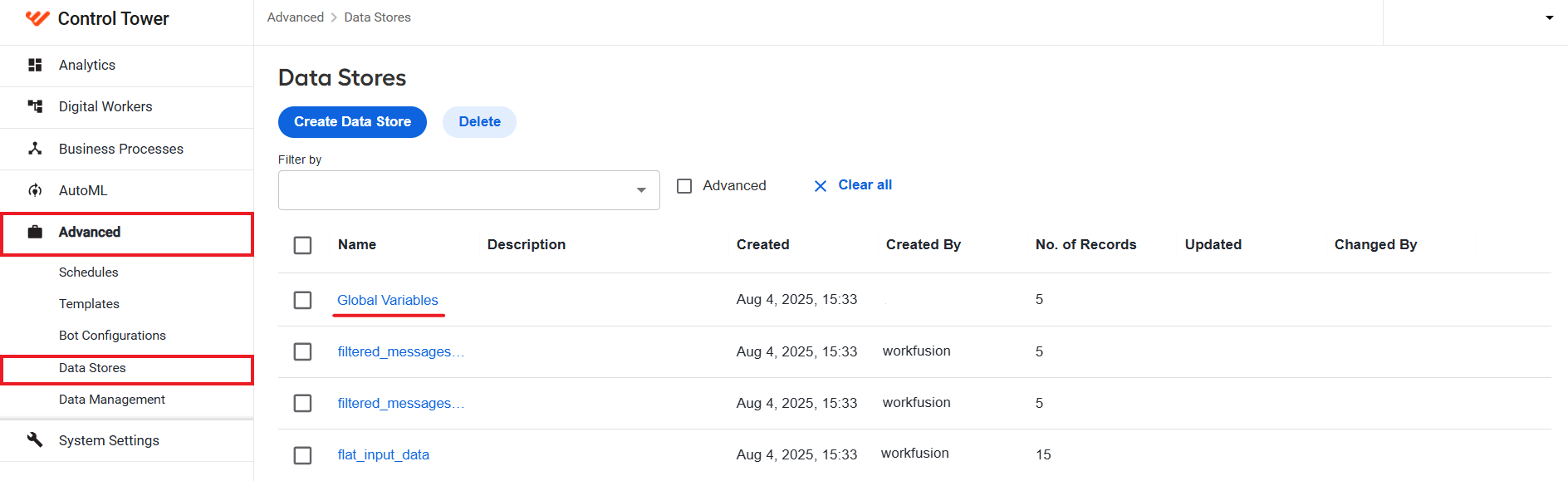
The Global Variables Data Store is available by default and cannot be deleted.
In the Global Variables Data Store, variable names correspond to the column header names, and values are taken from the first row (if other rows exist, they are ignored). For more information on Data Stores, read the guide.
Insert and create global variables
You can use and create global variables from a Business Process on the Workflow tab without manually creating Data Stores and adding columns to Field Schemes.
To create a global variable, follow the steps below:
On the Workflow tab, insert the
<var-global>plugin with a meaningfulnameattribute into a bot step, for instance, as shown below:<export include-original-data="true">
<single-column name="OCR">
<var-global name="ocr_rest_url"/>
</single-column>
<single-column name="VDS">
<var-global name="vds_params"/>
</single-column>
<single-column name="Timeouts">
<var-global name="rpa_timeouts"/>
</single-column>
</export>tipTo name a global variable, use only lowercase alphanumeric characters and underscores, for example,
ocr_parameters.Save the bot step configuration. After that, you get the following warning: "Global variables used in Step_Name bot step are missing N values."
Click the warning. Alternatively, go to the Run tab, click the Advanced Options button, and navigate to the Global Variables tab.
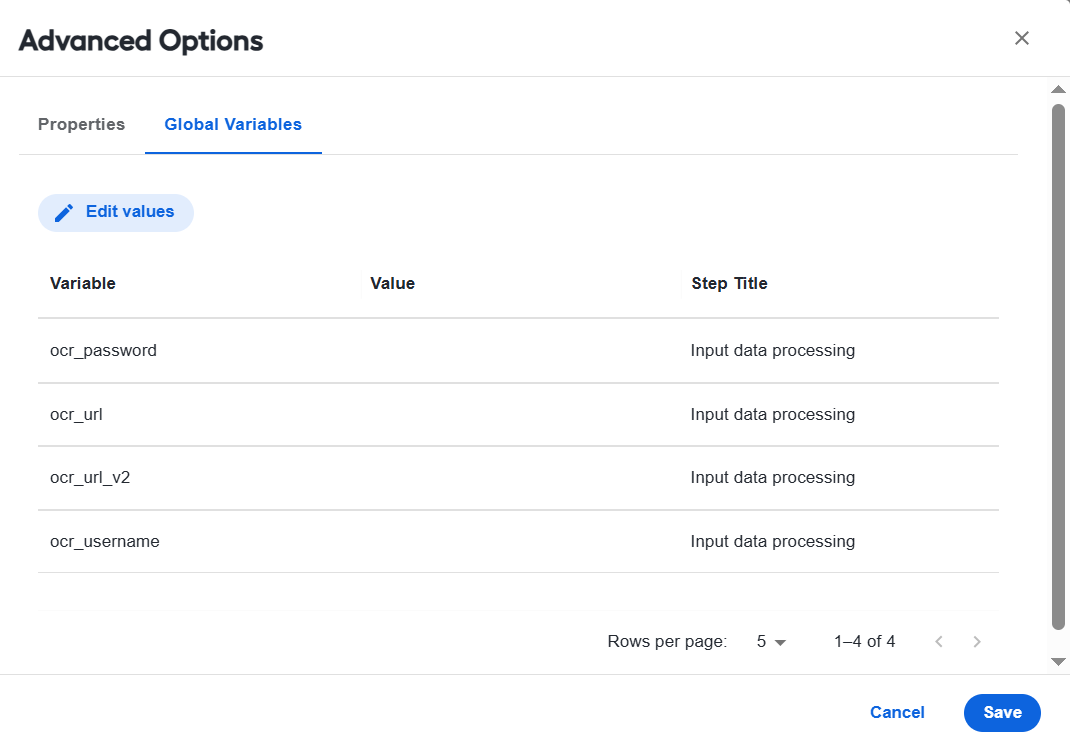
Click the Edit values button. The Global Variables Data Store is opened in the edit mode.
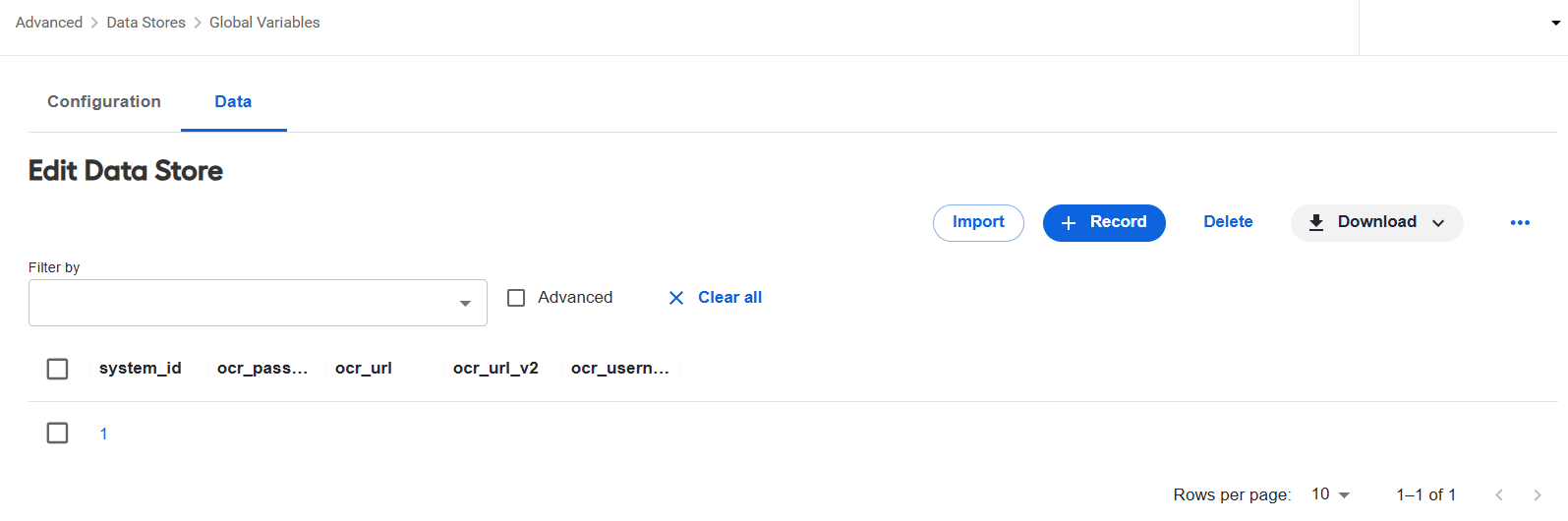
Click the corresponding record and, in the Edit record window, set values for all variables that are missing them and click Save. Then, click Save on the Global Variables Data Store page.
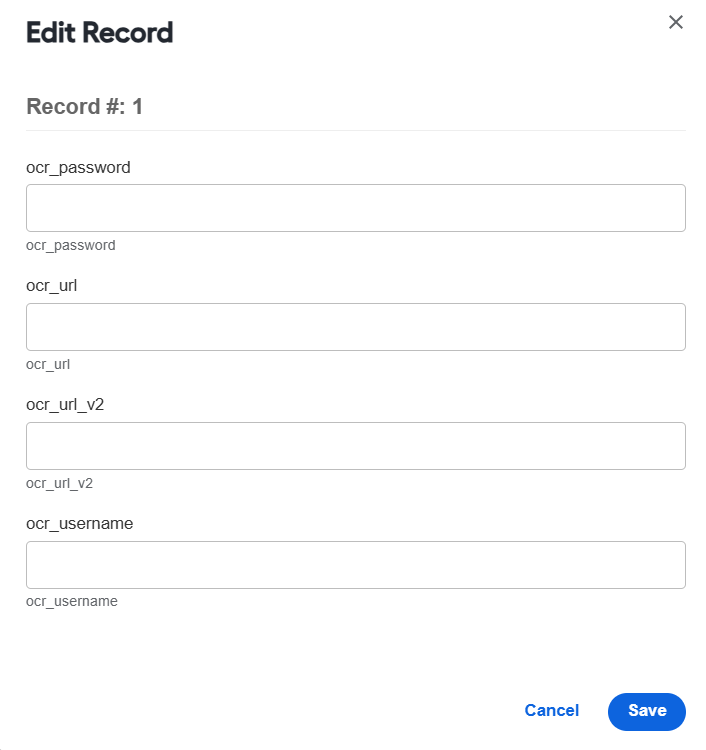
Return to the Global Variables tab and click the Refresh button.
Click Save.
If global variables are set in Data Stores > Global Variables, you can use them in bot steps of other Business Processes.