Audit activity log
Control Tower provides audit functionality that tracks track user and system actions. To view the history of actions, go to System Settings > Activity Log.
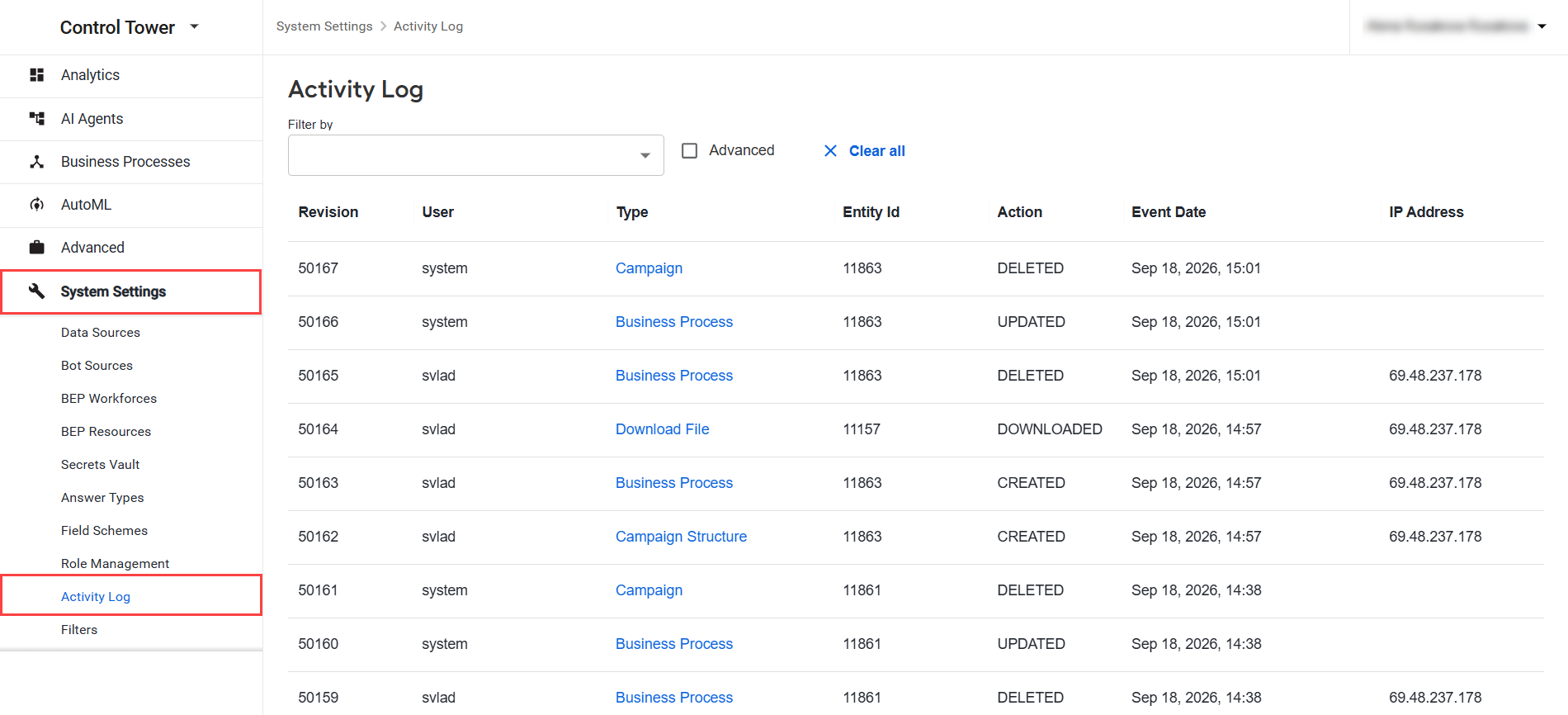
The Activity Log page displays a grid with the following information:
- Revision: the revision number of the record
- User: the user (or the system) that performed the operation.
- Type: a clickable field that describes the target object of the operation, for instance, License, Template, or Task
- Entity ID: the unique identifier of the operation object
- Action: the operation performed, for example, CREATED or UPDATED
- Event Date: the date and time when the operation was performed
- IP Address: the IP address of the user
View activity types
A type records the changes made to the corresponding objects. The following activity types are available.
- Rule: composite and other types of rules.
- Bot Configuration: Bot Configurations.
- Template: templates.
- Question: the Manual Task configurations.
- Hit: Manual Task internal entities.
- Endpoint Task: Manual Task internal entities.
- Scheduled Campaign Upload: schedulers.
- Business Process: Business Processes.
- Task: Manual Tasks.
- Campaign: Business Process definitions.
- Campaign Structure: the XML structure of a Business Process workflow.
- Task Preview: the usage of the Manual Task Preview feature.
- Business Process Preview: Business Process preview actions.
- User: users in the system. For LDAP and SSO, counting unsuccessful login attempts is not supported.
- User Group: user groups in the system.
- Role: system roles
- Secrets Vault: Secrets Vault entries.
- Export: the export of entities.
- Task Export: the export of Manual Tasks.
- Business Process Export: the export of Business Processes.
- Campaign Export: the export of Business Process definitions.
- Data Store: Data Store entries.
- Data Store Content: the content of the Data Store.
- Answer Type: Answer Type entries.
- Preference: version preferences.
- Business Process Tab: actions on the Business Process Designer tab.
- Task Tab: actions on the tabs used to design Manual Tasks.
- Account: the default Workspace license.
- Run: Business Process runs.
- Download File: file downloads.
- Preview: the usage of the preview feature.
- Bot Operation: bot operations.
- Manual Operation: manual operations.
- Business Process Operation: Business Process operations
- Inconsistent Assignment: the usage of inconsistent assignments.
- Data Management Configuration: data management configurations.
- Digital Worker Variation: AI Agent variations.
- Digital Worker Variation Configuration: AI Agent variation configurations.
- Asynchronous Sub-process Execution: the usage of the asynchronous sub-process execution.
- Synchronous Sub-process Execution: the usage of the synchronous sub-process execution.
For details on how to track and manage user sessions, refer to the Manage sessions guide.
Apply filters
To make searching through thousands of logged records easier, apply either of the following filter types:
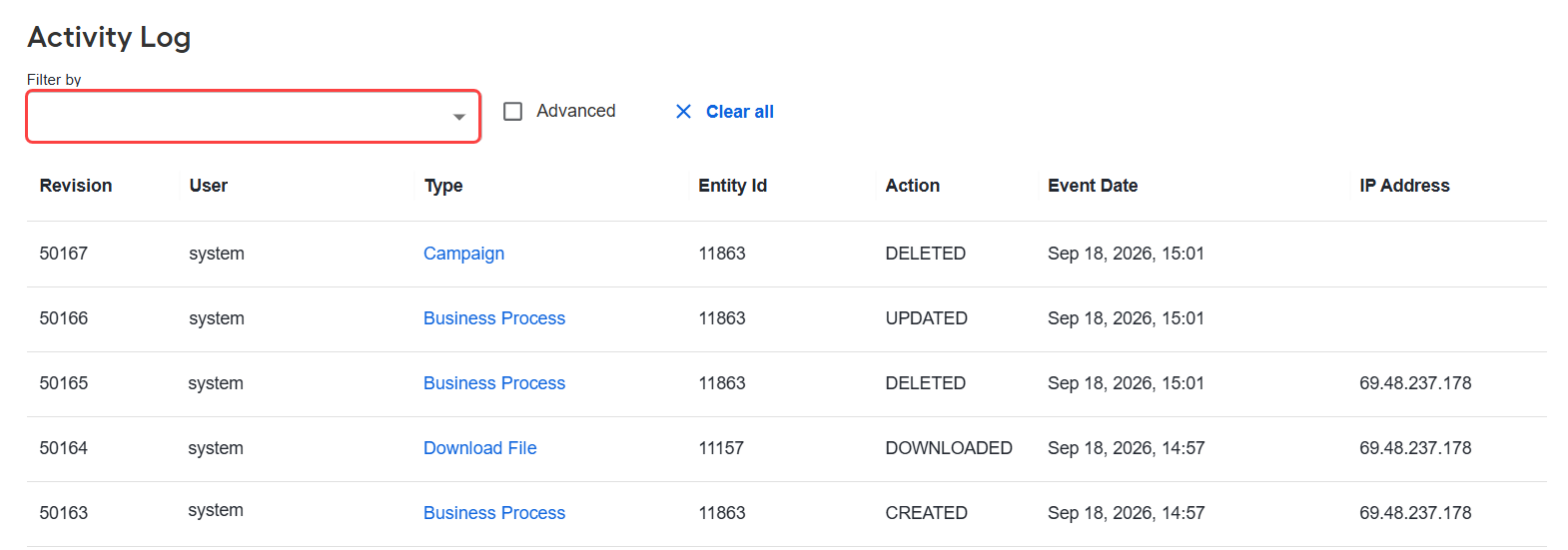
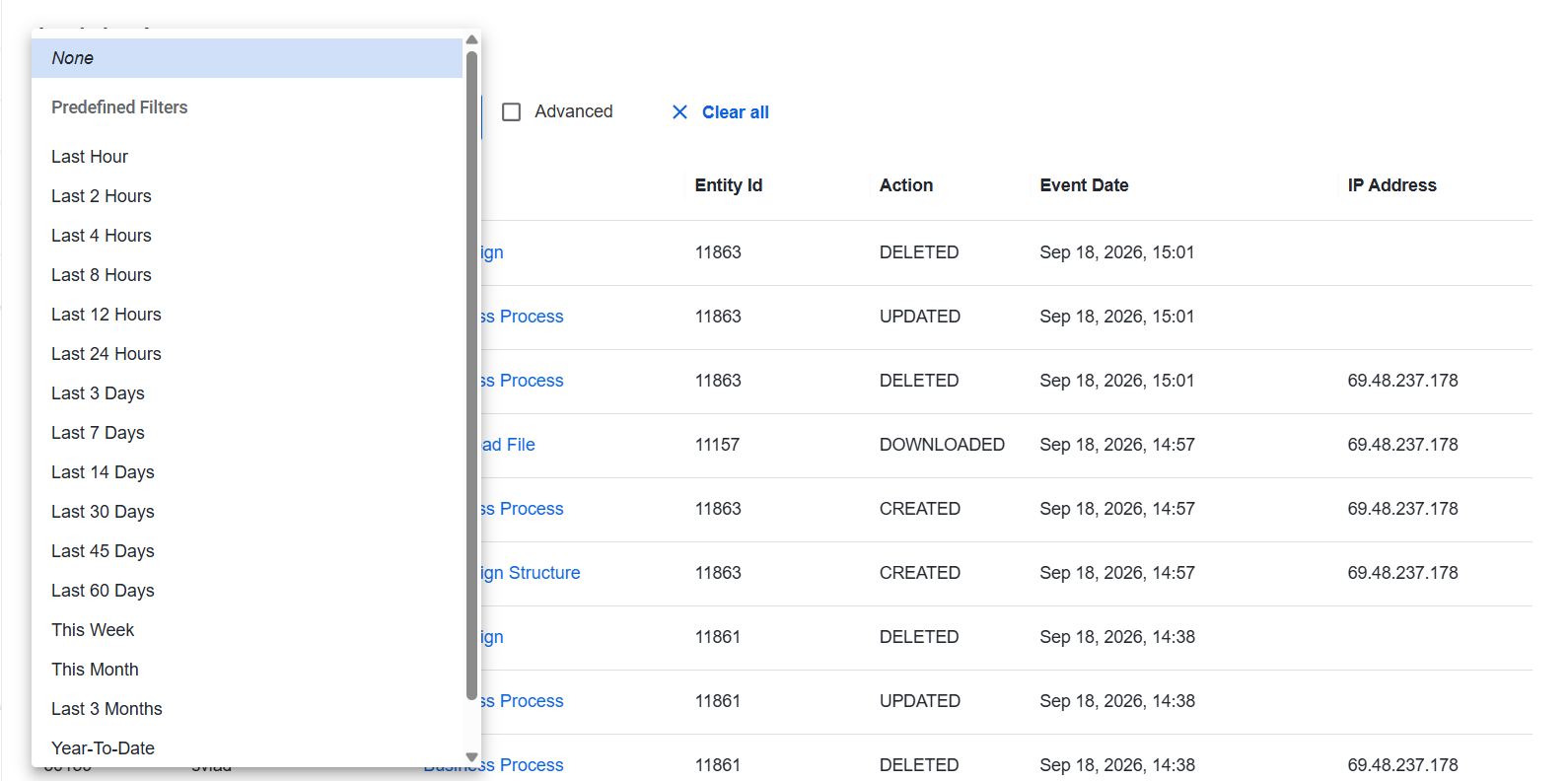
Predefined sets a time frame for the records displayed in the list. To apply it, click the Filter by field and select a predefined filter from the drop-down options.
Advanced enables you to set one or more criteria for the records displayed in the list.
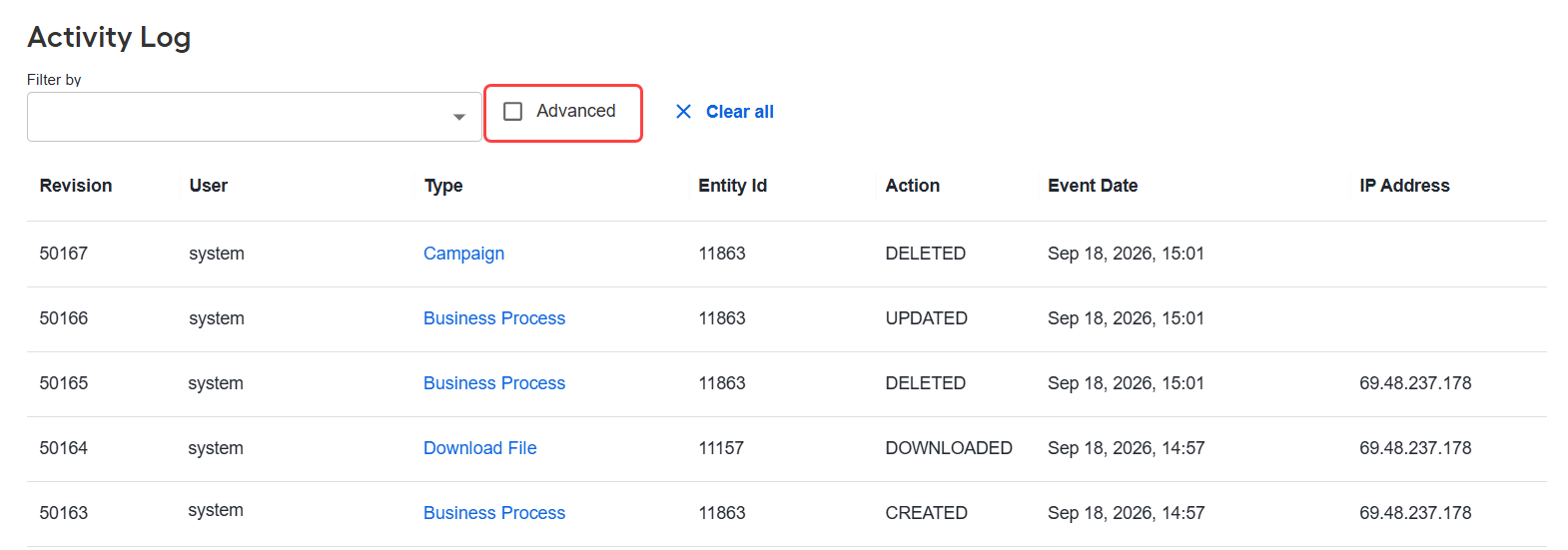
To apply the advanced filter, follow the steps below:
Select the Advanced checkbox next to the Filter by field. The filter builder expands below.
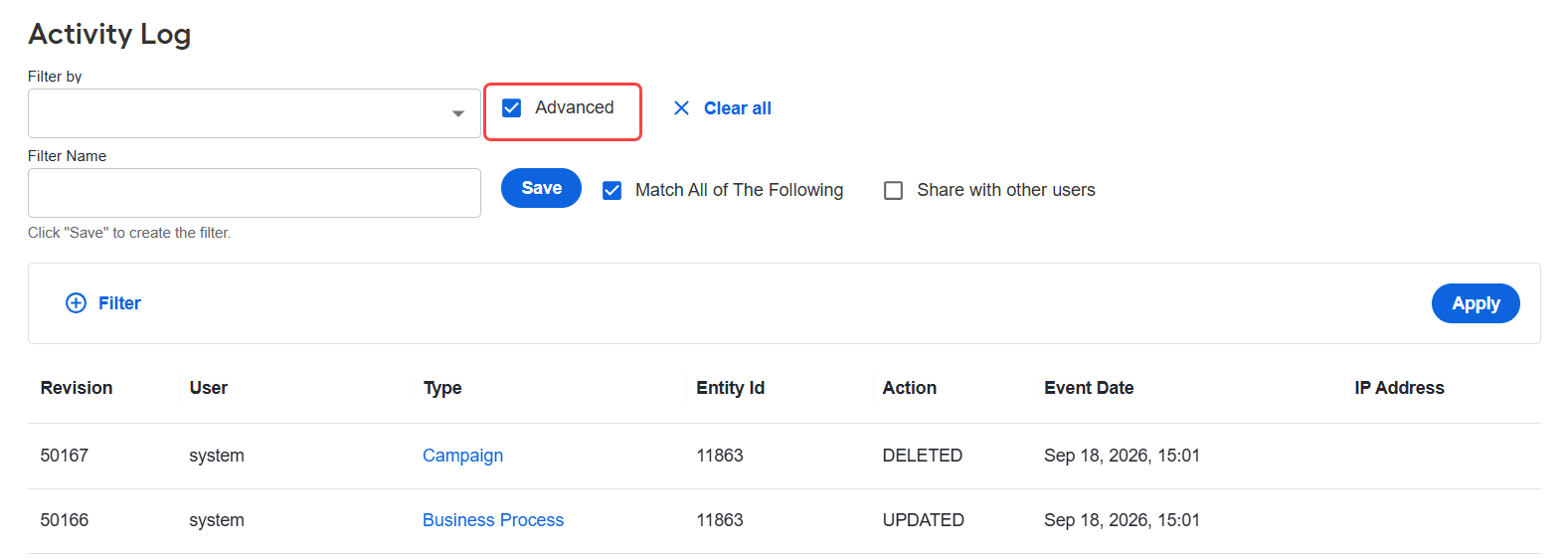
Click Filter.
In the Column drop-down, select a column name, for example, Type. In the Operator drop-down, select an operator. In the Value field, select one or more values. The selected values are displayed as chips. To remove a value, click the x on its chip.
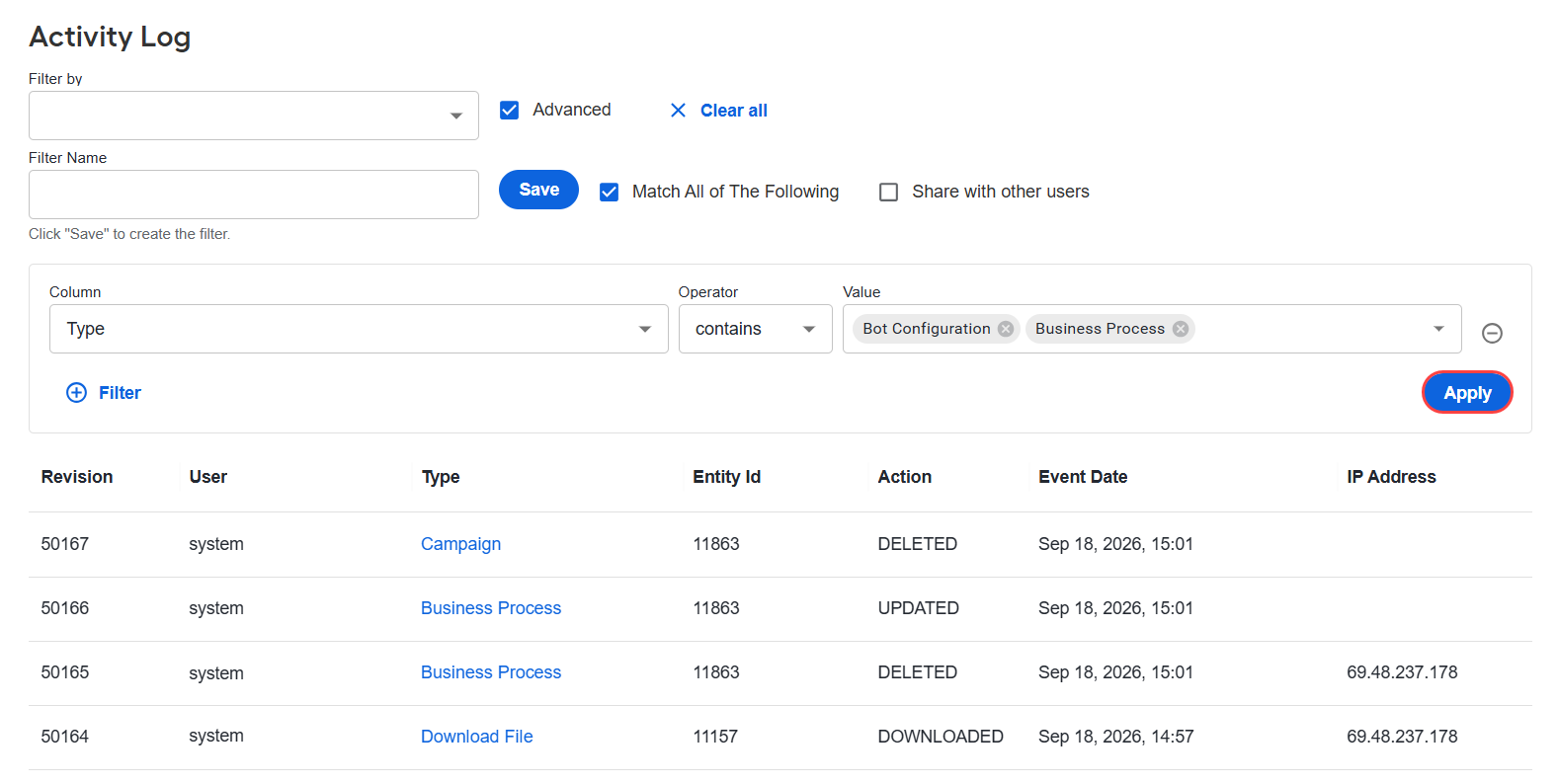
To add another condition, click Filter. To delete a condition you no longer need, click the - icon at the end of its row.
(Optional) Select the Match all parameters checkbox if all conditions must match.
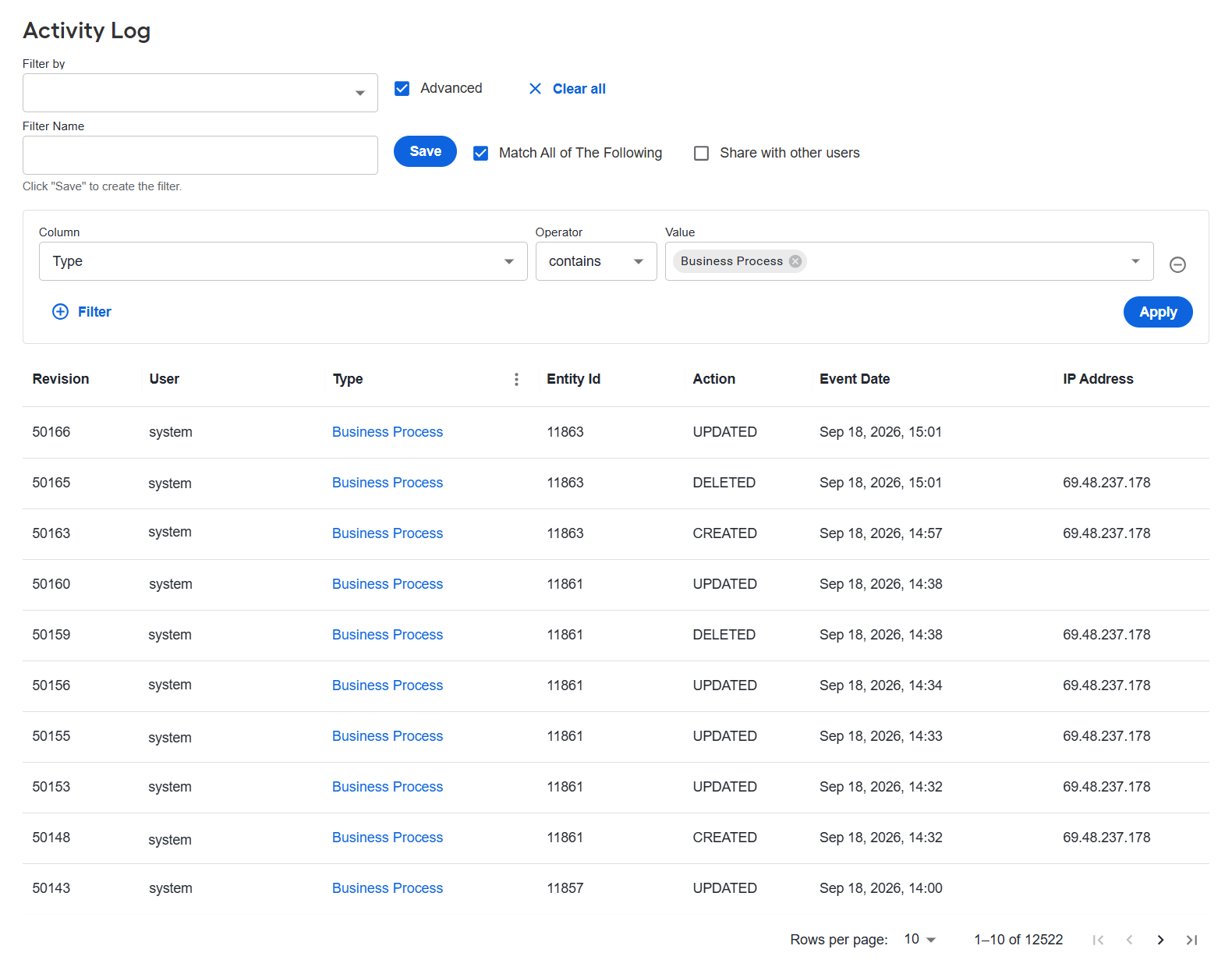
Click Apply. The grid refreshes and displays the filtered records.
To reuse the filter, enter its name in the Filter Name field and click Save.
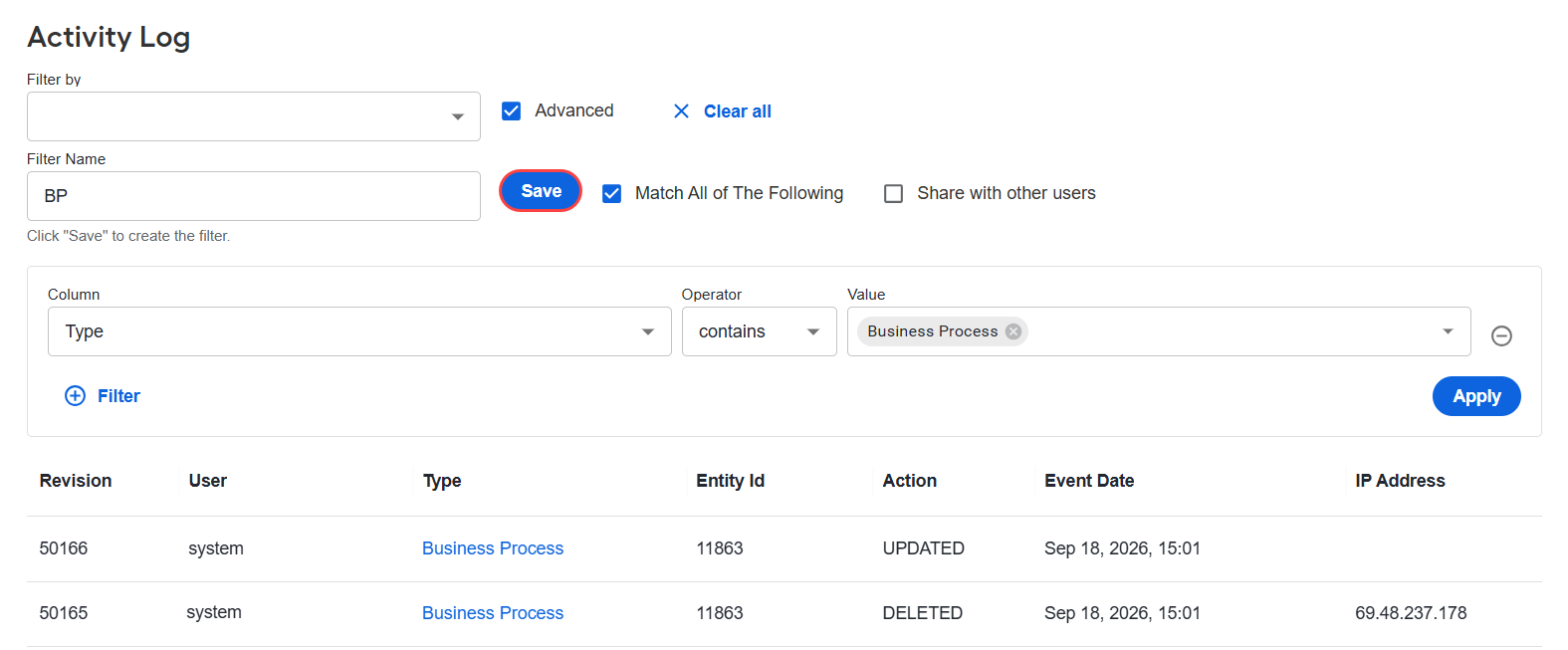
The saved filter becomes available in the Filter by dropdown.
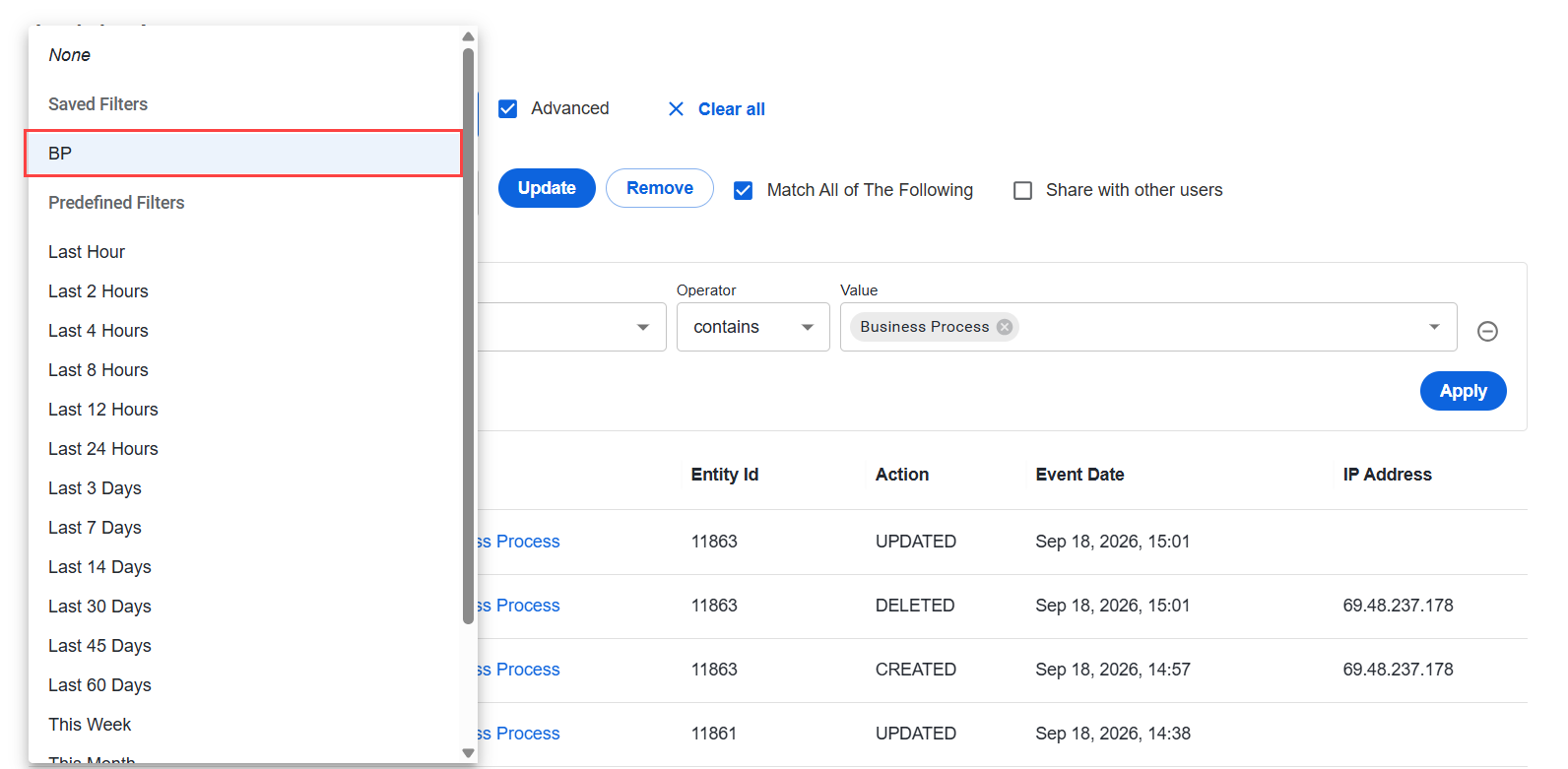
To reset the conditions, click Clear all.
View changes
To view the changes, find the record you need and click its type in the Type column.
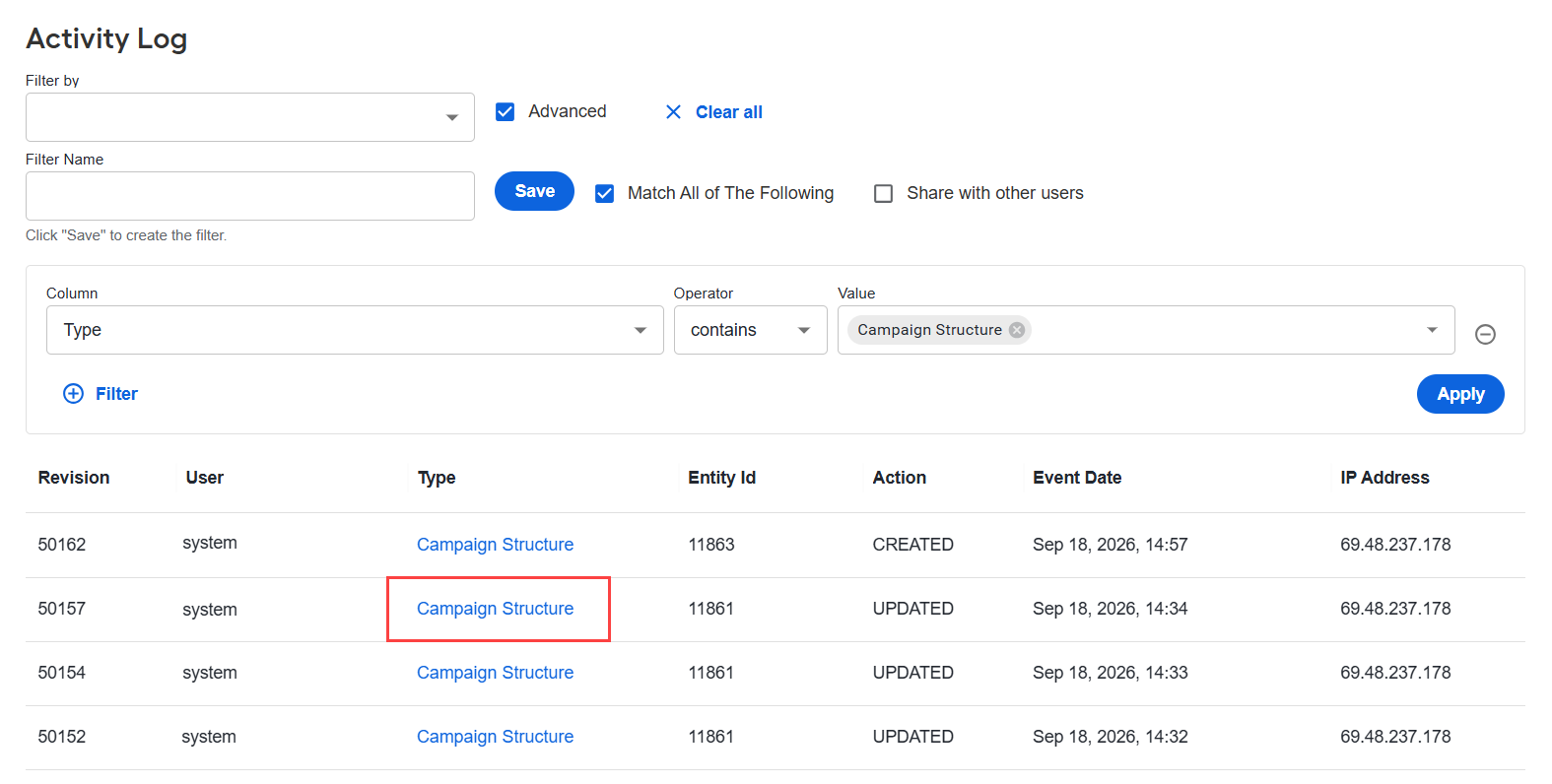
A file comparison dialog appears.
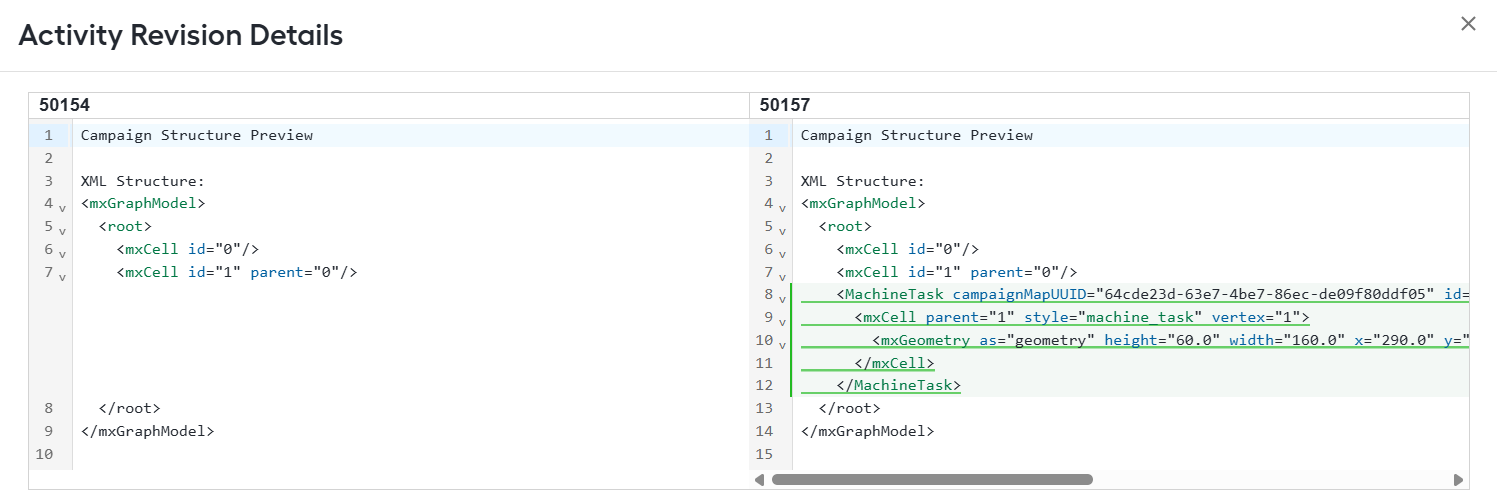
All audit data is stored in the AuditData table. For column descriptions, see View activity types.
Query sample for displaying changes made to roles and users
select case a.`action`
        when 0 then 'CREATED'
        when 1 then 'UPDATED'
        when 2 then 'DELETED'
        when 3 then 'DOWNLOADED'
        when 4 then 'VIEWED'
        else 'N/A'
        end as "action"
     , a.content
     , a.createdDate
     , a.entityId
     , a.username
     , a.threadName
  from AuditData as a
 where a.entityType in( 'ROLE', 'USER')
 order by a.createdDate desc
;
For support guides, refer to the following pages: