Schedule Business Process
Besides running Business Processes (BPs) manually, you can set them to run on schedule.
For BPs that have a schedule—whether running, paused, or inactive, the auto-rotation feature with previously configured record limits is automatically disabled.
Create schedule
You can create schedules for BP definitions only.
To create a schedule, follow the instructions below:
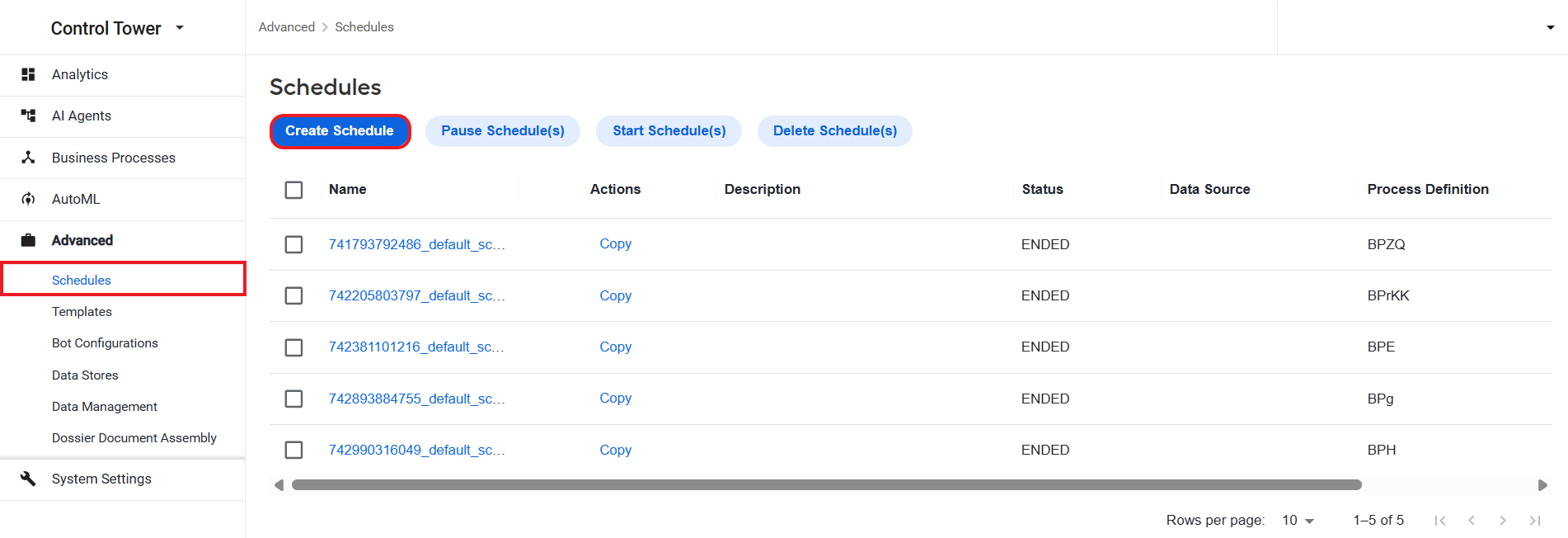
Go to Advanced > Schedules and click Create Schedule.
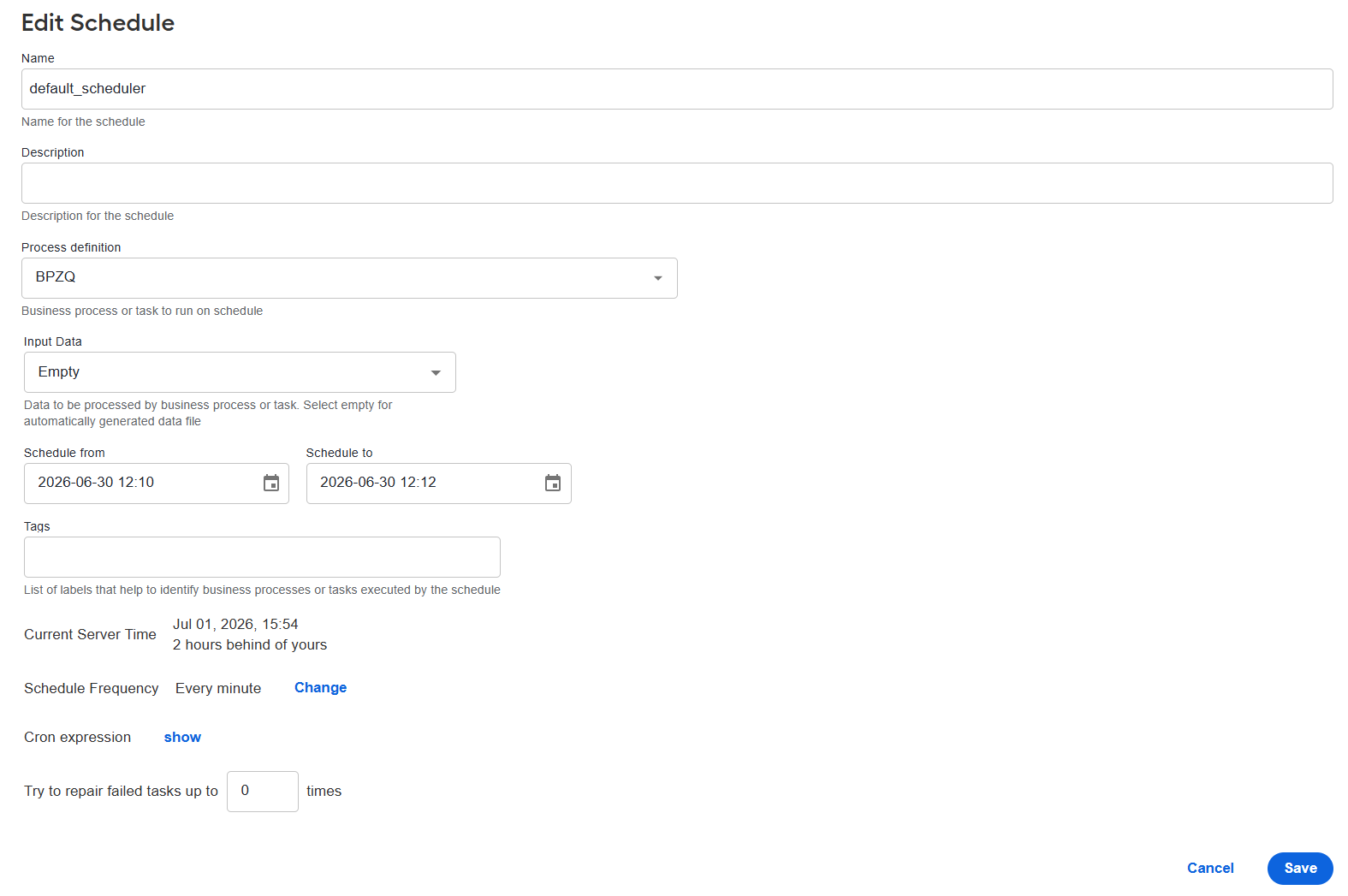
On the Create Schedule page, type in the Name and, if needed, Description and select the BP definition you need to run.
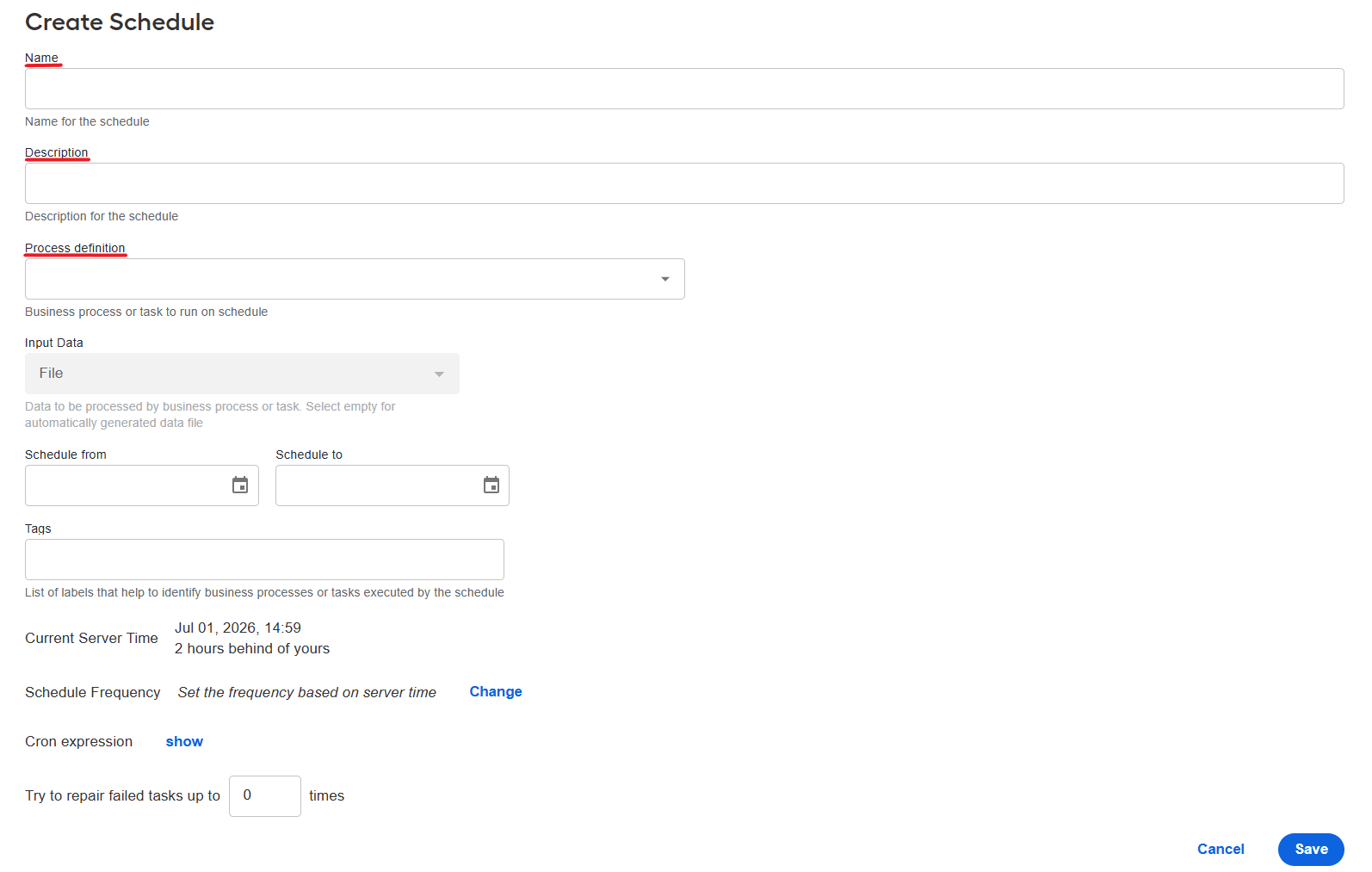
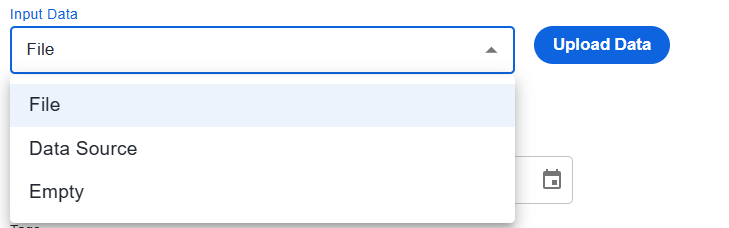
In the Input data drop-down list, select your input data type:
- File: upload a data file.
- Data Source: in the drop-down list that appears, select a Data Source. For more details on the Data Source configuration, refer to Start Business Process from Data Source.
- Empty: set up the scheduler to use the data from recorder variables.
In the Schedule from and Schedule to fields, specify the starting and ending date and time for the schedule.
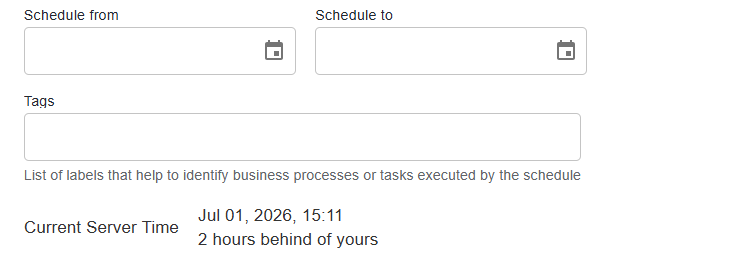
Add tags if required.
noteThe Current Server Time section automatically shows the current date and time on the server and the difference with the local time.
To configure the schedule frequency, click Сhange and type in or select values in appropriate drop-down boxes. You can set the BP to start at a particular time or run at specific intervals.
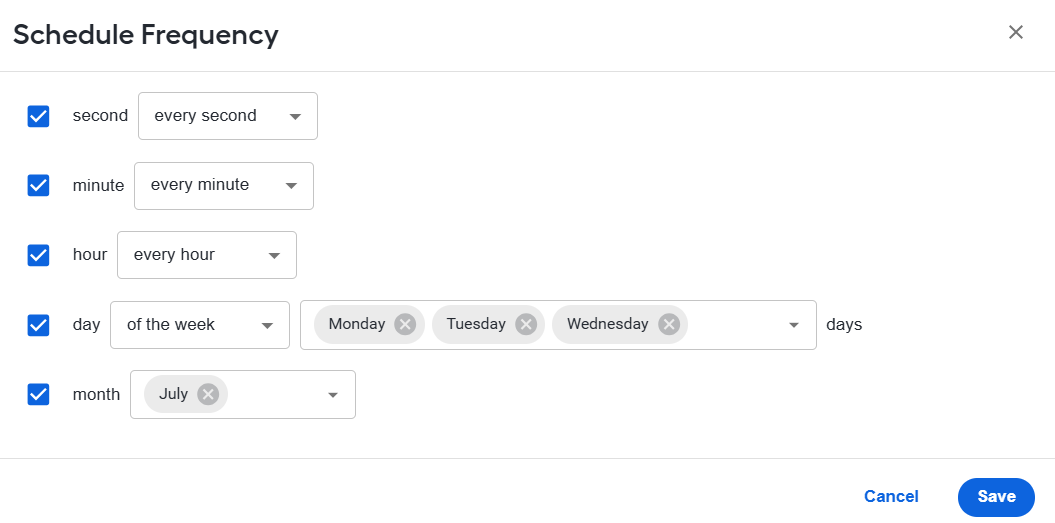
To view the specified schedule frequency as a Cron expression, click Show Cron expression.
 note
noteThe schedule is triggered according to the schedule frequency only within the schedule period configured in Step 4.
In the Try to repair failed tasks up to box, specify the number of bot step execution retries for each record in the BP.
If a bot step fails during execution (external server not available, RPA node disconnected, and so on), the step is automatically restarted until it is executed successfully or the retry limit is reached. Afterwards, you can repair failed steps manually. See View logs and repair Business Processes.
Click Save.
Manage schedules
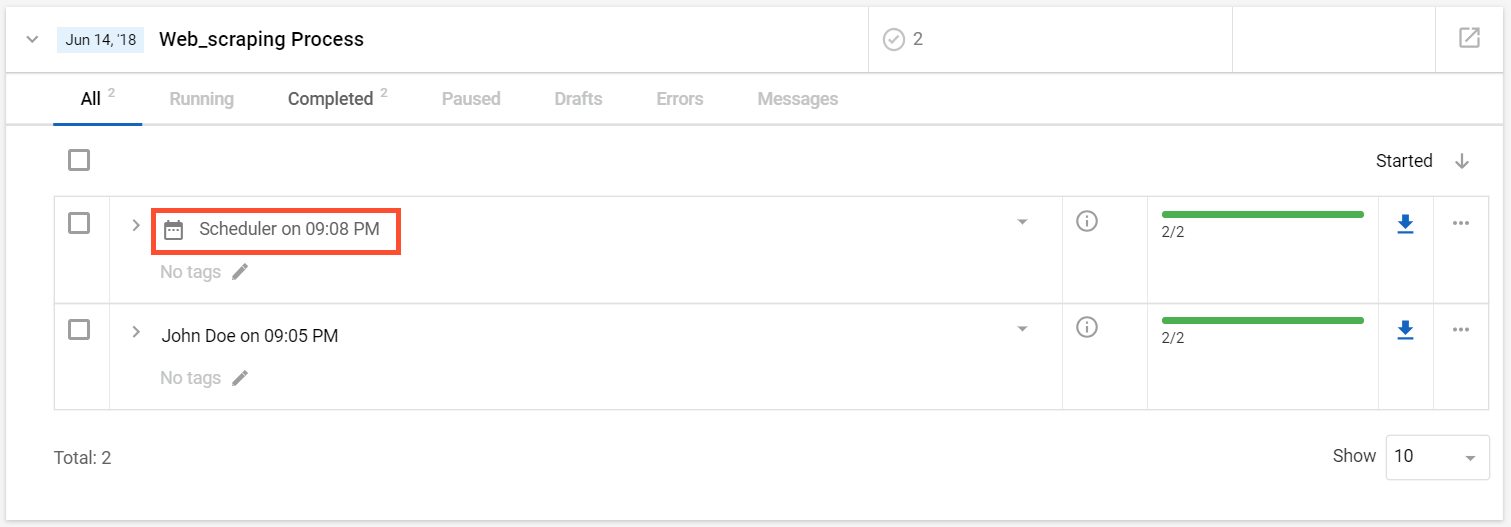
When the scheduler starts a BP, it creates a separate instance. You can see all BP instances on the Business Processes > View all page.
To edit a saved schedule, go to Advanced > Schedules, select the schedule, modify its parameters, and click the Save button.
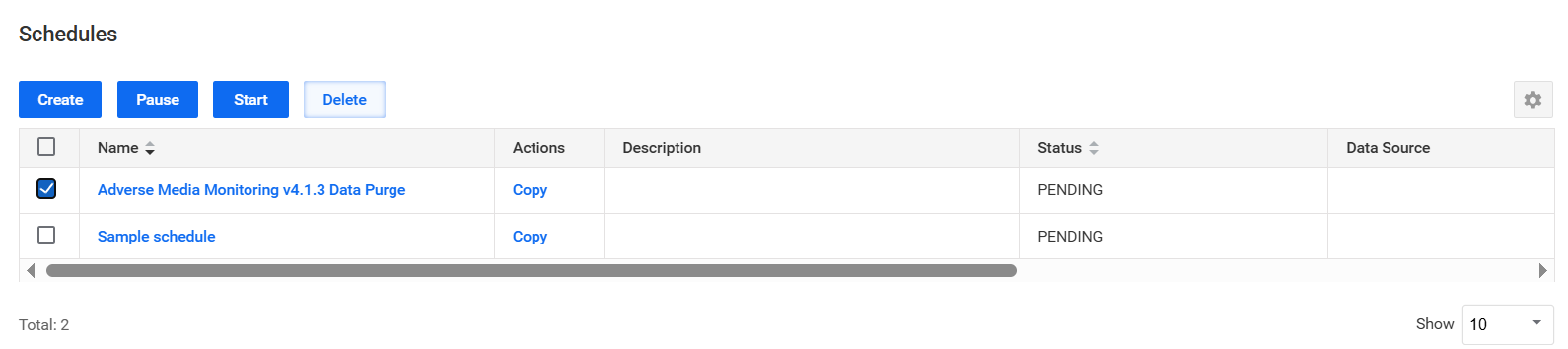
You can also manage schedules in the following way:
- Pause
- Start
- Delete
To initiate the above actions, select the checkbox next to a schedule and click an appropriate button.
When you delete a BP from the BP list, its instance remains in Control Tower.
Import schedules with Asset Bundle
Advanced users with coding skills can also import scheduler configurations by packaging them into an Asset Bundle together with the associated Business Process. In this case, they will not have to additionally configure a schedule for the Business Process—the latter will start running on schedule as soon as it is installed.
For details and instructions, refer to Import Business Process schedules with Asset Bundle.