Track transactions
Transaction tracking is applied at the Business Process (BP) level. It is possible to track only specific or multiple steps or exclude them from tracking.
Enable transaction tracking
To enable transaction tracking for STP and SLA metrics calculation in a BP, follow the steps below:
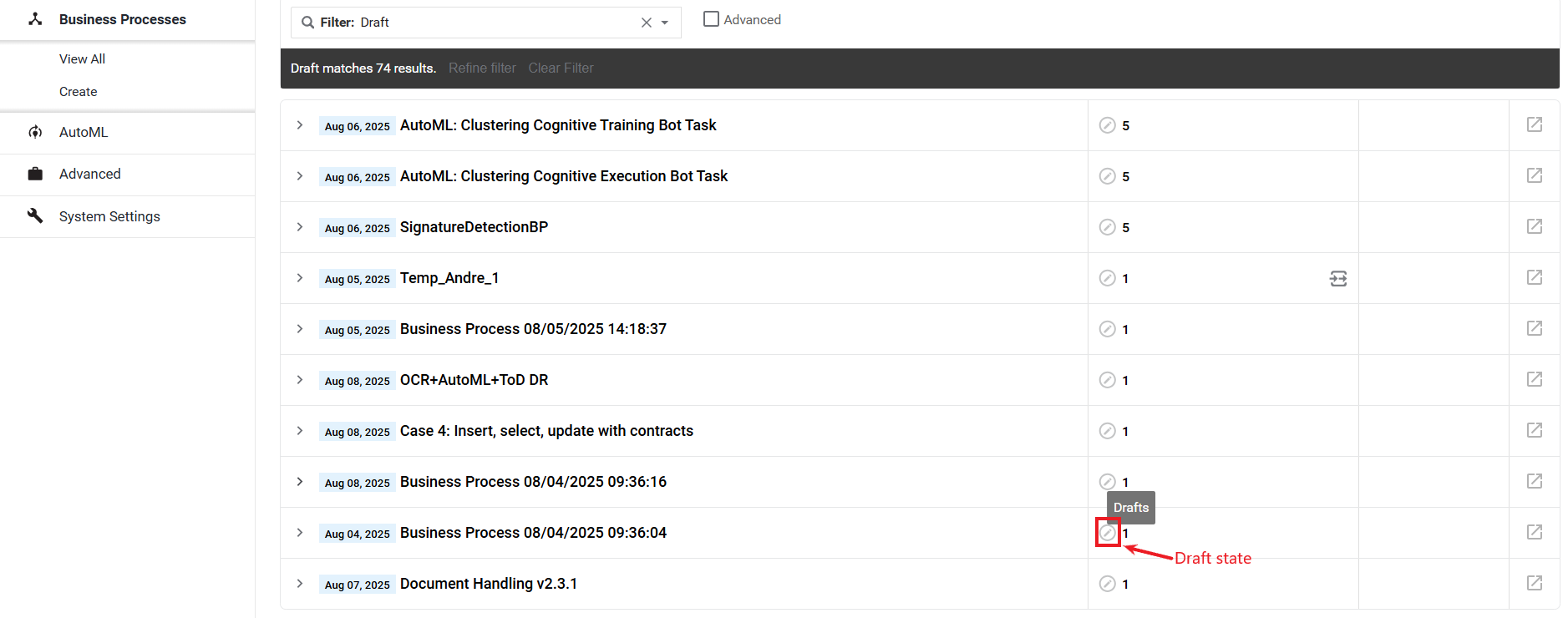
In Control Tower, choose a BP in the draft state and go to the Workflow tab.
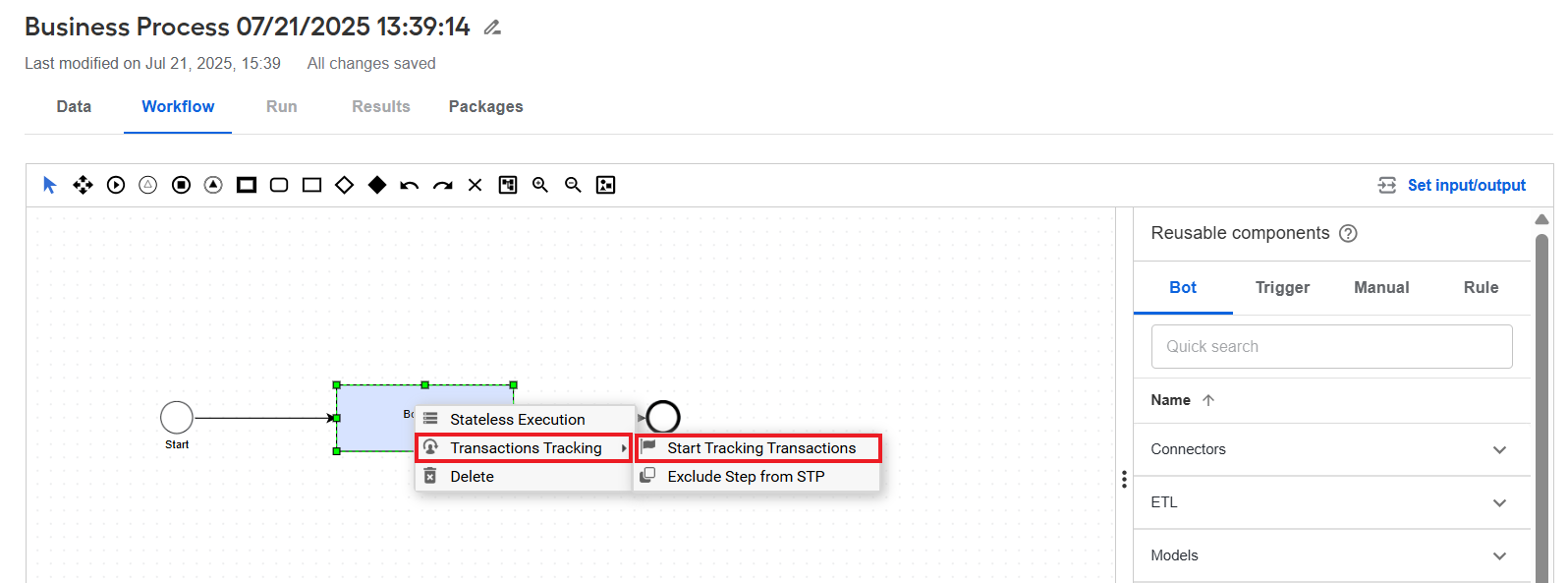
Right-click a step, select Transaction Tracking, and click Start Tracking Transactions. The step is marked as Transactions: Tracking started.
After transaction tracking is enabled, every input record to this step is counted as an independent transaction, and its movement through the process is saved to the database.
If steps with tracked records are split, all its child steps are tracked as parts of the parent record as described in the See how tracking works section.
Transactions may not appear on the first step of a process because input data might contain a link to the storage with documents intended for processing. Thus, transaction tracking can be started only on the next step when the documents are retrieved. However, it is recommended to avoid such BP designs unless you are sure that the behavior is required.
To mark a document as a transaction to be tracked, set tracking to start from the step where every record input corresponds to a single document.
You can enable tracking on multiple steps. It will not affect already tracked records but allows tracking any new independent records passing through the step.
See how tracking works
Tracking enabled
If transaction tracking is enabled, the following happens:
- Transactions are tracked as business entities, despite any split-join steps. Therefore, the processing time from end to end is calculated properly, and you can also apply the SLA by time.
- Only transactions as business entities are counted to measure the volume of processed work, so you can apply the SLA by volume.

Tracking disabled
If transaction tracking is disabled, only those records are counted that do not correspond to business entities. In this case, the information is more technical than business-related.
Consider limitations
Mind the tracking constraints related to the following:
Stateless execution
Transaction tracking doesn't work if stateless execution is enabled. With the feature on, Control Tower does not collect intermediate data into the database, and transaction information is not available in the Analytics dashboards.
Behavior on split rules
When a tracked transaction passes a split rule, all records from the rule outcomes are tracked as part of the original record.
The tracking behavior is slightly different for different split rules when two records created from one parent meet in one of the next steps.
If records are produced by split_rule and joined by join_rule, only one record for the business entity is created in the log. In the case of the split_data rule, after two parts meet in some step, a log record is created for each part of the original record.
Sub-processes
Tracking on a sub-process works as if it were part of the original process: enable tracking on any step inside the sub-process, and transactions will be tracked until the end of the parent process. Alternatively, you can activate it before a sub-BP, and transactions will be tracked inside the sub-BP as usual.
To track incoming records, expand the BP and enable transaction tracking on the first step.
Exclude step from Straight-Through Processing
You can exclude some steps in a BP from the STP rate calculation. Step exclusion will not affect how the entity is logged into the database. Every step will still be recorded.
That option will only affect the statistics calculation. The excluded steps will not be counted in STP-related metrics.
To exclude a step from the STP, follow the steps below:
In Control Tower, go to the required draft BP and navigate to the Workflow tab.
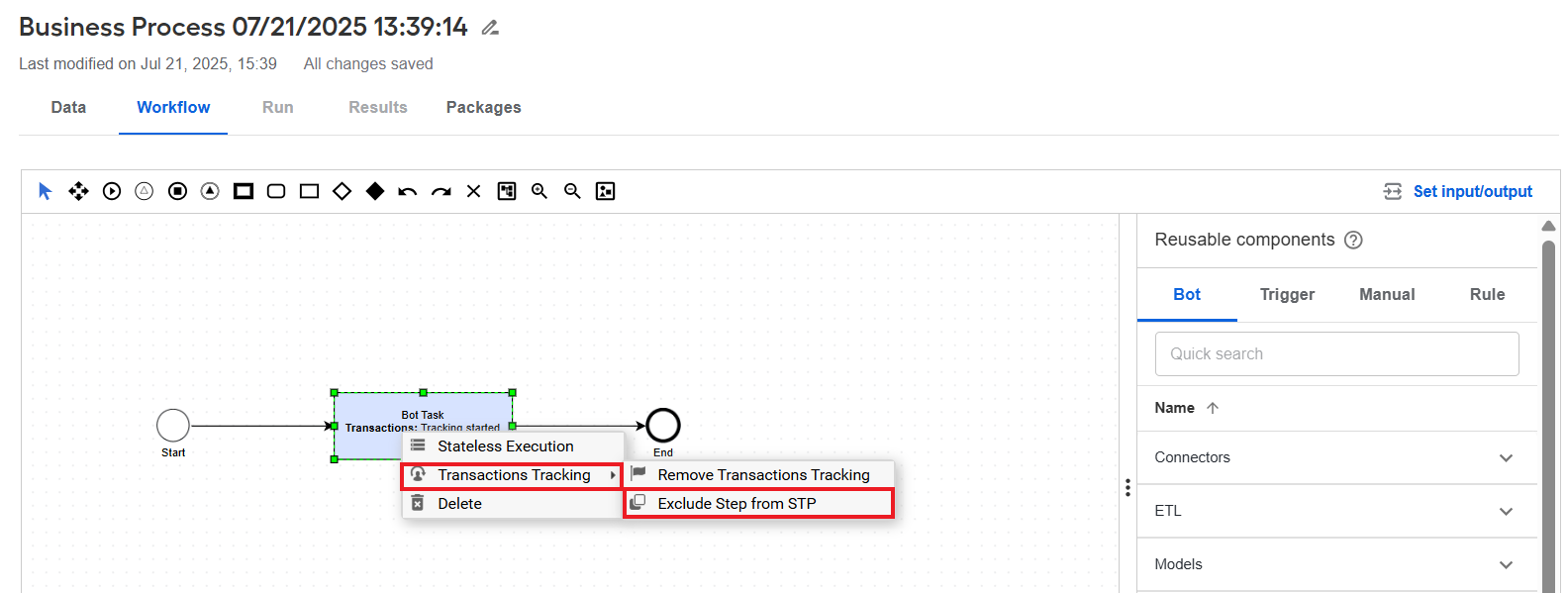
Right-click one or more steps you want to exclude from STP tracking.
From the sub-menu, select Transaction Tracking >Exclude Step from STP.