Issues related to slow task processing due to input data changes
Slow task processing can result from increased data volumes or a new document with a different structure introduced for processing.
To investigate, act as follows:
Analyze data volume
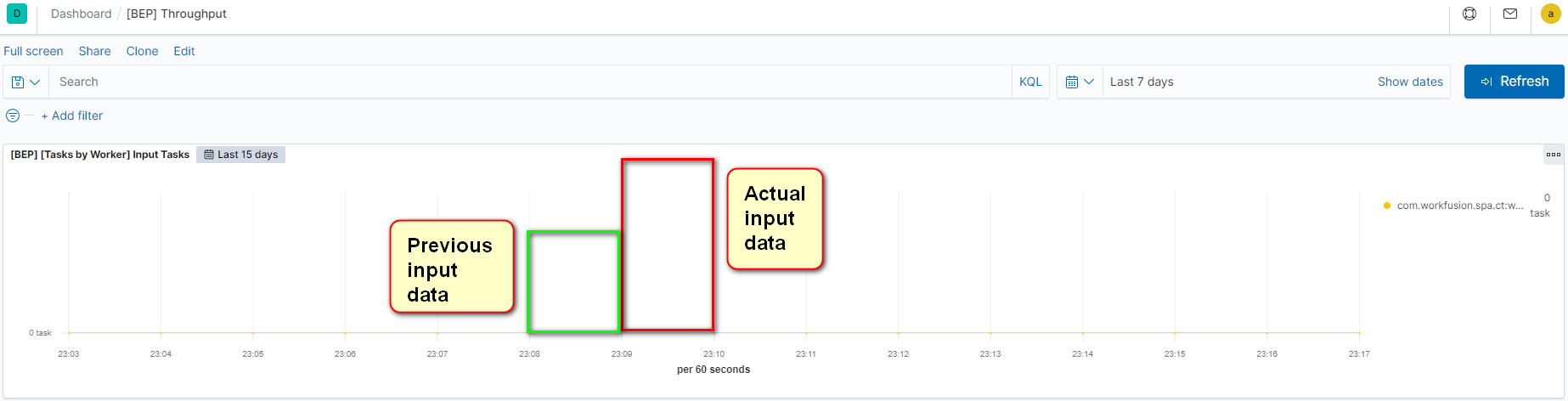
To check whether data volumes have increased, go to Kibana and look at the Tasks and Throughput dashboards. Compare current volumes with those before the issue occurred. The figure below illustrates the Throughput dashboard with a significantly increased input volume.
Compare input record counts
Alternatively, sign in to Control Tower (CT) and compare the number of input records for Business Process runs (for example, the number of input documents for human processing) with acceptable and unacceptable performance values.
Otherwise, utilize an SQL query to count ct.hitsubmissiondataitem entities—logical representation of input data records for each bot step, including uploaded input data for a Business Process run.
SELECT COUNT(h.id) FROM ct.hitsubmissiondataitem h
JOIN ct.run r ON r.id = h.run_id
WHERE r.startdate > '2021-04-27 17:00:00';
The query below enables counting an input data item, starting from a specific time. Another option is to add r.enddate to the WHERE clause to count records within a time range.
Test with previous data volume
Try launching the task with the previous input data volume.
Analyze load tests
Check whether the same input data volume was covered in the course of load testing.
Evaluate input document structure
Review the structure of the input documents causing the issue. Note that a failing document does not have to be larger than a standard one. Rather, it can have a more complex structure, meaning cells, tables, graphs, pictures, and so on. Generally speaking, additional elements other than plain text can add complexity.
Of course, size also plays a crucial role: the larger a document is, the more resources Work.AI needs to handle it, including CPU and RAM. Therefore, compare the documents potentially causing Business Process slowness with the documents processed when the performance was normal.
Reproduce issue
Try reproducing the slow performance issue in a different environment, for instance, dev or test one, with the same configuration.
Check previous tests
Check whether a similar document was covered in the course of testing.
Output
If you confirm the issue, create a support ticket. Otherwise, continue the investigation.
View also: