Run investigation
Once the Adverse Media Monitoring skill is installed and the configuration is complete, you can initiate investigations in one of the following ways:
Start Business Process from Control Tower
You can initiate Adverse Media Monitoring in Control Tower by running the core or Launcher Business Processes. The main difference between them is that the Launcher creates an ad-hoc search screen that enables analysts and business users without access to Control Tower to initiate investigations from Workspace as part of a transaction monitoring fraud alert investigation.
To start the core Business Process, do the following:
In the Control Tower menu, in the Digital Workers section, click View All, and then click the Adverse Media Monitoring group to expand it.
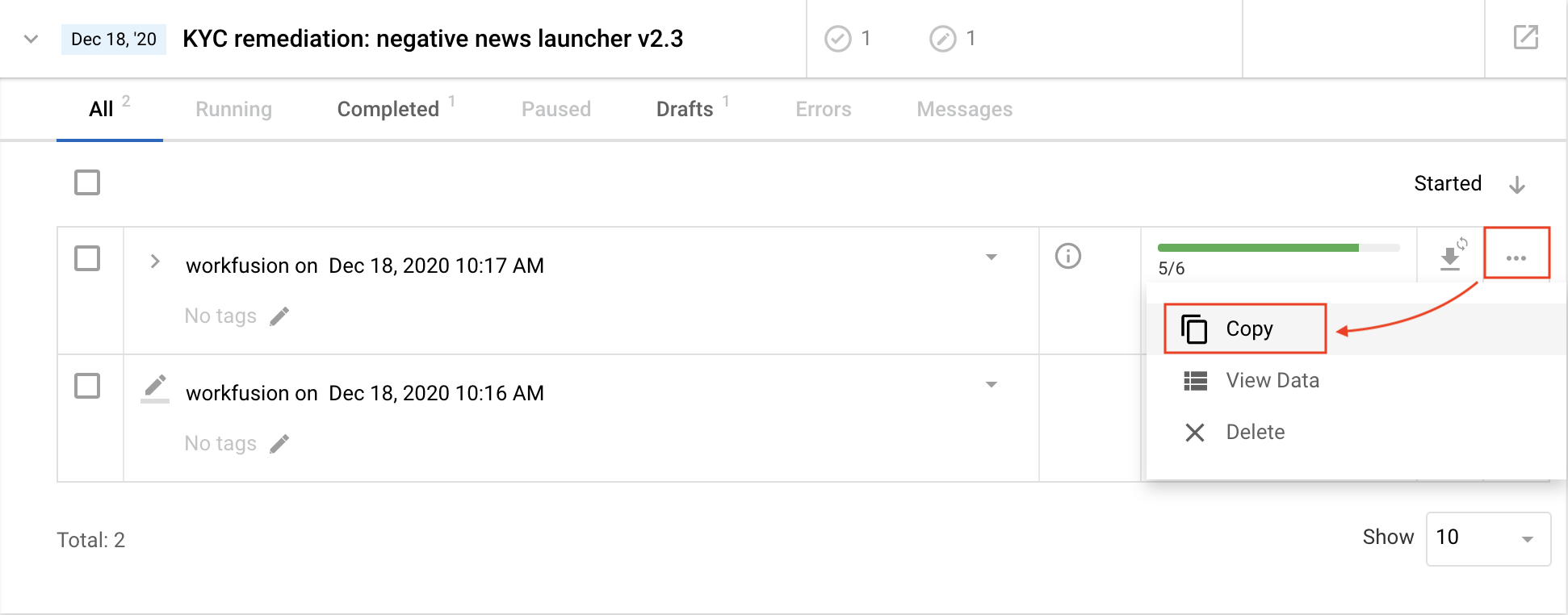
In the group, find the variation you wish to use and click Adverse Media Monitoring to expand the process definition. Click Copy to create a new instance of the process.
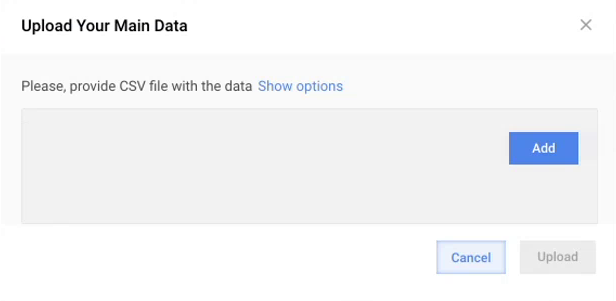
In the Business Process window, go to the Data tab and select Upload your data. The Upload your main data window appears.
In the window, click Add, select the CSV input file, click Open, and then click Upload. The data is uploaded to the Business Process.
Go to the Run tab and start the Business Process.
If the Manual Task is enabled, the investigations appear within Workspace as they are complete. If it is disabled, the reports are generated and stored within the location that was specified during the installation and configuration of AMM.
Occasionally no results are found for the search. If this occurs, a report for each entity is created. A separate email with a link to view and download the report is sent for each entity that does not have search results. A copy of this report is also stored in the location specified during the installation and configuration of AMM.
Once all of the entities within the input file have been processed, the Business Process automatically ends.
Run search via Launcher
The Launcher is a business process that allows customers to trigger Adverse Media Monitoring from the Workspace user interface. It is available after installing and configuring Adverse Media Monitoring.
To start the Launcher and run an investigation using the ad-hoc search screen, do the following:
In the Control Tower menu, in the Digital Workers section, click View All, and then click the Adverse Media Monitoring group to expand.
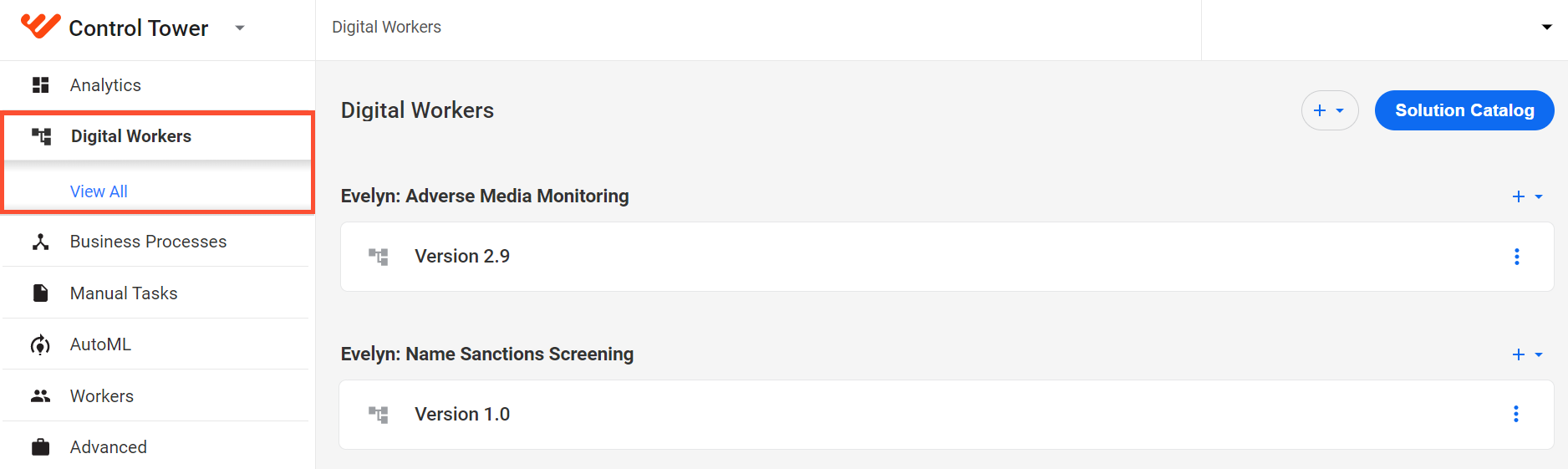
In the group, find the variation you wish to use and click Adverse Media Monitoring Launcher to expand the process definition. Click Copy to create a new instance of the process.
In the Business Process window, go to the Data tab and select No Data.
Go to the Run tab and start the Business Process.
Go to Workspace, find Submit Adverse Media Monitoring Investigation request vX.X, and open it:
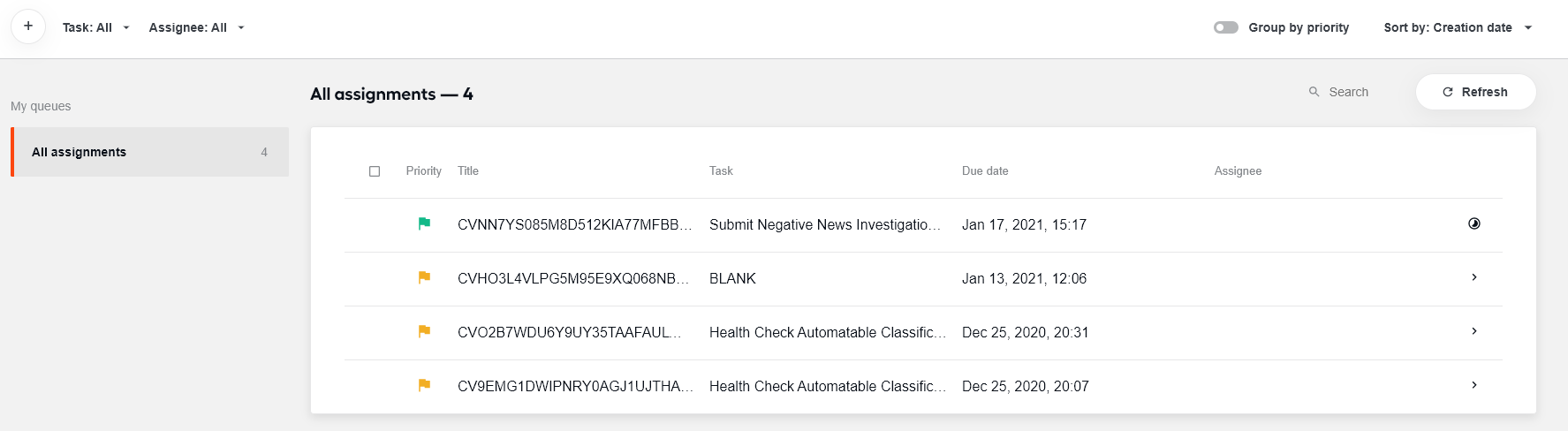
Enter the information for the entity you wish to screen.
Only Entity name is required to initiate a search. All other fields are optional but encouraged since more information on the entity enables the automation to eliminate more false-positive results.
Information can either be uploaded via a CSV file or entered manually.
Enter the email address to which you wish the results to be sent and select optional search parameters.
Note that some search parameters are available as read-only since these are configured in the control tower. They are listed on this screen for reference only.
Click the Submit button.
Once the results are ready, an email notification is sent with a link to the assignments within Workspace.
In some cases no results are found for the search. If this occurs, a report for each entity is created. A separate email with a link to view and download the report is sent for each entity that does not have search results. A copy of this report is also stored in the location specified during the installation and configuration of AMM.
Call AMM REST API
Adverse Media Monitoring can be invoked by calling the WorkFusion AMM REST API.
You must first configure a variation as it requires the Business Process associated to a configured variation.
For Adverse Media Monitoring, only asynchronous invocation is supported. In this case, use only the following endpoints:
/start-record-raw/: to start a BP./check-record-status/: to check the status of the running transaction./get-record-result/: to get the result data of the completed transaction.
For more information about invoking transactions and getting access to their token, see Process transactions with REST connector.
The structure of the Request JSON looks as follows:
{
  search_request: String (required),
  entity_type: String (COMPANY/INDIVIDUAL),
  year_of_birth: Integer,
  country: String (Used only by Google provider),
  search_period: Integer (search period in days)
}
Response JSON structure:
{
    "transactionUUID" : String,
    "runUUID" : String,
    "variationUUID" : String,
    "startTime" : UTC-date,
    "endTime" : UTC-date,
    "searchRequest" : String,
    "investigationStatus" : String (FALSE_POSITIVE/TRUE_POSITIVE/NEEDS_INVESTIGATION/NO_RESULTS_FOUND),
    "newsProvider": String,
    "manualTaskExecuted": boolean,
    "reviewerUUID" : String,
    "reviewerName": String,
    "reviewComment": String,
    "reportLink": String,
    "articles": [
        {
            "articleUUID" : String,
            "tile": String,
            "summary": String,
            "investigationStatus" : String (FALSE_POSITIVE/TRUE_POSITIVE/NEEDS_INVESTIGATION),
            "adjudicationReason": String,
            "publishingDate": UTC-date,
            "author": String,
            "language": String,
            "wordCount": int,
            "source": String,
            "articleLink": String,
            "originalArticleLink": String,
            "score": Decimal,
            "isReviewed": boolean,
            "reviewerUUID" : String,
            "reviewerName": String,
            "reviewComment": String,
            "errorCode": String
        },
        ...
    ]
}