Run investigation
Once Adverse Media Monitoring is installed and the configuration is complete, you can initiate investigations in one of the following ways:
- Start the Core or Ad Hoc Business Process from Control Tower
- Use the Ad Hoc investigation search tool
- Call AMM REST API
- Ingest articles and entity details via a CSV file
- Start Business Process from Control Tower
- Run via Ad Hoc investigation search tool
- Call AMM REST API
- Ingest via CSV file
You can initiate Adverse Media Monitoring in Control Tower by running the Core or Ad Hoc Investigation Business Processes (BP). The main difference is that the Ad Hoc Investigation BP creates an Ad Hoc search screen that enables analysts and business users without access to Control Tower to initiate investigations from Workspace, for instance, as part of a transaction monitoring fraud alert investigation.
To start the Core BP, do the following:
In the Control Tower main menu, click AI Agents > View All and find the Evan: Adverse Media Monitoring group.
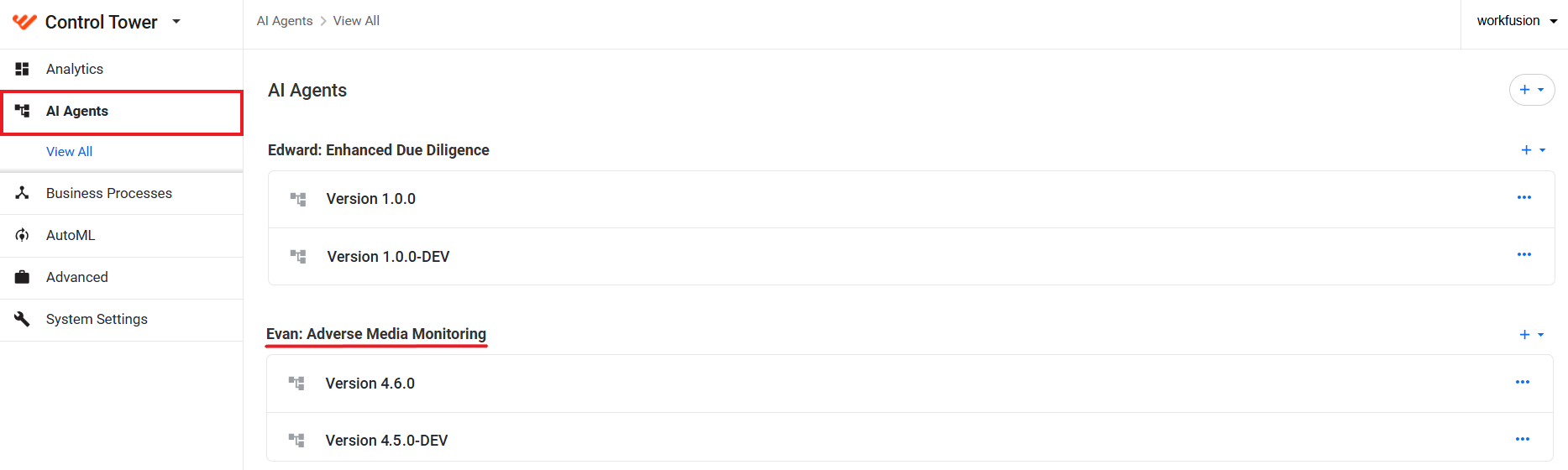
In the group, find the AMM variation you wish to use and click it.
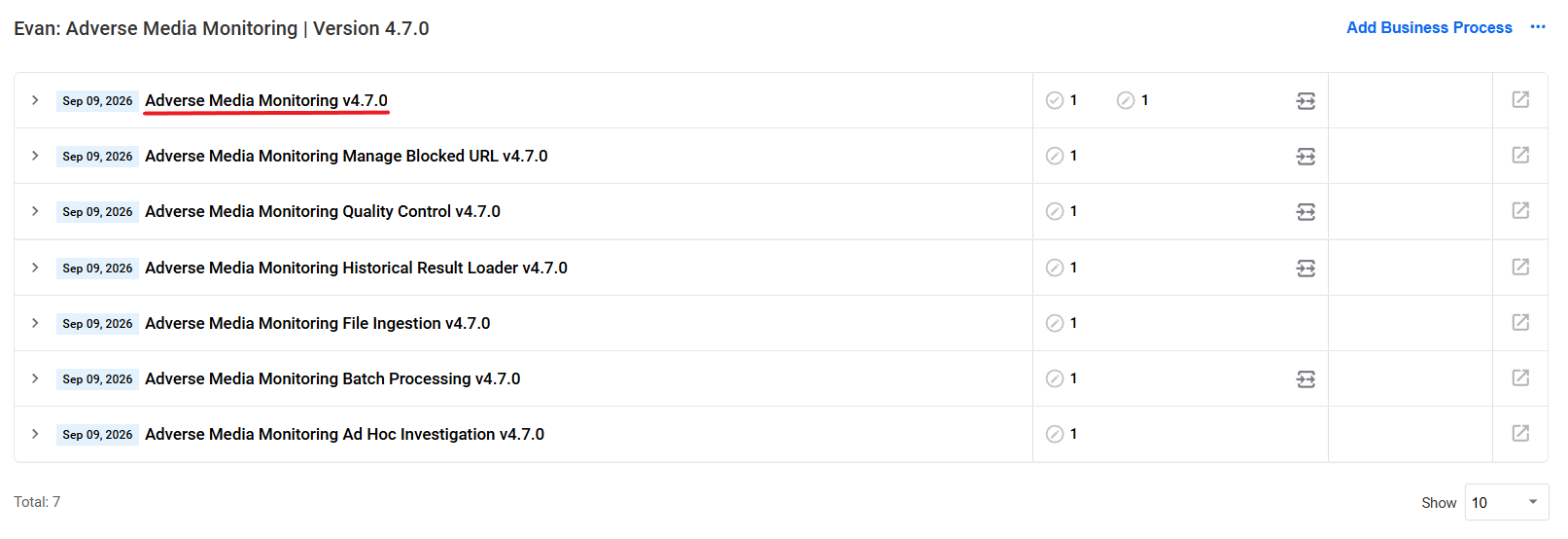
On the variation's details page, find the Adverse Media Monitoring BP and click it to open its process definition.
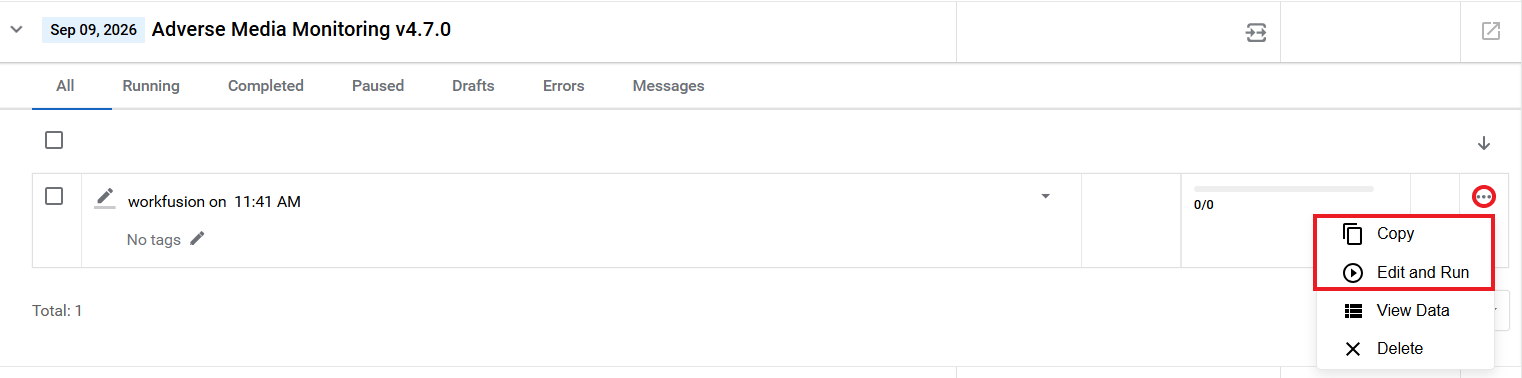
Next to a core BP instance, click the Actions menu button (...) and choose one of the following options:
If the instance is not running, click Edit and Run. The Edit Business Process window appears.
To create another instance of the process, click Copy. Thus, you can run a new instance without impacting an existing one.
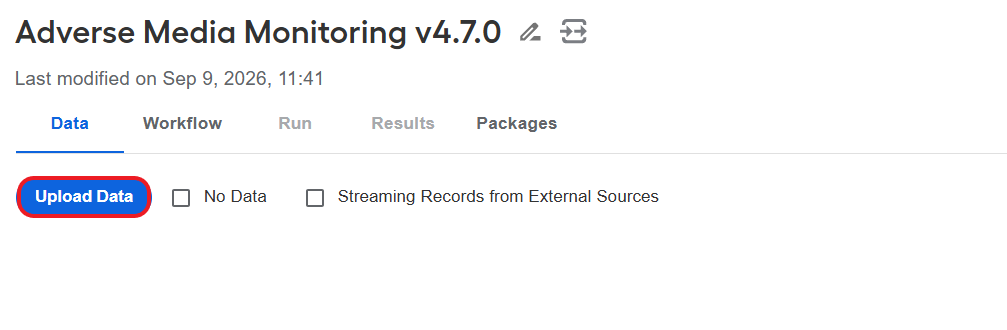
In the Business Process window, go to the Data tab and click Upload Data.
In the Upload Your Main Data window, drag and drop a CSV input file and click Upload. The data is uploaded to the BP.
noteIf you are using the Human in the Loop feature, you can pre-assign tasks to workers in your organization. To do this, enter the worker’s ID in the _sys_mt_hit_assignee column for the required entity rows of the input CSV file.
Currently, real-time validations are not supported. If a BP can't recognize a value in the sys_mt_hit_assignee column, the associated task is not assigned to any worker.
Go to the Run tab and click Run this process to start the BP.
If the Manual Task is enabled, the investigations appear in Workspace as they are completed. If it is disabled, the reports are generated as configured.
Occasionally, no results are found for the search. If this occurs, a report for each entity is created. A separate email with a link to view and download the report is sent for each entity that does not have search results. A copy of this report is also stored in the location specified during the AMM configuration.
Once all the entities within the input file have been processed, the Business Process ends automatically.
The Ad Hoc investigation is a Business Process that allows customers to trigger Adverse Media Monitoring from the Workspace user interface. It is available after installing and configuring Adverse Media Monitoring.
Start Ad Hoc investigation
To start an Ad Hoc investigation, do the following:
In the Control Tower menu, click AI Agents > View All and find the Evan: Adverse Media Monitoring group.
In the group, find the AMM variation you wish to use and click it.
On the variation's details page, find the Adverse Media Monitoring Ad Hoc investigation BP and click it to open its definition.
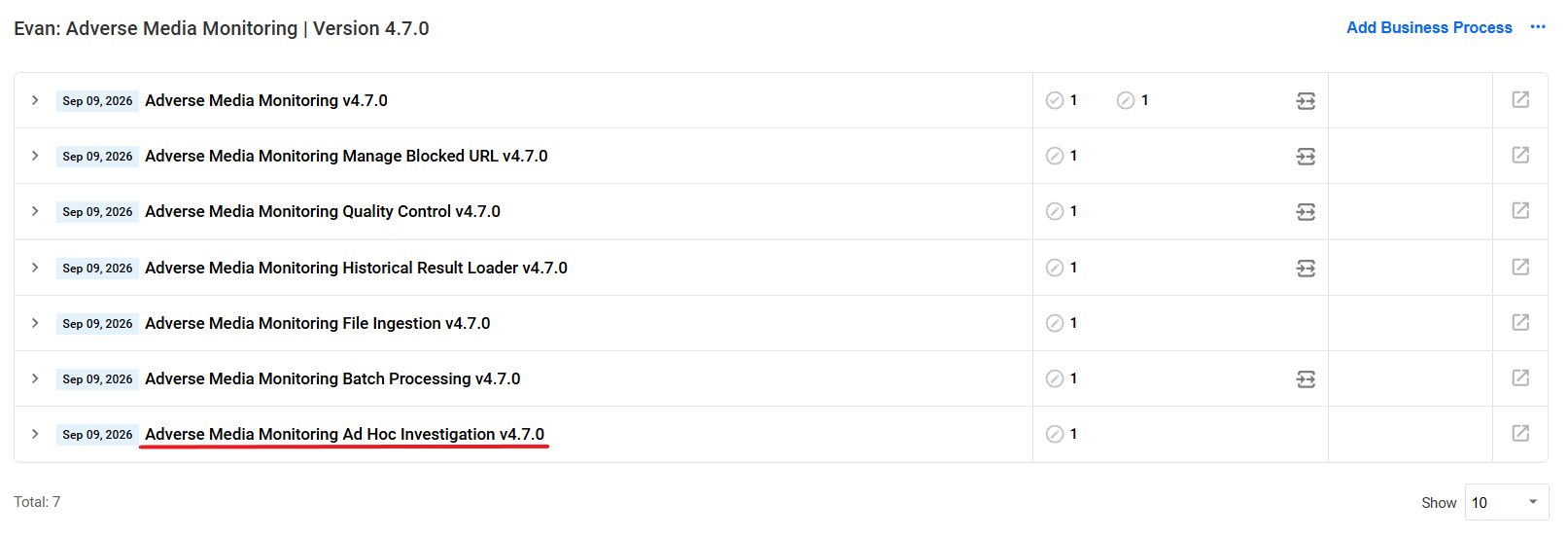
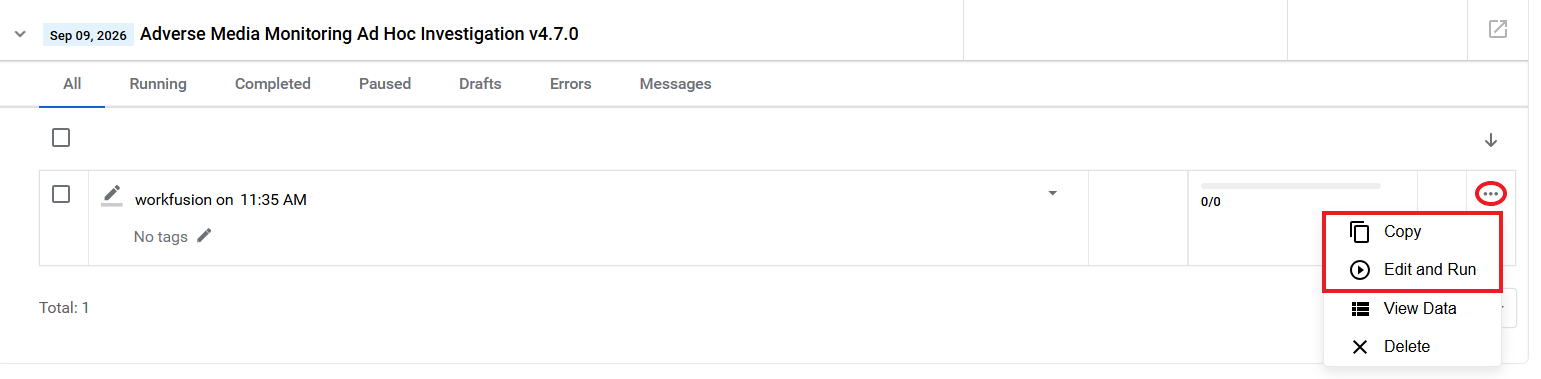
Next to a BP instance, click the Actions button (...) and select one of the following options:
If the instance is not running, click Edit and Run. The Edit Business Process window appears.
To create another BP instance, click Copy. Thus, you can run a new instance without impacting an existing one.
In the Business Process window, go to the Run tab and click Run This Process to start the Business Process.
The number of Ad Hoc search tasks created in Workspace is configured in the Investigation step.
Run Ad Hoc search
To run an investigation using the Ad Hoc search screen, do as follows:
Log in to Workspace, find Submit Adverse Media Monitoring Investigation request vX.X, and open it.
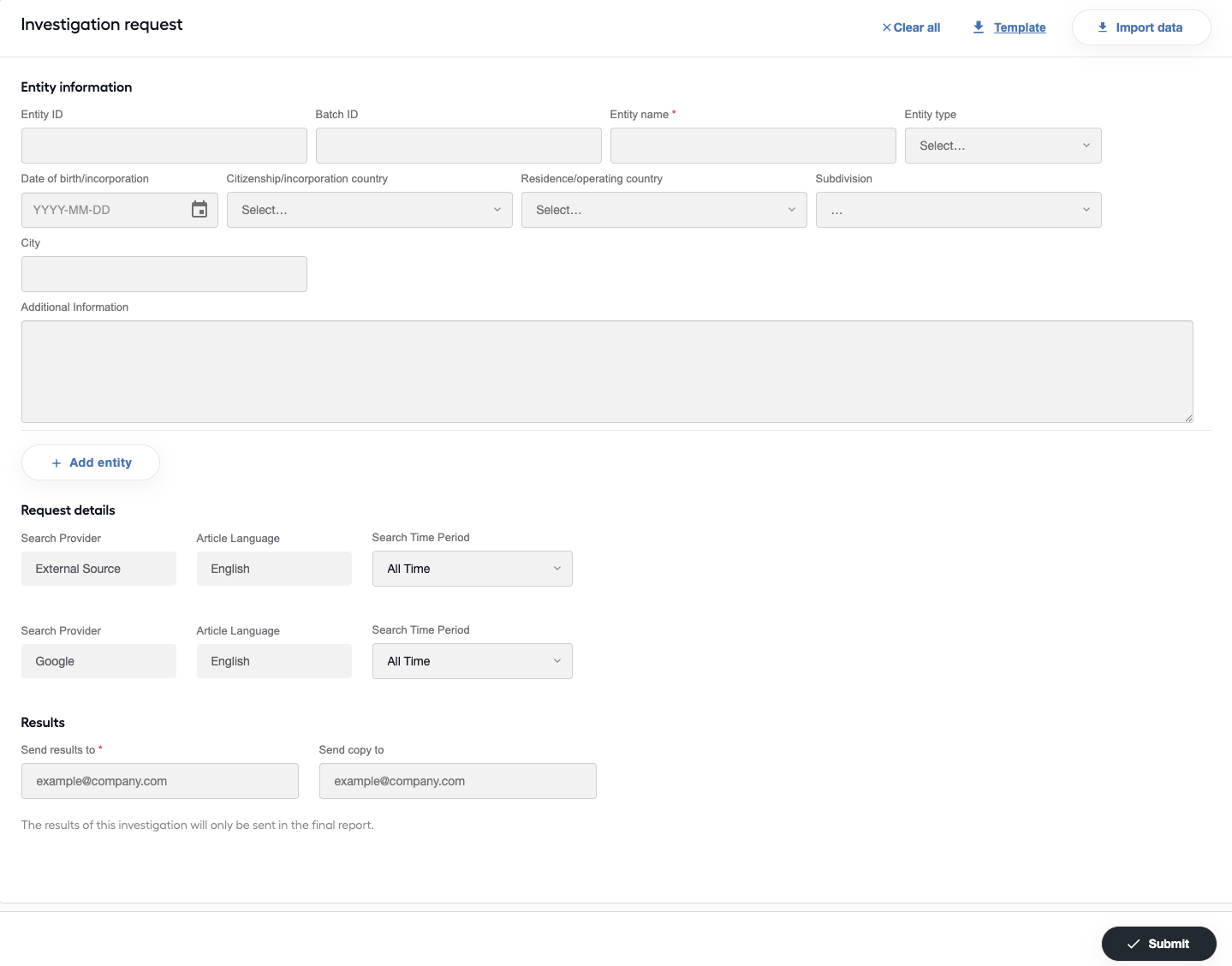
If you do not need all Entity information fields, you can leave only required fields during the user interface configuration on the Investigation step: Ad-hoc investigation settings > Fields to include in the ad-hoc investigation task. For details, see Install and configure | Investigation.
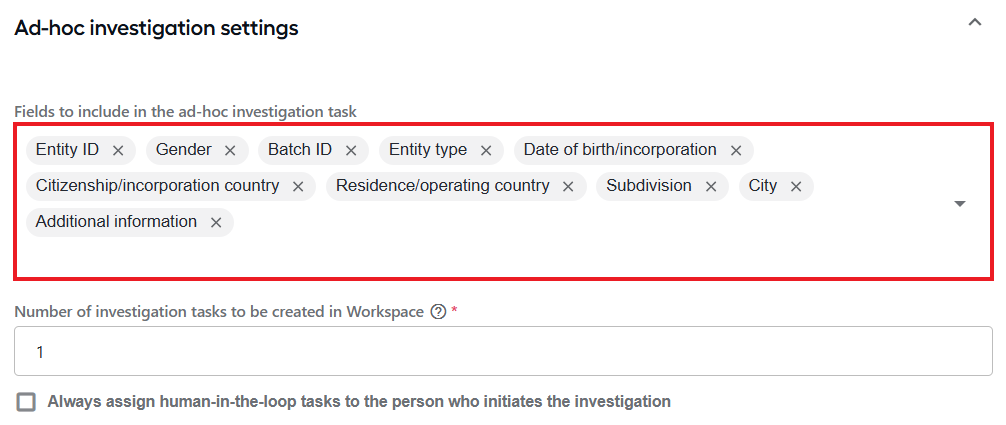
In the Entity information group, enter data for the entity you wish to screen. Pay attention to the following considerations:
Only Entity name is required to initiate a search. All other fields are optional but encouraged since more information on the entity enables the automation to eliminate more false positive results.
To allow re-applying decisions in future investigations for the same entity, provide a custom Entity ID. The same Entity ID must be used for all further investigations on the entity.
You can either upload data in a CSV file or enter the data manually.
Review the settings in the Requests details group.
If necessary, in the Search Time Period box, select a different time for scanning.
Other fields are configured in Control Tower and listed on this screen for reference only.
Review the settings in the Results group:
Enter one or more email addresses where to send the results. In the Send copy to field, it is recommended to specify a group email so that other team members can refer to previous investigations and their results.
Click the Submit button.
Once the results are ready, an email notification is sent with a link to the assignments in Workspace and a final report.
If your organization does not use the Human in the loop feature, you only receive a final report. This is also indicated on the Ad Hoc search screen.
In some cases, no results are found for the search. If this occurs, a report is created for each entity that does not have search results. A separate email with a link to view and download the report is sent for each such entity. A copy of this report is also stored in the S3 storage specified during the AMM configuration.
Adverse Media Monitoring can be invoked by calling the WorkFusion AMM REST API. To work with API, you must first configure a variation as it requires a BP associated with it. For details, see the Install and configure | REST API endpoints guide.
For more information on REST API, read Running AI Agents via REST API.
To run an investigation using an uploaded file, follow the steps below:
Configure ingestion-related AMM settings.
Prepare and upload the input file for the AMM to ingest.
Run the Adverse Media Monitoring File Ingestion Business Process.
Configure file ingestion
To set Evan to ingest data from a CSV file, follow the steps below:
In the Control Tower menu, click AI Agents > View all and find the Evan: Adverse Media Monitoring group.
Find the AMM variation you wish to use and click it.
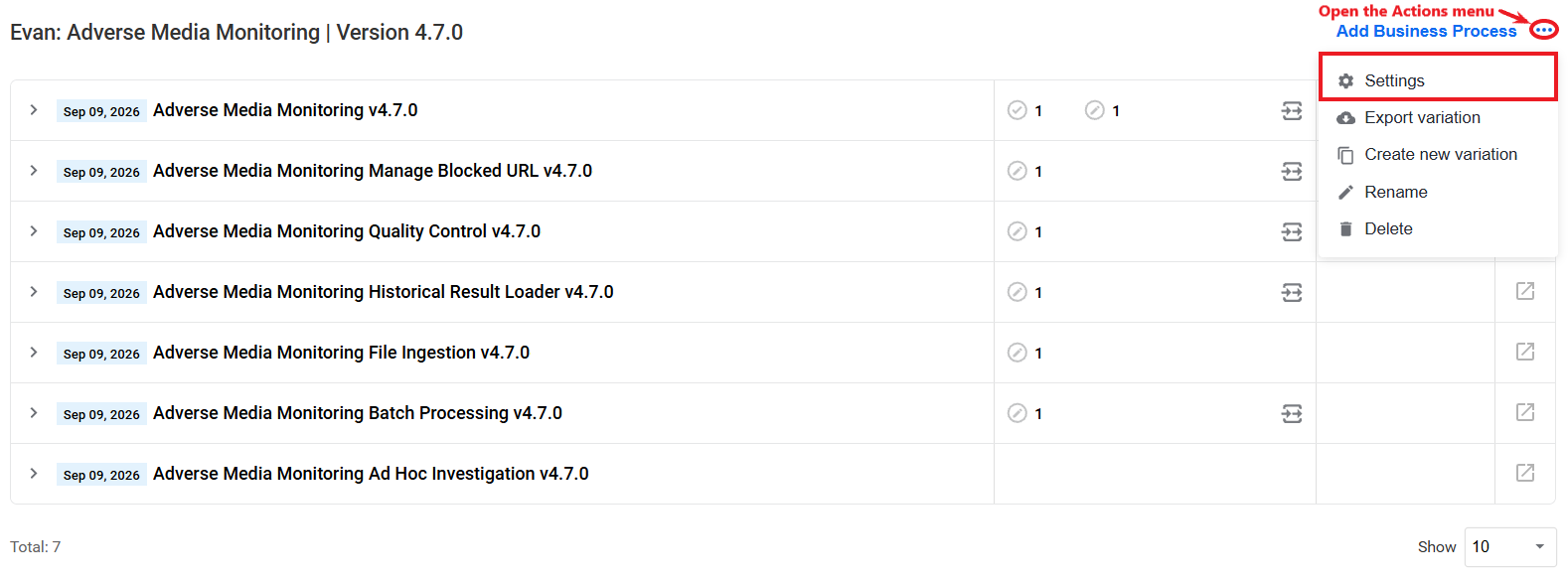
On the variation's details page, open the Actions menu for the variation and select Settings to open the configuration screen.
On the Input step, in the Search provider dropdown box, make sure to select External Source.
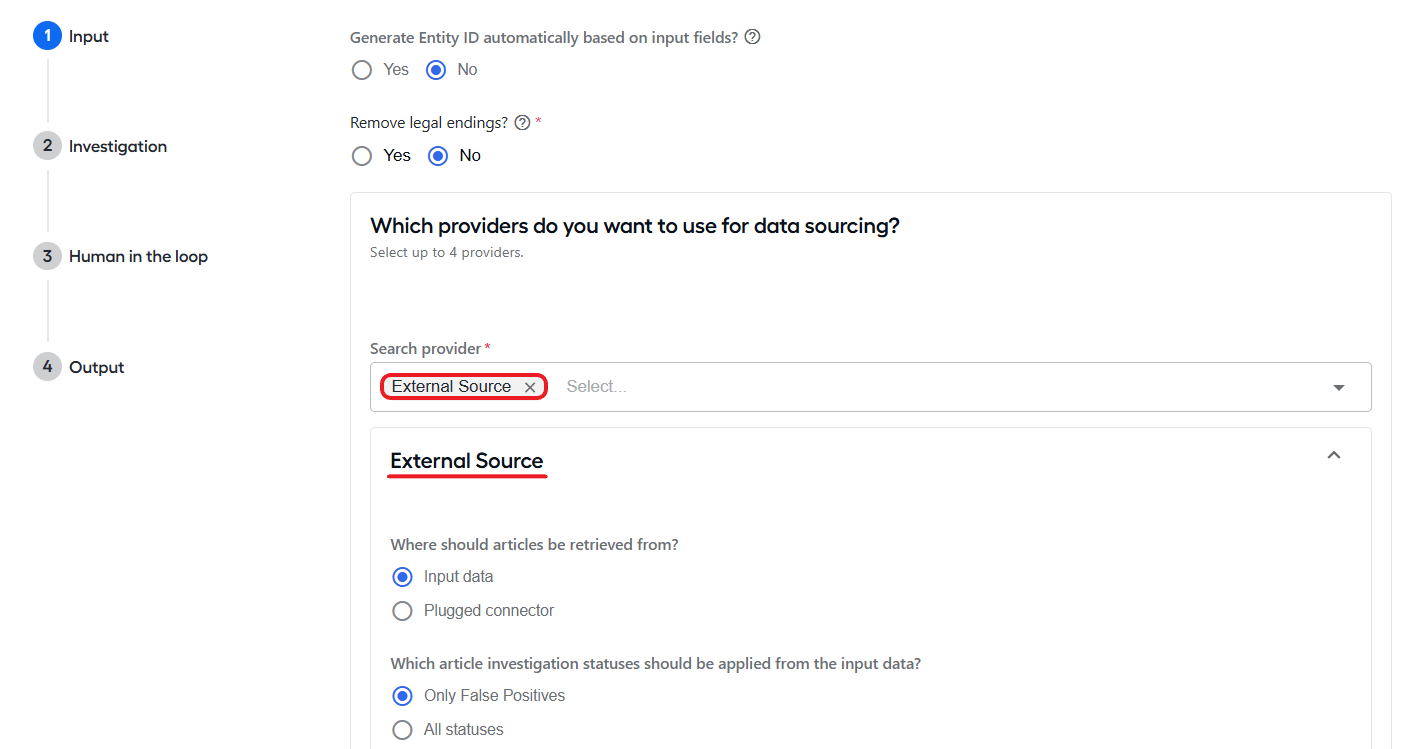
Expand the External Source section and configure the input settings as required for the provider. For detailed instructions, read Install and configure | External Source.
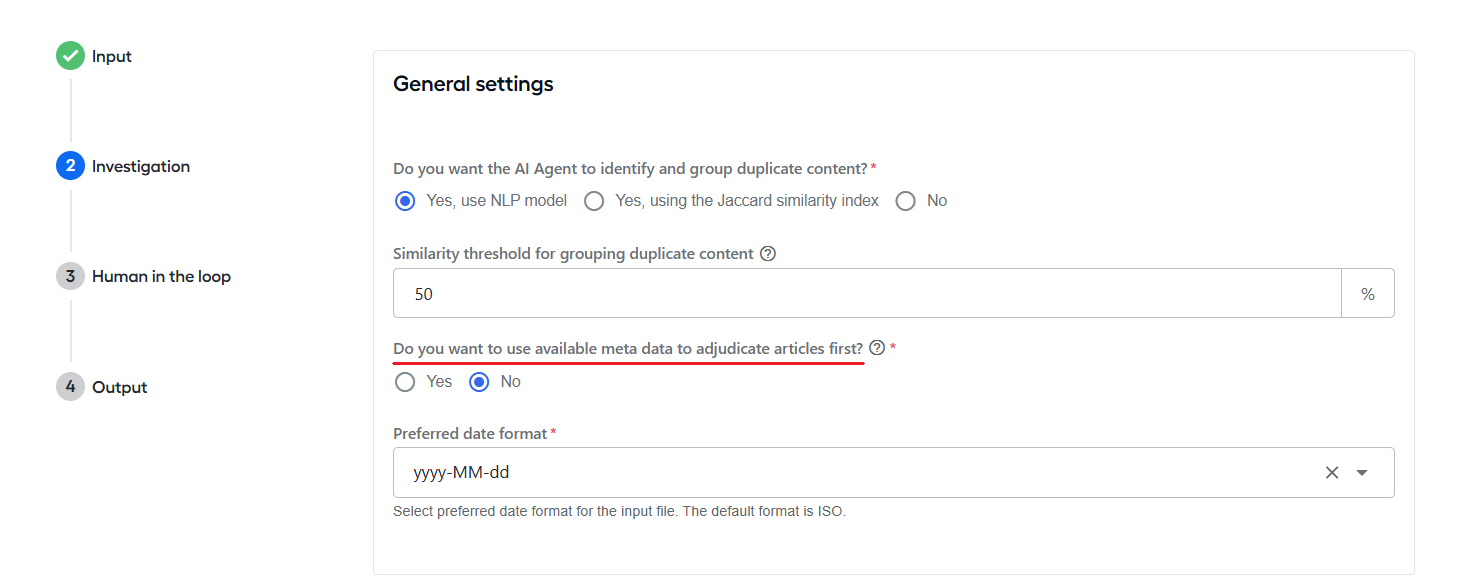
If you want to use metadata information to disposition articles first, go to the Investigation step and select Yes to answer the Do you want to use available meta data to adjudicate articles first? question.
Upload input
To prepare input for ingestion, follow the steps below:
Go to MinIO (sample MinIO URL: https://amm-release-minio-ui.cloud.workfusion.com/) and log in with SSO.
Find the bucket you specified when configuring the external source.
Navigate to the directory (or create one if it doesn’t exist) you specified when configuring the external source provider.
Click Upload > Upload File.

Select an input CSV file and upload it.
To make sure your CSV file has the correct format, download the sample and check your file against it. Files that do not comply with the format requirements are not ingested.
After some time, the file is picked up by the AI Agent and moved to the processed folder.
Run File Ingestion Business Process
To start the Adverse Media Monitoring File Ingestion BP, follow the steps below:
In the Control Tower menu, click AI Agents > View all and find the Evan: Adverse Media Monitoring group.
Find the Adverse Media Monitoring variation you wish to use and click it.
On the variation's details page, click the Adverse Media Monitoring File Ingestion BP to expand the process definition.
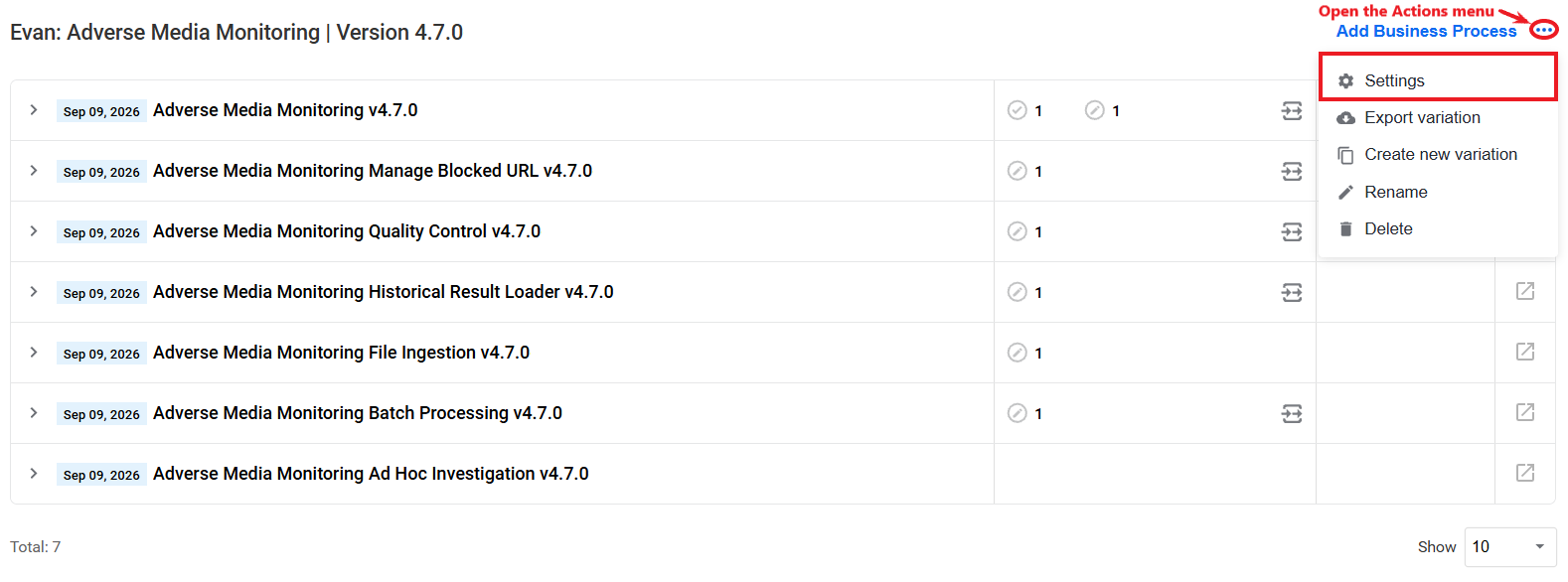
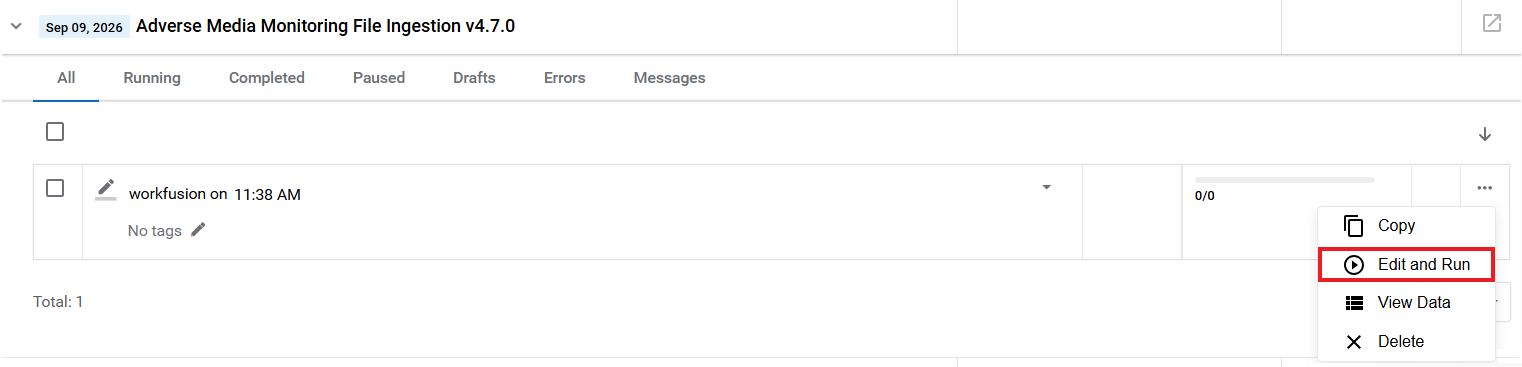
Choose a BP instance, open the Actions menu for it, and select Edit and Run.
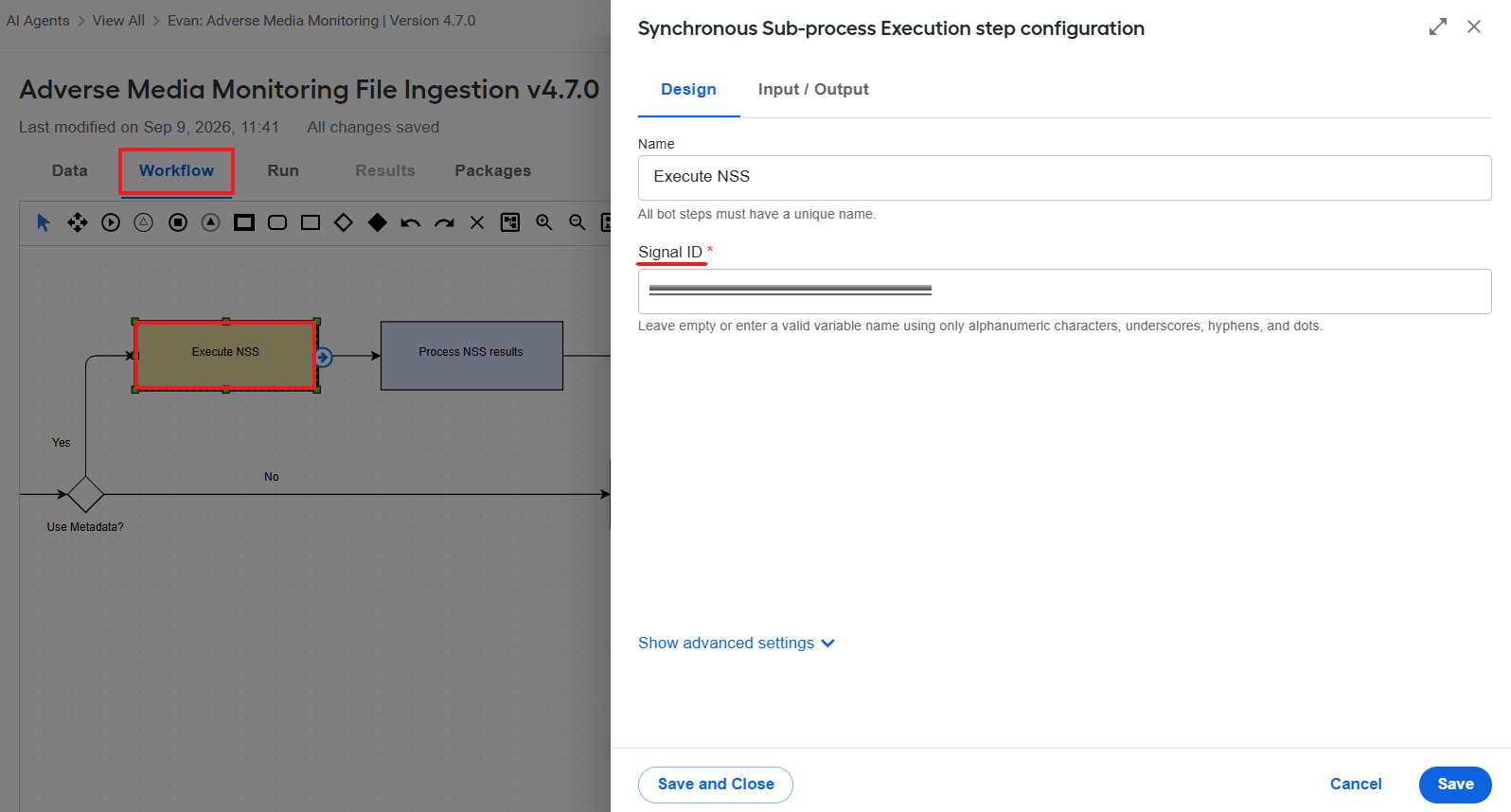
If you configured AMM to use metadata information to disposition articles first, go to Workflow tab, click the Execute NSS step, and specify the Signal ID from the NSS Business Process. Click Save to save the changes.
Navigate to the Run tab and click Run This Process.
Review CSV fields
In an input CSV file, rows are grouped by uuid:
Every row with the same
uuiddescribes one entity, and each of those rows contributes one article to that entity.Entity-level attributes are read from the first row of the group. Article-level fields are read from every row.
For field-level validation rules (country ISO codes, date formats, year ranges, length limits), see Learn about input and output data | Input data validation.
Required columns
| Column | Type | Description |
|---|---|---|
uuid | String | Grouping key for the entity. Rows sharing a uuid form one entity plus its articles. Must be present on every row. |
search_request | String | Entity name or search term. Max 256 characters. |
provider | String | Provider that processes the entity or supplied the article. |
Entity identity and attributes
| Column | Type | Description | Legacy alias |
|---|---|---|---|
entity_id | String | Client-side entity identifier; max 256 characters | — |
entity_type | Enum | Individual or Company (case-insensitive) | — |
gender | Enum | Male or Female (case-insensitive) | — |
year_of_birth_incorporation | Integer | Year of birth (individual) or incorporation (company) | year_of_birth, yob |
date_of_birth_incorporation | String (date) | Date of birth / incorporation | date_of_birth |
residence_operating_country | String (ISO-2) | Residence (individual) or operating (company) country | residence_country |
country | String (ISO-2) | Country; used as the final fallback for residence / operating country | — |
citizenship_incorporation_country | String (ISO-2) | Citizenship (individual) or country of incorporation (company) | citizenship_country |
state | String | State | — |
subdivision | String | Subdivision/state ISO-3166 code, country-specific alpha code, or unique subdivision name | — |
city | String | City. Requires a residence/operating country when city validation is enabled. | — |
entity_additional_information | String | Free-text notes about the entity | — |
Scheduling and workflow metadata
| Column | Type | Description |
|---|---|---|
batch_id | String | Batch identifier. |
batch_size | Integer | Batch size. |
cost_center_code | String | Cost center code. |
cost_center_name | String | Cost center name. |
sla_date | String (ISO-8601 datetime) | Service Level Agreement (SLA) due date, yyyy-MM-dd'T'HH:mm:ss. |
sla_duration | String | SLA duration. |
business_line | String | Business line. |
screening_service | String | Screening service. |
investigation_date | String (ISO-8601 datetime) | Investigation date, yyyy-MM-dd'T'HH:mm:ss. |
initiator | String | Investigation initiator. |
related_entity_id | String | Related entity identifier. |
add_to_ongoing_monitor | Boolean | Enroll the entity in ongoing monitoring. Parsed leniently: only true is true; blank or other is false. |
ongoing_monitoring | Boolean | Ongoing monitoring flag (true/false); blank leaves it unset. |
investigation_uuid | UUID | Original investigation UUID. Must be a valid UUID string. |
review_availability_date | String (ISO-8601 datetime) | When the review becomes available, yyyy-MM-dd'T'HH:mm:ss. |
assignee | String | Human-in-the-loop pre-assignment (worker ID) for the entity's task. |
assigned_user_groups | String | Pre-assigned user groups. |
priority | Integer | Task priority. |
search_period | Integer | Generic search period (days). Bound for backward compatibility; not present in the template. Prefer the provider-specific days_search_period_* columns. |
Provider search periods
Each restricts the look-back window (in days) for one provider. All values are optional and have the integer format.
| Column | Applies to |
|---|---|
days_search_period_google | |
days_search_period_brave | Brave |
days_search_period_factiva_headlines | Factiva Headlines |
days_search_period_lexis_nexis_lp_media | LexisNexis L&P Media |
days_search_period_world_check_one | World-Check One |
days_search_period_external_source | External Source |
Article fields
One article is built per row (within the uuid group). A row produces an article only if at least one of article_url, title, summary, content, content_link, or article_additional_information is non-blank. Otherwise, the row contributes no article.
| Column | Type | Description |
|---|---|---|
article_url | String (URL) | Link to the article. |
title | String | Article title. |
summary | String | Article summary. |
content | String | Inline article content (HTML or plain text). |
content_link | String (URL) | Link to where the article content is stored. |
article_additional_information | String | Free-text notes about the article. |
investigation_status | Enum | Pre-disposition status. |
external_review_comment | String | Reviewer comment carried with the article. |
external_provider_search_url | String (URL) | Link to the external provider's search result. |
publication_date | String (date) | Article publication date. |
relevance_score | String (number) | Article relevance value. |
Provider-specific guidance
External Source: the provider consumes the following article fields from the input file:
article_url,title,summary,content,content_link,article_additional_information,investigation_status, andexternal_review_comment.Below is a sample CSV input for an entity with an article URL (External Source):
uuid,search_request,provider,entity_type,gender,year_of_birth_incorporation,article_url,title,summary,investigation_status,external_review_comment,publication_date
1234,Amanda Riley,External Source,Individual,Female,1986,https://www.example.com/story,Woman faked cancer to swindle donors,Article details an individual who faked a cancer diagnosis to collect donations.,Needs Investigation,Confirmed adverse media match,2023-05-30
Other providers (Google, Brave, Factiva, LexisNexis L&P, World-Check One)
Internal search providers use the entity attributes and the matching
days_search_period_*column. Article-link fields, such asarticle_url,title,summary,content,content_link, are not used by internal search. Supply them only for External Source review.Below are sample CSV inputs:
Minimal entity, no URL
Only the three required columns are populated. Everything else is left blank.
uuid,search_request,provider
ab123,Anna Banana,Google
Entity with inline title, summary, content and no URL
uuid,search_request,provider,entity_type,country,city,title,summary,content,article_additional_information,investigation_status
c789,Global Trading LLC,External Source,Company,GB,London,Regulator fines Global Trading LLC,Summary of a regulatory penalty issued against the company for sanctions breaches.,The regulator announced a settlement following an investigation into export-control violations.,inline article supplied without a URL,Needs Investigation