Review search results
As part of the default workflow, WorkFusion creates an assignment called a Manual Task in the Workspace application once the automation has finished fetching, analyzing, prioritizing, and dispositioning each search result. One Manual Task is created per entity name. Use of this task is optional and can be set up when configuring AMM. This article describes the process for reviewing the results and details on the information readily available to users as part of the packaged AMM solution.
Locate investigation results in Workspace
Once the results are ready, they are visible in the Workspace application. Analysts are notified via email if the investigation was triggered via the ad-hoc search when the results are ready.
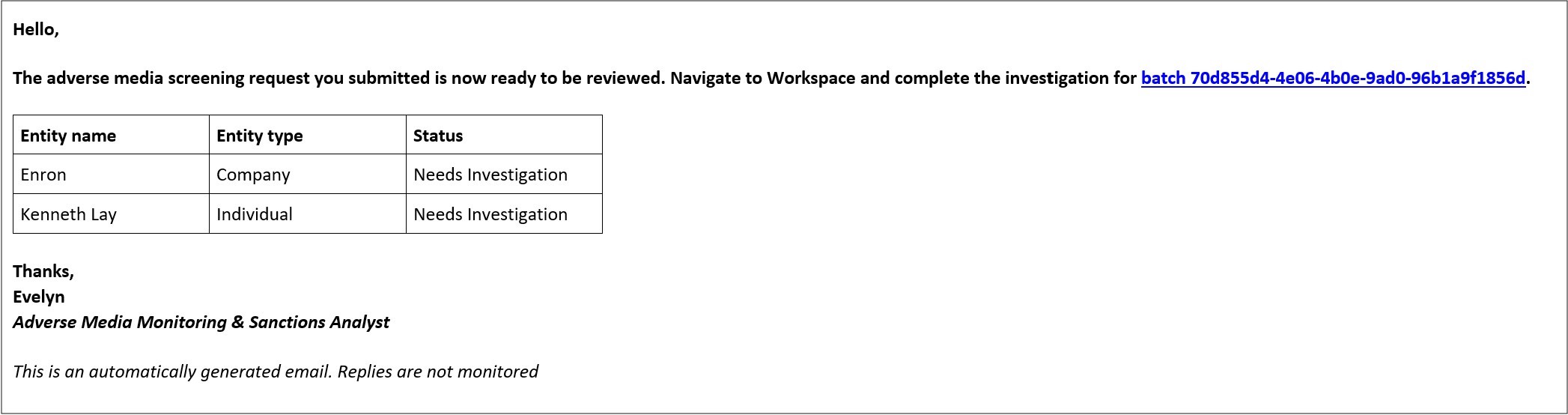
In some cases, no results are returned for the search criteria. When this occurs, the Manual Task will not be created as there is nothing to review. Instead, a final report is generated for audit purposes. If the search was initiated the Ad hoc investigation search tool, an email with a link to the report is also sent.
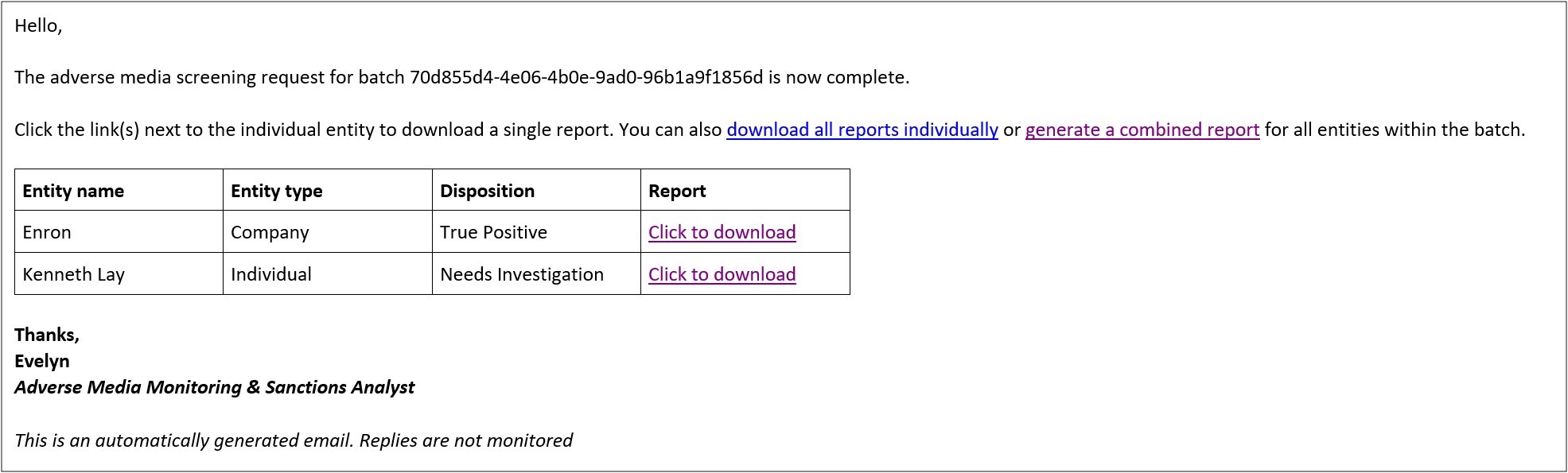
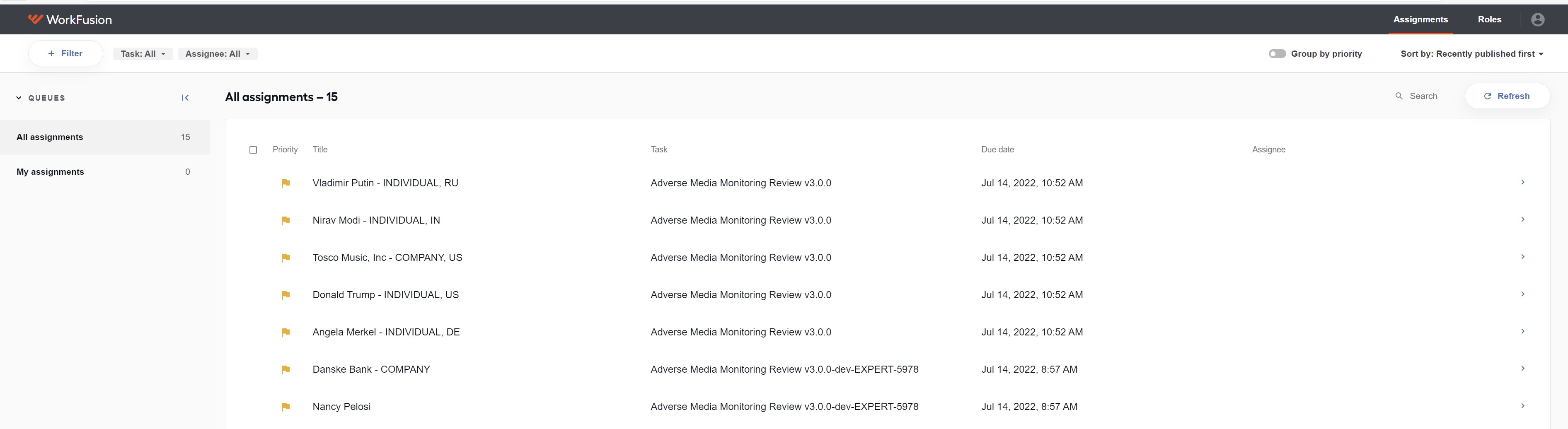
Like with other Manual Tasks, each assignment (or investigation) can be added to a queue or assigned to a specific user.
Review summary of investigation results
Upon opening an assignment, analysts see a summary of the findings.
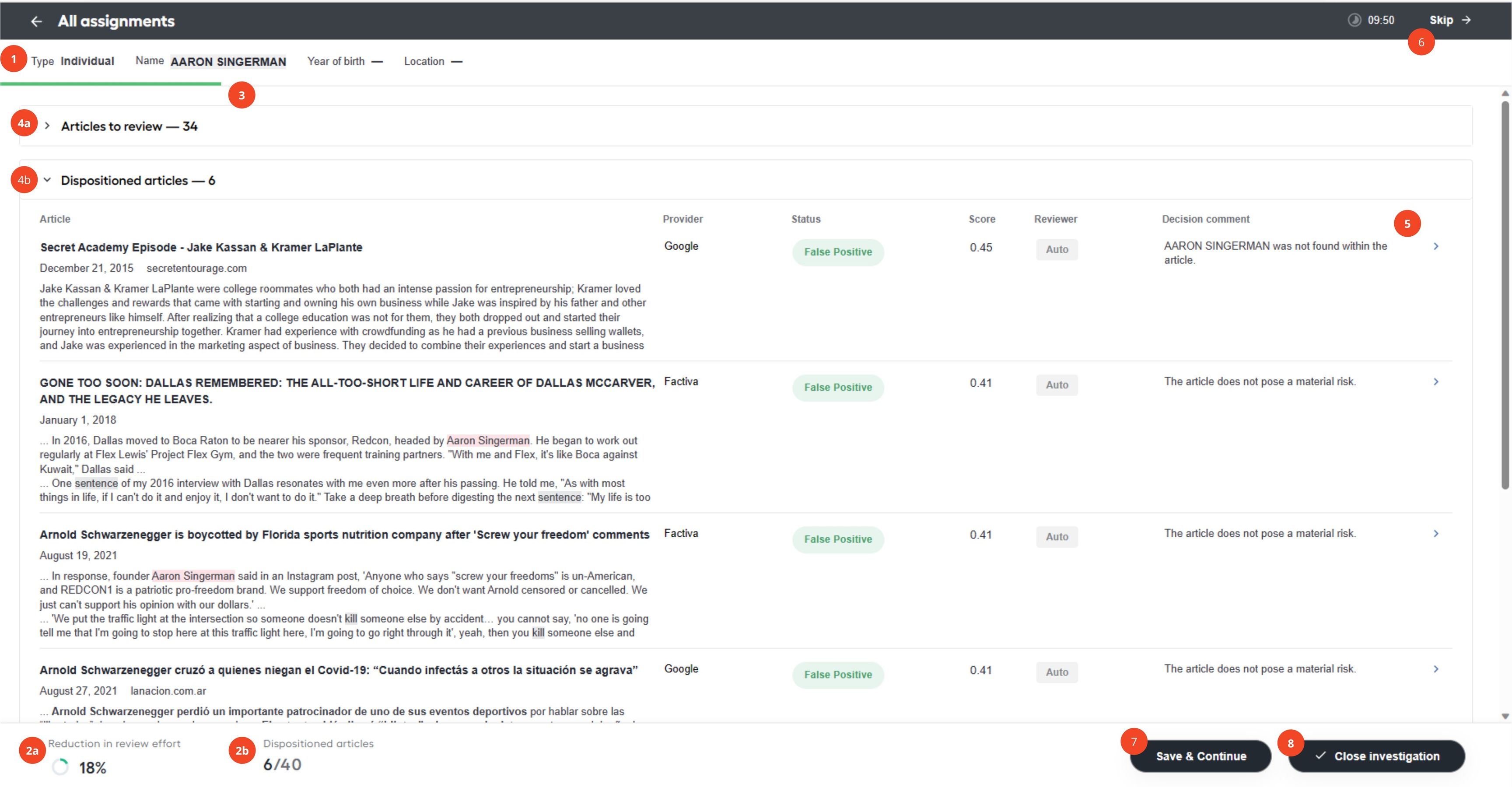
The numbers below correspond with those in the image above.
The header section contains information provided for the investigation. Note that only the entity name is required to initiate a search. Depending on the information provided, the other fields may be null.
The footer section of the screen includes automation information that pertains to the investigation:
a. Reduction in review effort: shows the percentage of the articles that did not require manual review as the model could automatically disposition them as false positives.
b. Dispositioned Articles: shows the total number of articles returned for the search and the number of articles dispositioned as either True Positive or False Positive. This count adjusts as analysts review and adjudicate each article.
The green bar at the top of the screen corresponds to the Dispositioned Articles count in the footer. It automatically updates as articles are dispositioned.
The articles returned by the search are categorized into two sections:
a. Articles to review. Contains articles escalated for additional review and analysis by the model or another analyst. All articles within this section have a status of Needs Investigation. All articles are ranked by score within this section.
b. Dispositioned. Contains articles automatically dispositioned by the model or another analyst. Articles within this section have a status of either False Positive or True Positive. All articles are ranked by score within this section.
Skip. Takes an analyst to the next assignment in their queue.
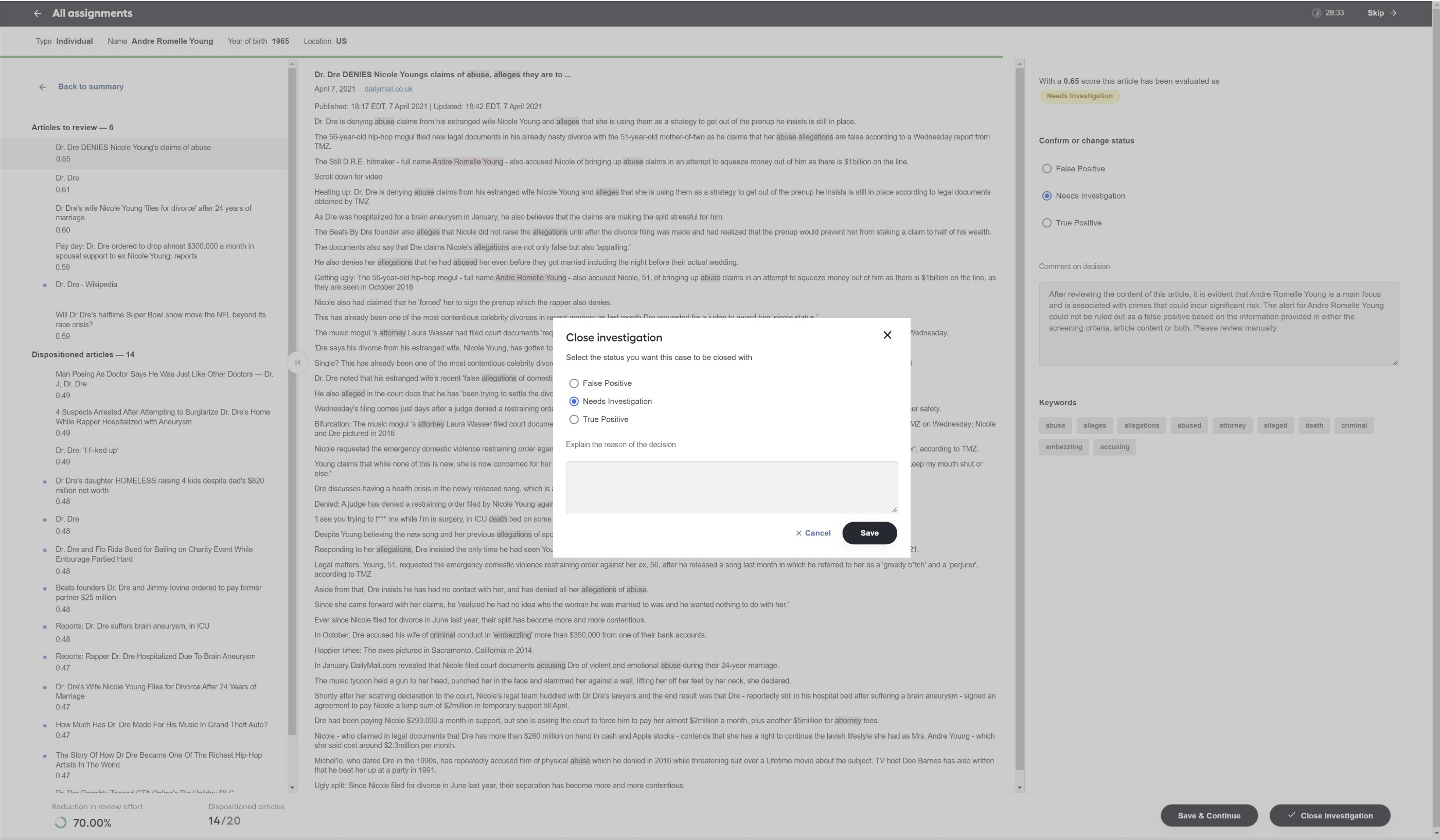
Review individual articles in more detail. Analysts can select each article to navigate the details screen, review the complete text, and adjudicate it.
Save & continue. Saves their progress and skips to the next assignment in their queue. When saving progress, analysts are prompted to keep the task assigned to themselves or unassign it.
infoWhen you click Save & continue, your assignment is still not completed, though all your changes are saved. The assignment is recreated with the current creation date and added to the queue, either assigned or unassigned, based on the choice you previously made.
Close investigation. Closes the investigation and completes the task. Analysts can choose a status for the entire investigation and enter a comment upon selecting this option.
Within each section on the summary page, the following information is provided for each article.
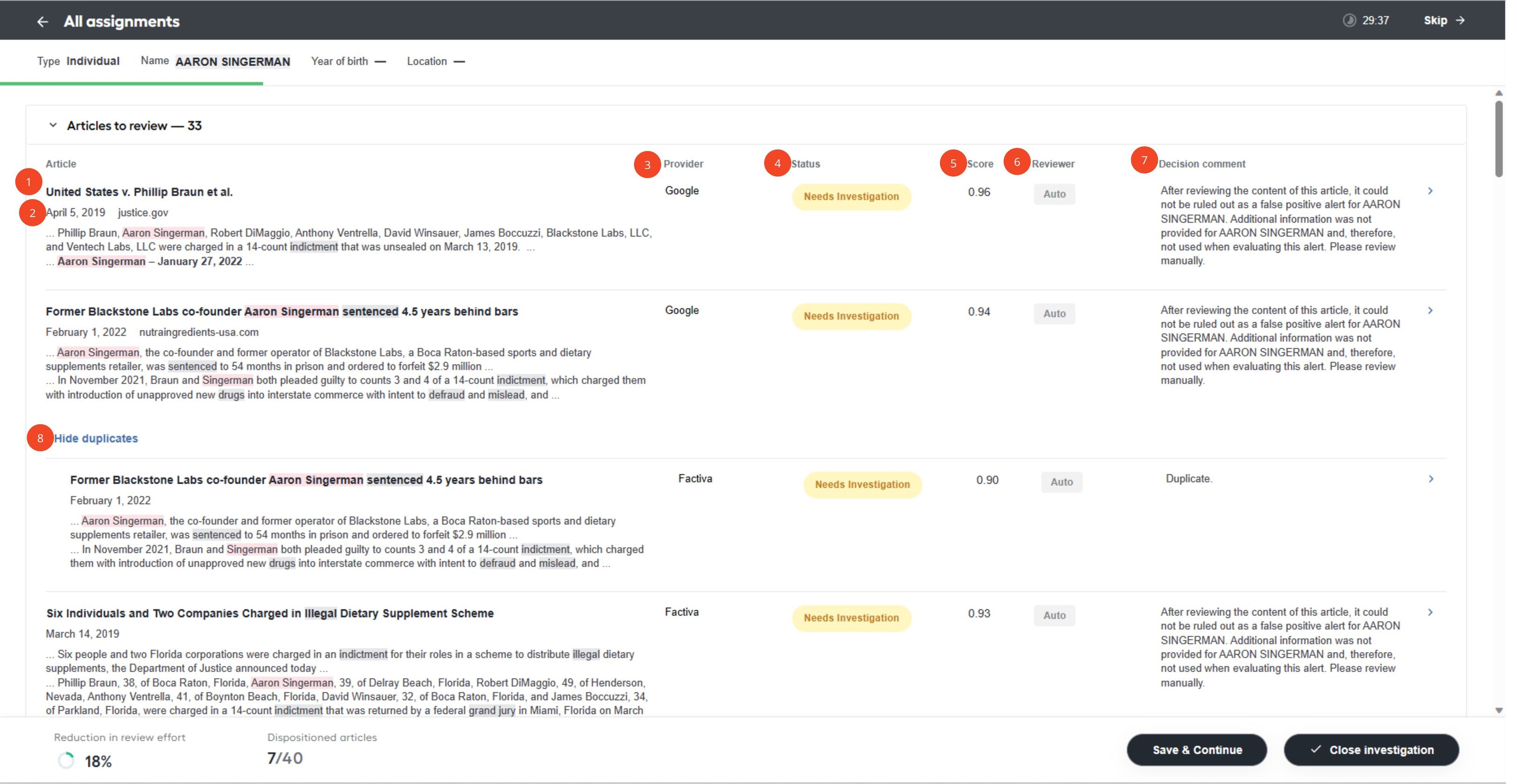
Article title. The name of the article provided by the media provider.
Article publication date. The date the article was published.
Provider. The media provider who returned the content.
Article status. Each article is assigned a status of either False Positive, True Positive, or Needs Investigation.
Articles with a False Positive or True Positive status are considered dispositioned and shown in the Dispositioned section in Workspace.
Articles requiring further review have the Needs Investigation status and are shown in the Needs Investigation section so that analysts can quickly identify which articles require their attention.
Status Definition False Positive The article does not indicate a material risk and is unrelated to the searched party or search criteria. True Positive The article indicates a material risk and should be escalated. Needs Investigation The article requires additional review and investigation.
noteChanging the status of an article clears the decision comment automatically.
Score. A model-based assessment that determines the relevance of the entity and risky activity or crime. It is given on a 0.00 to 1.00 scale, with 1.00 being the most relevant. The articles are stack-ranked according to this score and within their relevant sections (Dispositioned or Needs Investigation).
Reviewer. As the model and human analysts review each article, their comments and status updates are captured and logged. Articles and adjudications made by the model are tagged with Auto, while any articles analyzed by a human worker are tagged with their username. The name of the last analyst to comment or update the article status is captured and stored for the final report, regardless of previous assessments made by the model or another analyst.
Decision comment. Each article that the model automatically reviews and dispositions receives a human-readable explanation regarding how the decision was reached. The model only dispositions articles as False Positive or Needs Investigation. Any potential True Positive alert requires investigation and confirmation from a human analyst. Adjudications from human analysts are also displayed here. Changing the status of an article clears the decision comment automatically.
Duplicate articles are grouped and nested. Click Show Duplicates or Hide Duplicates to expand or collapse the nested articles.
Review article details and adjudicate each result
Analysts can select an article from the summary screen to navigate the details screen.
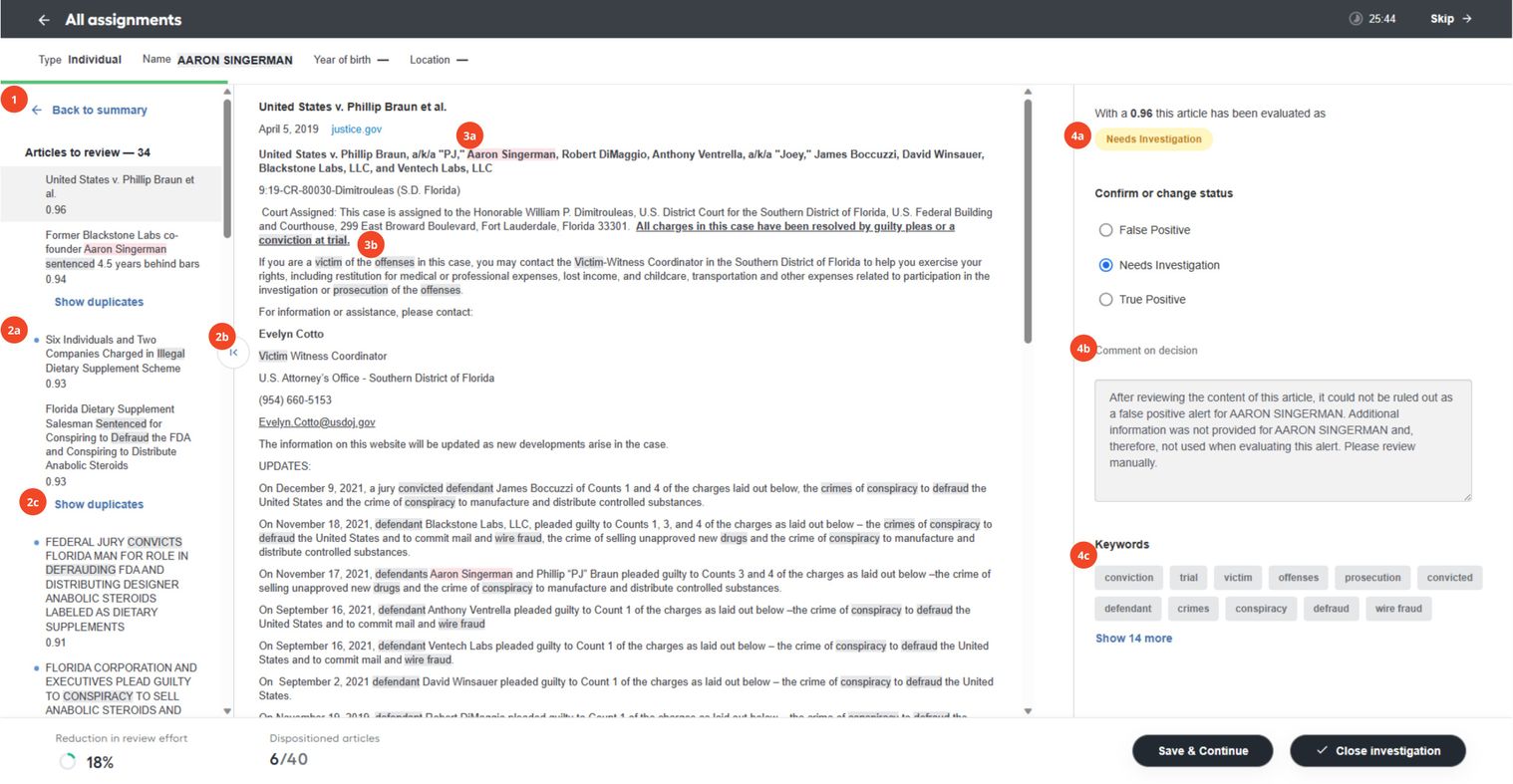
The numbers below correspond with those in the image above.
Click Back to Summary to navigate the summary screen.
The left panel lists all the articles from the investigation.
a. The blue dot indicates whether the article has been read.
b. This panel can be collapsed for a more immersive view of the content. As articles are reviewed, the analyst updates the status or article comment. Articles automatically move between the Articles to Review and Dispositioned sections.
c. Duplicate articles are grouped in the side panel. You can expand and collapse them by clicking Show duplicates or Hide duplicates as needed.
The center displays the full content of the article.
a. The entity name is highlighted in red in the article. Click the name in the header to switch through each mention of the entity within the article. This includes fuzzy or partial name matches. For example, last name only, and so on.
b. If keywords or high-risk countries were included as part of the search request, those are also highlighted.
The far-right panel displays the following:
a. Article status. Each article is assigned a status of either False Positive, True Positive, or Needs Investigation. Articles with a False Positive or True Positive status are considered dispositioned and shown in the Dispositioned section within Workspace. Articles requiring further review have a status of Needs Investigation. Analysts can update the status as they complete their reviews.
b. Score. A model-based assessment that determines the relevance of the entity and risky activity or crime. It is given on a 0.00 to 1.00 scale, with 1.00 being the most relevant. c. Decision comment. Each article that the model reviews and dispositions receives a human-readable explanation regarding how the decision was reached.
- Currently, the model will only disposition articles as False Positive or Needs Investigation.
- Adjudications from human analysts are also displayed here.
- On rare occasions, customers who utilize Google API as their search provider may encounter a situation where the model cannot process the article. If this occurs, the article receives a "Needs Investigation" status, and the decision comment will indicate that the article requires manual review. In addition, a link to the article's source is available for the user to review the content and complete their analysis.
Keywords. Keywords are included in the search request and found within the article content. If none were included in the search parameters or found in the article, they are not displayed in this section. Clicking each keyword toggles through each mention of the word within the article content.
High-risk countries. The high-risk countries included in the search request and found within the article content. If none were included in the search parameters or found in the article, they are not displayed in this section. Clicking each high-risk country toggles through each mention of the word within the article content.
At any point in time, analysts can choose to either Skip, Save & continue, or Close the investigation from this screen.
Complete investigation
Once you complete the review, do as follows:
Click Close investigation to complete the task.
You can then select a status and add an optional comment before completing the investigation.
The final report is generated and saved in the location selected when configuring AMM upon assignment completion.
If you wish to escalate it so that comments from another analyst can be included before generating the report, select Save & continue to save the work and reassign it to another user within Workspace.
The Close Investigation button is disabled if the Require users to disposition all articles parameter is set to Yes on the UI configuration screen for the associated variation.