Overview
What is Adverse Media Monitoring
Evan AMM (formerly Evelyn AMM) is a pre-built AI Agent focused on automating adverse media monitoring (AMM), or Negative News. Evan's tasks involve searching for and reviewing news about a person or company to determine if conducting business with them would incur a reputational risk or potential involvement with criminal activity. It is vital to the Know Your Customer (KYC) and Anti-Money Laundering (AML) processes for banks and other financial institutions.
Adverse Media Monitoring investigations are essential for uncovering a client's involvement with money laundering, fraud, organized crime, and terrorism. Screening ensures that firms are not unwittingly involved in illegal activity.
Why our customers deal with Adverse Media Monitoring
Regulatory bodies force banks and other financial institutions to run searches on companies, their top executives, and shareholders. Bank regulators demand reliable operation and security control over Adverse Media Monitoring processing. Incompliance incurs heavy financial penalties and often causes long-term reputational damage.
How Adverse Media Monitoring process is handled today
Research on Adverse Media is mostly manual. Hence, this process is time-consuming and costly.
Central banks have dozens to hundreds of analysts who scan news feeds and aggregators. They review thousands of articles to determine risk. Over 95% of articles are removed because they are false positive alerts and are not relevant to the initial search request.
Benefits of Adverse Media Monitoring automation
Automating Adverse Media Monitoring provides the following benefits:
- Screen more significant amounts of information
- Simplify and standardize the screening process
- Reduce non-compliance risk by finding more relevant and complete adverse information
- Reduce documentation time
- Reduce manual efforts (gain of ~70%)
- Achieve real-time monitoring of events
- Provide operational control and security
- Improve employee satisfaction
Implementation of WorkFusion's Adverse Media Monitoring automation provides the following additional transformational benefits:
- Consistent, unbiased decision-making
- Faster response to customer requests
- Rapid scaleup of processing
- Better risk management through faster awareness of adverse news
Adverse Media sources
Sources include:
- Traditional news sources and media
- Social media and Internet forums
- Regulatory filings and databases, for example, SEC and FINRA disciplinary actions
- Blogs and other non-traditional media
- International organization databases, for example, the World Bank's Stolen Asset Recovery Database
Component and feature overview
Business Processes
A Business Process (BP) represents the core workflow and design of any automation within the Work.AI platform. The Adverse Media Monitoring solution includes the following BPs:
- Adverse Media Monitoring (Core BP)
- Adverse Media Monitoring Ad Hoc Investigation
- Adverse Media Monitoring File Ingestion
- Adverse Media Monitoring Batch Processing
- Adverse Media Monitoring Quality Control
- Adverse Media Monitoring Blocked URL Management
- Adverse Media Monitoring Data Purge
Each BP name contains a suffix with the AI Agent version number, for example, Adverse Media Monitoring v4.5.0. The variation version is indicated after the AI Agent version.
Core BP
The image below shows the components of the Core BP. Additional information for each step is provided below. Within each process, one or more sub-processes can exist.
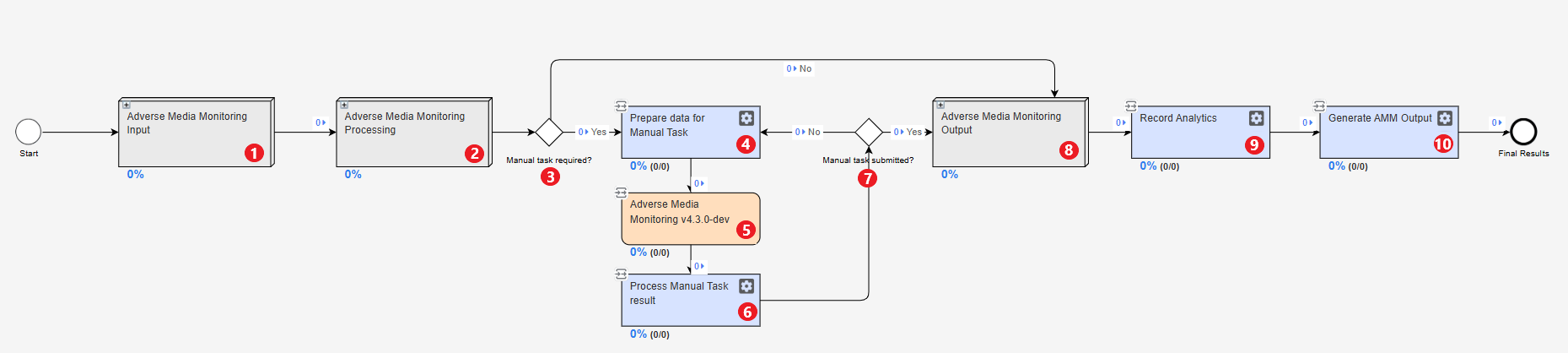
The following numbers correspond to the workflow graphic above:
Adverse Media Monitoring Input. For each search request (for instance, entity name), WorkFusion fetches news articles by calling API from pre-defined news sources and retrieves text and metadata (such as title, date, and URL) from the articles.
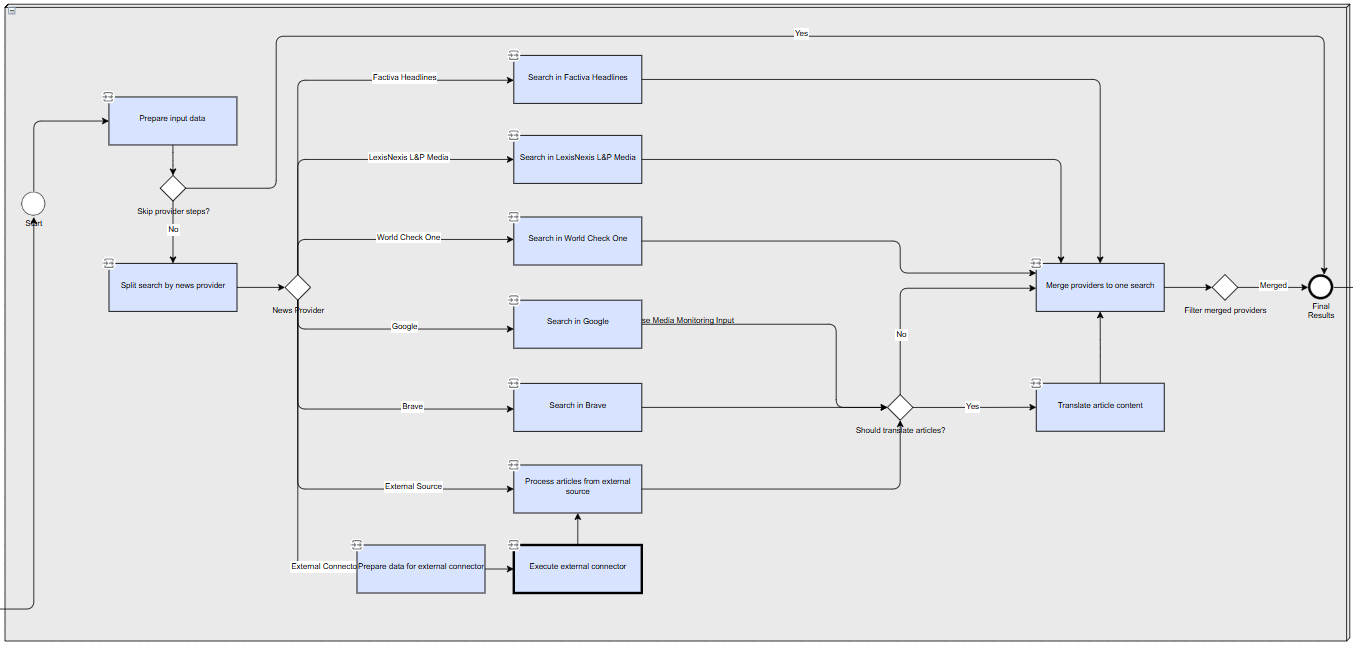
The figure below shows the steps in the sub-process:
Prepare input data parses and validates the input data.
Split search by news provider: if more than one provider is selected, the transaction is split into multiple sub-transactions executed in parallel.
The provider steps run an article search using corresponding data sources:
Search in Google searches articles by using Google API.
Search in LexisNexis L&P Media searches articles by using LexisNexis L&P Media API.
Search in World Check One searches articles by using World Check One API.
Search in Factiva Headlines One searches articles by using Factiva Headlines API.
Search in Brave searches articles through Brave Search API.
External source steps are as follows:
The Prepare data for external connector step prepares data for the External Source connector if you enabled the External Source provider.
Execute external connector executes the External Source connector.
Process articles from external source processes connector results and downloads the article content from the links that have been sent in external source input data.
The Should translate articles? step checks if article translation is enabled in the settings.
Translate article content: translates the title, summary, and content for articles with unsupported languages using Google Translate API.
The Merge providers to one search step merges the search results from different providers.
The Filter merged providers step completes runs for the merged providers.
Adverse Media Monitoring Processing. The unstructured text from each article, including the title, is processed to identify the risk materiality and relevance to the searched entity. The machine learning (ML) approach, architecture, and logic used to conduct this analysis imply identifying risk factors, negative keywords, categorizing articles, and additional constraints, such as demographics or other information.
If no results are found for an entity or the Manual Task is disabled, a report is generated.
If results are found for an entity and the Manual Task is enabled, WorkFusion creates a task for users to review the findings in Workspace. You can access the task directly through the Workspace user interface or via an institution's case management or client lifecycle management system. For more details on the review process, see the guide.
The figure below details the steps in the sub-process:
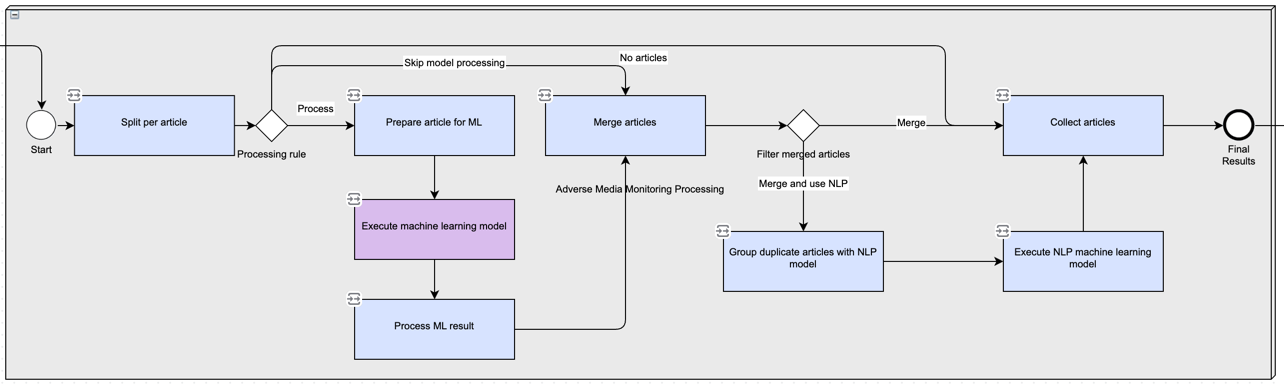
Split per article. The step splits the investigation per article to process all articles in parallel using an ML model.
Processing rule. The rule skips the ML processing if no articles are found or redirects articles to the model processing step.
Prepare article for ML. Articles are prepared to be processed by the ML model. Note that, in some instances, an article can't be processed. Common reasons for this include, but are not limited to, the following:
The article is in a language that is not supported. At the moment, only articles in English or Spanish are supported.
The media provider returned only a link, and the source website was unavailable due to scheduled or unexpected maintenance.
The content is unavailable in HTML, for example, an image of a government's most wanted poster.
The article's content is too small to be processed (under 50 words).
The article's content is too large to be processed and skipped due to a runtime error. The current limitation is 10,000 words.
Execute machine learning model. The machine learning model is executed over additional articles as needed. This and the previous steps are executed iteratively until all articles eligible for model screening have been processed.
Process ML result. Articles are prepared to be processed by the ML model. Depending on the media provider, texts might need to be parsed or reformatted.
Merge articles. All articles are merged back into one investigation.
Filter merged articles. Merged articles are filtered according to the duplicate content grouping criteria you choose during AMM configuration.
Group duplicate articles with NLP model. Merged articles are processed by the NLP model if you enabled the option during AMM configuration.
Execute NLP machine learning model. The NLP NML model is executed over articles to identify duplicates.
Collect articles. An investigation status for the transaction is set, and the output is grouped based on rules and ML results.
Manual Task required. The model checks to determine if a Manual Task should be created in Workspace. These settings are configured when setting up the AMM variation in Control Tower.
Prepare data for Manual Task. If the Manual Task is enabled, the data from the ML model is prepared to be reviewed in the Workspace interface.
Adverse Media Monitoring vX.X.X. A Manual Task (or investigation) is created for each screened entity in Workspace. For more information about the review process, see the guide.
Process Manual Task result. Once a user saves, skips, or closes an investigation, the results are processed.
Manual Task submitted. Checks to determine if the Manual Task is submitted (or closed) versus if it is saved or skipped. When not submitted, it is returned to the queue for an analyst to complete their investigation review.
Adverse Media Monitoring Output. A detailed audit trail is created in a standardized PDF (narrative report) or HTML format. The report contains the analyst's decisions on article materiality, cited articles, a confidence score for each article, static URL, keyword citations, full article text, and the final decision and adjudication for the investigation. For more information on the AMM output, see the guide.
The figure below details the steps in the sub-process:
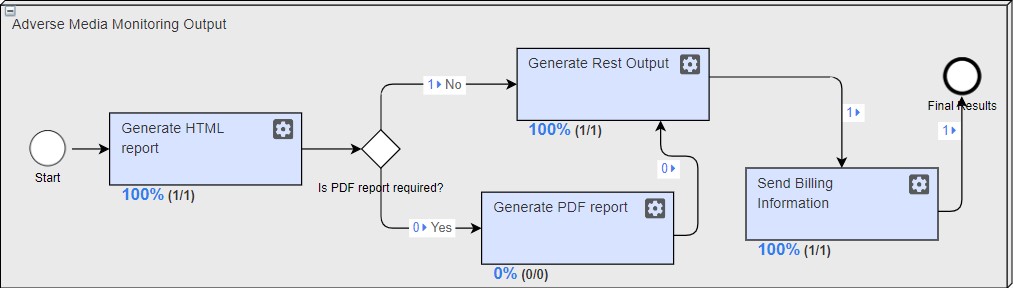
Generate HTML Report. During the step's execution, the results from the investigation are processed, and an HTML version of the report is generated.
If a Manual Task was used, the results also include information that analysts provided during their review.
Is PDF report required? Checks to see if the customer requested a PDF version of the report. This is determined by the parameter set when configuring the AMM variation.
Generate PDF report. Generates a PDF report, if required.
Generate Rest Output. Generates the output for the REST API.
Send Billing Information. Sends billing events to the billing platform.
Record analytics. Audit trail data is prepared for visualization in the WorkFusion Analytics dashboard. For additional information, refer to the guide.
Generate AMM Output. The step creates REST API responses, prepares investigation results for downstream systems, and finalizes the investigation lifecycle.
For batch processing scenarios when multiple investigations are processed together, you can route input to the separate Batch Processing BP. The BP provides combined reporting, notification, and consolidated output generation.
Adverse Media Monitoring Ad Hoc Investigation
The Ad Hoc Investigation BP allows you to create an ad hoc search screen in Workspace for analysts to initiate investigations as needed.
The figure below demonstrates the Ad Hoc Investigation BP at a high level. Additional information for each step is provided below.

The numbers below correspond to the workflow above:
Split Ad Hoc investigation tasks. The step is triggered when the Ad Hoc investigation BP is initiated. The Ad hoc investigation tasks are split based on whether or not the Human in the Loop feature is enabled in the configuration for the associated variation.
AMM Ad hoc investigation initialization. The step creates an ad-hoc search screen in Workspace for analysts to use.
Submit Adverse Media Monitoring Investigation Request. Once an analyst submits a search request (for instance, an entity name), Evan fetches news articles by calling API from pre-defined news sources and retrieves text and metadata (URL, title, date) from the articles.
Prepare batch input data. The step prepares the data for the batch processing BP.
Return record to the queue. The step returns the ad-hoc search screen to the queue.
Run batch processing BP. The step asynchronously calls the batch processing BP using the configured signal ID. For details on asynchronous calls and signal ID, read the Start Business Process by internal event topic.
Adverse Media Monitoring File Ingestion
This BP looks for new CSV files in the configured S3 directory every minute and initiates a new investigation if a new file appears.
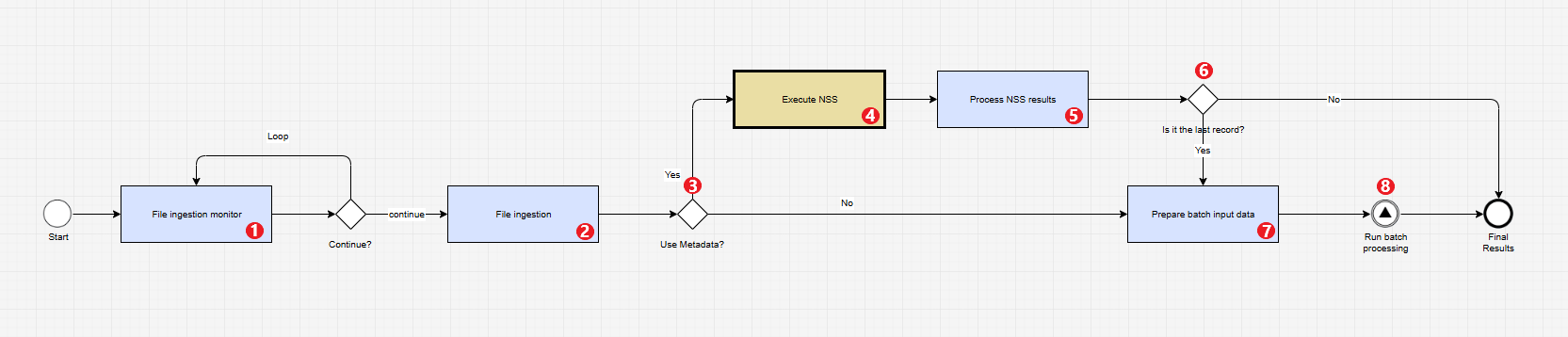
The numbers below correspond to the workflow above:
File Ingestion Monitor. Monitors the S3 folder for a new file to start the BP according to the settings in the UI configuration.
File Ingestion. The CSV file from S3 is parsed, and the input data is prepared for an NSS or AMM run.
Use Metadata? This is the rule based on the Do you want to use available meta data to adjudicate articles first? setting in the UI configuration. If the setting is Yes, the NSS BP is executed first.
Execute NSS. Synchronously executes the NSS Business Process.
Process NSS results. Processes the results from NSS.
Is it the last record? This is the rule that checks if it is the last transaction from the NSS response. If set to No, it ignores the result.
Prepare batch input data. Prepares the complete input data structure required by the Batch Processing BP.
Run batch processing. Asynchronously calls the batch processing BP using the configured signal ID. For details on asynchronous calls and signal ID, read the Start Business Process by internal event topic.
Adverse Media Monitoring Batch processing
The batch processing feature is designed to efficiently handle multiple AMM investigations simultaneously. It provides centralized management of batch-level reporting, notifications, and output generation while coordinating the execution of individual investigations.
The figure below illustrates the Batch Processing BP at a high level. Additional information for each step is provided below.
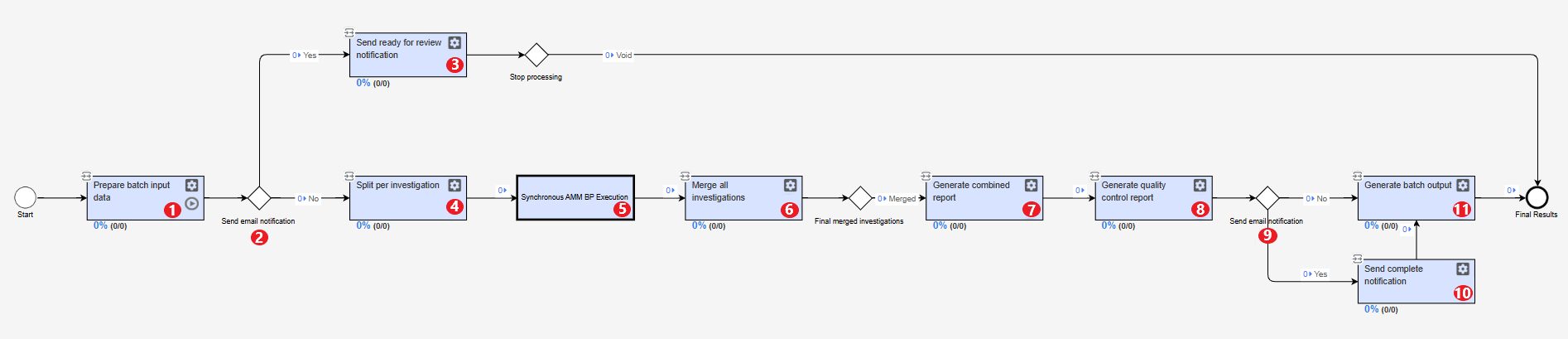
The numbers below correspond to the workflow above:
Initialize Batch Processing. The step does the following:
- Validates and prepares input data for batch processing
- Generates a unique batch identifier, if not provided in the input data
- Sets up notification preferences when email addresses are specified
- Enables parallel monitoring for notifications, when the latter are configured
Notification Decision Point. The step determines whether email notifications are requested.
- If yes, it enables notification monitoring to accompany the main processing flow.
- If no, the BP proceeds directly to the investigation processing.
Ready for Review Notification (Conditional - Parallel Monitor). The step executes only when notification email addresses are provided. It handles the following tasks, running alongside the main processing flow without blocking its progress:
- Monitors the progress of all investigations in the batch
- Automatically sends a notification when all investigations reach the Ready for Review status
- Checks the batch status periodically (every 30 seconds) until completion
Prepare Individual Investigations. The step does the following:
- Splits the batch into individual investigation records
- Prepares each investigation for processing with the complete AMM workflow
- Validates that the batch contains at least one investigation
- Maintains the batch context and relationships across all investigations
Execute Individual Investigations. The step passes each investigation through the complete AMM workflow:
- Article collection and processing
- Machine learning (ML) analysis
- Manual review (when enabled)
- Individual investigation reporting
For optimal performance, all investigations run in parallel. Each maintains its own status and results independently.
Consolidate Investigation Results. The step handles the following tasks:
- Combines results from all individual investigations into a unified batch result, including both successful and failed investigations
- Ensures all investigations are accounted for in the final output
- Maintains data integrity and consistency across the entire batch
- Tracks the completion status and handles any processing errors gracefully
Generate Batch Reports. The step creates comprehensive reports aggregating results from all investigations. Report generation can be enabled or disabled at your discretion. All reports are securely stored and accessible via provided links.
The following batch report types are available:
Combined Report featuring detailed analysis of all investigations in a batch, including both successful and failed investigations, and standardized batch-level analysis. Available in the PDF or HTML formats.
Batch Summary Report offering a high-level overview focusing on the batch metadata and statistics.
Generate Quality Control Report. The step creates specialized reports with detailed batch metrics for quality assurance and auditing purposes. They include quality metrics and validation results across all investigations to support compliance and audit requirements. Their generation is independent of other reports, and you can enable it separately.
Final Notification Decision Point. The step determines whether completion notifications should be sent.
- If yes, the BP proceeds to the Send Completion Notification step.
- If no, the BP proceeds directly to generate the final output.
Send Completion Notification. The step sends email notifications when the entire batch processing is complete, provided valid notification email addresses are configured. Then, it validates the configured email addresses and filters out invalid recipients.
Email content can vary based on the batch outcome (failure or success notifications). The process continues successfully even if the email notification fails.
Generate Final Batch Output. The step handles the following tasks:
- Creates a comprehensive final output containing all batch results
- Saves batch metadata for future reference and audit purposes
- Produces a complete batch response with execution details and links to reports
- Includes detailed results for successful investigations and error information for failed ones
- Provides complete batch statistics and summary information
Adverse Media Monitoring Quality Control
The diagram below illustrates a high-level workflow of the Quality Control BP:
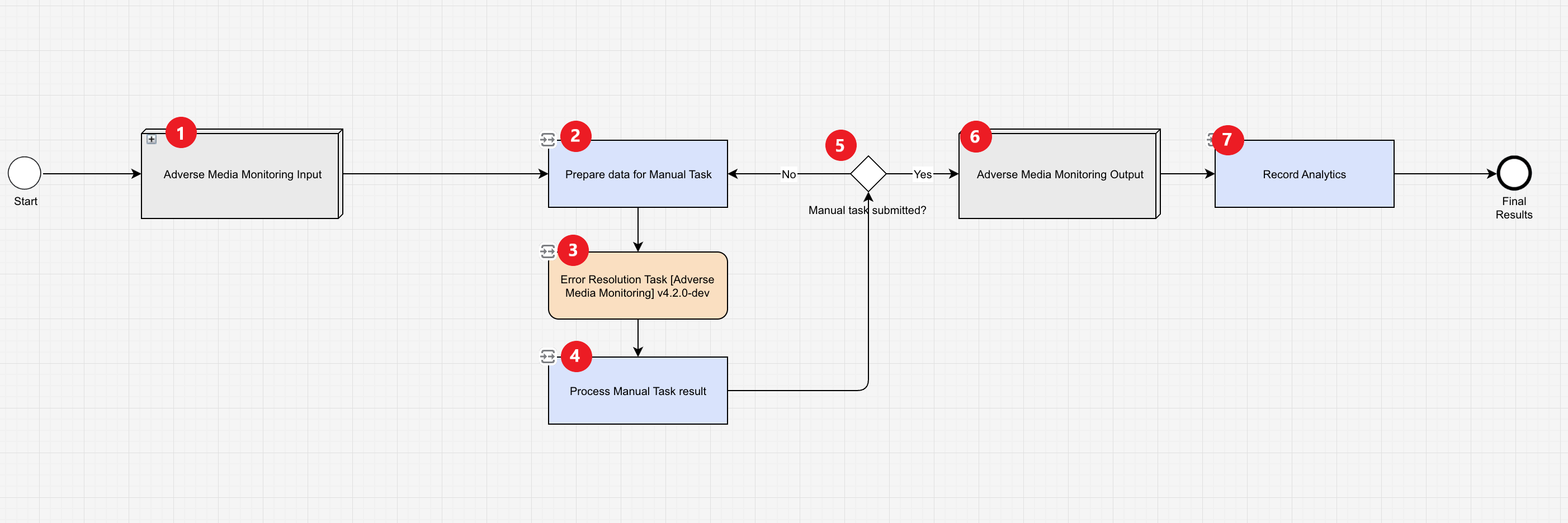
Adverse Media Monitoring Input. For each provided investigation UUID, WorkFusion fetches information about the last run and prepares the same request for AMM. The diagram below displays the steps within the sub-process. If multiple providers are configured, the search request is split into distinct requests for each provider.

Load investigation. Loads the last investigation for the provided investigation UUID. If no previous investigations are found, the step loads the original investigation. Then, the found investigation is used to re-create the original request for AMM.
Request Investigation UUID. The step contains a rule that evaluates whether an investigation UUID is provided in the Business Process input or via a REST API request. If the UUID is missing, the execution is routed to a Manual Task where users can input the UUID.
Submit Investigation UUID Request. The step is a Manual Task where users can specify the investigation UUID. If no UUID was provided initially and the Manual Task is used, the Business Process creates a loop, ensuring the Manual Task remains open. It allows users to reopen further investigations without restarting the entire process.
Prepare input data. Parses and validates the input data.
Enrich articles. Enriches articles with metadata from the previous investigation.
Prepare data for Manual Task. If the Manual Task is enabled, the data from the ML model is prepared to be reviewed in the Workspace UI.
Error Resolution Task (Adverse Media Monitoring) vX.X.X. A Manual Task (also called an investigation) is created for each screened entity in Workspace.
Process Manual Task result. Once a user saves, skips, or closes an investigation, the step processes the manual review result.
Manual Task submitted? The step checks whether a Manual Task is submitted (closed), or saved, or skipped. If the Manual Task is not submitted, it is returned to the queue for an analyst to complete their review of the investigation.
Adverse Media Monitoring Output: A detailed audit trail is created as either a standardized PDF or HTML format. The report contains the following:
- Analyst decisions on the article materiality
- Cited articles
- Confidence score for each article
- Static URL
- Keyword citations
- Full article text
- Final decision and adjudication for the investigation
The diagram below details the steps within the sub-process:
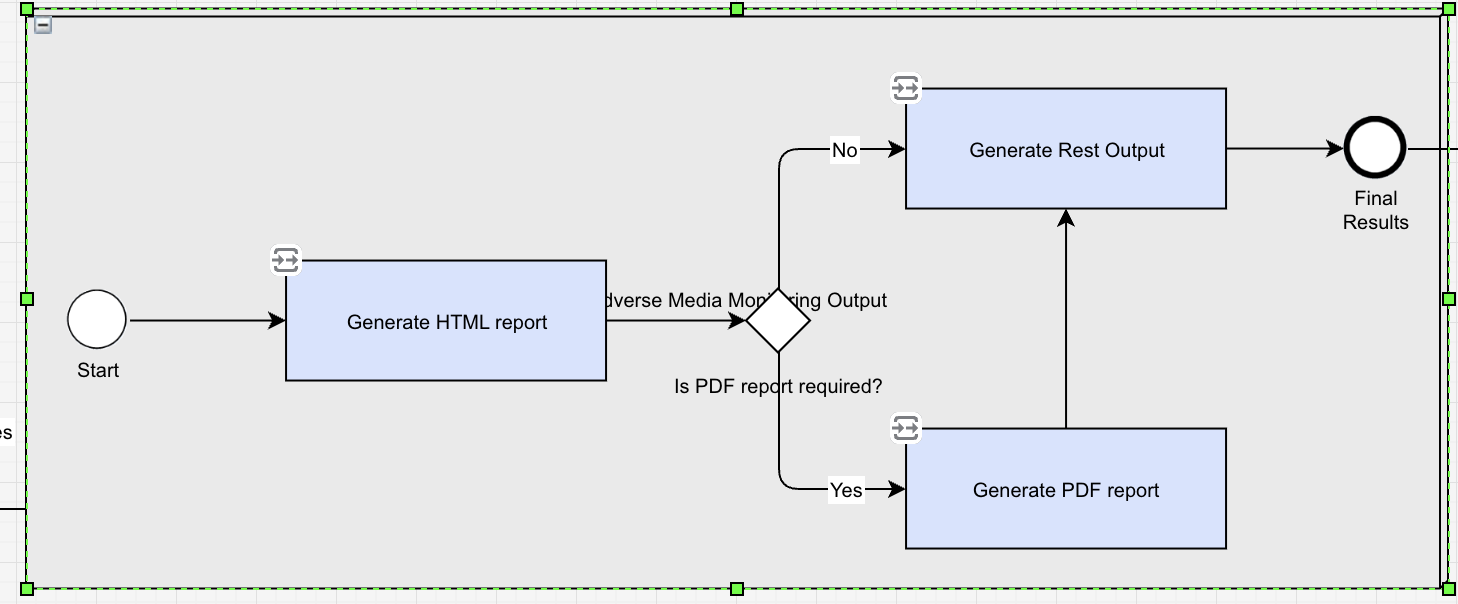
Generate HTML Report. The results from the investigation are processed, and an HTML version of the report is generated as the step is executed.
If a Manual Task is used, the results also include information provided by the analyst during their review.
Is PDF report required? The step checks whether a PDF version of the report is requested. This is determined by the parameter that was set when configuring the AMM variation output.
Generate PDF report. The step generates a PDF report, if required.
Generate Rest Output. The step generates the output for the REST API.
Record analytics. Audit trail data is prepared for visualization in the AMM dashboard.
Adverse Media Monitoring Blocked URL Management
The Business Process implements the Blocked URL Management mechanism, allowing you to manage URLs in the AMM ignore list to keep it up to date. The core of the BP is the Blocked URL Management task that can be executed as a standard WorkFusion task or invoked remotely via REST API.
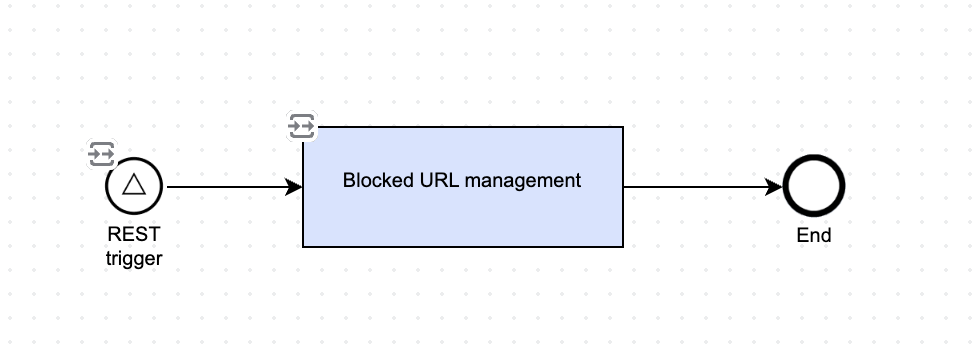
When triggered, the task performs the following steps:
Input parsing. First, the incoming request is parsed to identify the target
url_idand the desired action. The step can handle the input from both standard task execution and the request body of REST API calls.Action execution. Based on the provided action (
ENABLE,DISABLE, orDELETE), the task interacts with thecontent_relevance_feedbackData Store to modify the state of the specified URL record.ENABLEsets theignoring_enabledflag totruefor a givenurl_id.DISABLEsets theignoring_enabledflag tofalse.DELETEremoves the record corresponding to theurl_idfrom thecontent_relevance_feedbackData Store.
Response generation. The task generates a structured output indicating the operation result. If the action is successful, the output includes a
url_idand the action performed. If it fails (for instance,url_iddoes not exist), it returns a descriptive error message.
For the Blocked URL Management BP input and output data schemas, see the following:
Third-party data provider connectors
Evan AMM can connect to various data providers via API. Out of the box (OOTB), the following connectors are supported:
- Google Search (Google API)
- Factiva Dow Jones Web Services 2 API
- Refinitiv World-Check One
- LexisNexis World Compliance and L&P Media
- Brave
In addition to the standard connectors, Evan AMM supports an External Source provider that allows integration with custom or third-party data connectors. You can plug in specialized data providers not covered by the standard out-of-the-box connectors. Examples of external connectors that can be used for sourcing article data are as follows:
- Moody's: provides structured financial risk and compliance-related news and data.
- Thomson Reuters Clear: delivers news, risk intelligence, and entity-level article data for compliance screening. For details, read the guide.
Content parser
For the OOTB data providers, like Google API, and for articles from an external source, the content parser does the following:
- Extracts relevant article content
- Removes extraneous information, for instance, advertisements
- Formats the content to provide readability
Article classification ensemble model
The default model leverages thousands of labeled articles confirmed by compliance experts to assess material risk events. The model integrates multiple sub-models, including:
- Sentiment Analysis
- Named Entity Recognition
- Name Matcher
- Focality Analysis
- Age Matcher
- LLM processor
In addition, you can leverage the NLP (Natural Language Processing) model for grouping duplicate articles to allow more accurate identification of semantically similar content.
Supported languages
The system natively supports English and Spanish articles. Non-supported languages are flagged for manual review, ensuring visibility in reports and tasks.
For Google, Brave, and External Source providers, you can enable the translation feature based on Google Translate API, allowing you to work with languages other than the supported English and Spanish. For details, read Install and configure | Translation settings.
Customizable features
Keyword library includes about 520 pre-tagged keywords for risk prioritization. You can change the set of keywords used for article search during the AMM configuration.
High-risk country identification allows you to define high-risk countries for the model to prioritize based on article context. You can specify such countries during the AMM configuration.
Ignore list is a configurable list of website patterns and hosts that AMM uses to exclude unhelpful information sources, block unsafe domains, and avoid downloading content from paywalled or restricted-access sites. For details, read See how ignore list works.
Manual review interface and reporting
Workspace provides a graphical user interface for displaying screening results, including article text and reconciliation tools. For details on the application, read Get started with Workspace.
The Audit trail creation feature generates standardized HTML or PDF audit trails documenting analyst decisions, article materiality, and other key metrics. For details, read the View report topic.
The Feedback feature, available in Workspace, allows reviewers to add their feedback on the relevancy of the article content and update Evan's website ignore list. For details, read Review search results in Workspace.
Analytics dashboards provide real-time insights into automation performance, accuracy, improvement opportunities, and troubleshooting. For details, read the Analyze results article.
Decision reapplication
The decision reapplication mechanism allows you to reuse previously made article review decisions across multiple investigations of the same entity. For details, read Explore decision reapplication.
Blocked URL Management
The Blocked URL Management feature provides a mechanism for administrators and external systems to manage URLs in the AMM's ignore list. It allows for dynamic control over which URLs are enabled, disabled, or completely removed from the content_relevance_feedback Data Store, ensuring that the ignore list remains up to date and effective.
The capability is exposed through the following:
- Adverse Media Monitoring Blocked URL Management Business Process
- Adverse Media Monitoring Blocked URLs dashboard
Download PDF
To download a PDF version of the documentation, right-click the document below and choose Save As or Print > Save.