Create PoC
To create a proof of concept (PoC), a developer team implements a separate provider that receives the Data Store name and the prepared hits in the table format.
There are three main scenarios:
- Create PoC using a pre-trained ML model.
- Create proof of concept (PoC) by training the ML model on customers' historical data.
- Train the model on the customer's historical data and validate the model quality on a test data set.
The following schema shows regular training of the ML model.

Environment preparation:
Data preparation:
ML Model rules Fill required Data Stores with training data
PoC execution and evaluation:
The following guide implies that you have prepared the environment, as specified in step 1.
Data preparation
Data formats
Data formats for training and test data sets are almost similar to the entire Name Screening business process. The difference is in the "search_id" field, while some fields are mandatory.
Input data format
| Field | Description | Type | Mandatory | Examples |
|---|---|---|---|---|
search_id | The parameter to connect hits with inputs. Each input must have a unique search_id. | String | Yes | 1 |
input_id | Customer service id. For example, end-user's account_id in the bank database. | String | No | 1111 |
input_record_type | Record (search) type: individual, business, aircraft, vessel, etc. | String | No | Person |
input_first_name | First name of the person | String | No | Mustafa |
input_last_name | Last name of the person | String | No | Mohamed |
input_middle_name | Middle name of the person | String | No | Fadhil |
input_name_title | Title of the person: Dr., Mr., etc. | String | No | Dr. |
input_full_name | Full name of the person or name/title of a screened organization | String | Yes | Mustafa Mohamed Fadhil |
input_gender | Gender of the Input entity data in case it is an Individual | String | No | Male |
input_address_[1..99]_street | Entity's adress split into separate values. You can specify only Country and leave all other fields empty. State is optional, but increases the model quality. If the address is a post office box, specify it in the "_streeet" variable. You can specify several addresses, they will be compared with all addresses in a found hit. If the address is a PO Box, specify it in the 1st variable of the address massive:input_address_1_street. | String | No | 6 S. Marconi Street |
input_address_[1..99]_city | See description of input_address_[1..99]_street earlier | String | No | Bronx |
input_address_[1..99]_state | See description of input_address_[1..99]_street earlier | String | No | NY |
input_address_[1..99]_country | See description of input_address_[1..99]_street earlier | String | No | United States of America |
input_address_[1..99]_postal_code | See description of input_address_[1..99]_street earlier | String | No | 10463 |
input_date_[1..99] | Date of birth or business registration / fundation, etc. You can specify several dates, they will be compared with all dates in a found hit. | Date | No | 10/26/1981 (MM/DD/YYYY) |
input_date_type_[1..99] | Type of date: DOB, DOR, etc. | String | No |
|
To add custom fields to a hit, add a new column to the Data Store with the "hit_" prefix. It will not be taken into account during the decision making but will be processed and transferred to output results.
Example file: example_input.csv
Hit data format
| Field | Description | Type | Mandatory | Examples |
|---|---|---|---|---|
search_id | The parameter to connect hits with inputs. Each input must have a unique search_id. Each hit has a value to connect to the particular input (only values that exist in the inputs). | String | Yes | 1 |
hit_id | The hit ID of the sanctioned, high-risk, or politically exposed individual, business, or another type of an entity according to the connected sanctions screening system. | String | Yes | 1111 |
hit_record_type | The record type of the sanctioned, high risk, or politically exposed individual. Values depend on the connected screening system. Example: Individual/Person, Business/Entity, Vessel, Aircraft | String | No | Person |
hit_matched_name | The name from sanctions or PEP list detected as a potential match by the screening software | String | Yes | Mustafa Mohamed Fadhil |
hit_matched_name_score | The score [0..1] shows a degree of similarity of compared names: from the input and hit. The used sanctions screening system provides this data. | String | No | 0.86 |
hit_gender | The gender of the Hit entity data in case it is an Individual | String | No | Male |
hit_address_[1..99]_street | Entity's address split into separated values. The address may be incomplete: only Country, or Country + State. You can specify several addresses. The 'PO Box' type of address isn't supported for hit's data. | String | No | 6 S. Marconi Street |
hit_address_[1..99]_city | See description of input_address_[1..99]_street earlier | String | No | Bronx |
hit_address_[1..99]_state | See description of input_address_[1..99]_street earlier | String | No | NY |
hit_address_[1..99]_country | See description of input_address_[1..99]_street earlier | String | No | United States of America |
hit_address_[1..99]_postal_code | See description of input_address_[1..99]_street earlier | String | No | 10463 |
hit_date_[1..99] | Date of birth, date of business registration / foundation, etc. There are possibly several dates. | Date | No | 10/26/1981 (MM/DD/YYYY) |
hit_date_type_[1..99] | Type of date: DOB, DOR, etc. | String | No |
|
hit_matched_country | Country from the Hit data that has the biggest comparison score. The used sanctions screening system provides this data. | String | No | Canada |
hit_matched_country_score | Score value of the best-matched country from the Hit data. The used sanctions screening system provides this data. | String | No | 0.76 |
hit_IDs_match | Parameter (0 or 1) shows whether there is a match of Document IDs from the input and hit. The used sanctions screening system provides this data. | String | No | 0 |
Example: nss_datastore_provider.csv
Name Matcher data format
| Field | Description | Type | Mandatory | Examples |
|---|---|---|---|---|
name1 | The Individual/Person, Business/Entity, or Vessel/Aircraft name to compare with name2. | String | Yes | Doe Jones |
name2 | The Individual/Person, Business/Entity, or Vessel/Aircraft name to compare with name1. | String | Yes | Doe Jone |
gold | The value represents the result whether name1 and name2 match or not. Possible values:
| String | Yes | 1 |
Example: name_matcher_data.csv
Convert data from customer's format
Customers can provide data in different formats: structured data in CSV, XML, JSON, scanned documents, emails, reports, etc. For each case, you need to follow the optimal way to convert the data from the original format to table-wise one.
For example:
- Use OCR or RPA to recognize data from scanned documents and convert them to CSV.
- Convert JSON or XML to CSV with any suitable tool.
Any conversion should take no more than two working days.
As a result, you need names for screening with additional data, hits for these names with other data, and evaluation (False Positive / Need more information) for each 'name-hit' pair.
The recommended way is to form a single table with all pairs 'input-hit'. Then it will be easier for you to validate that you have all the required data in the required input-output data format.
Prepare training data set
This step is optional because it is not always necessary to train the model on customer data for PoC purposes. Any PoC can be built on OOTB pre-trained model, which shows excellent results.
We recommend training a new model based on customer data when the data is significantly different from our training data. For example, the OOTB model has been trained on US/Canada/Arabic names. But if a customer has the most names for screening from one specific region (CIS / APAC / China, and so on), it's better to train the model on customer-specific data. It should improve the model quality using only the customer's data, without the model tuning.
The test data set consists of .csv files (see examples earlier) with:
Prepare test data set
Test data set consists of .csv files (see prior examples) with:
ML Model Train
Fill required Data Stores with training data
We recommend creating a separate Data Store for training the ML Model.
To create a custom Data Store based on the input .csv file, do the following:
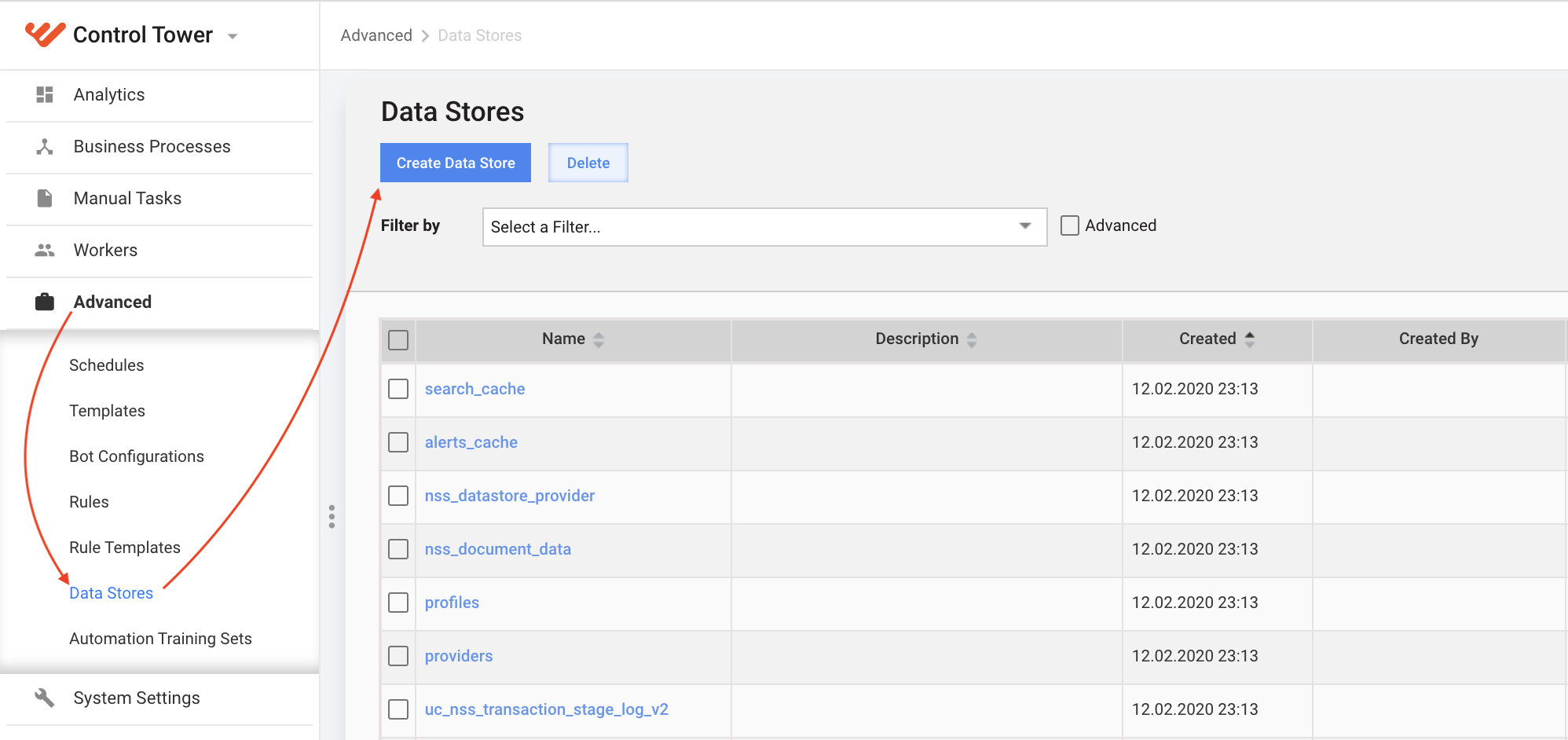
Log in to Control Tower, and, in the menu, click Advanced > Data Stores > Create Data Store.
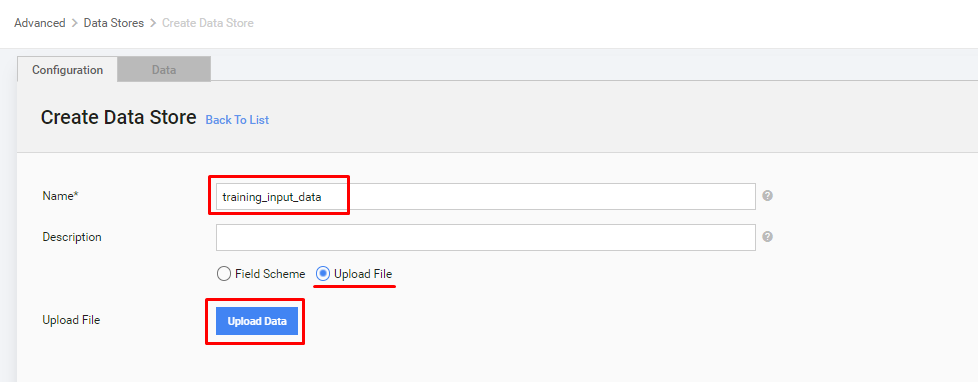
In the Create Data Store window, enter the new Data Store name, select the Upload File checkbox, and click Upload data.
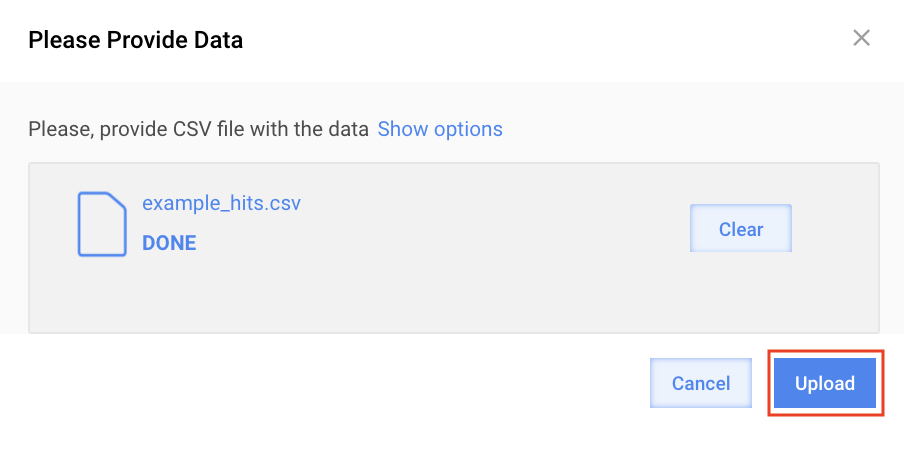
In the window, click Add, select the input .csv file that you prepared earlier, click Open, and then click Upload.
Click Save.
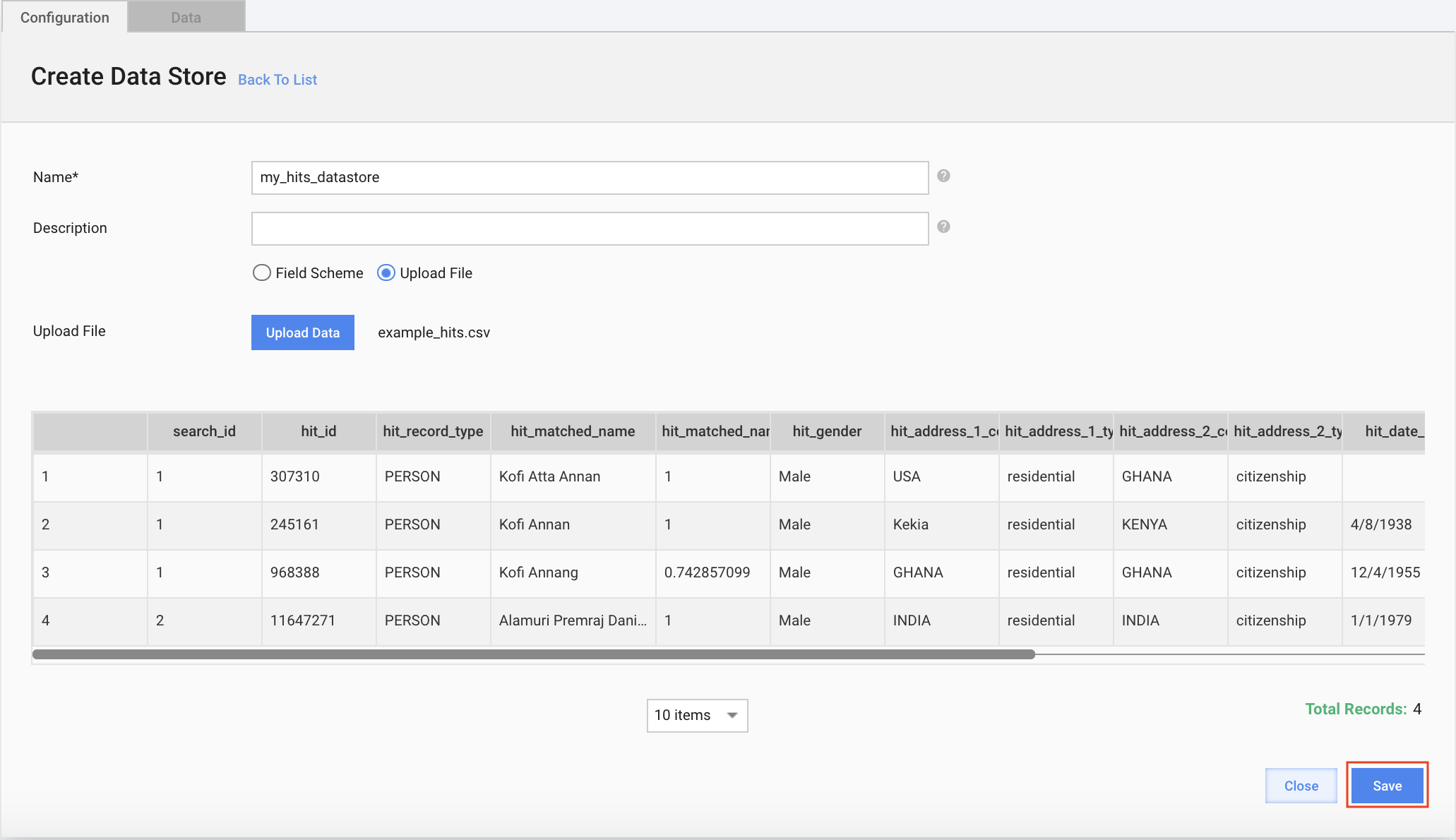
Execute steps 1 - 4 for the hit and the name matcher .csv file of the dataset.
Execute training BP
To start the ML Model Train BP, do the following:
In Control Tower, go to the NSS Model Re-train Business Process, and in the Workflow tab, click the NSS Model Training Settings step. In the Design tab below, fill in Data Store names.
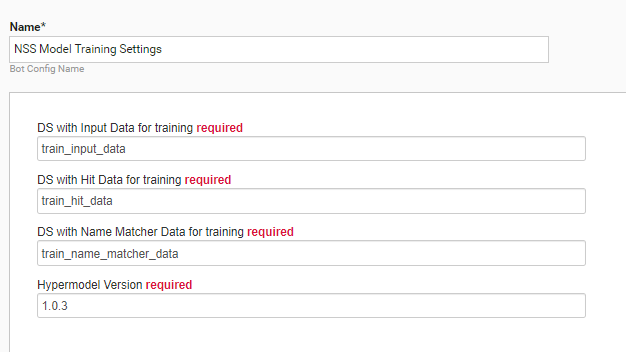
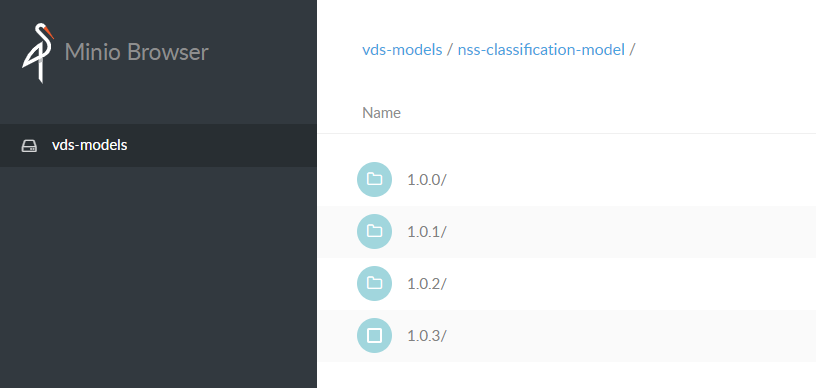
The Hypermodel Version parameter is responsible for taking the Hyper Model's correct version to train the process. We recommend using the latest version of the hyper model.
To find the version in S3, follow the nss-classification-model link, for example, example-minio-lb1.workfusion.com/minio/vds-models/nss-classification-model/
On the BP's Run tab, run the business process and wait for results to appear on the Results tab.
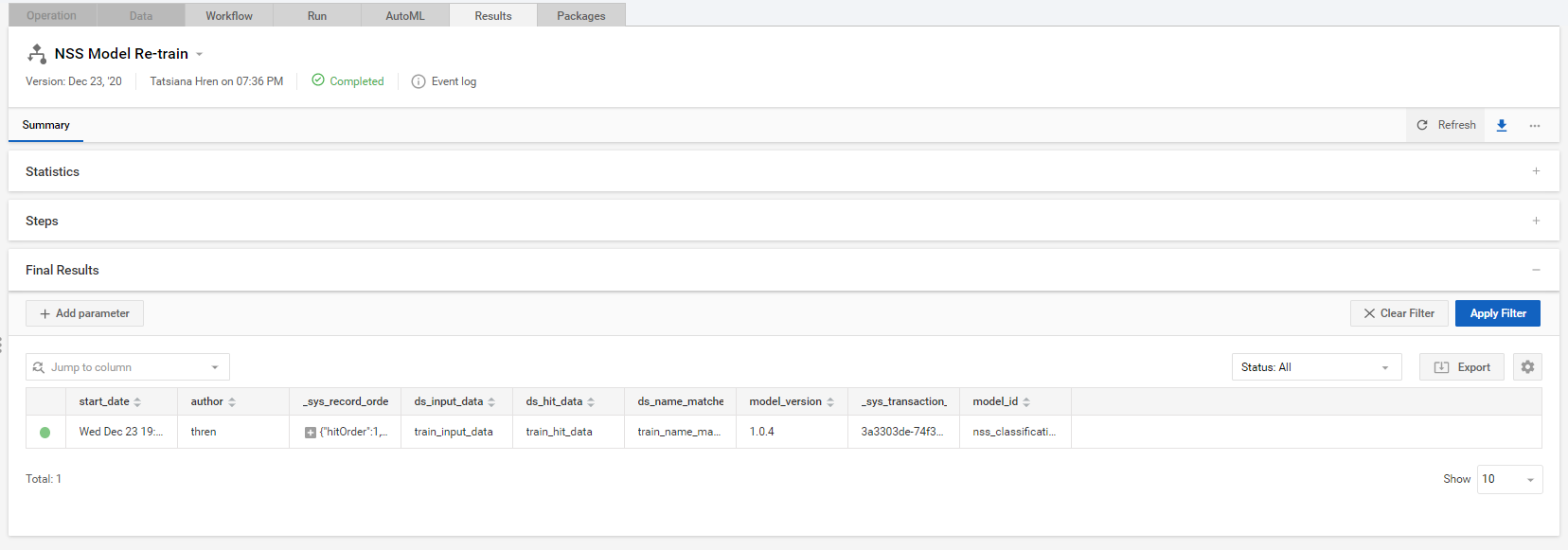
Get new Model_ID
BP's result is model_id – a trained version of the hyper model provided in the results tab of BP.
This model_id can be used for running the main BP.
To use this trained model in the main BP, change the value of model_id in Profiles DS, or create a profile. For more information, see Create POC with custom Data Store, step 3.
PoC execution and evaluation
Execute main BP
For complete information, see the Run screening guide.
Analyze execution via Analytics dashboard
For complete information, see the Analyze effectiveness guide.