Install and configure
The article focuses on the installation of the Name Screening Hit Review.
Prerequisites
Before installing the Name Screening skill, make sure that your environment meets the requirements.
Hardware
The servers' requirements for the skill are the same as for the IA Cloud Enterprise Platform. Note that to run the screening, you don't need the RPA server.
| Server | Recommended OS | CPU (cores) | RAM (GB) | HDD (GB) |
|---|---|---|---|---|
| Master | RHEL 8.5 | 8 | 32 | 750 |
| Agent | RHEL 8.5 | 8 | 32 | 150 |
| Analytics | Windows Server 2016 | 4 | 16 | 150 |
| MSSQL | Windows Server 2016 | 4 | 16 | 500 |
Software
- You have installed IA Cloud Enterprise v.10.2.4.1+ and have Control Tower (CT) and Analytics components enabled. See the installation guide.
- You have deployed ODF v. 10.1.0.7. Note that for IA Cloud v.10.1.6+, ODF is installed automatically along with the system. For more information on the ODF setup in earlier Product versions, see the detailed installation guide.
- You have received the credentials for the required watchlists or license for the external screening software to be integrated with the skill.
- You have the Analytics DataMart 2.0 bundle.
Performance
Name Screening Hit Review leverages BEP servers, which can be horizontally scaled for higher volumes.
Below is a sample of the volumes that can be expected when using the provided version and configuration. The system shows stable performance and resource consumption during the whole test, without unexpected spikes and errors, or any critical errors and warnings in logs.
Testing has been performed with disabled the Factiva provider, as it's not possible to run the Skill with big test data without being blocked by Factiva due to huge amount of requests.
Configuration:
| Skill version | Environment topology | Tested IA Cloud version | Number of OCR Workers | ML Worker configuration | CT Worker configuration |
|---|---|---|---|---|---|
| 1.2.1 | 3 / 6 / 20 Agents | 10.2.7 | 7 | 1 CPU / 4 GB memory | 0.4 CPU / 2 GB memory |
Results:
| Number of Agents | Number of screened names | Duration | Number of CT Tasks | Number of CT Workers | AML task throughput |
|---|---|---|---|---|---|
| 3 | 20,000 | 1 hr 30 min | 5,242 | 29 | 0.317 |
| 6 | 20,000 | 1 hr | 9,450 | 59 | 0.647 |
| 20 | 20,000 | 21 min | 29,183 | 240 | 1.823 |
Install
See the Install AI Agents guide.
Configure
Set up API credentials in Secrets Vault
Before setting the screening providers, make you that you have obtained the corresponding license with credentials.
If you wish to use providers, like Dow Jones or World-Check One, you must first set up these credentials in Secrets Vault. For the step-by-step instructions, see this guide.
| Vault parameters | Dow Jones Risk & Compliance | World-Check One |
|---|---|---|
| Alias | nss.provider.credentials | nss.nn.wc1.credentials |
| Username | Your username in the DJ R&C system | Your API key in the World-Check system |
| Password | Your password in the DJ R&C system | Your secret key in the World-Check system |
Select provider
To select a screening provider, do the following:
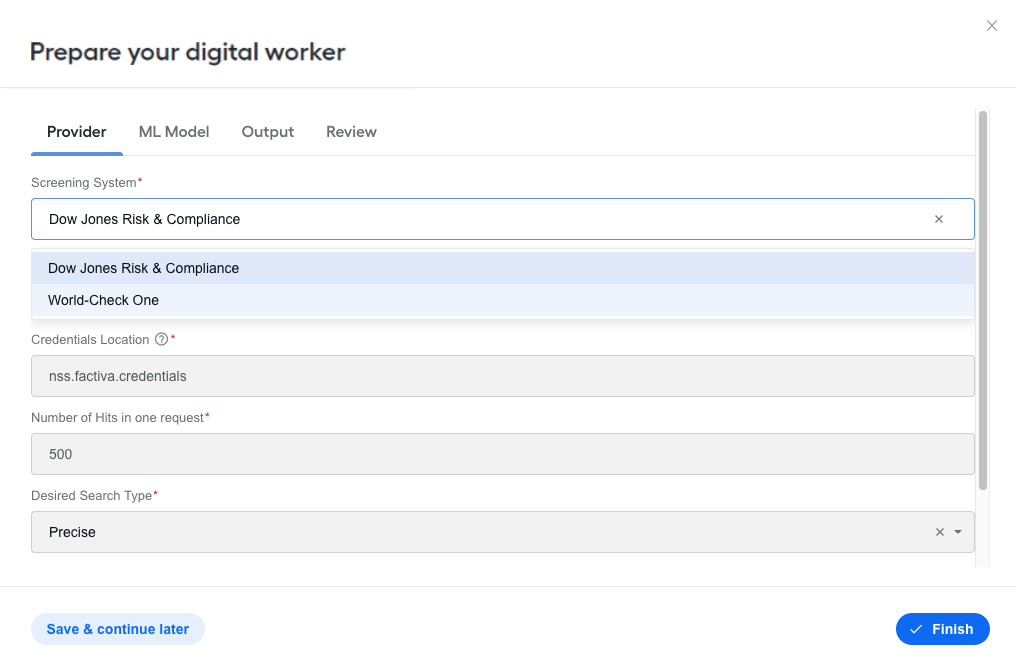
In the Control Tower menu, in the Digital Workers section, find your newly installed Name Screening AI Digital Worker, and click the Prepare button.
The Prepare your digital worker window containing the configuration form appears.
In the window, on the Provider tab, select a screening system for searching for records about the entity or individual. "Dow Jones Risk & Compliance" is set by default.
The required configurations may differ based on the selected provider.
Configure provider
The Name Sanction Screening supports screening from the following providers:
- Dow Jones Risk & Compliance.
- World-Check One.
To configure a provider, specify the providers' parameters. For a detailed description of each setting, see the following sections.
Dow Jones Risk & Compliance
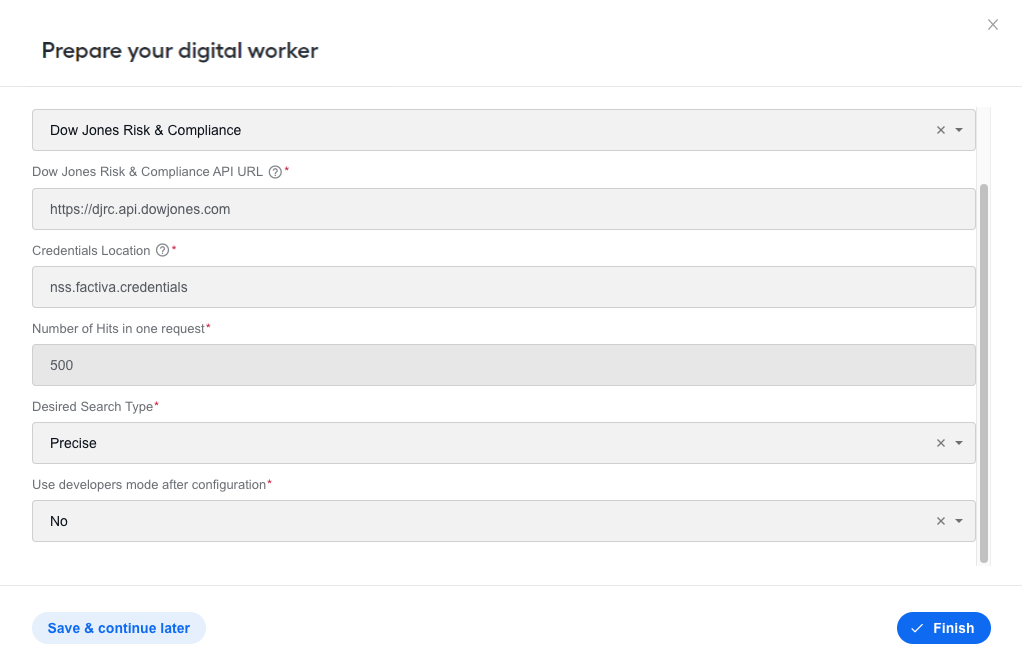
Dow Jones Risk & Compliance API URL. Select the address of the Dow Jones Risk & Compliance API. Available options:
https://api.beta.dowjones.comhttps://djrc.api.dowjones.com
Credentials Location. Specify the corresponding Secret Vault alias for the Dow Jones Risk & Compliance system.
Number of Hits in one request. Specify the number of hits to be requested in one request for a particular name from Dow Jones Risk & Compliance API. Default value is 500.
Desired Search Type. Set the desired tolerance for the search in the Dow Jones Risk & Compliance System. By default, it is recommended to use Precise. Available options:
- Precise
- Near
- Broad
Use Developer Mode after Configuration. Select Yes to enable the Developer mode for a Business Process. The Developer mode caches requests and responses from the Dow Jones Risk & Compliance API to avoid a ban from Dow Jones due to huge number of queries.
For the production configuration, set the value to No.
A little more about cache
The goal of the cache is to reduce the number of requests to screening systems.
The cache is represented as a separate Data Store. After you install the skill, the cache Data Store is empty by default. The hit data is received in response when the bot sends a name request to an external screening system. This data is saved to the cache.
Most screening systems send one response that contains all necessary hit data. But in some cases, there can be two requests:
- The first one obtains brief information on all hits. The data is saved to the Search cache.
- The second one with the hit's id obtains detailed information on the specific hit. The received data is saved to the hits cache.
The skill supports caching both for searches and for hits.
Search cache
Activate the search cache (with the Developer mode) on the development environments only. If enabled in the production environment, the skill operates with obsolete data.
The search cache implies that hits for particular names will be used from the cache instead of the real-time API. In such a situation, the stored data will soon become outdated. This is why the search cache is purposed for the Developer mode only.
The operation flow with the enabled search cache is the following:
- The skill sends a search request to API.
- All data received from the API is stored in the search_cache Data Store.
- Next time, when input contains the same name for the search, the skill will obtain all hits for this particular name from cache instead of DJ API.
Hits cache
The Hits cache is always enabled to reduce requests to the Dow Jones API and improve BP performance.
The operation flow of the hit cache is the following:
- The skill sends a search request to the API and receives a list of hits with short data for this name.
- The skill performs the second request with a specific
hit_idto get the hit's detailed info. - The hit details are saved to the hits_cache Data Store. It also stores the date when the hit was updated last time in the database.
- Next time, when the skill requests hit details, the system checks whether the hits cache contains up-to-date hit details.
- If hit details in the hits cache are outdated, the skill sends a new request for the hit details and updates the cache for this particular hit.
World-Check One
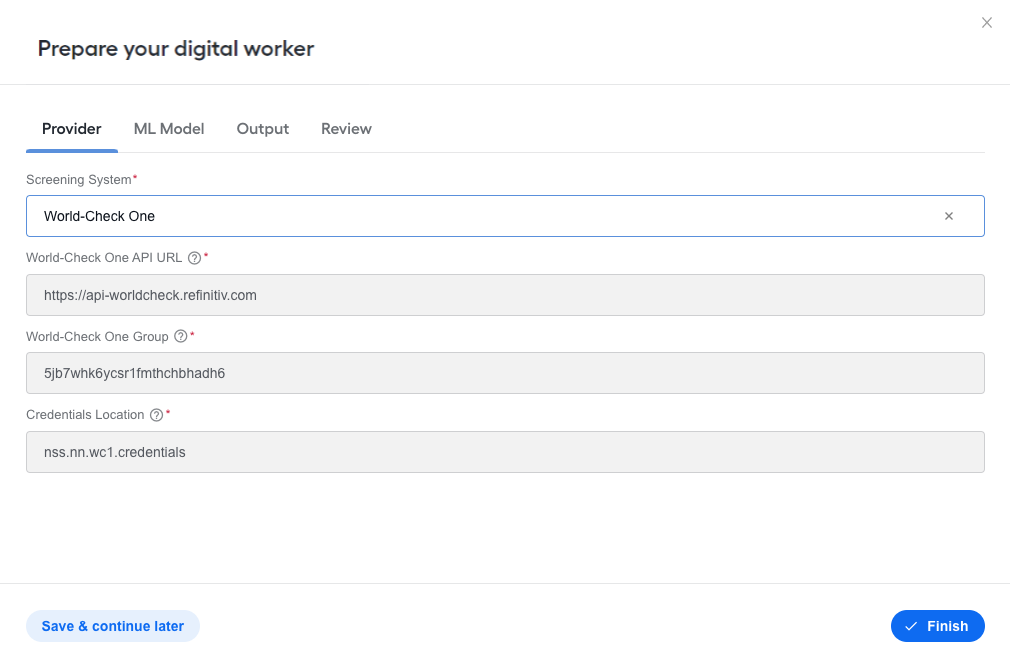
- World-Check One API URL. Select the address of the World-Check One API. By default,
https://api-worldcheck.refinitiv.com. - World-Check One Group. Specify the Group Id for the World-Check One system.
- Credentials Location. Specify the corresponding Secrets Vault alias for the World-Check One system.
Configure model
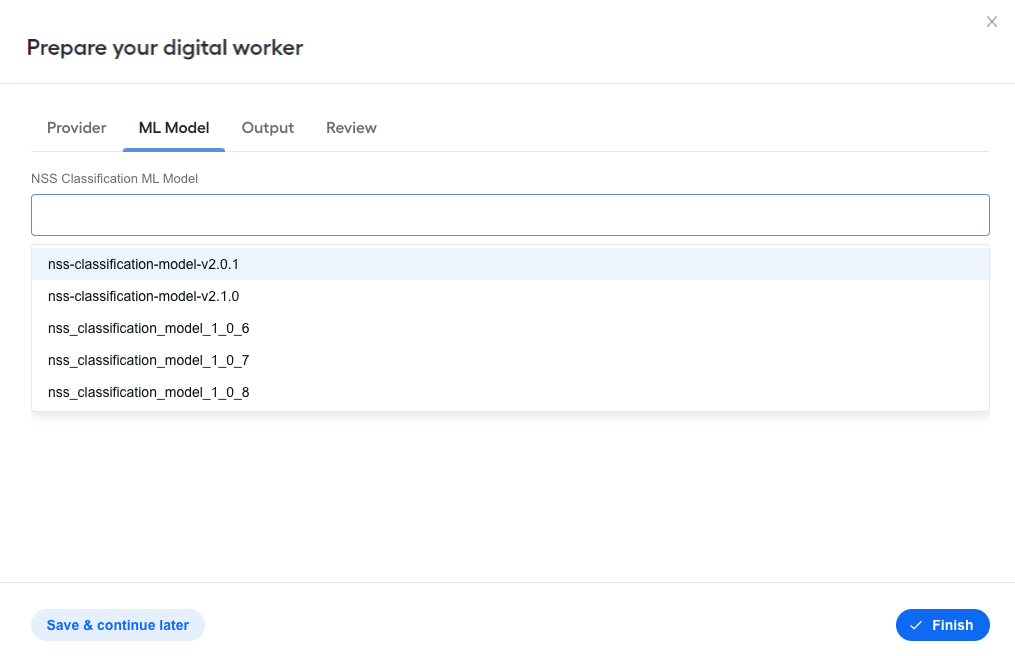
In the Prepare your digital worker box, on the ML Model tab, select a Classification model to be used in Business Process execution and hit disposition.
Configure output
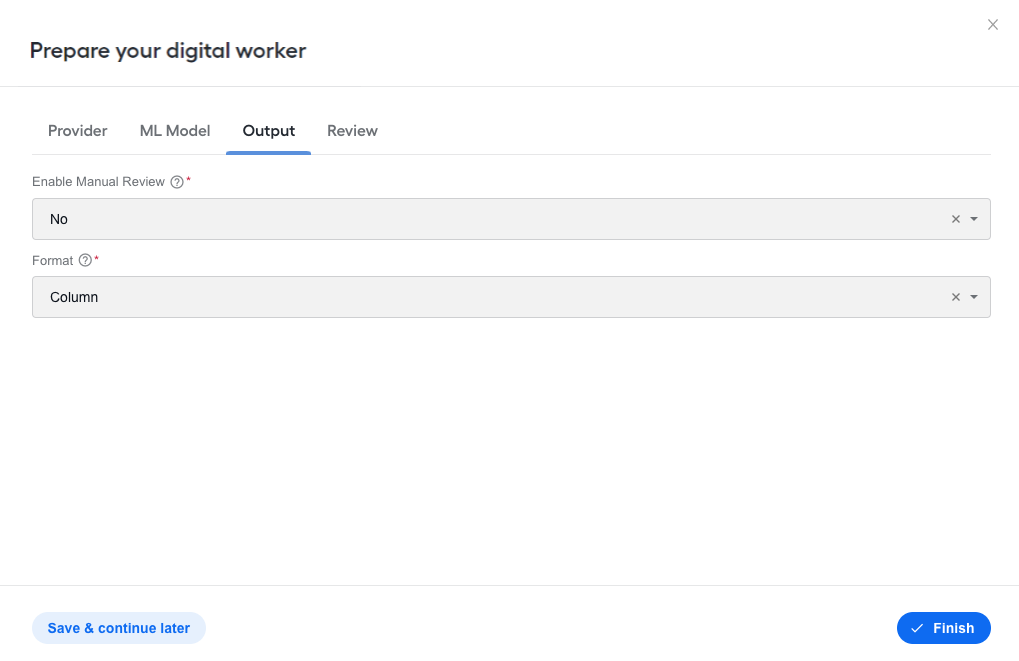
In the Prepare your digital worker box, on the Output tab, specify the following parameters of the report for a screening request:
Enable Manual Review. Select Yes to enable Manual Review Step.
Format. Choose the report format:
- Column: per hit report
- JSON: per alert report
Review settings
Once you complete the required fields, review the configuration. If everything looks correct, click Finish. You are now ready to use Name Sanction Screening.