Install and configure
The guide helps you install and configure the Name Sanction Screening (NSS) skill.
Prerequisites
Before installing the NSS skill, make sure that your environment meets the following requirements.
Hardware
The server requirements for the skill are the same as for the IA Cloud Enterprise Platform. To run the screening, you don't need the RPA server.
| Server | Recommended OS | CPU (cores) | RAM (GB) | HDD (GB) |
|---|---|---|---|---|
| Master | RHEL 8.5 | 8 | 32 | 750 |
| Agent | RHEL 8.5 | 8 | 32 | 150 |
| Analytics | Windows Server 2016 | 4 | 16 | 150 |
| MSSQL | Windows Server 2016 | 4 | 16 | 500 |
Software
- You have installed IA Cloud Enterprise v.10.2.7+ and have Control Tower (CT) and Analytics components enabled. See the installation guide.
- You have obtained the bundle with NSS Business Process and ML models from your Account Managers.
- You have received the credentials for the required watchlists or licenses for the external screening software to be integrated with the skill.
- You have enabled the Advanced Package Import and Import/Export permissions in CT.
Performance
NSS leverages BEP servers that can be horizontally scaled for higher volumes.
Below is a sample of the volumes that can be expected when using the provided version and configuration. The system shows stable performance and resource consumption during the whole test, without unexpected spikes and errors, or any critical errors and warnings in logs.
Testing has been performed with disabled the Factiva provider, as it's not possible to run the Skill with big test data without being blocked by Factiva due to huge amount of requests.
Configuration:
| Skill version | Environment topology | Tested IA Cloud version | Number of OCR Workers | ML Worker configuration | CT Worker configuration |
|---|---|---|---|---|---|
| 2.2.0 | 3 / 6 / 20 Agents | 10.2.7 | 7 | 1 CPU / 4 GB memory | 0.4 CPU / 2 GB memory |
Results:
| Number of Agents | Number of screened names | Duration | Number of CT tasks | Number of CT Workers | AML task throughput |
|---|---|---|---|---|---|
| 3 | 20,000 | 1 hr 30 min | 5,242 | 29 | 0.317 |
| 6 | 20,000 | 1 hr | 9,450 | 59 | 0.647 |
| 20 | 20,000 | 21 min | 29,183 | 240 | 1.823 |
Install
See the Install AI Agents guide.
Configure
Once NSS is installed, configure the skill before running it for the first time:
You can configure multiple variations or sets of parameters for NSS, for example, a different media provider or a set of keywords per variation. For more information, see the 10.2.5 release notes.
Set up API credentials in Secrets Vault
Before setting the screening providers, ensure you have obtained the corresponding license with credentials.
The following search providers are supported:
- Dow Jones Factiva Rest API v1.0
- World-Check One v2.2.0
- FircoTrust Case Manager API v5.4.22
- Thomson Reuters CLEAR
To use these providers, first set up these credentials in Secrets Vault. For the step-by-step instructions, see this guide.
Select provider
To select a screening provider, do the following:
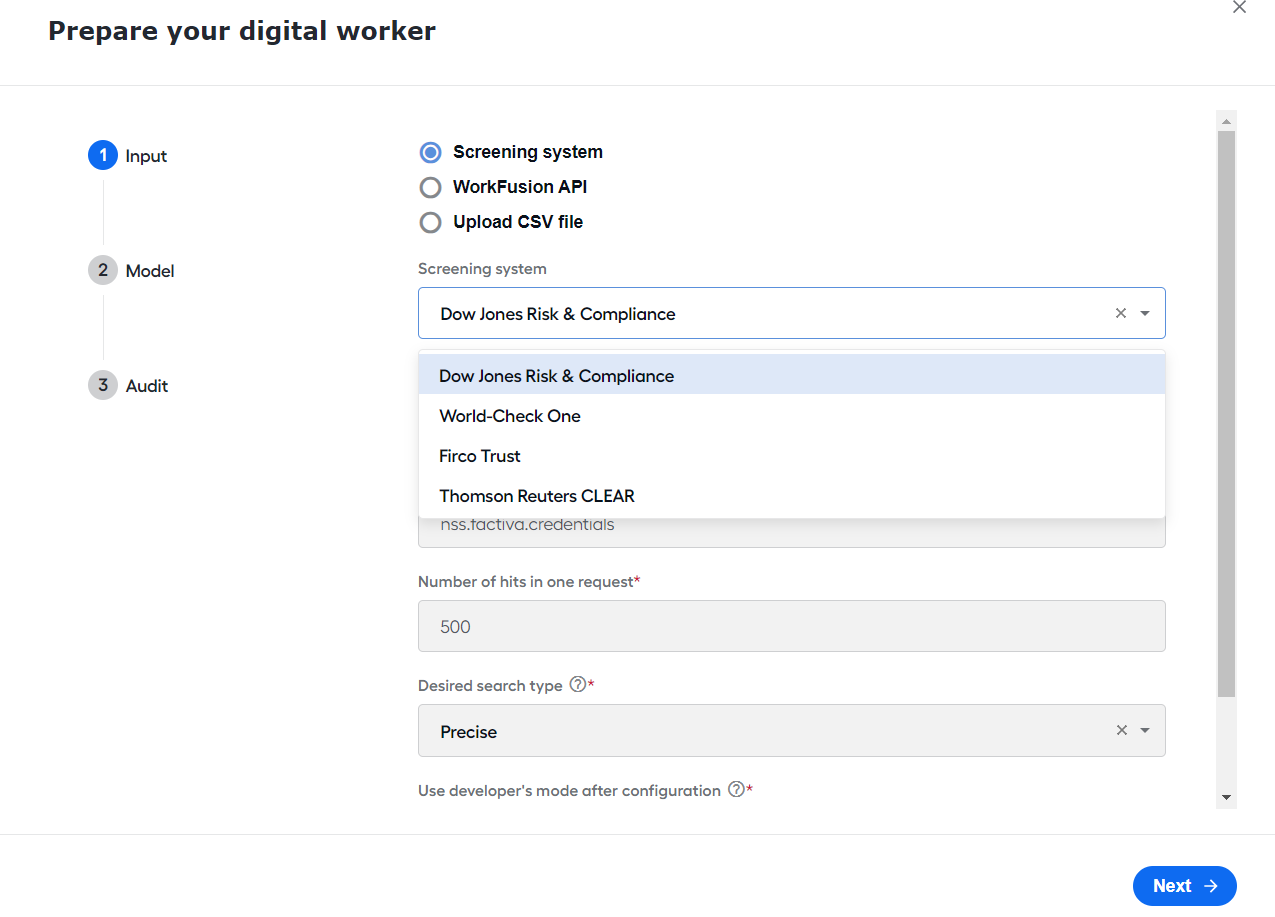
In the Control Tower menu, in the Digital Workers section, find your newly installed AI Digital Worker and click the Prepare button.
In the Prepare your digital worker window, on the Provider step, select a screening system for searching for records about the entity or individual. Dow Jones Risk & Compliance is set by default.
The required configurations can differ based on the selected provider.
Configure input
The skill supports screening from the following input sources:
- Screening system:
- Dow Jones Risk & Compliance
- World-Check One
- FircoTrust Case Manager API
- Thomson Reuters CLEAR
- WorkFusion REST API
- CSV file
Screening system
To configure a provider, specify relevant parameters. For a detailed description of each setting, see the sections below.
- Dow Jones Risk & Compliance
- World-Check One
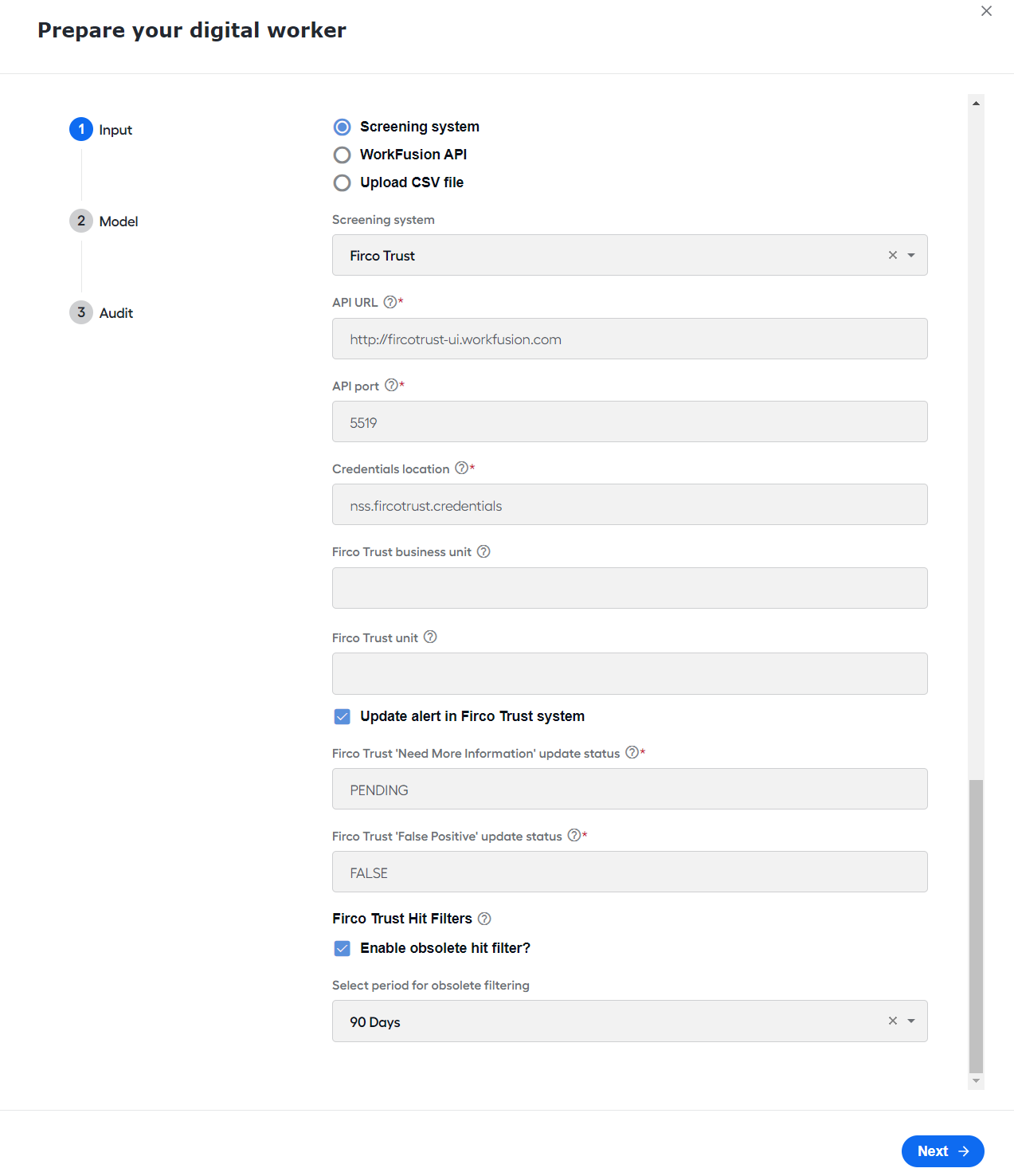
- Firco Trust
- Thomson Reuters CLEAR
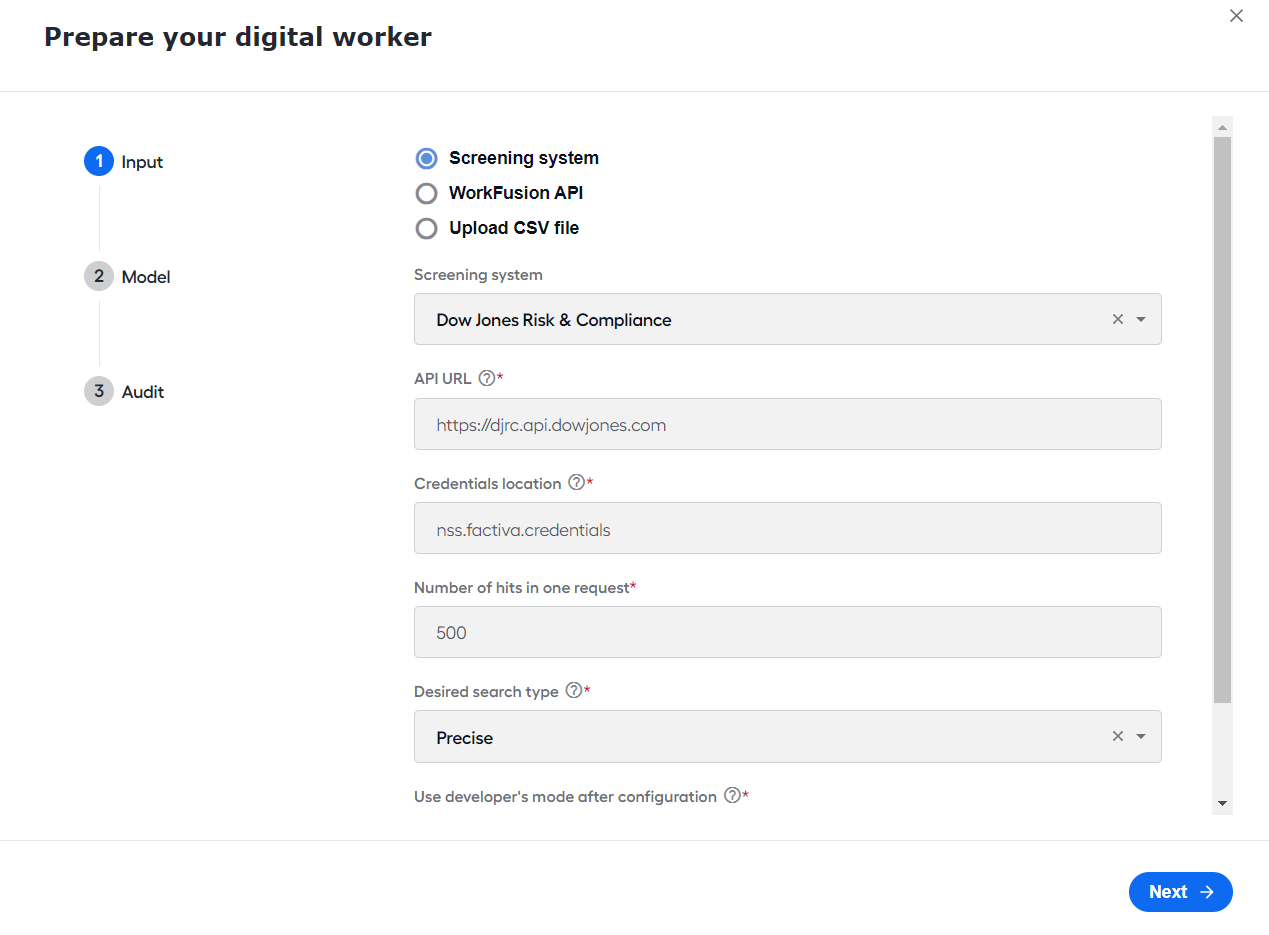
API URL. Select the address of the Dow Jones Risk & Compliance API. Available options are as follows:
https://api.beta.dowjones.comhttps://djrc.api.dowjones.com
Credentials location. Specify the corresponding Secret Vault alias for the Dow Jones Risk & Compliance system.
Number of hits in one request. Specify the number of hits to be requested in one request for a particular name from Dow Jones Risk & Compliance API. This parameter impacts how many requests are sent to Dow Jones Risk & Compliance API. The default value is
500.Desired search type. Set the desired tolerance for the search in the Dow Jones Risk & Compliance System. By default, it is Precise. Available options are as follows:
- Precise
- Near
- Broad
Use developer's mode after configuration. Select Yes to enable the Developer mode for a Business Process. The Developer mode caches requests and responses from the Dow Jones Risk & Compliance API to avoid a ban from Dow Jones due to a massive number of queries.
For the production configuration, set the value to No.
A little more about cache
The goal of the cache is to reduce the number of requests to screening systems.
The cache is represented as a separate Data Store. After you install the skill, the cache Data Store is empty by default. The hit data is received in response when the bot sends a name request to an external screening system. This data is saved to the cache.
Most screening systems send one response that contains all necessary hit data. But in some cases, there can be two requests:
- The first one obtains brief information on all hits. The data is saved to the Search cache.
- The second one with the hit's id obtains detailed information on the specific hit. The received data is saved to the hit cache.
The skill supports caching both for searches and for hits.
Search cache
Activate the search cache (with the Developer mode) on the development environments only. If enabled in the production environment, the skill operates with obsolete data.
The search cache implies that hits for particular names will be used from the cache instead of the real-time API. In such a situation, the stored data will soon become outdated. This is why the search cache is purposed for the Developer mode only.
The operation flow with the enabled search cache is the following:
- The skill sends a search request to the API.
- All data received from the API is stored in the search_cache Data Store.
- Next time, when input contains the same name for the search, the skill will obtain all hits for this particular name from the cache instead of DJ API.
Hit cache
The hit cache is always enabled to reduce requests to the Dow Jones API and improve BP performance.
The operation flow of the hit cache is the following:
- The skill sends a search request to the API and receives a list of hits with short data for this name.
- The skill performs the second request with a specific
hit_idto get the hit's detailed info. - The hit details are saved to the hits_cache Data Store. It also stores the date when the hit was updated last time in the database.
- Next time, when the skill requests hit details, the system checks whether the hit cache contains up-to-date hit details.
- If hit details in the hit cache are outdated, the skill sends a new request for the hit details and updates the cache for this particular hit.
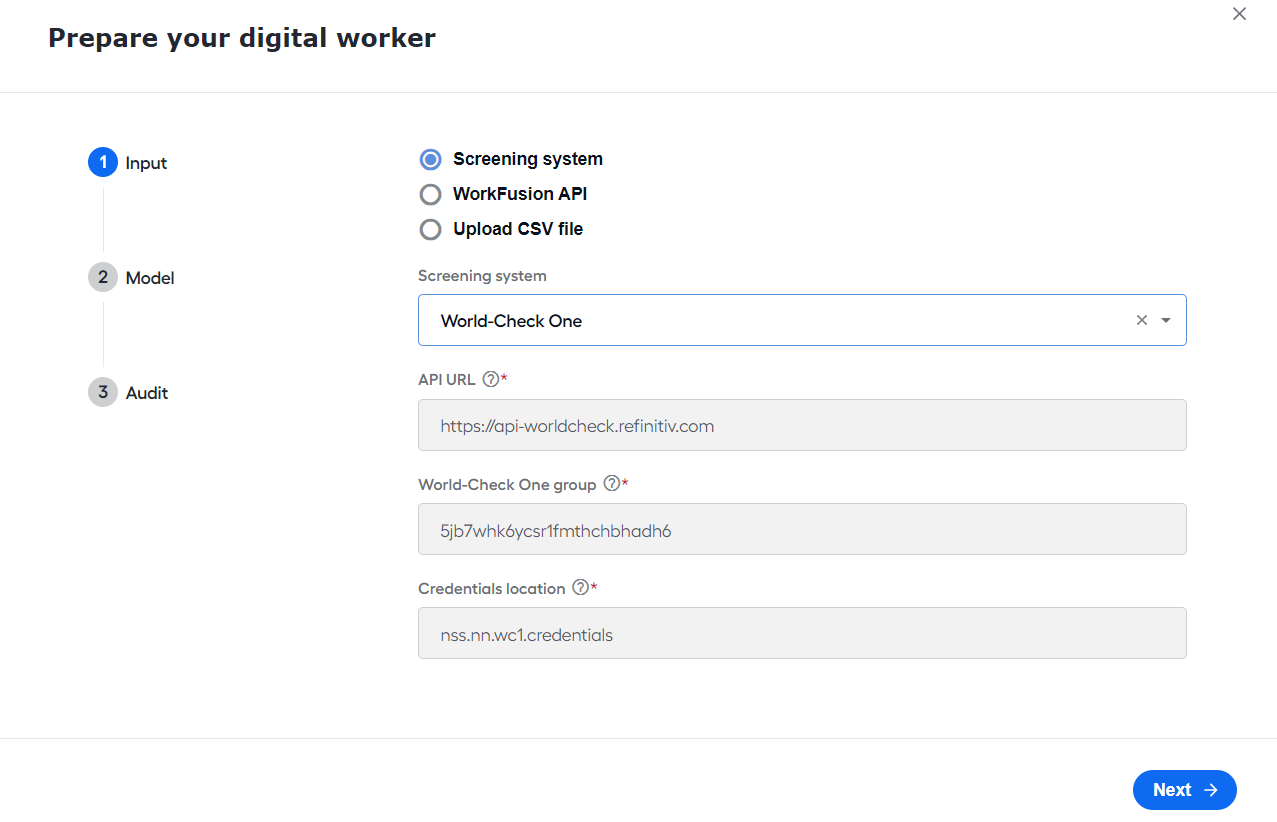
- API URL. Select the address of the World-Check One API. By default,
https://api-worldcheck.refinitiv.comis used. - World-Check One group. Specify the group ID for the World-Check One system.
- Credentials location. Specify the corresponding Secrets Vault alias for the World-Check One system.
- API URL. Select the address of the Firco Trust Case Manager API.
- API port. Select the port of the Firco Trust Case Manager API Receive Message Service.
- Credentials location. Specify the corresponding Secrets Vault alias for the Firco Trust system.
- Firco Trust business unit. Specify a business unit to get messages from the Firco Trust system. Firco Trust unit. Specify the underlying unit or feed associated with a Firco Trust business unit on which screening should occur.
- Update alert in Firco Trust system. Select if a Business Process must update the alert in the Firco Trust UI with Model decisions.
- Firco Trust 'Need More Information' update status. Specify the alert status to be set if the model's decision is Need More Information.
- Firco Trust 'False Positive' update status. Specify the alert status to be set if the model's decision is False Positive.
- Enable obsolete hit filter?. Select to filter out obsolete hits.
- Select period for obsolete filtering. Specify how long the obsolete hits remain valid for filtering.
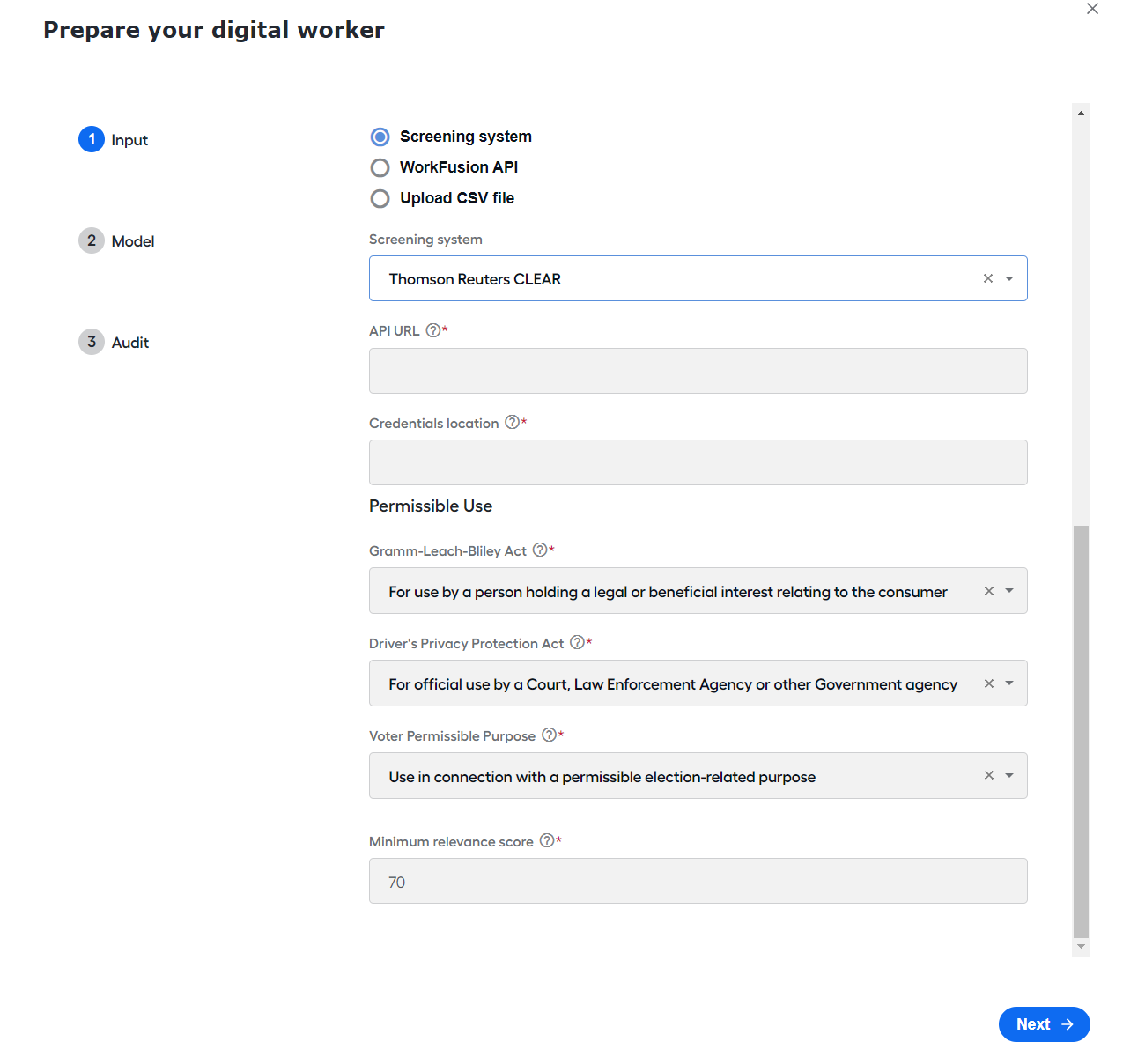
API URL. Select the address of the Thomson Reuters CLEAR API.
Credentials location. Specify the corresponding Secrets Vault alias for the Thomson Reuters CLEAR system.
Permissible Use:
Gramm-Leach-Bliley Act. To maintain compliance with the privacy provisions of the federal Gramm-Leach-Bliley Act and the subsequent regulations adopted by the Federal Trade Commission (GLB), select only a single purpose from the presented list.
Misrepresenting your access purpose is a violation of your subscriber agreement and certain federal and state laws. Any use of information maintained by West, a Thomson Reuters business, other than for the selected permissible purpose is grounds for account termination and might be referred to the appropriate governmental agency.
Driver's Privacy Protection Act. The Driver's Privacy Protection Act (DPPA) was enacted to prevent any Department of Motor Vehicles (DMV) officer, employee, or contractor from knowingly disclosing or making available to any person or entity the personal information associated with or contained within a motor vehicle record. The act does not include or affect accident reports, violations (MVRs), and driver status.
Voter Permissible Purpose. Due to data privacy restrictions imposed by state laws, users accessing voter registration records are required to acknowledge compliance with the law and to indicate the intended permissible use of the data.
Information obtained from each search, including permissible use indicated, date of search, and search details, is stored for at least five years to comply with state statutory requirements. Not all permissible uses are applicable to each state.
Minimum relevance score. Specify the minumum relevance score to ensure that only results that meet or exceed the threshold are returned for each data source.
WorkFusion API
Select WorkFusion API for full alert screening via REST API.
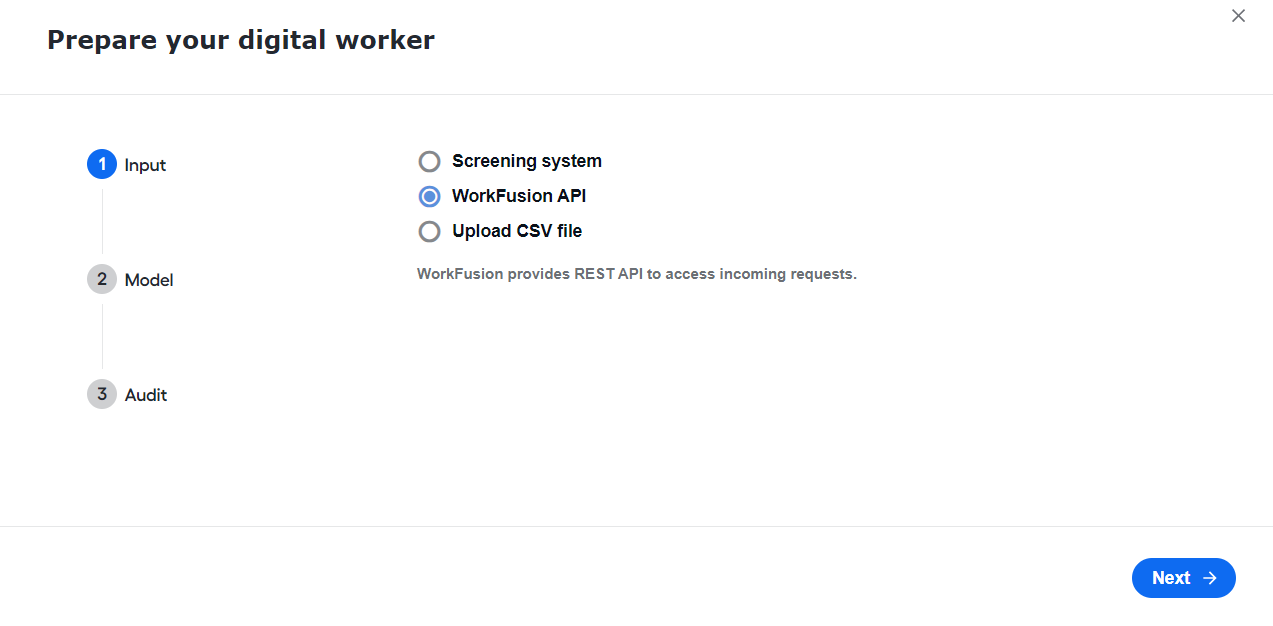
For more details on data transfer via API, refer to Run screening | Call NSS REST API.
Upload CSV file
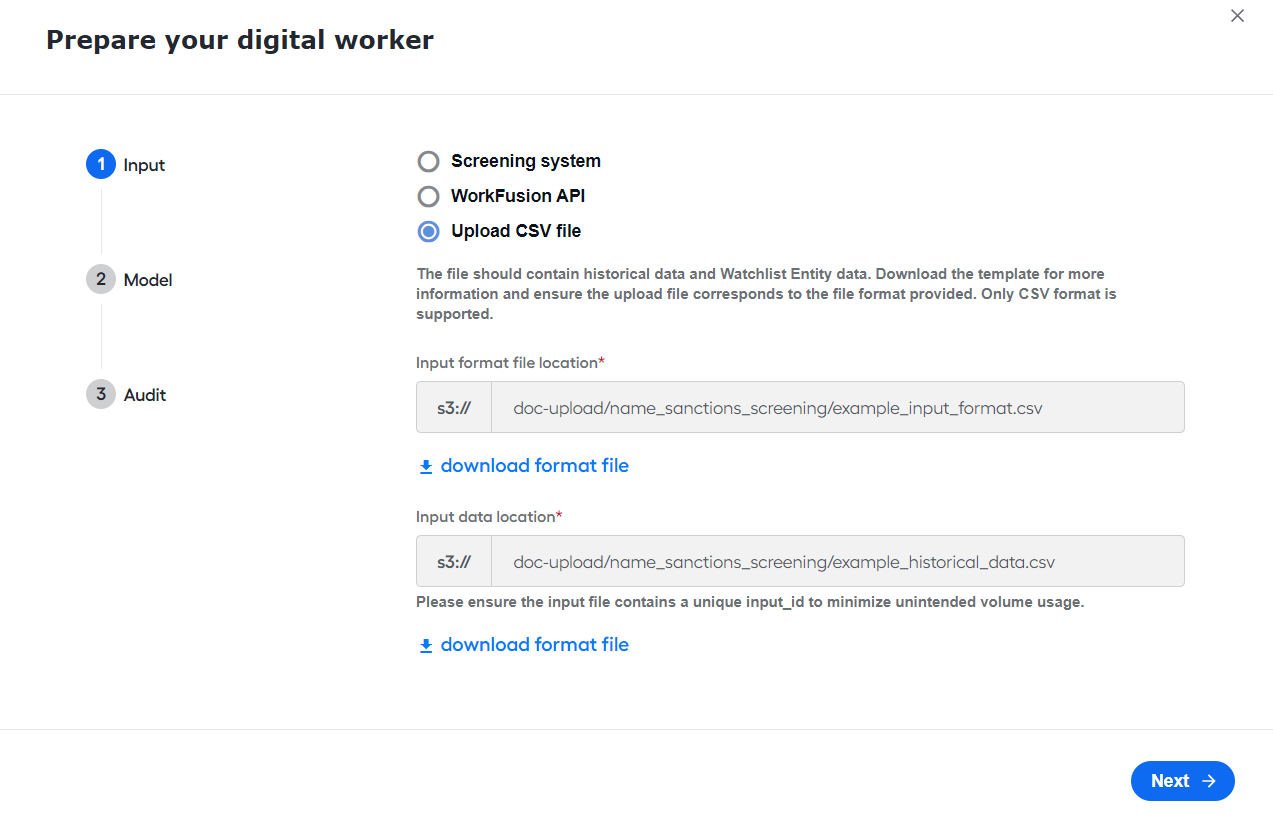
Select Upload CSV file for historical data evaluation. The file should contain historical data and Watchlist Entity data. Download the template for more information and ensure the uploaded file corresponds to the file format provided. Only the CSV format is supported.
- Input format file location. Specify the path to the format file location on the S3 MinIO site.
- Input data location. Specify the path for a folder or a file with historical data on the S3 MinIO site. Ensure the input file contains
input_id(a unique identifier) to minimize unintended volume usage.
Configure model
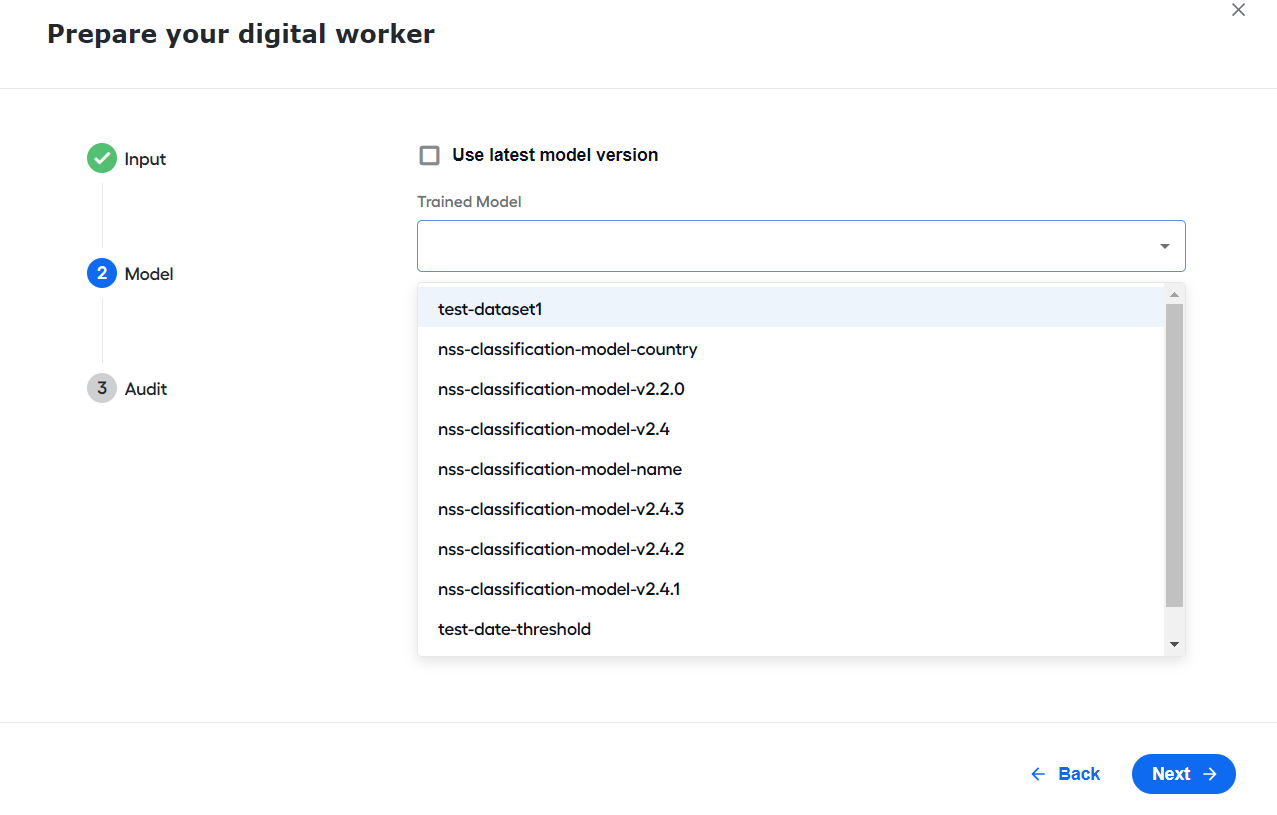
In the Prepare your digital worker window, on the Model tab, select a Classification model to be used in Business Process execution and hit disposition.
Use latest model version. The option is checked by default. Leave checked to apply the default prepackaged model.
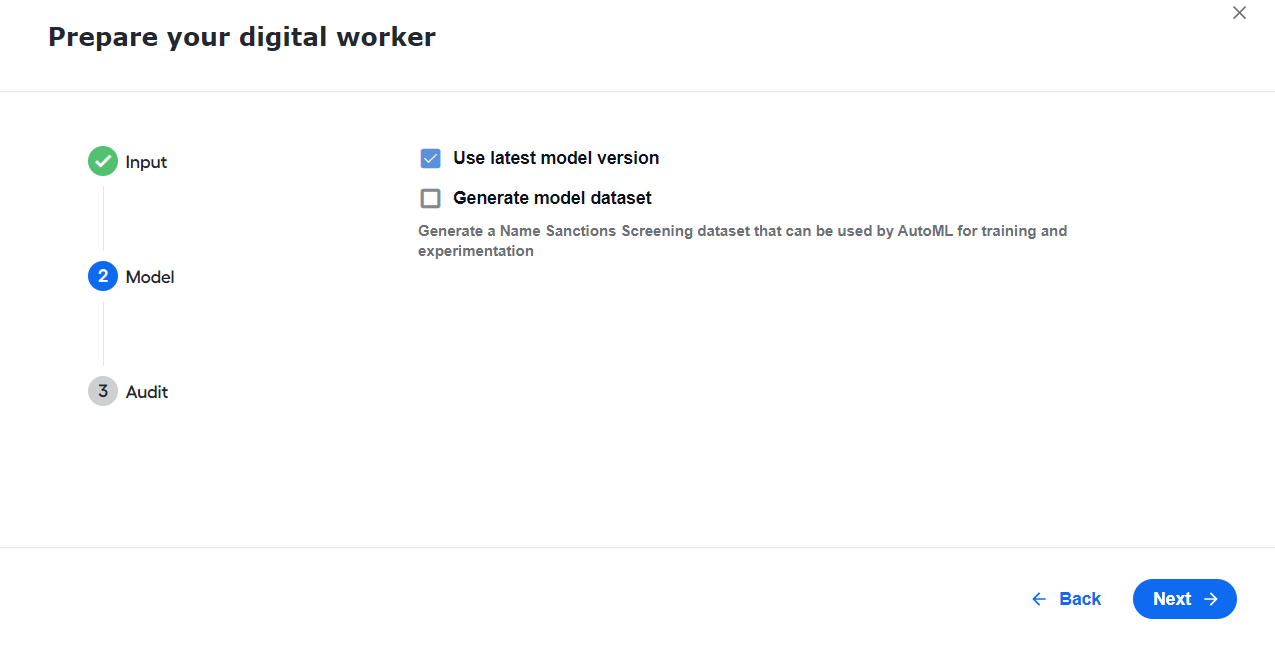
To change the model version, uncheck the option and select the required version in the drop-down list.
Generate model dataset. Check to generate a dataset to be used by AutoML for training and experimenting.
Configure audit
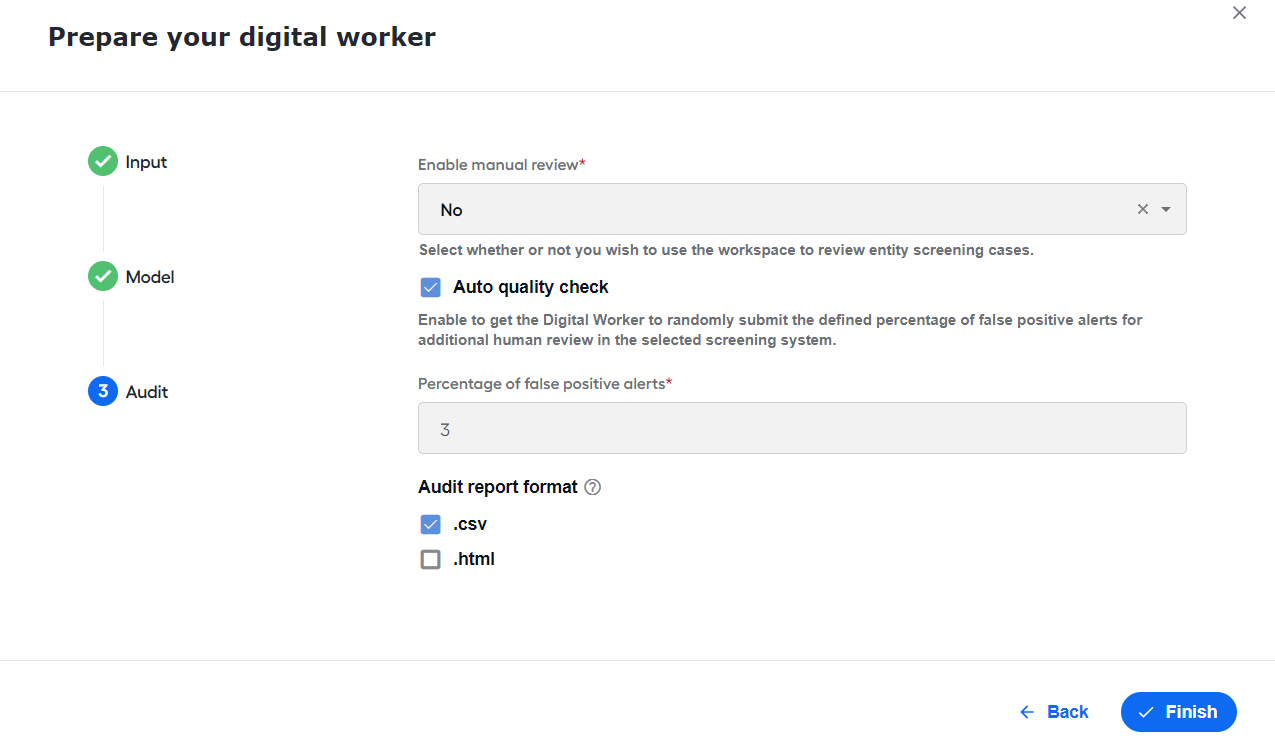
In the Prepare your digital worker window, on the Audit step, specify report settings for a screening request.
- Enable manual review. Select Yes to review screening results in Workspace.
- Auto quality check. Select to enable the AI Digital Worker to randomly submit the defined percentage of false-positive alerts for additional manual review in the selected screening system.
- Percentage of false-positive alerts. Specify the percentage of false-positive alerts to be submitted by the quality control. The associated screening system is updated to indicate that the AI Digital Worker marked this alert for Auto QC.
- Audit report format. Specify the format of an audit report that is available after Business Process execution.
- .csv: Quality Check report
- .html: HTML report