Overview
Tara is an AI Agent for Payment Sanction Screening (PSS) Alert Review who detects real-time transactions or payments to or from sanctioned individuals, entities, or jurisdictions during onboarding and throughout the customer relationship lifecycle, helping to mitigate risks to financial institutions. Screening primarily involves sanction lists published by the Office of Foreign Assets Control (OFAC) and often includes external and internal bank sanction lists.
Financial institutions (FIs) and other organizations use sanctions screening or watchlist filtering technologies, such as Fircosoft Continuity, CGI Hotscan, and NetReveal, to compare inputs, such as transactions with items on a sanction list. The output of these technologies is alerts or hits.
Tara is designed to ingest each alert generated by a financial institution's sanctions screening system and determine if it is a false positive. She is also trained to escalate potential true hits to a predefined team within the institution. Human workers manually review all flagged transactions or payments to clear false positives.
Why banks or financial institutions screen transactions
To stop illegal or questionable transactions in real time, regulators of banks and financial institutions enforce the screening of their transactions. These screenings determine risk management steps to protect the institutions from legal consequences, heavy financial penalties, and damage to their reputations.
Today's sanction screening process
Global banks process millions of payments annually. Rule-based and keyword lookups, such as Fuzzy, Soundex, and SEMrush, paired with sanctions screening software, produce critical alerts. These alerts flag approximately 5% of transactions—an enormous volume given the scale of global banking. However, 95% of these alerts turn out to be false positives. As a result, banks and financial institutions employ large teams to manually resolve such alerts, incurring costs of $2 to $5 per alert.
WorkFusion helps in sanction screening process
WorkFusion's pre-trained Machine Learning (ML) models and intelligent bots review payment messages and alerts for several common false-positive scenarios. This reduces the four-eye investigator-checker model to a two-eye investigator-checker one. Using out-of-the-box ML models, bots can serve as investigators (makers). Analysts still serve as checkers who understand and validate insights and quality.
This process reduces mundane and repetitive tasks and empowers employees to focus on high-value work.
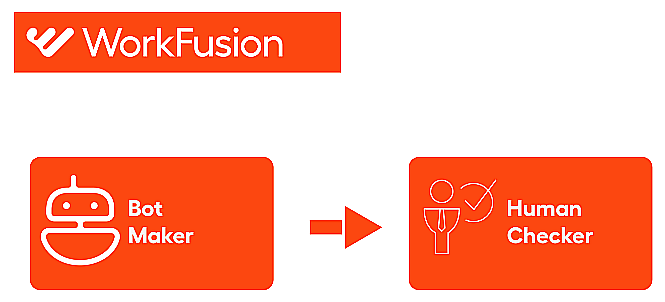
WorkFusion's intelligent bots and ML models automate all the repetitive tasks:
- Conducting payment entity research through intelligent bots
- Validating the payment entity mapping scenario using multiple sanction lists with no human supervision needed
As these intelligent bots produce the conclusion report from multiple sources, decisions are more accessible because intelligent bots provide all the evidence on a single screen.
Benefits of Transactions Screening Intelligent Automation
Automating Transactions Screening Intelligent Automation provides the following benefits:
- Manual work is replaced with more reliable and accurate automation.
- The screening process is simplified and standardized.
- False positives are identified and excluded.
- Rationale is recorded with the audit trail.
- Easy implementation is provided for the robot-human "four-eye check" requirement.
Efficiency criteria
WorkFusion aims to achieve the following:
- Improve automation rates: up to 70% or more reduction of false positive hits.
- Provide accuracy of STP of less than 1% error rate for missing valid sanctioned entity.
- Increase volume: ~ up to 5000 alerts per hour. This is scalable.
Note that scalability depends on hardware resources and the number of agents.
Tara bundle overview
The Tara bundle contains:
ML models
Tara bundle includes two machine learning (ML) models that are part of the PSS execution pipeline:
- Decision model takes alert input and returns decision features to the Business Process. This model contains a proprietary Name Matcher submodel, a libpostal address parser submodule, an ID matching submodule, and more.
- Named Entity Recognition (NER) model takes tag content as input and returns predicted entities with types to the Business Process.
Business Processes
Tara bundle also contains five Business Processes for you to use:
- Payment Sanction Screening or Core Business Process (BP)
- PSS Enrichment Connectors BP
- PSS CLDS Ingest Historical Decisions BP
- PSS CLDS Report BP
- PSS QC Report BP
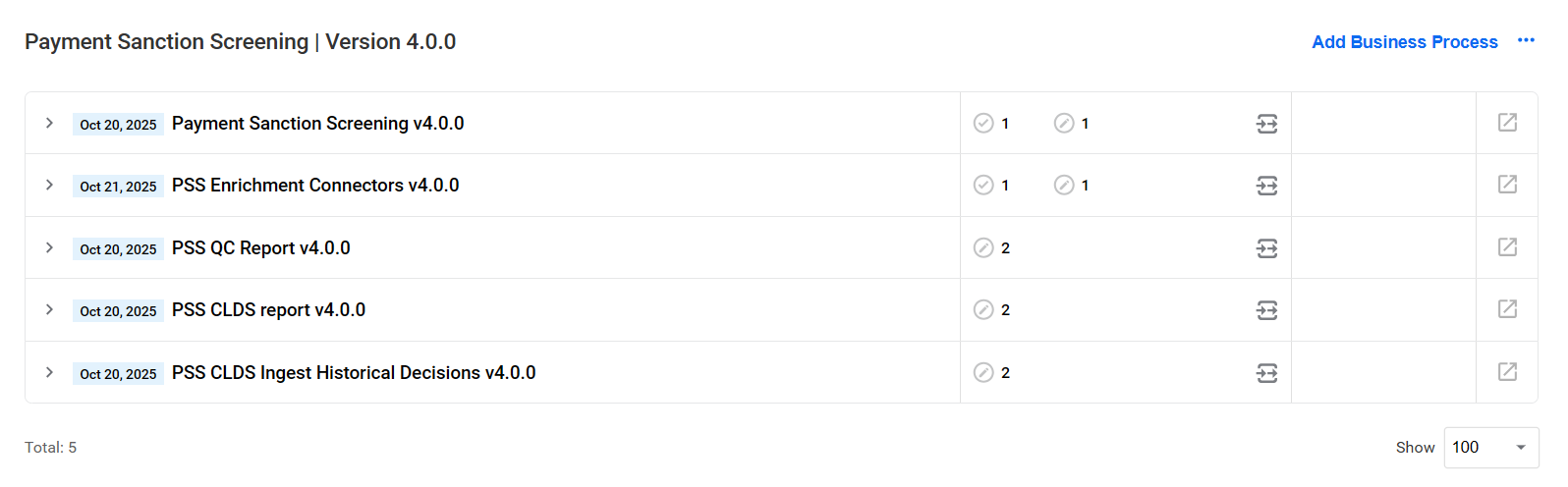
Payment Sanction Screening Business Process
Tara performs the following actions in the core Payment Sanction Screening BP:
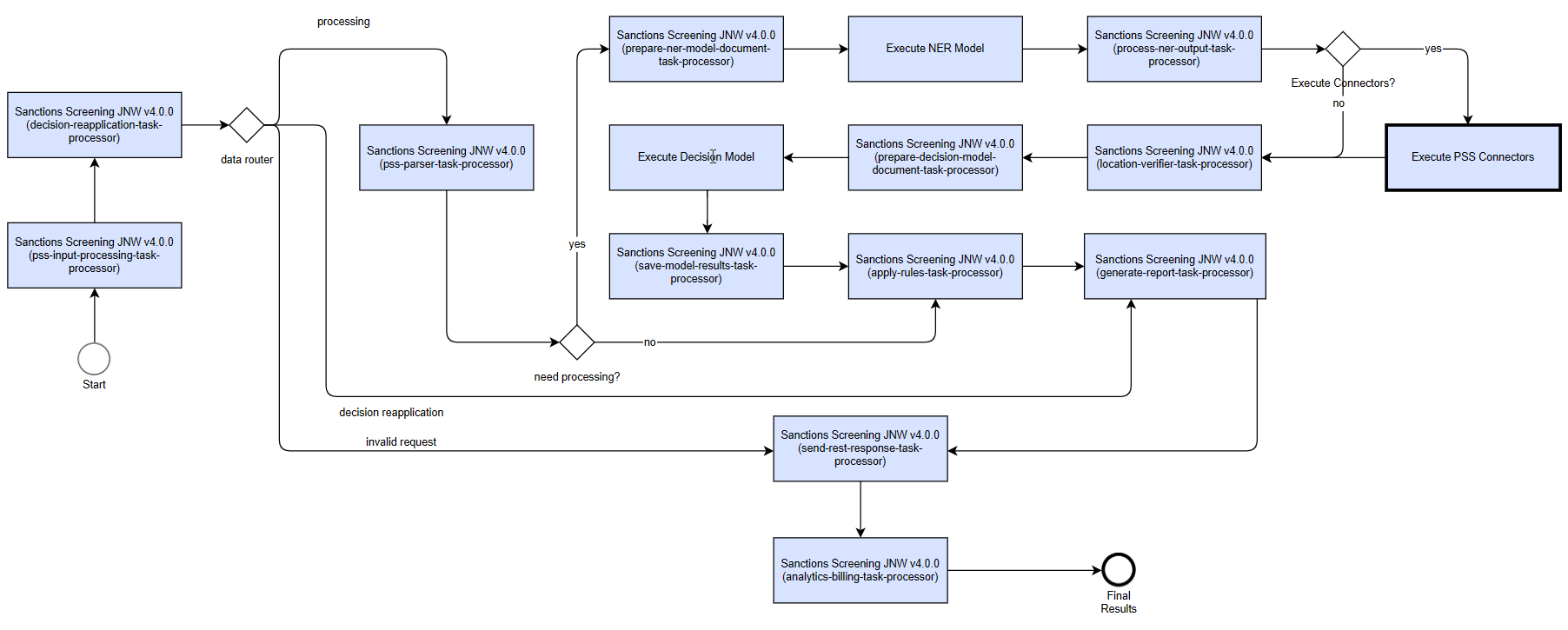
- Acquires input records and validates input.
- Navigates through all payment messages and hits.
- Applies Continuous Learning (CLDS or Decision Reapplication) if possible and configured.
- Extracts payment messages, hit text, and hit properties (like address verification) if configured.
- Passes data to the NER model for entity recognition and calculates which entity is a hit.
- Runs through message data enrichment steps (like address verification) if configured.
- Passes data to the Decision model to calculate all data points. Note that the model does not make the final decision.
- Makes payment adjudication on the message and hit level using the rule engine.
- Generates output results and reports.
The data processing workflow depends on the message format if Tara is required to parse the message content (FUF, SWIFT_MT, SWIFT_MX, and SWIFT_NPP). If parsing is not needed, the workflow is independent of any specific client or message format.
The core BP uses schema-based implementation, each bot having a defined input and output contract. The BP flow steps are as follows:
- Read input data retrieves input data from loaded files, API calls, or a connector. The input data is validated against a standard request object. Processing is skipped if the request is invalid or non-existent. Expected input: a request JSON object or a flattened representation of it.
- Continuous Learning (CLDS) checks if a decision is made on the same payment message by an analyst and recorded. If such a decision exists, configurable rules allow the system to copy and reapply the decision, bypassing the rest of the workflow. Processing then continues at the Generate report bot step, where a response is returned.
- Data router controls the flow for valid requests. If a request is invalid, a
NO_DECISIONresponse is returned. - Parse payment message parses the message content according to its specified format. It searches through all message hits, matches screened entities with message content, composes entity fields using the type's dictionary, updates
Messageobjects, and saves them for further processing. - Validation data checks if the request proceeds to ML processing.
- Prepare NER document creates a document for ML to execute and save it to output.
- NER model predicts all entities recognized within the message for further processing in the pipeline and saves the result to output.
- Process NER output processes the NER output and calculates a predicted hit entity. The bot also updates a
Messageobject with NER data and saves it to output. - Execute PSS Connectors calls the PSS Enrichment Connectors subprocess to gather enrichment data by making external service calls.
- Location verification validates address information (if configured) in screened and sanctioned data. If a screened address is confirmed, the bot updates the
Messageobject with enrichment data and saves it to output. - Prepare document for Decision model creates a document for ML to execute and save it to output.
- Execute Decision ML model reads a list of hits and returns a set of features. The ML Python model accepts input JSON representing a
Messageobject. - Save model result collects model features, individual factors, and data points to enable informed decision-making. The bot creates a rule object and saves it to output.
- Make message decision based on model result and rules uses model results and rules to make an adjudication decision at the message and hit levels, determining whether hits are false positives or require escalation. The bot creates a final decision and saves it to the output, building responses for the connector and API.
- Generate HTML report generates HTML reports and saves them to S3 if configured. Expected output:
"links_to_report". - Generate REST response sends the response back to the client if the Streaming Records from External Sources option is enabled. The step can be replaced with any connector's output step. Expected output:
"rest_response"or"connector_response". - Save analytics and billing produces analytics data for dashboard display, such as the automation rate and other BP execution data. It also sends a billing report to a specified RabbitMQ queue and updates the pss_request_processing Data Store with processed data and the model decision.
PSS Enrichment Connectors Business Process
The PSS Enrichment Connectors is a Business Process that serves as a subprocess within the Payment Sanction Screening Business Process. It will only execute when configured.
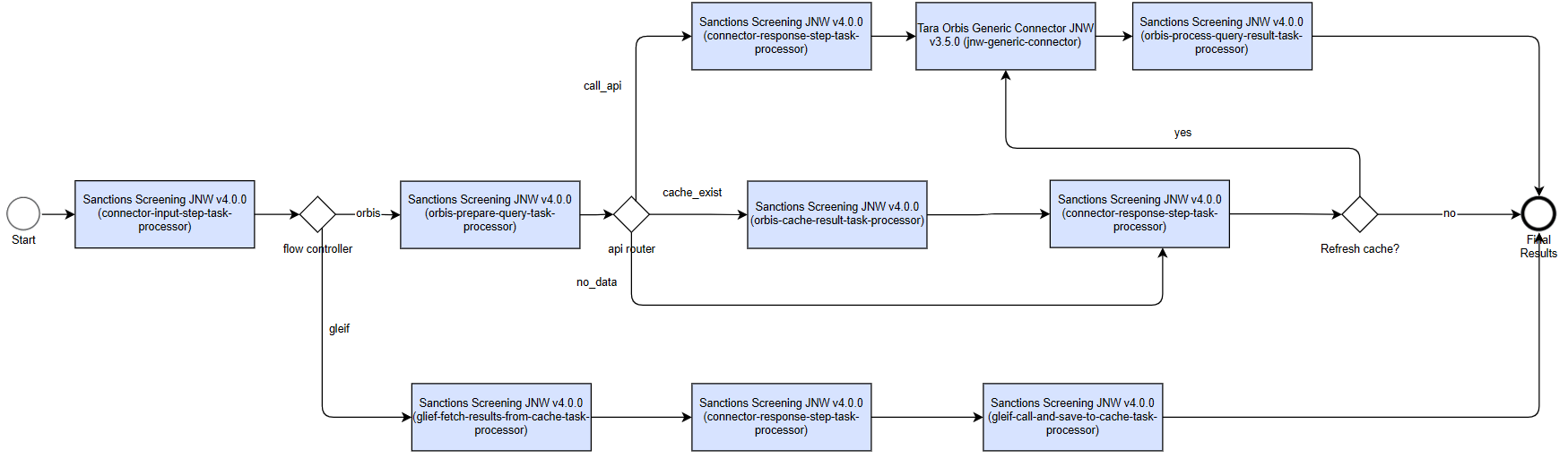
The Orbis connector performs the following steps:
orbis-prepare-query-task-processor locates a security ID in configured tags (ISIN, SEDOL, CUSIP, or FIGI) if available and builds the input query. It checks if cache data for that security ID already exists in the pss_security_cache_v4 Data Store.
connector-response-step-task-processor sends the response back to the caller (an updated
Messageobject).Tara Orbis Generic Connector (jnw-generic-connector) (configurable) sends a request to Orbis and returns the data.
orbis-process-query-result-task-processor processes the Orbis response and saves it to the pss_security_cache_v4 Data Store.
orbis-cache-result-task-processor processes the cached object and updates the
Messageobject.connector-response-step-task-processor sends a response back to the caller with the updated
Messageobject.The API router rule controls the flow depending on whether a security is found and cache exists.
The Refresh cache rule controls the flow depending on whether cached data needs to be refreshed.
The GLEIF connector performs the following steps:
gleif-fetch-results-from-cache-task-processor: locates security IDs within hits (ISIN, BIC, or LEI) and queries the pss_security_cache_v4 Data Store. If a cache hit is found, it updates the hits with the corresponding security data.
connector-response-step-task-processor: sends a response back to the caller with the updated
Messageobject.gleif-call-and-save-to-cache-task-processor: for each hit where IDs are present but no cache entry exists, the external GLEIF service is called to fetch data and update the pss_security_cache_v4 Data Store.
For more details, see Configure enrichment connectors.
PSS CLDS Ingest Historical Decisions Business Process
The PSS CLDS Ingest Historical Decisions BP is used to reapply previous decisions. The BP loads historical decisions into Data Stores through the following steps:

Fetch historical decisions retrieves historical decisions from S3 and converts them into a CSV file formatted for Tara.
Save historical decisions batch-loads the decisions into the relevant Data Stores using a URL to the Tara-formatted CSV file.
For more details, see Apply continuous learning.
PSS CLDS Report Business Process
The PSS CLDS Report BP is used if CLDS reports are enabled during the output configuration. Report data is populated for each incoming request within a configured timeframe at the hit level, highlighting hits marked for continuous learning or those that match historical data but are unsuitable for reapplication.
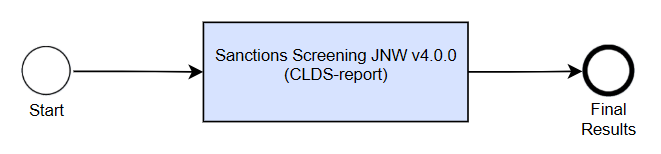
Calculations are based on historical data uploaded during the Historical Data Upload subprocess as part of the PSS CLDS Ingest Historical Decisions BP. For more details, refer to View CLDS reports.
PSS QC Report Business Process
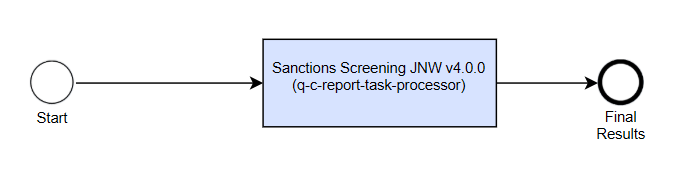
The PSS QC Report BP is used if you enable quality control (QC) reports for auditing and compliance reasons during the output configuration. You can run the BP manually or on schedule.
Download PDF
To download a PDF version of the documentation, right-click the document below, and choose Save As or Print > Save.