
Disaster recovery
Disaster recovery (DR) is the ability to continue operation of services in case of major outages, often with reduced capabilities or performance. Disaster recovery solutions typically involve manual activities. DR is aimed at minimal data loss, which includes up to 15 seconds for database loss, up to 15 minutes for file system data loss, and up to 4 hours of servers downtime.
The DR architecture implies having two sites: primary and DR one. The primary set hosts the full set of servers (either in the HA mode or without it) with running components. The DR site is the full and exact copy of the primary one, including servers' DNS and topology. All the servers on the DR site are running, while the components on them are stopped.
The replication of data between the sites is performed every 30 minutes. If the primary site fails, the system is switched to the DR site with minimum loss of data.
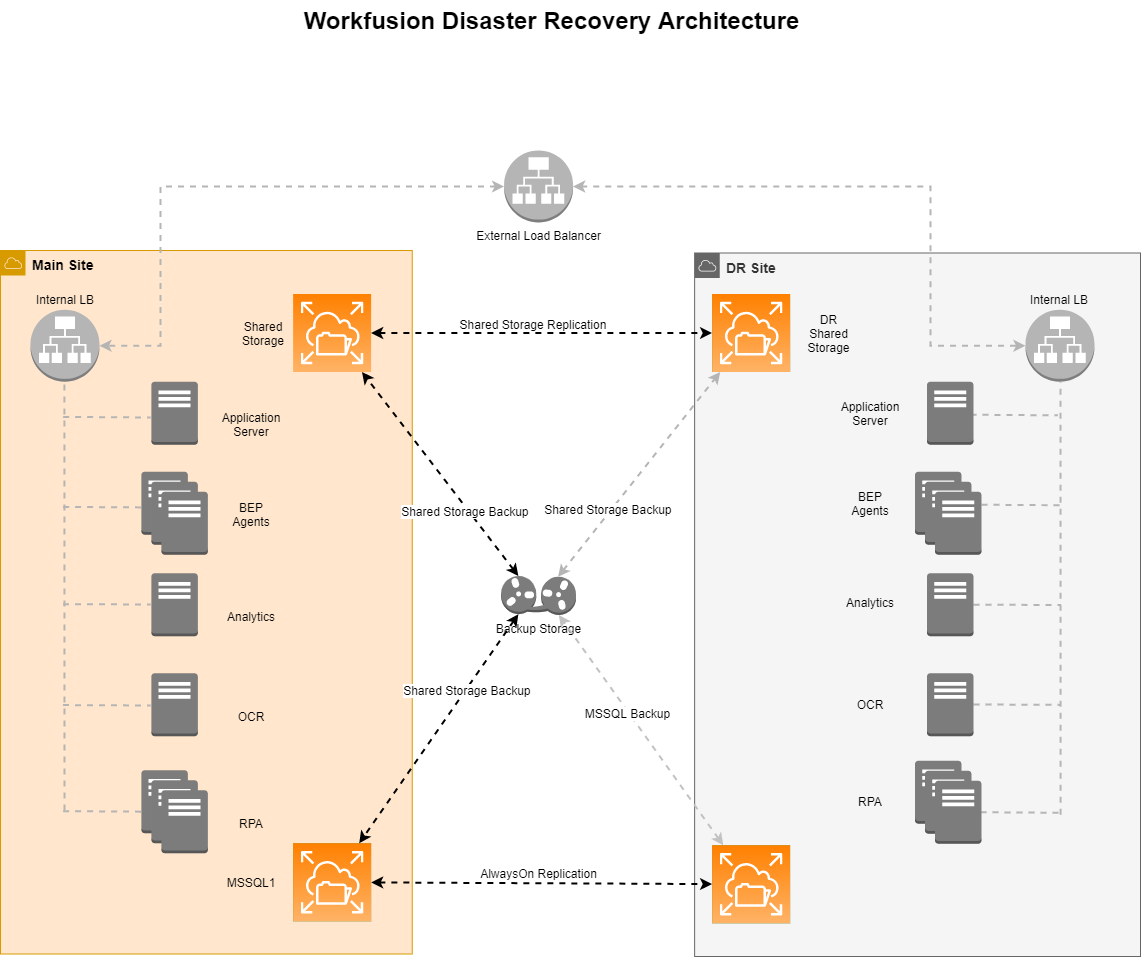
Requirements
- The shared directory INSTALL_DIR/shared must be mounted to the APP and INT servers both on the primary and the DR sites.
- The shared directory INSTALL_DIR/vds-data must be mounted to the BEP Masters, and BEP Agents servers both on the primary and the DR sites.
- The shared NFS directory must be replicated between the primary and the DR sites.
- MS SQL must support the Log Shipment and the Asynchronous Replication methods.
- The client must configure the Global DNS server or Route 53 to enable site failover.
- The DR site must mirror the following objects of the primary site:
- Servers' topology
- DNS records
- Credentials for services
- Keys and certificates in /opt/workfusion/ssl
- File /opt/workfusion/vault/keys/vault_keys.json
- All the Intelligent Automation Cloud components must be stopped on the DR site.
Prepare DR
We don't limit you in ways of deploying of the DR site. You can do it, as you have used to, while keeping in mind that the DR site must be the exact copy of the primary one, including the amount of servers and the DNS names.
After setting the DR site, remember to disable the autostart of processes on it. For that, on the DR site:
On all Linux servers, run the following command to stop the processes. The processes on other servers, including MS SQL, are to be stopped manually.
wfmanager stop allOn each server run the following command to rename the directory with the startup scripts:
mv INSTALL_DIR/supervisord/apps INSTALL_DIR/supervisord/apps_disabled
DR failover guide
Switch from Primary site to DR
Failover is the process of switching from a primary site to the DR one.
To switch to DR:
On the primary site, stop all processes (CT, workfusion, etc.). We recommend to shutdown all servers with running processes for that. Alternatively, you can use the command wfmanager stop all to stop the processes on the Linux servers. The processes on other servers, including MS SQL, are to be stopped manually. For example, to stop the Analytics service, on the BI server, run the following commands:
$ tsm login
$ tsm stop
Switch the DNS records and IP-addresses from the primary site to the DR one.
Perform the failover procedure for MS SQL.
On the DR site, start all INT servers.
On the DR site, restore Zookeeper:
- Log in to each INT server as
WFUSER. - In the ${path_to_zookeeper-dr}/conf/zookeeper-backup.ini configuration file, in the
zookeeper_data_backup_archiveparameter, specify the name of the latest data archive. - In the ${path_to_zookeeper-dr}/conf/zookeeper-backup.ini configuration file, in the
zookeeper_logs_backup_archiveparameter, specify the name of the latest datalog archive. - On each INT instance, run the following command to start Zookeeper:
python ${path_to_zookeeper-dr}/bin/zookeeper-backup.py -c ${path_to_zookeeper-dr}/conf/zookeeper-backup.ini -a restoreThe backup files of Zookeeper are stored in the directory, which is specified in ${path_to_zookeeper-dr}/conf/zookeeper-backup.ini.
- Log in to each INT server as
On the DR site, on any instance of the INT server, go to /opt/workfusion/zookeeper/bin/, and run zkCli.sh to create the /disaster node.
./zkCli.sh -server ${zk_connection_string} create /disaster disasterHere,
zk_connection_stringis the addresses:port of all three Zookeeper instances separated with a comma.On the DR site, start the processes:
wfmanager start allThe processes on the Windows servers, including MS SQL, are to be started via UI or with specific starting commands. For example, to start the Analytics service, on the BI server, run the following commands:
$ tsm login
$ tsm start
After the replication, Minio and Nexus will be immediately up-to-date, as both these components are installed to a shared directory.
Switch from DR to primary site
Once an incident is resolved you may want to switch back from the DR site back to the primary one or to a fresh environment. For that:
On the DR site, on each INT server, restart the zookeeper-dr process, to execute the Zookeeper backup procedure. For that:
- Login to each INT instance as
WFUSER. - Run the command:
wfmanager restart zookeeper-dr- Login to each INT instance as
On the DR site, stop all processes.
We recommend to shutdown all servers with running processes for that. Alternatively, you can use the command
wfmanager stop allto stop the processes on the Linux servers. The processes on other servers, including MS SQL, are to be stopped manually. For example, to stop the Analytics service, on the BI server, run the following commands:$ tsm login $ tsm stopSwitch the DNS records and IP-addresses from the DR site to the primary one.
Perform the failover procedure for MS SQL.
On the primary site, replicate common_nfs_share from the DR site.
On the DR site, start all INT servers.
On the primary site, restore Zookeeper:
- Log in to each INT server as
WFUSER. - In the ${path_to_zookeeper-dr}/conf/zookeeper-backup.ini configuration file, in the
zookeeper_data_backup_archiveparameter, specify the name of the latest data archive. - In the ${path_to_zookeeper-dr}/conf/zookeeper-backup.ini configuration file, in the
zookeeper_logs_backup_archiveparameter, specify the name of the latest datalog archive. - On each INT instance, run the following command to start Zookeeper:
python ${path_to_zookeeper-dr}/bin/zookeeper-backup.py -c ${path_to_zookeeper-dr}/conf/zookeeper-backup.ini -a restoreThe backup files of Zookeeper are stored in the directory, which is specified in ${path_to_zookeeper-dr}/conf/zookeeper-backup.ini.
- Log in to each INT server as
On the primary site, on any instance of the INT server, go to /opt/workfusion/zookeeper/bin/, and run zkCli.sh to create the /disaster node.
./zkCli.sh -server ${zk_connection_string} create /disaster disasterHere,
zk_connection_stringis the addresses:port of all three Zookeeper instances separated with a comma.Rename the directory with the startup scripts:
mv INSTALL_DIR/supervisord/apps_disabled INSTALL_DIR/supervisord/appsOn the primary site, start all other processes.
wfmanager start allThe processes on the Windows servers, including MS SQL, are to be started via UI or with specific starting commands. For example, to start the Analytics service, on the BI server, run the following commands:
$ tsm login
$ tsm start
Run a health check business process to verify that the system is restored correctly.
OCR tasks recovery
There's is a capability to recover OCR tasks that might not have being processed in case of entire platform disaster.
Recovery process can be started on at most one OCR server (node) at a time.
Start recovery
REST endpoint /api/v2/recovery was added that allows to start recovery immediately and give a chance to tasks stuck in either IN_PROGRESS or QUEUED status being processed again.
There are two ways to initiate recovery:
- Restart the OCR REST process manually. Recovery is started automatically once the app is up.
- Send the POST request to API /api/v2/recovery to OCR endpoint. Recovery is started on one of the OCR servers in a cluster.
API messages
| Message | Recovery state |
|---|---|
| Recovery is in progress | Recovery has started successfully |
| No tasks for recovery | Recovery process hasn't found any task for recovery |
| Recovery start was skipped because it had started by another service | User tries to start recovery when recovery is already in progress. Recovery request is skipped. |
| Recovery start is failed | Recovery cannot be started for some reason (for example, problems with connection to Zookeeper) |
Recovery process
To implement the recovery procedure, recovery_status was introduced for task as a database column. It is returned along with general task info in /getTaskStatus API.
Once the recovery process is started, OCR looks in the database in order to gather information about tasks having the InProgress, Queued, Submitted status.
| Task state before recovery | Task state after recovery |
|---|---|
| Submitted | Submitted tasks cannot be recovered. OCR recovery marks their status as ProcessingFailed and sets RecoveryStatus to Skipped. |
| Queued and InProgress | For Queued and InProgress tasks, recovery checks tasks data for consistency to ensure that recovery is meaningful for this particular task. Data consistency is checked between MSSQL and S3, in case of inconsistent task data (image files or pattern) is missing either in S3 or MSSQL, a task is marked with ProcessingFailed status, recovery status is set to Skipped.In case data is consistent between S3 and MSSQL, recovery process sends the task to processing, so the task is pushed to Rabbit and waits in turn for processing. Recovery status is set to Success. |