
User Management
The User Management dashboard lists all current users in the system and provides access to all user control functions.
You can access it via the Control Tower Menu: System Settings > User Management.
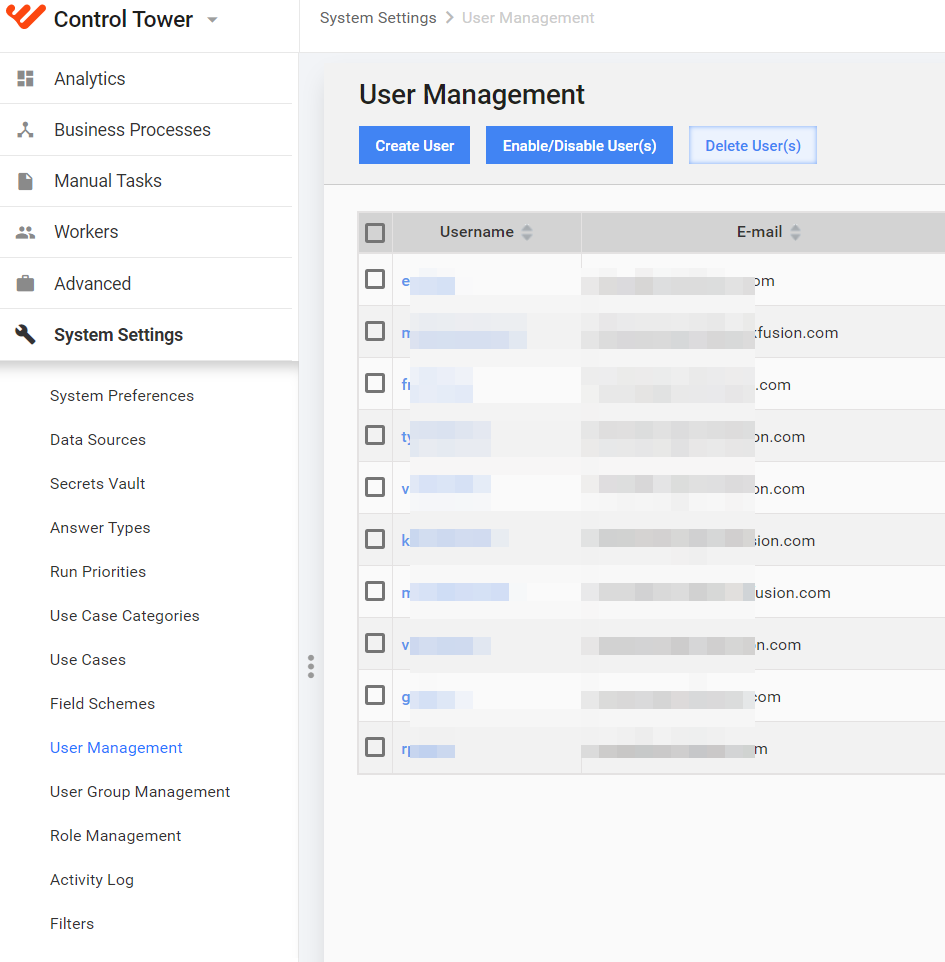
On this page, you can perform the following actions:
- Create user.
- Edit user properties and permissions.
- Delete user (starting from version 9.2, it is restricted to self-deletion).
- Disable / enable user profile. Disabled users cannot log in to WorkFusion until they are enabled again.
Adding and editing user
To manage users:
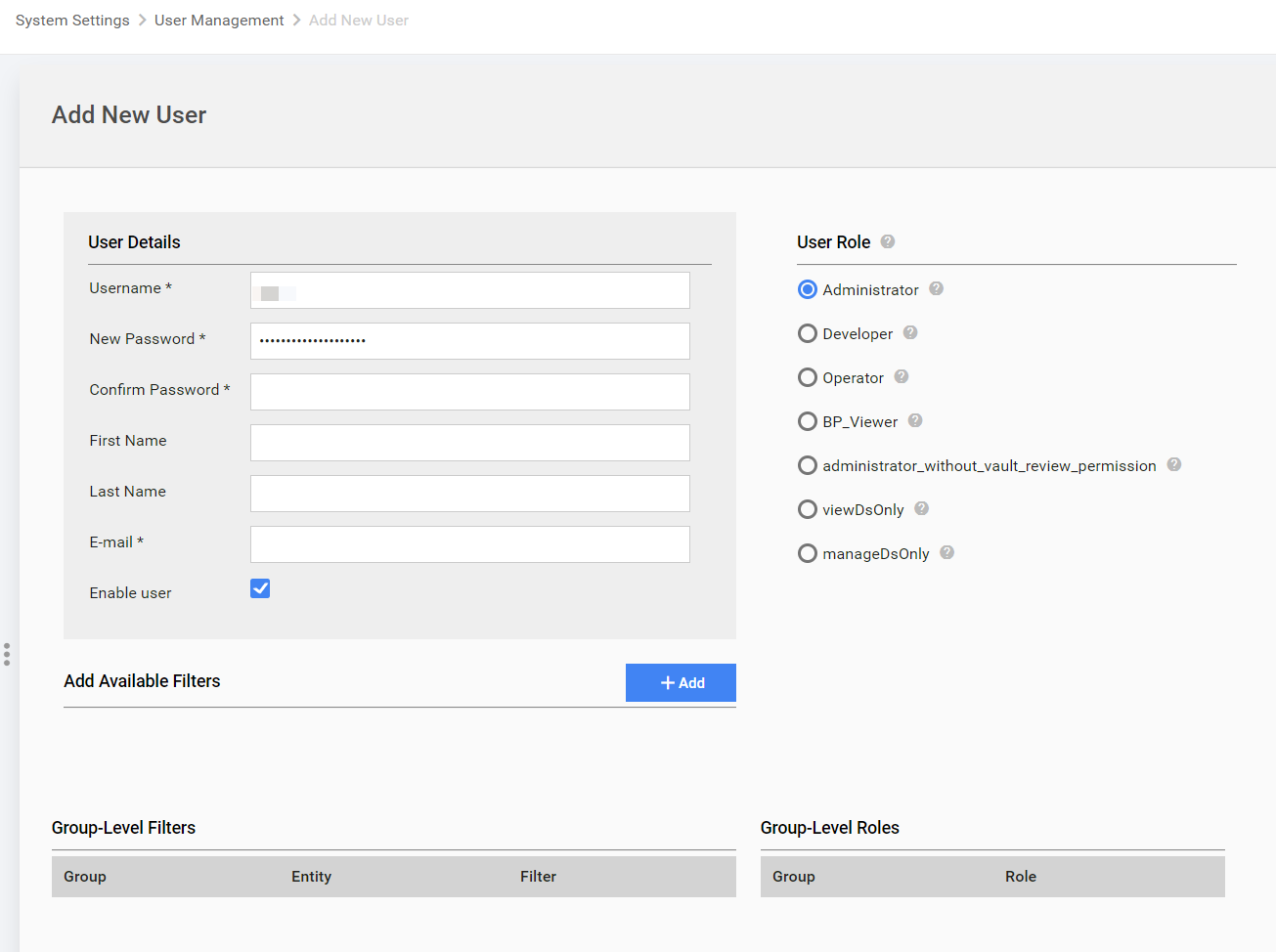
Click Create User:
Or, in the Username column, click the appropriate link to edit:
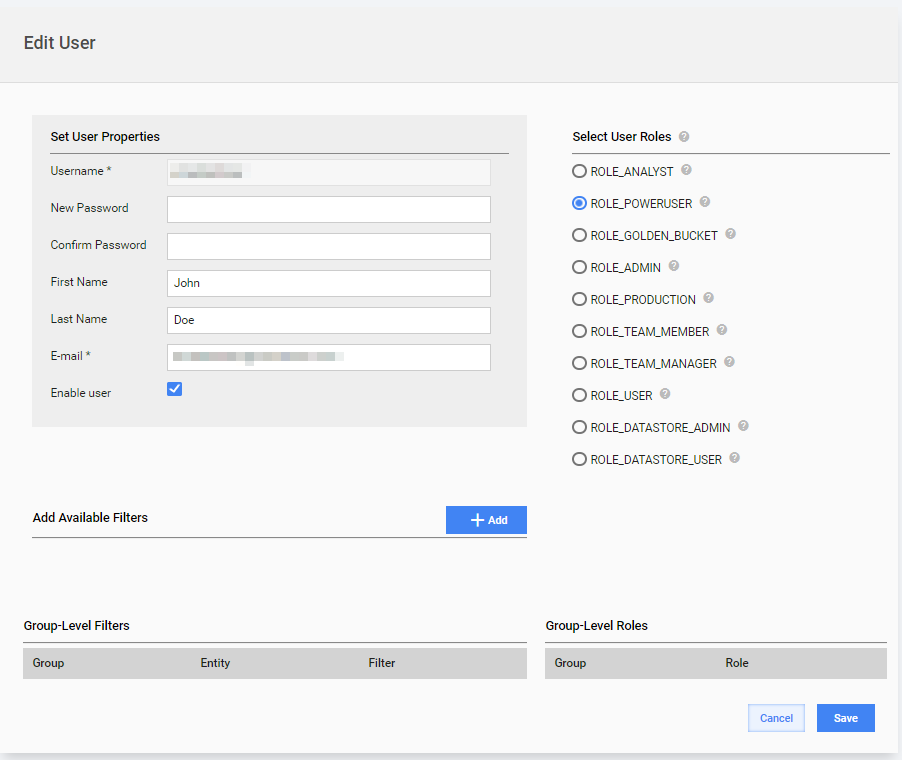
Set all required User Properties.
Select a User Role.
(Optional) the option Add Available Filters is used to define a set of Tasks, BPs, and other lists available for this user. See full description here.
Password policy
- A password must not contain the user name.
- A password must not be shorter than eight characters, no longer than 20.
- A password must not contain two or more adjacent repetitive characters.
- A password must contain at least one alphabetic, one numeric character, one character in lower case, and one in upper case.
- A password must be different from any of the six previous passwords.
- A password must not include "%" or "&" symbols.
User roles and permissions
Each WorkFusion user must have one role in the system. To view or modify permissions for a user role, go to System Settings > Role Management.
You can also create a new role with a custom set of Permissions and grant it to a user.