
Prepare MS SQL Server
note
Skip this section if you already have a prepared MS SQL server.
For IA Cloud Enterprise Edition installation you need to have an existing activated instance of the MS SQL server. The server must be up and running during the installation.
To prepare a MS SQL server:
Create the <mssql_db_name> database, and specify the database name. For other options you may use the default values.
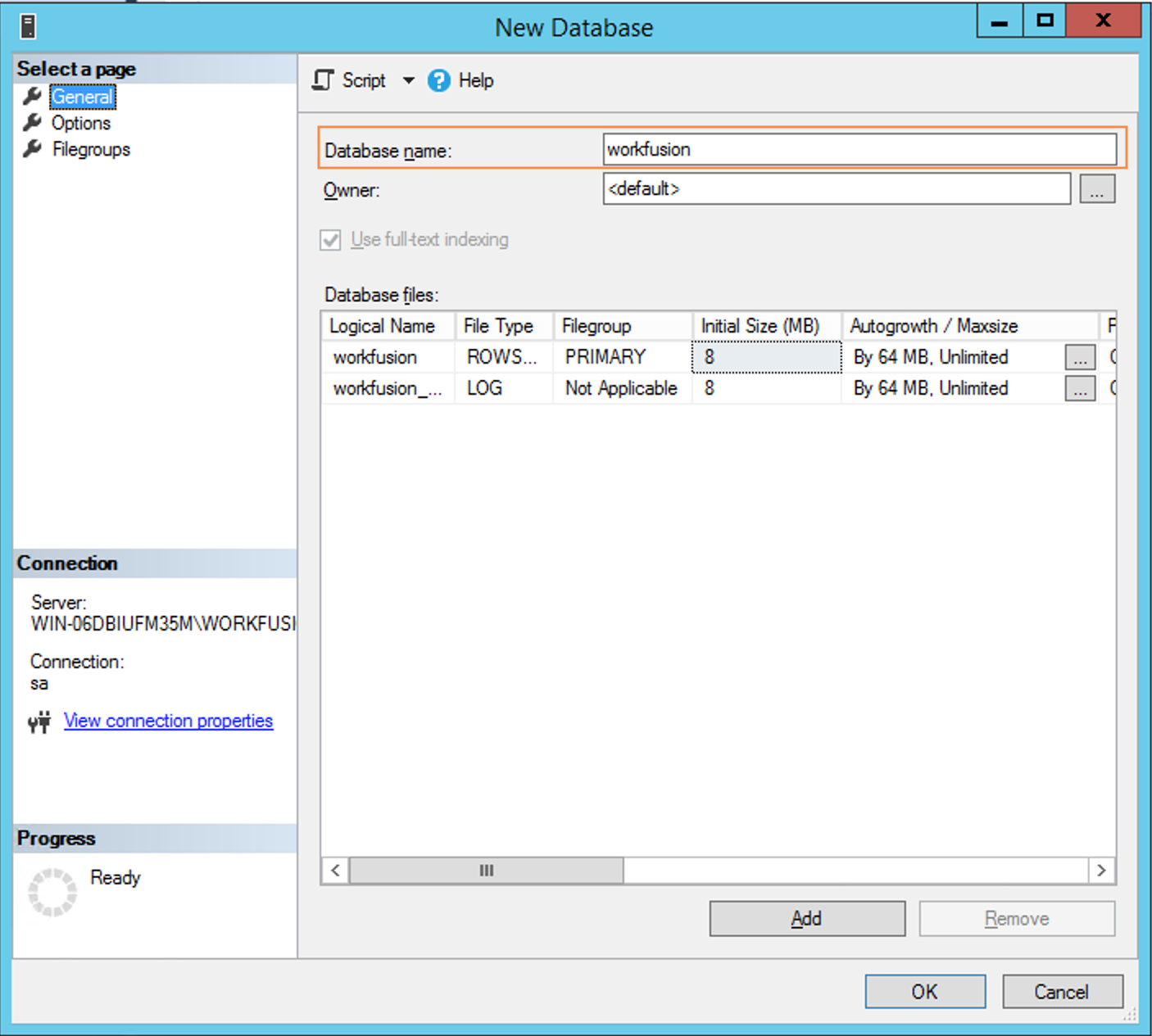
Create the <mssql_dba_user> owner with the full-access permissions for the <mssql_db_name> database. This user must be later specified in config.yml.
Note: for all logins, the following password policies are applied:
- Allowed special symbols for db password for monitoring tools: @#^*():,.}<>/
- Allowed special symbols for db password for the Analytics component: @#^*():,.;}[]/
To create <mssql_dba_user>:
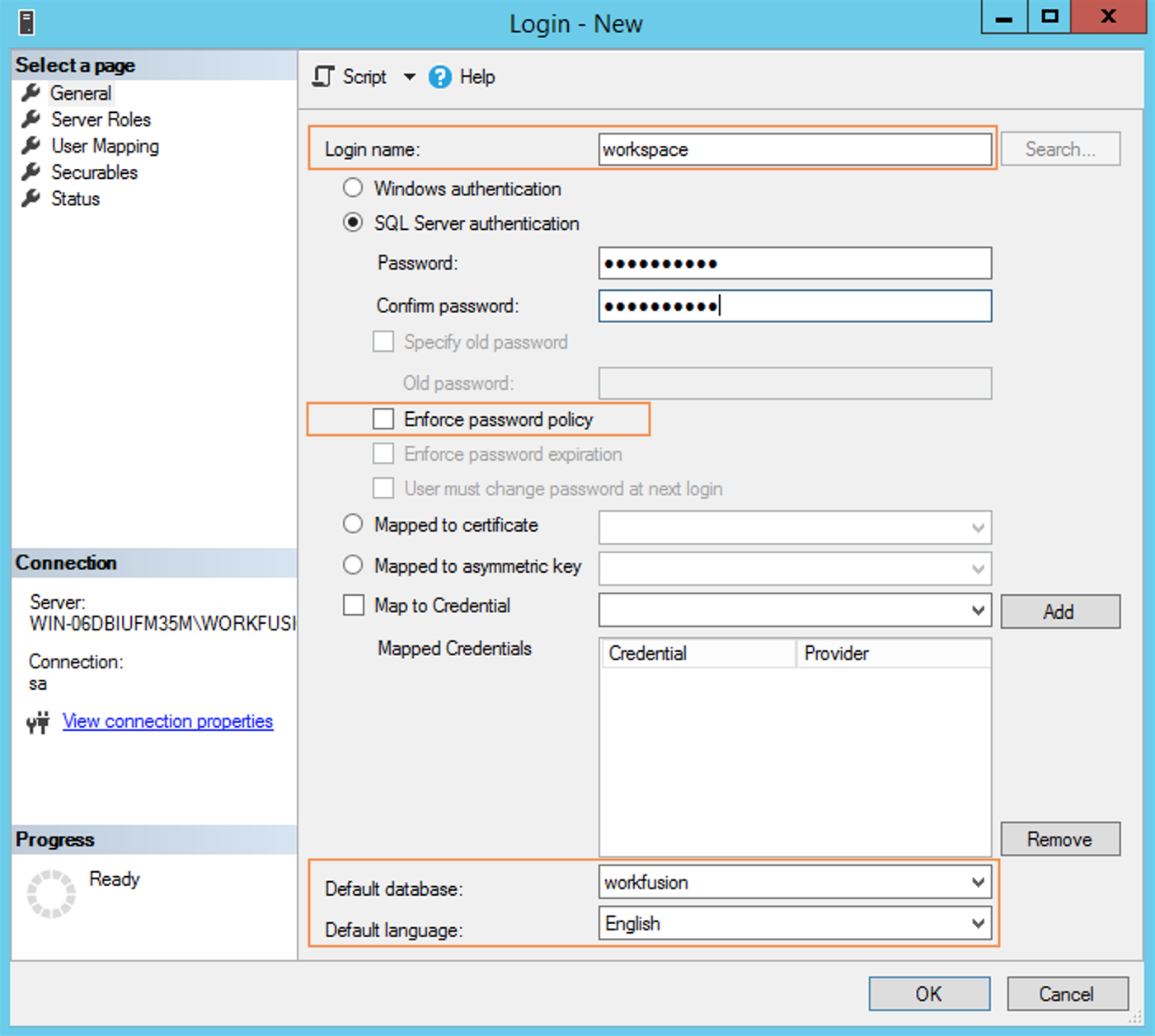
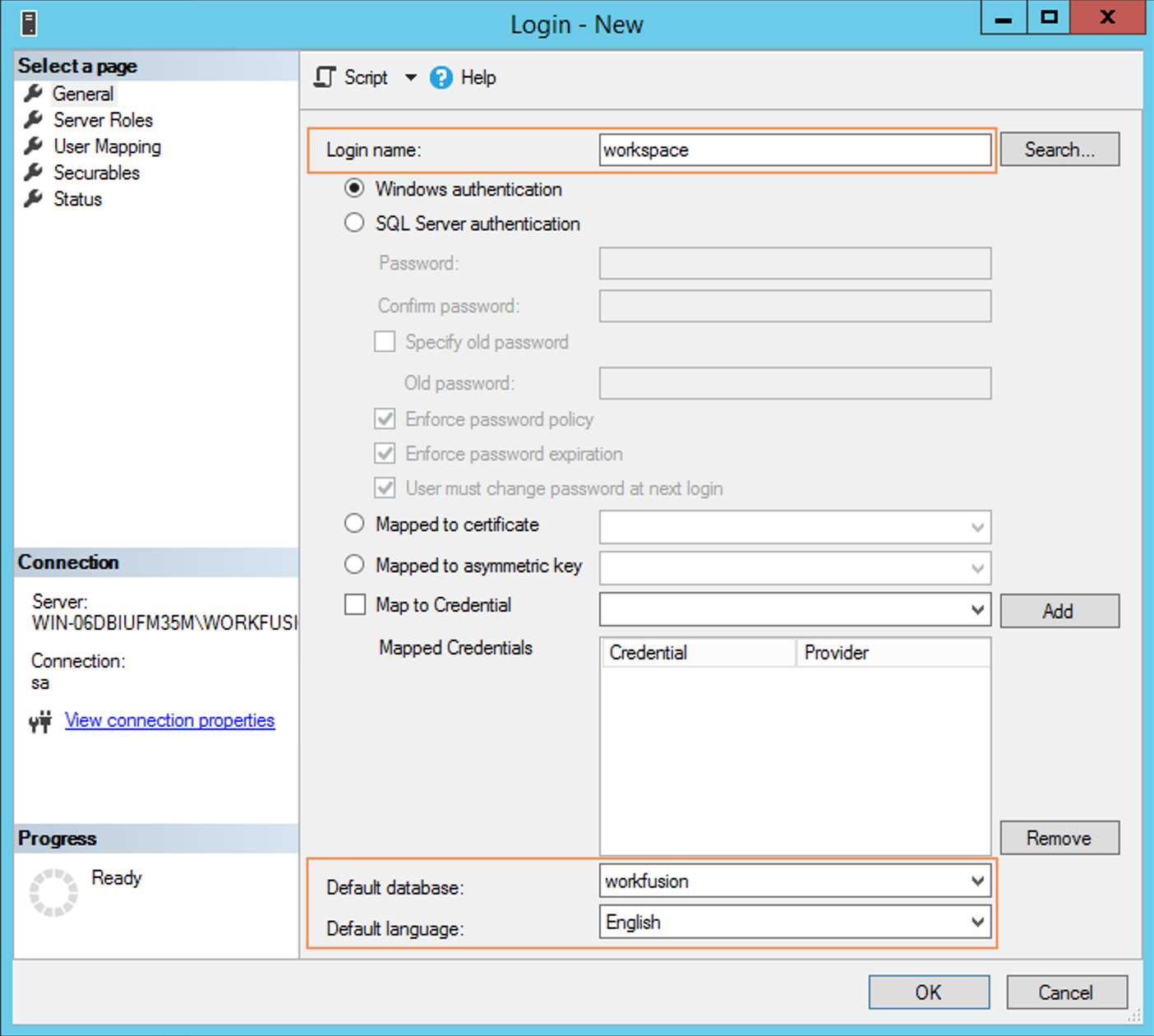
On a MS SQL server, create the mssql login, specify the login name, and then make sure that the Enforce password policy check box is not selected.
In the Default database box, specify the <mssql_db_name> database, and then choose English as Default language.
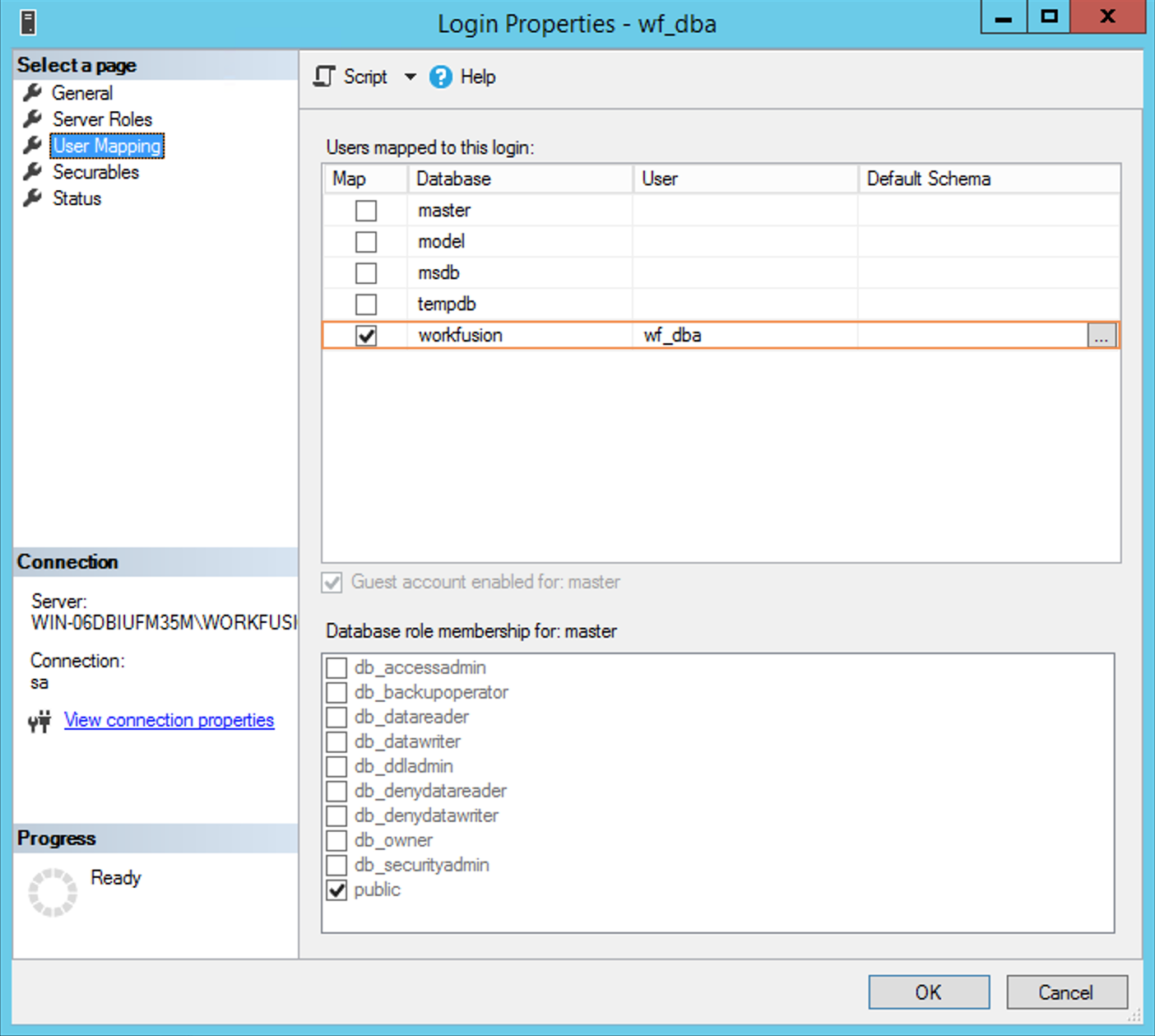
In the Select a page group, click User mapping, and then select the <mssql_dba_user> check box to map the user to the <mssql_db_name> database. Leave all other options unchanged.
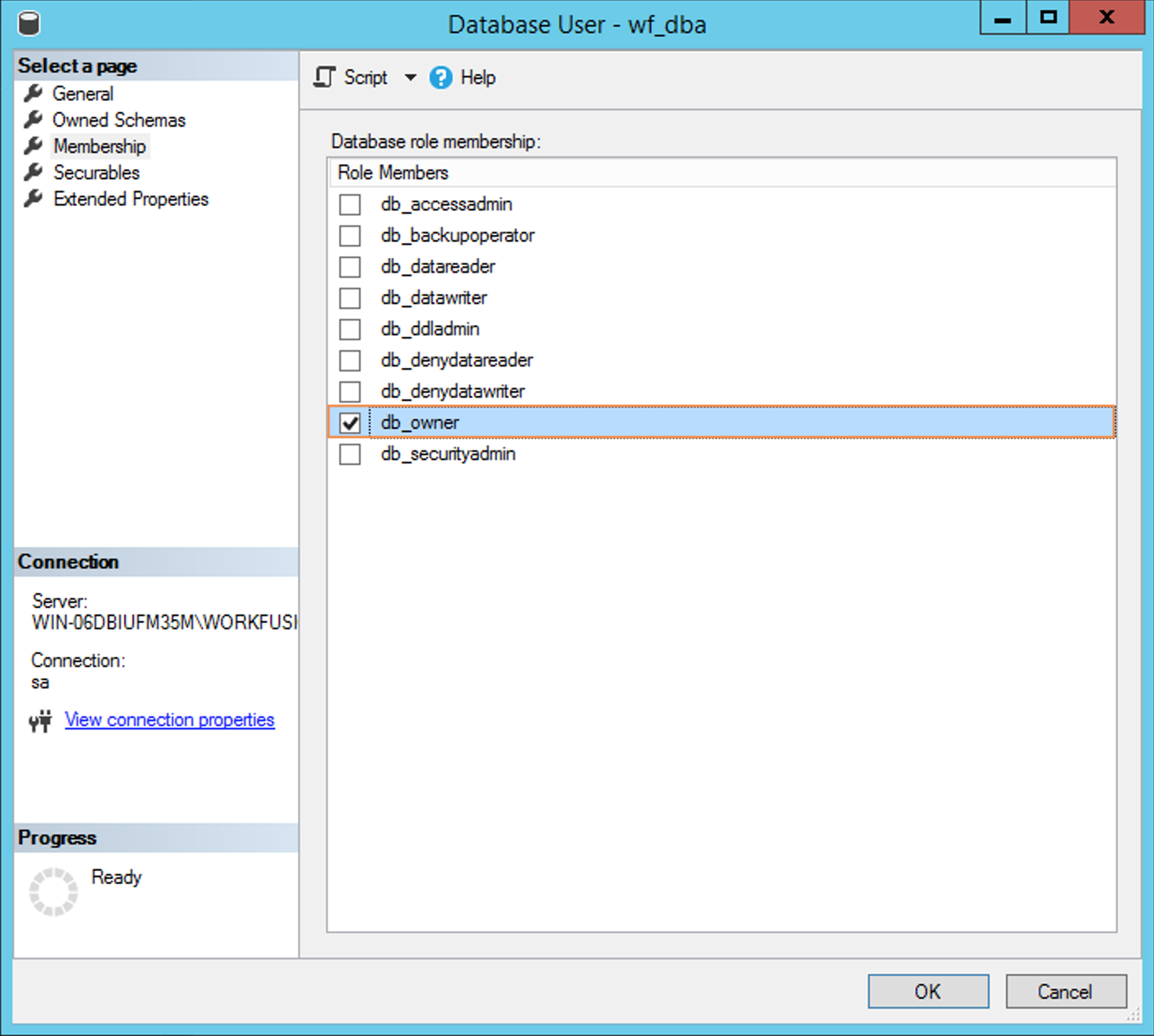
In the <mssql_db_name> database, click Users, select <mssql_dba_user>, and click the db_owner check box to assign the user to the db_owner role.
Create the following MS SQL logins for the Workfusion components (note that MS SQL logins are not db users):
- mssql_ct_user
- mssql_ws_user
- mssql_sqc_user
- mssql_ds_user
- mssql_rpa_user
- mssql_pm_user
- mssql_dm_user
- mssql_rapi_user
- mssql_ocr_user
- mssql_automl_mms_user
For each login, specify the following parameters:
If you use the SQL Server authentication,
- Specify the login name.
- Make sure that the Enforce password policy check box is not selected. See the passwords policies earlier.
- In the Default database box, specify the <mssql_db_name> database.
- Choose English as Default language.
If you use Windows authentication,
- Select a corresponding login name, for example, DOMAIN/mssql_login_name.
- In the Default database box, specify the <mssql_db_name> database.
- Choose English as Default language.
- For other options leave the default values.
When configuring the Integration server, on the INT server, in the config.yml file, in the
#MSSQLsection, remember to specify the corresponding login names and passwords, that you have created on the previous step.