Configure SonarQube email notification
With the notification configured on the SonarQube server, subscribed users or groups receive notifications on project analysis reports via email.
To configure the email notification, in SonarQube, click Administration > Configuration > General and scroll down to the Email section. Configure the following options:
- Email Prefix: the prefix added to all outgoing email subjects.
- From Address: sender's address, for example, noreply@sonarsource.com. Note that the mail server may ignore this setting.
- From Name: sender's name, for example, SonarQube. Note that the mail server may ignore this setting.
- Secured connection: secure connection type. Leave it empty if you don't plan to use a secure connection. Select starttls for an SSL connection.
- SMTP Host: for example, smtp.gmail.com. Leave it blank to disable the email sending.
- SMTP Password: a password to use with authenticated SMTP.
- SMTP Port: a port number to connect to an SMTP server.
- SMTP User Name: a username to use with authenticated SMTP.
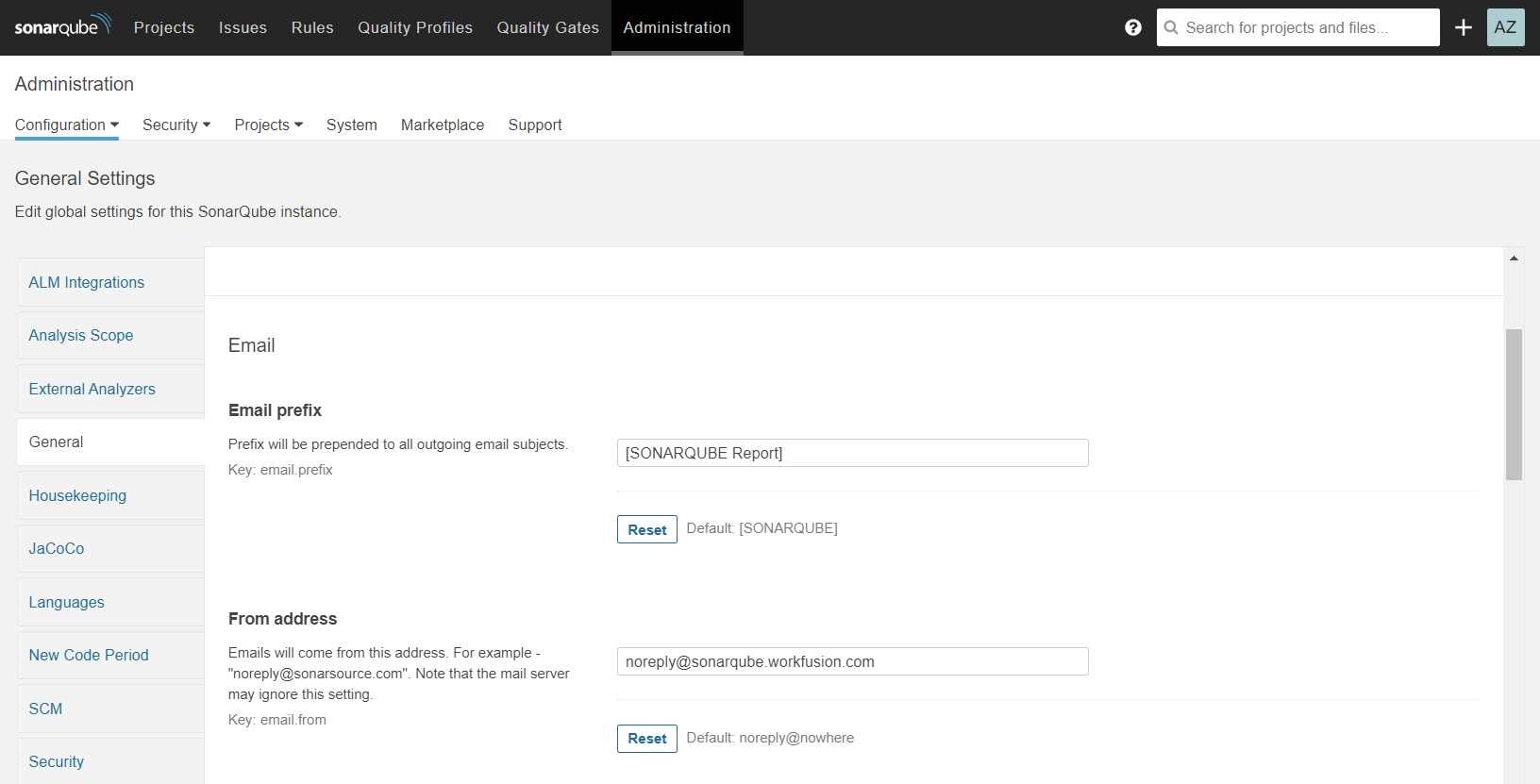
See the example for smtp.example.com:
- Email Prefix: [SONARQUBE Report]
- From Address: noreply@sonarqube.example.com
- From Name: SonarQube
- Secured connection: starttls
- SMTP Host: smtp.example.com
- SMTP Password: ****
- SMTP Port: 587
- SMTP User Name no_reply@example.com
note
To get a password for the SMTP Host, request it from the responsible team.
Also, to allow access from your SonarQube instance to SMTP Host, configure the firewall settings on the SMTP Host. If the SMTP Host is placed in AWS Cloud, set the Security Group associated with to the SMTP Host.
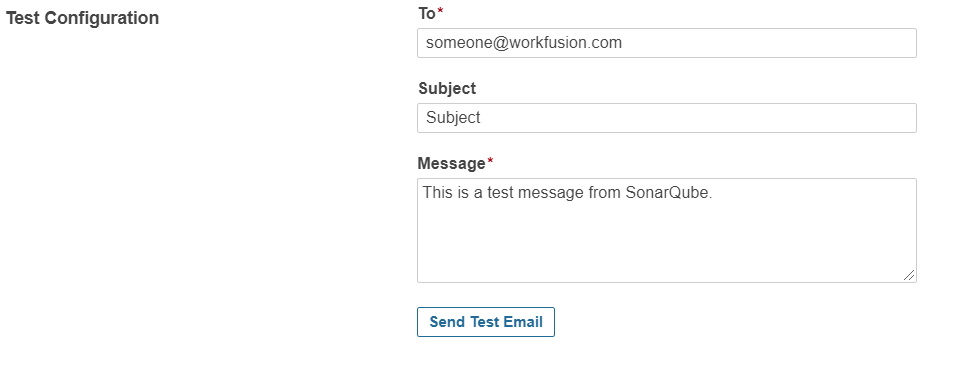
After you configure a notification, check the connection with Test Connection by providing a mail ID. If set right, it sends a test email to the submitted mail and notifies you. Otherwise, an error message appears.
Subscribe user to notification
You can subscribe a particular user for one or several projects to receive email notifications on different events.
To subscribe a user to a project, follow the steps below:
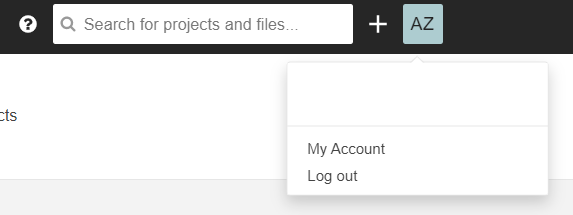
Log in as the user to which you want to send notifications. In Account, click My Account.
Go to the Notification tab. In the Overall notification section, select the conditions for sending a notification to the user.
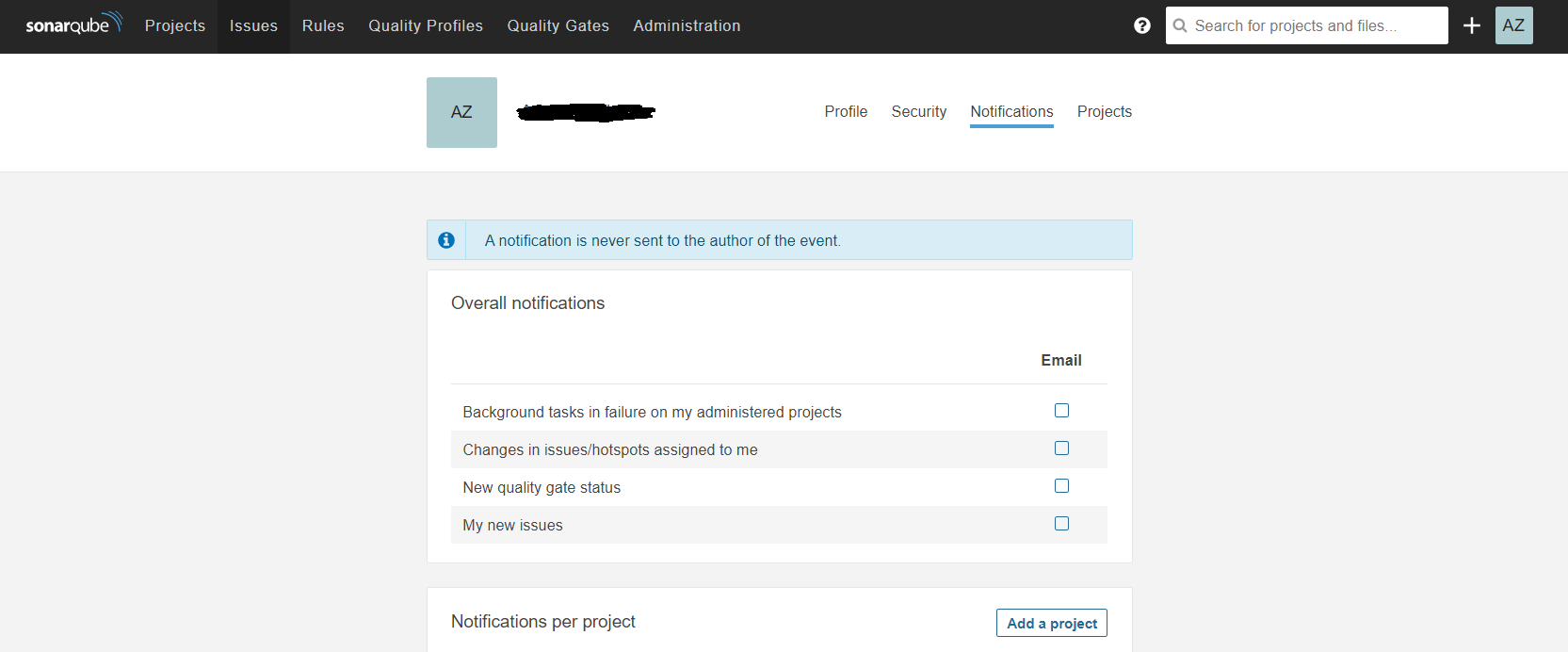
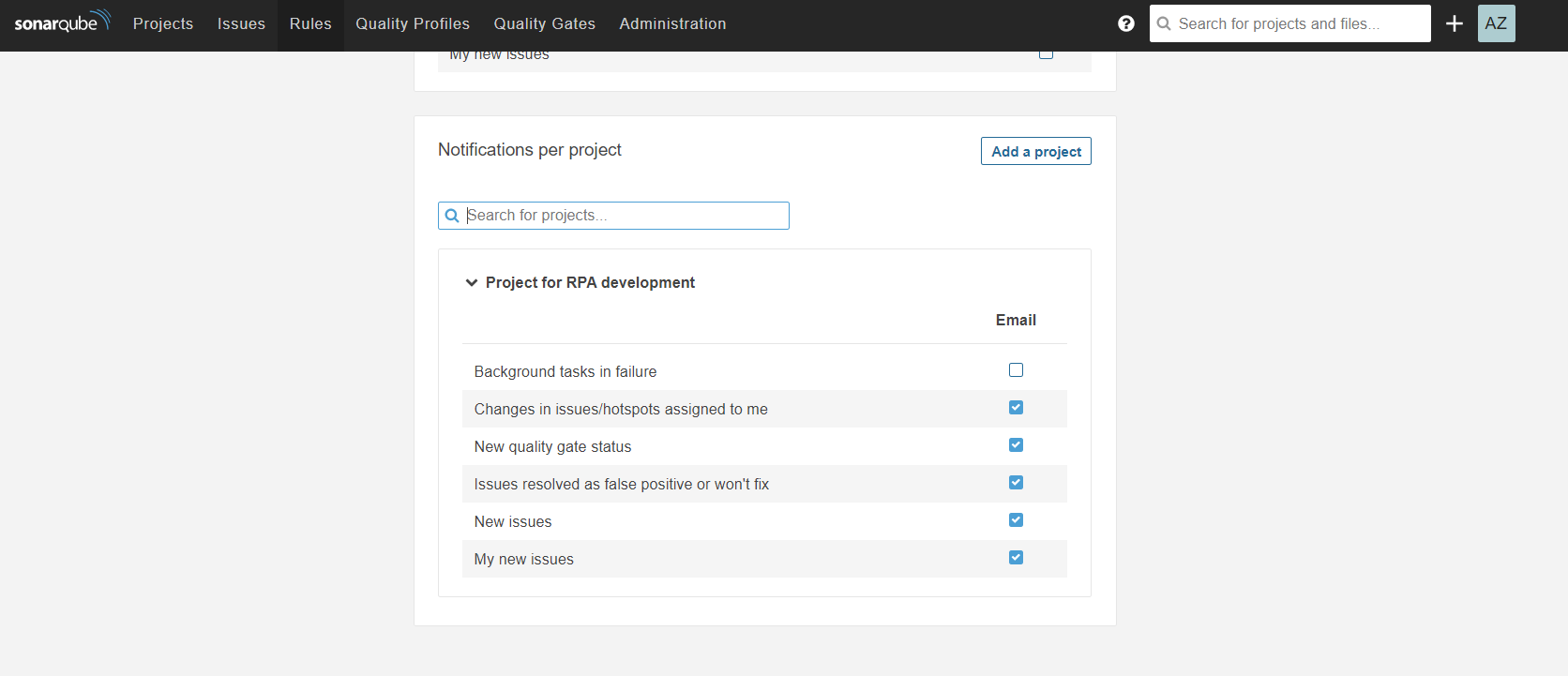
To set a notification for a particular project, in the Notifications per project section, search for your project, and in the Email column, select the required checkboxes to configure it.