
Debug Bot Task
RPA Worker is already started when you launch WorkFusion Studio. To debug your Java code in WorkFusion Studio, follow the instruction below:
Open Java class(es) you wish to debug and set breakpoints where debug is needed.
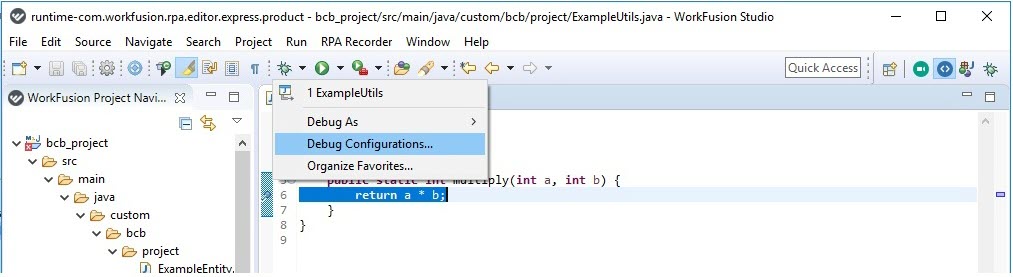
To create Remote Debug Configuration, choose Debug Configurations... in the Debug As... drop-down menu.
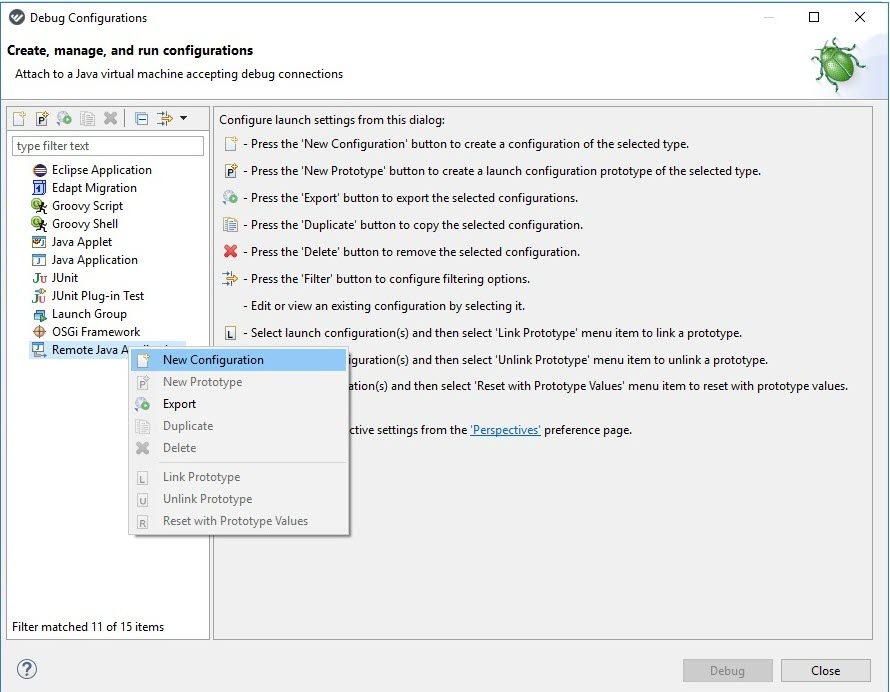
Select Remote Java Application and choose New Configuration in the drop-down menu.
Change a debugger connection host and a port in the settings form. Use the same port you saw in the console output when RPA Worker started (8000 by default).
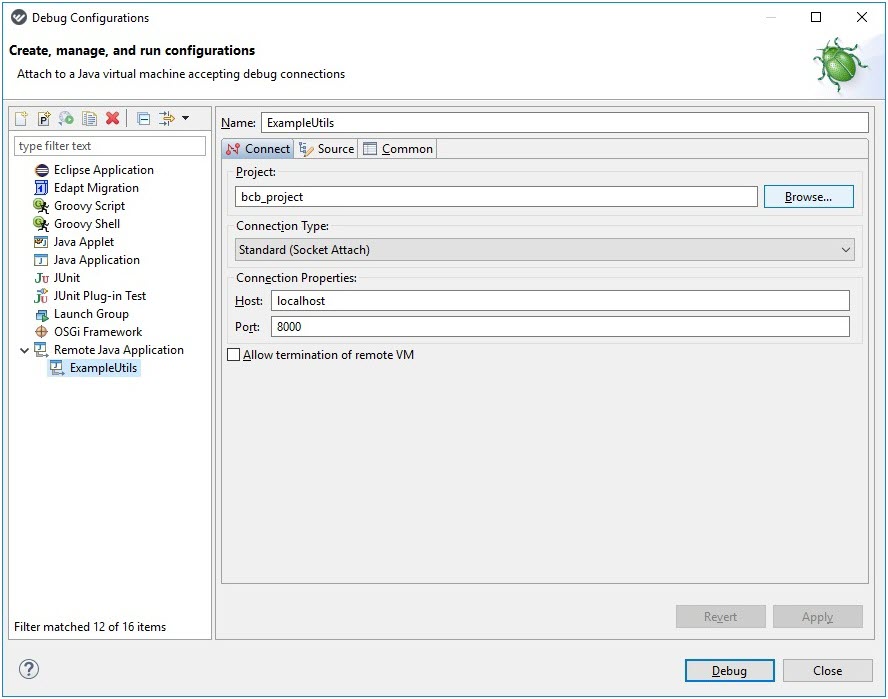
Click the Debug button.
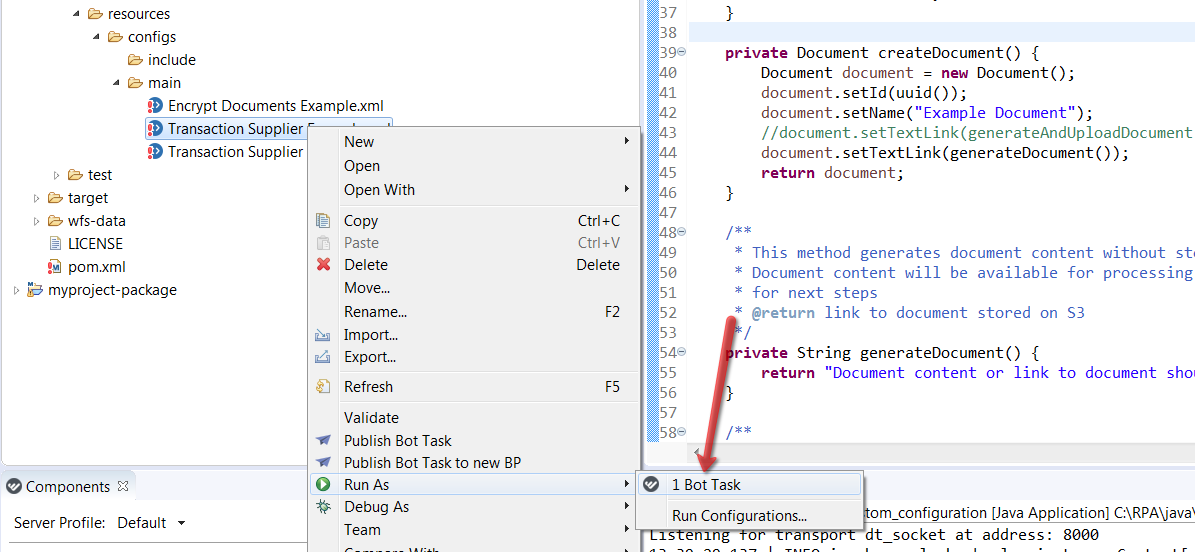
Select Run As Bot Task to run any Bot Task where the needed Java class(es) are invoked.
WorkFusion Studio suggests to switch into the DEBUG perspective. Click Switch to agree.
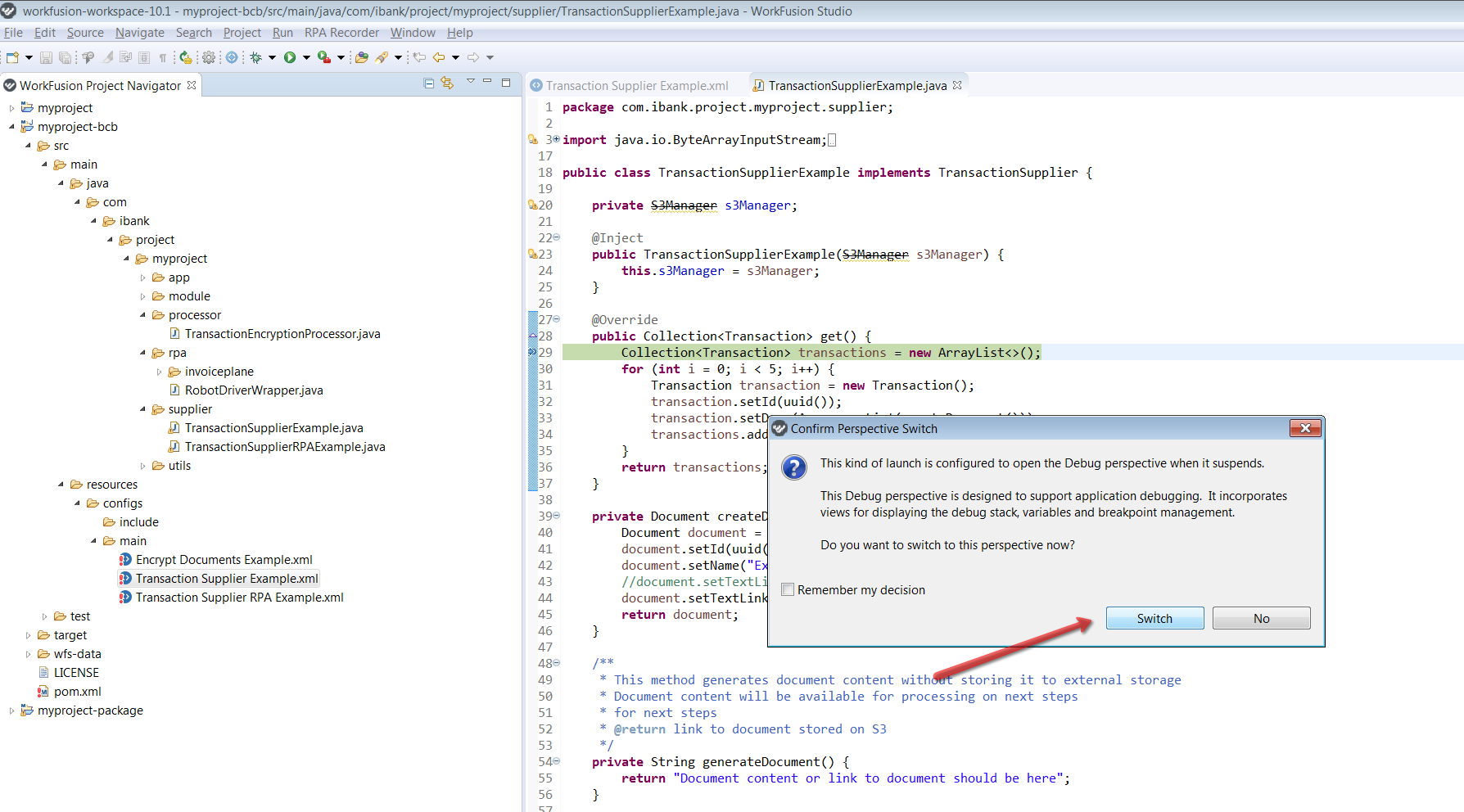
Now, you are in the DEBUG mode, and the execution must stop at the first breakpoint. Debug line by line going with F5 and F6 and inspect variables, for example, follow the standard Eclipse debugging procedure.
note
WorkFusion Studio can start RPA Worker using a non-standard port (not 8000). You can see the actual port in the active console if you click the Restart Worker button. Use this port in the Remote Java Application configuration dialog from step 4 above.