
Train SMEs
Goal of the step: Train SMEs so as to provide a high level of tagging accuracy for a high-quality data set collection.
Output of the step: SMEs obtain qualification and learn how to tag documents correctly. Qualification is mainly to prove that SMEs correctly understand the requirements and can follow instructions well. Qualification task is used to measure the percentage of correct answers that SMEs submit.
Subject Matter Expert (SMEs) are experts from the customer’s side who have a deep understanding of the whole process and business logic of the documents. Usually they perform all the tasks of the process manually before automation is applied and have the full knowledge of documents' business logic.
First, the Data Analyst provides introduction into the tagging process for SMEs, then the Qualification task has to be undertaken. Qualification is mainly to prove that SMEs can provide a high-quality data set. The qualification task is used to measure the percentage of correct answers that SMEs submit. There is no need to check SMEs' knowledge of different document types, but it's necessary to verify they can follow instructions well and tag exactly what is needed.
The Qualification task can be taken twice by SMEs, so there will be a first and second qualification. When SMEs try to tag documents according to the instructions for the first time, that will be initial qualification and if they are successful, it will be the only one. Success means all the SMEs submitted all the tasks in the qualification task, achieved the required percentage of correct answers, and were able to obtain qualification the first time.
If some SMEs failed to obtain qualification during initial qualification, they can retake the qualification task, but only once. The second qualification is final and if the SME fails, the situation should be reported to the DM and the person should be excluded from further tagging process. The aim of the whole process is to confirm that all the SMEs tag the same documents in the same way, accurately, according to the instructions and can fulfill all the tagging requirements.
For reference:
- Qualification — Degree that shows SME's capability and skills to tag documents well.
- Gold Data — Correct answers, prepared by DA to measure SMEs' accuracy.
- Qualification Task — Task that SMEs need to pass to obtain qualification.
Gold data
First, take 15 documents of the same type and layout. That can be 15 invoices from one supplier, for example. Define the correct values for all fields. Generate a CSV file with the links to the original and OCR'ed documents and upload it into the manual task. Note that gold data must be 100% correct from the business logic side.
Creating gold data
There are two options to tag gold data:
Upload Data in Qualification Task, and then Mark as Gold on Preview.
- Tag all the values as if on the WorkSpace and select Mark as Gold for each document.
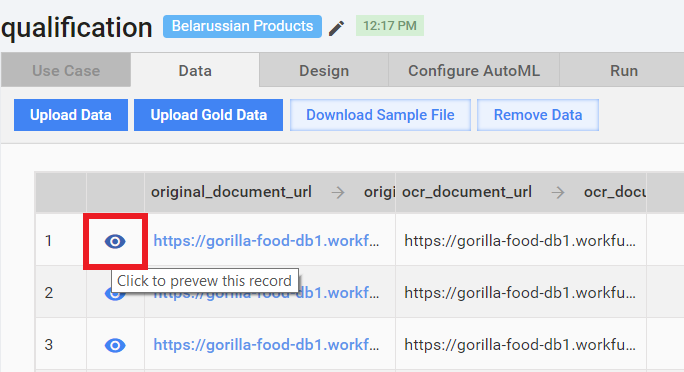
- Save the task.
- Tag all the values as if on the WorkSpace and select Mark as Gold for each document.
Tag documents regularly in a manual task.
- Select Upload Data > Run > Run This Task.
- Find these tasks in Workspace and complete/submit them.
- Generate Snapshot > download .CSV file > add to all the columns' headers "gold_" prefix > save and download the CSV file into the Qualification task as Gold Data.
important
Note, that .CSV files should be opened and edited in special editors, such as Ron's Editor or LibreOffice. Excel editor breaks the structure of the snapshot.
Qualification
Qualification is created in Control Tower separately from the Qualification Task. The main thing here is to set the score threshold sufficient to achieve success criteria. For example, if you have 95% accuracy required, a 70% score threshold won't be enough for qualification. It's recommended to set qualification threshold at 90% or higher.
Creating a qualification
To create a qualification, follow these steps:
- Go to Workers > Qualifications.
- Click Create Qualification.
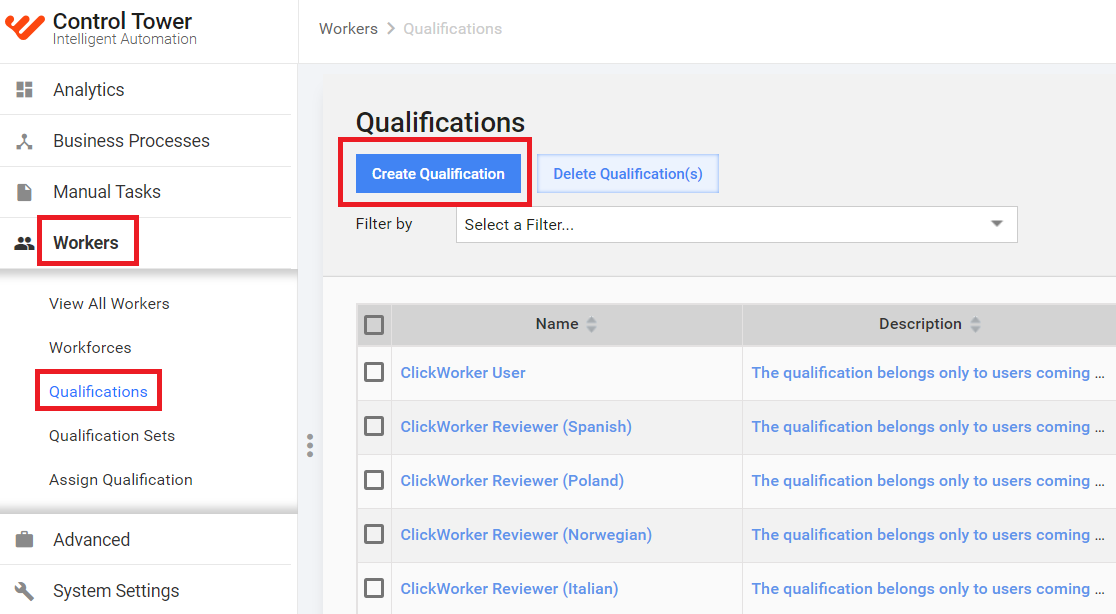
- In Qualification Details, provide Qualification Name, Description (not mandatory), and Keywords.
- In Qualification Settings, select the following parameters:
- Privacy: Public (private Qualifications won't be visible to SMEs in Workspace)
- Type: Accuracy-based
- Score Threshold: 90% or higher
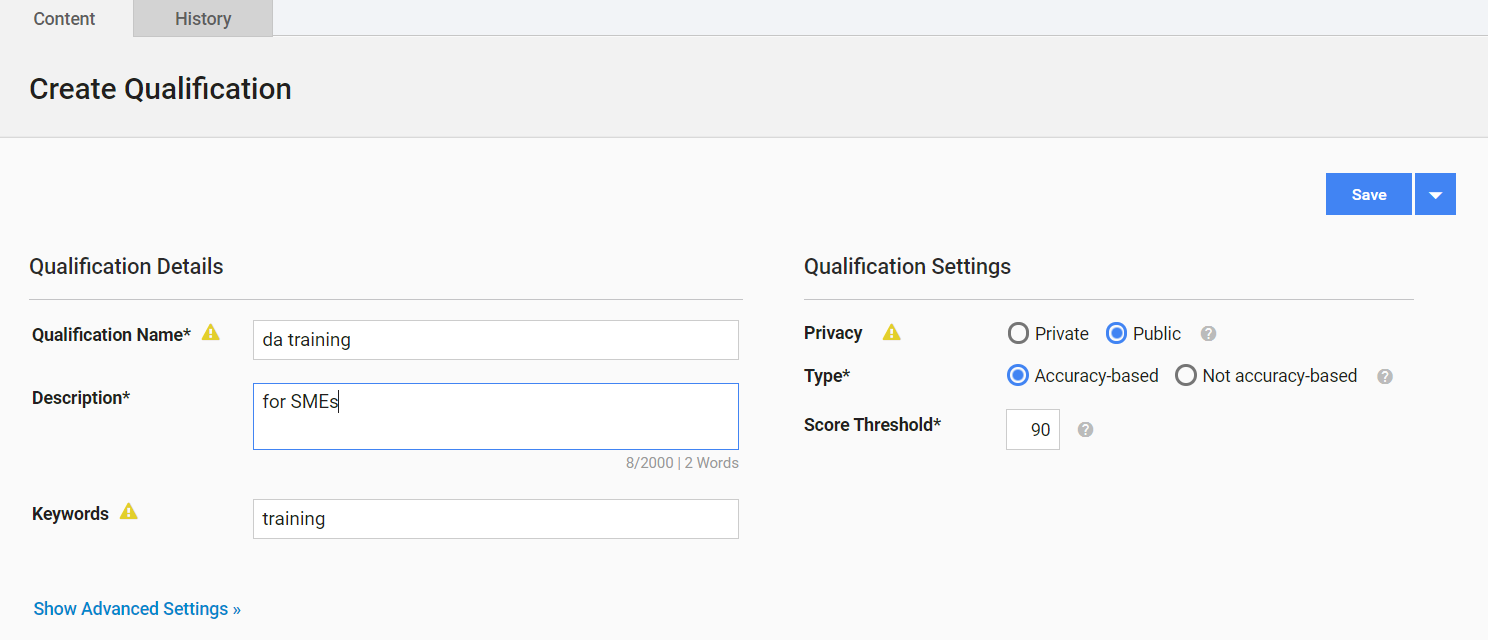
- Click Save.
Qualification is used to limit access to the task as well. For example: Two teams of SMEs are in different locations and they are tagging documents on the same WorkSpace. You want each team to tag specific batches only and not to see other tasks, so it's necessary to create and assign different Qualifications to SMEs from each team.
Creating a manual task with limited access
To create a manual task with limited access, proceed with these steps:
- Create a Qualification.
- Go to Workers, select your SMEs, and then select Assign Qualification.
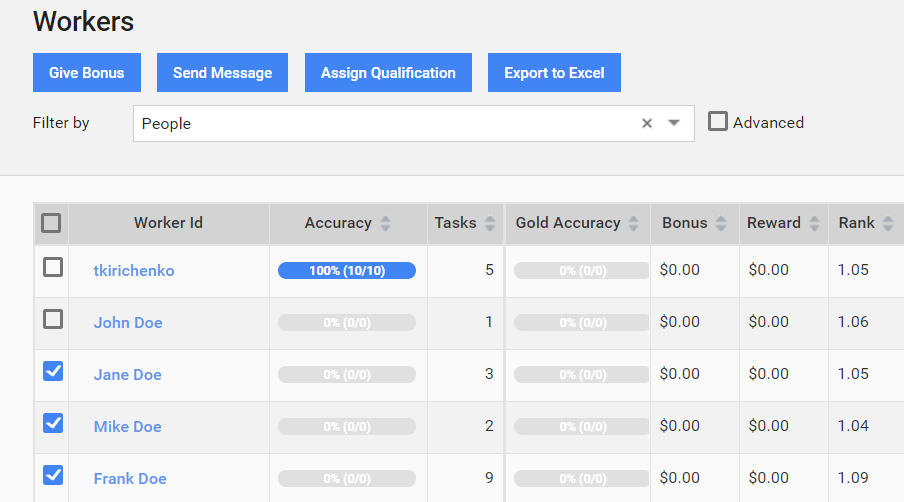
- Select Qualification from drop-down and Save.
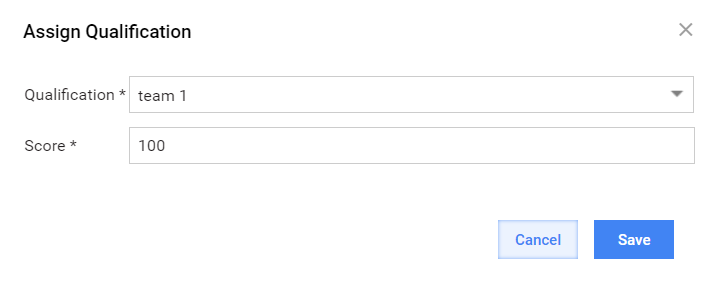
- In the Manual Task, go to the Run tab > Advanced Options.
- On the Qualification tab, select the appropriate Qualification, and then select Require All Qualifications to Preview the Task.
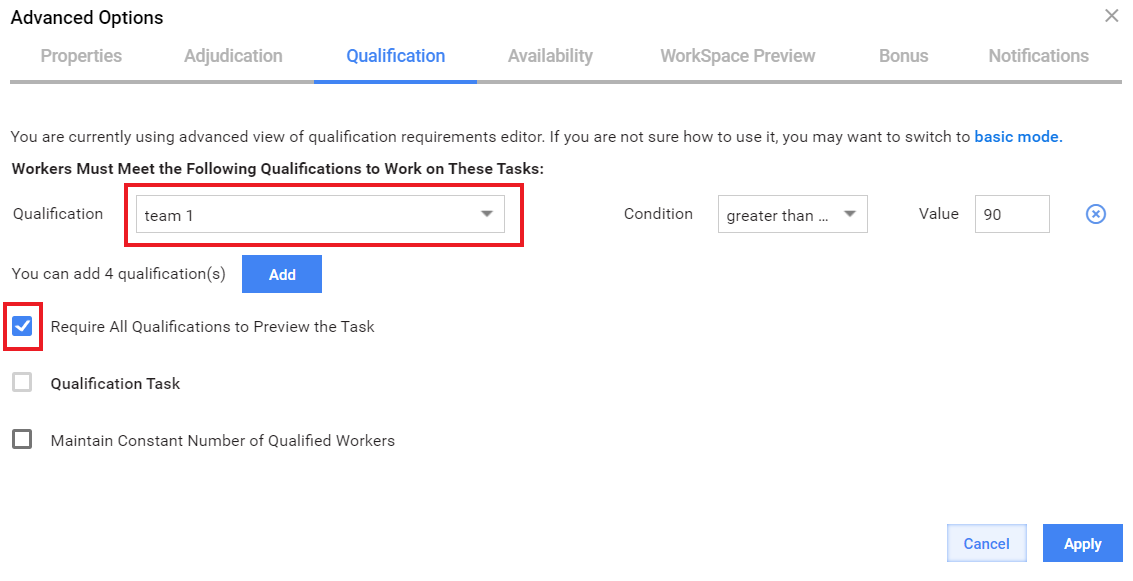
- Click Apply, and then Save.
Qualification task
The documents can remain the same as in the first qualification. Precise and sufficient instructions are to be provided to SMEs together with the Qualification task. For a second Qualification task, the Data Analyst should provide feedback on mistakes, check the instructions and improve them if necessary.
Creating a qualification task
To create a qualification task, follow these steps:
- Copy the manual task created at the first step, and then enable it as a qualification.
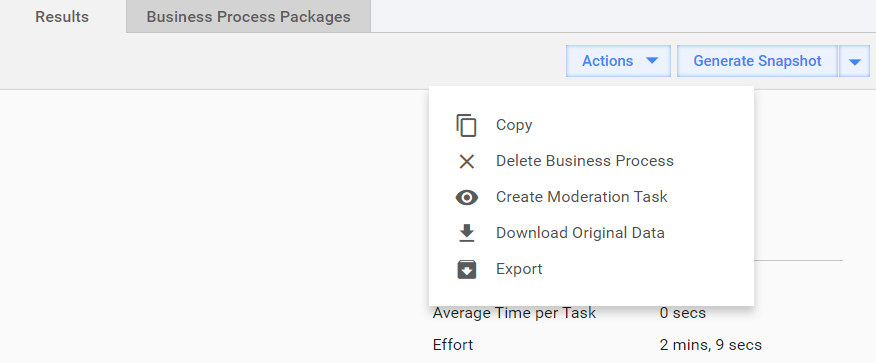
- Upload Gold Data or Mark as Gold on the Preview. See create gold data step. See the example of input data.
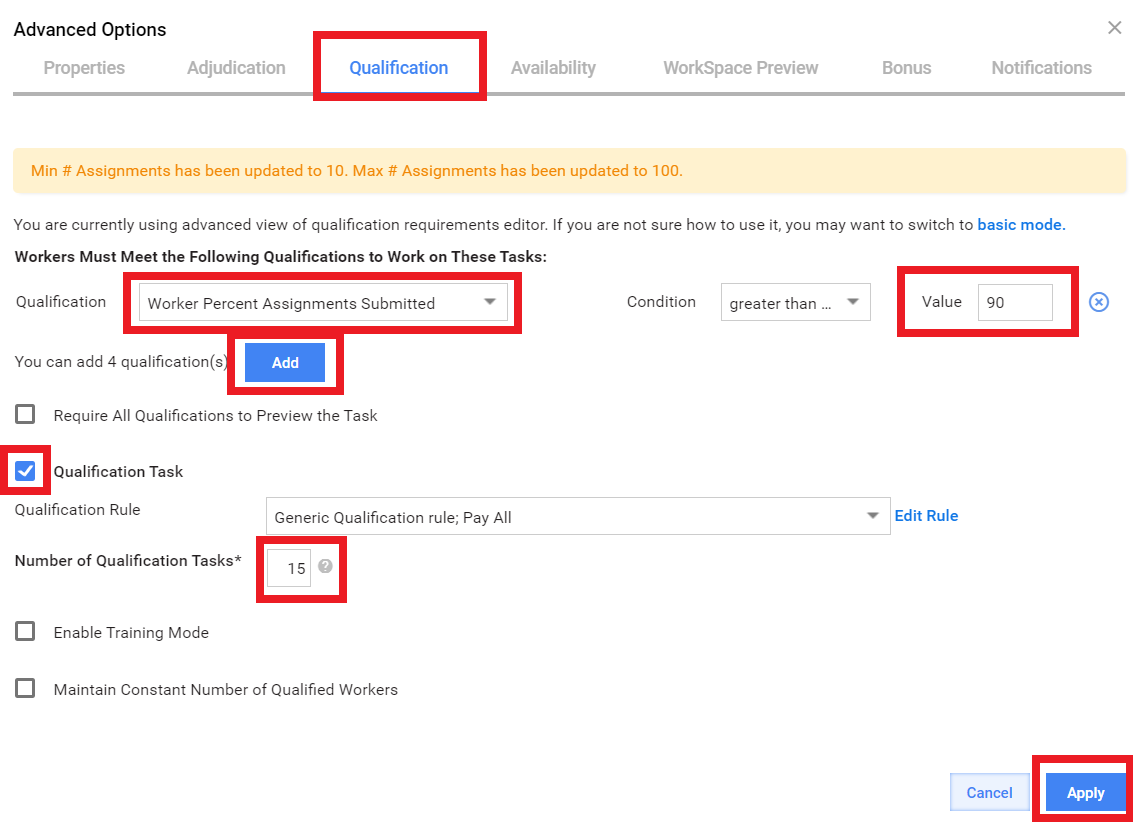
- Go to the Run tab, and then select Advanced Options.
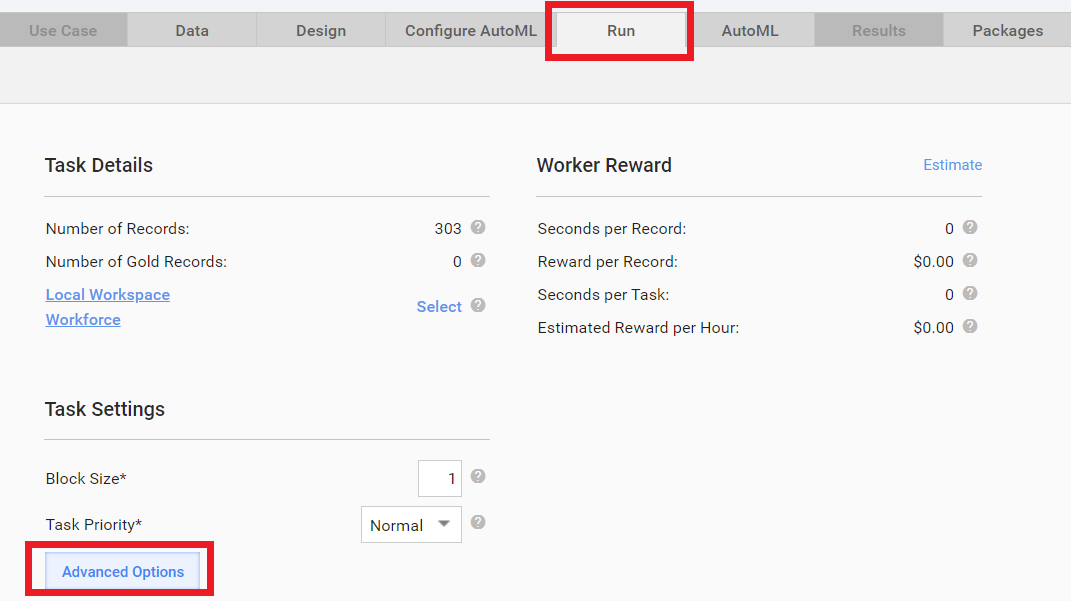
- In Advanced Options, go to Qualification > click Add.
- Find the name of the qualification you provided, and then set Value the same as Score Threshold.
- Select Qualification Task, and then set Number of Qualification Tasks to 15.
- Click Apply.
- Click Save, and then click Run.
note
If you Enable Training Mode, SMEs will see their mistakes if any at once (that mode might be used during initial qualification, but is not necessary).
SMEs training
First, provide basic information about WorkSpace, i.e.:
- how to log into WorkSpace
- how to use Preview (to look at the original document)
- how to tag quickly using hot keys
- how to select a value from the list
- how to correct data values, etc.
Also provide some common rules and principles of tagging, such as:
- Tag the fields consistently, i.e. in the same places as it is given in the specific instructions.
- Tag all available fields, don't miss anything, except for values corrupted by OCR.
- Don't tag fields corrupted by OCR (examples are provided below).
- Always tag ALL the products when there multi-product lines.
- Never tag the amount together with a currency sign.
- Tag fields completely, i.e. don't cut off the words from values, especially for company names, addresses, etc.
- Be careful with values in the answer boxes: Select appropriate values from the list, if there is a dropdown, or correct the value if needed. Don't submit mistaken answers.
- Use reference data correctly. No "N/A" if the value must be chosen from the drop-down list.
- Before submitting: Check the position and data value of every tag; is everything correct?
More information about tagging requirements and high-quality data set is here.
The presentation example on SMEs' training can be downloaded here.