
Business Process Use Case
important
The topic covers the Business Process Use Cases workflow. On reading it, proceed to the Create Business Process section.
To manage Use Cases, go to System Settings > Use Cases > the Business Process tab.
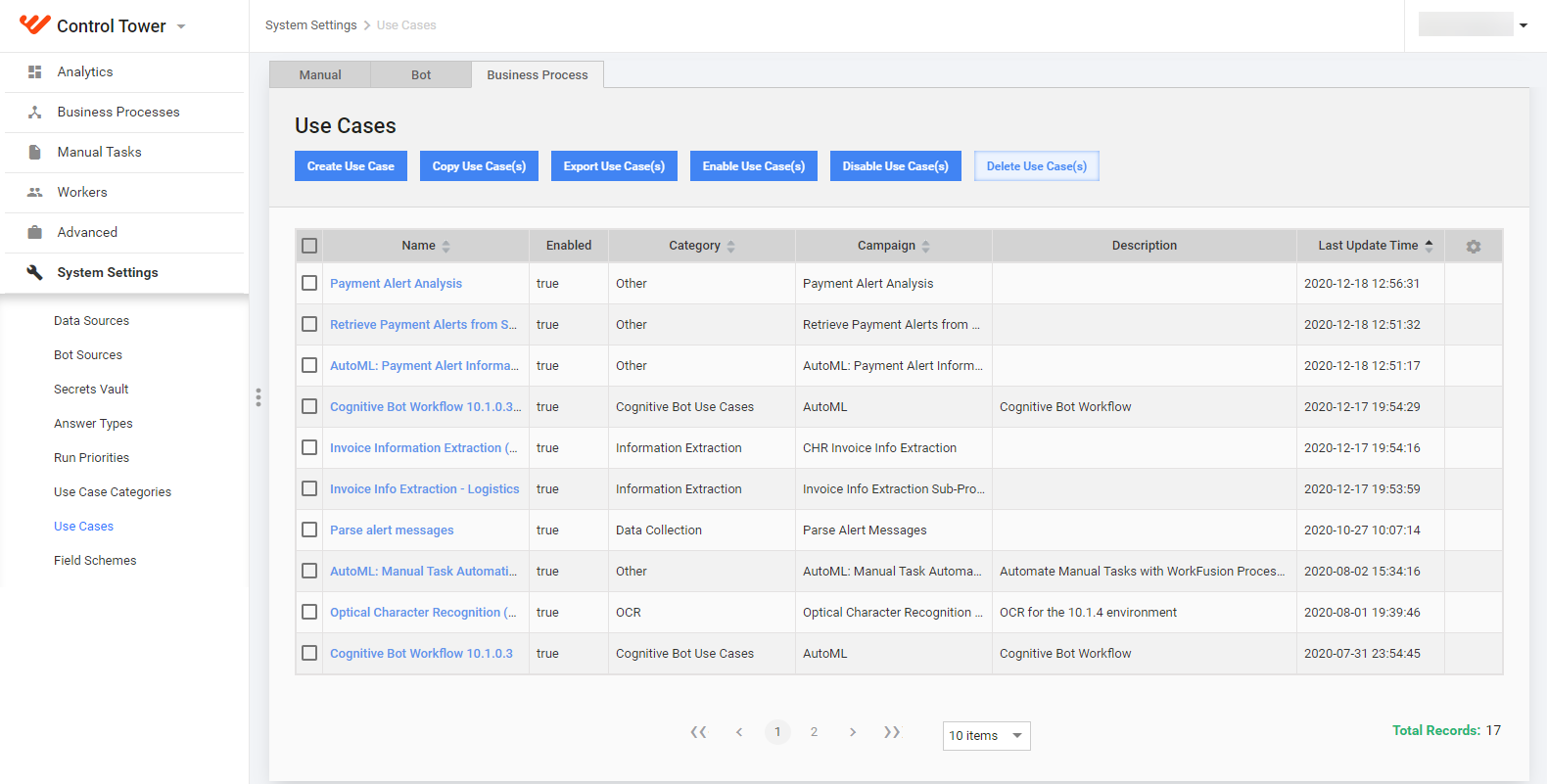
On the Business Process tab, you can perform the following bulk actions with a Use Case:
- create and edit
- copy
- delete
- export and import in the XML format
- enable and disable
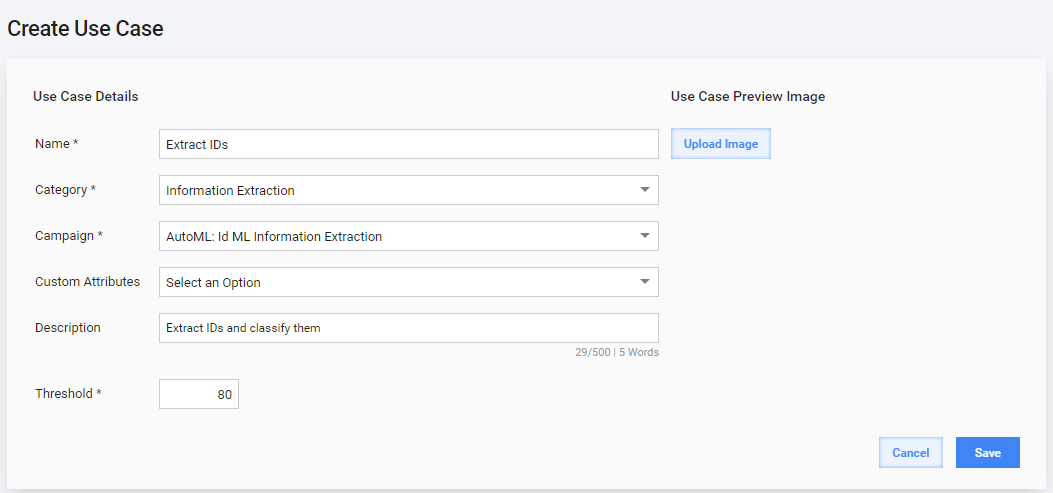
When you create or edit a Use Case for a Business Process, set the following parameters:
| Field | Description |
|---|---|
| Name | Specify a unique Use Case name. |
| Category | Select a Category that fits your Use Case. |
| Campaign | Select a Business Process that will be a source for the Use Case. After you have selected the Business Process, you can preview or edit it by clicking the Edit link. |
| Custom Attributes | See Manage Custom Attributes. |
| Description | Specify common information about the Use Case. |
| Preview Image | Upload an image to distinguish the Use Case among others and give the user initial information about the look of the Task. |