
Manage Workforces and Crowds
Crowds
Crowd is a group of workers in WorkSpace that corresponds to a set of pre-defined requirements. The following requirement types are applicable:
- country or region
- available working hours
- earnings
Example: You can create a Crowd named WS-US-98% consisting of WorkSpace workers who have a 98% approval rate and are located in the USA.
Manage Crowds
To access and manage Crowds in Intelligent Automation Cloud, use one of the following paths:
- Workers > Workforces > Manage Crowds
- Workers > Workforces > click Create or a Workforce name > Add Crowd
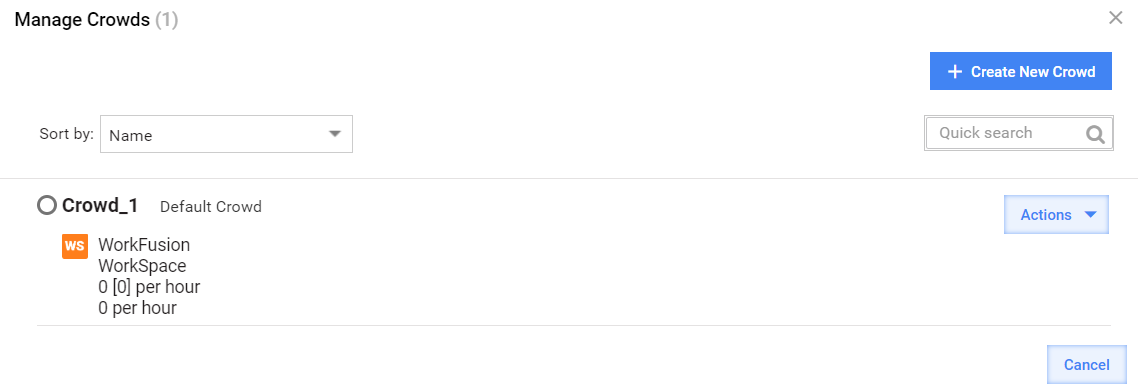
The Manage Crowd popup displays the following parameters, if they are preset:
- Endpoint
- Required Qualifications
- Allowed Countries
- Working Hours
- Min/Max Workload
You can perform the following actions with a Crowd:
- create
- edit
- copy
- delete
Create Crowd
To create a Crowd, follow the steps:
Navigate to the Manage Crowds popup as described in Manage Crowds.
Click the Create New Crowd button. The Create Crowd page appears on the screen.
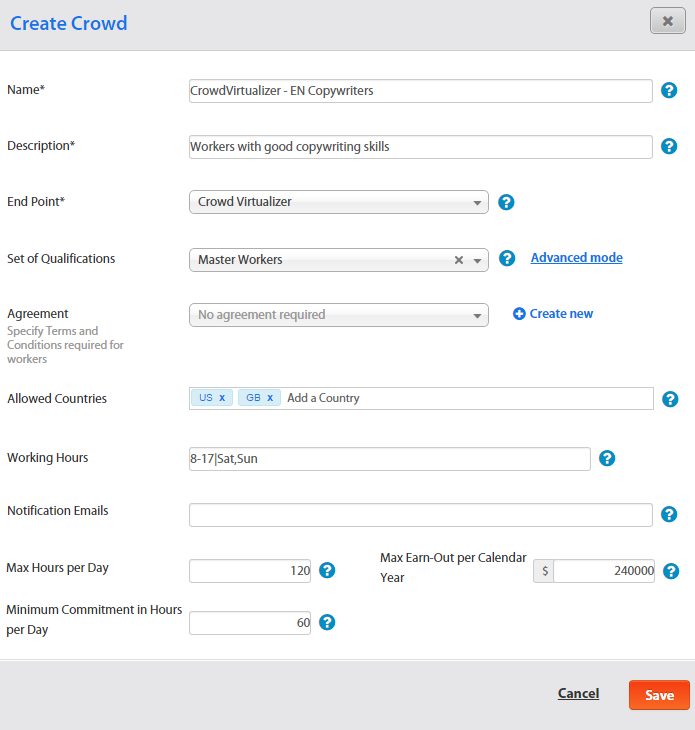
On the page, fill in the fields based on the table below and click the Save button.
| Field | Description |
|---|---|
| Name | Type in a unique Crowd name. |
| Description | Describe the Crowd's special parameters to distinguish it among others. |
| End Point | Choose the crowd-sourcing platform where the Crowd workers come from and submit tasks. |
| Set of Qualifications | Select a Qualification Set that a worker must have in order to be included in the Crowd. Alternatively, click Advanced Mode and select up to 5 required Qualifications. |
| Agreement | Select or create an Agreement that a worker must accept in order to be included in the Crowd. Alternatively,select the No agreement required option. |
| Allowed Countries | Only workers from the listed countries are included in the Crowd. It is a text input field with a country lookup. You can add several countries or delete them if needed. |
| Working Hours 1 | The time during which the WorkFusion engine posts tasks for the Crowd. |
| Notification Emails | Specify email addresses to receive notifications about tasks available to the Crowd. For the feature to work correctly, set the Crowd Notification Message option in Manual Task Advanced Options. For details, refer to the Notifications article. The option is commonly used for internal Crowds. You can enter group alias emails, such as translators@my-company.com. |
| Max Hours per Day | When the total worker task activities exceed the specified amount of hours, the WorkFusion engine stops posting tasks to this Crowd till the end of the day. |
| Minimum Commitment in Hours per Day | Set the parameter to guarantee that the Crowd is fully loaded with tasks. The distribution algorithm processes Crowds with the configured parameter in the first turn. |
| Max Earn-Out per Calendar Year | The maximum amount of money that all Crowd workers can earn during the calendar year. When the limit is reached, tasks cannot be posted to the Crowd. |
1 If you want to show a task during business hours—8-17|Sun,Mon,Tue,Wed,Thu,Fri,Sat. The time is set in the UTC timezone. More examples:
- When the setting is 9-17|Fri|UTC+5:30, this means the task is available on Friday from 9:00 till 17:59 India Standard Time.
- When the parameter is set to 0-24|Mon|UTC; 16-24|Sat,Sun|UTC, the task is available during the two periods of Coordinated Universal Time.
Edit Crowd
To edit an existing Crowd, follow the steps below:
Navigate to the Manage Crowds popup as described in Manage Crowds.
In the Actions drop-down menu, select Edit Crowd.
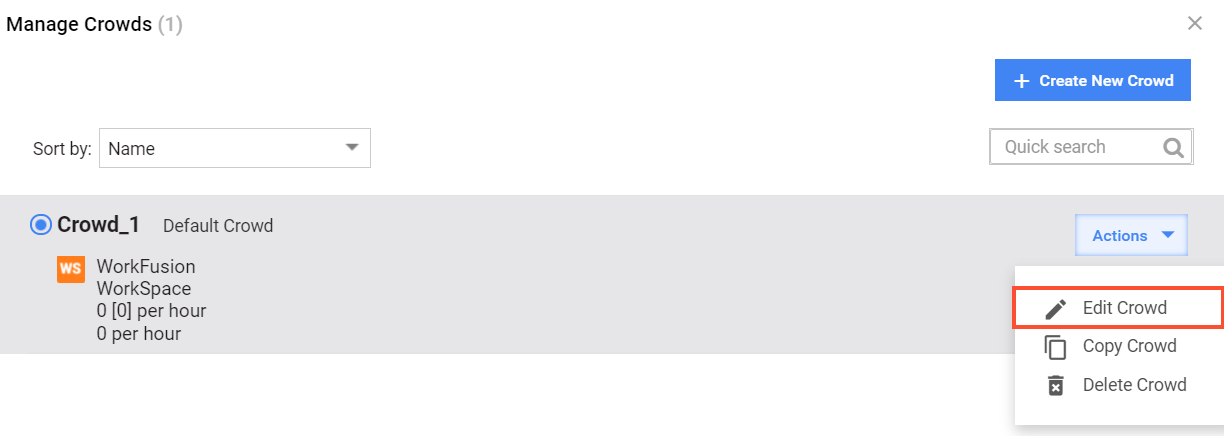
On the Edit Crowd page, make appropriate changes and click Save.
note
From the Actions menu, you can also delete or copy a Crowd.
Workforces
Workforce is a grouping entity that specifies who is working on a particular task. A Workforce can contain one or several Crowds.
Example: You can create a Workforce named US-98% comprising the WS-US-98% Crowd—WorkSpace workers who have a 98% approval rate and are located in the USA.
important
To be able to create tasks, you must have at least one Workforce. A Workforce must contain at least one Crowd.
Manage Workforces
To access and manage Workforces in the Intelligent Automation Cloud, navigate to Workers > Workforces.
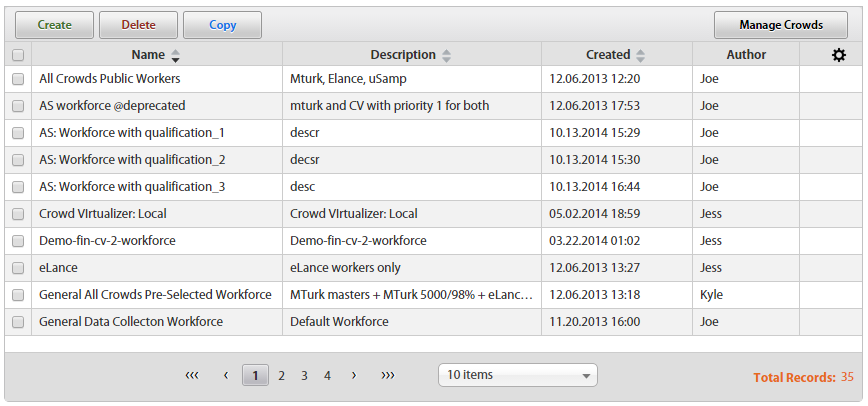
You can perform the following actions with a Workforce:
- сreate
- edit
- copy
- delete
Create Workforce
To create a Workforce, follow the steps:
Navigate to Workers > Workforces.
Click the Create button. The Create Workforce page appears on the screen.
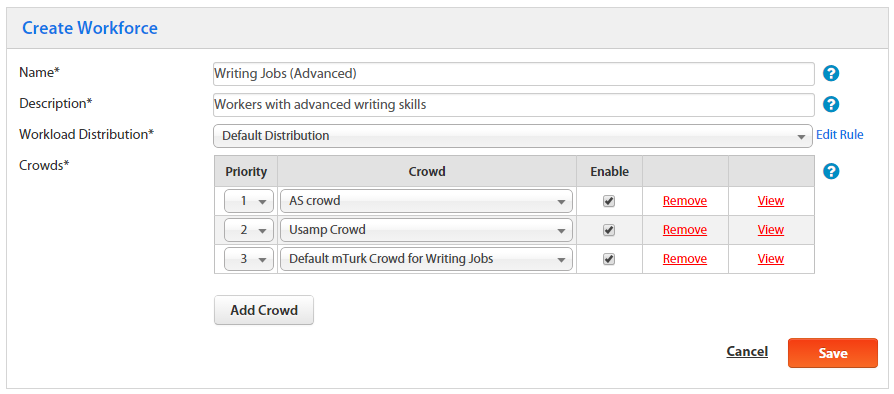
On the page, fill in the fields based on the table below and click the Save button.
| Field | Description |
|---|---|
| Name | Specify a unique Workforce name. |
| Description | Describe the Workforce's special parameters to distinguish it among others. |
| Workload Distribution | The rule defines how to distribute tasks among Crowds according to the following parameters:
You can click Edit Rule and modify the code. For details, refer to the Rule and templates topic. |
| Crowds | Add at least one Crowd to your Workforce by clicking the Add Crowd button and selecting a Crowd. For each Crowd, set the following parameters:
If you do not need a Crowd in a Workforce, click the appropriate Remove link or change the Crowd. To view the Crowd parameters, click the appropriate View link. |
Edit Workforce
To edit a Workforce, follow the steps:
- Navigate to Workers > Workforces.
- In the grid, click the Workforce you want to change.
- On the Edit Workforce page, make required changes.
- Click the Save button.
To copy or delete a Workforce, navigate to Workers > Workforces and click the Copy and Delete buttons accordingly.