
Create Qualification Task
The Qualification Task objective is to get a set of qualified workers who are to accept and submit tasks.
tip
Before reading the material, refer to the Create and Assign Qualifications to workers and Create Manual Task topics.
Create Qualification Task
There are two ways to start creating a Qualification Task:
Like a regular Task
For details, see Create Manual Task.
Manual Tasks > Actions > Create Qualification Task
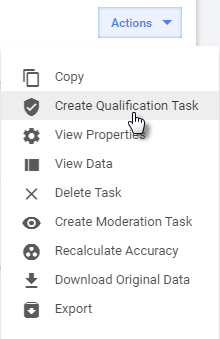
When using the option, you cannot change the task type afterward.
Upload Gold Data
Gold Data is a file containing correct Answers for all the Questions you intend to qualify the Workers on. A Gold Data file has an additional column with a gold_ header prefix for each Answer in the task.
For example, if a Manual Task contains such Unique Answer Codes as invoice_number and vendor_name, Gold Data should have additional columns with the gold_invoice_number and gold_vendor_name headers. These columns should have correct Answers.

If necessary, Gold Data should have messages containing explanations for workers to train them on the task. The message column for each Answer should have headers with the gold_ prefix and _message postfix. For example, gold_vendor_name and gold_vendor_name_message.
Gold Data for a Manual Task should meet the following requirements:
- Gold Data should be 100% accurate and tested before it is sent to a Crowd.
- Gold Data should have a mix of Easy, Moderate, and Difficult examples to ensure a worker is exposed to various scenarios without the Qualification being too difficult or too easy to earn.
To download Gold Data, open a Manual Task and click Upload Gold data. After uploading the file, you will see all Records in the grid.
For a Qualification Task, upload only a Gold Data file. No initial data file is needed.
Multi-value answer separators in Gold Data file
Each multi-value Answer Type has its own separator for the Gold Data file. It means that users should provide a correct separator in the Gold Data file.
For Gold multi-value Answers, you can add AND and OR conditions:
- &&—AND
- ||—OR
Examples:
- If a worker should select all, the answers are 1&&2&&3.
- If a worker should select one of, the answers are 1||2||3
- If a worker should select 1+2 or 3+4, the answers are 1&&2||3&&4.
Design Qualification Task
The Qualification Task design is similar to that of a regular Manual Task.
In addition, pay attention to the useful tips:
- Add Qualification or Test to the task Title and tags. This helps workers to find Qualifications.
- Optionally, add Qualification Instructions.
- Preview the task to make sure all data are displayed correctly.
Set Qualification Task options
To set Run parameters for a Qualification Task, proceed as follows:
Open Advanced Options and go to the Qualification tab.
In the Qualification field, add an Accuracy Based Qualification.
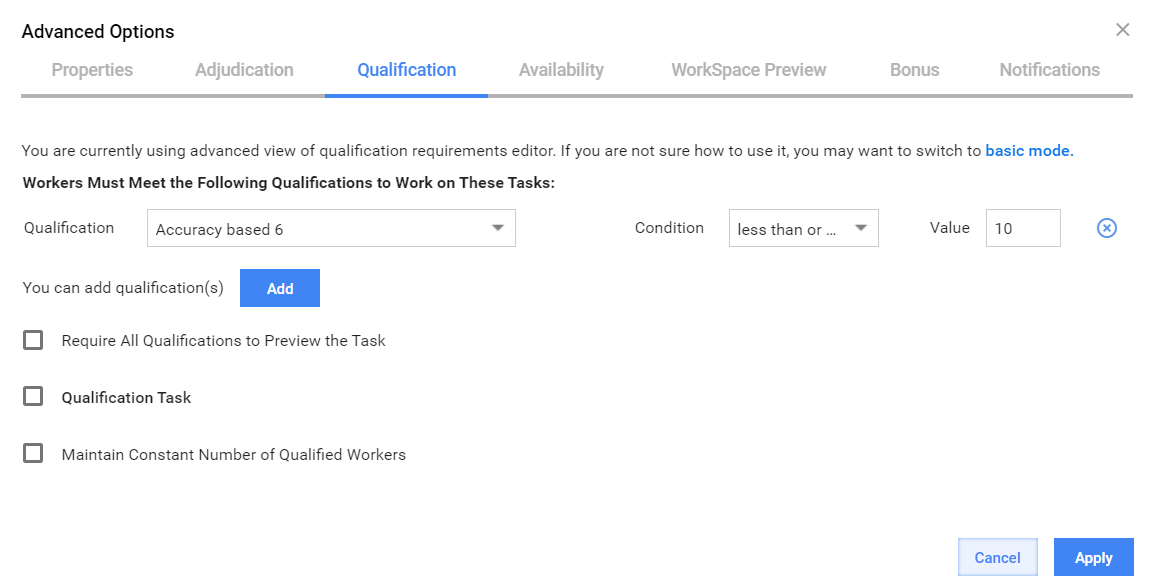
Select the Qualification Task checkbox.
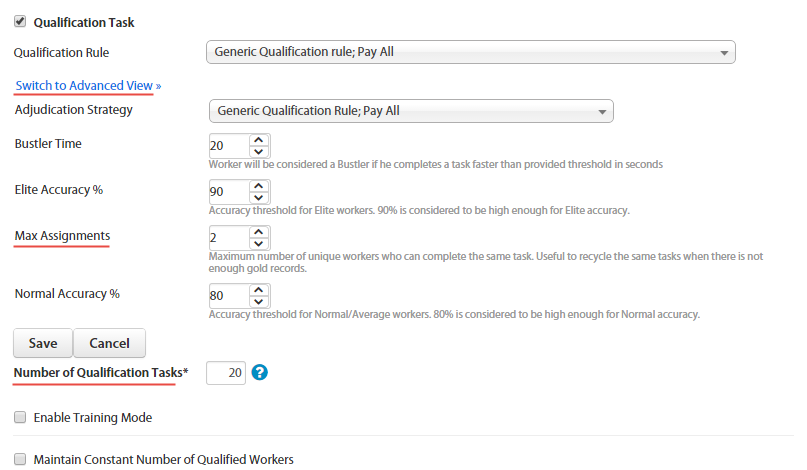
Select a Qualification Rule. In most cases, you can use Generic Qualification Rule; Pay All.
Click the Edit Rule link. This action displays the Rule variables.
(optional) Select Adjudication Strategy or edit the Rule in Advanced View.
Set Max Assignments—the maximum number of workers who can complete the same task. It is useful to recycle the same tasks when there are not enough Gold Records.
Click the Save button. Note that the Rule can be used in other tasks.
Set Number of Qualification Tasks—the number of tasks a worker needs to complete to pass the Qualification test.
(optional) Select Enable Training Mode to train workers by providing explanation messages after they submit the task. Each column with Gold Answers should have a corresponding column with a Gold Message. The message column header should have a gold_ prefix and a _message postfix.
(optional) Select Maintain Constant Number of Qualified Workers if you need a specific number of workers to get the Qualification. The task is paused when the number is reached.
Run Qualification Task
To run a Qualification Task, perform the following actions: