Modify system preferences
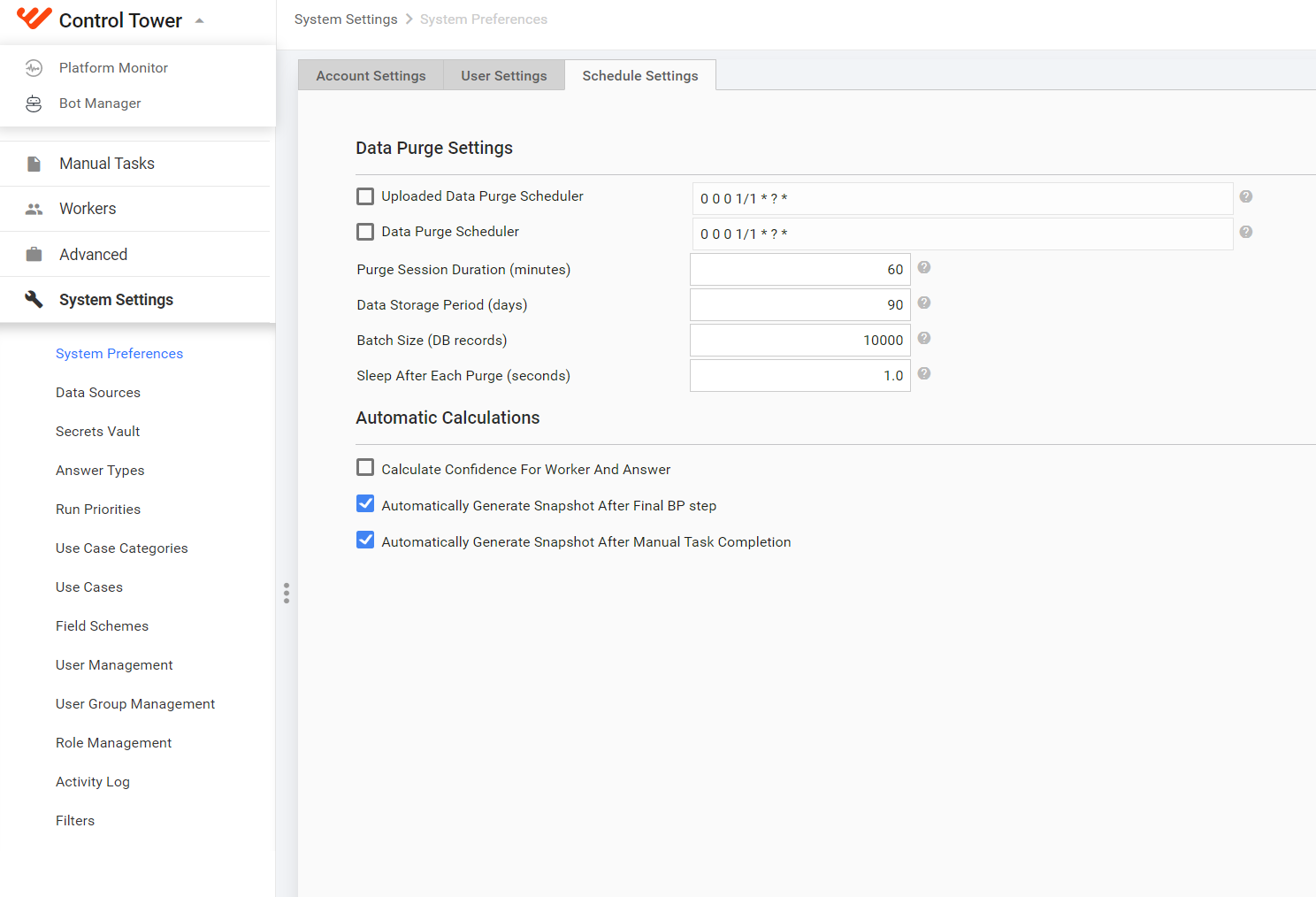
The System Preferences page contains all Control Tower parameters. It is available only to users with Admin privileges.
Account Settings
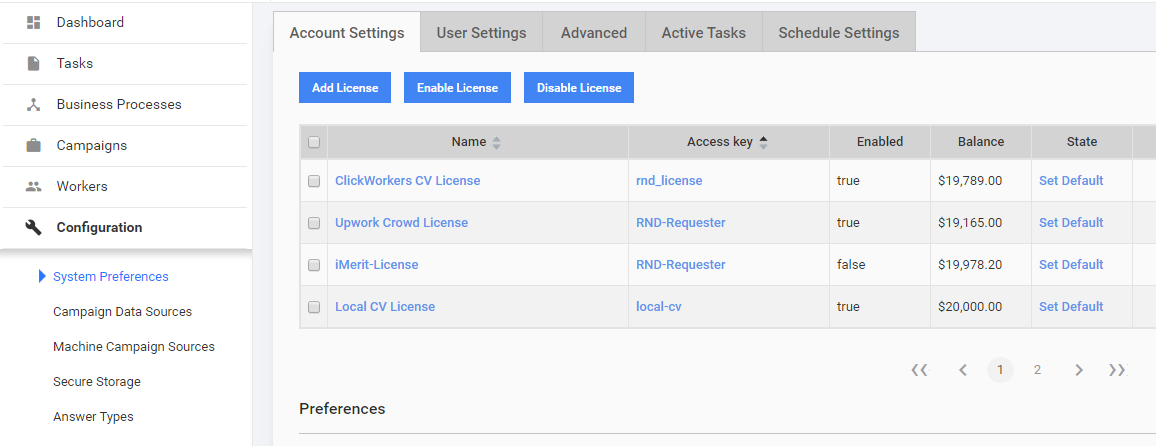
The Account Settings tab allows you to add, edit, enable, or disable the licenses for the endpoints where the Intelligent Automation Cloud sends work. On the tab, you can also set preferences for a user account.
Licenses
The endpoints for which you can set licenses include WorkSpace and other worker portals.
To create a new license, see the Creating a New License guide.
Preferences
Timezone
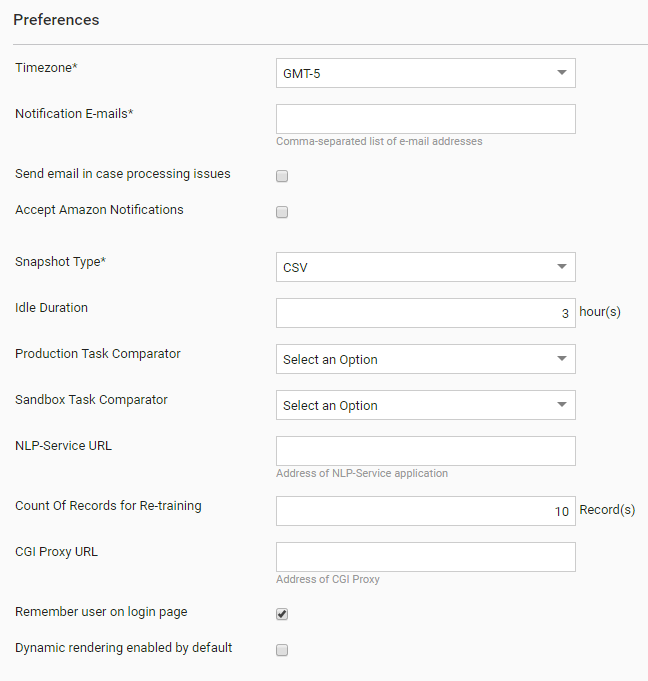
Select a time zone. All time values shown within the Intelligent Automation Cloud are based on the time zone setting.
Notification E-mails
Enter each email address where you want notifications to be sent. Use a comma to separate each listed email.
Send email in case processing issues
When you select the checkbox, an email is sent to all users in the Notification E-mails list if a Manual Task (MT) or Business Process (BP) has processing issues. The notification contains the following info:
- BP name with a link
- Name of the BP step with processing issues
- Name of the user who started the MT
- Date and time when the MT was started
- Latest stack trace
Snapshot Type
This is a global setting for the snapshot format type. Select the desired format from the dropdown list: CSV (Comma Separated Value) or XLSX spreadsheet.
Task Comparator
The functionality is obsolete starting from v.10.2. For details of the new custom sorting mechanism, refer to the Sort assignments and create custom queues article.
Count Of Records for Re-training
The parameter is used to override that of the corresponding ML model. To use the value, select it in the Automation BP Settings.
Proxy URL
URL of the proxy server used in Information Extraction.
User Settings
The User Settings page allows you to configure the settings for your user account, such as editing your first and last name, password, time zone preference, as well as email notifications.
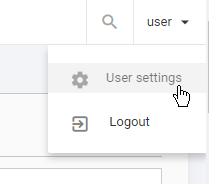
To start managing your user settings, go to Configuration > System Preferences > User Settings or click the User icon in the top right corner and select User Settings.
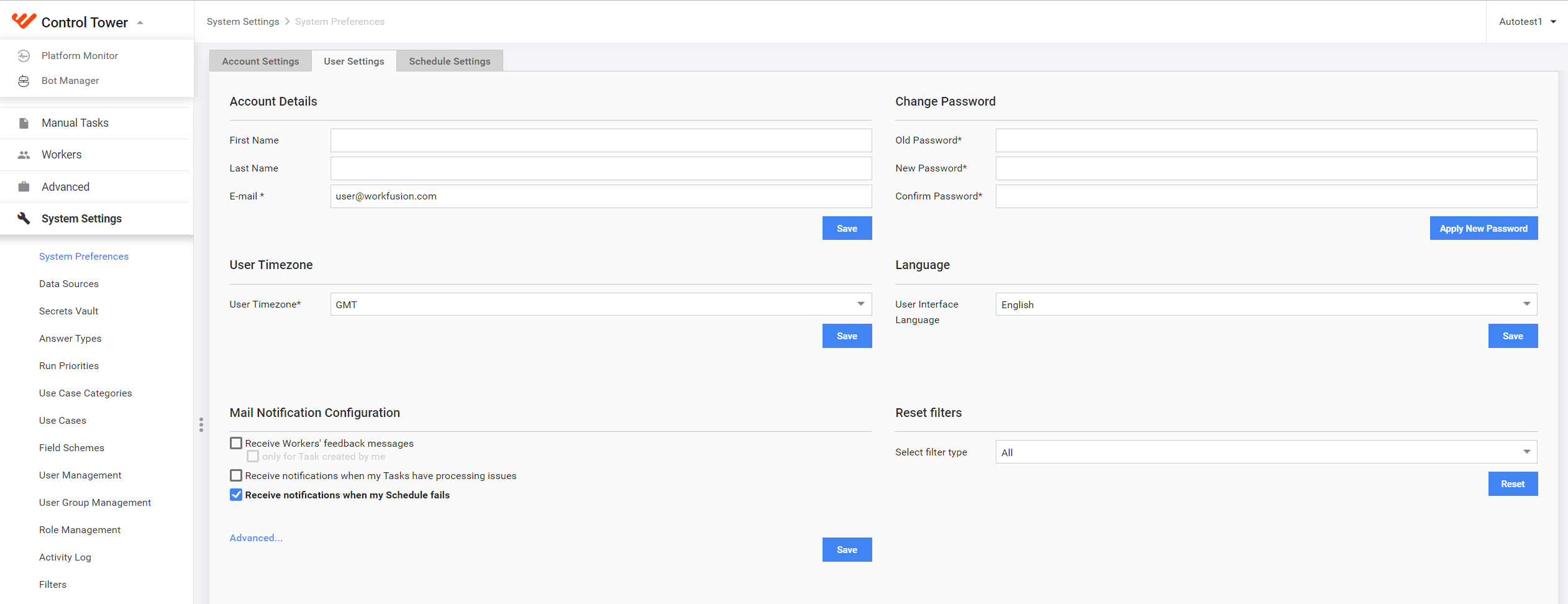
Account details
Enter your details:
- First name
- Last name
- E-mail—used as the user name on the login page
Change Password
This section is used to change your password.
User Timezone
Set a custom timezone different from the WorkFusion system one.
Language
Set your user interface language. English is the default language.
Available languages:
- English
- Japanese
- Spanish
- German
Mail Notifications
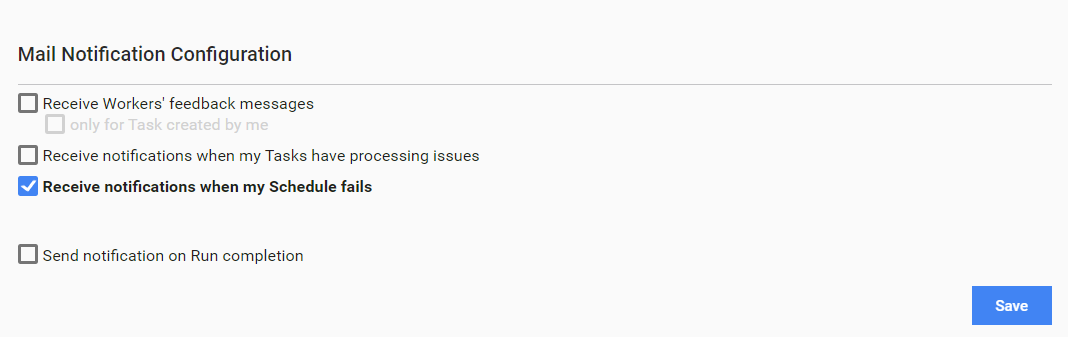
In this section, set the events that trigger email notifications and reports (daily, monthly).
Reset Filters
You can reset all or just specific filters (for example, tasks, runs). The feature can help in situations when you created an illegal filter and cannot view a specific grid, for example, a task or process list.
Schedule settings
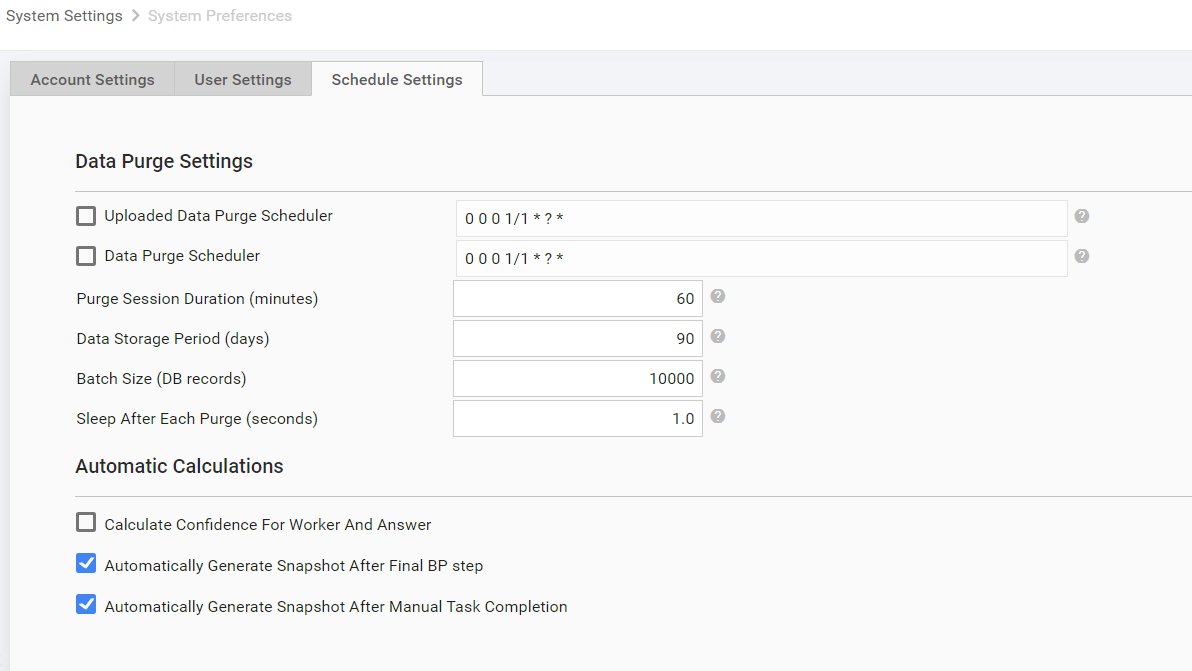
Contains Data Purge and Automatic Calculation settings.