
Manage activity log
Control Tower provides audit functionality to track user and system actions, such as creation of Manual Tasks, edits of Use Cases, and so on.
To view the history of actions, go to Configuration > Activity Log.
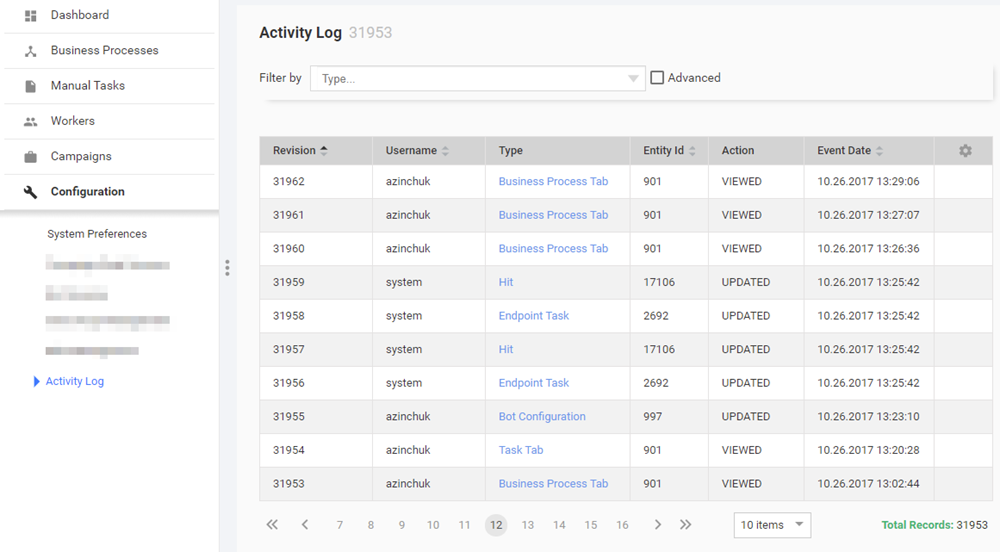
The Activity Log page displays a grid with the following information:
- Revision number
- Username—user (or system) who performed a particular operation
- Action—operation performed by a user, for example, create or update
- Type—clickable field describing the target operation object, for instance, License, Template, Task
- Entity ID—unique identifier of the operation object
- Event Date—date and time of the operation
- IP Address—IP address of the user
View specific changes
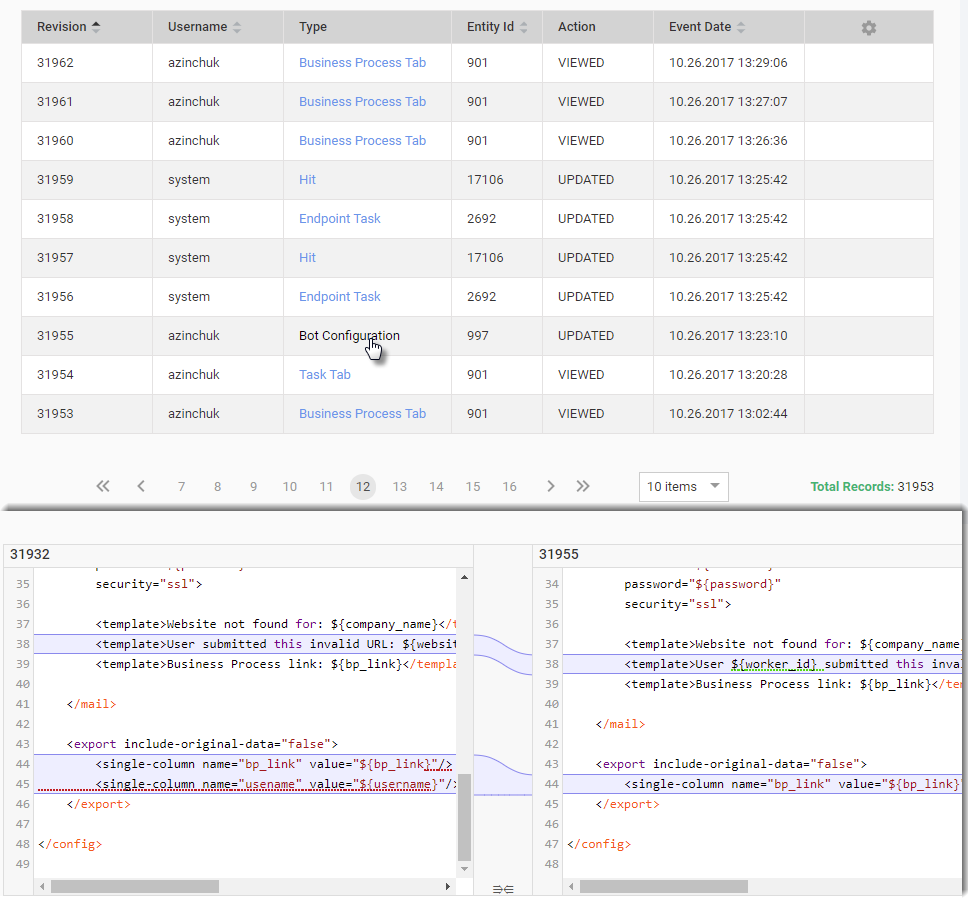
To view the changes made in files, such as Rules, Bot Configs, Templates, and so on, go to the Type column and click the appropriate link. Under the grid, you will see a file comparison dialog.
Activity types
| Type name | Description |
|---|---|
| Rule | Changing of composite, adjudication, and other types of rules. |
| Bot Configuration | Tracking changes of Bot Configurations. |
| Template | Tracking changes of Templates. |
| Question | Tracking changes of the Manual Task configuration. |
| License | Tracking changes of WorkSpace licenses. |
| Hit | Tracking changes of the Manual Task internal entities. |
| Endpoint Task | Tracking changes of the Manual Task internal entities. |
| Scheduled Campaign Upload | Tracking changes of schedulers. |
| Business Process | Tracking changes of Business Processes. |
| Task | Tracking changes of Manual Tasks. |
| Campaign | Tracking changes of Business Process definitions. |
| Campaign Structure | Tracking changes in the XML structure of a Business Process workflow. |
| Task Preview | Tracking the usage of the Manual Task Preview feature. |
| Business Process Preview | Tracking the Business Process preview actions. |
| User | Tracking changes of the users in the system. For LDAP and SSO, counting unsuccessfull login attempts is not supported. |
| User group | Tracking changes of the user groups in the system. |
| User password | Tracking password changes. |
| Role | Tracking changes of the system roles. |
| Secrets Vault | Tracking changes of the Secure Vault entries. |
| Export (XML) | Tracking export of the entities. |
| Task Export (XML) | Tracking export of Manual Tasks. |
| Business Process Export (XML) | Tracking export of Business Processes. |
| Campaign Export | Tracking export of Business Process definitions. |
| Data Store | Tracking changes of Data Store entries. |
| Training Set | Tracking changes of Training Set entries. |
| Answer Type | Tracking changes of the Answer Type entries. |
| Preferences | Tracking changes of the system preferences. |
| Business Process Tab | Tracking actions on the Business Process Designer tabs. |
| Task Tab | Tracking actions on the tabs to design Manual Tasks. |
| Account | Tracking changes of the default WorkSpace license. |
note
Starting from 10.2, tracking and managing user sessions is via the single user management system. For details, refer to the Manage sessions guide.
Apply filters
To facilitate search among the thousands of logged records, apply any of the two filter types—a predefined and an advanced one.
Predefined filter
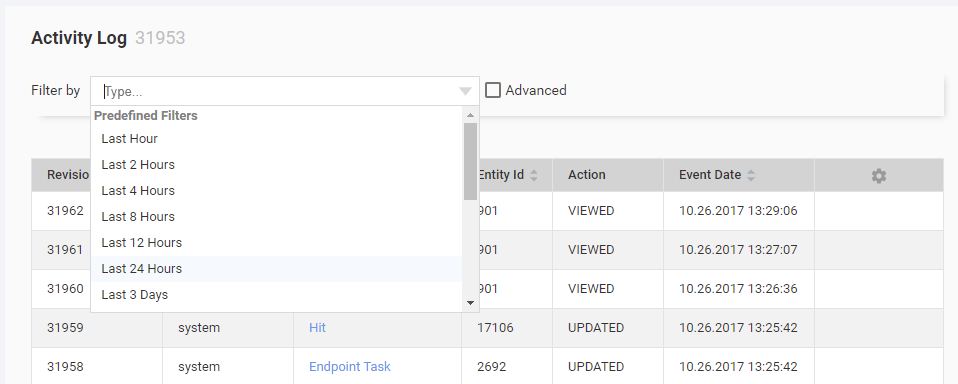
The filter sets a time frame for the records to be displayed on the list. To apply, click the Filter by field and, from the drop-down options, select a Predefined Filter.
Advanced filter
The advanced filter enables setting one or more criteria to display records on the list—Type, Entity ID, Created date, Username, IP address.

To apply, follow the steps below:
Select the Advanced checkbox.
Click the Add filter button and, in the displayed drop-down box, select one or more search parameter—Type, Entity ID, Created date, Username, IP address.
For each search parameter, choose and specify a filtering criteria: contains, doesn't contain, equals to, and so on and a specific condition to include or exclude from the result, respectively.
For instance, if you want to find all changes made on a specific date, set the search parameter to Created date, the filtering criteria to equals to and the condition—to the specific date.
Click Apply filter.
Save filter
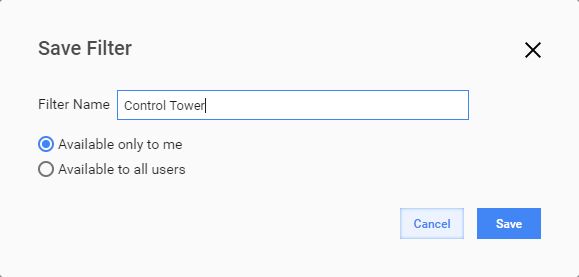
To save a filter for future use, click ... and, in the drop-down menu, select Save Filter.

Type in a name for your filter and set the filter to be a private one or to be available for other users as well.
Clear or refine filter
If a filter is applied, the filter area contains a special box with the matching results count.

To remove or edit the filter, click Clear filter or Refine filter respectively.
Query database objects
All data are stored in the AuditData table. For column descriptions, see the Activity Log grid details above.
Query sample for displaying changes in Roles and Users
select case a.`action`
        when 0 then 'CREATED'
        when 1 then 'UPDATED'
        when 2 then 'DELETED'
        when 3 then 'DOWNLOADED'
        when 4 then 'VIEWED'
        else 'N/A'
        end as "action"
     , a.content
     , a.createdDate
     , a.entityId
     , a.username
     , a.threadName
  from AuditData as a
 where a.entityType in( 'ROLE', 'USER')
 order by a.createdDate desc
;