
Train and execute ML models
Train model using ML SDK
The instruction describes the process of model's project creation, deployment, and execution in Control Tower. First, you need to create a project.
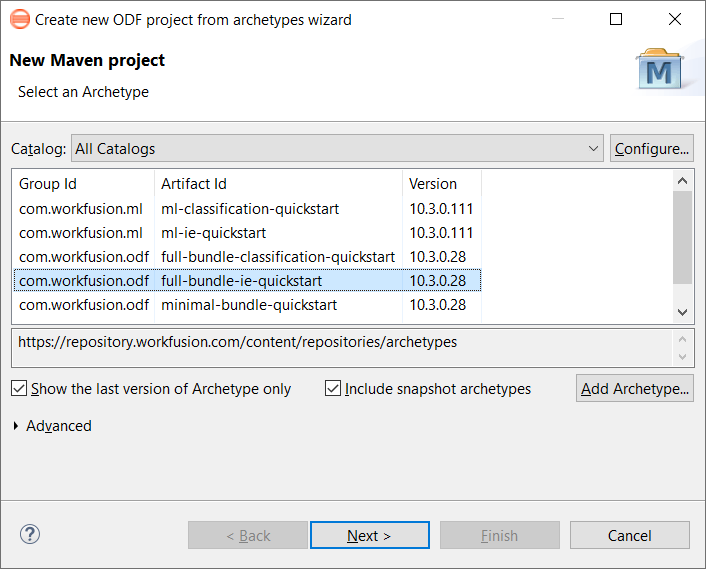
Create a project from the archetype with ML, for example, full-bundle-ie-quickstart:
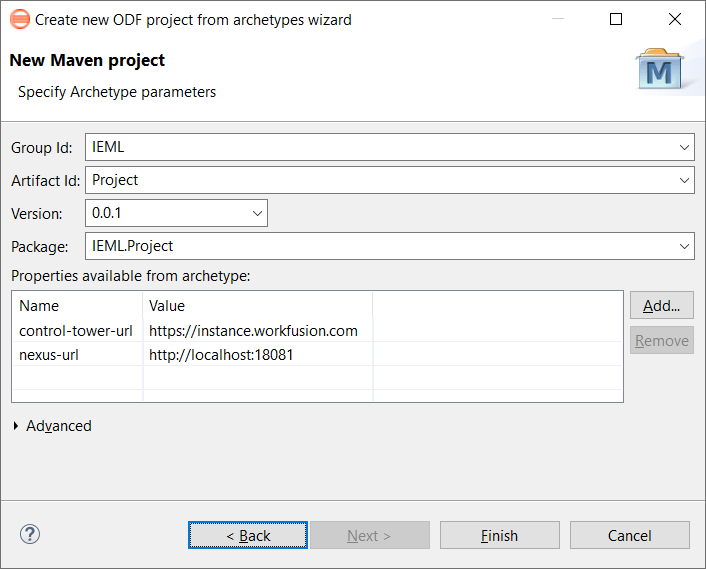
Specify the archetype parameters, for example:
- Group Id—IEML
- Artifact Id—Project
- Version—0.0.1
- Package—IEML.Project
- Properties available from archetype:
control-tower-url—https://instance.wokfusion.comnexus-url—http://localhost:18081
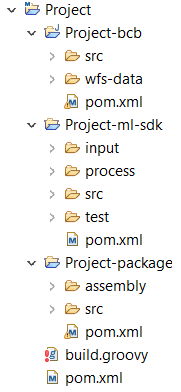
The high-level folder structure looks as follows:
If you package this project using the mvn clean install command, an Asset Bundle is created. But the bundle will include no trained model as it hasn't been trained yet.
The out-of-the-box ML SDK-based Maven module already contains input data—10 tagged invoices in the HTML format. Thus, you can start model training immediately:
Find the
ModelTrainingRunnerJava class and execute it as Java Application: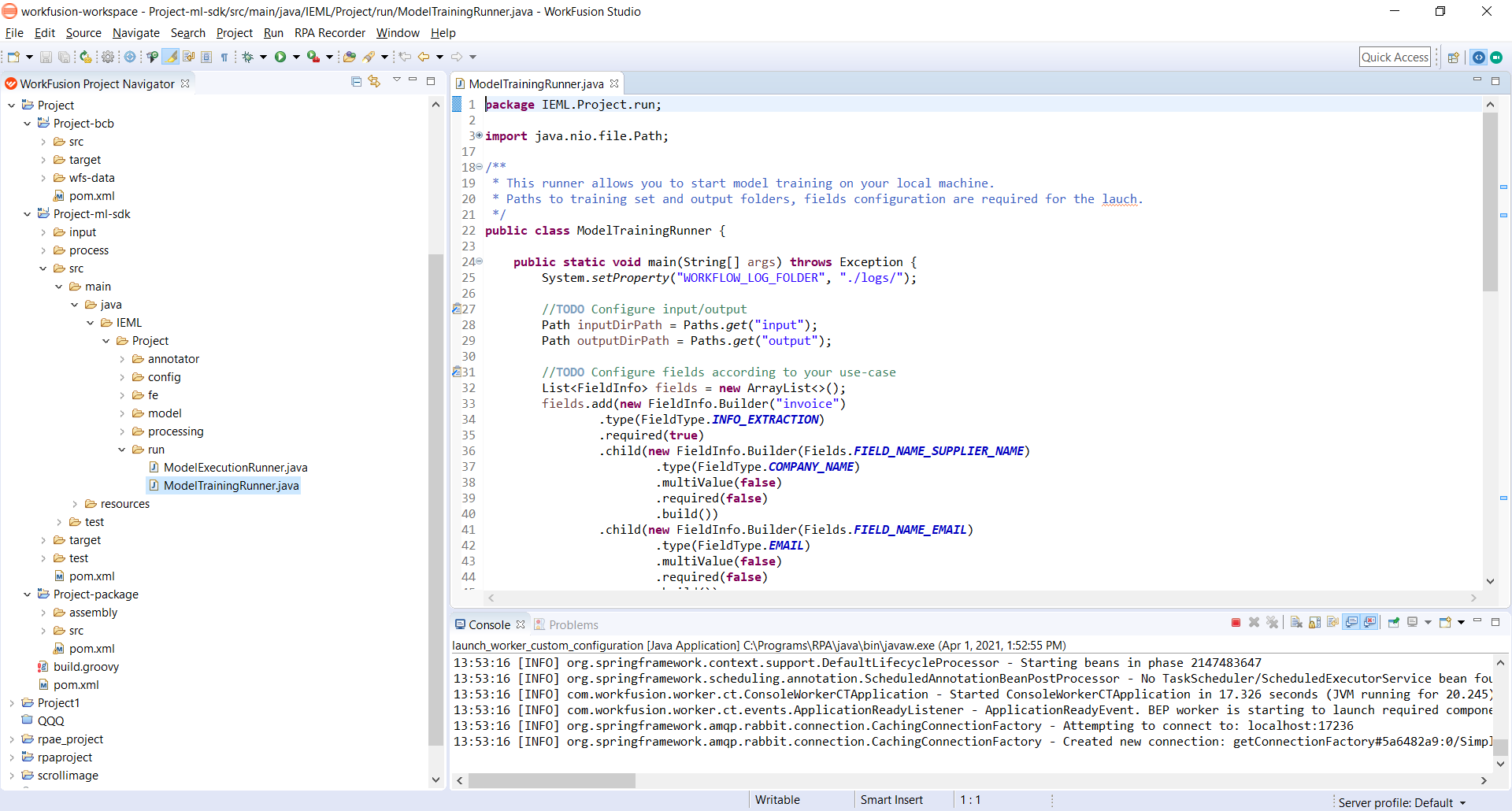
To start the training, right-click
ModelTrainingRunner.javaand select Run as Java Application. The training with 10 documents takes a few minutes.
As soon as the folder's structure is refreshed, you can see a new folder named Output.
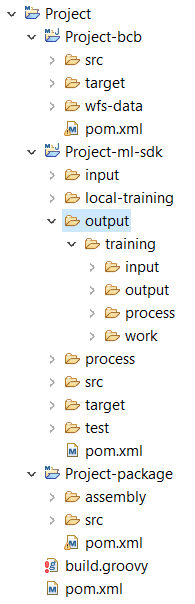
The folder contains multiple files and folders with the training model results. If you package the project, an Asset Bundle is created containing the trained model.
Keep in mind that the static model folder in the package source structure remains empty even after the package build.
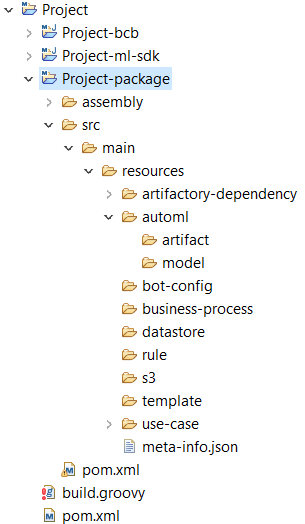
The behavior is normal as the entire output is dynamically packed in the zip file.
Execute model with ML Bridge Bot Task
The second step is to deploy your training model to Control Tower and use it in a Business Process.
After deploy the model via Asset Bundle import, it becomes available in the target Control Tower. To execute the model with an ML Bridge Bot Task, perform the following steps:
- Create a Business Process or use the existing one.
- Add the needed ML Bot Task to your workflow. That's a special out-of-the-box AutoML step—Execute AutoML Model: Bridge.
- Provide the required model settings in the ETL configuration. After successful Business Process execution, see the result in the
model_resultvariable.
The ML Bridge step makes it possible to avoid using the overcomplicated out-of-the-box AutoML Business Process. ML Engineers' high-level workflow steps are as follows:
- Start an AutoML project, code annotators, feature extractors, and post-processors.
- Train and test your model on a local workstation.
- Deploy the trained model to the server IA Cloud environment.
- Add an AutoML Bridge Bot Task to the Business Process and configure the deployed model in it.