Limit access based on role
By default, users have permissions to access Control Tower and WorkSpace. To restrict access to WorkSpace but allow working in Control Tower, enable ws.roles.config.enabled.
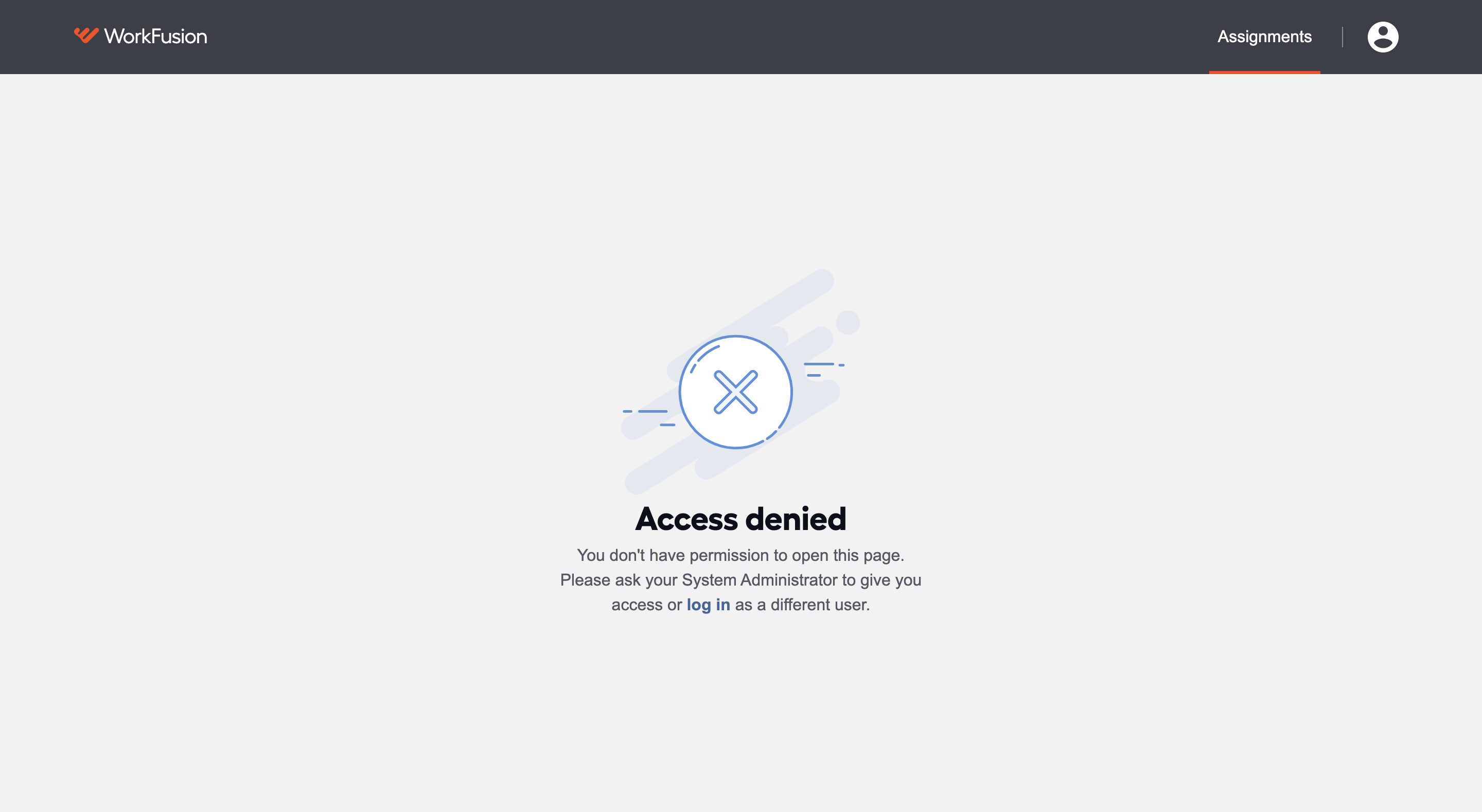
After ws.roles.config.enabled is switched to true, a user without the wf-workspace Worker role has no access to any WorkSpace resource.
Configure Keycloak
Go to the Keycloak web application.
Create Mapper
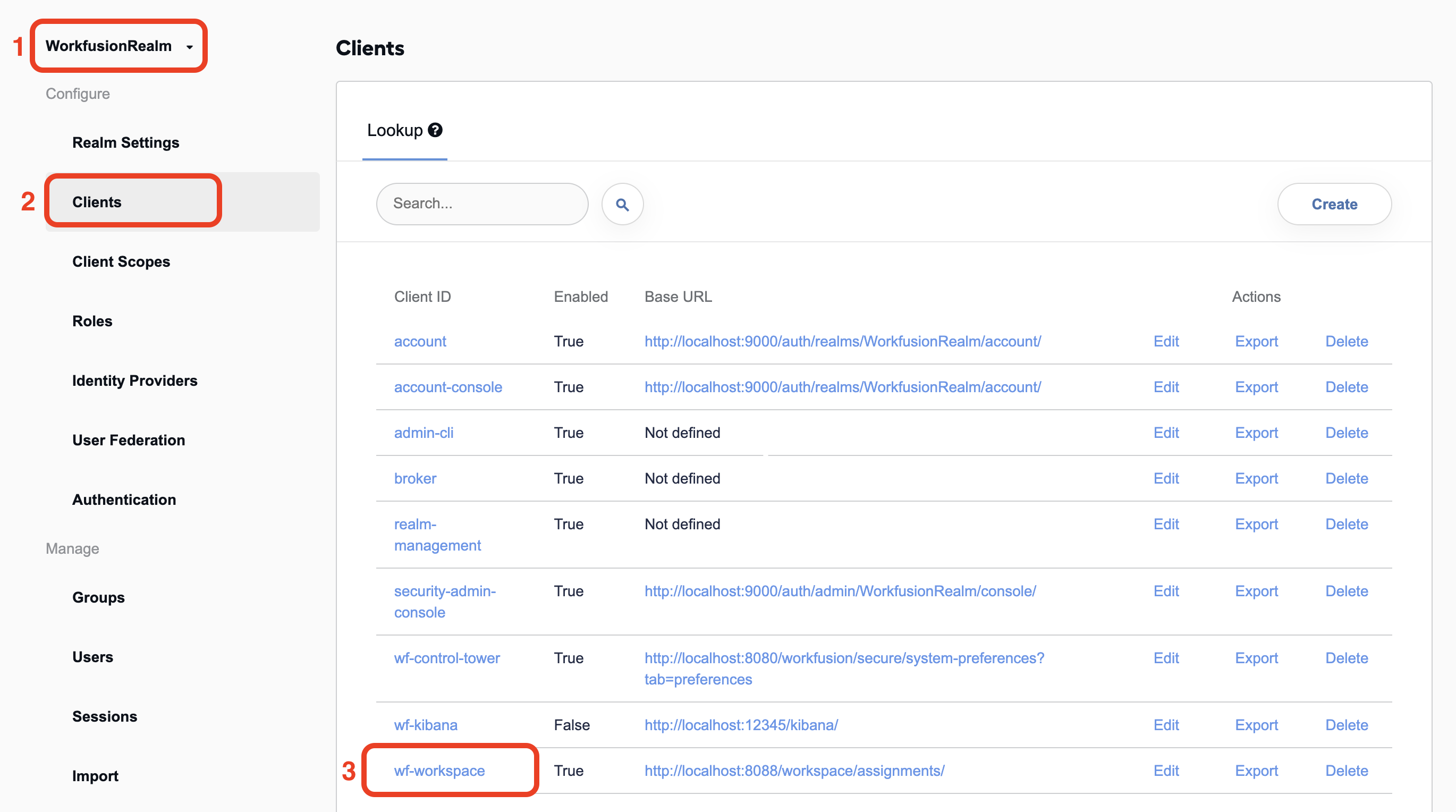
Choose WorkfusionRealm.
Open the Clients section.
Select the wf-workspace client.
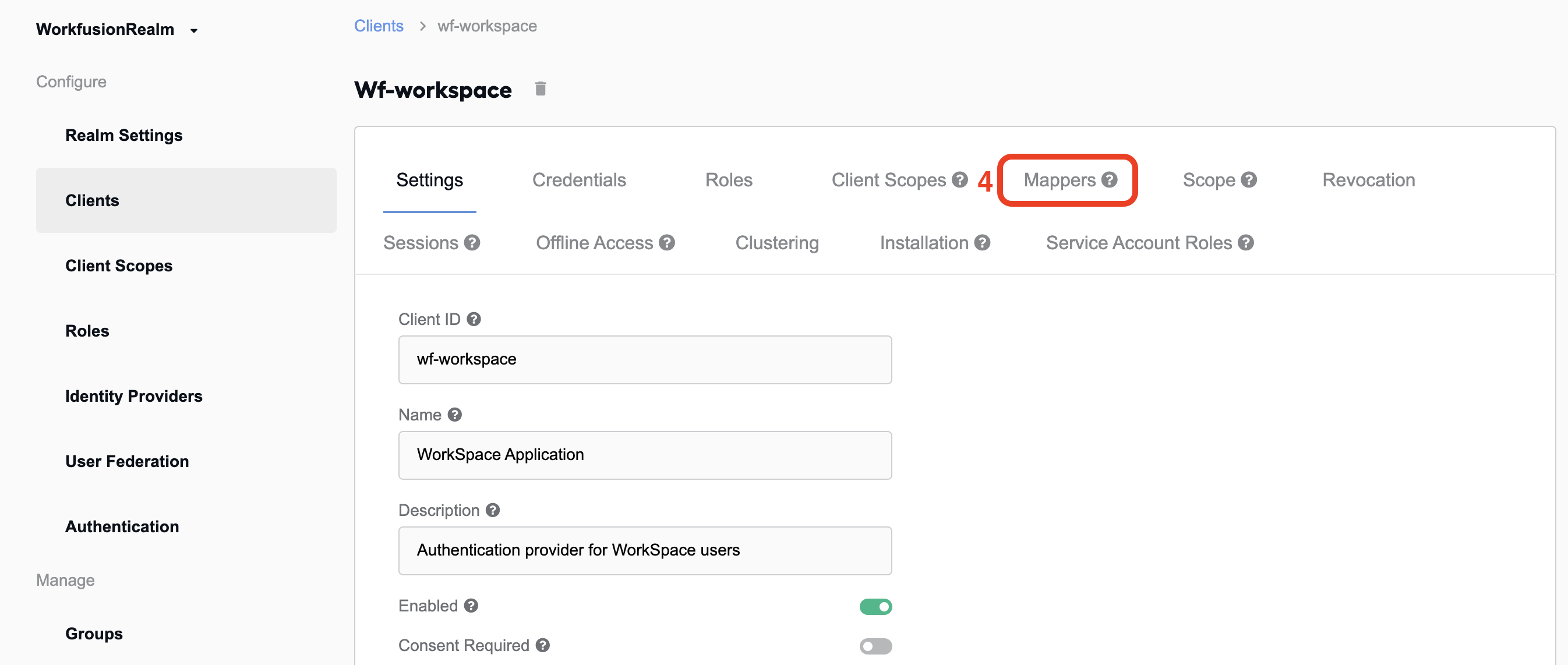
Go to the Mappers tab.
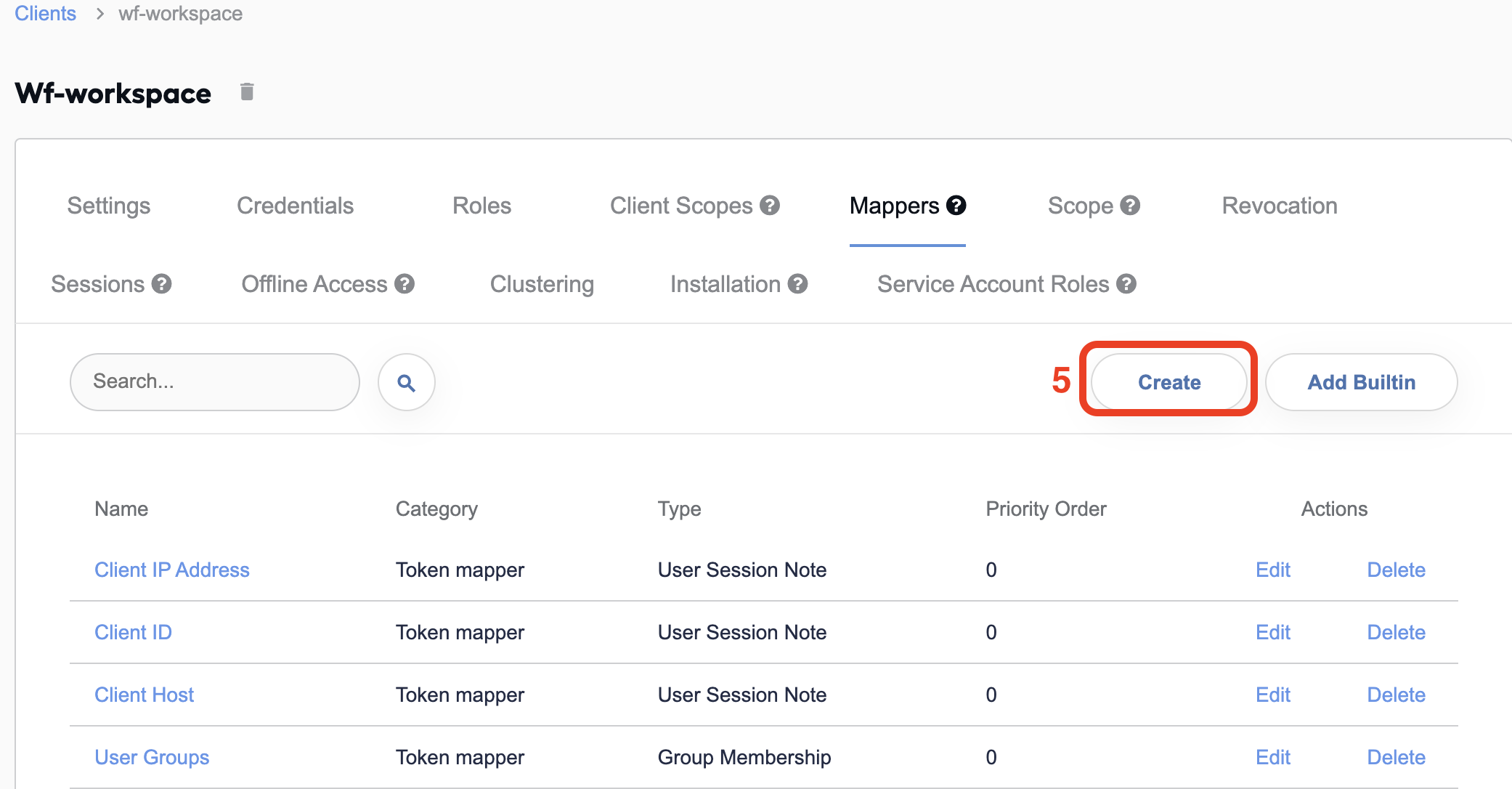
Click the Create button.
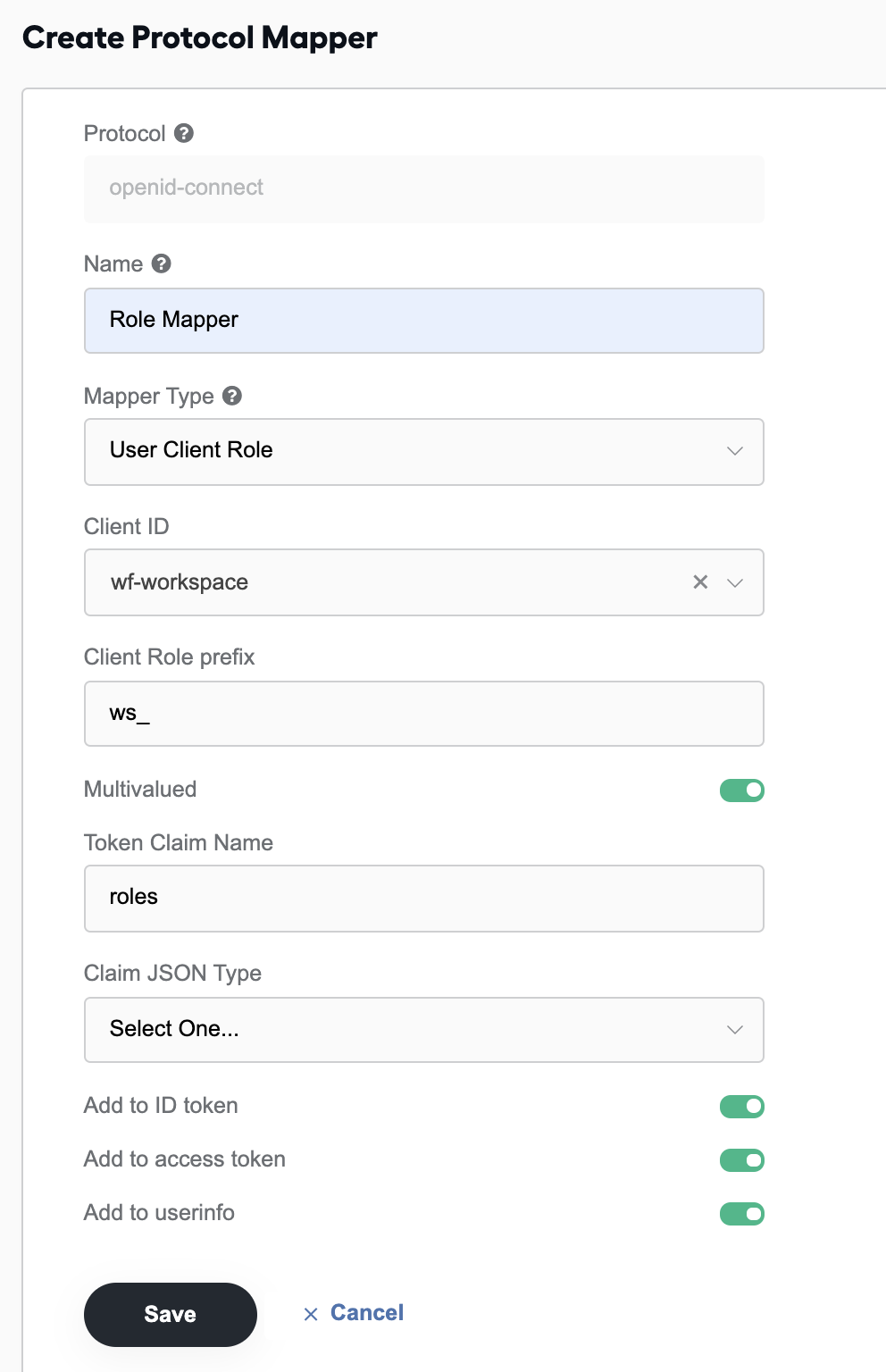
Fill in the Create Protocol Mapper form with the following values:
- Name: Roles Mapper
- Mapper Type: User Client Role
- Client ID: wf-workspace
- Client Role prefix: ws_
- Multivalued: true
- Token Claim Name: roles
- Claim JSON Type: keep the default one—Select One
- Add to ID token: true
- Add to access token: true
- Add to userinfo: true
Click the Save button.
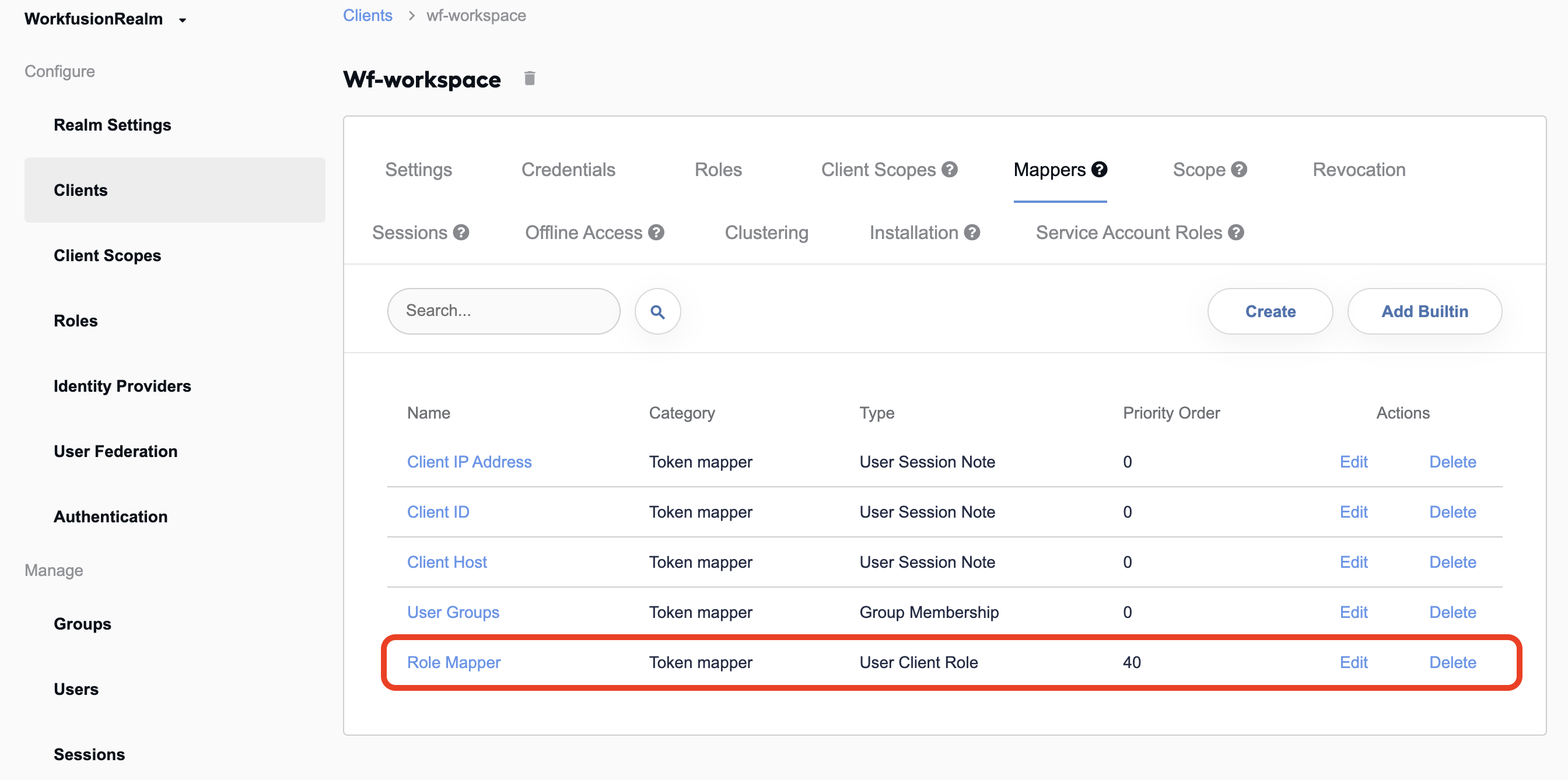
Go back to the wf-workspace client. In the Mappers tab, you should have Roles Mapper.
Create Role
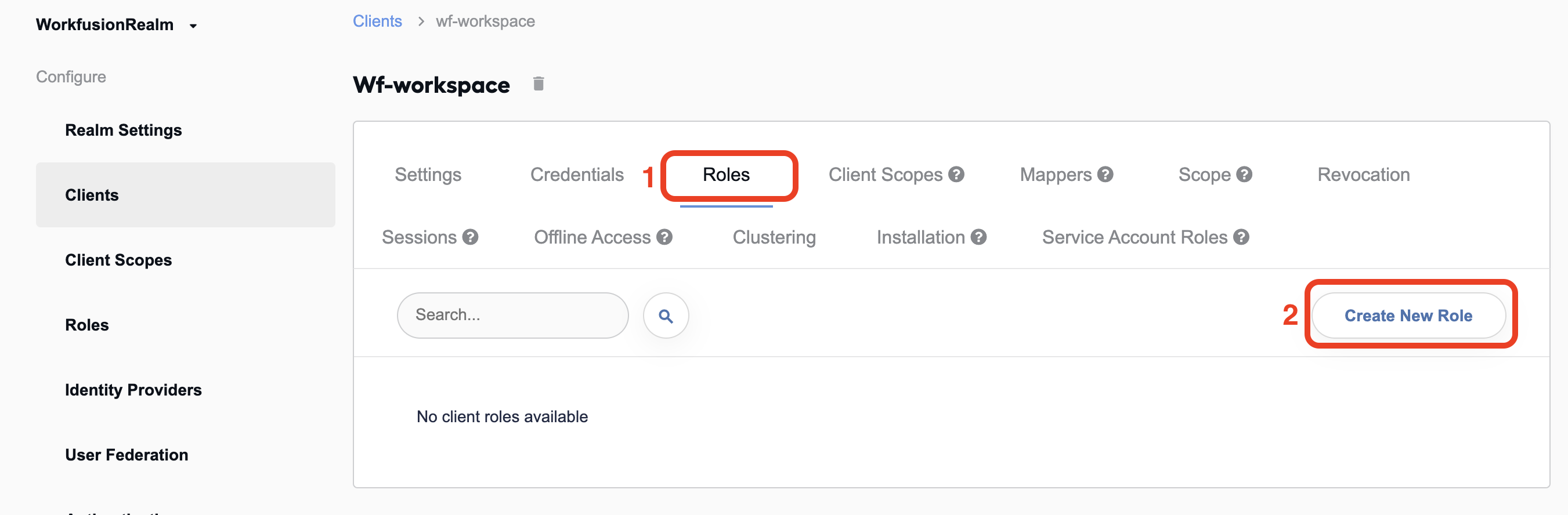
Go back to the wf-workspace client and open the Roles tab.
Click the Create new Role button.
Fill in the Create New Role form with the following values:
- Name: Worker
- Description: Role that gives access to work with assignments in WorkSpace
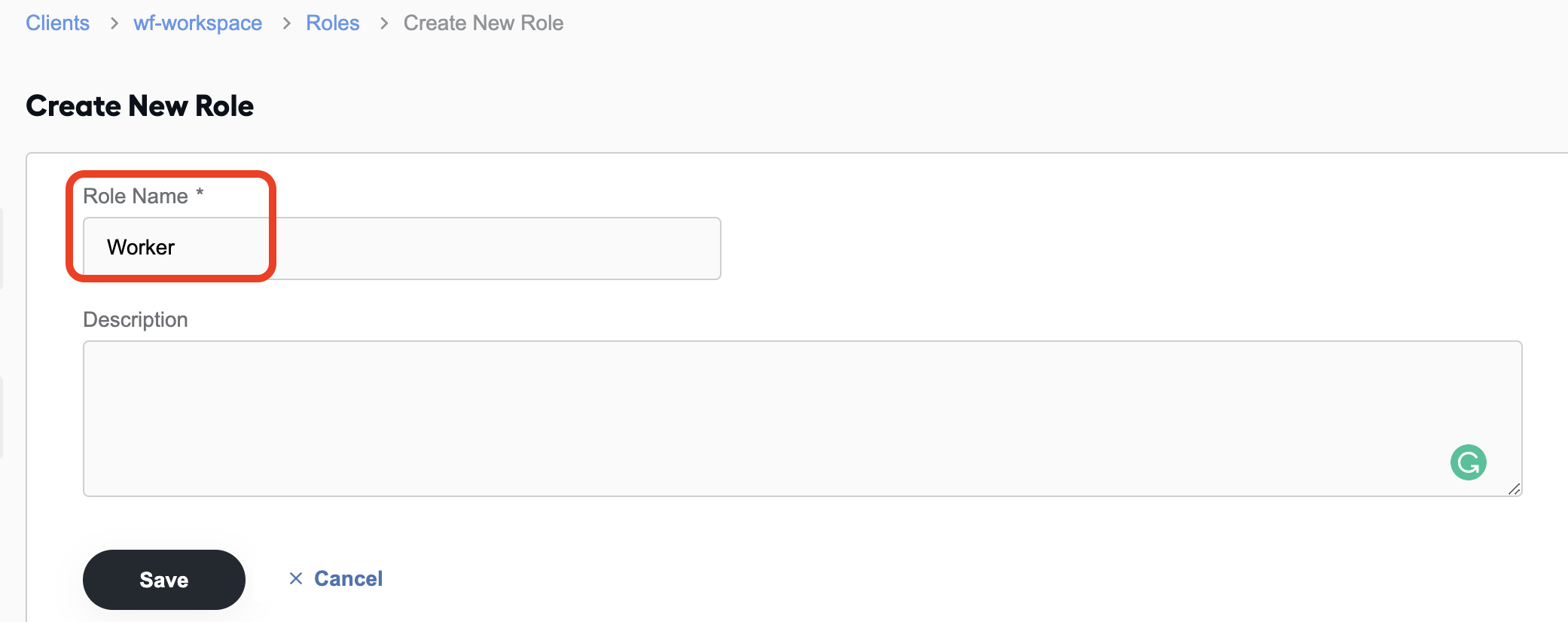
Click the Save button.
Configure WorkSpace
Set property in ZooKeeper
You can change application properties via the ZooKeeper service:
- Log into ZooNavigator and go to the WorkSpace properties location that is the
/config/workspacefolder. - Find the
ws.roles.config.enabledproperty. If it doesn't exist, create a new node for the property:/config/workspace/ws.roles.config.enabled. - Set the property value to
trueand save changes.
For more details on connecting and working with ZooKeeper via ZooNavigator, see Set properties in ZooKeeper.
Restart WorkSpace
To restart WorkSpace, perform the following steps:
- Go to the server where the application runs.
- Open the terminal or connect to the server's terminal via SSH. For more details, refer to Work with Linux instance.
- In the terminal, execute the
wfmanager restart workspacecommand. - Wait until the command execution finishes.
Assign Worker role to users
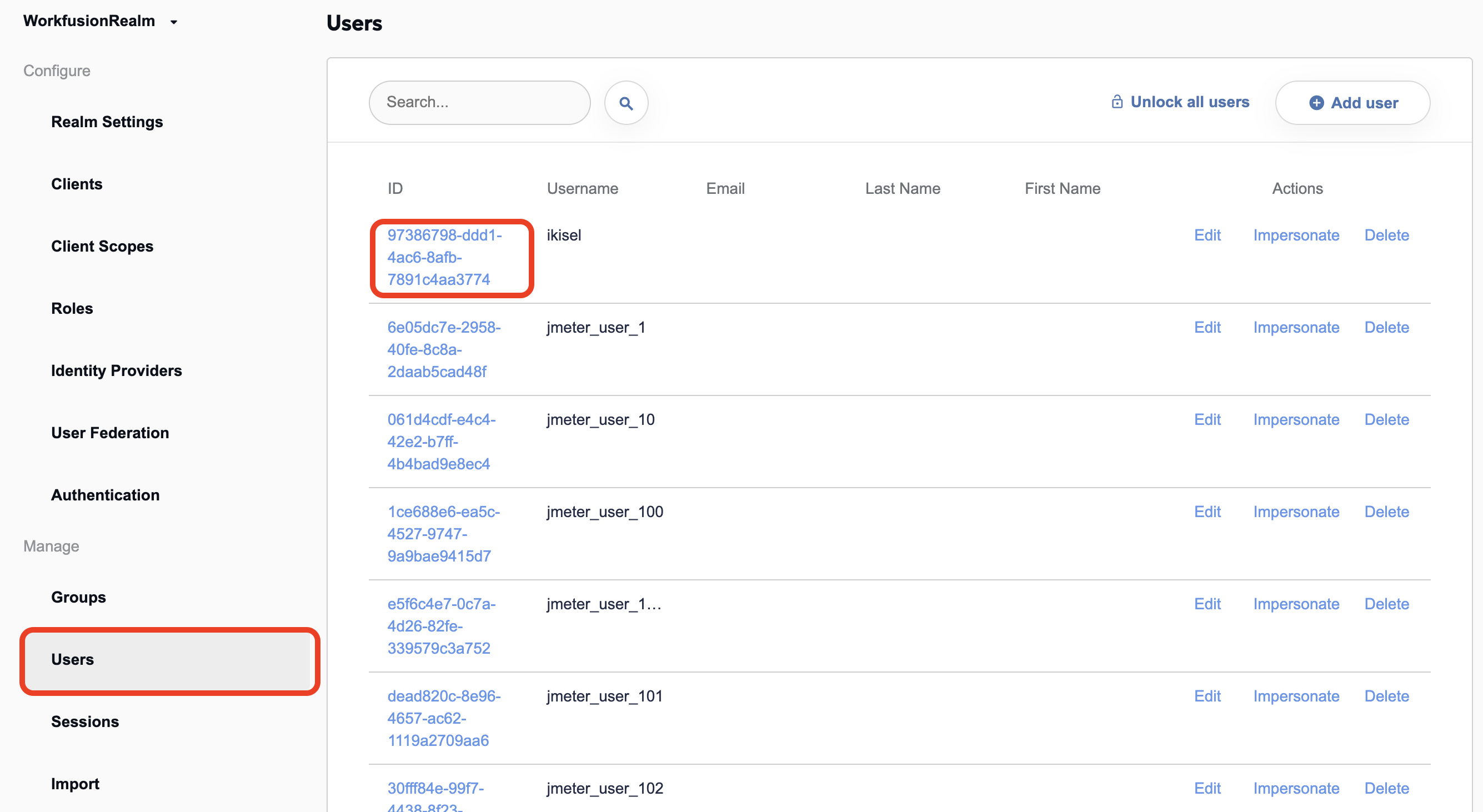
Go to the Keycloak web application, open the Users section, and click the user you want to grant access to WorkSpace.
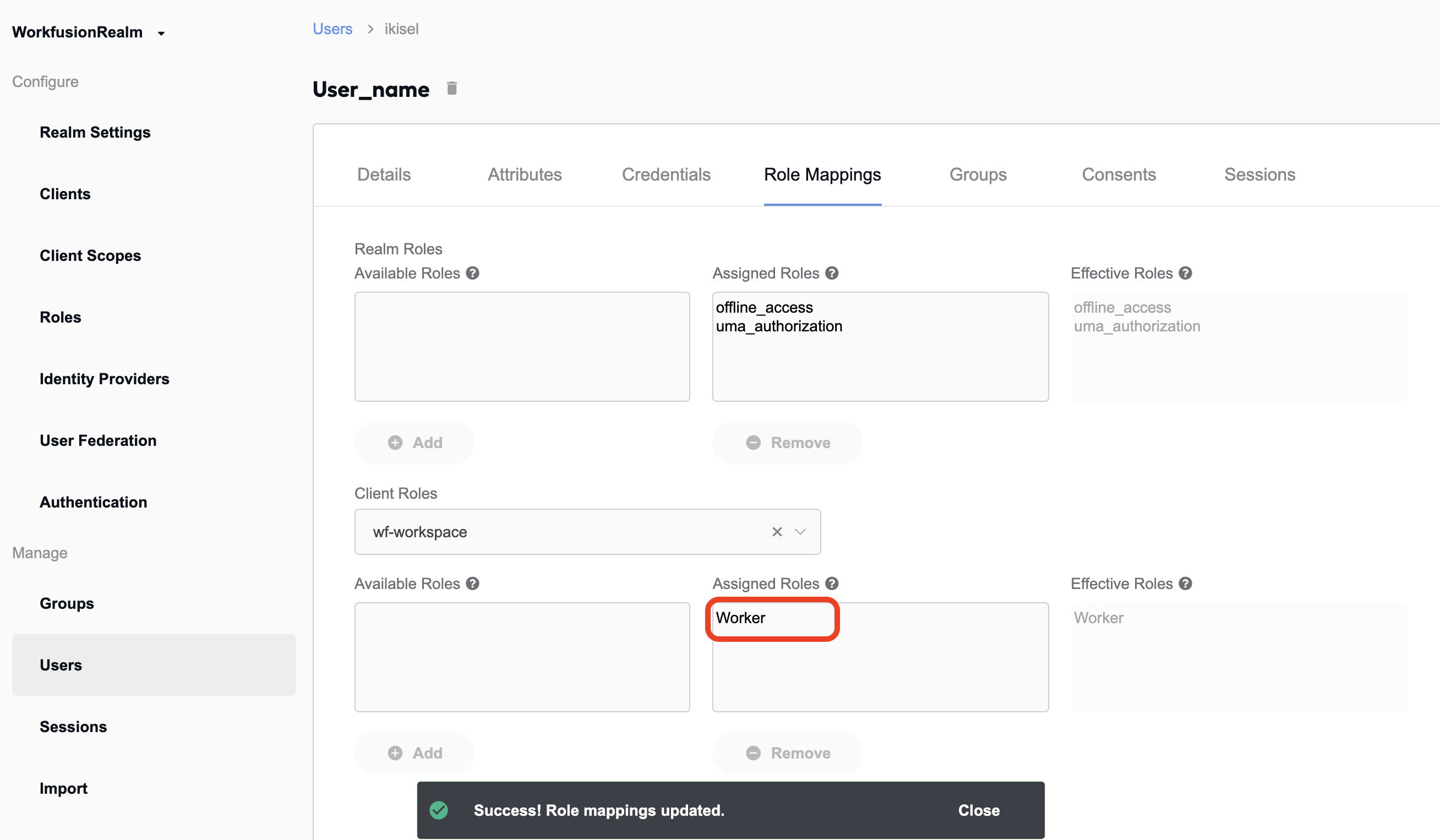
Open the Role Mappings tab and choose wf-workspace in the Client Roles drop-down menu.
Select the Worker role and click the Add button.
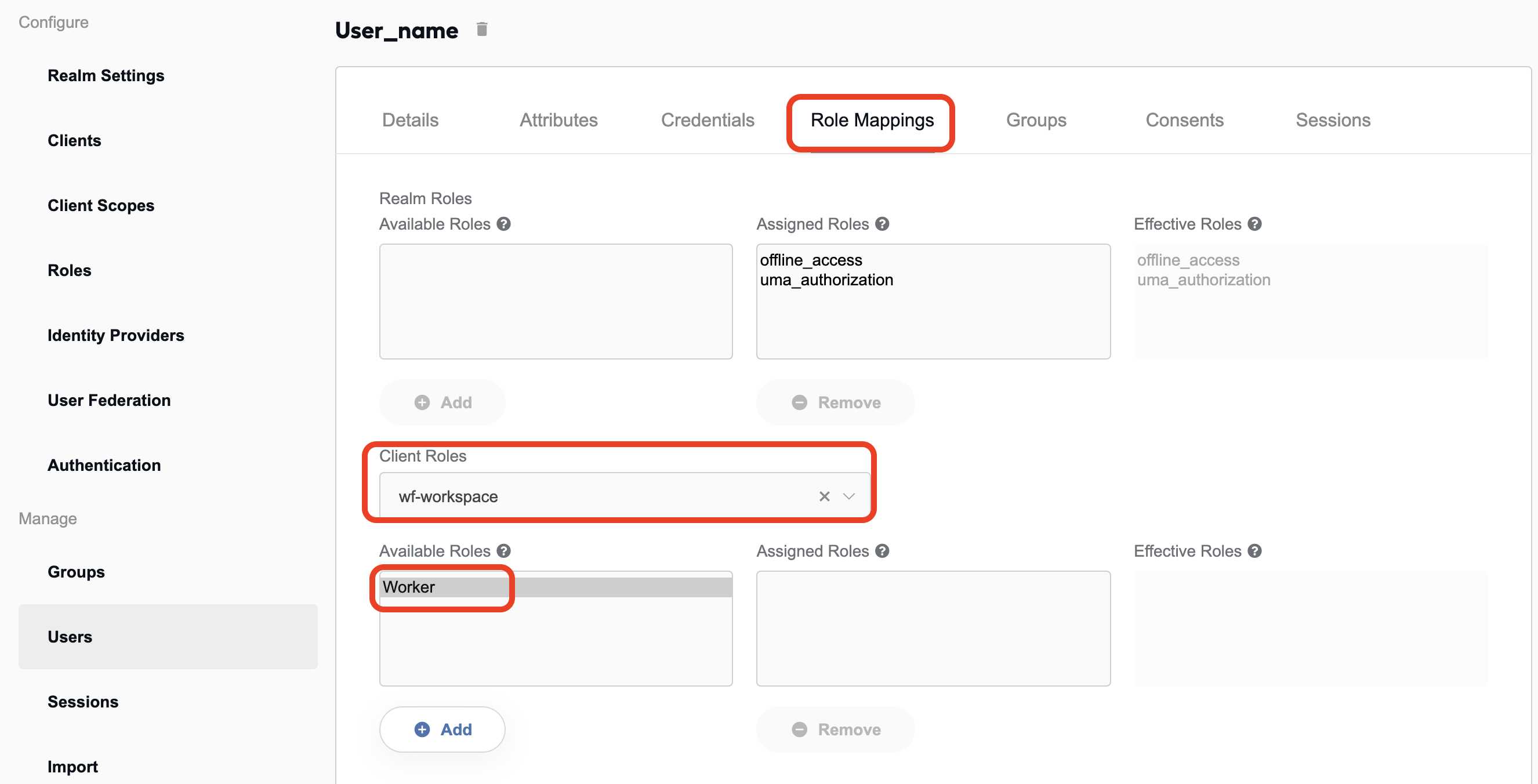
Now, the user has the Worker role and can access the WorkSpace application.