
Get to know AutoML delivery process
The chapter describes the end-to-end delivery flow of a Machine Learning (ML) project.
AutoML complexity analysis
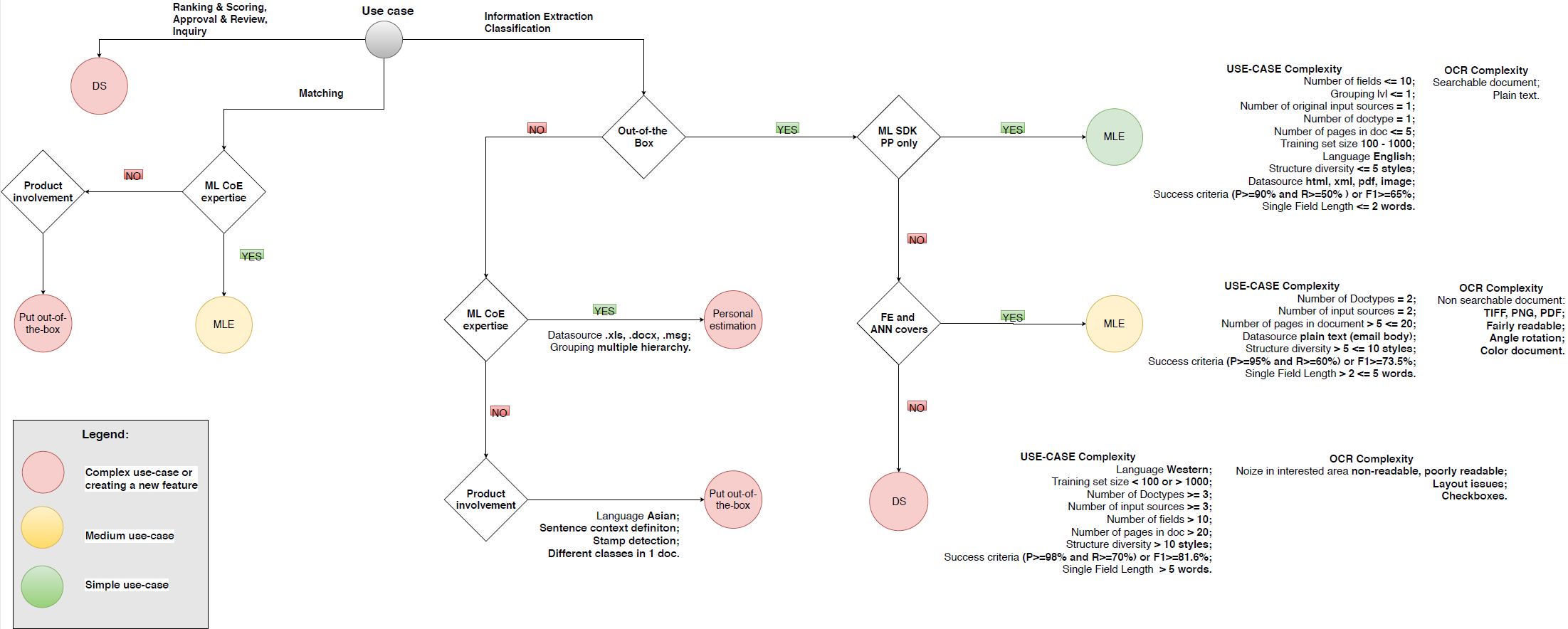
While delivering an ML project, there are various requirement complexities you can face. This leads to different implementation approaches: different roles can address different use cases, and collaboration between roles can vary.
Not all use cases are available for implementation with out-of-the-box or custom models created by ML Engineers (MLE). Some require the involvement of Data Scientists (DA). See the complexity decision diagram below.
Search Engine training
In WorkFusion, new ML models are trained in two stages:
- Search Engine finds the best parameters or metamodel for a supplied training set. For more information, refer to the Choose Search Engine topic.
- Model training itself uses a metamodel to train the ultimate model.
Model training and tuning
MLEs tune models using AutoML SDK. While MLEs can run training from AutoML SDK, Control Tower also offers a set of AutoML components used for the following purposes:
- Training models
- Running experiments
- Creating and managing datasets
- Executing models with an automation Business Process (BP)
- Analyzing model performance via AutoML and other dashboards
Model training from Control Tower
You can start model training from Control Tower in one of the following ways:
Via AutoML menu (recommended)
Via AutoML menu
For detailed instructions on model training via AutoML menu, refer to Manage models.
From Manual Task
To train a model from a Manual Task, follow the steps below:
Create and run an automation Manual Task. For details, refer to Create automation Manual Task. Once you run the task, Control Tower automatically launches instance of an out-of-the-box AutoML Business Process.
Run and stop the task to evaluate the model. To see the training BP, select the Automation Training filter in the Business Processes view. By default, training processes are hidden.
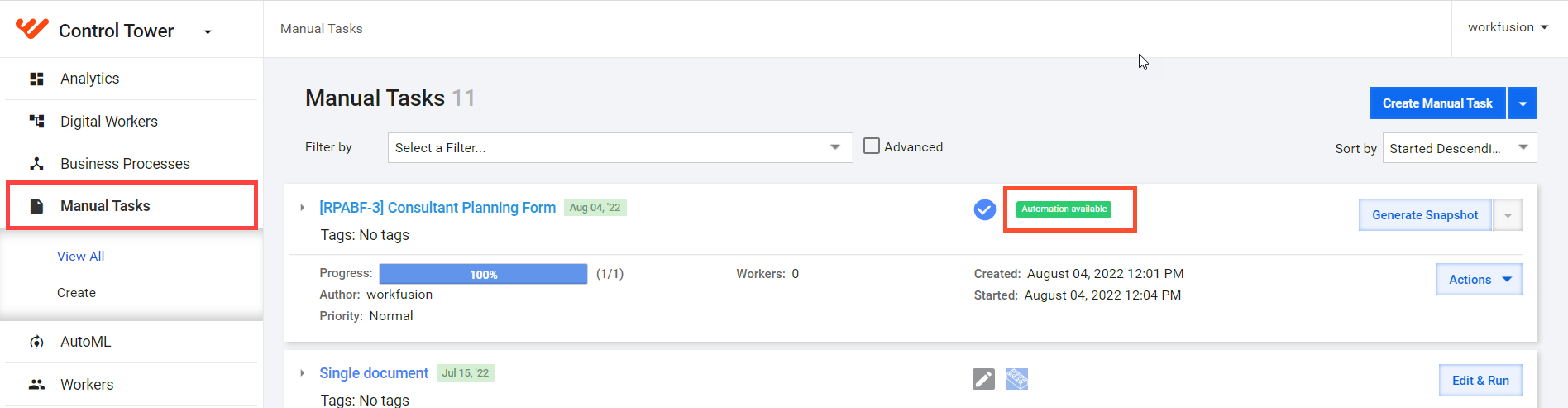
Once the training is finished, you see the Automation Available label next to the task in the Manual Tasks list. You can click the label, set an accuracy threshold, and apply the recommendation to create a BP with an automation sub-process in it. After that, you can run the automation BP with the trained model extracting data. For details, refer to Automation Business Process in detail.
note
You can automate Manual Tasks that are steps of a Business Process in the same way as you automate standalone Manual Tasks. For details, see Create automation Manual Task.
Automation Business Process in detail
An automation Business Process is a collection of steps through which training, extraction, automatic quality control, statistics calculation, and other related automation activities are executed. Below is a example of such a BP:
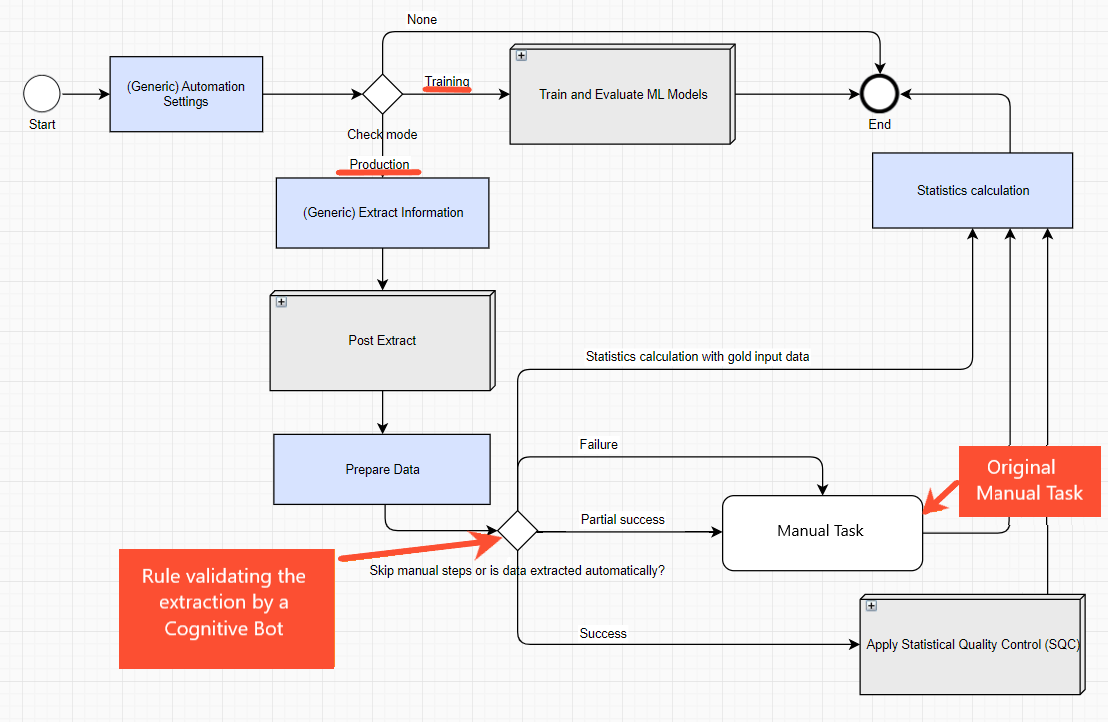
In the figure above, the Automation Settings step is where the BP parameters are configured, for example, enabling or disabling AutoQC and statistics calculation. After the step, the BP divides into two flows:
Training: the steps are as described in Model training from Control Tower.
Production: once a trained model is ready and you apply a recommendation, the Manual Task for which it is started (either within a BP or a standalone one) is replaced with an automation (sub)-process, and the Production flow in it is activated.
The Production flow of the automation BP is where the trained model is applied for extracting data. It has the following structure:
- At the Extract Information step, ML algorithms extract data automatically.
- The Post Extract step is for post-processing and normalization of the data extracted by the ML model.
- The Prepare data step gets the data ready for the Statistics calculation step.
- A special composite rule (Skip manual steps or Is the data extracted automatically?) checks the Extract Information step results:
- In case of a failure or partial success, records are sent to human workers. When the step fails, the data extracted by the model is cleared, and humans tag all from scratch. When success is partial, the data extracted by the model is shown to a human, and they complete what was missed.
- If the extraction is successful, apply Statistical Quality Control (SQC) or go to the Statistics calculation step if SQC is disabled. If SQC is enabled and inspection is required, send a batch of records to human workers, with the SQC sub-process containing the same original Manual Task.
- The Statistics calculation step provides calculations for quality statistics and saves the results to a Data Store. Enabling Statistics calculation is required to use the AutoML dashboard because it uses the statistics saved to the database at this step.
Records where the model is not confident are verified by humans. SQC or AutoQC uses statistical methods to monitor and maintain the quality of model decisions.
Model release and production process
A trained model can be moved from one environment to another.
When more data is accumulated, you can launch model retraining manually or set it up to launch automatically. For a production process, the latter case would mean that the model is retrained in a production environment and automatically applied instead of the currently running model. Therefore, it is rarely used. Depending on the customer architecture and security requirements, you can apply two strategies: model training and retraining in DEV or in PROD.