
Use WebDriver waits
How to handle Ajax call using WebDriver
The biggest challenge in handling an Ajax call is knowing the loading time for the web page.
Since the web page's loading lasts only for a fraction of seconds, it is difficult to test such an application through an automation tool. For that, WebDriver has to use the wait method on this Ajax call.
So by executing this wait command, WebDriver suspends the execution of the current test case and waits for the expected or new value. When a new value or field appears, WebDriver executes the suspended test cases.
You can apply the following wait methods that WebDriver can use:
ImplicitWait(). The method tellsWebDriverto wait if the element is not available immediately, but this wait will be in place for the entire time the browser is open. Thus, any search for the elements on the page can take the time the implicit wait is set for.ExplicitWait(). The method is used to freeze the test execution until a particular condition is met or the maximum time lapses.WebDriverWait. The method is used in combination withExpectedConditions. The best way to wait for an element dynamically is checking for the specified condition every second and continuing to the next command in the script as soon as the condition is met.note
You have to mention the timeout unit for all these waits. If the element is still not present within the time, there is one more wait called a fluent wait.
FluentWait. The method is an implementation of the wait interface's timeout and polling interval. EachFluentWaitinstance determines the maximum amount of time to wait for a condition and the frequency used to check the condition.Thread.Sleep().Thread.Sleep()is not recommended as it suspends the current thread for the specified amount of time.In Ajax, you can never be sure about the exact wait time. Thus, your test fails if the element doesn't appear within the wait time. Moreover, it increases the overhead because calling
Thread.sleep(t)moves the current thread from the running queue to the waiting queue.After the
ttime is reached, the current thread moves from the waiting queue to the ready queue and takes some time to be picked by the CPU and be running.
The challenges to handle an Ajax call in WebDriver are as follows:
- Using the pause command for handling an Ajax call is not completely reliable. Long-pause time makes a test unacceptably slow and increases its duration. Instead,
waitforconditionis more helpful in testing Ajax applications. - It is difficult to assess risks associated with particular Ajax applications.
- Giving complete freedom to developers to modify an Ajax application makes the testing process challenging.
Thus, the summary is as follows:
- Ajax allows the web page to retrieve small amounts of data from the server without reloading it entirely.
- To test an Ajax application, apply different wait methods:
ThreadSleepImplicitWaitExplicitWaitWebdriverWaitFluentWait
- Creating an automated test request can be difficult for testing tools as such Ajax application often uses different encoding or serialization techniques to submit POST data.
Why do you need waits in web automation?
Most web applications are developed using Ajax and JavaScript. When a page is loaded in a browser, the elements you want to interact with can load at different time intervals.
It makes it difficult to identify an element, and if the element is not located, it also throws an ElementNotVisibleException exception. You can resolve this problem using waits.
Let's consider a scenario where you use both implicit and explicit waits. Assume that the implicit wait time is set to 20 seconds and the explicit wait time is set to 10 seconds.
Suppose you are trying to find an element that has some ExpectedConditions (an explicit wait), and the element is not located within the timeframe defined by the explicit wait (10 seconds). It uses the timeframe defined by the implicit wait (20 seconds) before throwing an ElementNotVisibleException.
Implicit waits versus explicit waits
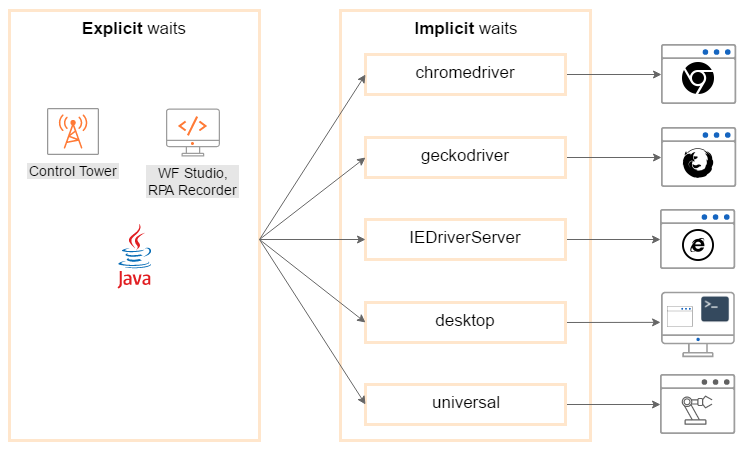
| Parameter | Explicit wait | Implicit wait |
|---|---|---|
| Side | Client side | Driver side |
| Timing | 500 ms (lower) | 1000 ms (higher) |
| Automatic | No, it is applied only to the elements specified by a user. | Yes, it is applied to all the elements in the script. |
Need to specify ExpectedConditions in the element to be located. | Yes | No |
| Use Case | This is recommended to use when elements take a long time to load and also for verifying the property of an element like visibilityOfElementLocated, elementToBeClickable, elementToBeSelected. | It is recommended to use when elements are located with the timeframe specified in an implicit wait. |
| Wait for what? |
| It is used for the following methods:
|
| Exception type | TimeoutException | NoSuchElementException |
| Network calls count | Multiple | Single |
important
- Implicit, explicit, and fluent waits are wait types used in
WebDriver. - It is not recommended to use
Thread.Sleep(). - Usage of these waits is based on the elements loaded at different time intervals.
- Set Default polling interval > 100 ms.
Implicit waits
The implicit wait tells WebDriver to wait for a certain amount of time before it throws a "No Such Element Exception". The default setting is 0. Once you set the time, WebDriver waits for that time before throwing an exception.
In the below example, an implicit wait with a timeframe of 10 seconds is declared. It means that if the element is not located on the web page within that timeframe, it throws an exception.
To declare an implicit wait, do as follows:
timeouts().implicitlyWait(TimeOut, TimeUnit.SECONDS);
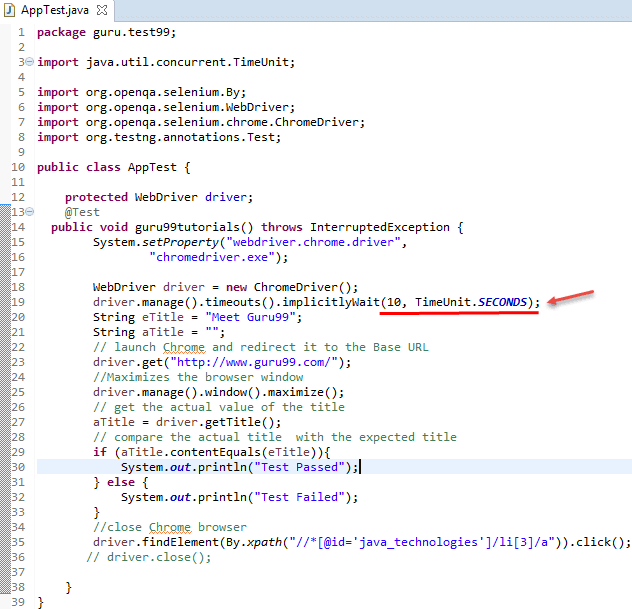
In the above example, code line 19 refers to the implicit wait that accepts two parameters:
- The first parameter accepts the time as an integer value.
- The second parameter accepts the time measurement in terms of seconds, minutes, milliseconds, microseconds, nanoseconds, days, hours, and so on.
Explicit waits
The explicit wait is used to tell WebDriver to wait for certain ExpectedConditions or the maximum time exceeded before throwing an ElementNotVisibleException exception.
The explicit wait is an intelligent kind of wait, but you can apply it only for specified elements. It gives better options than an implicit wait as it waits for dynamically loaded Ajax elements.
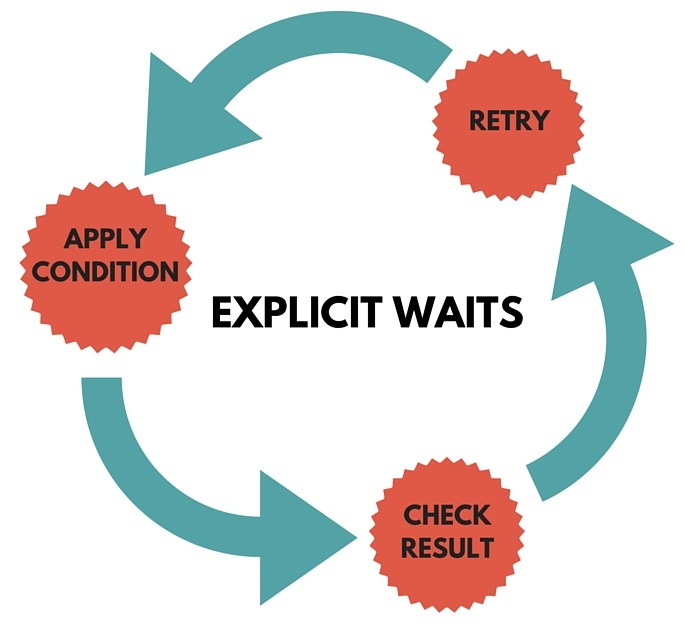
Once you declare an explicit wait, use the ExpectedConditions class or configure how frequently you want to check the condition using a fluent wait.
In the below example, a reference wait for the WebDriverWait class and instantiating using the WebDriver reference are created, with the maximum timeframe of 20 seconds:
WebDriverWait wait = new WebDriverWait(WebDriverRefrence,TimeOut);
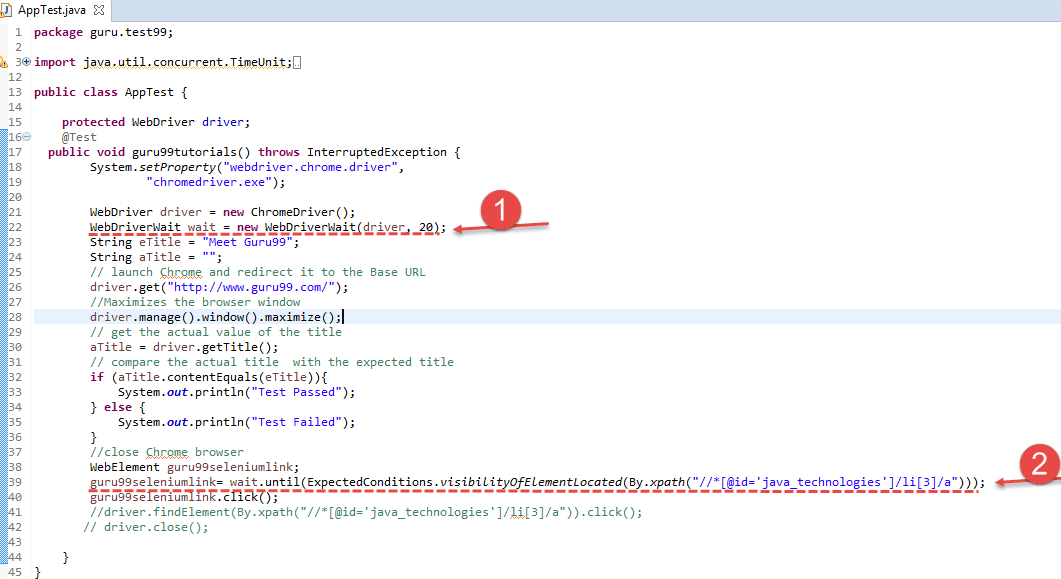
Code line 22 defines the amount of time to wait in the WebDriverWait class (1).
Code line 39 states waiting for an element for 20 seconds as defined in the WebDriverWait class on the webpage until ExpectedConditions are met, and the condition is visibilityofElementLocated (2).
The following are the ExpectedConditions methods that you can use in the explicit wait:
alertIsPresent()elementSelectionStateToBe()elementToBeClickable()elementToBeSelected()frameToBeAvaliableAndSwitchToIt()invisibilityOfTheElementLocated()invisibilityOfElementWithText()presenceOfAllElementsLocatedBy()presenceOfElementLocated()textToBePresentInElement()textToBePresentInElementLocated()textToBePresentInElementValue()titleIs()titleContains()visibilityOf()visibilityOfAllElements()visibilityOfAllElementsLocatedBy()visibilityOfElementLocated()
tip
For more details on the ExpectedConditions class, refer to Class ExpectedConditions.
Test automation scripts should synchronize with the website every time they interact with website elements. The synchronization is done using explicit waits and expected conditions.
Why do you need explicit waits?
Let's take the simplest driver.findElement(locator) WebDriver method. findElement() tries finding the element matched by the locator in the browser DOM. If the element is found in the browser DOM, findElement() returns it. Otherwise, findElement() fails. findElement() works well if the website is fast. But if the website is slow and the elements are not in the browser DOM when findElement() is executed, findElement() fails.
When interacting with website elements, wait until the website elements are in the browser DOM.
What are explicit waits?
An explicit wait object uses the WebDriverWait class. It gets the driver object and timeout as parameters:
WebDriverWait wait = new WebDriverWait(driver, timeout);
The explicit wait works by waiting until an expected condition is reached. The expected condition is created using the ExpectedConditions class:
wait.until(ExpectedConditions.condition(parameters));
To see how an explicit wait works, refer to the following example:
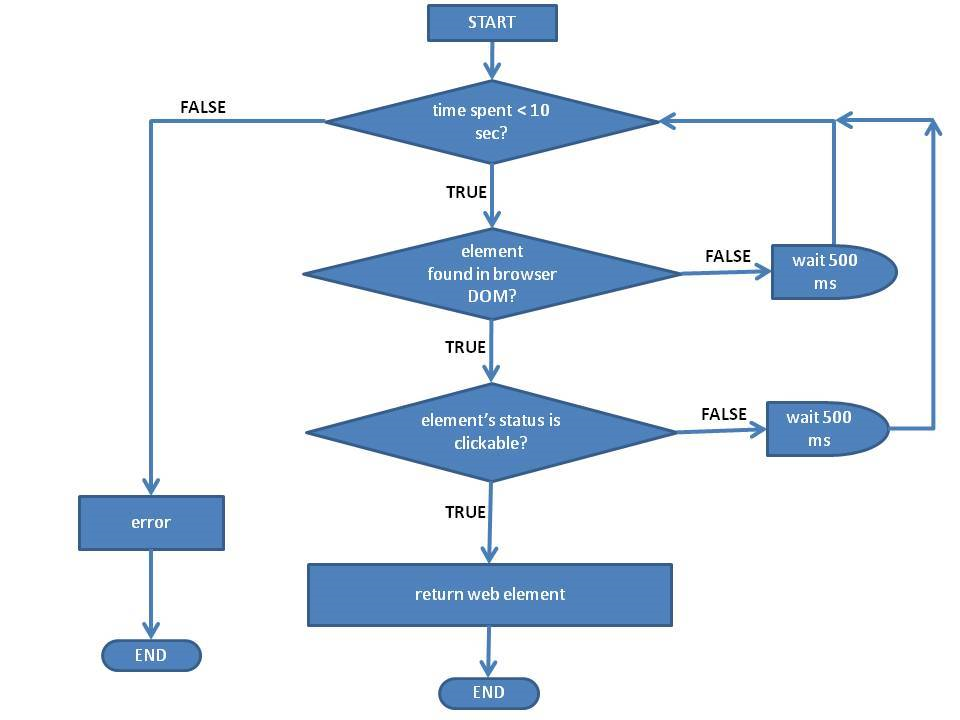
WebDriverWait wait; wait = new WebDriverWait(driver, 10); WebElement element; element=wait.until(ExpectedConditions. elementToBeClickable(locator));
The wait object is created using the driver object and a 10-second timeout as parameters.
The
until()method starts a timer.The
until()method verifies if the expected condition is met. The element matched by the locator is in the browser DOM and is clickable.If the condition is met, the
until()method returns the found element. The explicit wait process finishes successfully.If the condition is not met and the timer does not reach the timeout value, the process continues from step 3.
If the condition is not met and the timer reaches the timeout value, the explicit wait finishes with an error.
When can you use explicit waits?
You can use explicit waits in the following cases:
- Find a single web element.
- Find multiple web elements.
- Check a web page title and URL.
- Check the element’s status.
- Interact with frames (not included in this article).
tip
Use these expected conditions to find a web element instead of driver.findElement().
Code samples
elementToBeClickable
ExpectedCondition<WebElement> elementToBeClickable(By locator) ExpectedCondition<WebElement> elementToBeClickable(WebElement element)
Defines an expectation for checking that an element is visible and enabled so that you can click it.
Example: The following two lines of code search for the element matched by the locator.
If the element can be found in the browser DOM and has a clickable status within 10 seconds, it is returned and saved in a WebElement variable.
The locator can be XPath, CSS, ID, or name locator.
WebDriverWait wait = new WebDriverWait(driver, 10); WebElement element; element = wait.until(ExpectedConditions. elementToBeClickable(locator));
presenceOfElementLocated
ExpectedCondition<WebElement> presenceOfElementLocated(By locator)
Defines an expectation for checking that an element is present on the page DOM.
Example: The next 2 lines of code search for the element matched by the locator.
If the element can be found in the browser DOM within 10 seconds, it is returned and saved in a WebElement variable.
The locator can be XPath, CSS, ID, or name locator.
WebDriverWait wait = new WebDriverWait(driver, 10); WebElement element; element = wait.until(ExpectedConditions. presenceOfElementLocated(locator));
visibilityOfElementLocated
ExpectedCondition<WebElement> visibilityOfElementLocated(By locator) ExpectedCondition<WebElement> visibilityOf(WebElement element)
Defines an expectation for checking that an element is present on the page DOM and is visible.
Example: The following two lines of code search for the element matched by the locator.
If the element can be found in the browser DOM and is visible within 10 seconds, it is returned and saved in a WebElement variable.
The locator can be XPath, CSS, ID, or name locator.
WebDriverWait wait = new WebDriverWait(driver, 10); WebElement element; element = wait.until(ExpectedConditions. visibilityOfElementLocated(locator));
The following expected conditions can be used for finding multiple web elements. It is recommended to use them instead of driver.findElements().
visibilityOfAllElementsLocatedBy
ExpectedCondition<List<WebElement>> visibilityOfAllElementsLocatedBy(By locator) ExpectedCondition<List<WebElement>> visibilityOfAllElements(List<WebElement> elements)
Defines an expectation for checking that all elements present on the web page that match the locator are visible.
Example: The following two lines of code search for all elements matched by the locator.
If elements can be found in the browser DOM and are visible within 10 seconds, they are returned and saved in a list of WebElement variables.
The locator can be XPath, CSS, ID, or name locator.
WebDriverWait wait = new WebDriverWait(driver, 10); List<WebElement> elements; elements =wait.until(ExpectedConditions. visibilityOfAllElementsLocatedBy(locator));
presenceOfAllElementsLocatedBy
ExpectedCondition<List<WebElement>> presenceOfAllElementsLocatedBy(By locator)
Defines an expectation for checking whether there is at least one element present on a web page.
Example: The following two lines of code search for all elements matched by the locator.
If elements can be found in the browser DOM within 10 seconds, they are returned and saved in a list of WebElement variables.
The locator can be XPath, CSS, ID, or name locator.
WebDriverWait wait = new WebDriverWait(driver, 10); List<WebElement> elements; elements = wait.until(ExpectedConditions. presenceOfAllElementsLocatedBy(locator));
The following expected conditions can be used for checking the web page title and URL. It is recommended that they are used instead of driver.getTitle() and driver.getCurrentUrl().
titleContains
ExpectedCondition<java.lang.Boolean> titleContains(java.lang.String title)
Defines an expectation for checking whether the title contains a case-sensitive substring.
Example: The following two lines of code verify if the page title contains a keyword.
If the keyword is included in the page title within 10 seconds, the explicit wait returns true. Otherwise, the explicit wait returns false.
WebDriverWait wait = new WebDriverWait(driver, 10); assertTrue(wait.until(ExpectedConditions. titleContains(keyword)));
titleIs
ExpectedCondition<java.lang.Boolean>
titleIs(java.lang.String title)
Defines an expectation for checking the title of a page.
Example: The following two lines of code verify if the page title is equal to a specific value.
If the page title is equal to a specific value within 10 seconds, the explicit wait returns true. Otherwise, the explicit wait returns false.
WebDriverWait wait = new WebDriverWait(driver, 10);
assertTrue(wait.until(ExpectedConditions.
                      titleIs(titleValue)));
urlContains
ExpectedCondition<java.lang.Boolean>
urlContains(java.lang.String fraction)
Defines an expectation for the URL of the current page to contain specific text.
Example: The following two lines of code verify if the page URL contains a keyword.
If the keyword is included in the page URL within 10 seconds, the explicit wait returns true. Otherwise, the explicit wait returns false.
WebDriverWait wait = new WebDriverWait(driver, 10);
assertTrue(wait.until(ExpectedConditions.
                      urlContains(keyword)));
urlToBe
ExpectedCondition<java.lang.Boolean>
urlToBe(java.lang.String url)
Defines an expectation for the URL of the current page to be a specific URL.
Example: The following two lines of code verify if the page URL is equal to a specific value.
If the page URL is equal to a specific value within 10 seconds, the explicit wait returns true. Otherwise, the explicit wait returns false.
WebDriverWait wait = new WebDriverWait(driver, 10);
assertTrue(wait.until(ExpectedConditions.
                      urlToBe(urlValue)));
urlMatches
ExpectedCondition<java.lang.Boolean>
urlMatches(java.lang.String regex)
Defines an expectation for the URL to match a specific regular expression.
Example: The following two lines of code verify if the page URL matches a regular expression.
If the page URL matches the regular expression within 10 seconds, explicit wait returns true. Otherwise, the explicit wait returns false.
WebDriverWait wait = new WebDriverWait(driver, 10);
  assertTrue(wait.until(ExpectedConditions.
                        urlMatches(regularExpression)));
You can use these expected conditions for verifying the element’s status. They are ideal for assertions.
elementSelectionStateToBe
ExpectedCondition<java.lang.Boolean>
elementSelectionStateToBe(By locator, boolean selected)

ExpectedCondition<java.lang.Boolean>
elementSelectionStateToBe(WebElement element, boolean selected)
Defines an expectation for checking if the given element is selected.
Example: The following two lines of code verify if the element is selected.
If the element is selected within 10 seconds, the explicit wait returns true. Otherwise, the explicit wait returns false.
WebDriverWait wait = new WebDriverWait(driver, 10);
assertTrue(wait.until(ExpectedConditions.
                      elementSelectionStateToBe(locator, true)));
elementToBeSelected
ExpectedCondition<java.lang.Boolean>
elementToBeSelected(By locator)

ExpectedCondition<java.lang.Boolean>
elementToBeSelected(WebElement element)
Defines an expectation for checking if the given element is selected.
Example: The following two lines of code verify if the element is selected.
If the element is selected within 10 seconds, the explicit wait returns true. Otherwise, the explicit wait returns false.
WebDriverWait wait = new WebDriverWait(driver, 10);
assertTrue(wait.until(ExpectedConditions.
                      elementToBeSelected(locator)));
invisibilityOfElementLocated
ExpectedCondition<java.lang.Boolean>
invisibilityOfElementLocated(By locator)
Defines an expectation for checking that an element is either invisible or not present in the DOM.
Example: The following two lines of code verify if the element is invisible.
If the element is invisible within 10 seconds, the explicit wait returns true. Otherwise, the explicit wait returns false.
WebDriverWait wait = new WebDriverWait(driver, 10);
assertTrue(wait.until(ExpectedConditions.
                      invisibilityOfElementLocated(locator)));
invisibilityOfElementWithText
ExpectedCondition<java.lang.Boolean>
invisibilityOfElementWithText(By locator, java.lang.String text)
Defines an expectation for checking that an element with text is either invisible or not present in the DOM.
Example: The following two lines of code verify if the element is invisible.
If the element is invisible within 10 seconds, the explicit wait returns true. Otherwise, the explicit wait returns false.
WebDriverWait wait = new WebDriverWait(driver, 10);
assertTrue(wait.until(ExpectedConditions.
                      invisibilityOfElementWithText(locator, text)));
stalenessOf
ExpectedCondition<java.lang.Boolean>
stalenessOf(WebElement element)
Wait until an element is no longer attached to the DOM.
Example: The following two lines of code verify if the element is no longer included in the browser DOM.
If the element is no longer included in the DOM within 10 seconds, the explicit wait returns true. Otherwise, the explicit wait returns false.
WebDriverWait wait = new WebDriverWait(driver, 10);
assertTrue(wait.until(ExpectedConditions.
                      stalenessOf(element)));
textToBePresentInElement
ExpectedCondition<java.lang.Boolean>
textToBePresentInElement(WebElement element, java.lang.String text)

ExpectedCondition<java.lang.Boolean>
textToBePresentInElementLocated(By locator, java.lang.String text)
Defines an expectation for checking if the given text is present in the element that matches the given locator.
Example: The following two lines of code verify if a keyword is included in an element.
If the keyword is included in the element within 10 seconds, the explicit wait returns true. Otherwise, the explicit wait returns false.
WebDriverWait wait = new WebDriverWait(driver, 10);
assertTrue(wait.until(ExpectedConditions.
                      textToBePresentInElementLocated(locator, keyword)));
textToBePresentInElementValue
ExpectedCondition<java.lang.Boolean>
textToBePresentInElementValue(By locator, java.lang.String text)

ExpectedCondition<java.lang.Boolean>
textToBePresentInElementValue(WebElement element, java.lang.String text)
Defines an expectation for checking if the given text is present in the value attributes of specified elements.
Example: The following two lines of code verify if a keyword is included in the value attribute of an element.
If the keyword is included in the value attribute of the element within 10 seconds, the explicit wait returns true. Otherwise, the explicit wait returns false.
WebDriverWait wait = new WebDriverWait(driver, 10);
assertTrue(wait.until(ExpectedConditions.
                      textToBePresentInElementValue(locator, keyword)));
isElementPresent
Below is the syntax to check for the element presence using WebDriverWait. The example shows how to pass the wait time and locator as the parameters to the below method. Here, it is checking that an element is present in the page DOM or not. That does not necessarily mean that the element is visible. ExpectedConditions returns true once the element is found in the DOM.
WebDriverWait wait = new WebDriverWait(driver, waitTime);
wait.until(ExpectedConditions.presenceOfElementLocated(locator));
Use presenceOfElementLocated when you don't care about the element visibility, you just need to know if it's on the page.
You can also use the below syntax to check if the element is present or not. You can return true only when the element size is greater than 0. That means there exists at least one element:
WebElement element = driver.findElements(By.cssSelector(""));
element.size()>0;
isElementClickable
Below is the syntax for checking if an element is visible and enabled for you to click the element. You need to pass the wait time and locator as parameters.
WebDriverWait wait = new WebDriverWait(driver, waitTime);
wait.until(ExpectedConditions.elementToBeClickable(locator));
isElementVisible
Below is the syntax to check if the element is present on the page DOM and is visible. Visibility means that the element is not just displayed but should have height and width greater than 0.
WebDriverWait wait = new WebDriverWait(driver, waitTime);
wait.until(ExpectedConditions.visibilityOfElementLocated(locator));
You can also use the below code to check the element to be visible for WebElement:
WebDriverWait wait = new WebDriverWait(driver, waitTime);
wait..until(ExpectedConditions.visibilityOf(element));
You can also use the below code to check that all elements present on the web page are visible. Pass the list of WebElements:
List<WebElement> linkElements = driver.findelements(By.cssSelector('#linkhello'));
WebDriverWait wait = new WebDriverWait(driver, waitTime);
wait..until(ExpectedConditions.visibilityOfAllElements(linkElements));
isElementInVisible
Below is the syntax for checking that an element is either invisible or not present in the DOM.
WebDriverWait wait = new WebDriverWait(driver, waitTime);
wait.until(ExpectedConditions.invisibilityOfElementLocated(locator));
isElementEnabled
Below is the syntax for checking whether the element is enabled or not.
WebElement element = driver.findElement(By.id(""));
element.isEnabled();
isElementDisplayed
Below is the syntax for checking whether the element is displayed or not. It returns false when the element is not present in the DOM.
WebElement element = driver.findElement(By.id(""));
element.isDisplayed();
Wait for invisibility of element
Below is the syntax for checking element invisibility with text:
WebDriverWait wait = new WebDriverWait(driver, waitTime);
wait.until(ExpectedConditions.invisibilityOfElementWithText(by));
Wait for invisibility of element with text
Below is the syntax for checking that an element with text is either invisible or not present in the DOM.
WebDriverWait wait = new WebDriverWait(driver, waitTime);
wait.until(ExpectedConditions.invisibilityOfElementWithText(by, strText));
Fluent waits
The fluent wait is used to tell WebDriver to wait for a condition and the frequency with which you want to check the condition before throwing an ElementNotVisibleException exception.
The frequency sets up a repeat cycle with the timeframe to verify or check the condition at the regular interval of time.
Let's consider a scenario where an element is loaded at different time intervals. The element can load within 10 seconds, 20 seconds, or even more if you declare an explicit wait of 20 seconds. It waits till the specified time before throwing an exception. In such scenarios, the fluent wait is the ideal wait to use as it tries to find the element at a different frequency until it finds it or the final timer runs out.
Wait wait = new FluentWait(WebDriver reference).withTimeout(timeout, SECONDS).pollingEvery(timeout, SECONDS).ignoring(Exception.class);
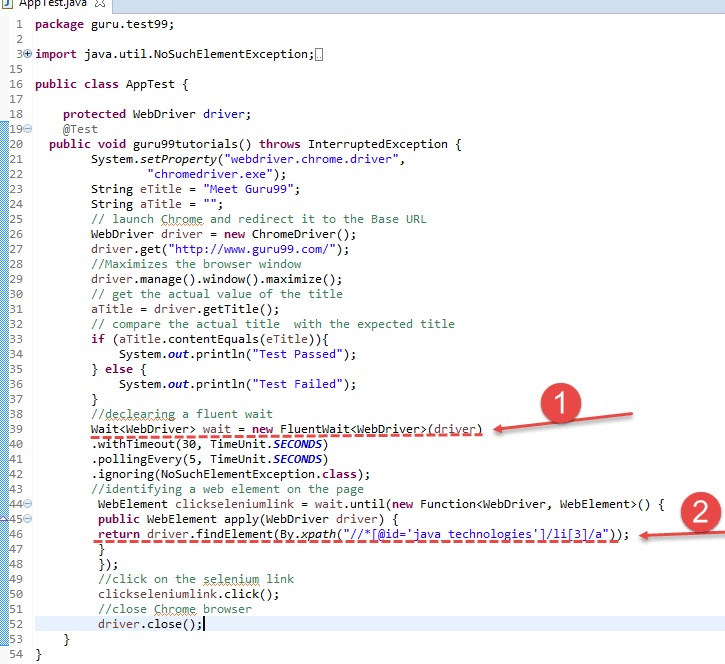
Code line 39: In the above example, a fluent wait with the timeout of 30 seconds is declared, and the frequency is set to 5 seconds by ignoring NoSuchElementException.
Declaring a fluent wait with the timeout of 30 seconds and the frequency set to 5 seconds looks as follows:
Wait<WebDriver> wait = new FluentWait<WebDriver>(driver)
  .withTimeout(30, TimeUnit.SECONDS)
  .pollingEvery(5, TimeUnit.SECONDS)
  .ignoring(NoSuchElementException.class);
Code Line 46 contains a new function created to identify the web element on the page. For example, here, the web element is nothing but the web link on the web page.
The frequency is set to 5 seconds, and the maximum time is set to 30 seconds. Thus, it checks for the element on the web page every 5 seconds for the maximum time of 30 seconds. If the element is located within this timeframe, it performs the operations. Otherwise, it throws an ElementNotVisibleException.
Identifying a web element on the page with the frequency set to 5 seconds looks as follows:
WebElement clickweblink = wait.until(new Function<WebDriver, WebElement>() {
public WebElement apply(WebDriver driver) {
return driver.findElement(By.xpath("//*[@id='java_technologies']/li[3]/a"));
    }
});
//click on the guru99 web link
clickweblink.click();
Sleep command
The command is rarely used as it always forces the browser to wait for a specific time. Thread.Sleep is not recommended, and that’s why WebDriver provides wait primitives. If you use them, you can specify a much higher timeout value which makes tests more reliable without slowing them down as the condition can be evaluated as often as required.
Thread.sleep(3000);