Manage Digital Worker Variations
You can create Digital Worker (DW) configuration Variations and run them simultaneously in the same environment. Thus, you can design a solution that you install into an environment only once but can configure multiple times for separate groups of end users.
In Control Tower, you can create a new Variation, edit the existing one, and export or import from one IA Cloud environment to another, for example, from DEV to PROD.
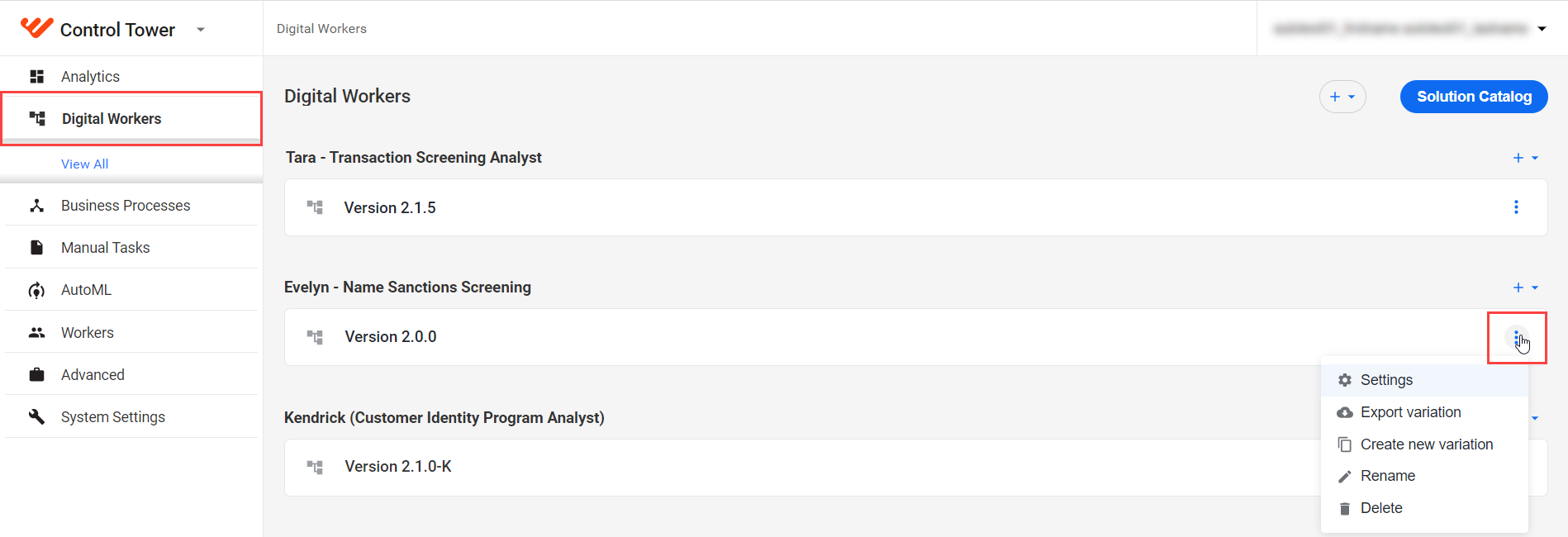
To view the list of DWs and their Variations (if any), go to Digital Workers > View all. To manage a Variation, open its Actions menu and select a needed action.
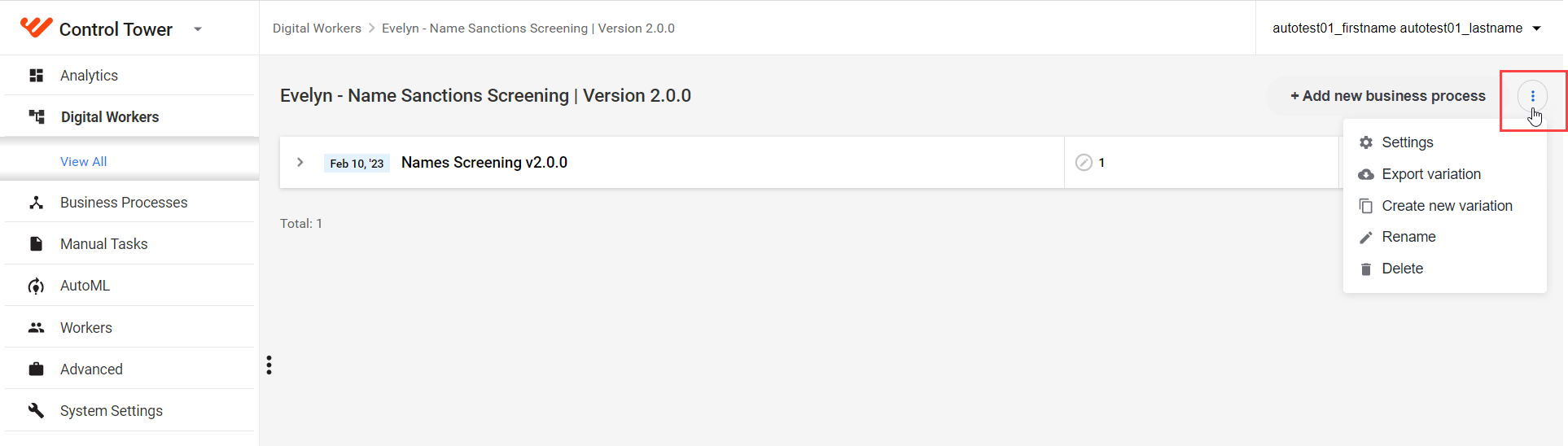
You can access the same settings from a Variation page. Click a selected Variation to view its Business Process (BP) instances. In the top right corner, click the Actions button and choose one of the available options.
You can perform the following actions with your Variation:
Create Variation
To create a new configuration based on an already existing Variation, do as follows:
Select a DW and a Variation to copy BPs and configuration data. Open the Actions menu and select Create new variation.
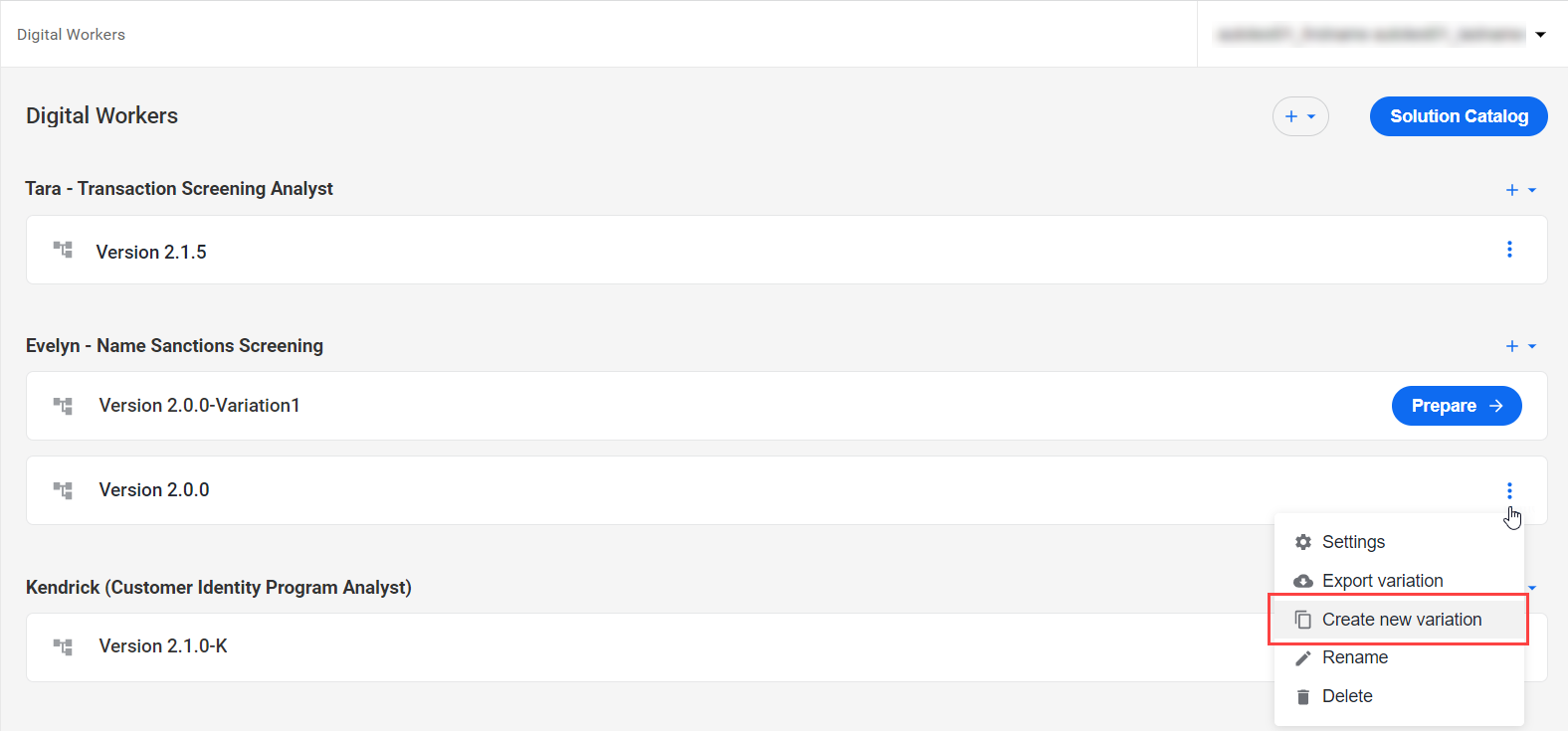
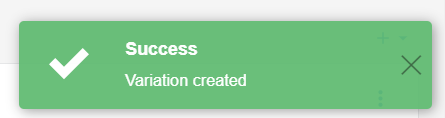
A new Variation appears in the list of Variations of the selected DW. The "Variation created" message appears.
note
The original Variation and its copy refer to the same BPs and configuration settings. When you modify any assets in a newly created Variation, its setup differs from the original one.
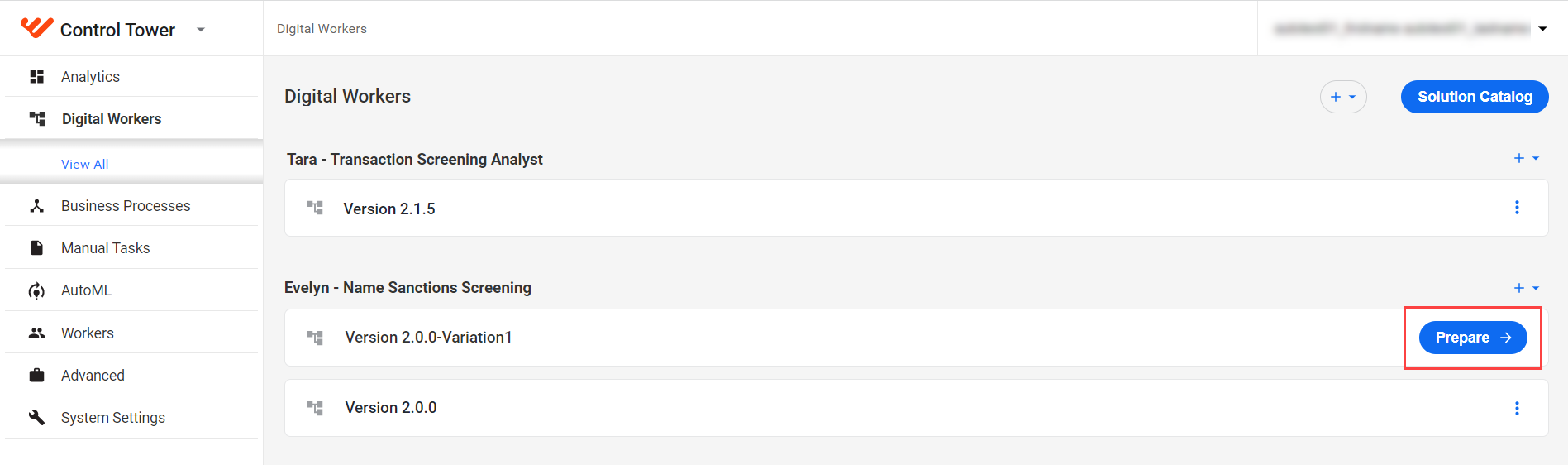
To set up a new Variation, click the Prepare button.
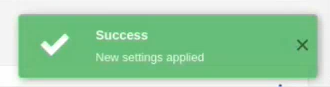
In the Prepare your digital worker window, specify the needed settings and click Finish. The "New settings applied" message confirms that the changes are saved.
Import Variation
To import a Variation, select a DW, click the + button in the top menu, and then click Import.
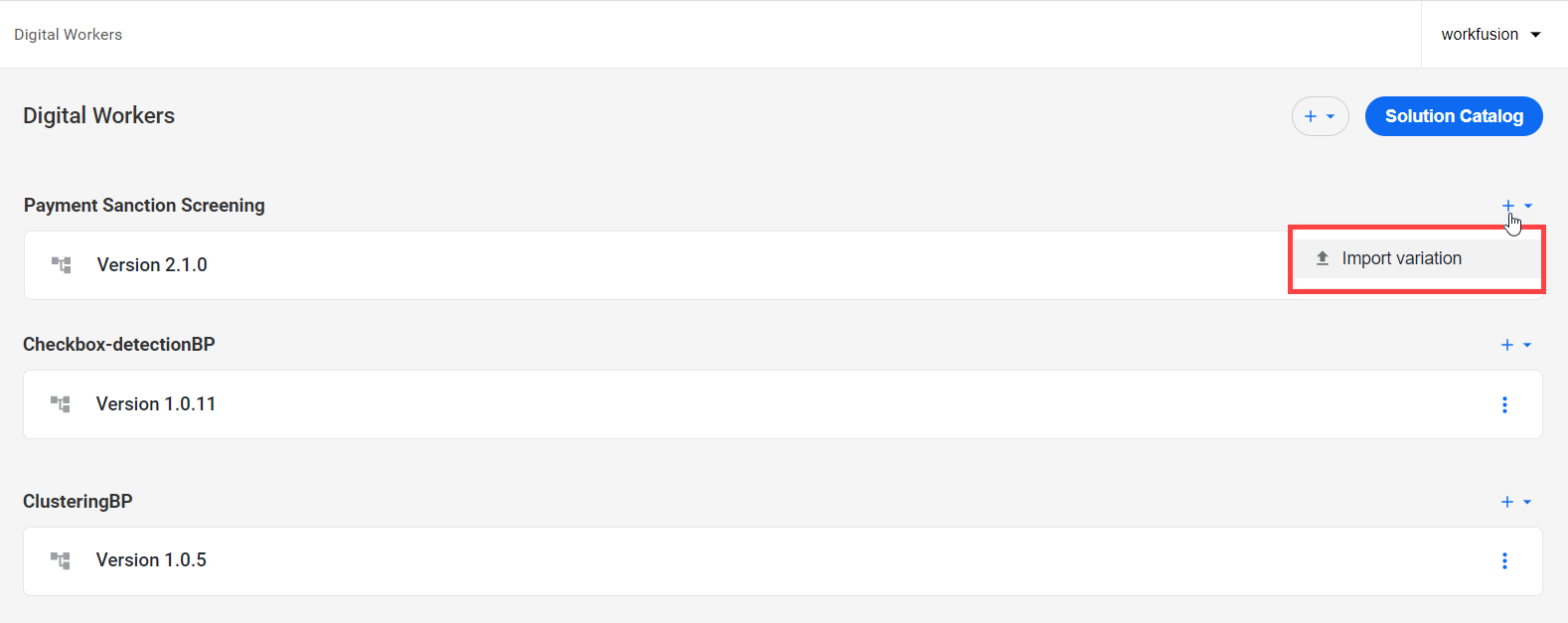
The imported Variation is available in the list of DW Variations.
Export Variation
You can use an already existing DW to create a new DW Variation whenever you want to try a new configuration.
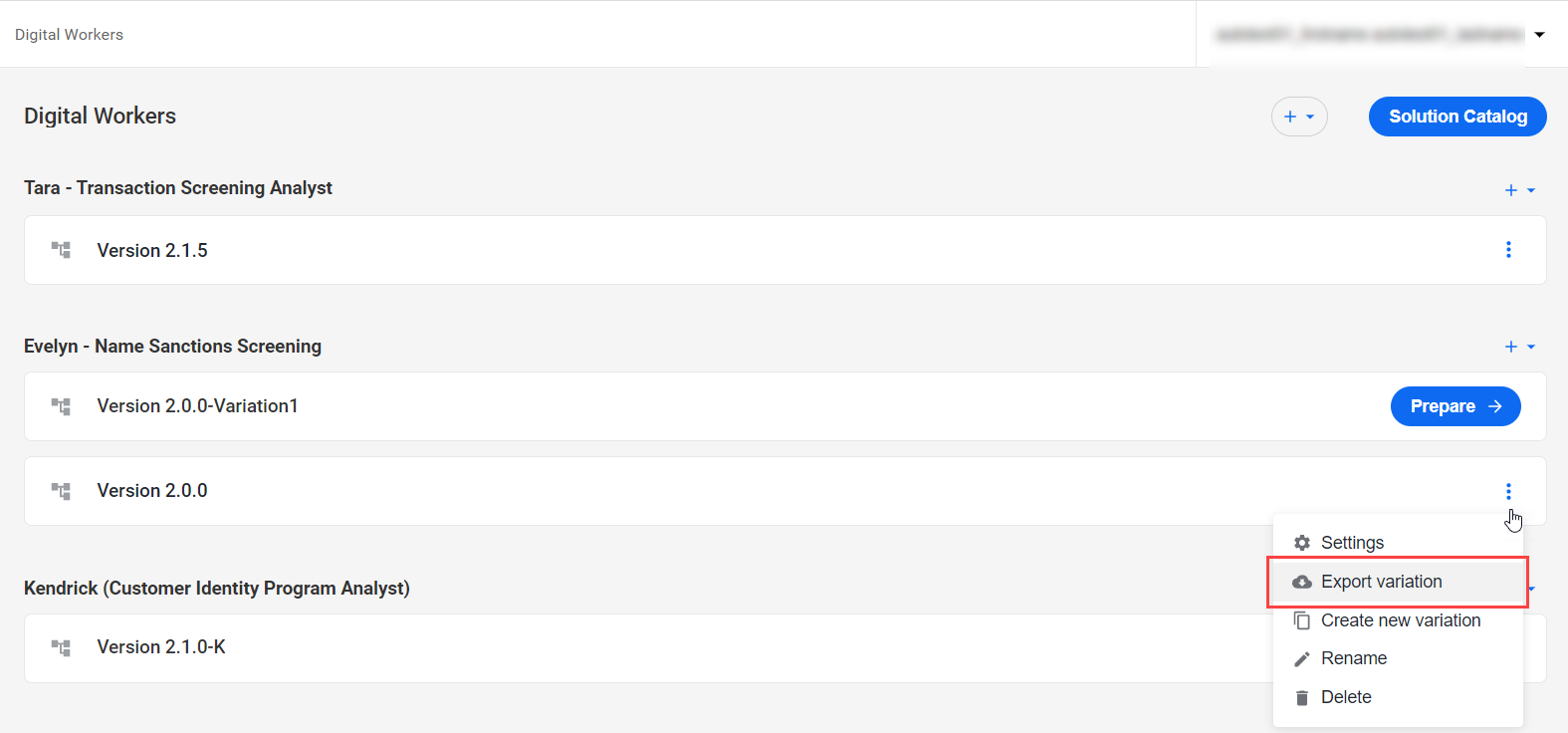
To export a Variation, select it in the list of DW configurations, click the Actions menu, and select Export.
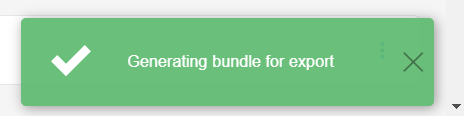
Control Tower starts generation asynchronously, and the "Generating bundle for export" message appears in the bottom right corner.
A DW Variation Asset Bundle is downloaded as a zip file. To view the Bundle structure, see Package assets into DW Variation Asset Bundle.
Edit Variation
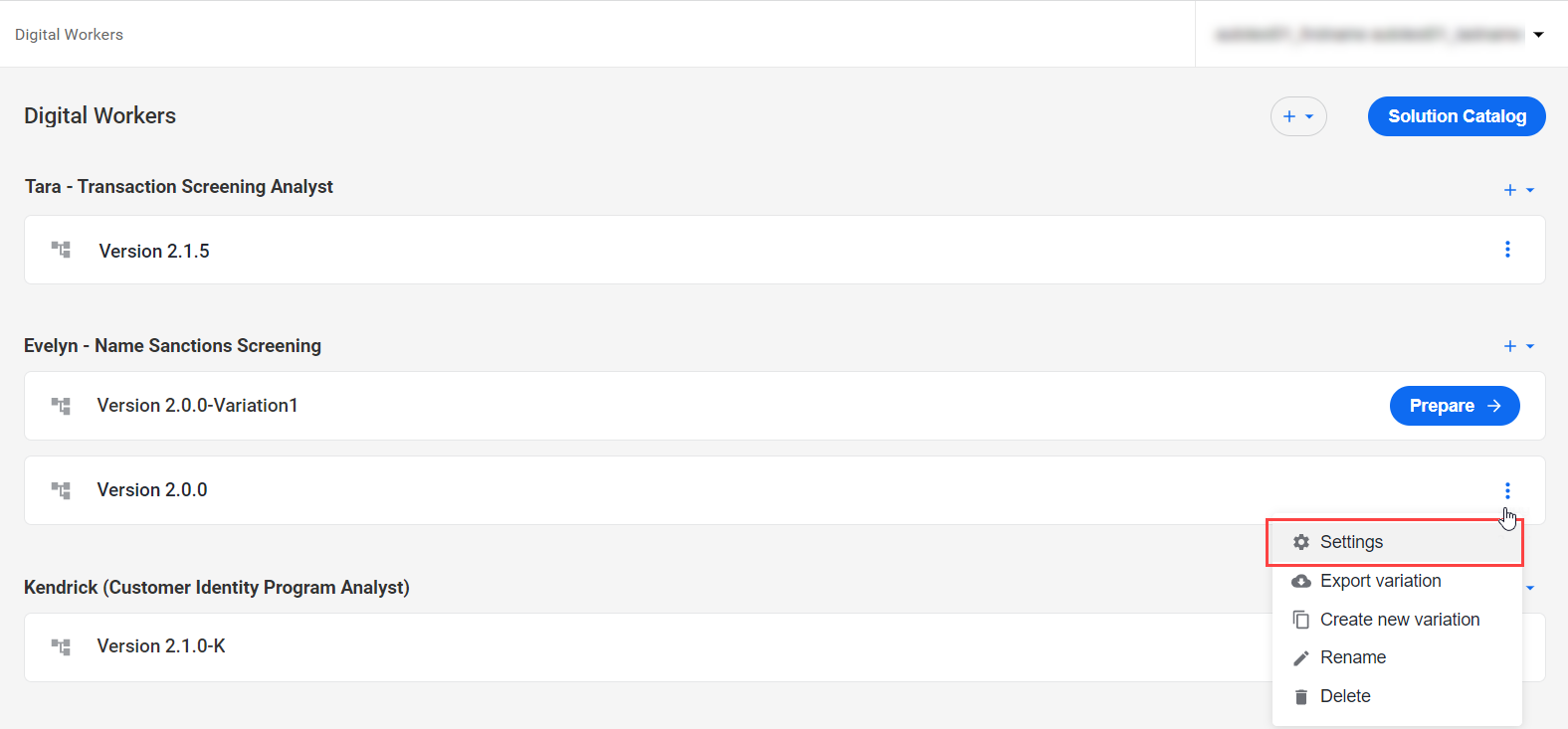
To modify the configuration of an existing Variation, open the Variation's Actions menu and select Settings.
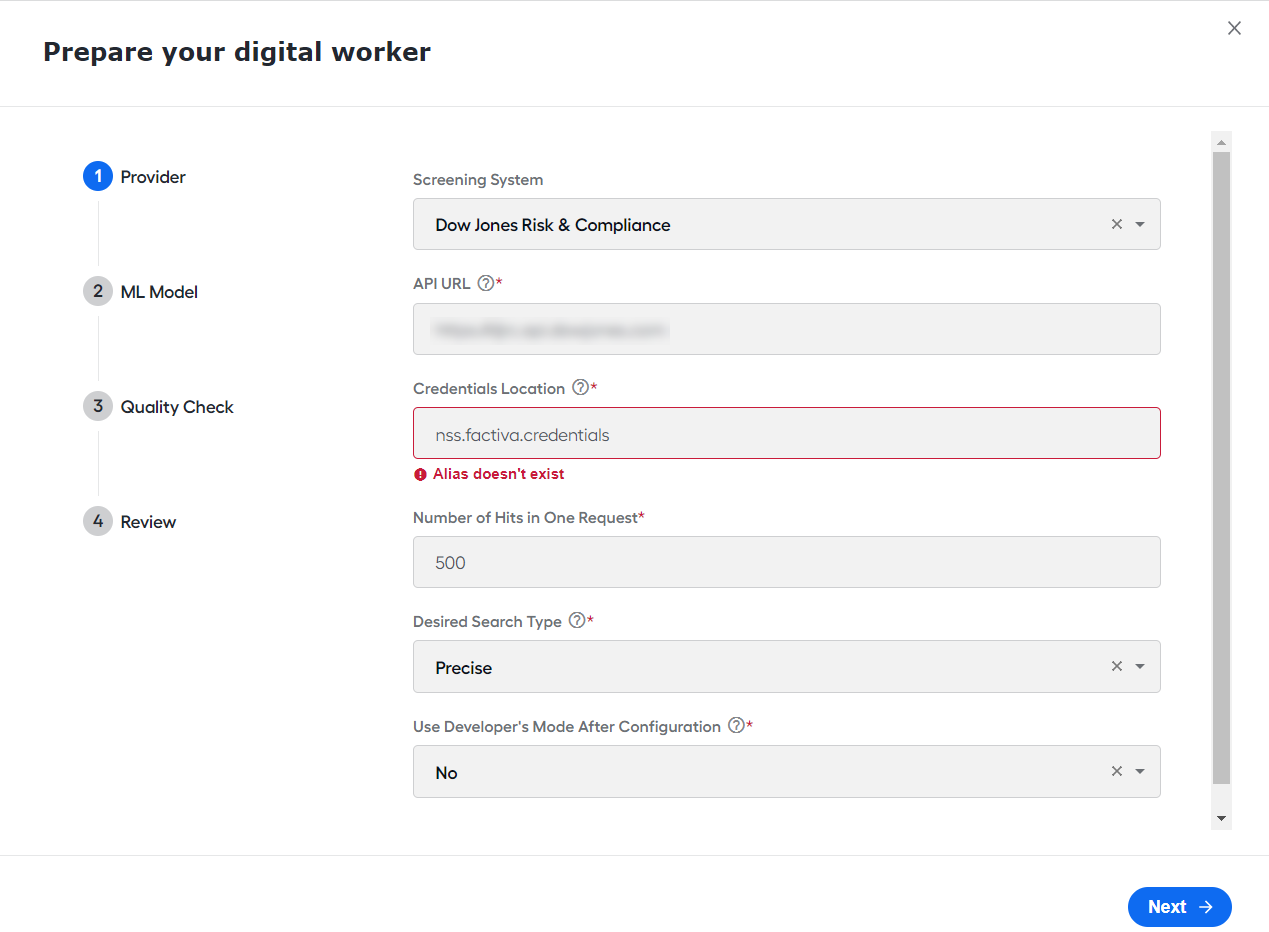
A configuration window opens, where you can edit parameters.
Rename Variation
To rename a Variation, perform the following steps:
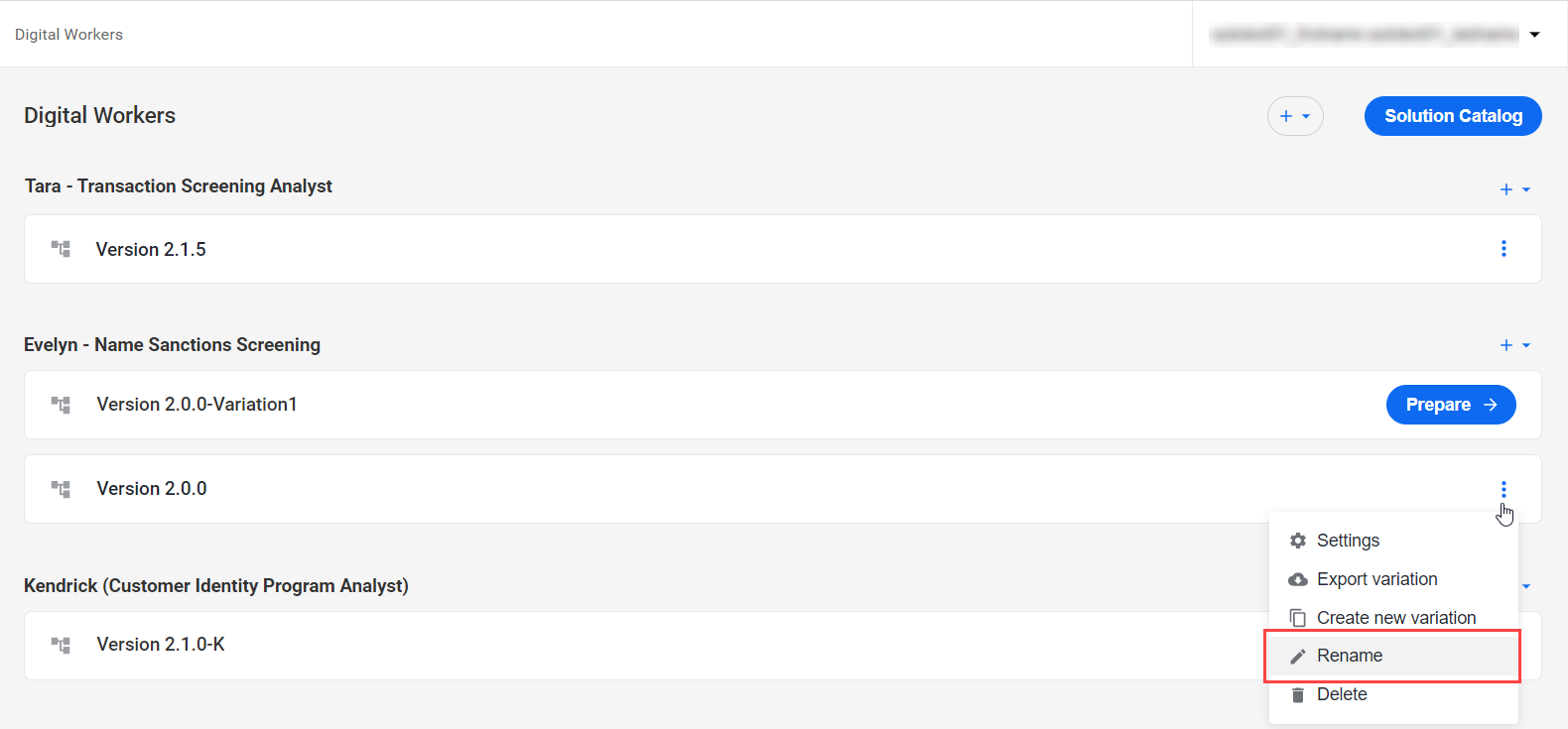
Open the Variation's Actions menu and select Rename.
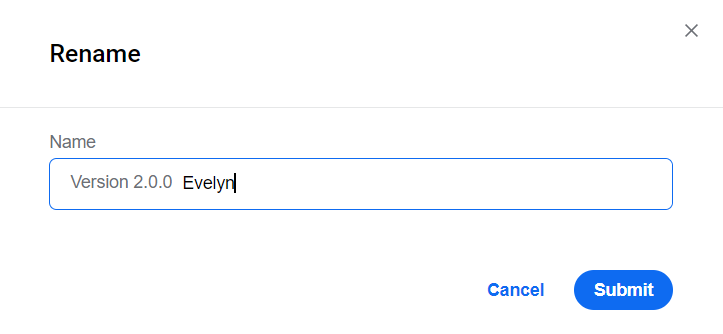
In the window that follows, specify a new name and click Submit.
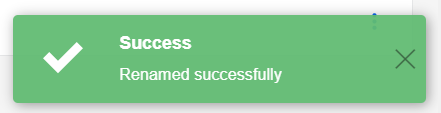
The Variation is renamed, and the "Renamed successfully" message appears.
Delete Variation
To delete a Variation, you should have the Delete Digital Worker Variations permission.
caution
Before deleting a Variation, make sure all running and paused BP instances are stopped. Otherwise, you cannot perform the deletion operation.
To remove a Variation, do as follows:
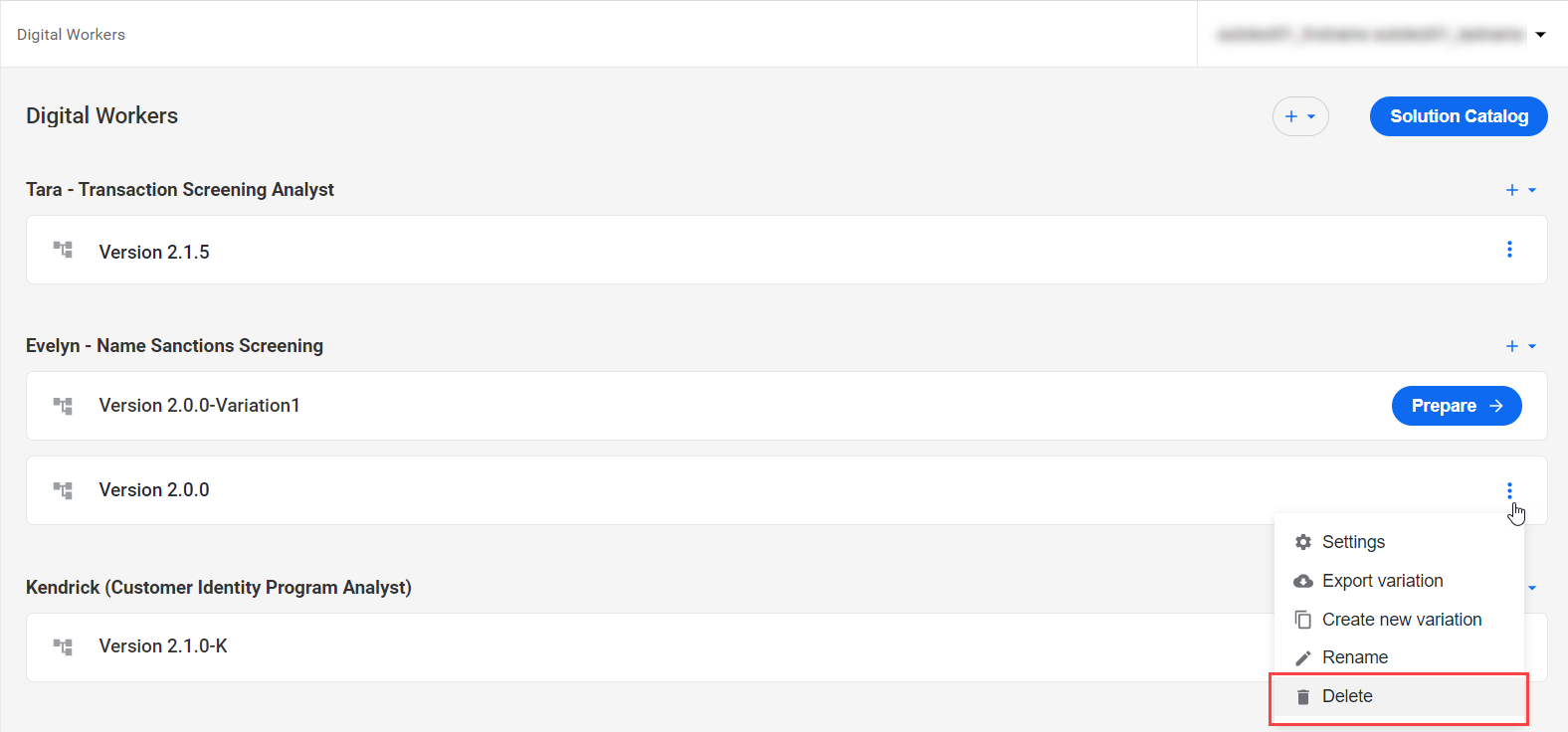
Open the Variation's Actions menu, and select Delete.
In the window that follows, click Delete.
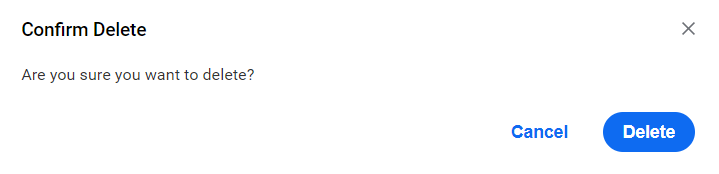
The Variation is deleted from the list, and the "Deleted successfully" message appears.