
Data Set Split (Information Extraction)
important
Task: Split data set into test and training according to the selected proportion starting from the least popular field
Jupiter Notebook: DataSetSplitter
Input:
- Tagged data saved to datastore
- CSV file with tagged text
Warning
Splitting data has peculiarities in IE and Classification Use Cases, so select the notebook accordingly - DataSetSplitter for IE and DataSetSplitterClassification for Classification.
To split the dataset, do the following:
Launch all the dependencies and prerequisites.
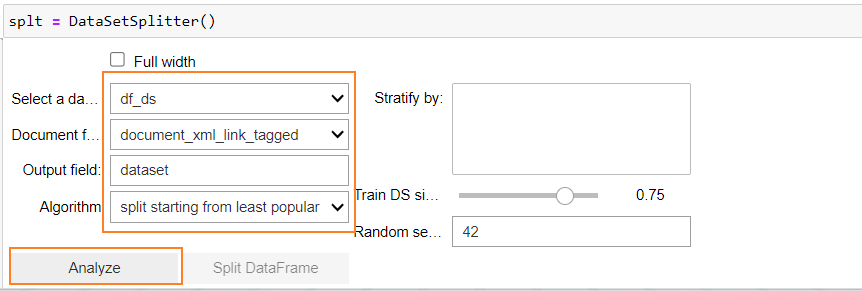
Upload data by any method specified here. Launch DataSetSplitter. In the following menus, specify all the data and click Analyze.
- Select a dataframe: specify the name of the dataframe that contains the data set to split.
- Document field: select a column in the dataframe that contains gold data (tagged text).
- Output field: specify the name of the new column containing the decision if the document should go for test or training set.
- Algorithm: select a method to split the data.
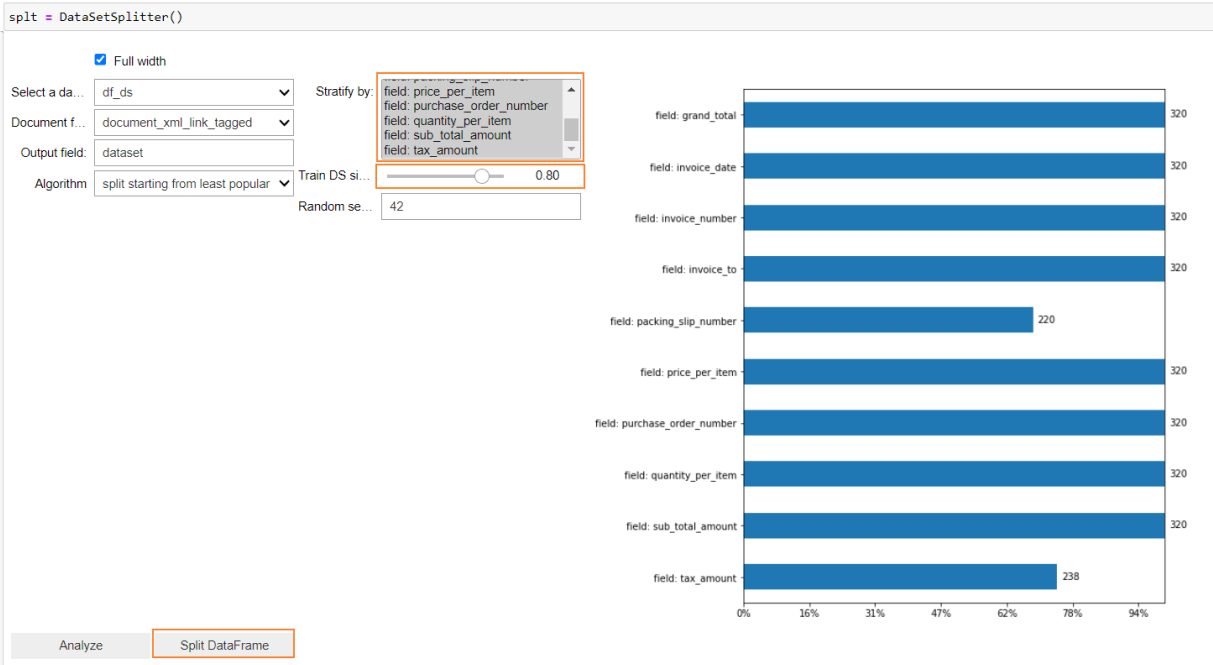
After performing the analysis, the list of fields identified from the tagged_text is displayed. By default, they are all selected to be included in the splitting, which can be adjusted by user selection if some fields have to be dropped.
You can adjust the test and training set proportion in the drag-and-drop panel.
Click Split DataFrame to receive the result of splitting.
You can see the statistics of how many documents in the test or training set contain each field. For example, on the screenshot, you can see that all documents in test and training sets contain the field
grand_total, while the fieldpacking_slip_numberis present in 176 out of 255 documents of the training set and 44 out of 65 documents in the test set.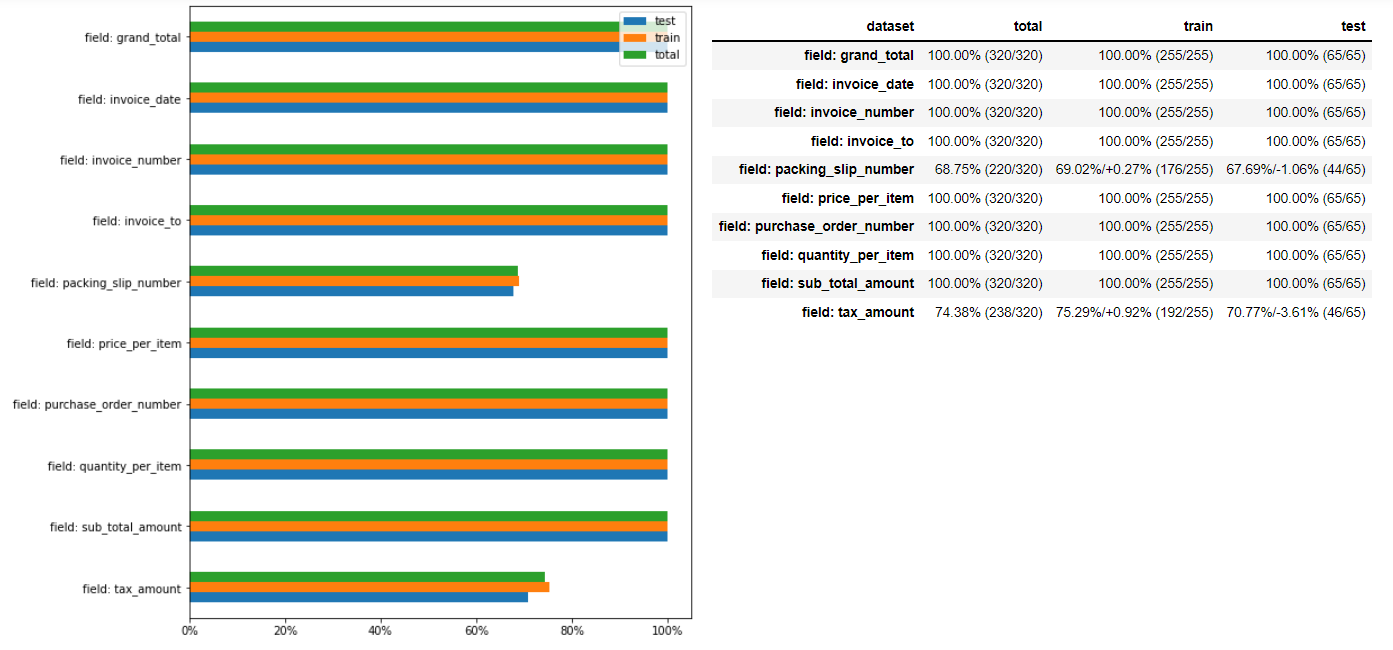
Save the result of splitting to a new dataframe.

Now, you can filter test and training sets from the output column of this dataframe to save them.

Run the following steps to save files locally. Specify the path and filename in each case.
