Edit launch settings
WorkFusion Studio is an Eclipse-based IDE used to develop bot configurations.
Specify workspace
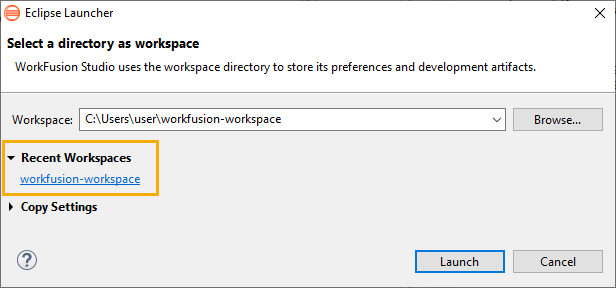
When you launch WorkFusion Studio for the first time, Eclipse Launcher offers to specify the workspace to work in. The workspace directory you set at this step is the place to store your preferences and development artifacts.
In the case of a shared machine, each user has their own workspace when starting the application. No additional settings are performed.
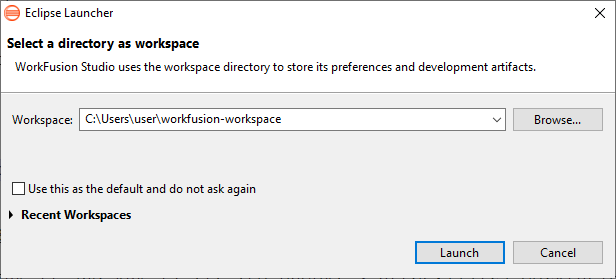
Generally, the default path to your workspace is C:\Users\YourUsername\workfusion-workspace\. You can specify any directory you like by selecting the Browse option. Click Launch to proceed further.
tip
Check Use this as the default and do not ask again for the selected workspace to launch automatically when you start WorkFusion Studio the next time.
Select workspace
If you need to add another workspace to work in, do as follows:
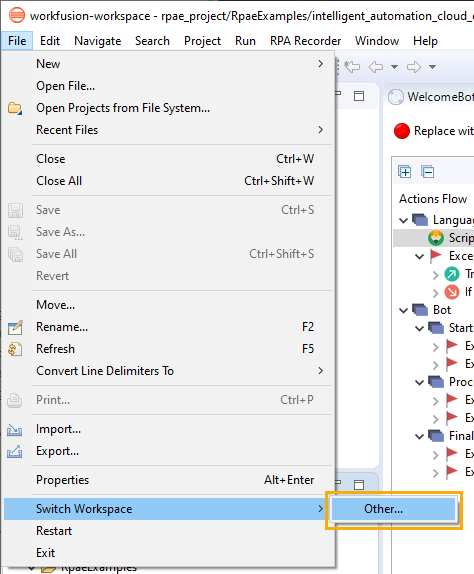
In WorkFusion Studio, go to File > Switch Workspace > Other.
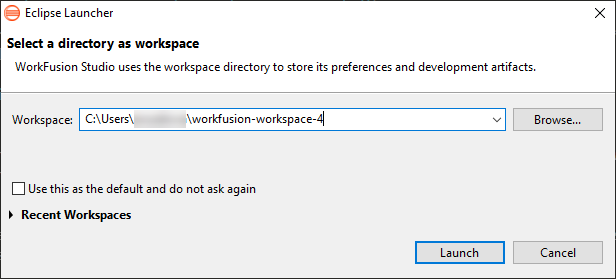
Type in your new workspace name in the window that follows and click Launch. Eclipse Launcher creates the workspace automatically.
tip
When creating a new workspace, you can copy the settings of the workspace you are working in at the moment. To do that, check the fields you need: Workbench Layout, Working Sets, Preferences.
If you have several workspaces, you can select a workspace to launch when Studio starts. To do that, click Recent Workspaces and select the workspace you need from the list below.