Compare two models (Information Extraction)
Task: compare results of two models.
Jupiter Notebook: ModelResultsComparison
Input: CSV files with model execution results.
The ModelResultsComparison notebook allows you to compare statistics of two models from a different perspective and with an ability to see additional information on each field or result.
To compare the results of the two models, do the following:
Launch all the dependencies and prerequisites.
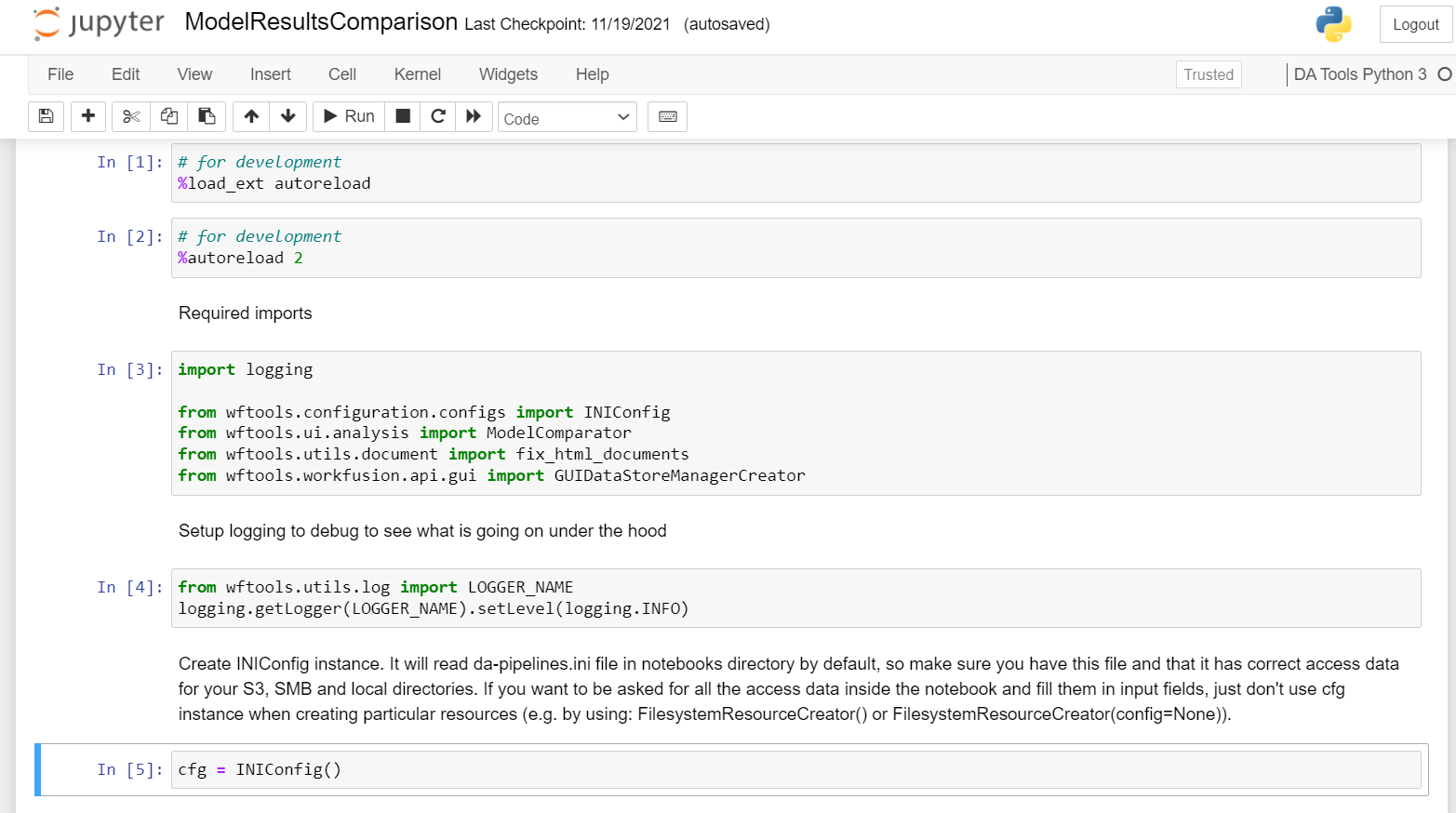
In both data frames, specify the paths to the CSV files with the corresponding model results to be compared.

Open ModelComparator.
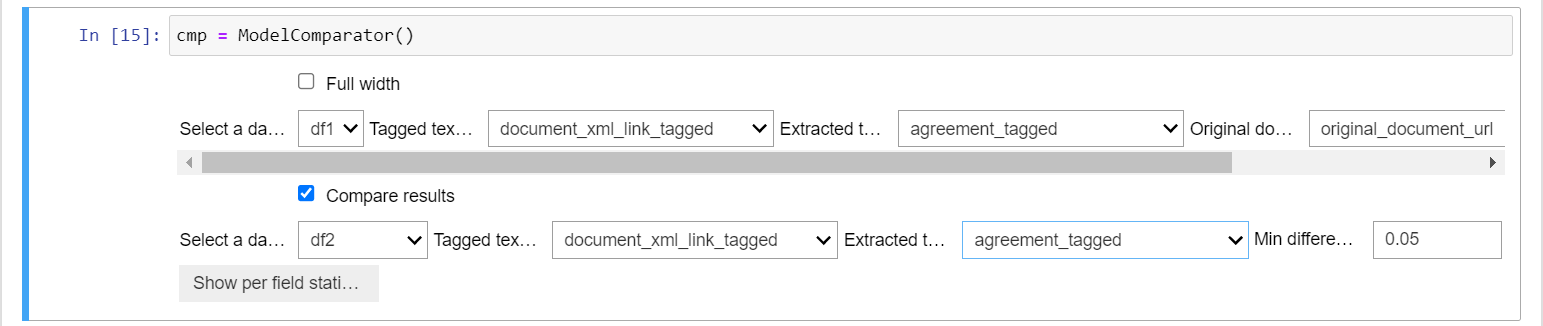
For your convenience, you can expand the workspace to the entire width of the window.
In the corresponding menus, specify the names of the Tagged text, the Extracted text, and Original document link columns for the first model, which results were specified in "df". Select the type of document: HTML or ocr_xml.
Select the "Compare results "checkbox and specify the names of the Tagged text and the Extracted text columns for the second model, with results specified in "df2". Also, you may set Min delta to show the difference between results in the statistics table.
Click the Show per field statistics button.
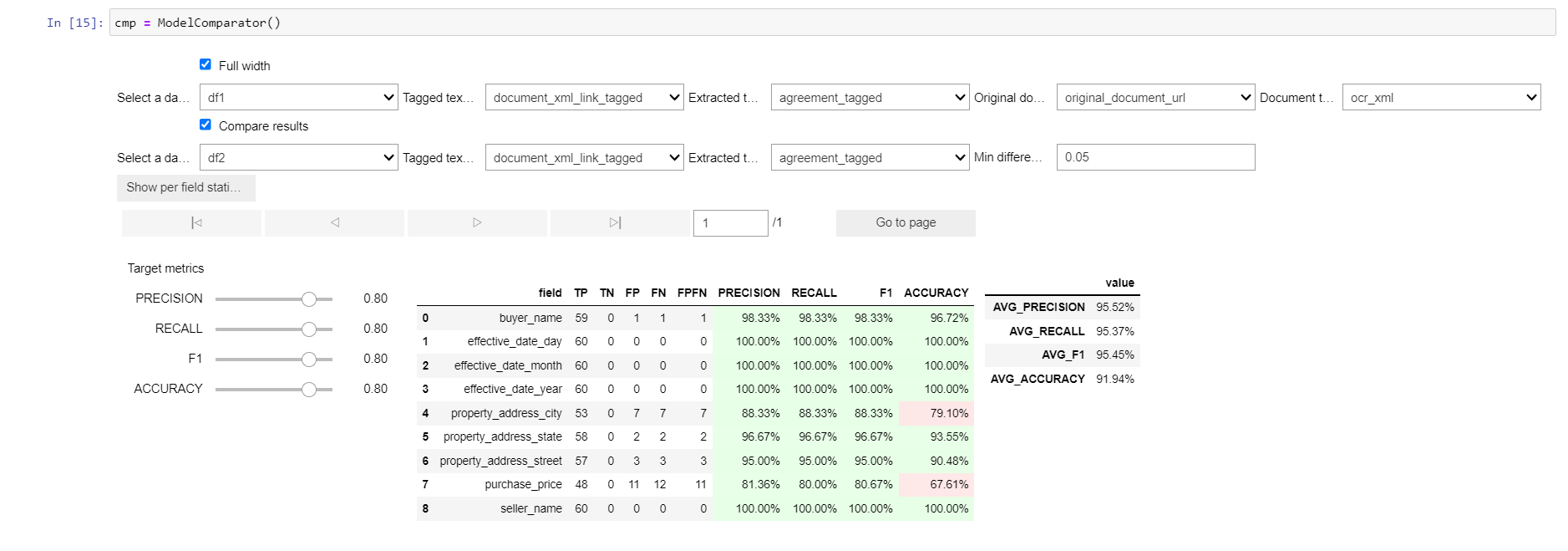
You will see model statistics for each of the fields.
If the models' results differ, you see the result of the first model in the table. After the "/" sign, the value by how much the result of the second model differs from the first.
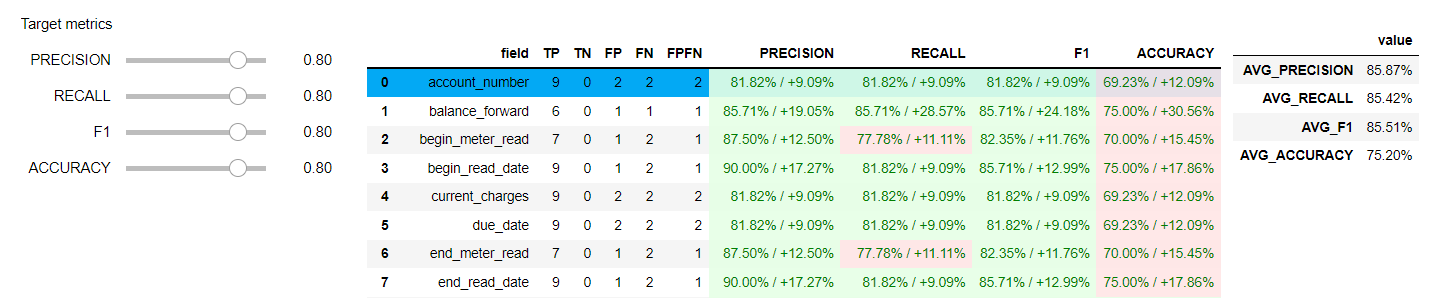
Further, you can get acquainted with the results of the first model in more detail and review model mistakes (compare Tagged and Extracted values).
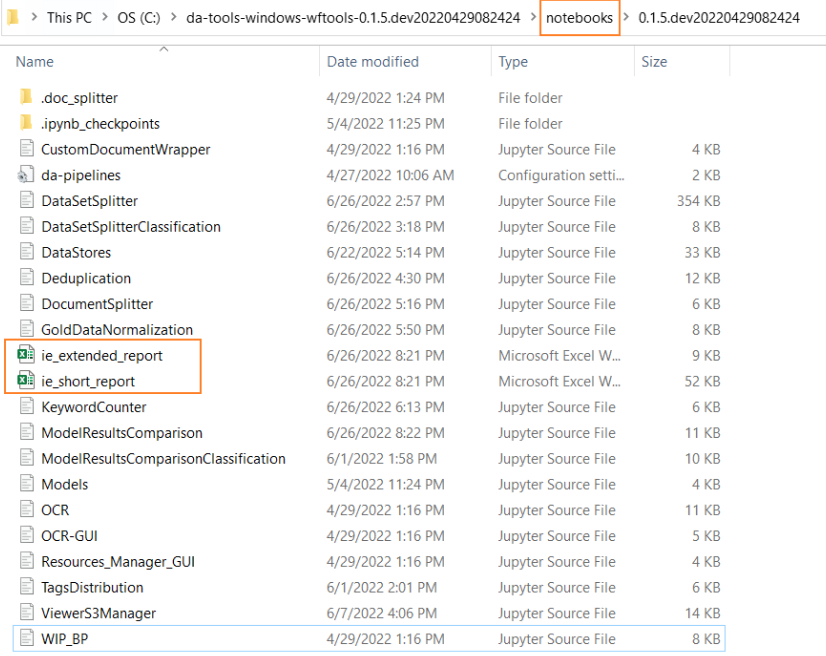
You can save the output result to an Excel file. The first option generates a short report; the second produces an extended one.
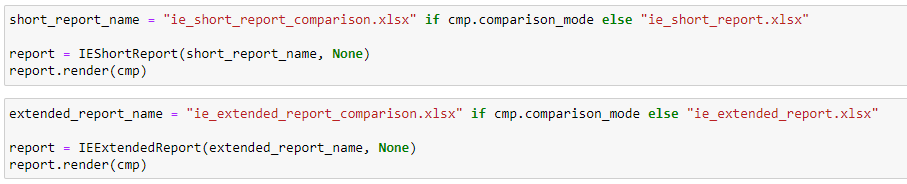
You can find these files in the list of notebooks in your Jupiter Notebook folder.