Split pages
Task: split PDF files that contain multiple documents into separate files.
Jupiter Notebook: DocumentSplitter
Input:
- Documents from a local or shared folder
- A CSV file with links to the documents
To perform the splitting, follow the steps:
Launch all dependencies and prerequisites.
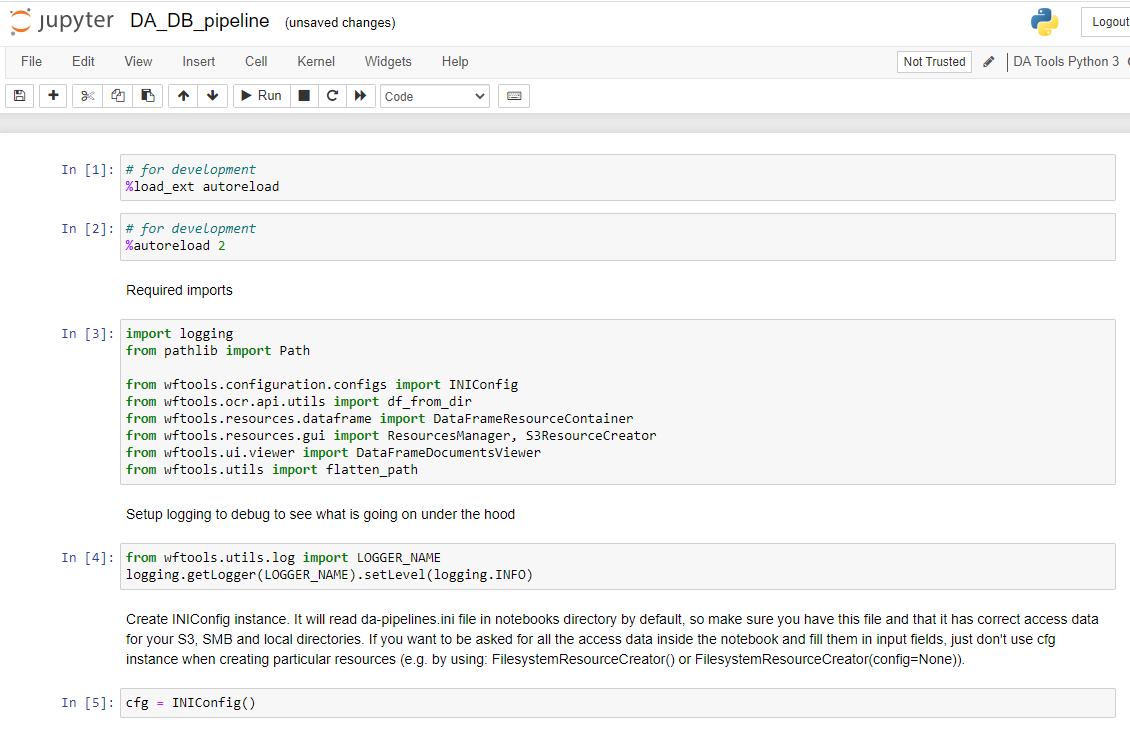
Upload data using any available method.
Specify categories (classes) to split into and the path to the folder that will contain the output.

If categories (classes) are unknown, you can leave the value empty and specify it later.

Specify the dataframe and name of the column that contains input and click Show.

You will see the Viewer with the first document appear on the screen.
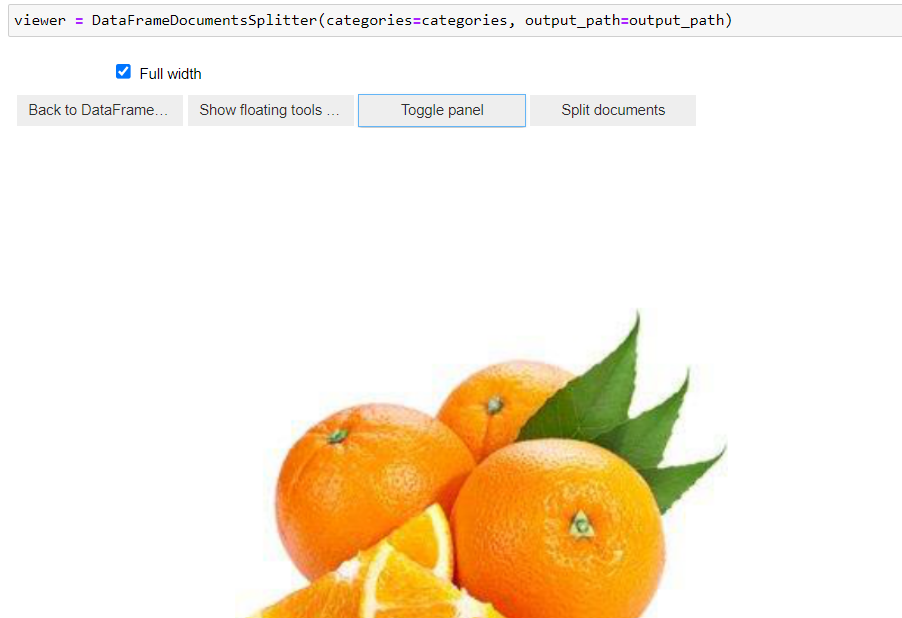
There are two options to navigate between the documents:
Click Toggle panel to see the navigation buttons on top of your document. Click the same button to close it.
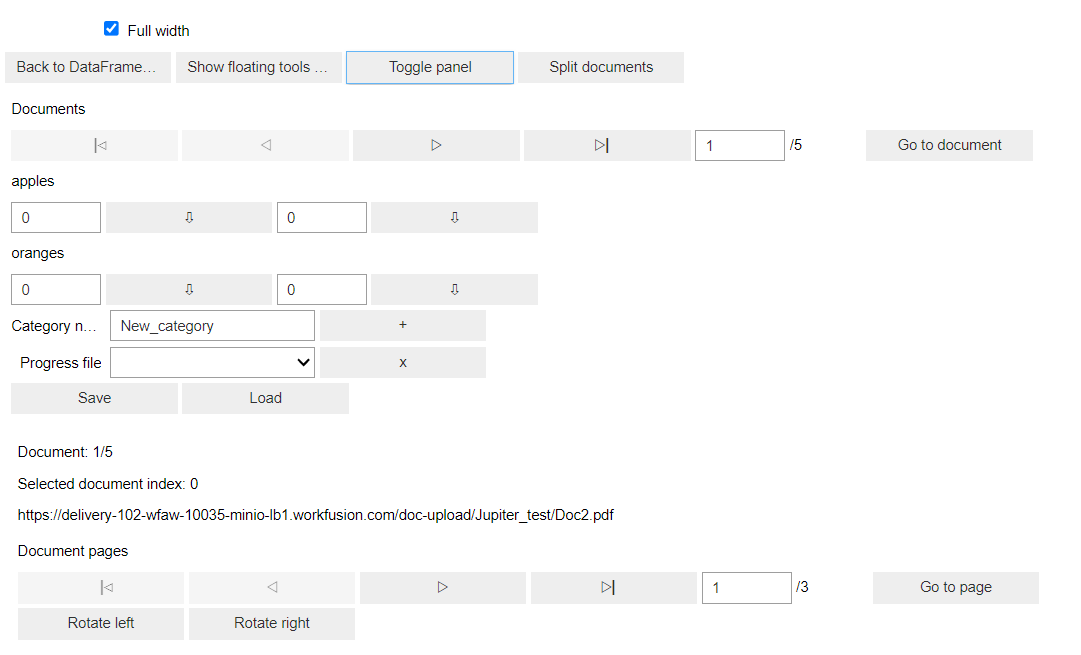
Click Show floating tools to open the navigation buttons as a pinned panel to the left of the Viewer.
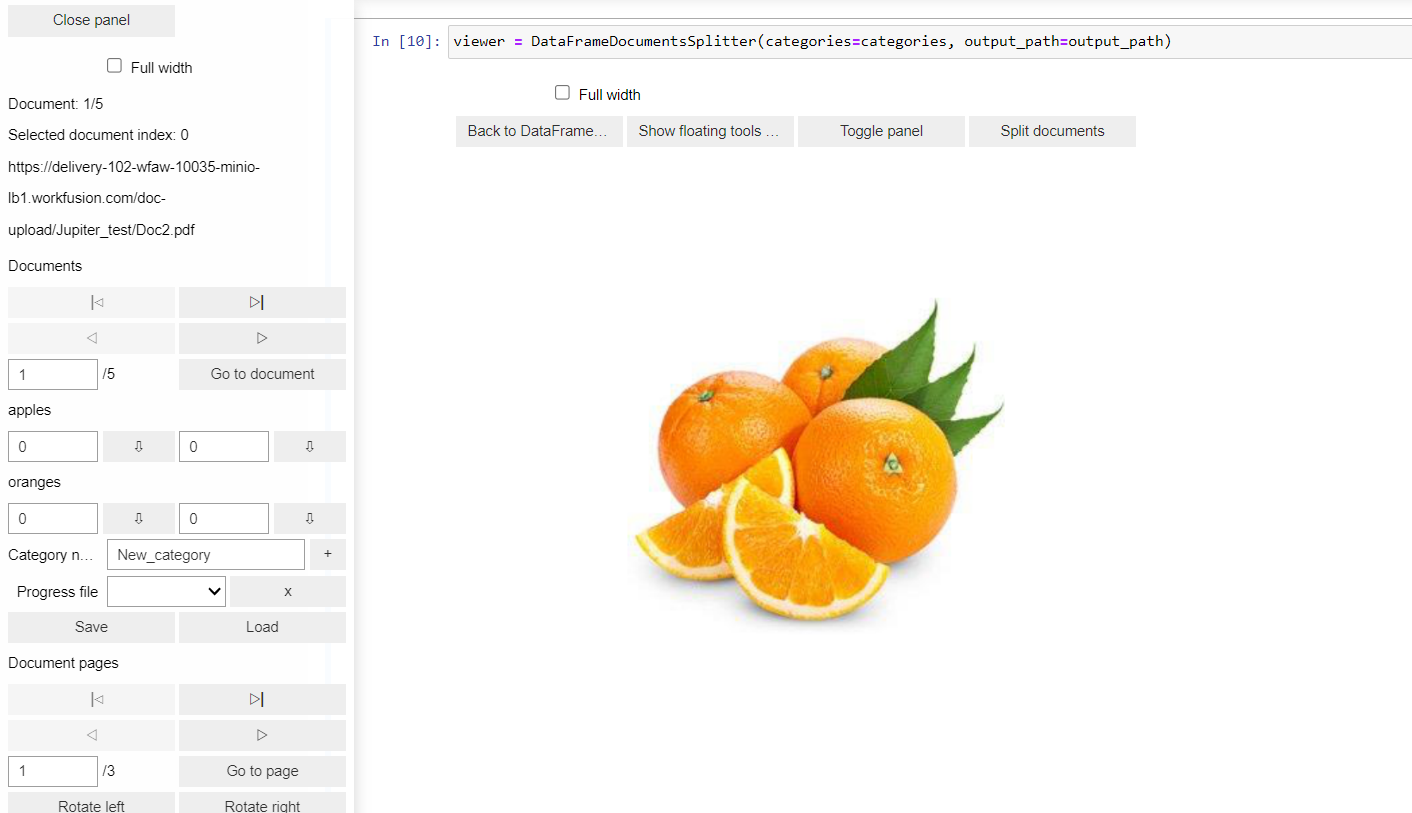
In the navigation panel, you can switch between documents and pages of each document.
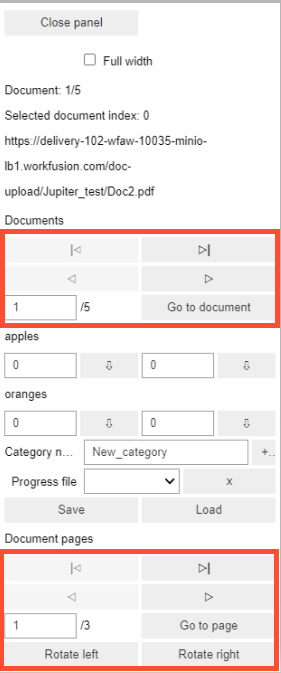
Specify the pages for each class or category. If it’s a one-page document, the ending page can be left as 0.
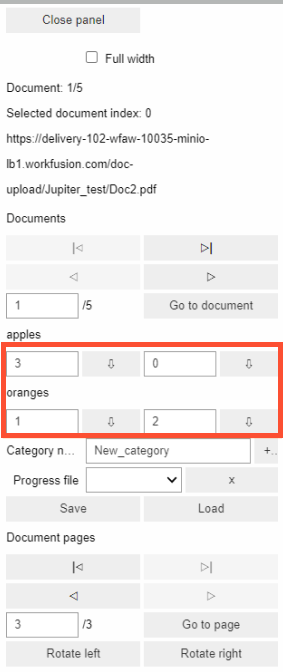
To add a category, enter the category’s name and click +.

The category becomes available in the list.

When all pages in the documents are selected, click Split documents.

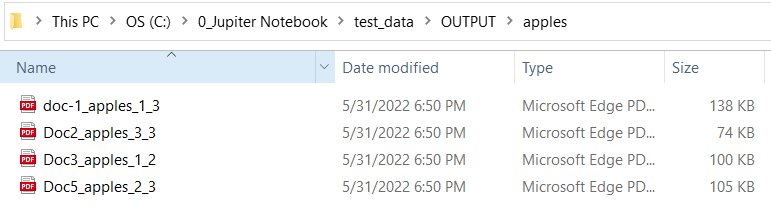
In the specified folder, a sub-folder containing split files is created for each category.
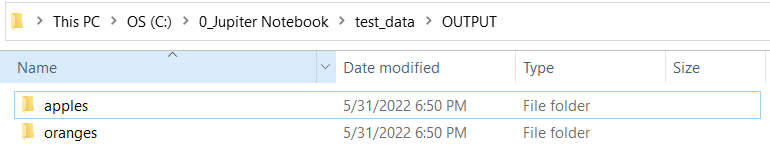
Each file has its initial name modified with the name of the category and the number of pages.