Low-Code Developer guide
Step 1: install Work.AI Developer
Any user who has access to the product documentation can download the Work.AI Developer installer. Licenses are not required.
Start from the installation page, click the Download button and fill in a short form. For the Developer version, select the same Work.AI platform version your organization has. You can find a version of your server-based Control Tower in the bottom right corner of any Control Tower page.
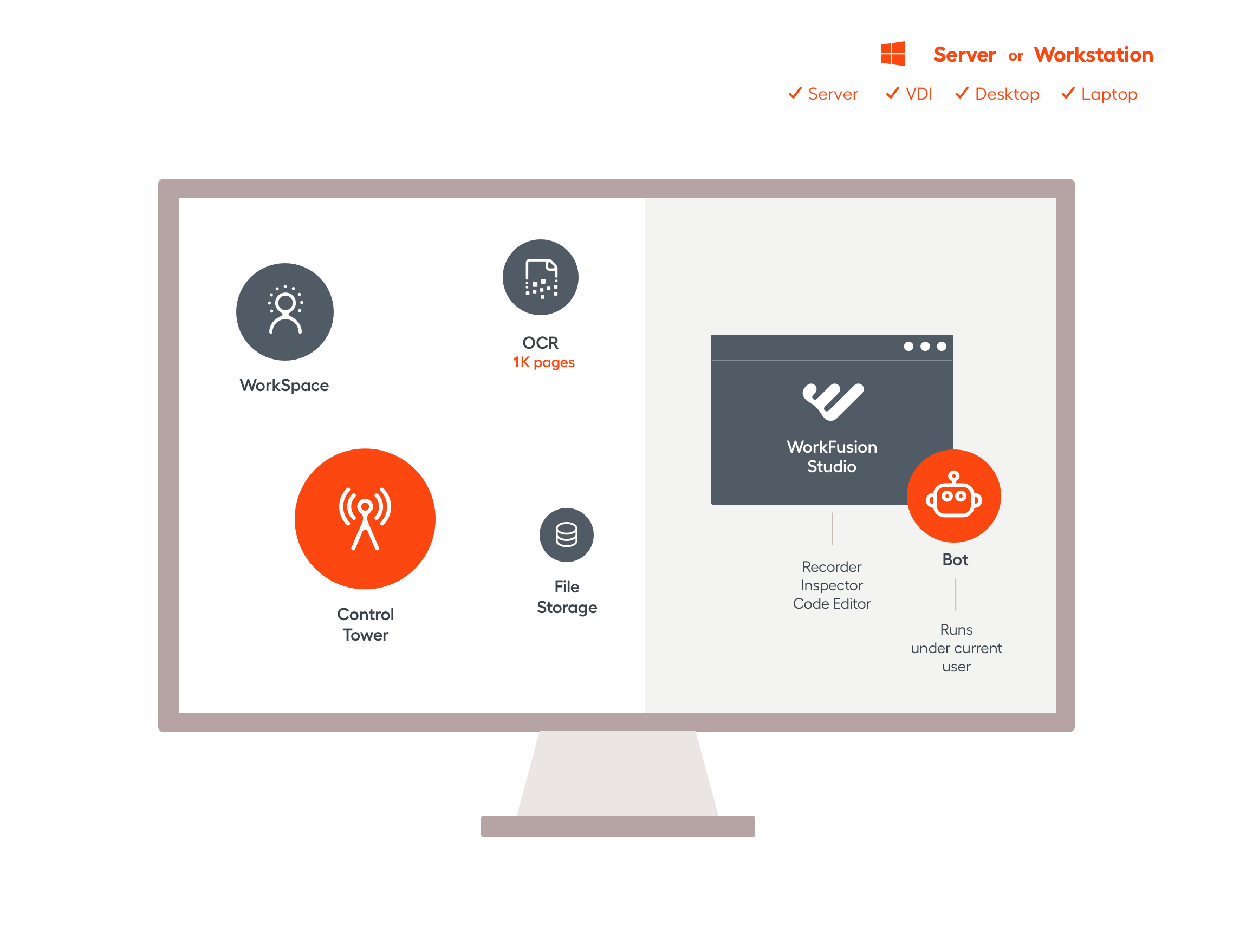
Step 2: validate Work.AI test environment
The migration process and further usage of the Work.AI platform environment require certain access privileges and software available on the target platform v10.x environment:
Control Tower access. Your user account must have permissions to manage Business Processes, Schedules, Secrets Vault, and Data Stores.
RPA server RDP access with a personal (or shared with certain colleagues) account. It is essential to check the performance of migrated RPA bots and troubleshoot them if needed.
If any company's internal desktop applications, for example, MS Office apps, are used in a migrated Business Process, ensure to install the applications on the RPA server(s) where this Business Process is expected to be executed.
If any company's internal applications require access (by IP or otherwise) from the target platform environment, make sure to grant and verify such access for the RPA server(s).
Step 3: migrate Business Processes to Work.AI
Let's consider the migration of a simple desktop automation. The Bot Task logic is as follows:
The Bot Task loads a website in the Chrome browser and scraps an HTML table.
The Notepad application is started, and the scraped table cells are pasted as a single text line.
On completion, Chrome closes, but Notepad remains open.
Migrate your Recorder project into Work.AI Developer
To modify a script created in Express or Business in Developer, you can copy project files from your old workspace location into a new empty project created in the Developer's Recorder or by drag-n-drop into its Project Navigator tree view.
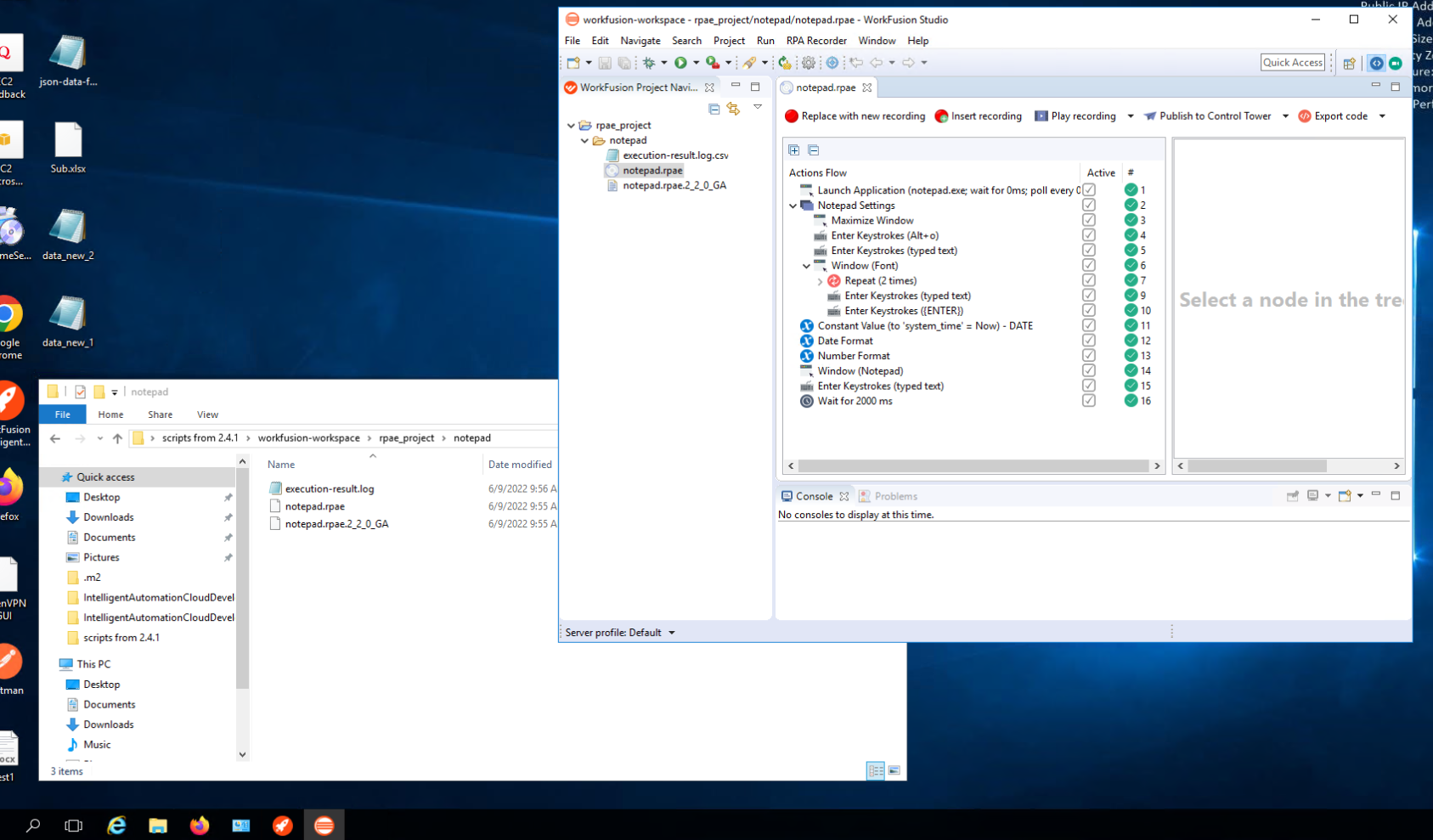
Once files are copied, find them in the project and double-click an RPAE file. You will have all your script actions available for modifications in Recorder.
Avoid opening an older Studio workspace with a newer Recorder as doing so causes issues. For a new version of Developer's Recorder, always create a new empty workspace. You can copy any project into a new workspace.
Open your Bot Task in Recorder.
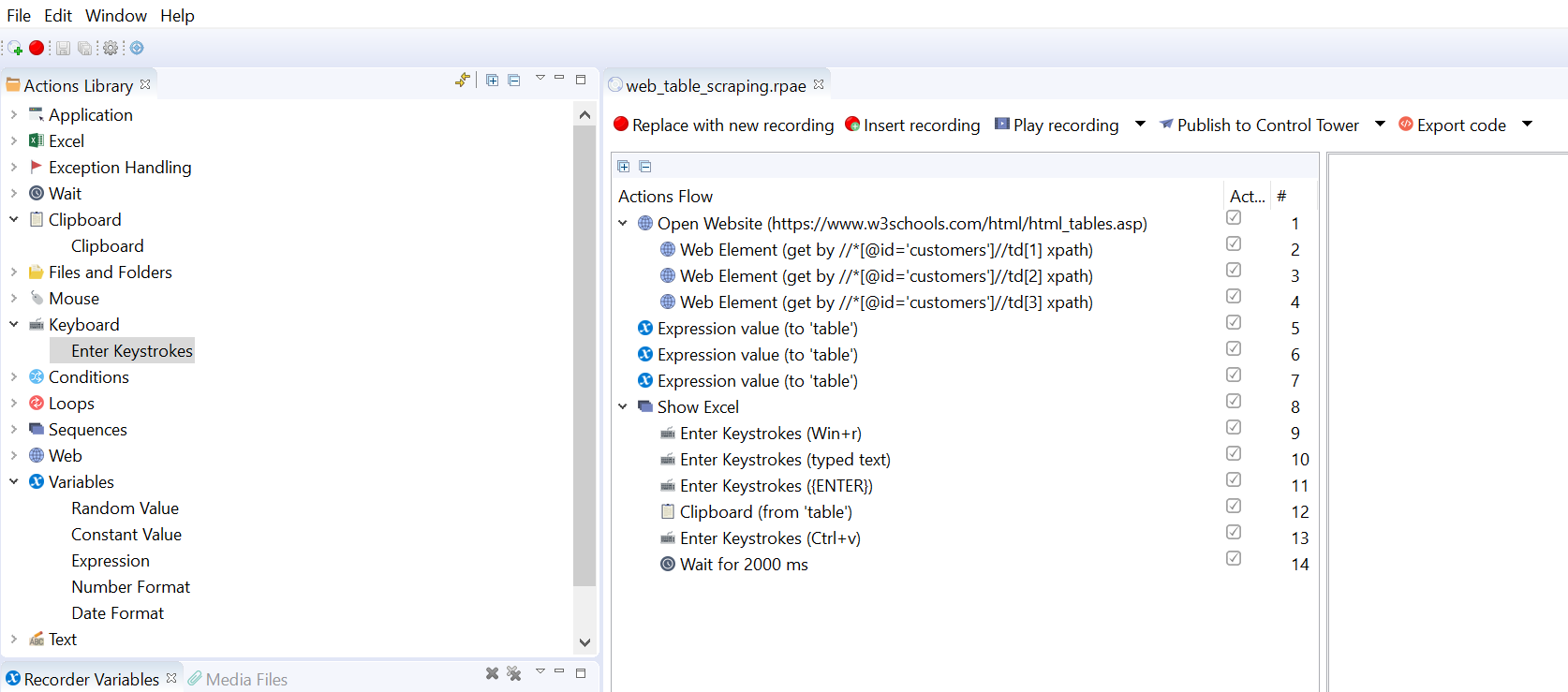
Test-execute the Bot Task to make sure it works as expected and is stable.
Test the Bot Task in your local Control Tower of Developer v10.x:
- In Launcher, start the Control Tower application group.
- Publish the task as a new Business Process using the default Server Profile pointing to the local Control Tower.
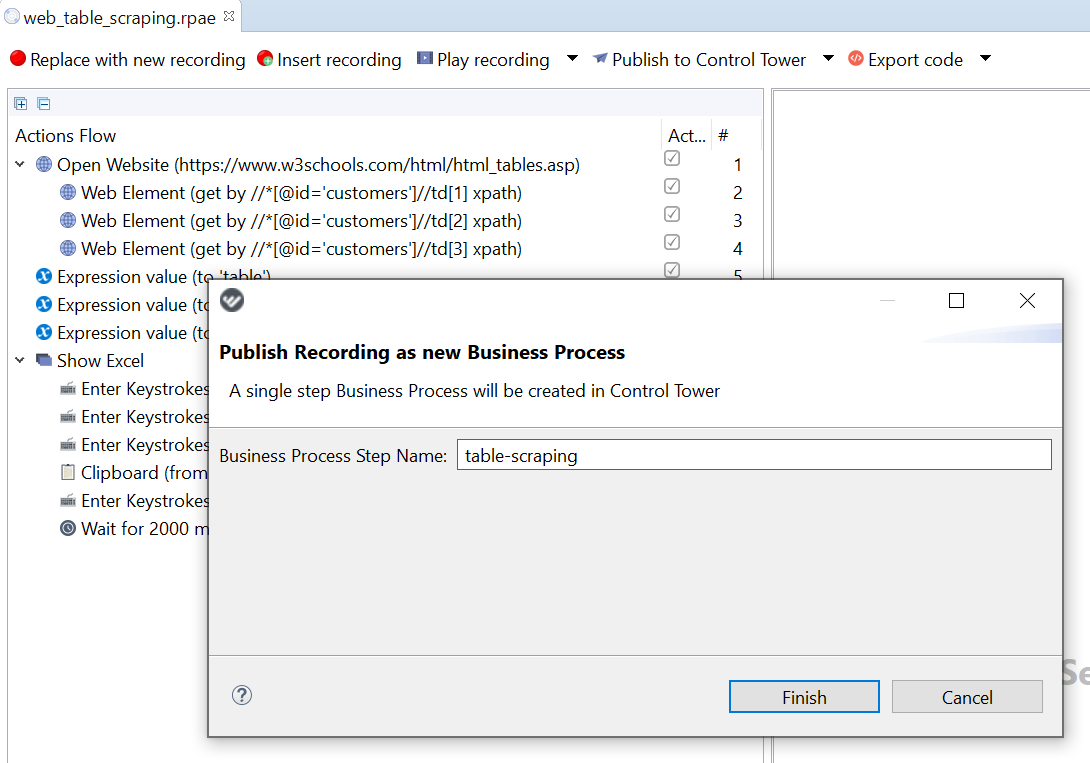
Mind that the resulting Business Process contains a single Bot Task you cannot edit.
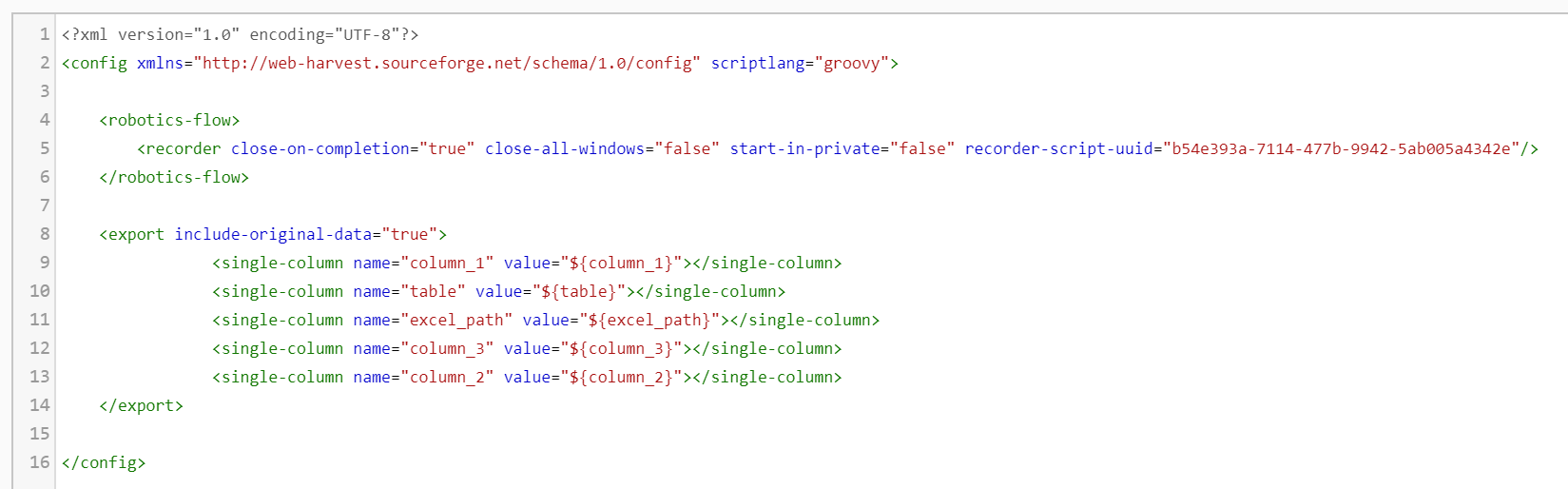
Test-execute your Bot Task in the local Control Tower to make sure its behavior is the same as when executed in Recorder.
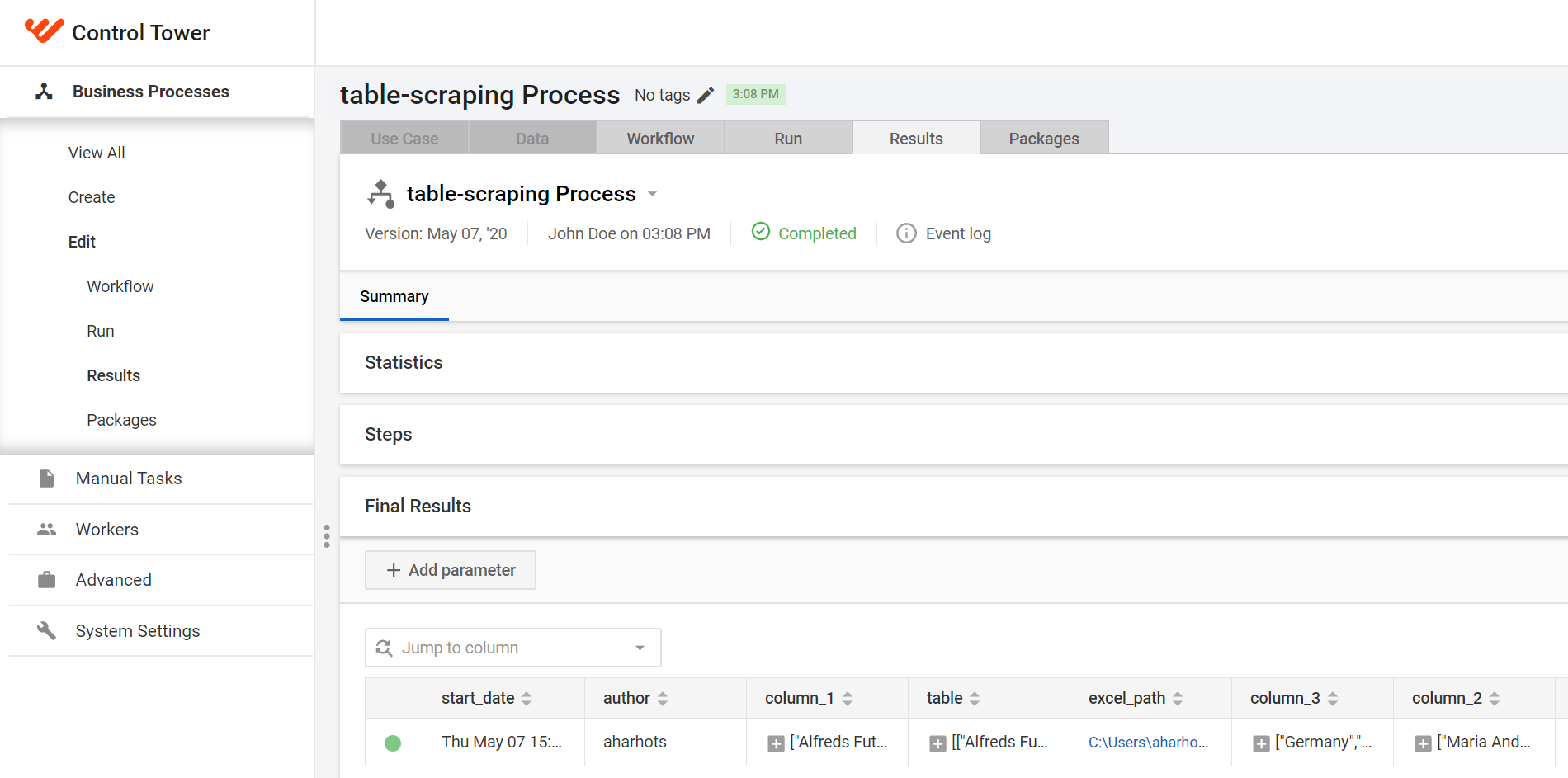
Work.AI test environment bot publishing: option 1
In Recorder, you can use the Publish to Control Tower button pointing to your Server Profile.
As a preparation step, configure your Server Profile. Specify the Work.AI test environment Control Tower URL and provide the existing Control Tower user credentials (the same you use to log in to Control Tower).
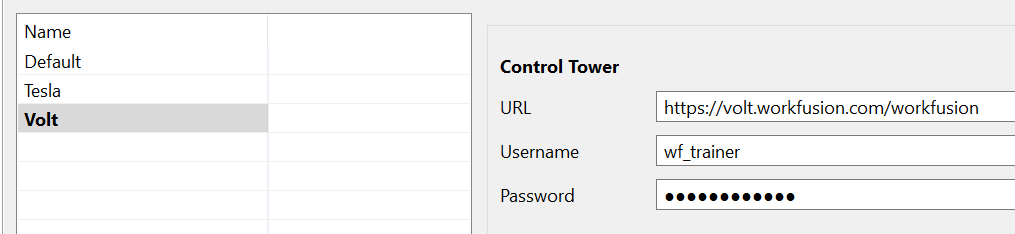
Use the new Server Profile to publish to the server Control Tower. After that, you have the Business Process ready for testing.
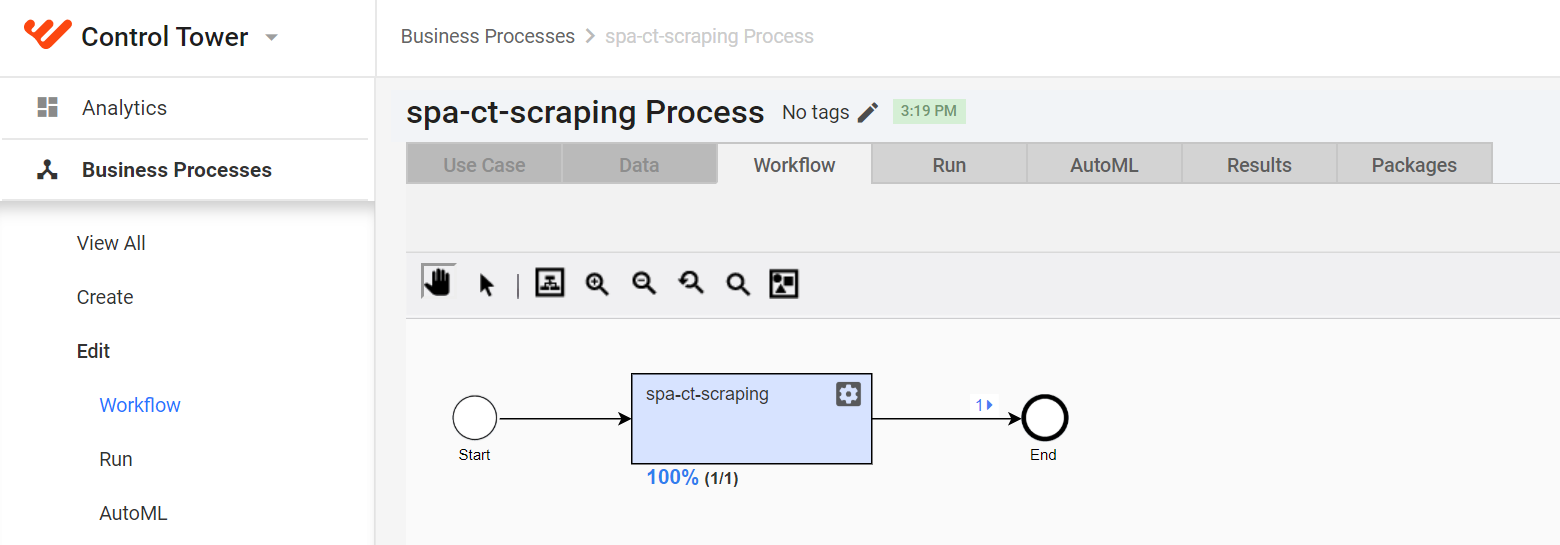
Test the Business Process in the remote Control Tower:
Connect to the RPA server via RDP provided to you by IT Operations. To check the bot in action, use the standard Windows Remote Desktop Connection utility and click Run. Obtain the credentials for the Work.AI Windows RPA server from your IT department.
Run the Business Process and switch to an RDC window to see how Chrome starts. The table data must be printed in Notepad.
Work.AI test environment bot publishing: option 2
Another way to migrate Business Processes is to perform Export from source and Import to target environment.
This way, you can move your Business Process from a "lower" to a "higher" environment: Work.AI Developer Control Tower > test Work.AI Control Tower > production Work.AI Control Tower.
After testing, you are ready for actual Business Process migration. For this purpose, use the standard export and import feature and proceed as follows:
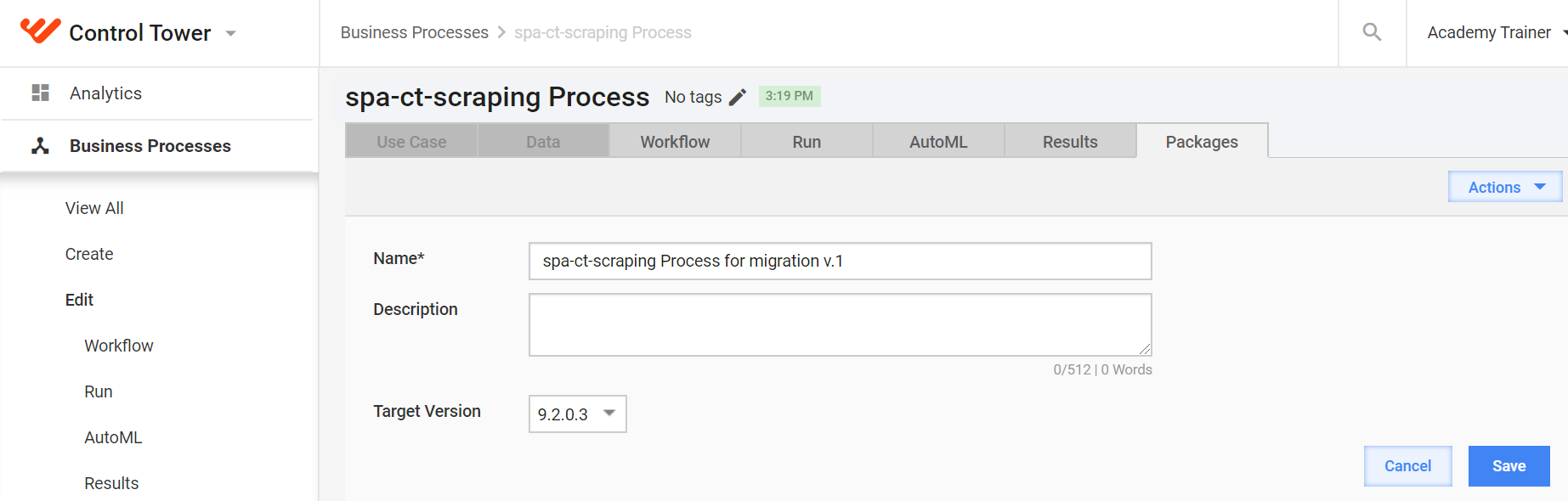
In the source Control Tower, go to the Packages tab and generate a new package for the Business Process.
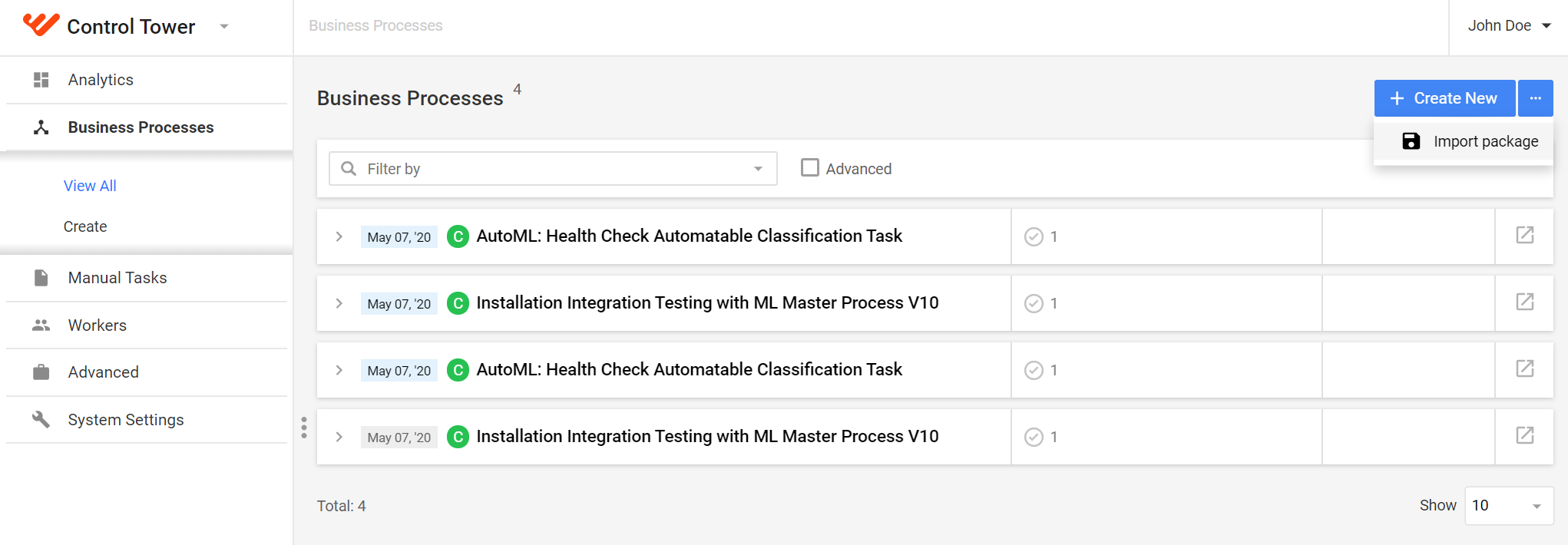
Log in to the target v10.x server Control Tower, and go to the list of Business Processes. From the drop-down menu in the top right corner, select Import.
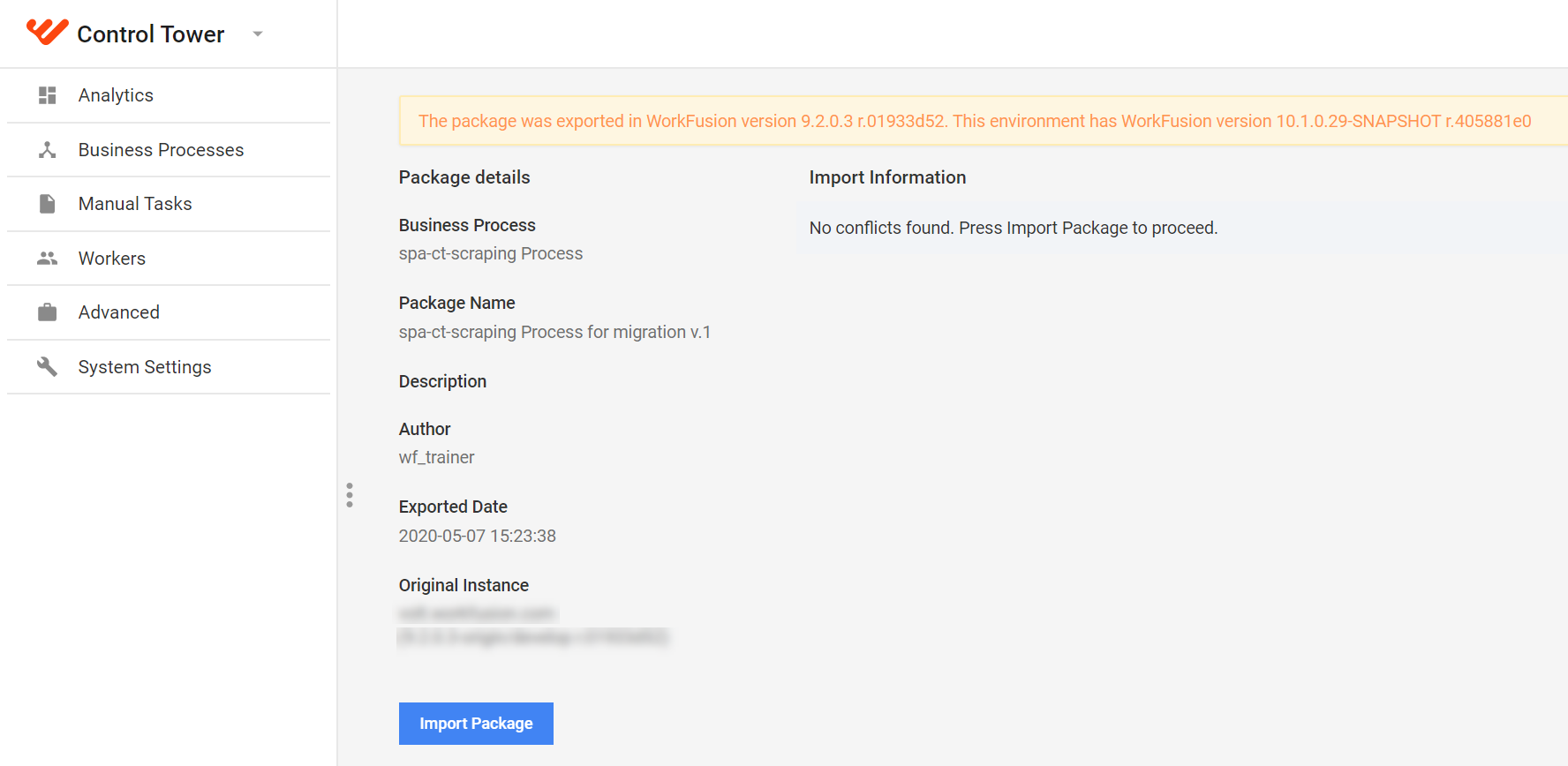
Ignore the warnings that the import result shows.
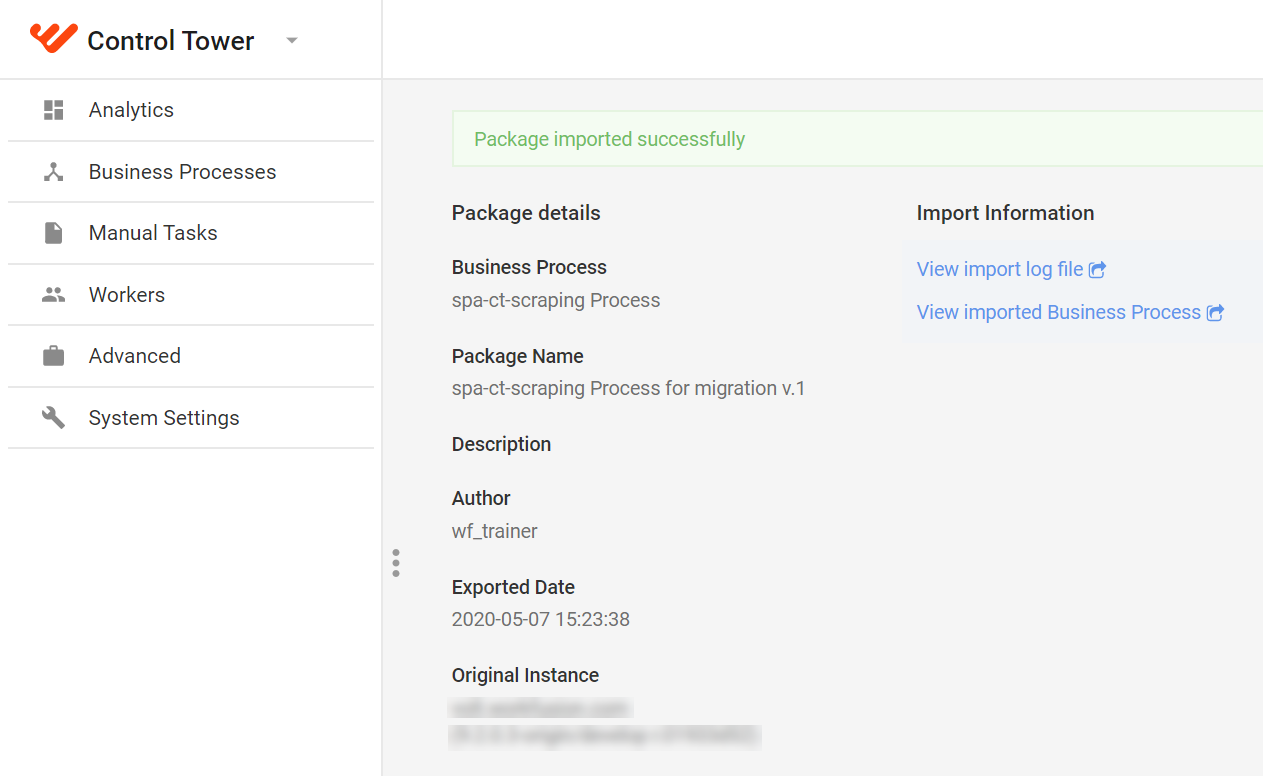
The import is completed successfully.
In v10.x Control Tower, the Bot Task is supposed to be editable after importing or publishing. Verify this.
The option is recommended to bring a well-tested Business Process from the test to production Work.AI environment.
Step 4: test bot on Work.AI test environment
Adjust Bot Task code, input, credentials
Analyze what your bot tasks can do and plan what needs to be changed or added to the target environment. For instance, consider the following options:
If you store credentials in Secrets Vault, create all credentials in the target Control Tower's Secrets Vault. Credentials are not included in the Business Process zip package because they are environment-specific.
Work with files. If your v9.x Bot Task saved temporary files into the Linux file system, the code is to be executed on a Windows server once you migrate RPA to v10.x. Change paths to Windows-based ones and check that they exist on the RPA Windows servers.
Work with shared drives. Ensure that target RPA server sessions (Windows usernames: BotUnit1, ..., BotUnitN) have access to the required shared driver. Otherwise, the Bot Task code fails.
If you automate in Chrome and Firefox, make sure those browsers are installed. For Chrome compatibility, install the Selenium driver in RPA. Control Tower in the Work.AI platform comes with test Business Processes to check simple RPA in all browsers. Find and execute the process.
Check the RPA server system resolution. In some scenarios, if you use image-based actions to find certain graphic elements on a screen, the target environment must have the same resolution as the source where you created your automation. The solution is not essential if you use the object-based approach (operating with XPath, CSS-like element handlers).
Test RPA bots in environment with multiple RPA workers manually
The chapter explains how fleets are configured via the Bot Manager application UI. Most likely, this is already done for you, and you are given your personal (or shared) fleet ID. If so, you won't need to perform this step.
Mind that you need to know the exact server URL where to connect via RDP.
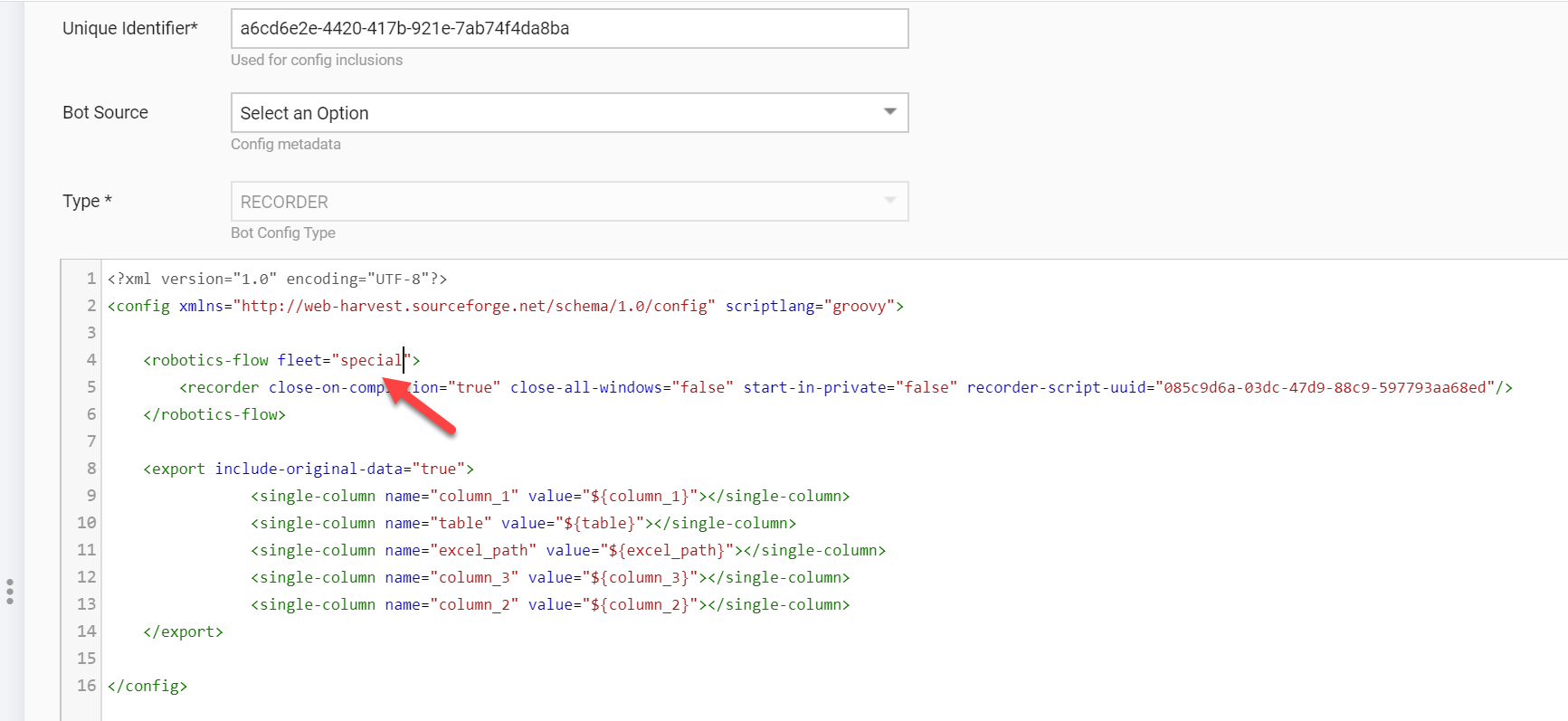
- Route the bot to a particular fleet you create on the next step. Let's name it special and add it as an attribute to
robotic-flow.
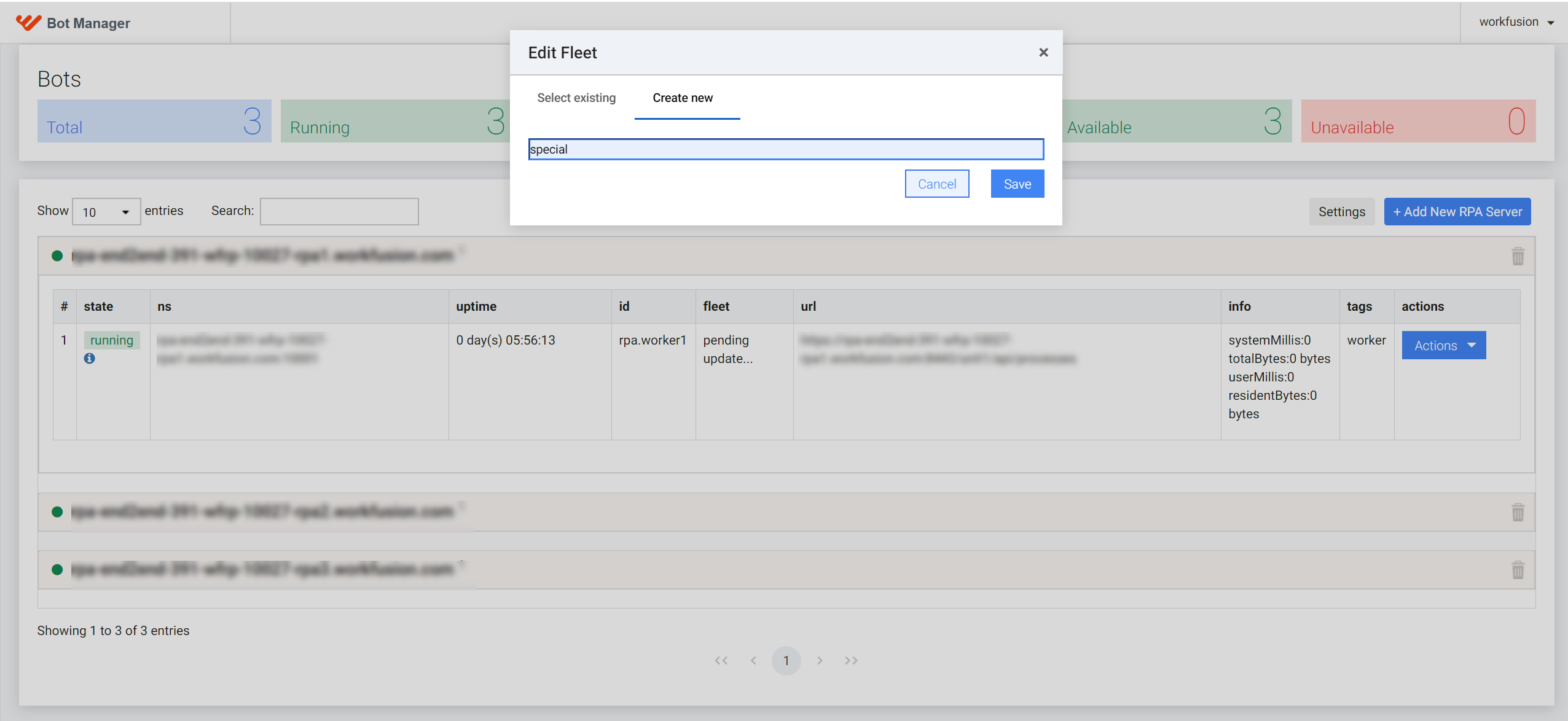
To access Bot Manager, use the drop-down menu next to the WorkFusion logo in the top left corner.
For one of the RPA servers (in this configuration, each of three RPA servers runs one RPA worker), create a new fleet and name it special.
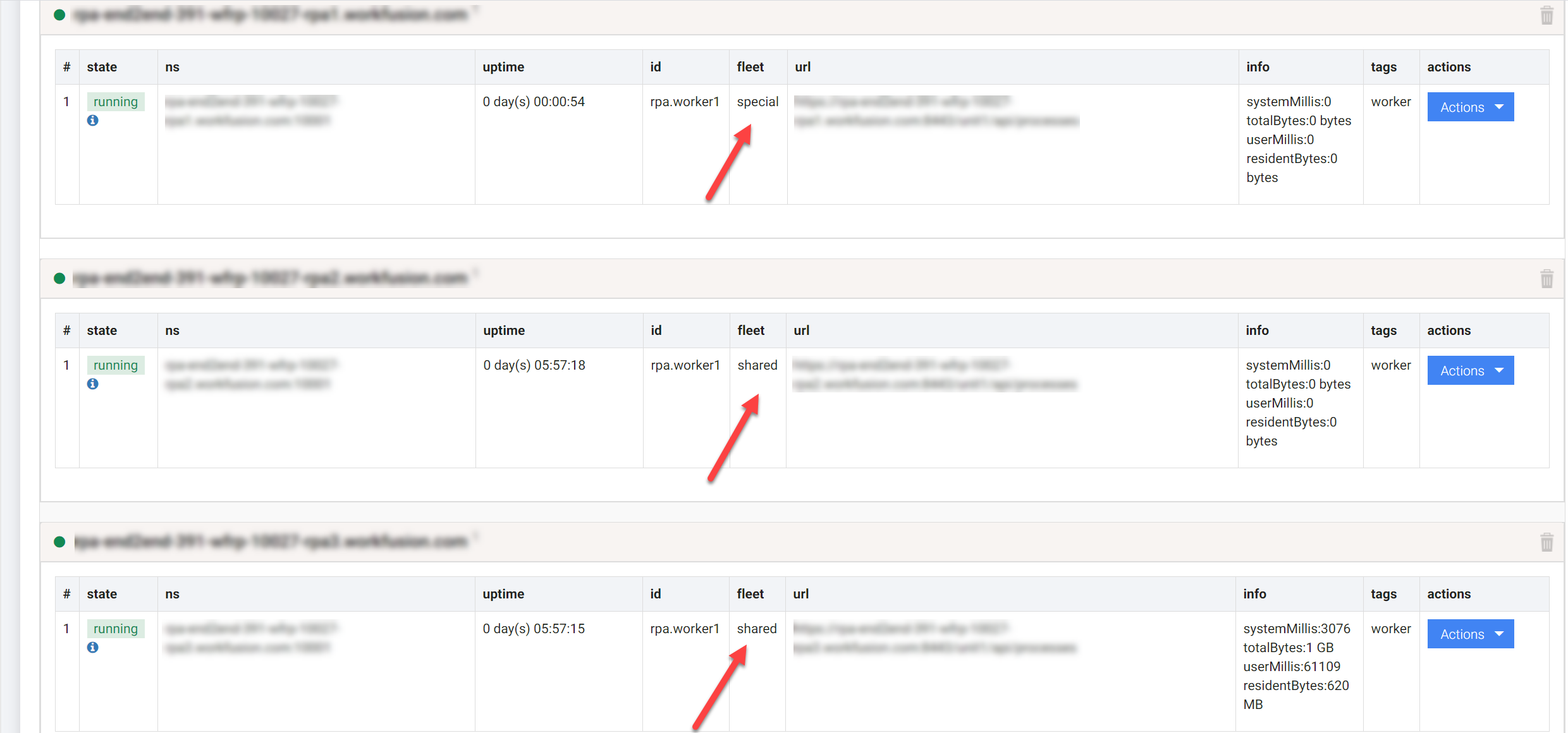
Note that you use the RPA server URL with the special fleet to connect via RDP.
- Route the bot to a particular fleet you create on the next step. Let's name it special and add it as an attribute to
Test the bot in the server Control Tower of the platform v10.x:
Connect to the RPA server via RDP. Obtain the credentials for the Windows RPA server from your IT Operations.
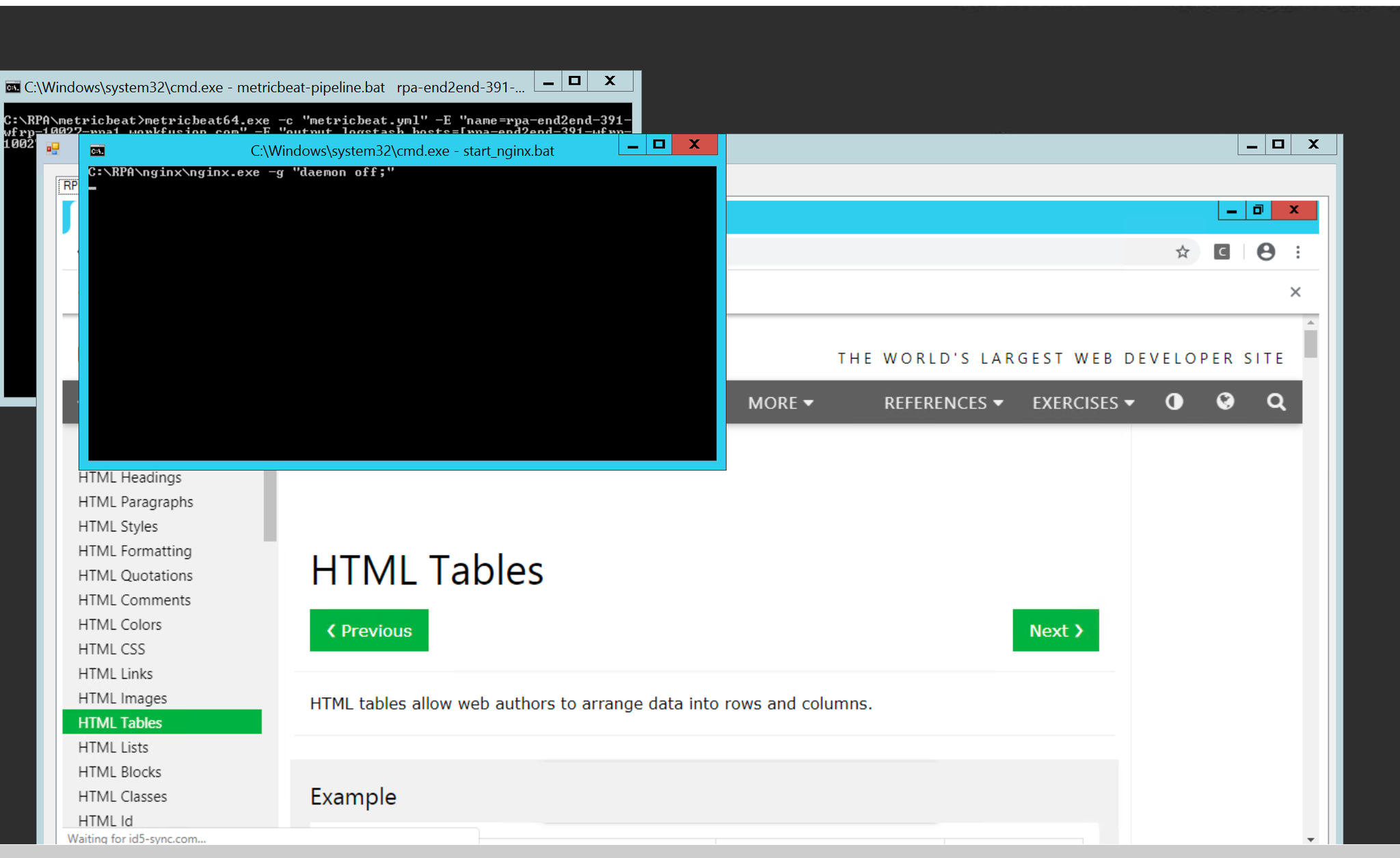
Run the Bot Task and switch to RDP to check that the bot behavior is the same.
Step 5: cooperate with Support on Production environment issues
Use of the Work.AI platform assumes at least two levels of server-based environments:
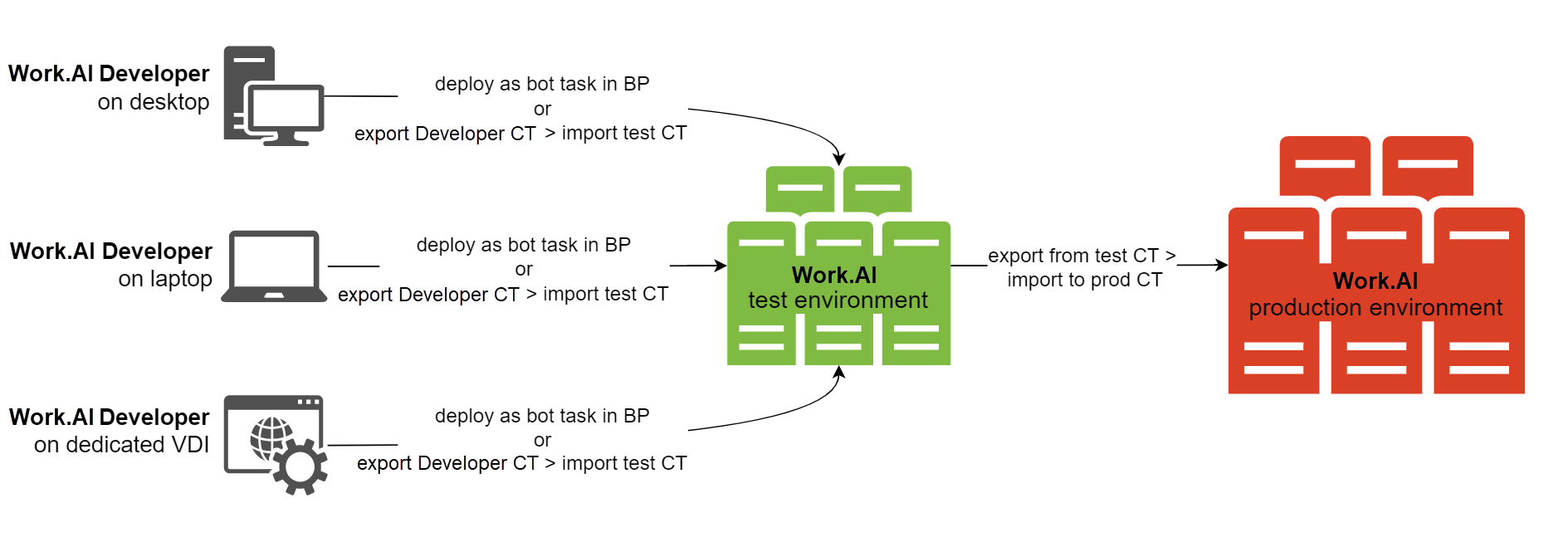
Low-Code Developers are allowed into the test environment but not allowed to the production one. Typically, only trained Support engineers can troubleshoot and maintain Business Processes run in production. The nature of Recorder brings some complexity here. Any bot created in Recorder is converted into a binary and exists in a Bot Task as a single <recorder> tag with the recorder-script-uuid attribute, for example, a script as a binary attached to the Bot Task. This makes it immutable in the production environment.
To make any changes, a Support person needs to access the source actions script created by a Low-Code Developer. Work.AI Developer does not provide any Low-Code Developer-friendly way to share sources other than sending or copying the whole project folder from the Recorder's workspace. This requires an internal agreement on how to share sources between Low-Code Developers and Support. A typical Low-Code Developer is unfamiliar with version control systems (Git, SVN) and how to use them. So, the only viable option is to agree on some company-shared folder where Low-Code Developers upload sources. If changes are needed, the Support will have a starting-point project. A Support person will copy the project to their Recorder from the locally installed Work.AI Developer workspace and modify it. Once a fix is applied, the updated Business Process must be deployed and verified on the Work.AI test environment, then exported from the test environment, and imported to the production one.