Use Data Stores as transactions source
Download sample project
Download the ODF input from the Data Store project.
Learn how to input from Data Store
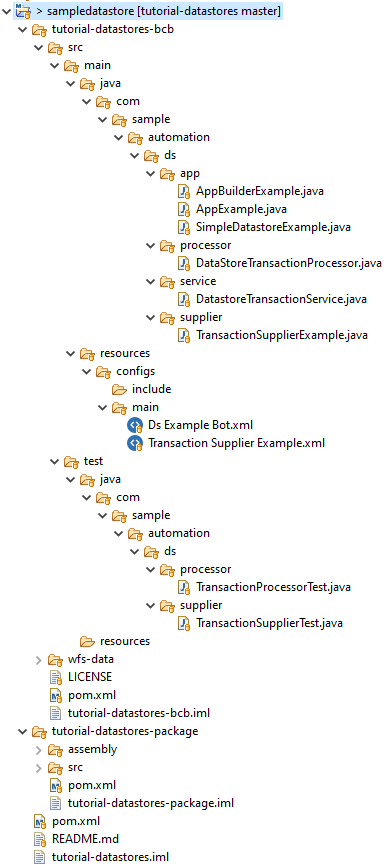
To make it easier to understand the essential classes and interfaces, we recommend to download and import the example project in Eclipse IDE and refer to it as you read this guide.
The downloaded project must have the file structure below:
As soon as you have downloaded the project, perform the following actions.
Run
mvn clean installonparent pom.xml.Make sure that you set all necessary data about Control Tower and Nexus users.
- The user specified is
settings.xmlunder server ID bcb-repository exists in Nexus. - The Nexus user should have a deployment privilege in the
wf-machine-config-bundlerepository. - In parent
pom.xml, you have set the specified Nexus repository where your JARs will be installed. Make sure to point it to your Nexus, for example:
<workfusion.nexus.host.url>http://localhost:8081/</workfusion.nexus.host.url>- Add the following code with the Control Tower user credentials to the
settings.xmlfile:
<servers>
    <server>
        <id>control-tower</id>
        <username>CT_username</username>
        <password>CT_password</password>
    </server>
</servers>- In parent
pom.xml, you have set the Control Tower host where your bundle will be published.
<workfusion.controltower.url>https://yourinstance.workfusion.com/</workfusion.controltower.url>- The user specified is
Now, you can deploy your bots to Nexus or publish a bundle with BP to Control Tower.
Deploy to Nexus
Run
mvn deployon parentpom.xml. This deployment depends on your Nexus repository configuration.Once the build is reflected in Nexus, upload the bots into the local Control Tower. Go to Bot Configurations > Import from repository. You can build your Business Process by selecting a Bot Task from the list.

Remember to add the Data Store to your CT. You can find .csv files with data stores in the following path:
tutorial-datastores-bcb/wfs-data/datastore/my_datastore.csvtutorial-datastores-bcb/wfs-data/datastore/_odf_temp_transactions.csv
Publish to Control Tower
- Run
mvn bundle:importontutorial-datastores-package/pom.xml. This command calls the import plugin. - Open your Control Tower and find BP named "tutorial datastore v0.0.7".
Learn TransactionSupplier
Navigate to the below files and open them simultaneously.
src > main > resources > configs > main > Transaction Supplier Example.xmlsrc > main > java > com.sample.automation.ds.supplier.TransactionSupplierExample.java
This is the Bot Task that executes the code for TransactionSupplierExample.java. The TransactionSupplierExample class creates transactions when the Transaction Supplier Example.xml Bot Task is executed.
The following code in the Bot Task initializes the task of creating transactions.
def app = AppExample.init(binding).get();
def transactions = app.loadTransactions(TransactionSupplierExample.class);
TransactionSupplier generates transactions by reading data from the Data Store (my_datastore that will be explained in the next section). The SimpleDataStoreExample class executes a Data Store query to retrieve records from the Data Store. Since the readData() method returns, returns List<Map<String, String>>, this list is converted into ODF transactions by the transformRecordsIntoTransactions() method.
@Override
public Collection<Transaction> get() {
    SimpleDatastoreExample dsExample = new SimpleDatastoreExample(dataStoreQuery);
    return transformRecordsIntoTransactions(dsExample.readData());
}
transformRecordsIntoTransactions() loops through List<Map<String, String>> and creates a transaction per Map<String, String>. Basically, each Map<String, String> is a row in the Data Store, and the list of maps consists of all the rows in the Data Store.
private Collection<Transaction> transformRecordsIntoTransactions(List<Map<String, String>> result) {
    Collection<Transaction> transactions = new ArrayList<>();
    for (int index = 0; index < result.size(); index++) {
        Transaction transaction = new Transaction();
        transaction.setId(uuid());
        transaction.setDocs(Arrays.asList(createSampleDocument(result.get(index))));
        transactions.add(transaction);
    }
    return transactions;
}
If you want to populate transaction attributes with column names and corresponding values from the Data Store, you can do so by iterating through the list of maps and adding the key and value. You can retrieve the column names and values in TransactionProcessor using the transaction.getAttribute() method and do some processing on the value. It can also be retrieved in Ds Example Bot.xml using the same method and exported in the Bot Task results.
private Collection<Transaction> transformRecordsIntoTransactions(List<Map<String, String>> result) {
    Collection<Transaction> transactions = new ArrayList<>();
    for(Map<String, String> map : result) {
        Transaction transaction = new Transaction();

        map.entrySet().stream().forEach(entry -> {
            transaction.putAttribute(entry.getKey(), entry.getValue());
        });

        transaction.setId(uuid());
        transaction.setDocs(Arrays.asList(createSampleDocument(result.get(index))));
        transactions.add(transaction);

    }
    return transactions;
}
Closer look into SimpleDatastoreExample
This class uses DatastorePluginAdapter.class present in the com.workfusion.rpa.core.plugin.datastore package for reading data from a Data Store. DatastorePluginAdapter is injected in this class using constructor injection.
As explained above, the readData() method returns a list of rows (List<DbRowVariable>) from the Data Store. The selectQuery() method takes the Data Store name and the query as input parameters. It is a select query that returns all the records from the Data Store.
public class SimpleDatastoreExample {
    private static final String DATASTORE_NAME = "my_datastore";
    private static final String READ_QUERY_TEMPLATE = "select * from @this";

    private DatastorePluginAdapter datastorePluginAdapter;

    @Inject
    public SimpleDatastoreExample(DatastorePluginAdapter datastorePluginAdapter) {
        this.datastorePluginAdapter = datastorePluginAdapter;
    }

    public List<DbRowVariable> readData() {
        return datastorePluginAdapter.selectQuery(DATASTORE_NAME, READ_QUERY_TEMPLATE);
    }
}
Useful methods in the DatastorePluginAdapter class
| Method | Result | Parameters | Description |
|---|---|---|---|
createDatastore | void | String datastoreName, Map<String, DataStoreColumnType> columnsMap or String datastoreName, Map<String, DataStoreColumnType> columnsMap, List<Map<String String>> listOfRows | This method creates an empty Data Store or a Data Store with initial data. Do not use Boolean or Decimal types for columns, because creating a Data Store will fail. |
insertRow | Long | String datastoreName, DataStoreRow row or String datastoreName, Map<String,String> row or String datastoreName, String json | These methods will help you add new rows to the Data Store. |
insertRowsAsList | void | String datastoreName, DataStoreRow row or String datastoreName, Map<String, String> row or String datastoreName, String json | These methods will help you add new rows to the Data Store. |
insertRowsAsList | void | String datastoreName, List<List<String>> listOfRows | These methods will help you add new rows to the Data Store. |
insertRowsAsMap | void | String datastoreName, List<Map<String, String>> listOfRows | These methods will help you add new rows to the Data Store. |
DbRowVariable as a new data type in ODF
This data type contains all the necessary information about records from the Data Store and has new useful methods for processing. For a deeper understanding of how to work with it, check out a small part of the code where we bring DbRowVariable to Document:
private Document createDocument(DbRowVariable row) {
        Document document = new Document();
        document.setId(uuid());
        for (int i = 0; i < row.getColumnCount(); i++) {
            String name = row.getColumnName(i);
            String value = row.get(i).toString();
            document.putAttribute(name, value);
        }
        return document;
}
Also, check the table with the main methods that you can use with DbRowVariable:
| Method | Result | Parameters | Description |
|---|---|---|---|
getColumnCount | int | Returns the number of columns in a record. | |
getColumnName | String | int index | Returns the column name by index, can be used in a loop. |
get | Variable | int index or String columnName | Returns a variable by index or column name. Do not be afraid that this method returns the Variable type as a result, this type is used in the bot configuration, and it is easier to cast to another type. |
toString | String | Returns not just a list with values, but it a string with XML, this format coincides with the result that you get from the Data Store plugin in the bot configuration. |
Learn TransactionProcessor
TransactionProcessor is a standard processor that sets List<Document> in a transaction using the transaction.setDocs() method. There is no custom processing logic implemented here. DS Example Bot.xml triggers the execution of the DataStoreTransactionProcessor class.