Automate Java desktop applications
Launch applet and insert and extract data
The example shows how to automate a simple applet. The preconditions are as follows:
- Configure Internet Explorer for applets. For more details, refer to Configure Java applets.
- Use
sendKeys('{TAB 3}'). For the syntax, see Simulate keystrokes.
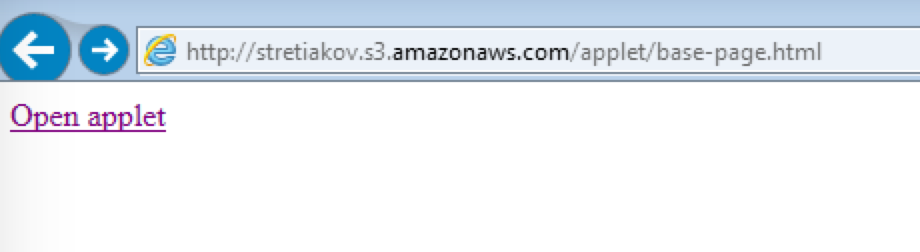
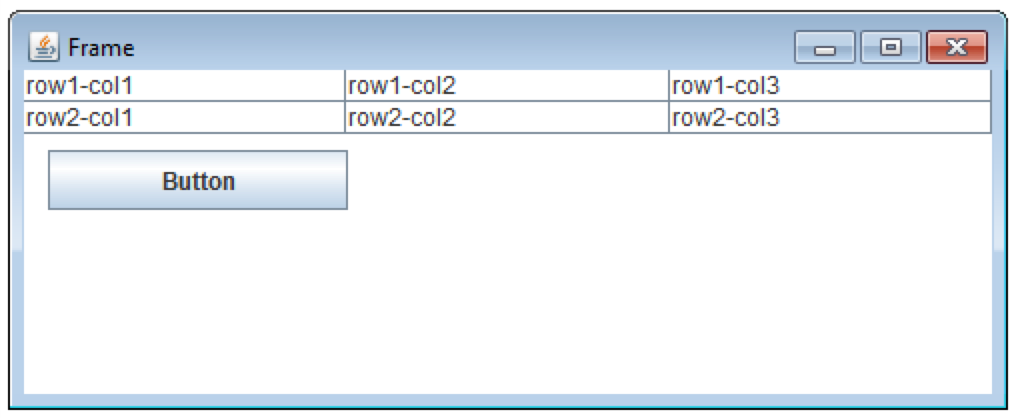
Example
<?xml version="1.0" encoding="UTF-8"?>
<config xmlns="http://web-harvest.sourceforge.net/schema/1.0/config" scriptlang="groovy">

    <robotics-flow>
        <robot name="ie" driver="internet explorer" close-on-completion="false">
            <script><![CDATA[
                open('https://rpa-tutorial.s3.amazonaws.com/table/login.html')
                $(byLinkText('Login')).click()
                $('a').click()
                sleep(5000)
            ]]></script>
        </robot>

        <robot name="bb8" driver="desktop" close-on-completion="true">
            <capability name="SEARCH_ALL_WINDOWS" value="true" />
            <script> <![CDATA[

                timeouts(40 * 1000)
                switchTo().window('[CLASS:SunAwtFrame;TITLE:Frame]')

                sendKeys('{TAB 3}')

                def text = selectAllTextAndCopy()
                pressTab()
                sendKeys(text)

                sleep(3000)

            ]]></script>
        </robot>

        <robot name="ie" driver="internet explorer" close-on-completion="true"/>

    </robotics-flow>
    <export include-original-data="false"/>
</config>
Automate SwingSet application
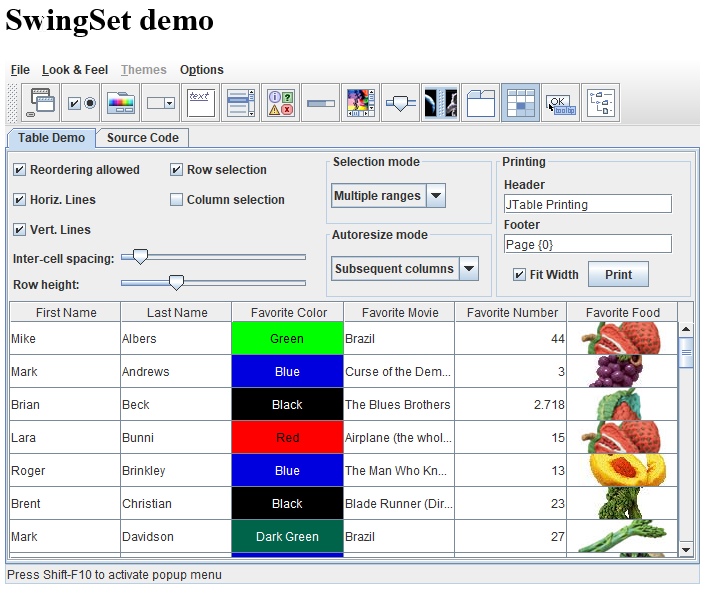
The following examples automate the SwingSet2 application using three options:
SwingSet2.jarfile- Applet opening inside a browser tab: For details, see the SwingSet demo.
- Applet opening in a new window: For details, see the SwingSet demo.
tip
- To enable applets in your browser, refer to Configure Java applets.
- To understand selectors for desktop applications, see Use inspecting tools for desktop automation.
Tables
The example automates the SwingSet application as a JAR file using only one Desktop driver:
JAR file example
import com.workfusion.odf2.compiler.BotTask;
import com.workfusion.odf2.core.task.AdHocTask;
import com.workfusion.odf2.core.task.TaskInput;
import com.workfusion.odf2.core.task.output.TaskRunnerOutput;
import com.workfusion.odf2.core.webharvest.rpa.RpaDriver;
import com.workfusion.odf2.core.webharvest.rpa.RpaFactory;
import com.workfusion.odf2.core.webharvest.rpa.RpaRunner;
import com.workfusion.rpa.driver.Driver;
import com.workfusion.rpa.helpers.RPA;
import org.slf4j.Logger;
import javax.inject.Inject;
import java.util.*;
import static com.workfusion.rpa.helpers.RPA.$;
import static com.workfusion.rpa.helpers.RPA.downloadFileOnAgent;

@BotTask(requireRpa = true)
public class AutomateJavaDesktopApplications implements AdHocTask {
    private final RpaRunner rpaRunner;
    private final Logger logger;

    @Inject
    public AutomateJavaDesktopApplications(RpaFactory rpaFactory, Logger logger){
        this.rpaRunner = rpaFactory
                .builder(RpaDriver.UNIVERSAL)
                .closeOnCompletion(true)
                .build();
        this.logger = logger;
    }

    @Override
    public TaskRunnerOutput run(TaskInput taskInput) {

        rpaRunner.execute(driver->{
            this.automateSwingSetApplicationJar(driver);
        });

        return taskInput.asResult()
                .withColumn("example_bot_task_output", "completed_successfully");
    }

    private void automateSwingSetApplicationJar(Driver driver){
        String appletUrl = "http://rpa-tutorial.s3.amazonaws.com/demo/jfc/SwingSet2/SwingSet2.jar";
        RPA.timeouts(40 * 1000);

        String localPath = downloadFileOnAgent(appletUrl);
        RPA.open("C:\\Java\\bin\\java -jar "+localPath);

        RPA.switchTo().window("[CLASS:SunAwtFrame; TITLE:SwingSet2]");
        $("[CLASS: JToggleButton; TOOLTIP: JTable demo]").click();

        // Change some values inside table.
        $("[CLASS: JTable; CELLTEXT:Mike]").sendKeys(" text value").pressEnter();
        RPA.sleep(500);
        $("[CLASS: JTable; CELL:1,1]").sendKeys(" append{ENTER}");
        RPA.sleep(500);

        // Clear cell values
        $("[CLASS: JTable; CELLTEXT:Jeff]").clear();
        RPA.sleep(500);
        $("[CLASS: JTable; CELL:6,0]").clear();
        RPA.sleep(500);

        // Work with text.
        String text = $("[CLASS: JTable; CELL:0,0]").getText();
        $("[CLASS: JTable; CELL:2,1]").sendKeys(text);
        RPA.sleep(3000);

    }

}
Combo boxes
The example automates the SwingSet application as a Java applet in the current browser tab using two drivers: Browser and Desktop.
note
- The first driver is not closed on completion but only after the desktop.
- The applet window is located using the
[CLASS:SunAwtCanvas]selector.
Applet in the current browser tab
<?xml version="1.0" encoding="UTF-8"?>
<config xmlns="http://web-harvest.sourceforge.net/schema/1.0/config" scriptlang="groovy">

    <robotics-flow>
        <robot name="ie" driver="internet explorer" close-on-completion="false">
            <script><![CDATA[
                open('https://rpa-tutorial.s3.amazonaws.com/demo/jfc/SwingSet2/SwingSet2.html')
                sleep(7000)
            ]]></script>

        </robot>
        <robot name="bb8" driver="desktop" close-on-completion="true">
            <capability name="SEARCH_ALL_WINDOWS" value="true" />
            <script> <![CDATA[

                timeouts(40 * 1000)
                switchTo().window('[CLASS:SunAwtCanvas]')

                $('[CLASS: JToggleButton; TOOLTIP: JComboBox demo]').click()

                $(byXpath("//*[@text='Hair:']/following-sibling::*"))
                    .singleClick()
                    .sendKeys('Brent{ENTER}')

                $(byXpath("//*[@text='Eyes & Nose:']/following-sibling::*"))
                    .singleClick()
                    sendKeys('Brent{ENTER}')

                $(byXpath("//*[@text='Mouth:']/following-sibling::*"))
                    .singleClick()
                    .sendKeys('Brent')
                    .pressEnter()

                sleep(3000)

            ]]></script>
        </robot>

        <robot name="ie" driver="internet explorer" close-on-completion="true"/>

    </robotics-flow>
    <export include-original-data="false"/>
</config>
Trees
The example automates the SwingSet app as a Java applet in a new window using the universal driver.
The workflow is as follows:
- The universal RPA driver is used. You can also use the browser and desktop combination as in the previous example.
- The applet window is located using the
[CLASS:SunAwtFrame; TITLE:SwingSet2]selector. - You can use regexps in CSS selectors:
[CLASS:JTree; PATH: Music|Clas.*cal|Br.*ms|Conc.*tos]. For more details, see Use inspecting tools for desktop automation.
Tree example
<?xml version="1.0" encoding="UTF-8"?>
<config xmlns="http://web-harvest.sourceforge.net/schema/1.0/config" scriptlang="groovy">

    <robotics-flow>
        <robot name="bb8" driver="universal" close-on-completion="true">
            <capability name="SEARCH_ALL_WINDOWS" value="true" />
            <script> <![CDATA[

                rpaVariables = new HashMap()
                def appletUrl = 'https://rpa-tutorial.s3.amazonaws.com/demo/jfc/SwingSet2/custom/SwingSet2.html'
                timeouts(40 * 1000)

                openIE(appletUrl)
                sleep(7000)

                switchTo().window('[CLASS:SunAwtFrame; TITLE:SwingSet2]')

                $('[CLASS: JToggleButton; TOOLTIP:JTree demo]').click()
                sleep(1000)

                // getting tree node attributes
                rpaVariables.put('get_width', $('[CLASS:JTree]').getAttribute('getWidth'))
                rpaVariables.put('get_height', $('[CLASS:JTree]').getAttribute('getHeight'))

                $('[CLASS:JTree; TEXT:Rock; LEVEL:1]').sendKeys('{RIGHT}')
                sleep(1000)
                $('[CLASS:JTree; TEXT:Komeda]').sendKeys('{RIGHT}')
                sleep(1000)
                $('[CLASS:JTree; TEXT:Genius Of; LEVEL:3]').sendKeys('{RIGHT}')
                sleep(1000)

                rpaVariables.put('level', $('[CLASS:JTree; TEXT:More Is More; LEVEL:4]').getAttribute('LEVEL'))

                $('[CLASS:JTree; TEXT:More Is More; LEVEL:4]').sendKeys('{RIGHT}')
                sleep(1000)
                $('[CLASS:JTree; PATH: Music|Classical|Beethoven|Quartets]').sendKeys('{RIGHT}')
                sleep(1000)
                $('[CLASS:JTree; PATH: Music|Classical|Beethoven|Quartets|Six String Quartets]').sendKeys('{RIGHT}')
                sleep(1000)

                // using regexp in selectors
                $('[CLASS:JTree; PATH: Music|Clas.*cal|Br.*ms|Conc.*tos]').sendKeys('{RIGHT}')
                sleep(3000)

            ]]></script>
        </robot>
    </robotics-flow>
    <export include-original-data="false">
        <loop item="rpaVar">
            <list>
                <script return="keys">
                    keys = new ArrayList(rpaVariables.keySet())
                </script>
            </list>
            <body>
                <single-column name="${rpaVar}">
                    <template>${rpaVariables.get(rpaVar.toString())}</template>
                </single-column>
            </body>
        </loop>
    </export>
</config>