Create Business Process
Work.AI offers two types of Business Processes (BP):
Schema-based Business Processes, where each step can have a contract defining variables expected as input for this step and those produced as its output.
Schemaless Business Processes, the legacy type, designed without any contracts.
The methods and steps to create a Business Process are the same for the schema-based and the schemaless types. Differences arise on the process flow design stage: a schema-based BP requires setting step contracts, whereas a schemaless BP has no such requirement.
Setting contracts, that is, designing a schema-based process flow, significantly reduces the amount of data passed across steps, thus increasing the overall automation performance.
Initiate Business Process creation
There are two ways to initiate the BP creation flow:
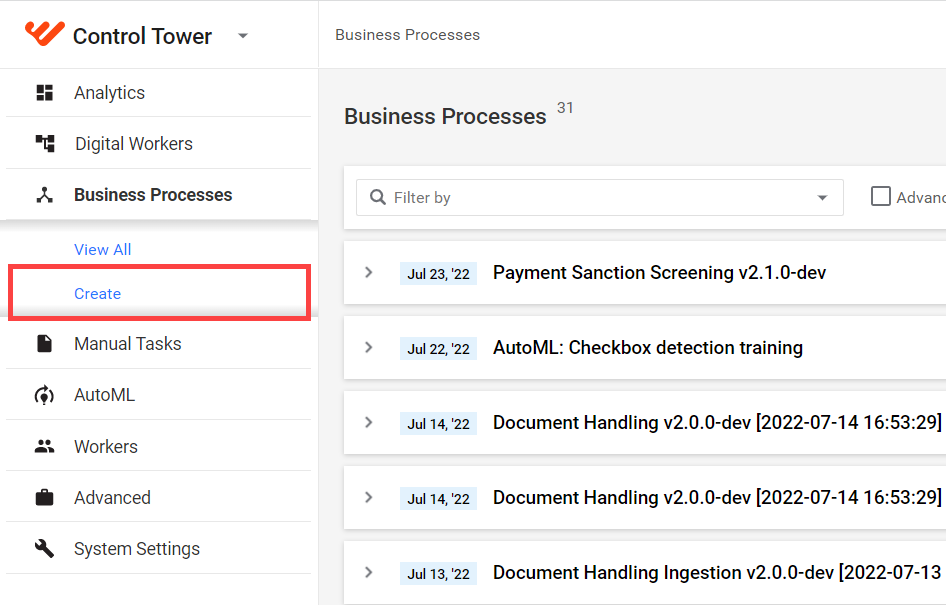
Select Business Processes > Create and complete the steps to create a BP.
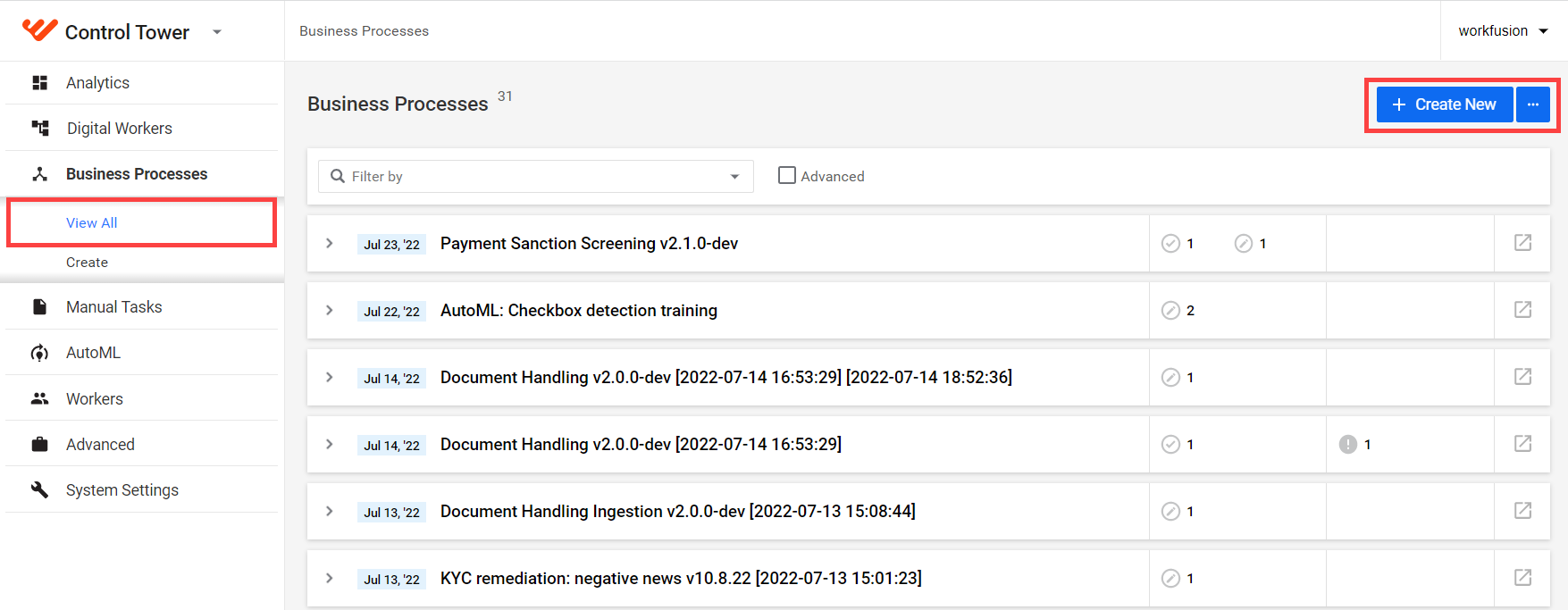
Select Business Processes > View all, click the Create New button, and complete the steps to create a BP.
Avoid creating multiple BPs with the same name as it might confuse you when scheduling.
Complete steps to create Business Process
The general workflow to create a Business Process is as follows:
Instead of creating a BP, you can also copy an existing BP or import a BP package.
Select Operation
Operations serve as templates to design the workflow of a Business Process. To select an Operation, follow the steps below:
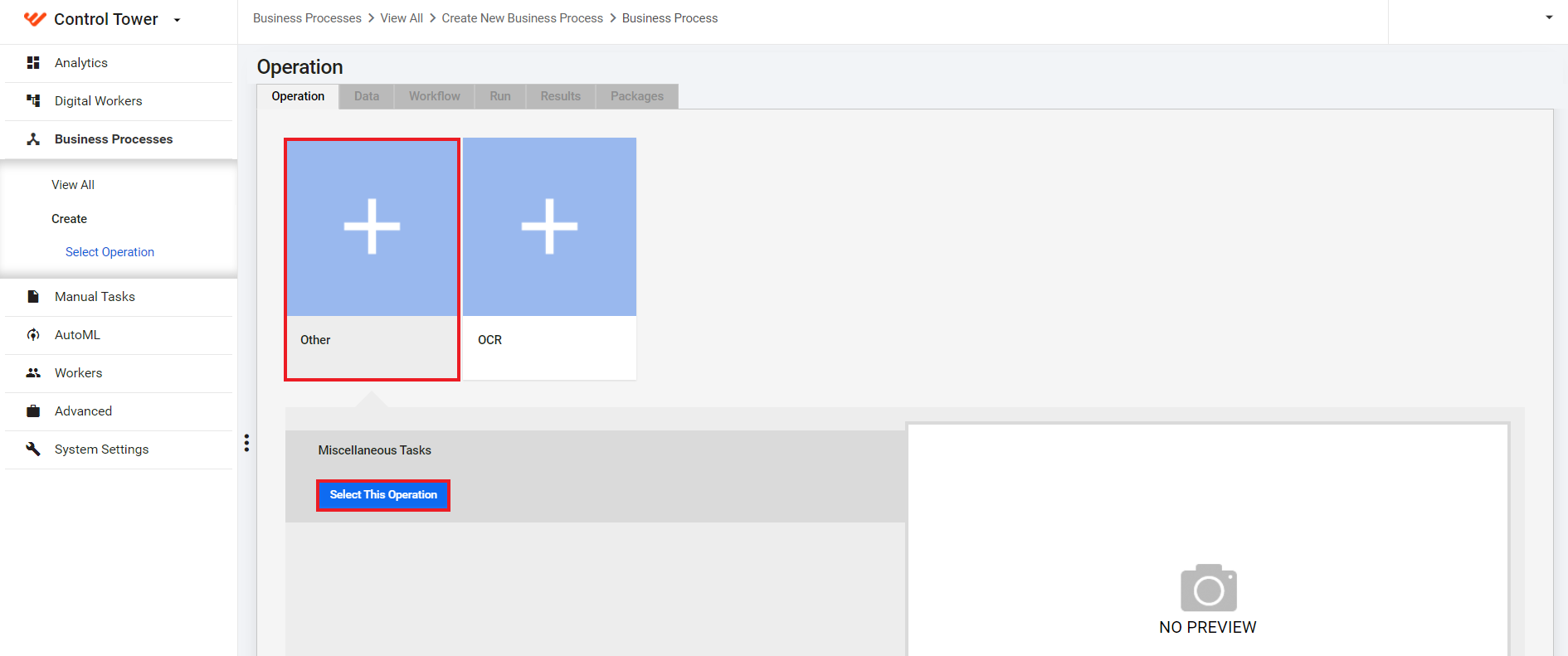
Select an Operation category to see all available templates.
In the category, select an Operation and click Select This Operation. The BP is created based on the template, and you are forwarded to the Data page to set up the BP input.
Set up Business Process input
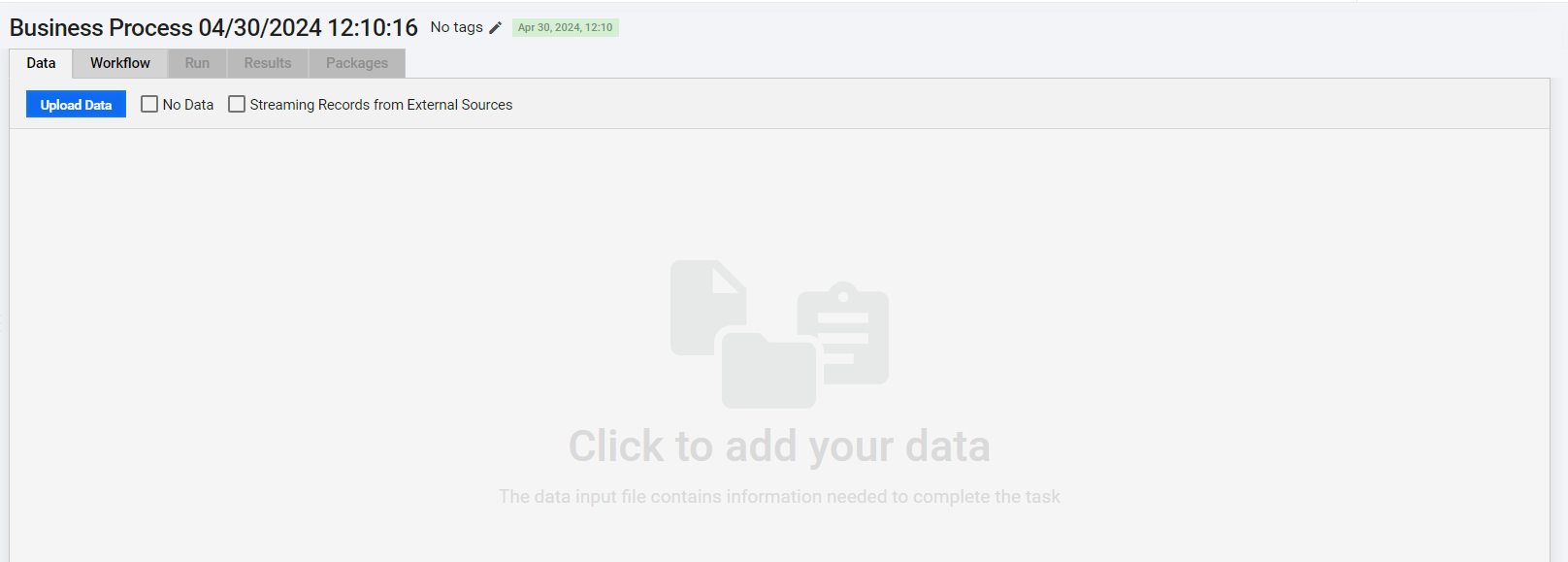
On the Data tab, set up the input data source for the BP tasks in one of the following ways:
Upload data file
The input data file is always a CSV file that can include raw data or URLs to documents stored in S3.
For useful tips on creating CSV files, see the guide.
If you want the Business Process data to be sourced from a file, follow the steps below:
Click the Upload data button.
In the popup window, click the Add button, select an input data file, and click Upload.
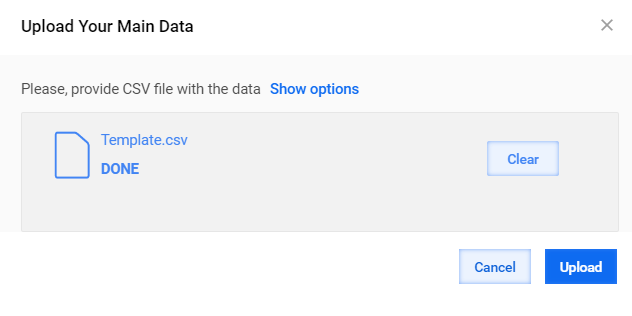
To remove the selected file and select another one to upload, click Clear.
Work.AI automatically determines the File Separator and File Encoding parameters. To change the parameters, click Show options and select file separator and encoding from respective drop-down menus.
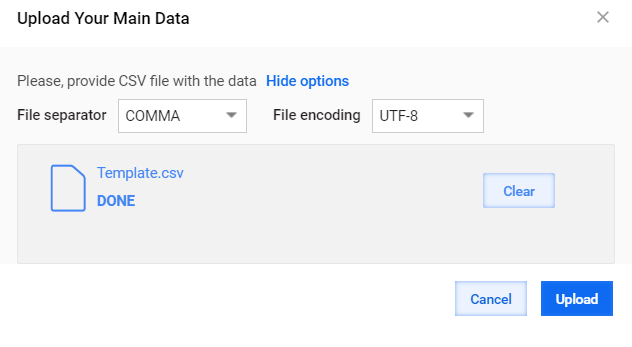
Click Upload to finish. The content of the uploaded file is displayed on the Data tab.
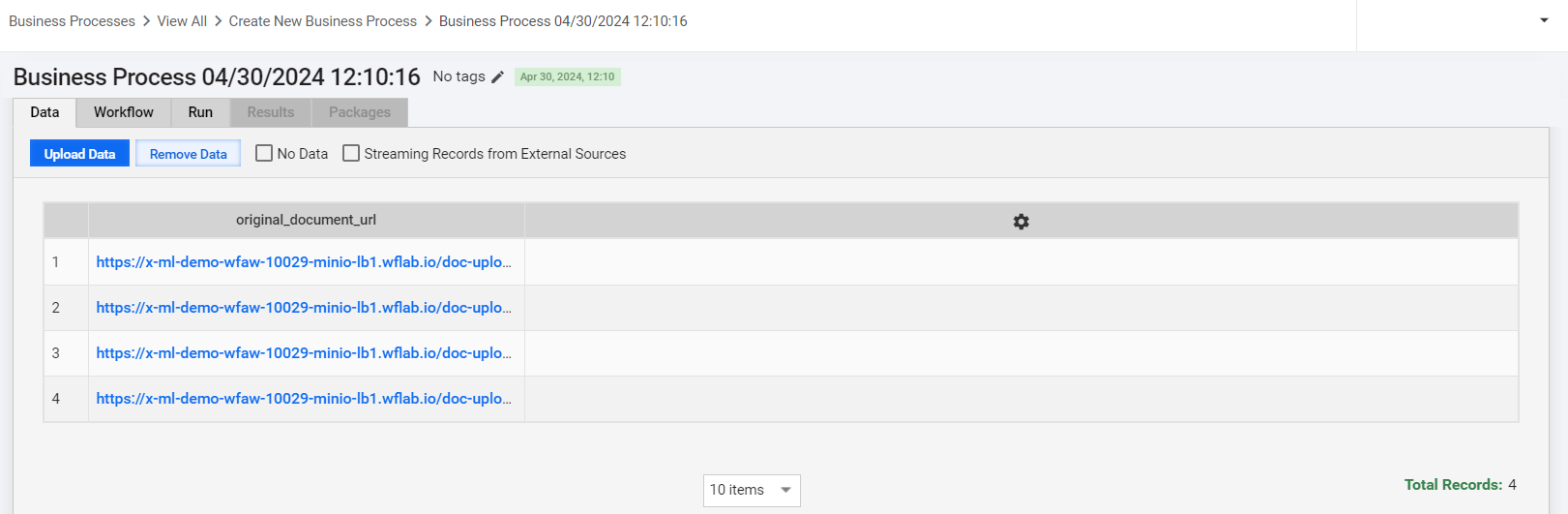
To remove the uploaded data, click the Remove Data button.
Set to run without input file
Select the No Data checkbox if the BP requires no input data file. For example, this comes in handy when the data is generated in subsequent steps or downloaded from a Data Store or an external data source at runtime.

Source data from external system
Select the Streaming Records from External Sources checkbox, to do the folowing:
Next to the selected Streaming Records from External Sources checkbox, you can see Signal ID. This ID is unique for each definition, and you can rename it at your discretion. This parameter is also passed with a BP package during import and export operations.

Design Business Process flow
Once you have set up the BP input, navigate to the Design tab and start designing the process flow. For detailed, instructions, see the guide.
Export Business Process
To export a BP, create a BP package as described below:
Open the BP instance you want to export, go to the Packages tab, and click the New Package button.
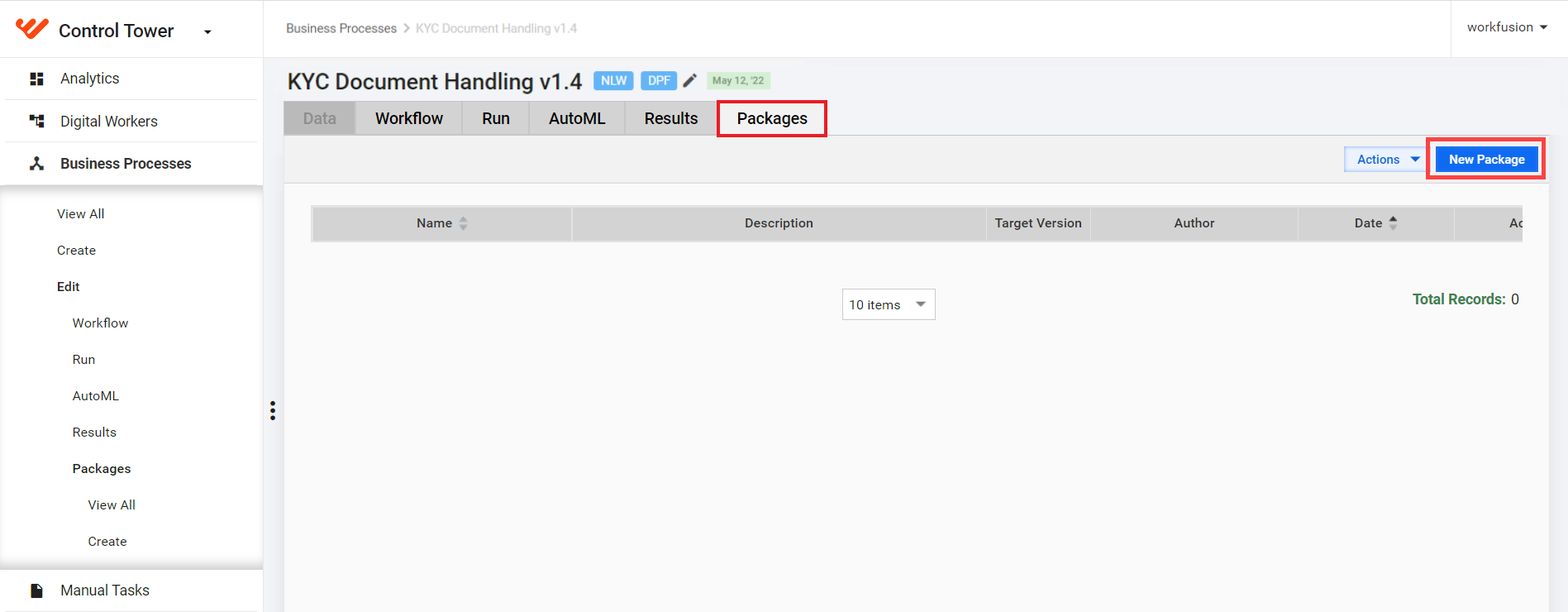
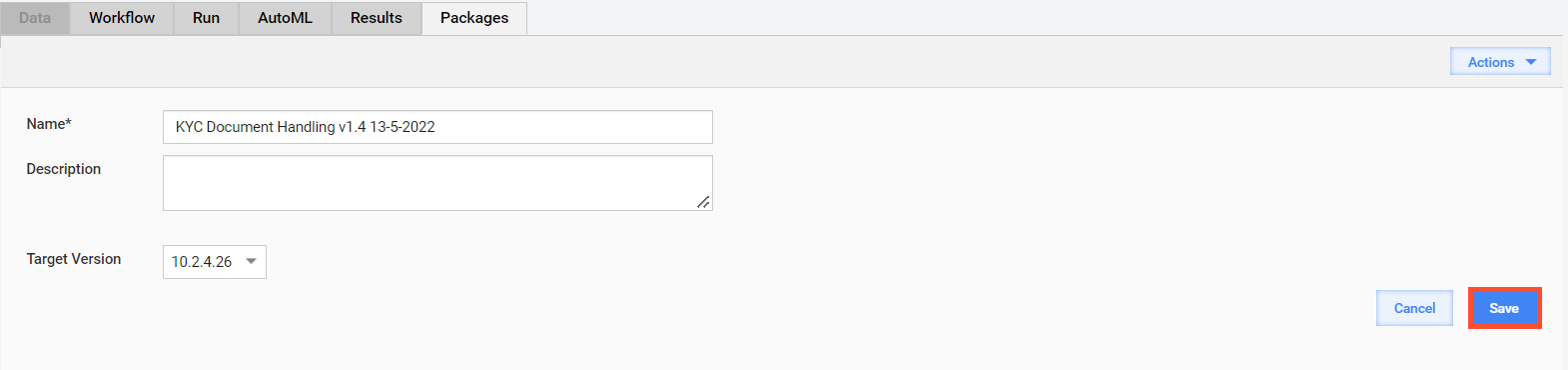
On the displayed page, add a title and description (if required), then click Save.
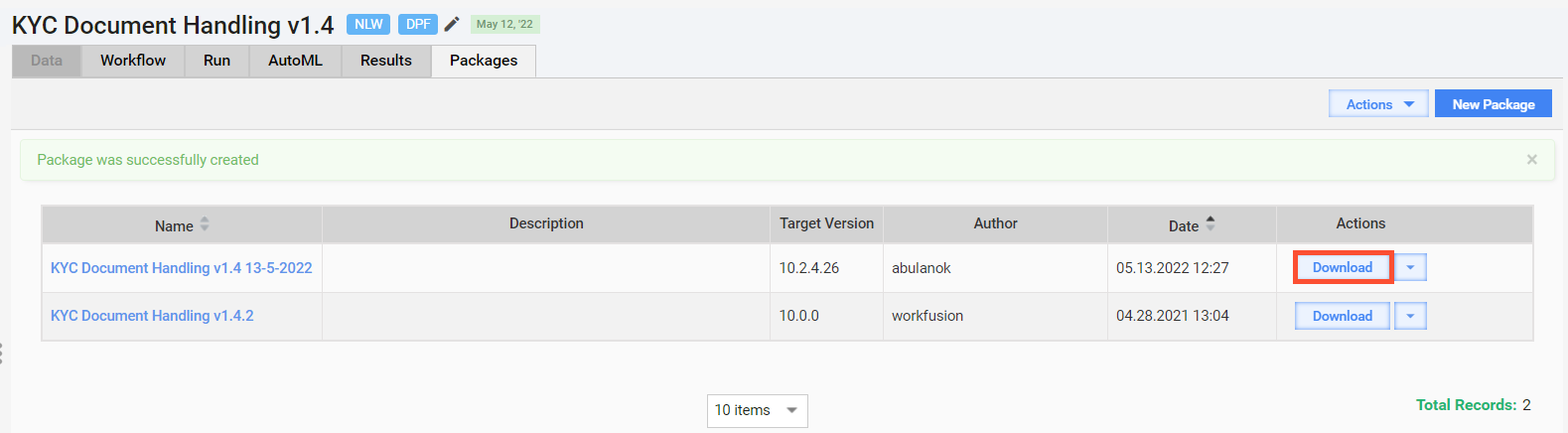
You get a message about the BP package created successfully, and an appropriate record appears in the table on the Package tab.
To save the package to your machine, click Download.
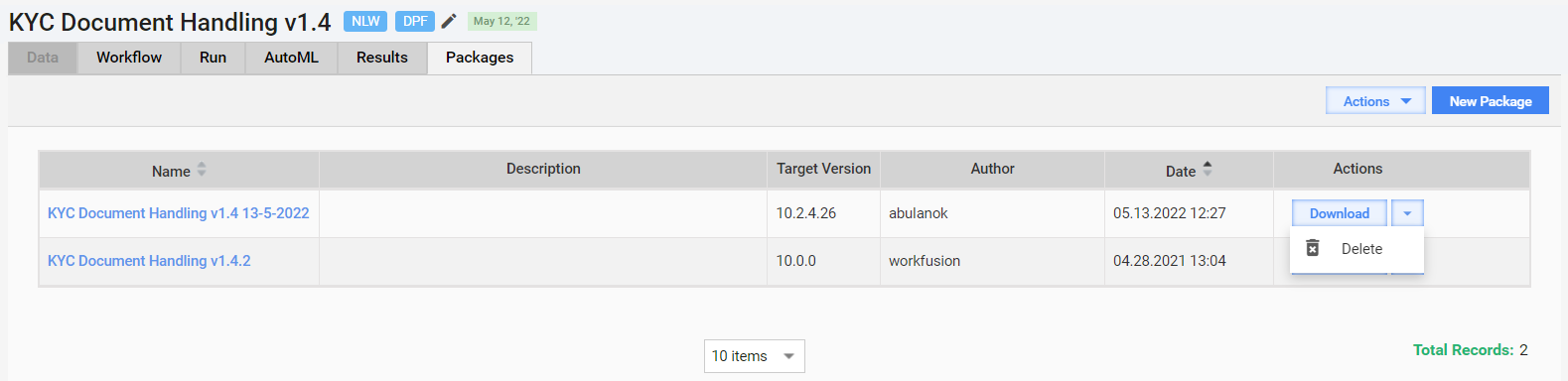
To delete a BP package and remove it from the packages table, click the drop-down button next to Download > Delete.
Import Business Process package
It is strongly recommended not to update or import the same BP during the execution of its instances as it can cause undesired effects or return warnings.
To import a BP package to Control Tower, follow the steps below:
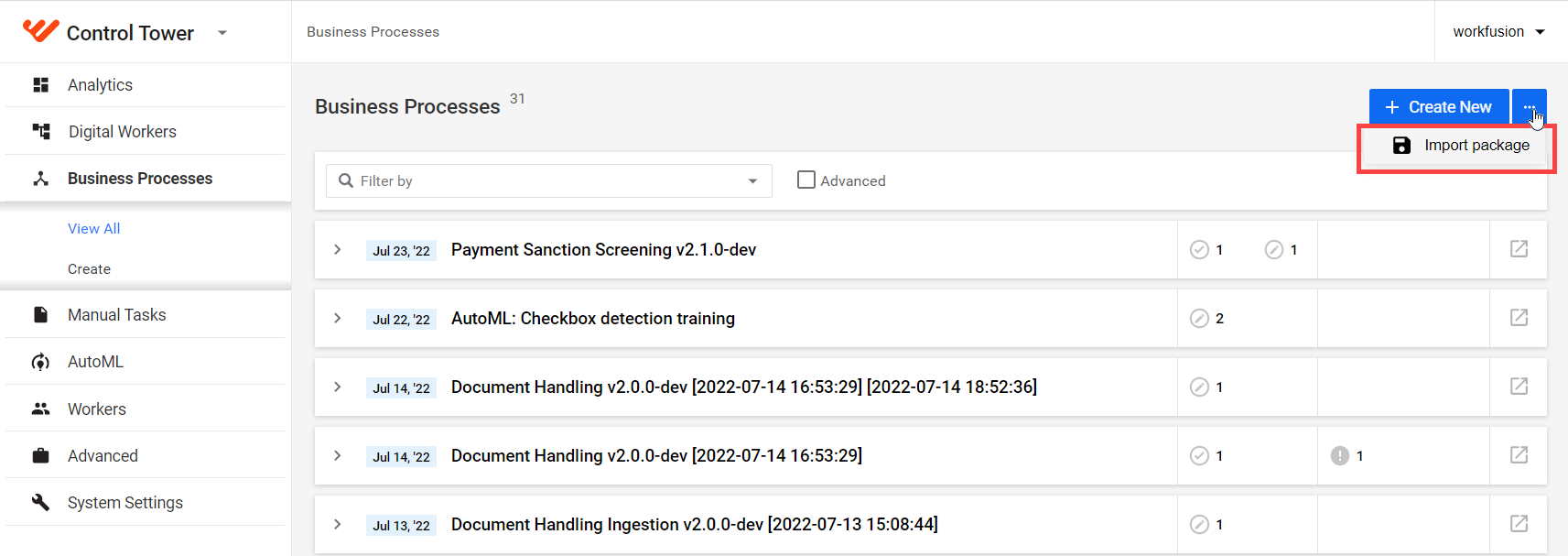
In the Business Processes list, click the Actions button in the top right corner, and select Import package.
Click Add and select the archive with the BP package.
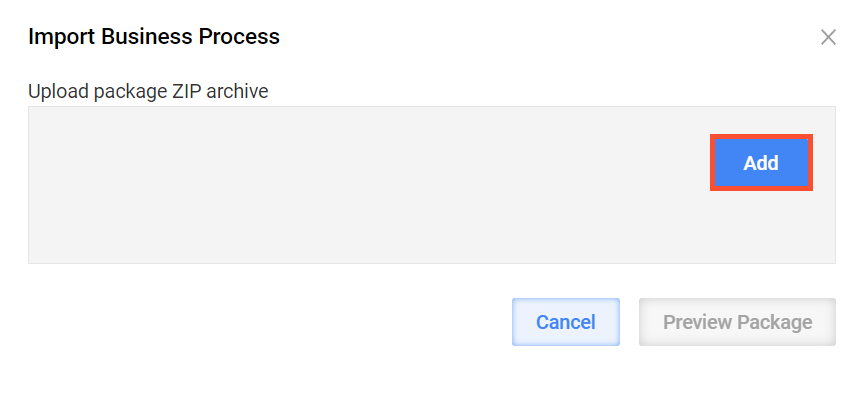
You can preview the BP package before importing it. If a BP with such a name already exists on the Control Tower instance, the system suggests two options:
Create a new version of the BP and leave the existing one unchanged (default).
Overwrite the existing BP version.
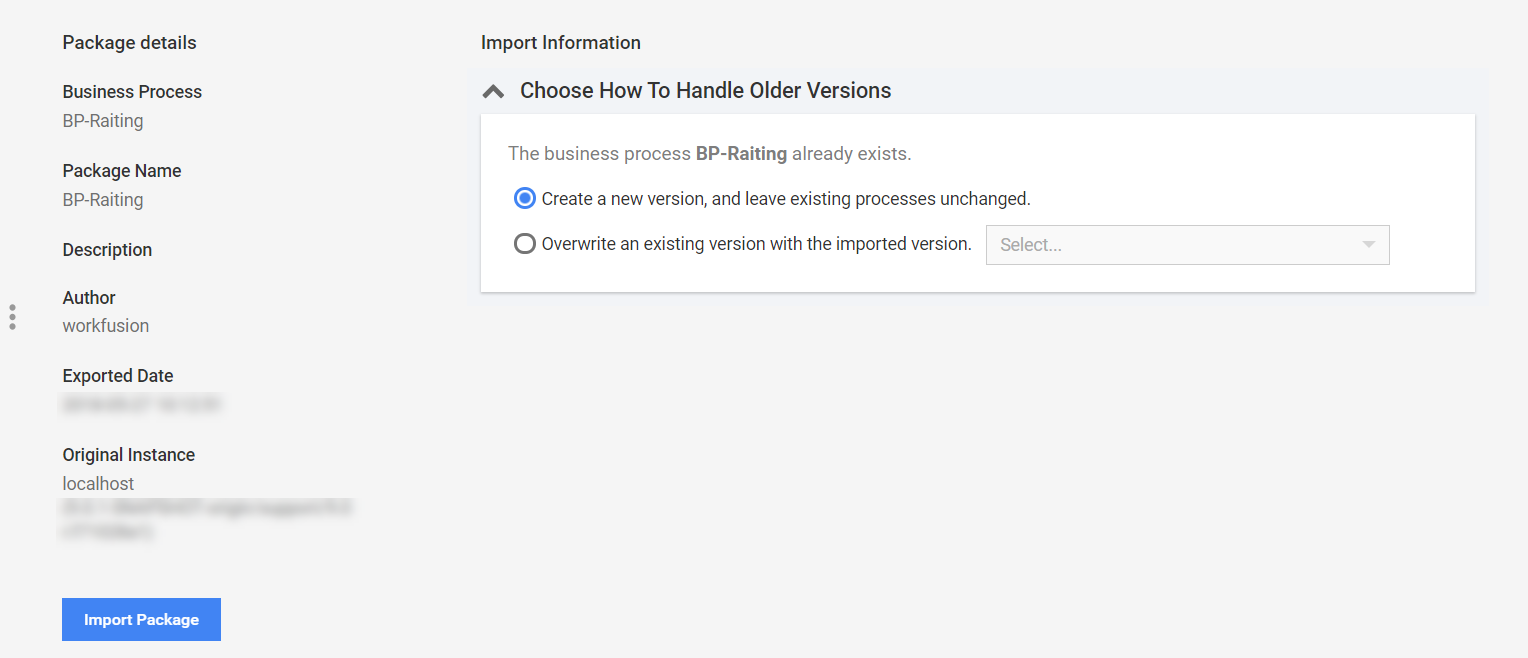
After selecting the required option, click Import Package. The new BP appears in the Business Processes list.
When you have trouble creating a BP, read the support guide to resolve the problem.