Enable AutoML analytics
The topic describes how to enable legacy Tableau-based analytics to collect and visualize model data using an out-of-the-box (OOTB) AutoML Business Process (BP).
OOTB AutoML Business Process
The figure below illustrates a sample OOTB AutoML Business Process.
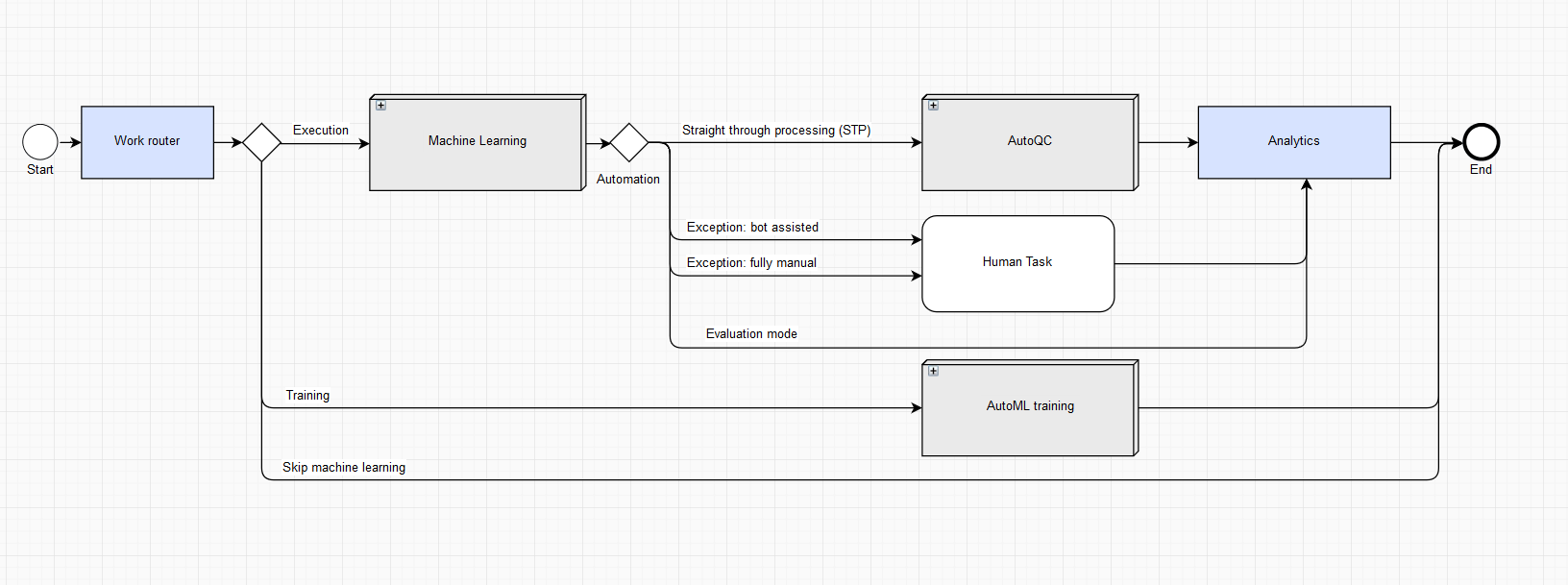
Analytics in an OOTB AutoML BP allows you to collect and rate model predictions and AutoML performance against human answers and performance.
If AutoML Analytics is enabled, you have two options:
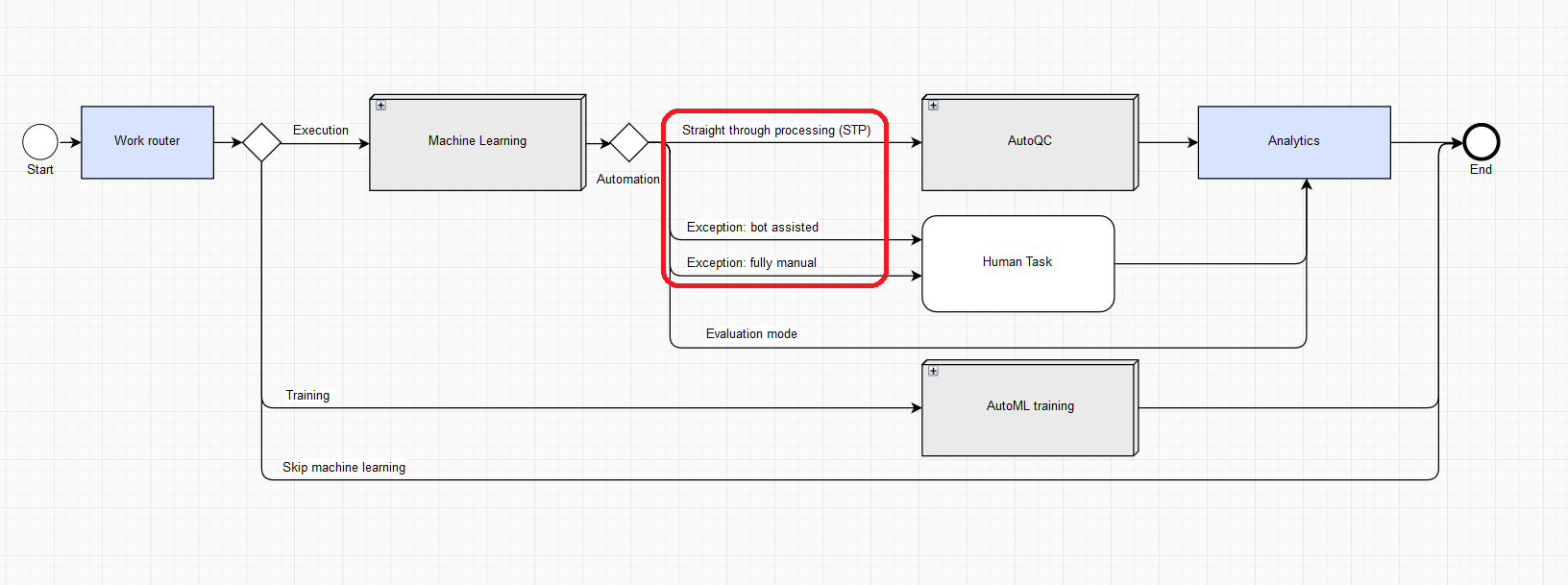
Input is raw data without answers. In this case, the document goes through the Straight Through Processing (STP) or Exception pipeline, and you get real-time Analytics.
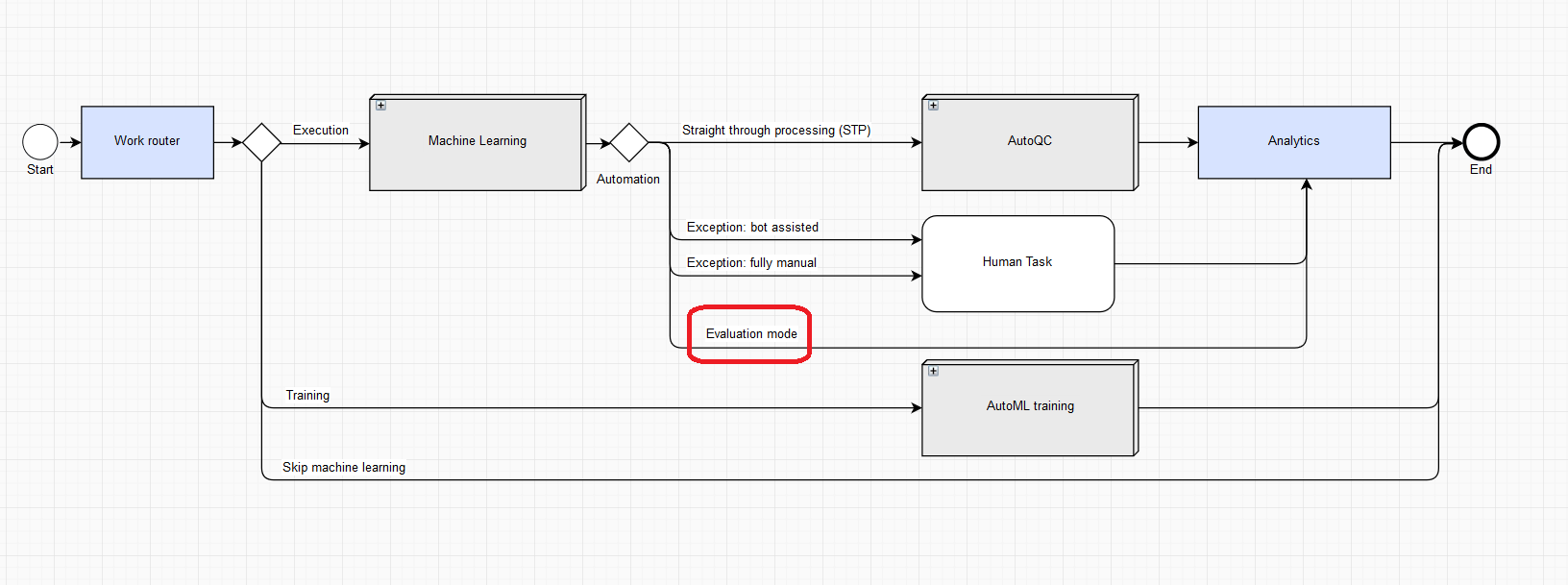
Input is a tagged document containing answers for a given Manual Task—that means a reference document to compare with the Manual Task. In this case, processing is in the Evaluation mode. All human work is omitted because answers are already there. In the Evaluation mode, model answers are compared with the reference answers in the Analytics step.
Enabling AutoML Analytics
To enable storing data for further analysis, follow these steps:
On the Business Processes page, click the BP where you want to enable Analytics.
On the Workflow tab, double-click Work router.
In the Analytics section, select Enabled and click Save.
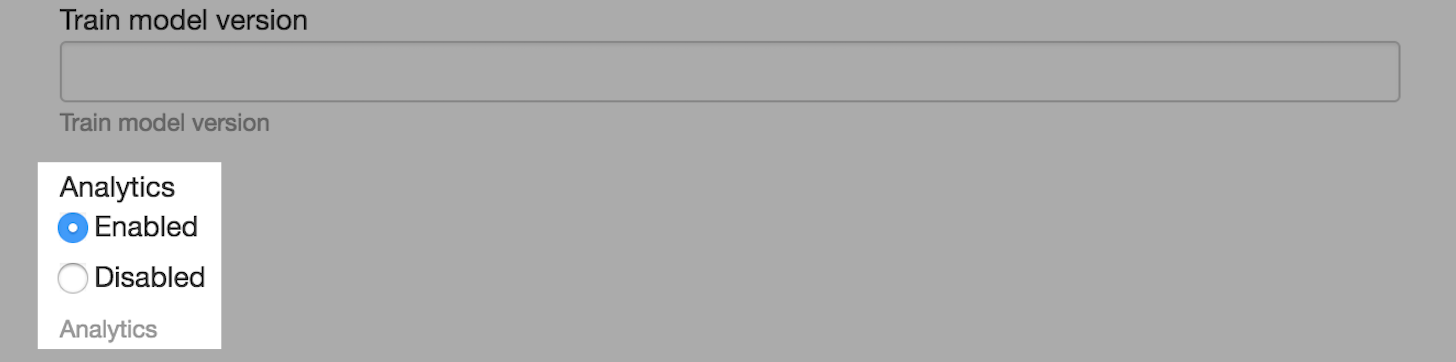
This setting is applied to each AutoML BP created for a given Operation.
Predictions in daily model execution
When Analytics is enabled, the AutoML BP collects comparison information for model predictions against human answers:
- If a processed document goes through the Exception: bot assisted or Exception: fully manual branch, model answers are compared against human answers.
- If a processed document goes through the Straight through processing (STP) branch, model answers are compared against themselves.
Collected data usage
Comparison data is saved in a Data Store with a name matching the following pattern: automationstat[bp_campaign_uuid].
The _bp_campaign_uuid part stands for the _sys_bp_campaign_uuid_ field after the Machine Learning sub-process with the following replacement: [^\w] with an _ underscore.
The Data Store has the following structure by column names:
| Column | Description | Data type | Aggregation |
|---|---|---|---|
run_uuid | Current BP instance UUID. | TEXT | |
field_name | Answer code. | TEXT | Per field in document |
group_name | Group name if field_name relates to a group. | TEXT | Per field in document |
extracted_value | Model answer, if any. | TEXT | Per field in document |
TP | Metric for a given answer code: True Positive. INTEGER is used because BOOLEAN is not supported by Data Store plugins. | INTEGER | Per field in document |
TN | Metric for a given answer code: True Negativ. INTEGER is used because BOOLEAN is not supported by Data Store plugins. | INTEGER | Per field in document |
FP | Metric for a given answer code: False Positive. INTEGER is used because BOOLEAN is not supported by Data Store plugins. | INTEGER | Per field in document |
FN | Metric for a given answer code: False Negative. INTEGER is used because BOOLEAN is not supported by Data Store plugins. | INTEGER | Per field in document |
score | Model answer metric: score for a given answer code. TEXT is used because DECIMAL is not supported by Data Store plugins. | TEXT | Per field in document |
document_id | Equals to hitUUID. | TEXT | Per document |
doc_html_link_tagged | Empty by default. | TEXT | Per document |
timestamp | Record insert timestamp. | TIMESTAMP | Per document |
environment | Workspace environment type: production. | TEXT | Per document |
ml_process_time | Process time of the automation-extract plugin (post to ML service + ML extract + so on), in milliseconds. Note: the automation-extract plugin is deprecated. | INTEGER | Per document |
human_process_time | Spent human time, in milliseconds. In case of multiple workers, total time spent. | INTEGER | Per document |
human_process_type | Type of human work:
Collected data is used to build the Volume chart. | TEXT | Per document |