Add and configure Model, LLM, and Dataset steps
Model steps enable integrating and executing machine learning (ML) or AI-based models or model-related operations in a Business Process (BP). You can find available Model steps in Workflow Designer of a Business Process: in the Reusable components panel, navigate to the Bot tab and find the Models category.
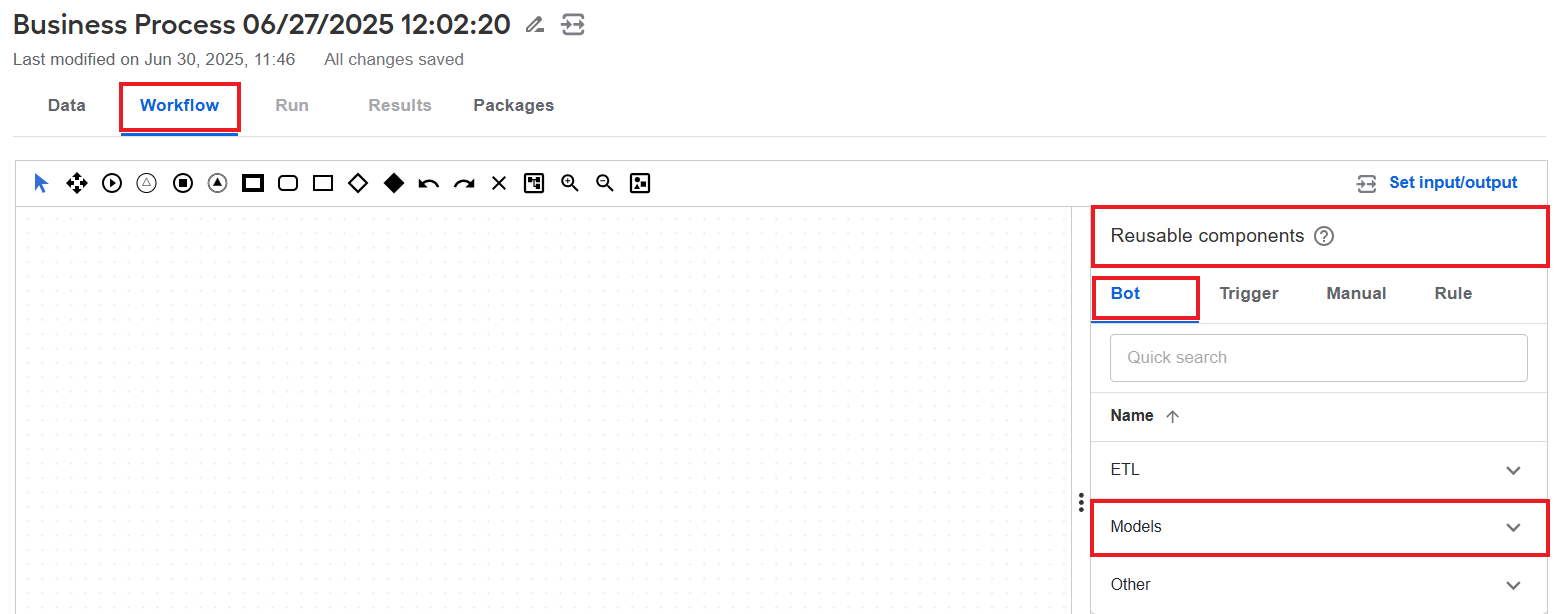
In the Models category, you can access the following model types:
Classification allows the execution of classification models.
Image Processing enables you to use a model to process images.
Information Extraction supports the execution of information extraction models.
MLOps LLM lets you use a WorkFusion-native large language model (LLM) to do various processing operations as defined in a prompt.
MistralAI LLM lets you use an LLM by Mistral AI to do various processing operations as defined in a prompt.
OpenAI LLM lets you use an LLM by OpenAI to do various processing operations as defined in a prompt.
In addition, the Models category also includes the following steps for model-related operations:
The Dataset step allows you to create datasets from the model or Manual Task output and retrain models using the created datasets to improve performance.
The OCR step enables you to set and apply specific OCR settings, for instance, change the OCR provider. If you include a separate OCR step in a BP, no OCRing is applied at the Model step. For details on the no-code OCR step, see Configure OCR step and OCR providers.
Implementation details
Mind the following implementation details about the Model and Dataset steps:
- The Classification, Image Processing, and Information Extraction steps are implemented over the ETL Bot Config type and process one document per model.
- After correct data is prepared, it is sent to a Model step, and then you get a result�this is the internal Control Tower (CT) logic. You cannot influence the logic.
- Classification, Image Processing, and Information Extraction steps support Bot Sources and stateless execution.
Step input and output
Classification, Image Processing, and Information Extraction steps
Input
The following table lists input parameters for the Classification, Image Processing, Information Extraction steps.
| Parameter in the interface | Code | Description |
|---|---|---|
| Meta Info | meta_info_json | The parameter is optional. It represents the document-specific metadata from the preceding OCR or model step (for instance, extracted labels). The parameter is essential for integrating the Manual Task step into a schema-based BP. |
| Model ID | model_id | The value is required. Specify the unique identifier of the model you want to use for processing. You can set the value in the current configuration or use the one from the preceding step. The input value from the preceding step has priority. |
| Model parameters | model_parameters | The parameters are not required. Specify them to fine-tune the model's execution. You can set the value in the current configuration or use the one from the preceding step. The input value from the preceding step has priority. |
| Processed document | document | The parameter contains the path to the document for processing by the model. The input value always comes from the preceding step. |
| When the step fails | go_forward_on_failure | Specify the action to be done if the failure result is received. If you choose Complete the step and move to the next one with an error (set the value to Yes) and the failure answer is received, the step is completed, and an error message is sent to the next step. You can set the value in the current configuration or use the one from the preceding step. The input value from the preceding step has priority. |
| S3 bucket name | s3_bucket_name | Specify the S3 bucket to store OCR results. The parameter is optional. |
| S3 folder name | s3_folder_name | Specify the S3 folder to store OCR results. The parameter is optional. |
Output
The output for the Classification, Image Processing, Information Extraction steps includes the data for the specified step input as well as the data for the following parameters:
| Parameter | Description |
|---|---|
meta_info_json | The parameter is optional. It represents the document-specific metadata received as the step's input data plus the model's output (for instance, extracted labels). If no metadata was received as input, the parameter is created at the output and populated only with the model's data. |
model_error | Error information if the task process fails, whereas the step itself shouldn't fail on such task result. |
model_result | The raw model answer if the task process is successful. |
model_extraction | Expected output data points. |
_sys_automl_process_time | The step processing time counted as the sum of the time to create the input + time to send the task to processing + time it took a Worker to process the task + the time to get the result in CT. |
sys_automl_correlation_id | The correlation ID for tracing the task. |
You can use the step output as input for subsequent steps.
Dataset step
Input
The table below lists the input parameters for the Dataset step:
| Parameter in the interface | Code | Description |
|---|---|---|
| Dataset ID | dataset_id | Specify the unique identifier of the dataset you want to use for processing. You can choose a dataset from the drop-down list, and the identifier will automatically appear in the corresponding field. |
| Document | document | The parameter contains the path to the source document used in the dataset. The input value always comes from the preceding step. |
| Document Meta Info | meta_info_json | The parameter contains the output from the preceding Model, Manual Task, or OCR steps for the dataset's source document. |
| When the step fails | go_forward_on_failure | Specify the action to be done if the failure result is received. If you choose Complete the step and move to the next one with an error (set the value to Yes) and the failure answer is received, the step is completed, and an error message is sent to the next step. You can set the value in the current configuration or use the one from the preceding step. The input value from the preceding step has priority. |
Output
The following table includes the parameters received as the output for dataset steps:
| Parameter | Description |
|---|---|
_sys_dataset_process_time | The parameter includes system data corresponding to the step's execution time. |
dataset_observation_id | The parameter contains the ID of the specific dataset document. |
dataset_error | The parameter contains error information if the process fails, whereas the step itself should not fail on such task result. |
LLM steps
Input
The table below lists the input parameters for the LLM steps (any provider):
| Parameter in the interface | Code | Description |
|---|---|---|
| OpenAI Model, MistralAI Model, Model ID (for ML OPs LLM) | external_llm_model_id (for third-party LLM providers), model_id (for ML OPs LLM) | The value is required. Specify the unique identifier of the model you want to use for processing. You can choose a model from the drop-down list, and the identifier will automatically appear in the corresponding field. |
| System prompt | system_prompt | The parameter contains basic instructions and a general task context for the LLM model. |
| User prompt | user_prompt | The parameter contains the exact task or question the LLM model needs to address. |
| When the step fails | go_forward_on_failure | Specify the action to be done if the failure result is received. If you choose Complete the step and move to the next one with an error (set the value to Yes) and the failure answer is received, the step is completed, and an error message is sent to the next step. You can set the value in the current configuration or use the one from the preceding step. The input value from the preceding step has priority. |
Output
The output for the LLM steps includes the data for the following parameters:
| Parameter | Description |
|---|---|
model_error | Error information if the task process fails, whereas the step itself shouldn't fail on such task result. |
model_result | The raw model answer if the task process is successful. |
model_extraction | The values you defined as expected output data points when setting the LlmModelExtraction output variable. See Configure LLM steps. |
_sys_automl_process_time | The step processing time counted as the sum of the time to create the input + time to send the task to processing + time it took a Worker to process the task + the time to get the result in CT. |
sys_automl_correlation_id | The correlation ID for tracing the task. |
Add and configure no-code Model, Dataset, and LLM steps
Add step to Business Process
The instructions on adding steps to a Business Process flow are the same for all types of steps under the Model category: Information extraction, Classification, Image Processing, Dataset, and LLM steps. You can do it in one of the following ways:
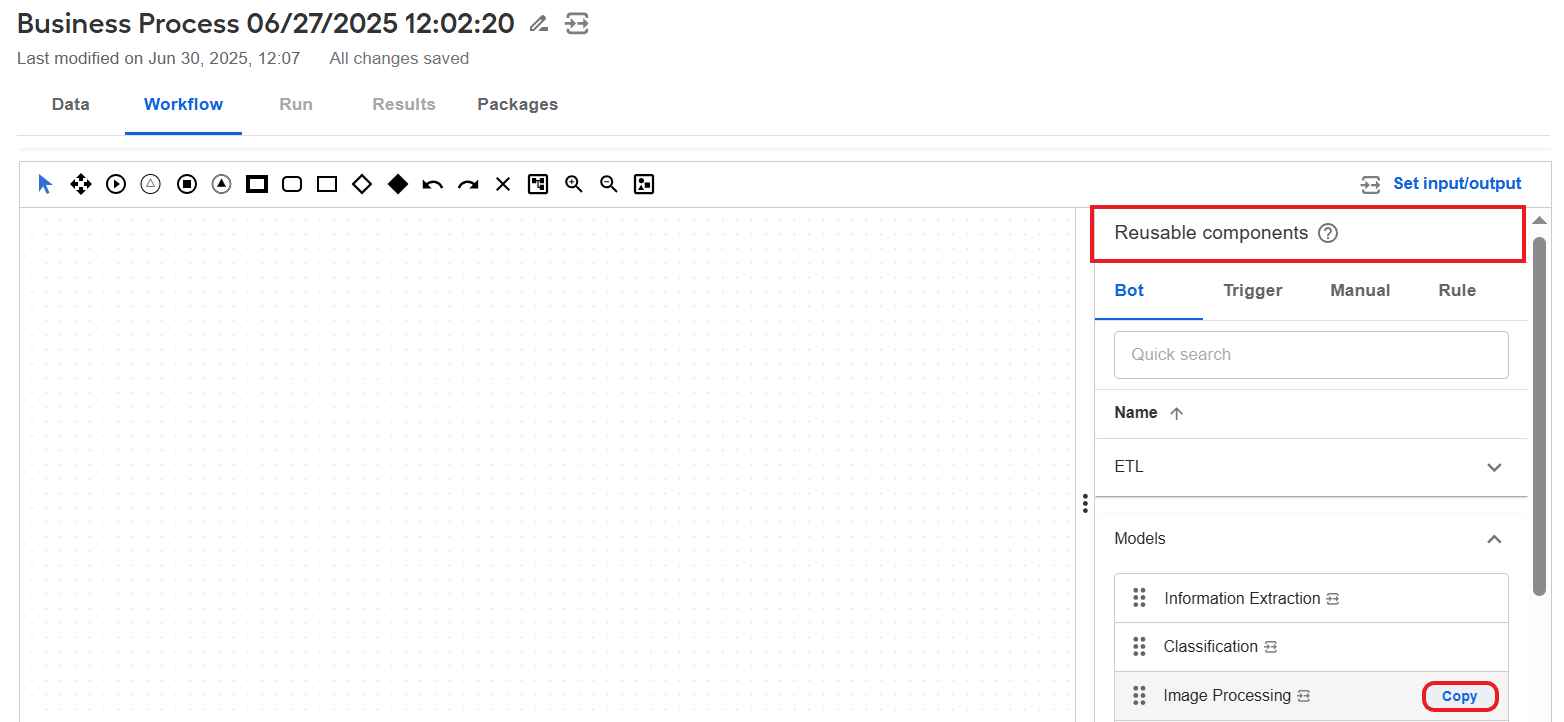
Copy an existing step. Hover over a step in the Reusable components panel and click Copy. The step is added to the Workflow Designer canvas. This is an independent step instance: the changes you make in the copy are not synchronized with the source.
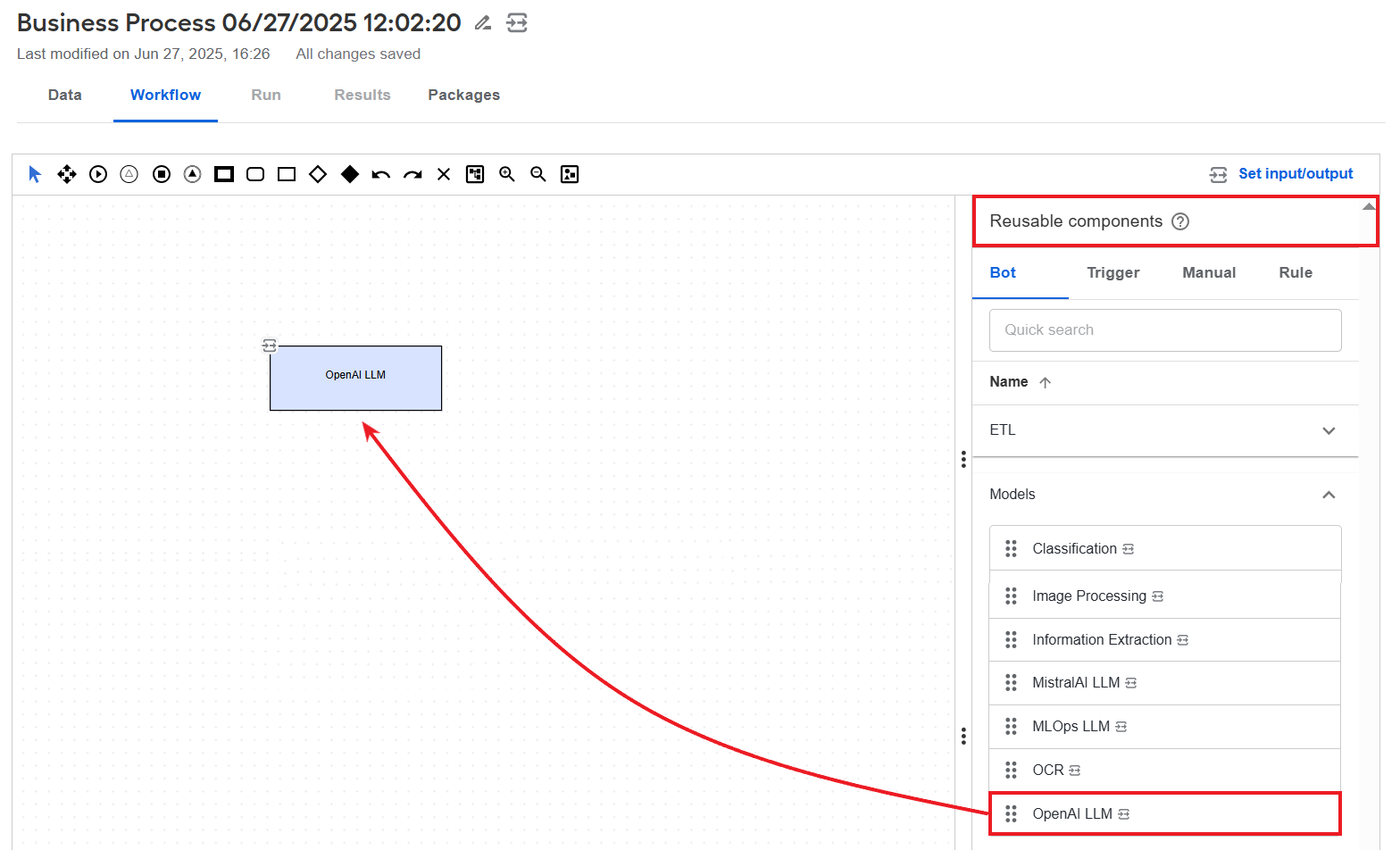
Reuse an existing step. Drag a Model or Dataset step from the Reusable components panel on the right to the canvas. In this case, any changes you make to the step are applied across all Business Processes where the same step is included.
Once the steps are added to the canvas, configure them as described in respective sections below.
Configure Information Extraction, Classification, and Image Processing
To configure an Information Extraction, Classification, or Image Processing step, follow the instructions below:
To open the configuration settings window, double-click the step on the canvas where you added it.
On the Design tab, configure the settings. For parameter details, see Classification, Image Processing, and Information Extraction steps | Input.
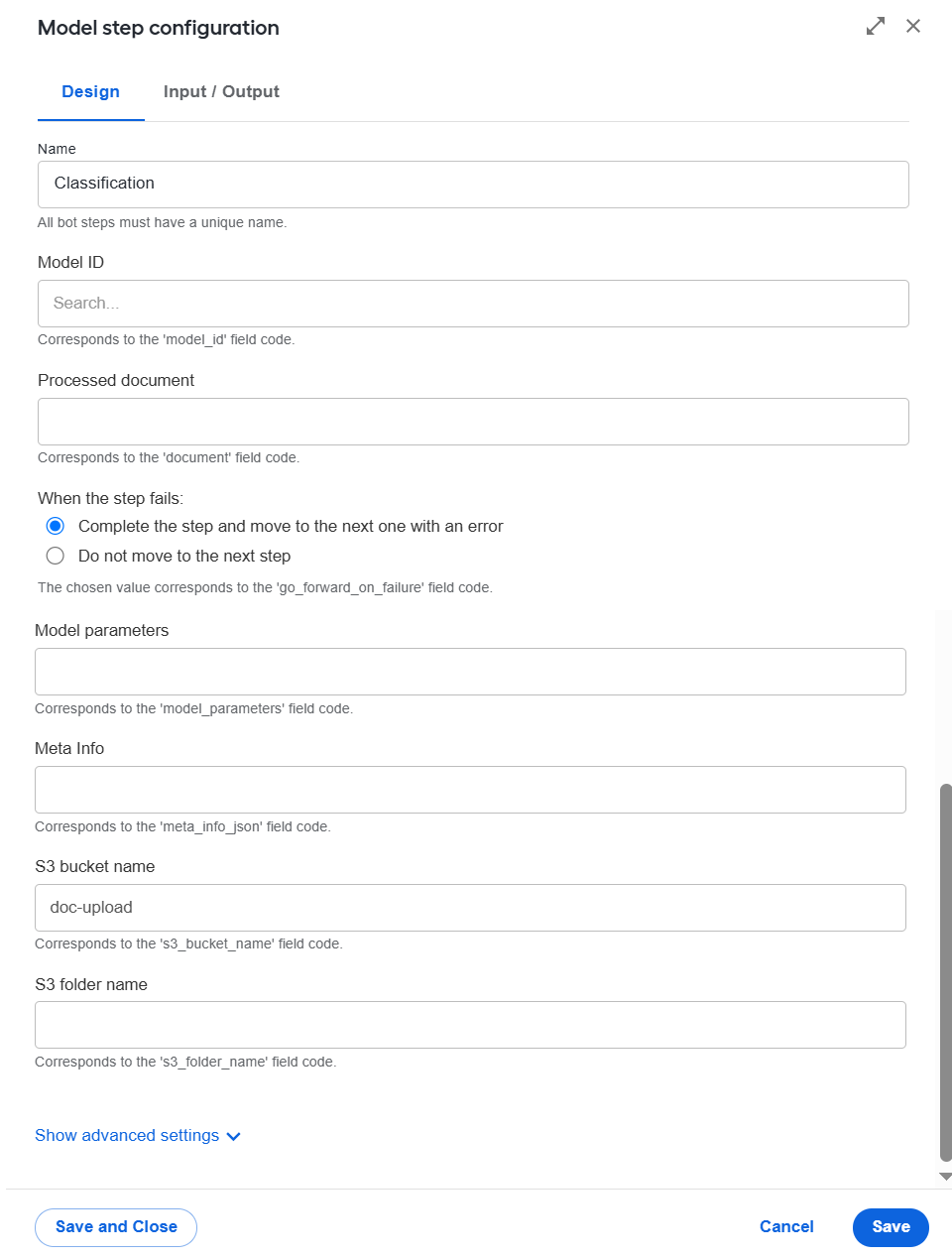
Click Save to save the settings on the Design tab.
Navigate to the Input / Output tab. The input and output contracts are prepopulated for you, but you can change their mappings (if needed). For remapping instructions, see the guide.
KNOWN ISSUESometimes, the
model_extractionvariable is not populated automatically. In this case, you need to add it manually in the Output section to ensure the model extraction output is available on the Results tab after a Business Process is executed.Click Save and Close to save the step settings.
To set your Java Native Worker to work with Model step data, it is recommended to use the respective dependency from the WorkFusion's repository:
<groupId>com.workfusion.spa</groupId>
<artifactId>bridge-step-contracts</artifactId>
Using the library facilitates the implementation and reduces the time to production for such solutions.
Configure Dataset steps
To configure a Dataset step, follow the instructions below:
To open the configuration settings window, double-click the step on the canvas where you added it.
On the Design tab, configure the settings. For parameter details, see Dataset step | Input.
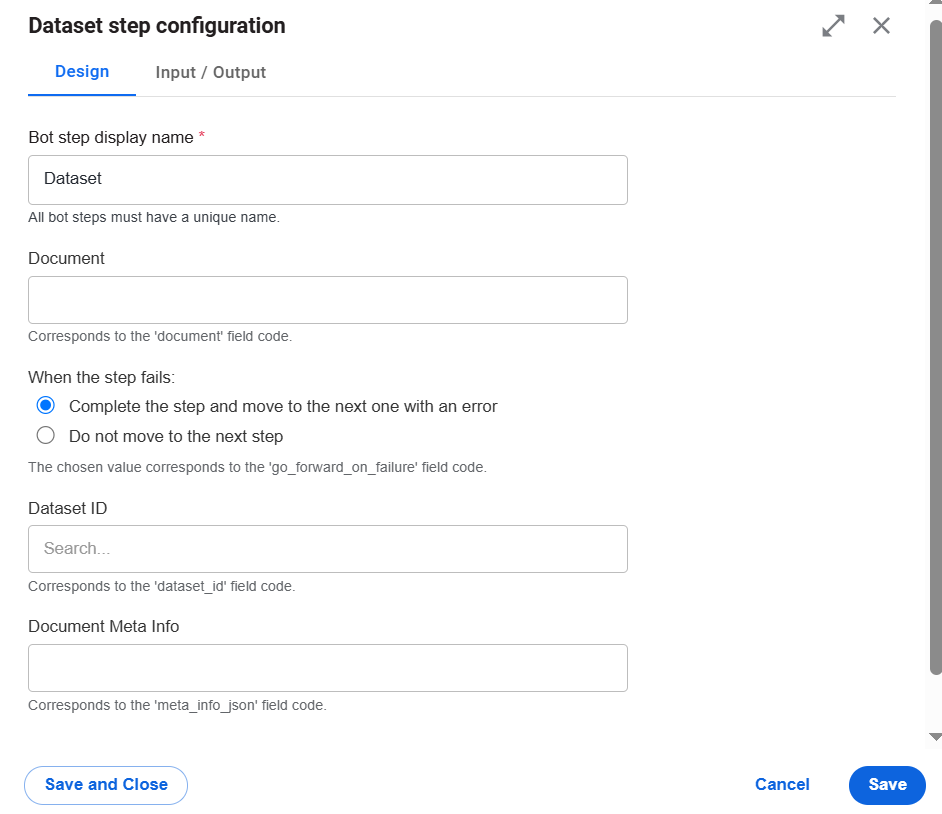
Click Save to save the settings on the Design tab.
Navigate to the Input / Output tab. The input and output contracts are prepopulated for you. For remapping instructions, see the guide.
Click Save and Close to save the step settings.
Configure LLM steps
Work.AI offers three LLM steps from different providers:
ML Ops LLM, from which you can use a selection of WorkFusion's propriatory LLMs to do various processing operations as defined in a prompt. No license is needed to work with these LLMs, but you need to have the ML Ops component installed and integrated.
MistralAI LLM offering access to a selection of LLMs by Mistral AI to do various processing operations as defined in a prompt. Mistral AI is a third-party provider requiring a license to work with its models.
OpenAI LLM offering access to a selection of LLMs by OpenAI to do various processing operations as defined in a prompt. OpenAI is a third-party provider requiring a license to work with its models.
The configuration sequence for all the three steps is as follows:
To open the configuration settings window, double-click the step on the canvas where you added it.
On the Design tab, configure the settings. For parameter details, see also LLM step | Input.
Set a unique name for the step.
Choose a model from the respective dropdown.
In the System prompt, describe what you want the LLM model to do.
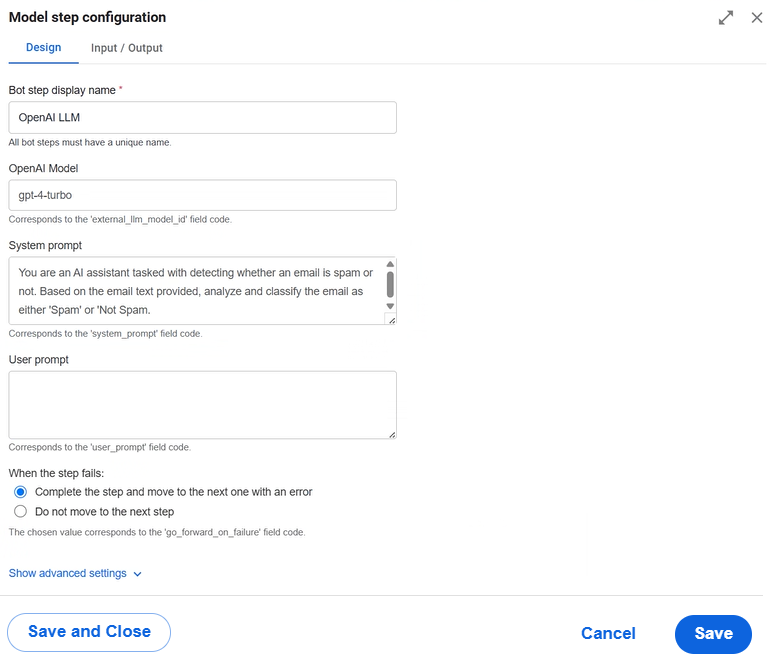
Click Save to save the settings on the Design tab.
Navigate to the Input / Output tab. The input and output contracts are already prepopulated for you. You only need to set the
LlmModelExtractionoutput variable as described below:In the Output section, click the
LlmModelExtractionvariable type. Then, click its Edit (pencil) button.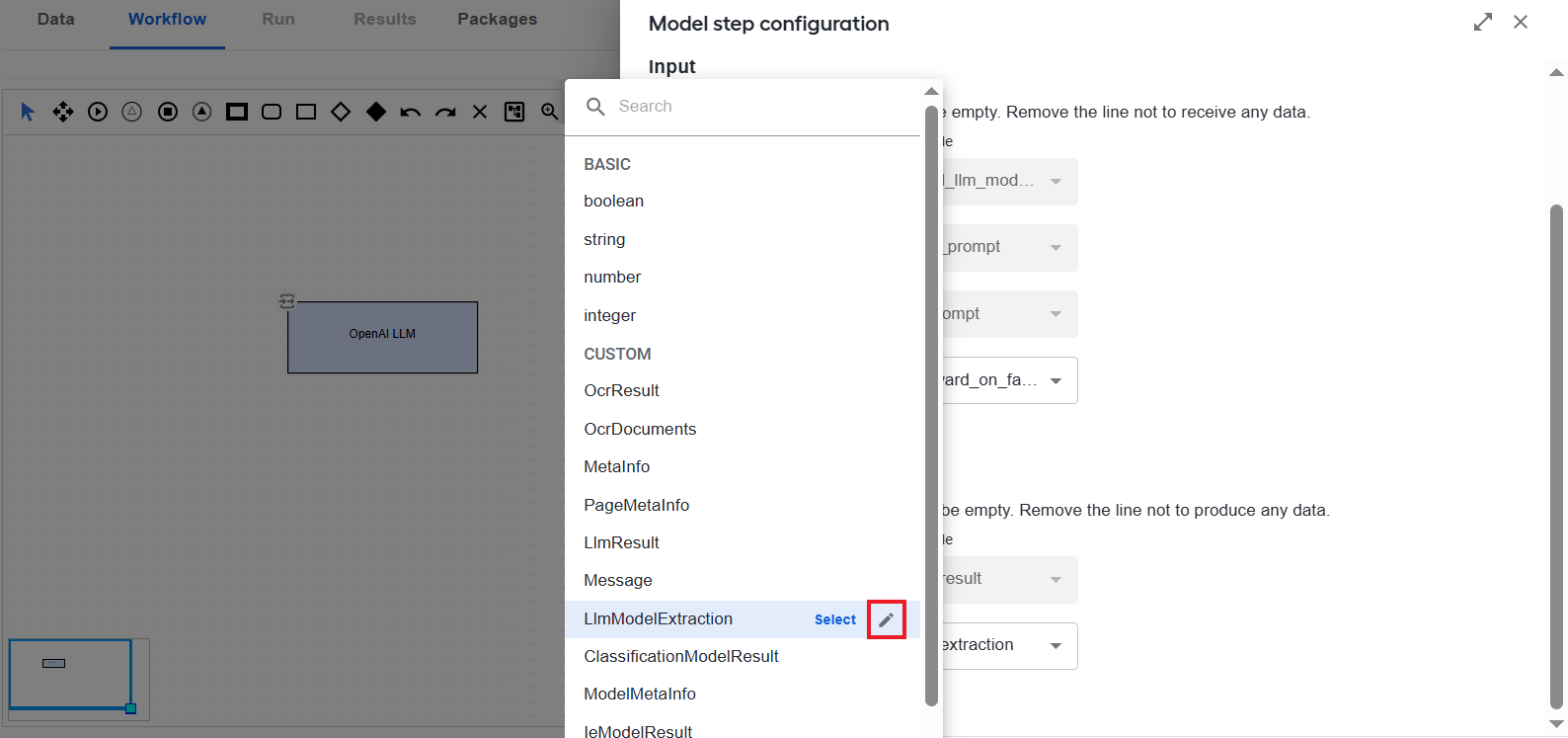
In the Edit Object window, click Field and specify a data point you expect as output from the step (in this example,
extraction). AI will use the values to do the task you specified in the System prompt field on the Design tab.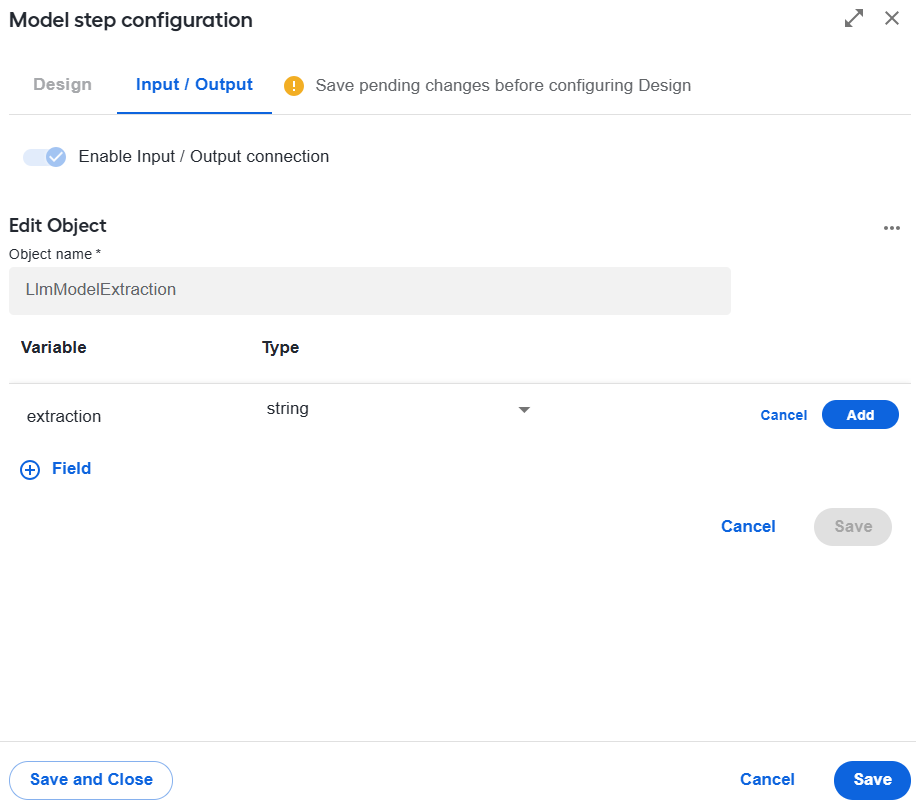
Choose the variable type (in this example,
string) and click Add.Repeat steps 2 and 3 to add as many fields as you expect to come with the LLM model output.
Click Save to save the changes to the
LlmModelExtractionobject. As you confirm the saving action, you are redirected to the Input / Output tab.
Click Save and Close to save the step settings.
Set up multi-model step
Model steps do not support the multi-model flow. If you plan to process a document using several models, create a BP where a document is processed in several steps (in parallel or one by one).
See sample use case
For a complete tutorial on creating an information extraction sequence from Model steps, see the guide.
To address the issues related to Model steps in a Business Process, read the following support guides:
Investigate Business Process performance degradation if you notice the BP has become slower
Investigate non-operational Business Process if the BP will not work
Investigate non-operational platform if the issues are associated with a malfunction of some platform component