Issues related to changes in Manual Task design
A document can load slowly in Workspace due to changes in the JavaScript code, FreeMarker Template Language (FTL) templates, and so on.
To investigate, act as follows:
Track change history
To identify changes in a Manual Task (MT), check the Activity Log first. Go to System settings > Activity Log and lookup the changes made to the Templates type.
If Activity Log is not available in the System settings menu, you might lack associated permissions.
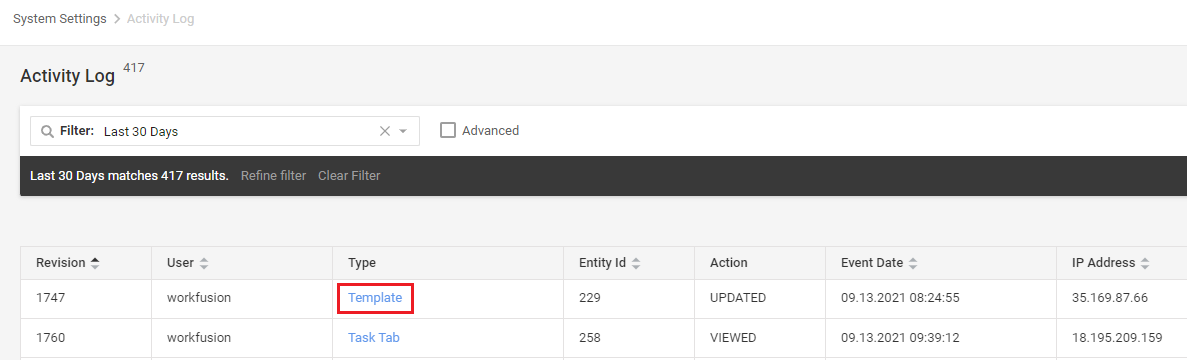
When you find a modification connected to your MT, track the change history using either of the two methods:
To get a quick compare popup, click the highlighted Template link.
Go directly to Advanced > Templates.
To look through Base templates, act as shown:

To view Macro templates, act as shown:

Compare the code differences as shown in the figure below:
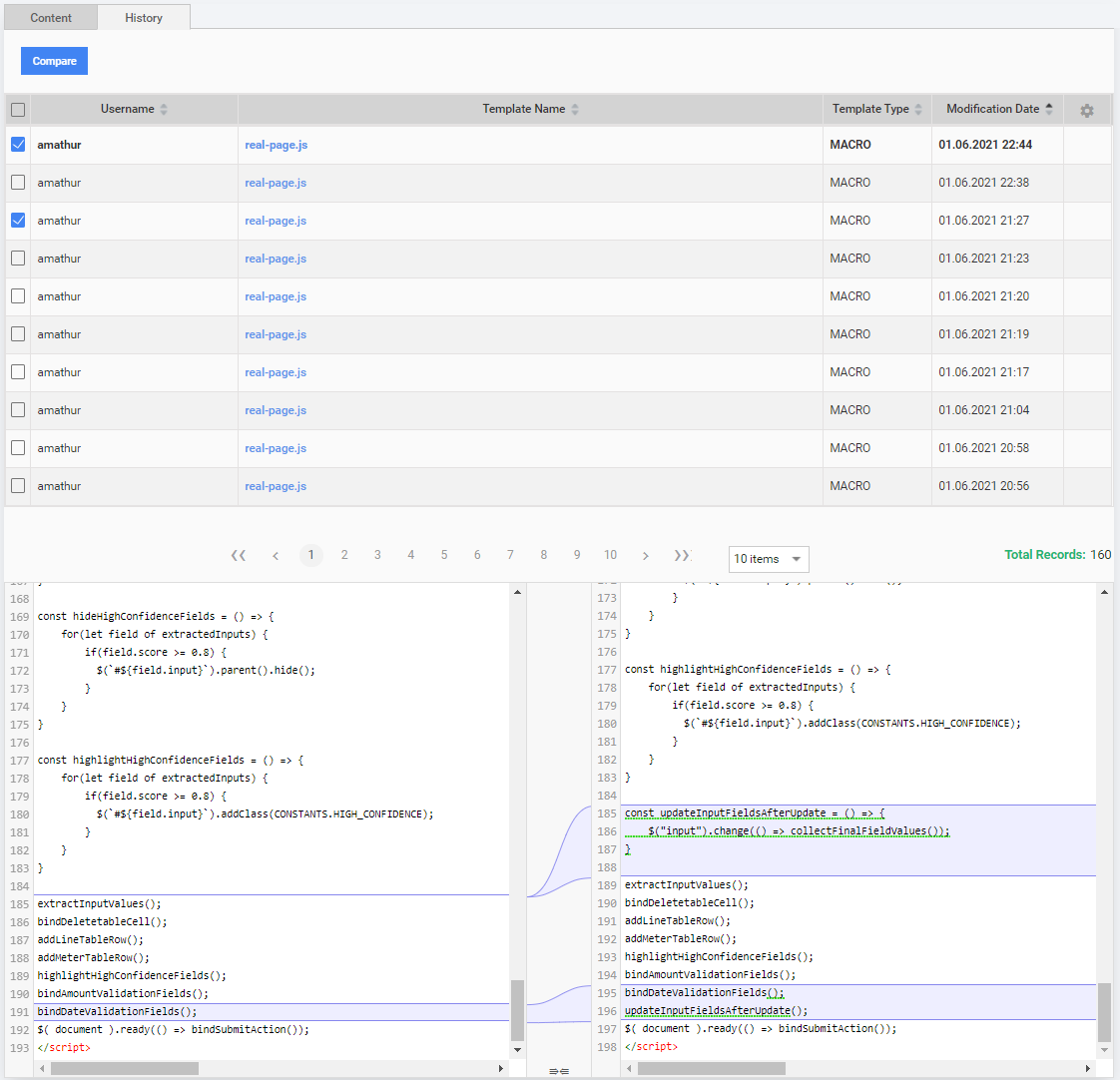
Roll back and test
Roll back the change and test actions with the MT.
All templates rely on Apache FreeMarker™—a template engine to generate HTML web pages. Templates are written in FTL. Therefore, for potential root causes of template-related issues, check the best practices for FreeMaker templates.
Output
If you confirm the issue, escalate it to the Support team for further investigation and response actions. Otherwise, continue the investigation.
View also: