Manage report templates
Dossier Document Assembly supports the generation of structured compliance reports, such as Enhanced Due Diligence (EDD) dossiers, Suspicious Activity Reports (SARs), and Know Your Customer (KYC) reports. Report templates serve as reusable document blueprints, defining both the layout and the placeholders where case-specific information must appear.
When a configured template is used in a Business Process (BP), it provides the report layout and placeholders to be populated with process data or information supplied during processing. The result is a consistently formatted, review-ready report.
View report templates
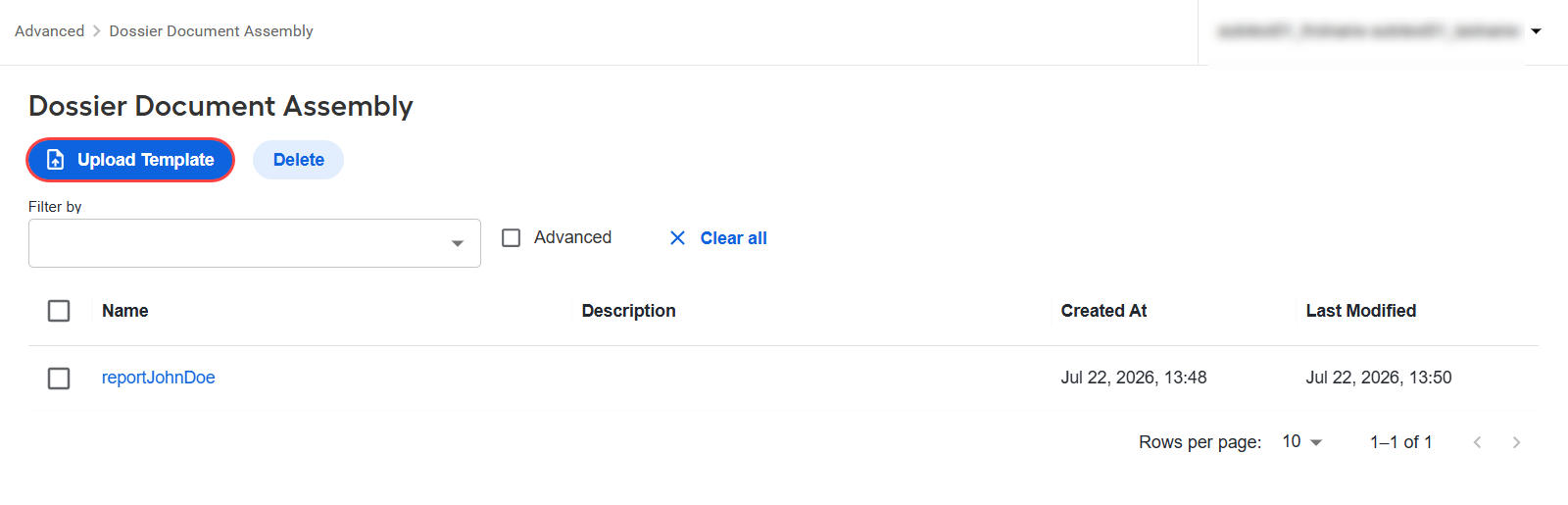
To view report templates, go to Control Tower > Advanced > Dossier Document Assembly. For each template, you can view its name, description, creation date, and last modification date.
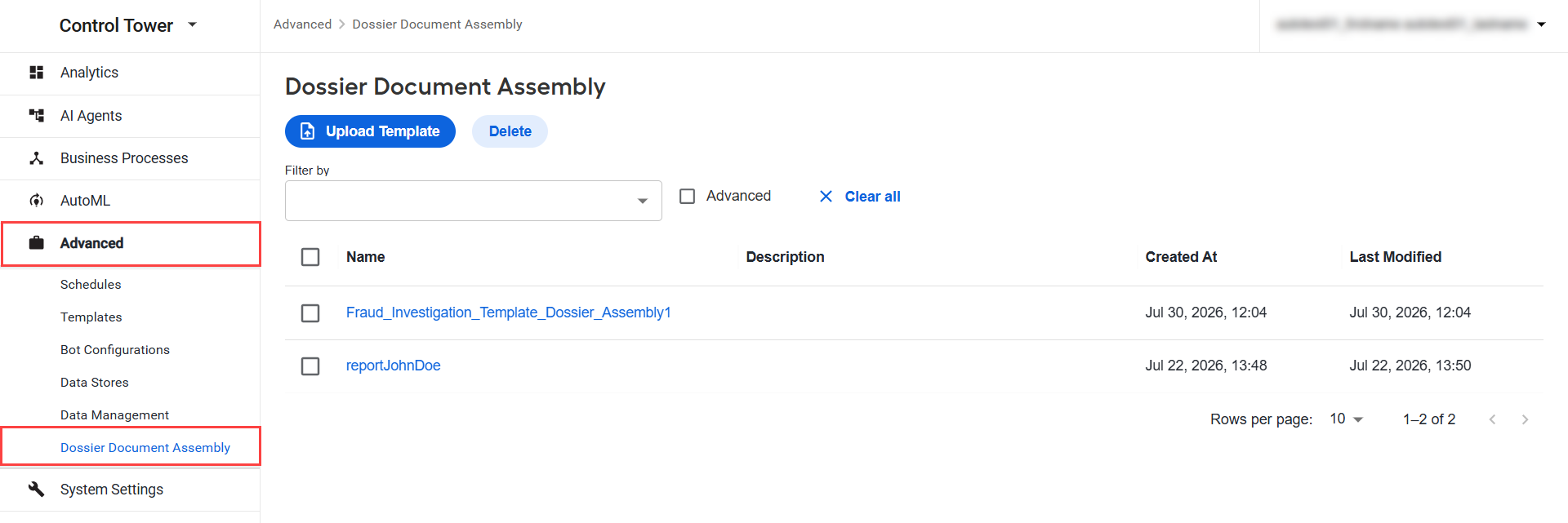
Access to report templates is controlled by the View Report Templates and Manage Report Templates permissions. For more details, see Manage Control Tower roles and permissions.
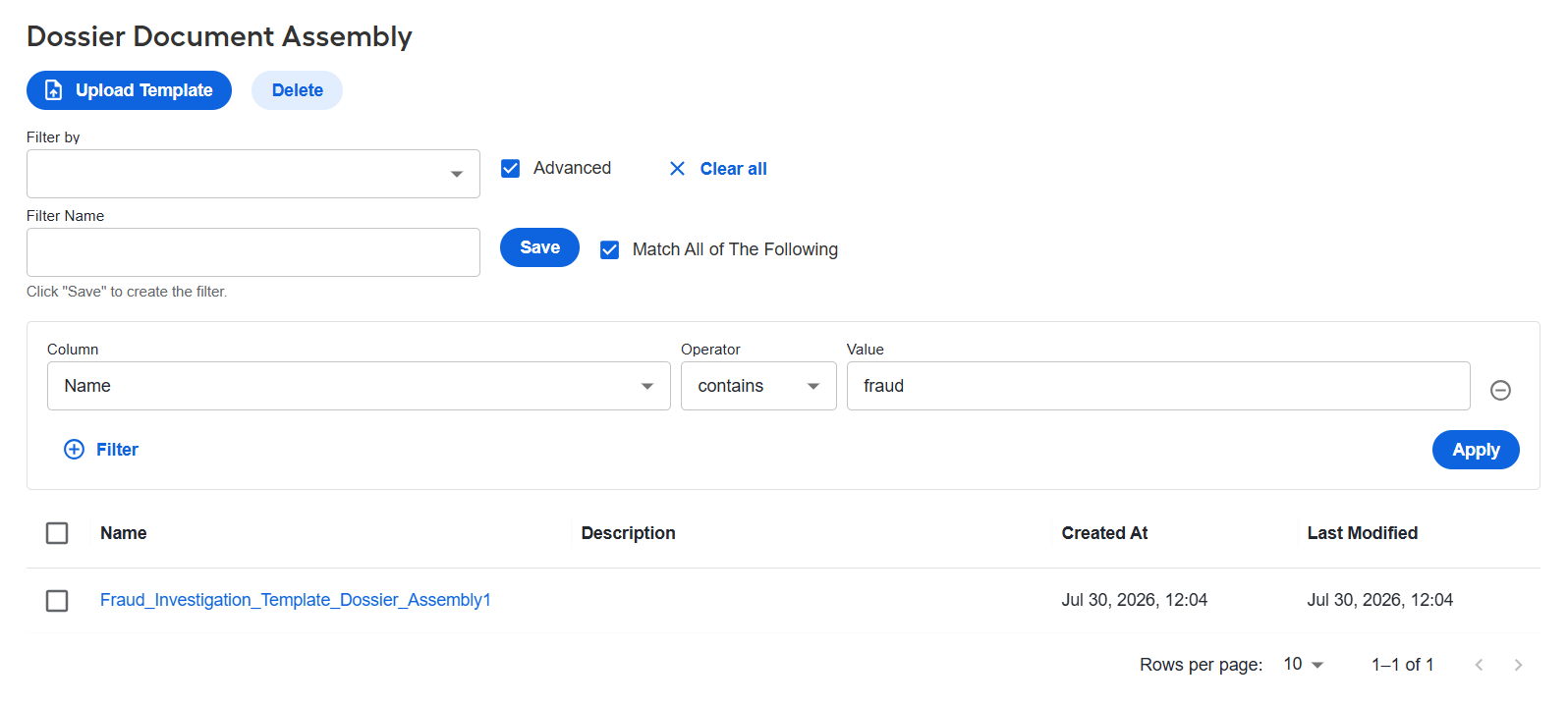
Use Filter by to find templates that match selected criteria. To define additional criteria, select Advanced.
Click a name in the list to view the details of the corresponding template, such as:
- Template name and description
- Placeholders detected in the template or added manually
- Data type and required status of each placeholder
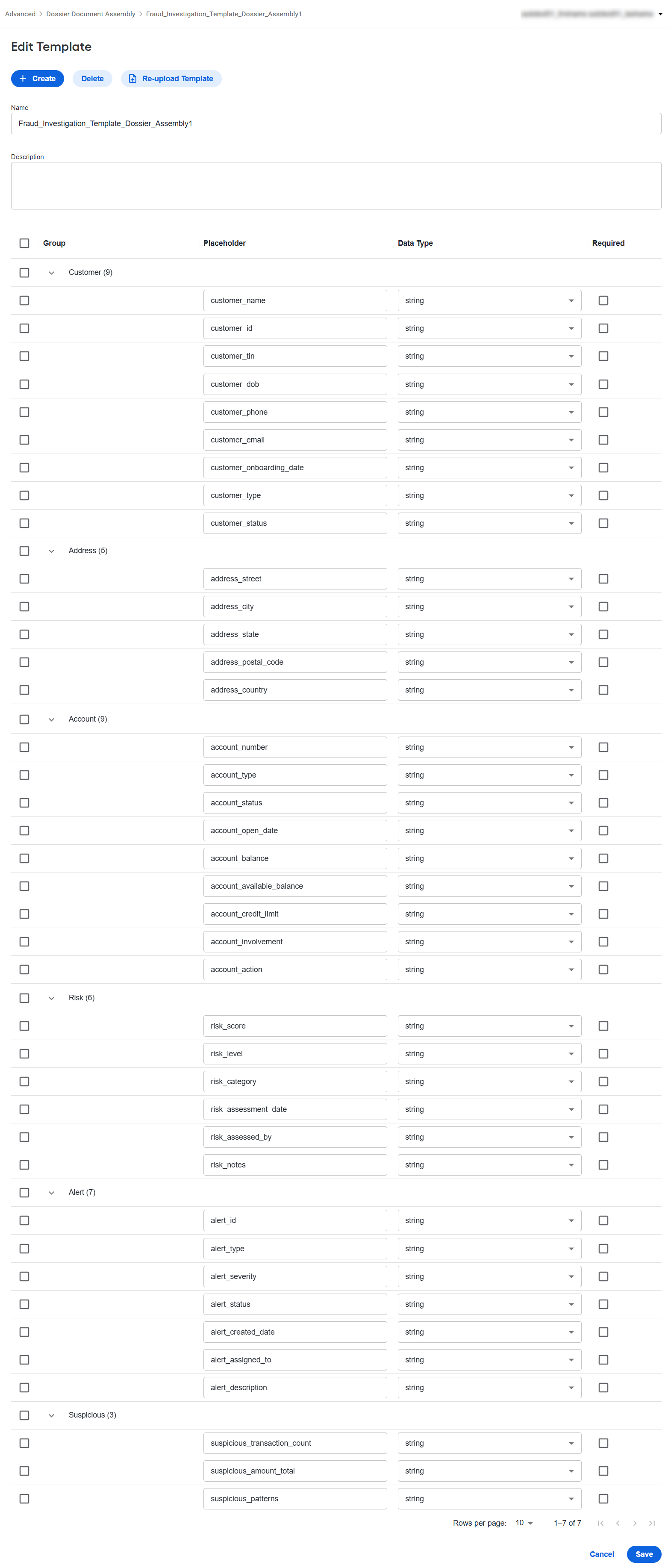
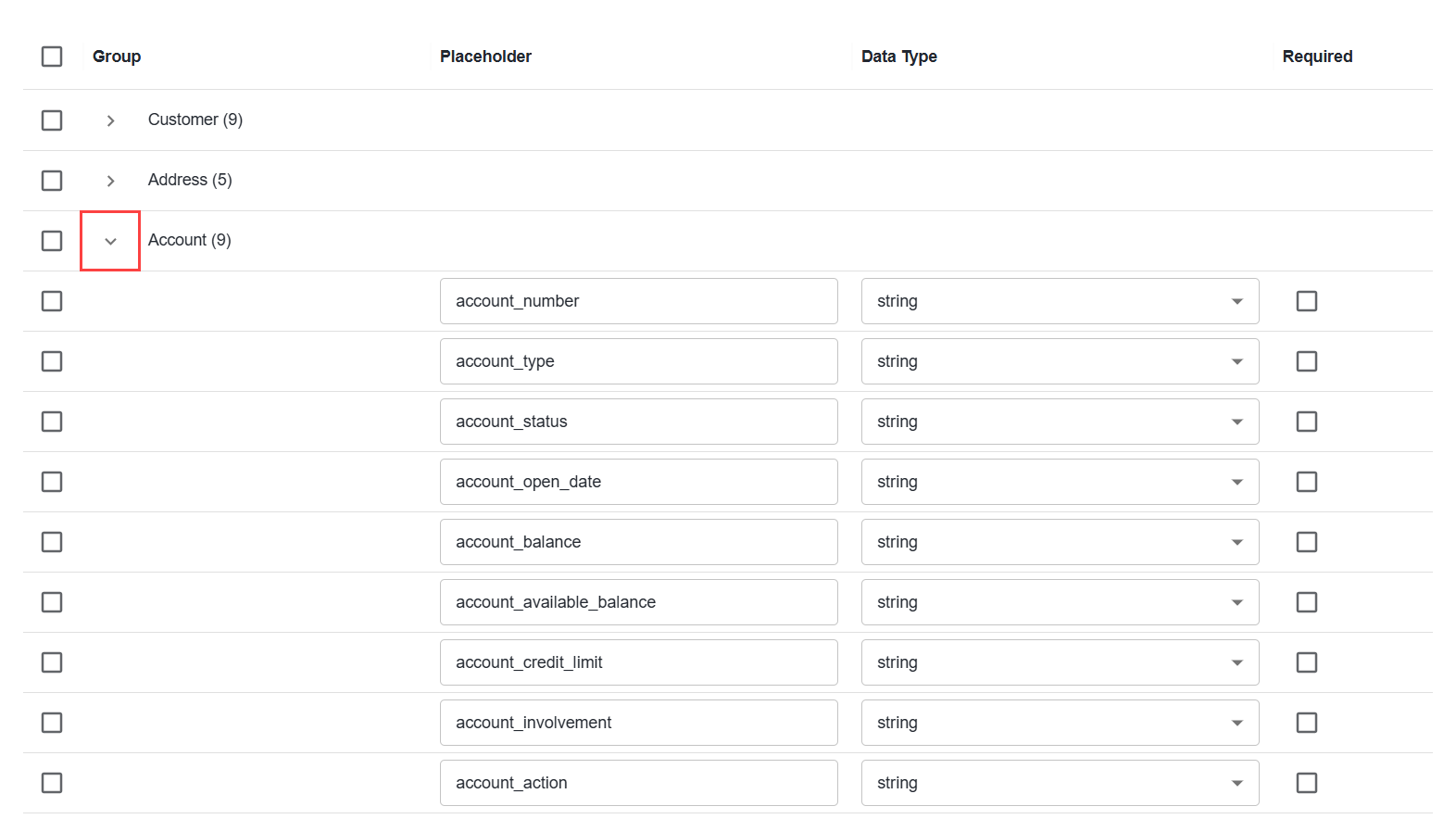
Placeholders are displayed in groups to make longer templates easier to review. Expand or collapse a group to show or hide its placeholders.
Prepare report template file
A template is a Microsoft Word file that contains placeholders for information to be added to the generated report.
Create a DOC or DOCX file containing the static content and layout of the report. Add a placeholder for each value that Dossier Assembly must insert when generating the report. Placeholders use double curly brackets, for example:
Case Number: {{case_id}}
Customer Name: {{customer_name}}
Account Number: {{account_number}}
Risk Level: {{risk_level}}
The placeholder names in the document must correspond to the fields that you configure for the report template.
Upload report template
To upload a report template, complete the following steps:
On the Dossier Document Assembly page, click Upload Template.
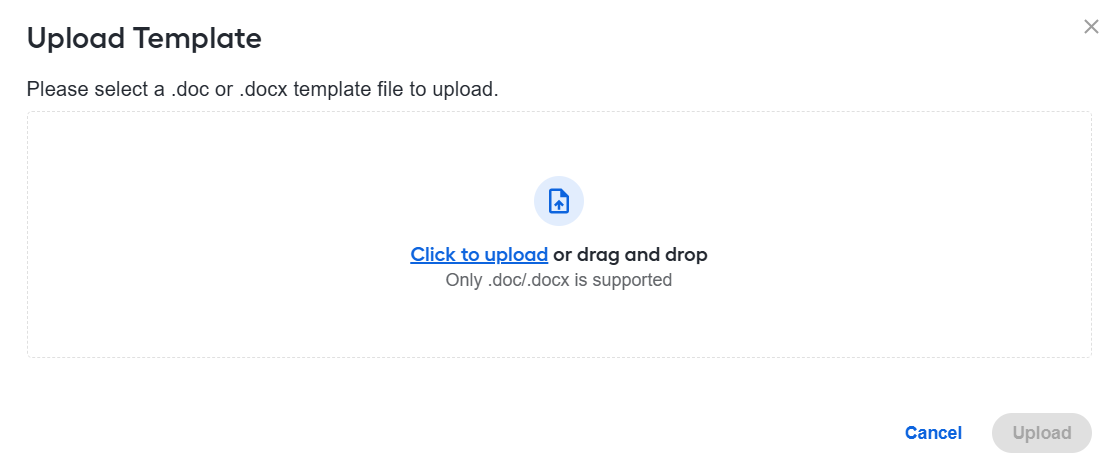
Click Click to upload and select a DOC or DOCX file. Alternatively, drag the file to the upload area. Only one file can be uploaded for a report template.
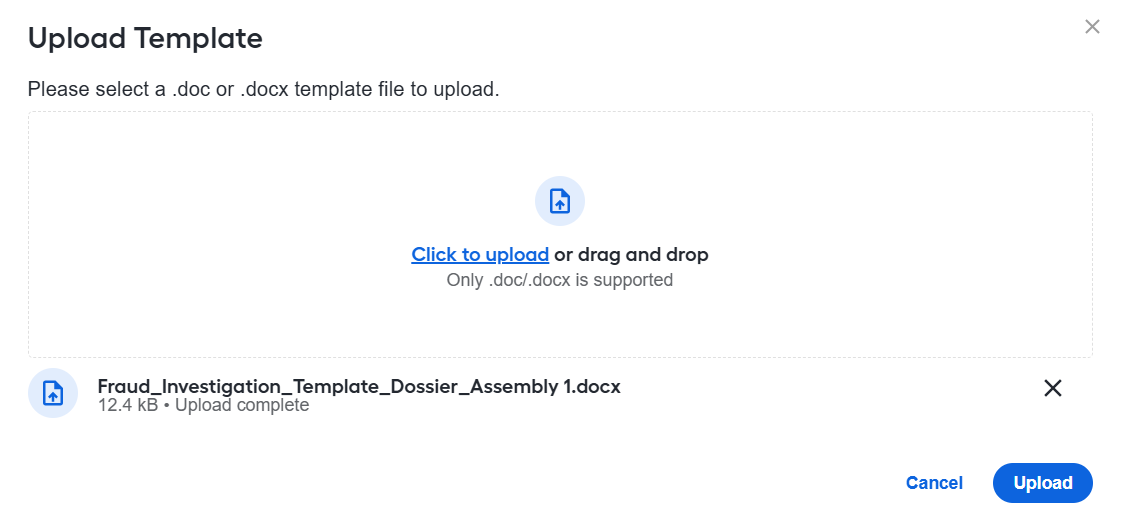
Click Upload.
Once the report template is created, you can view its details page and placeholders extracted from the uploaded file.
(Optional) In Description, explain the purpose or intended use of the template.
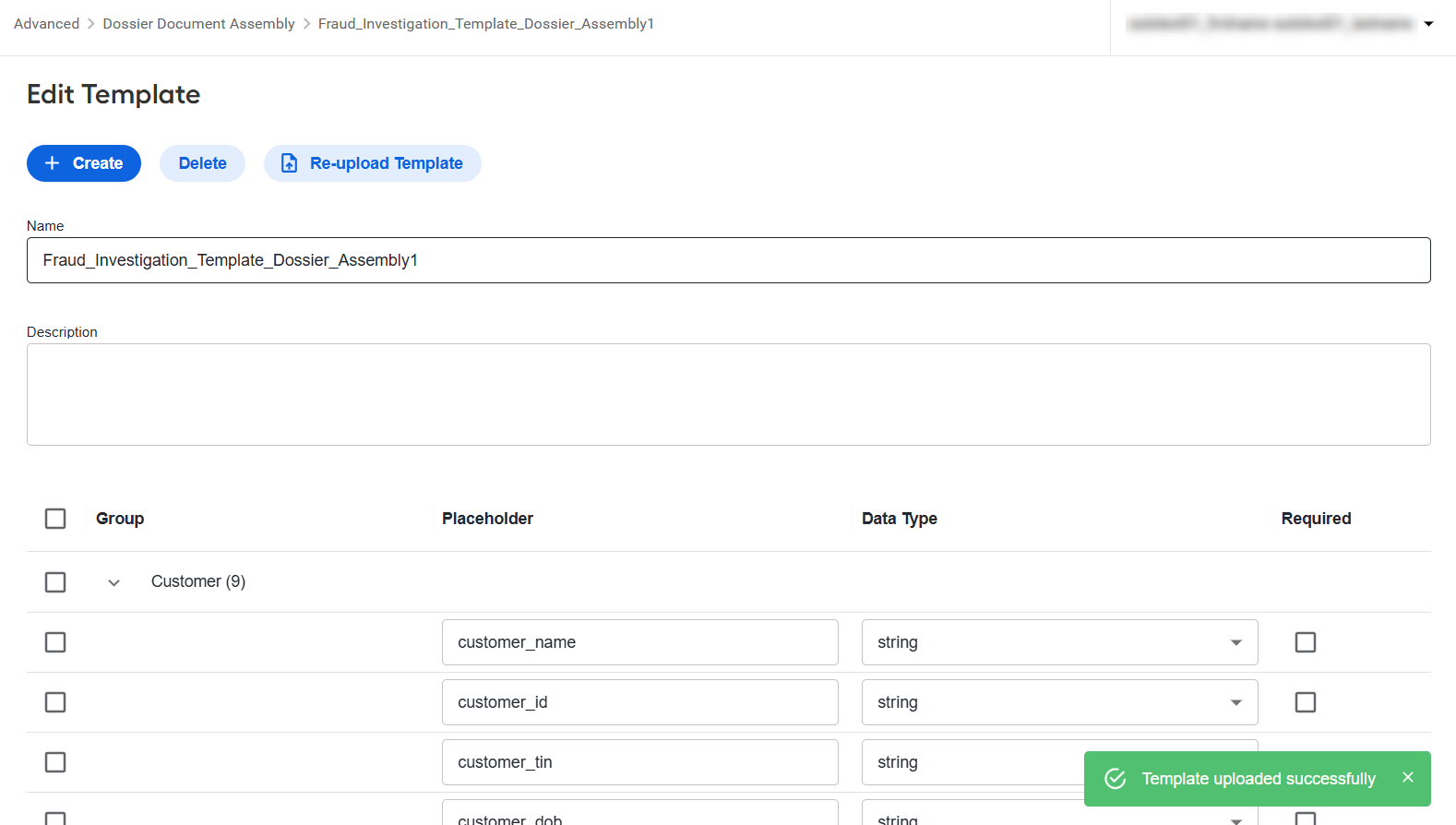
Review the extracted placeholders and configure their data types and required status as needed.
Click Save.
Edit report template
To edit a report template, complete the following steps:
On the Dossier Document Assembly page, click the template name.
Modify the template name and description as needed.
Configure the placeholders:
Edit a value in the Placeholder column to change the placeholder name.
In Data Type, select
string,number,integer, orboolean.Select Required to include the placeholder in required field validation.
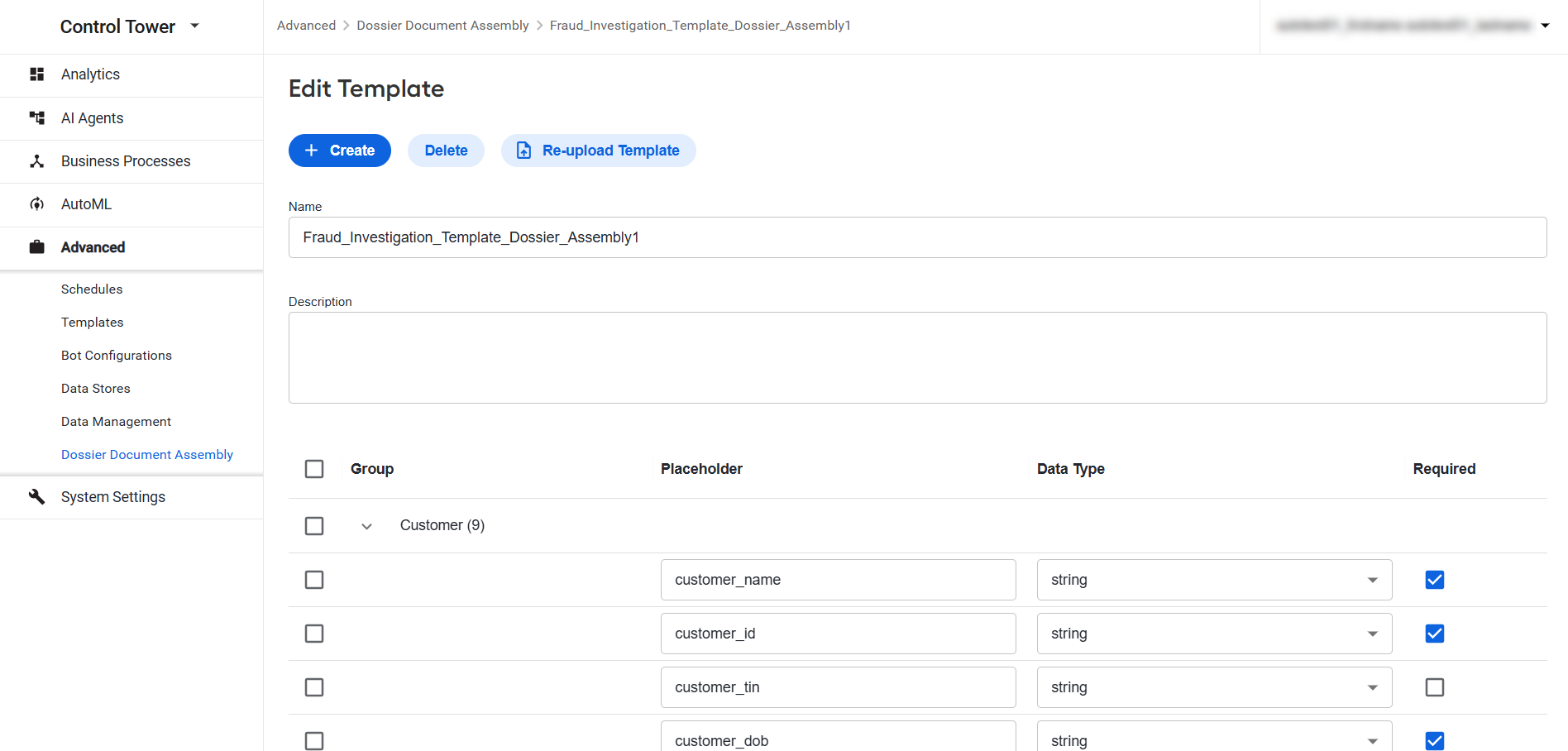
Click Save.
You cannot modify, re-upload, or delete a report template used by an existing BP. When you open a template that is in use, a warning at the top of the page lists the BPs that use it.
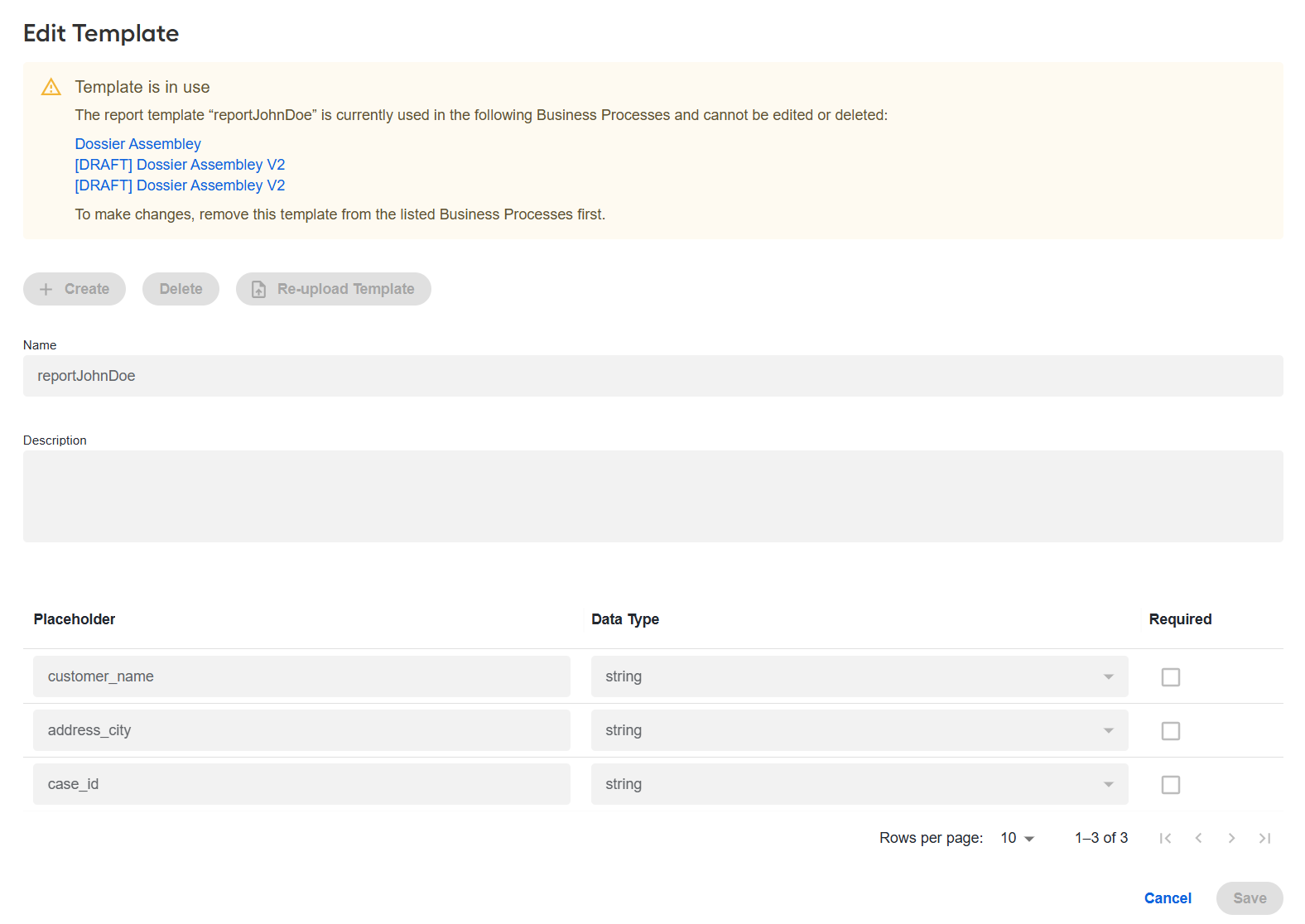
To modify the template, first remove it from all listed BPs. Once the template is no longer in use, all template management actions become available. For instructions on setting report templates in BPs, see Set report template in Business Process.
Add placeholder
You can add a placeholder that was not detected in the uploaded Word file.
On the template details page, click Create.
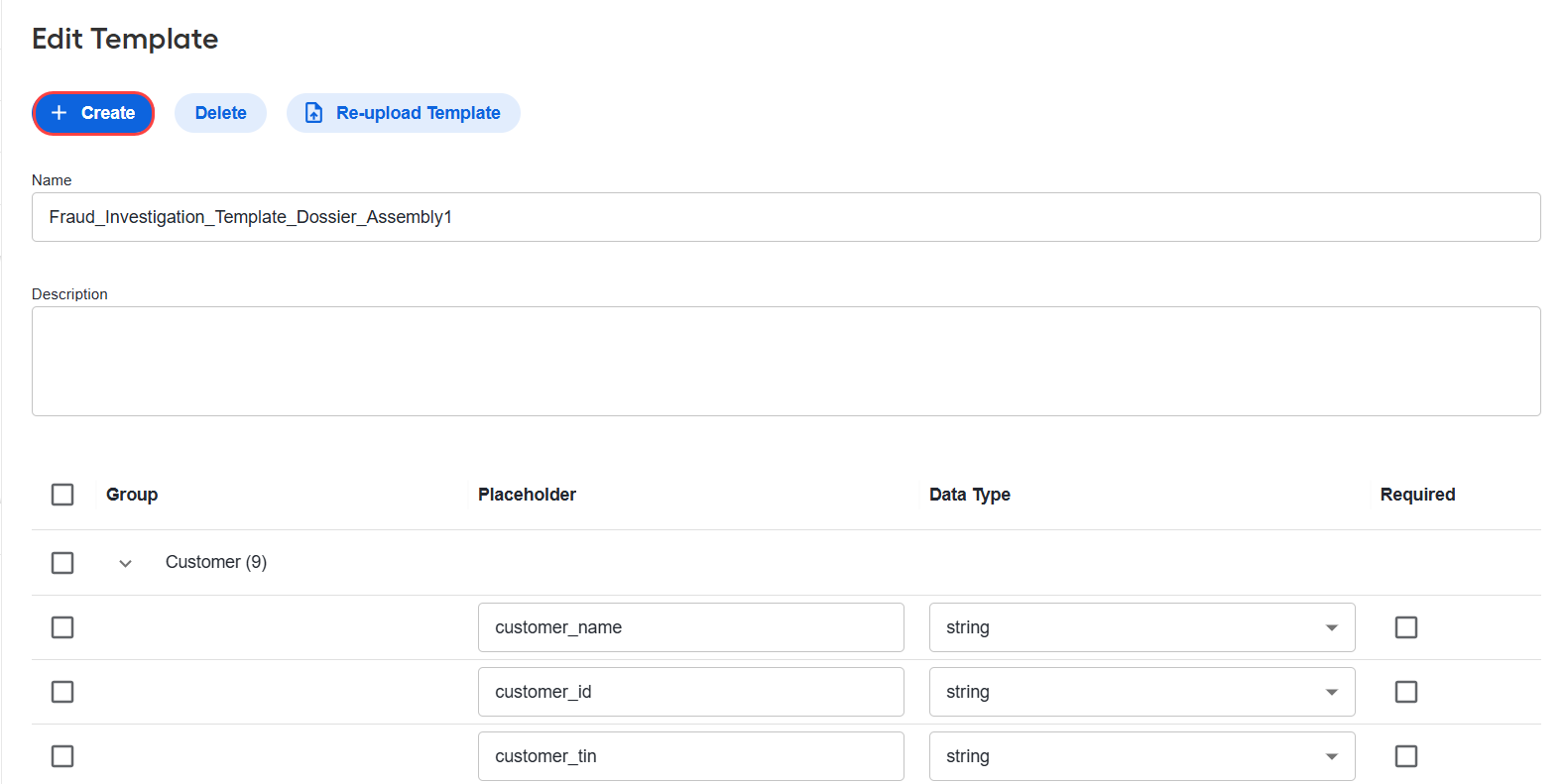
Specify the placeholder settings:
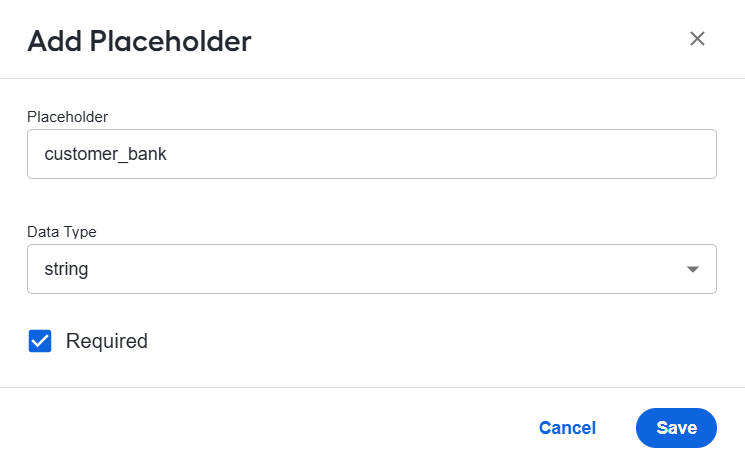
In Placeholder, enter the placeholder name.
In Data Type, select one of the following values:
string,number,integer, orbooleanSelect Required to include the placeholder in required field validation.
Click Save. The placeholder appears in the appropriate group on the template details page.
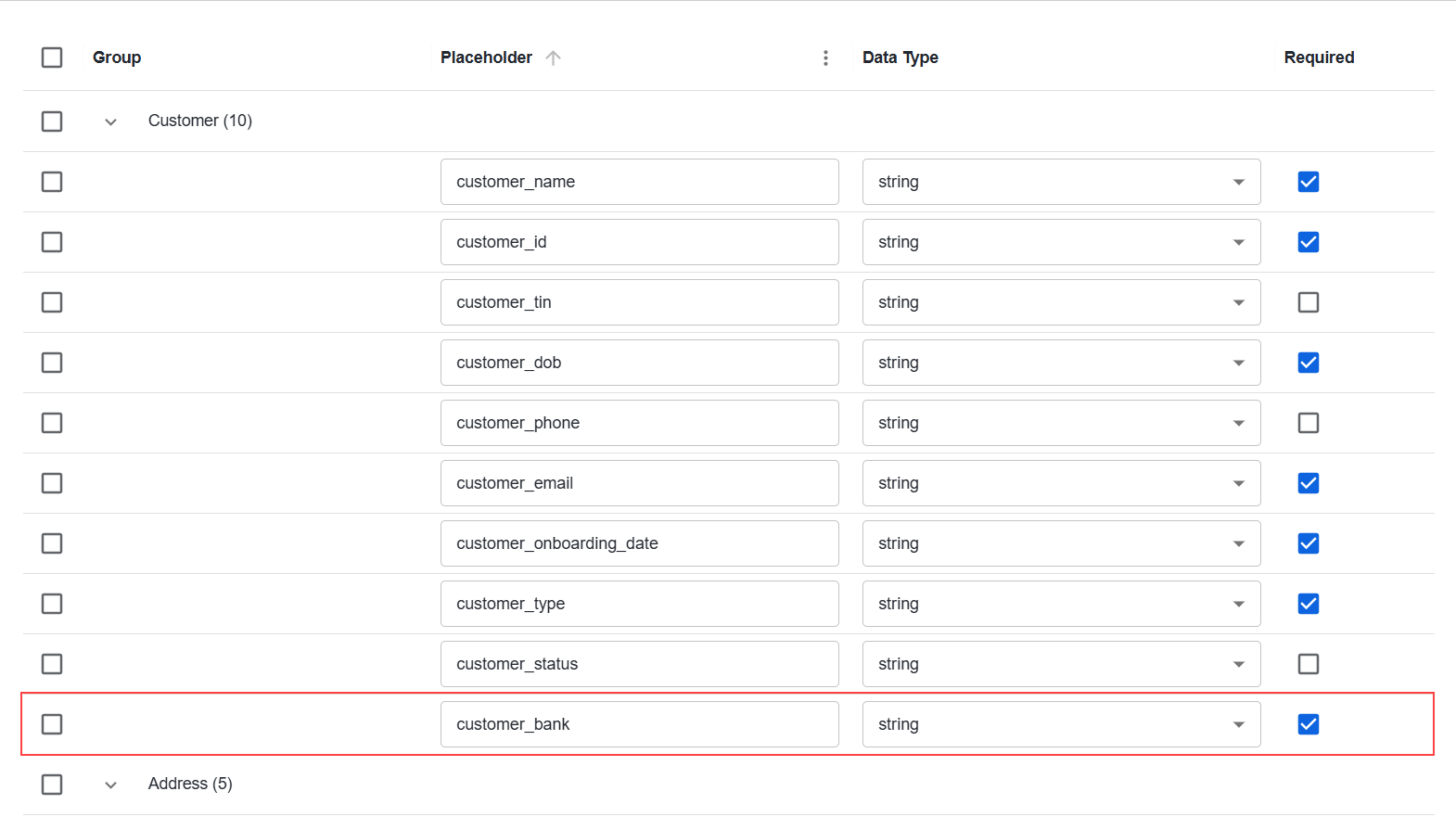
Delete placeholder
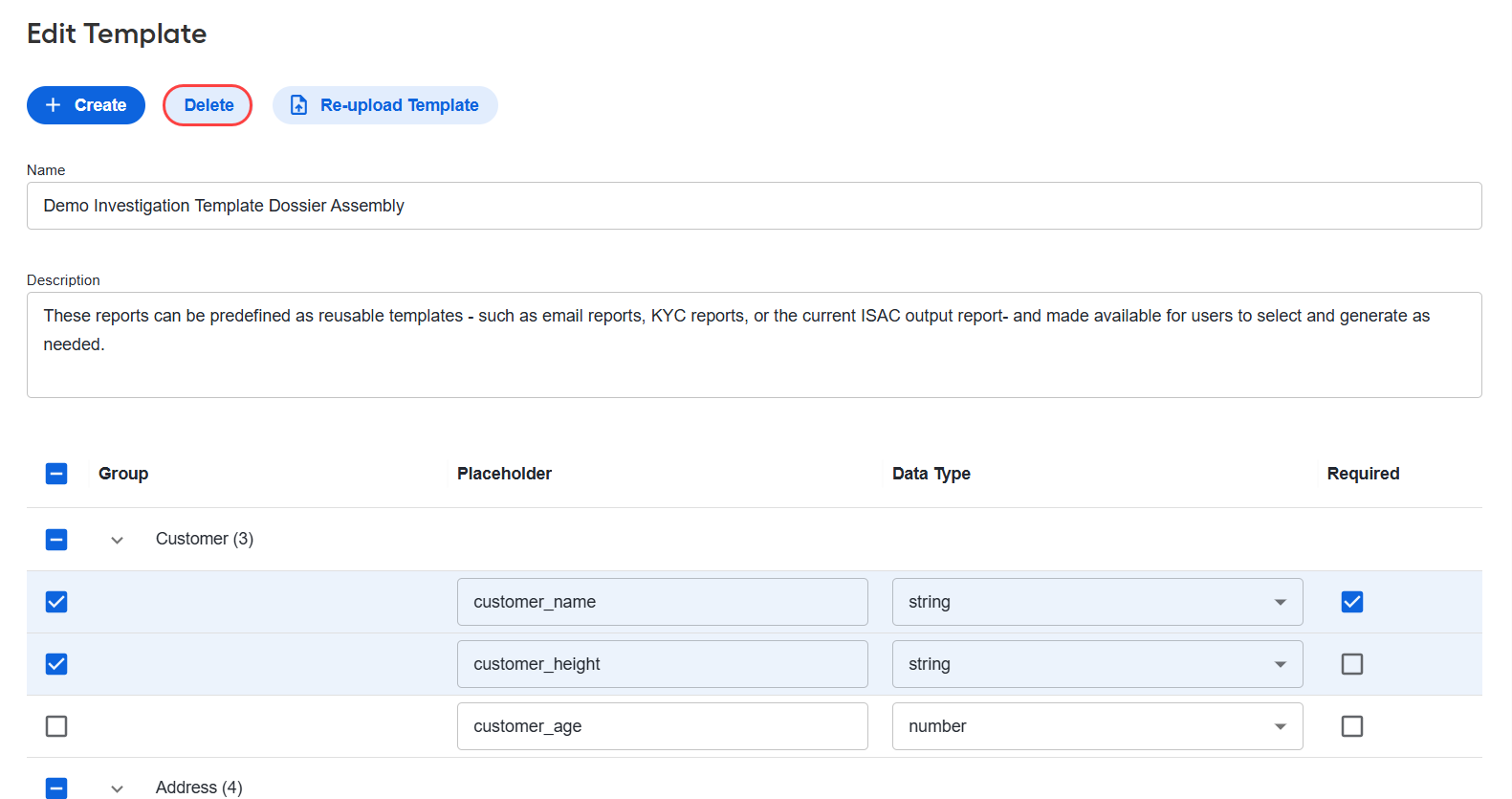
To delete one or more placeholders, perform the following actions:
On the template details page, select the placeholders you want to remove and click Delete.
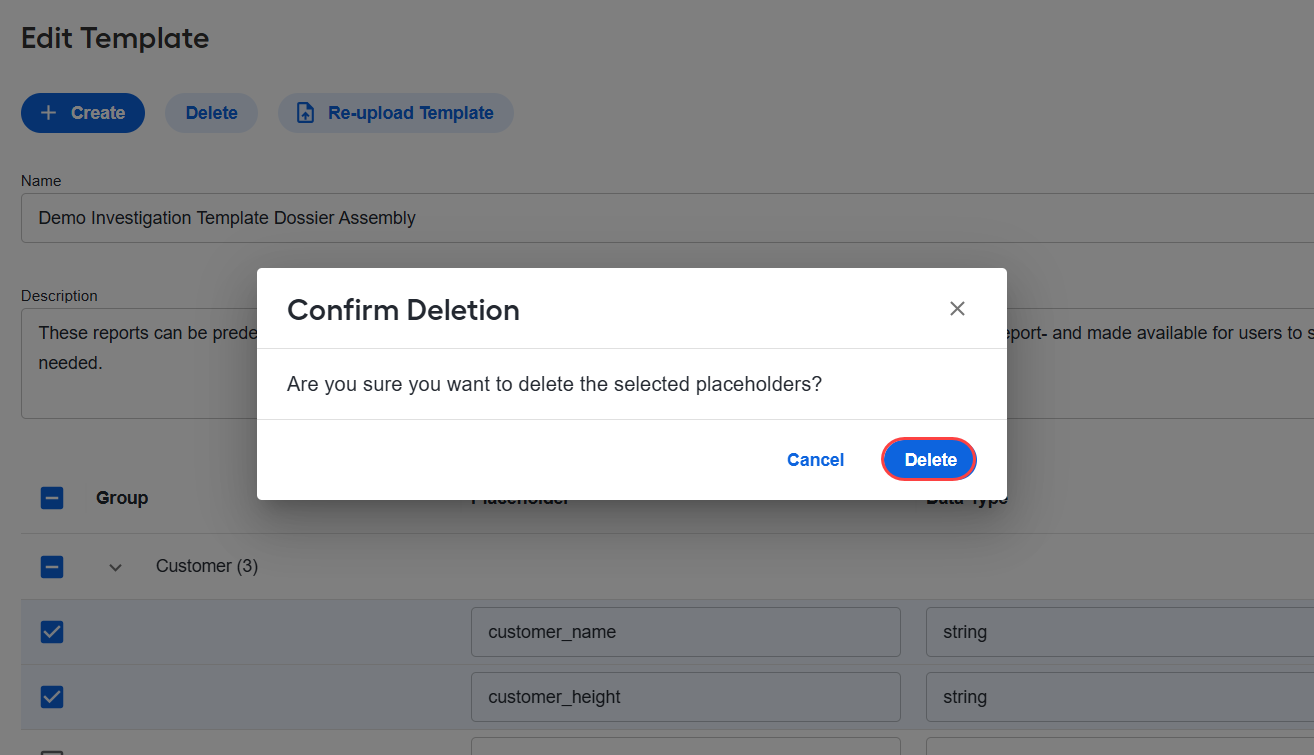
In the Confirm Deletion dialog, click Delete.
Re-upload report template
You can re-upload a report template when you need to replace its Word file.
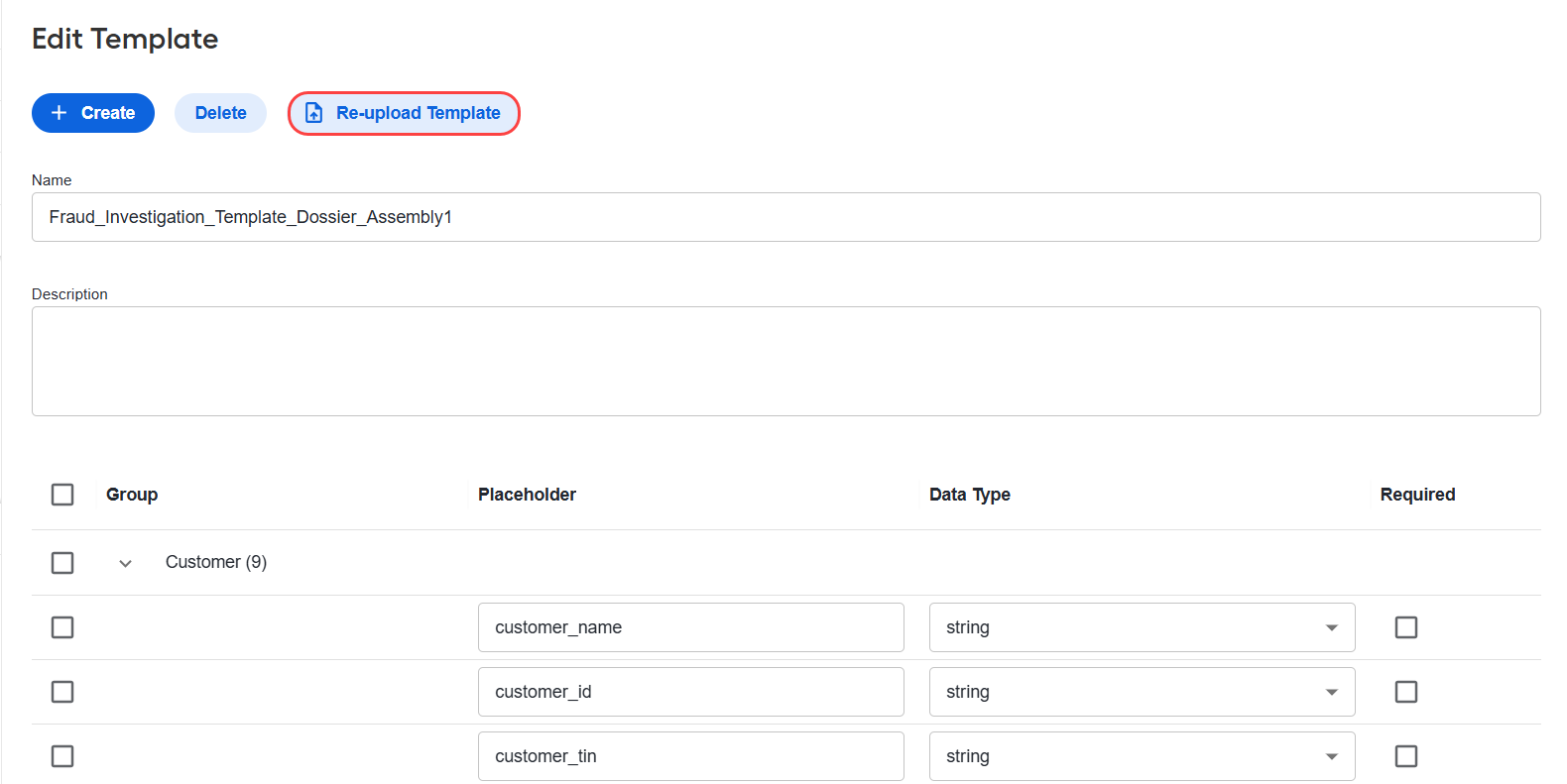
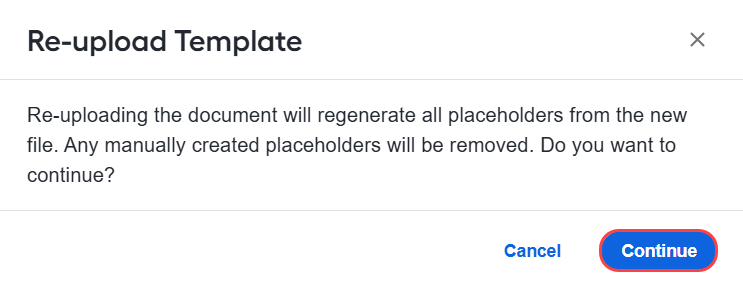
Re-uploading the document regenerates all placeholders from the new file. All existing placeholders, including placeholders that were added manually, are removed and replaced with placeholders detected in the new document.
On the template details page, click Re-upload Template.
Click Continue.
Click Click to upload and select a new DOC or DOCX file. Alternatively, drag the file to the upload area.
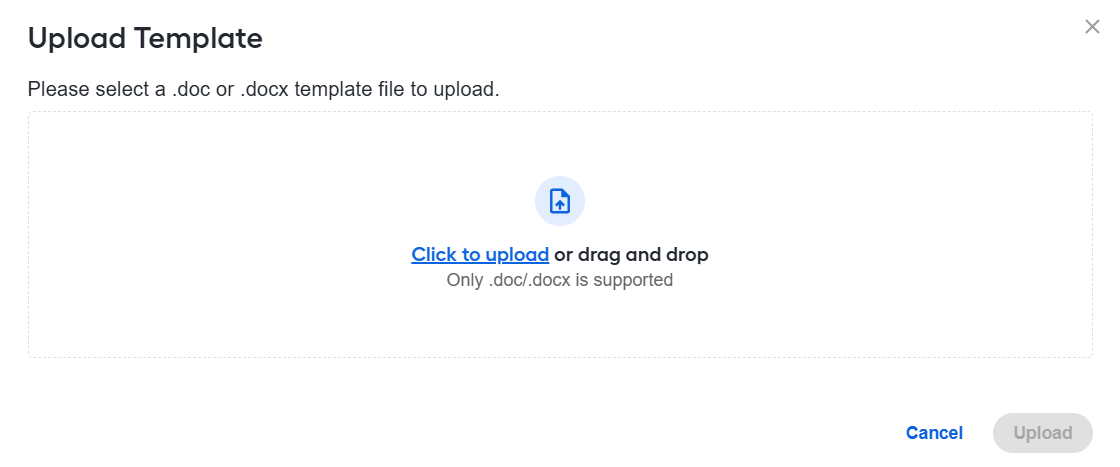
Click Upload.
After the upload is complete, review the regenerated placeholders, their data types, and required status.
Set report template in Business Process
In a BP, you can select report templates for bot steps that have input contracts. The selected template defines the report layout and provides the fields used to generate the step contracts and mapping suggestions.
Go to the BP's Workflow tab and open a bot step that contains input.
On the Design tab > Report Template, select a report template.
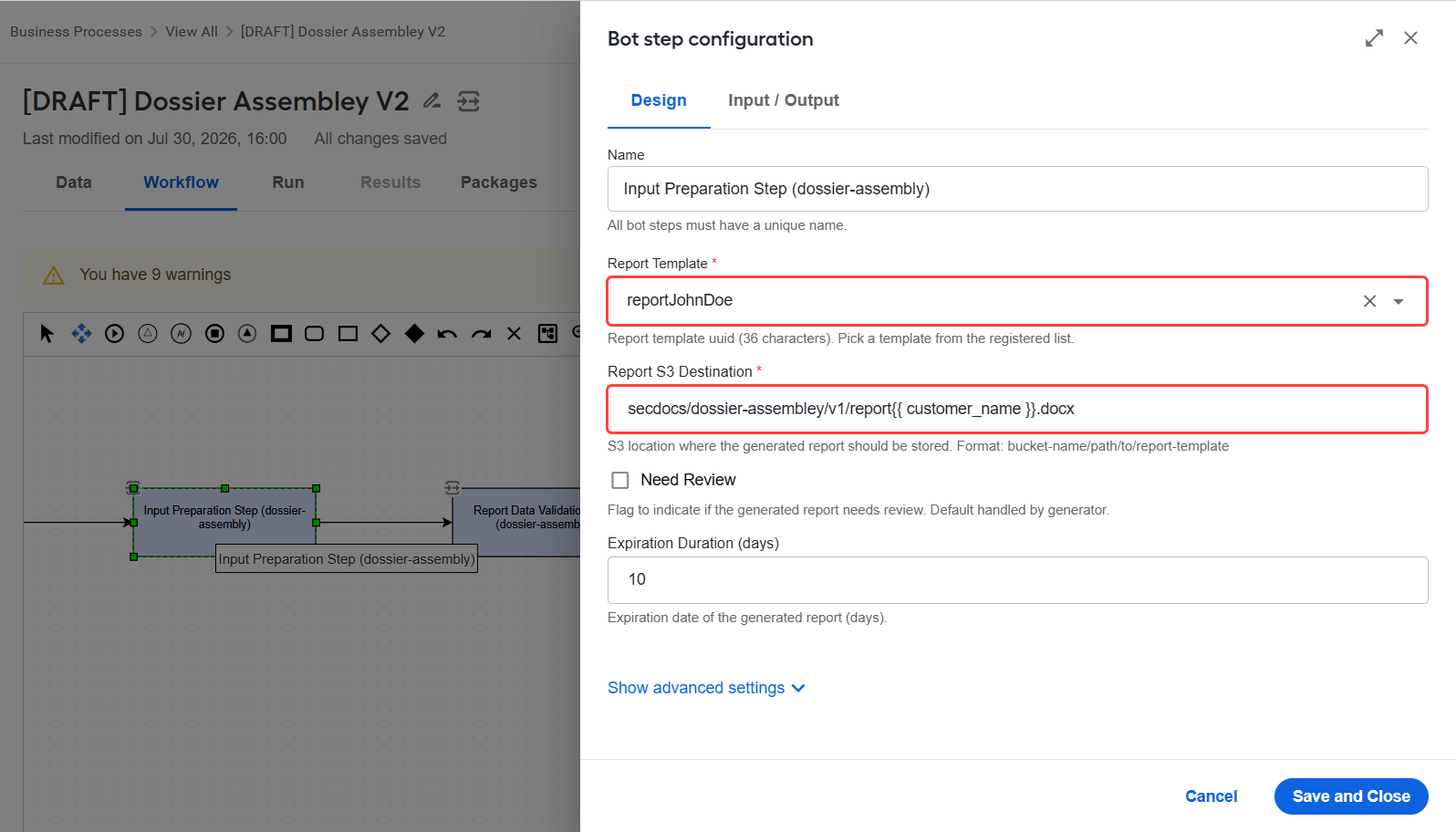
In the Report S3 Destination field, specify the S3 location where the resulting report is stored. Use the following format:
bucket-name/path/to/report-template.On the Input/Output tab, review the generated mappings and map all required fields.
Click Save and Close.
To replace the existing report template, in the Report Template field, select a new report template and choose how to proceed:
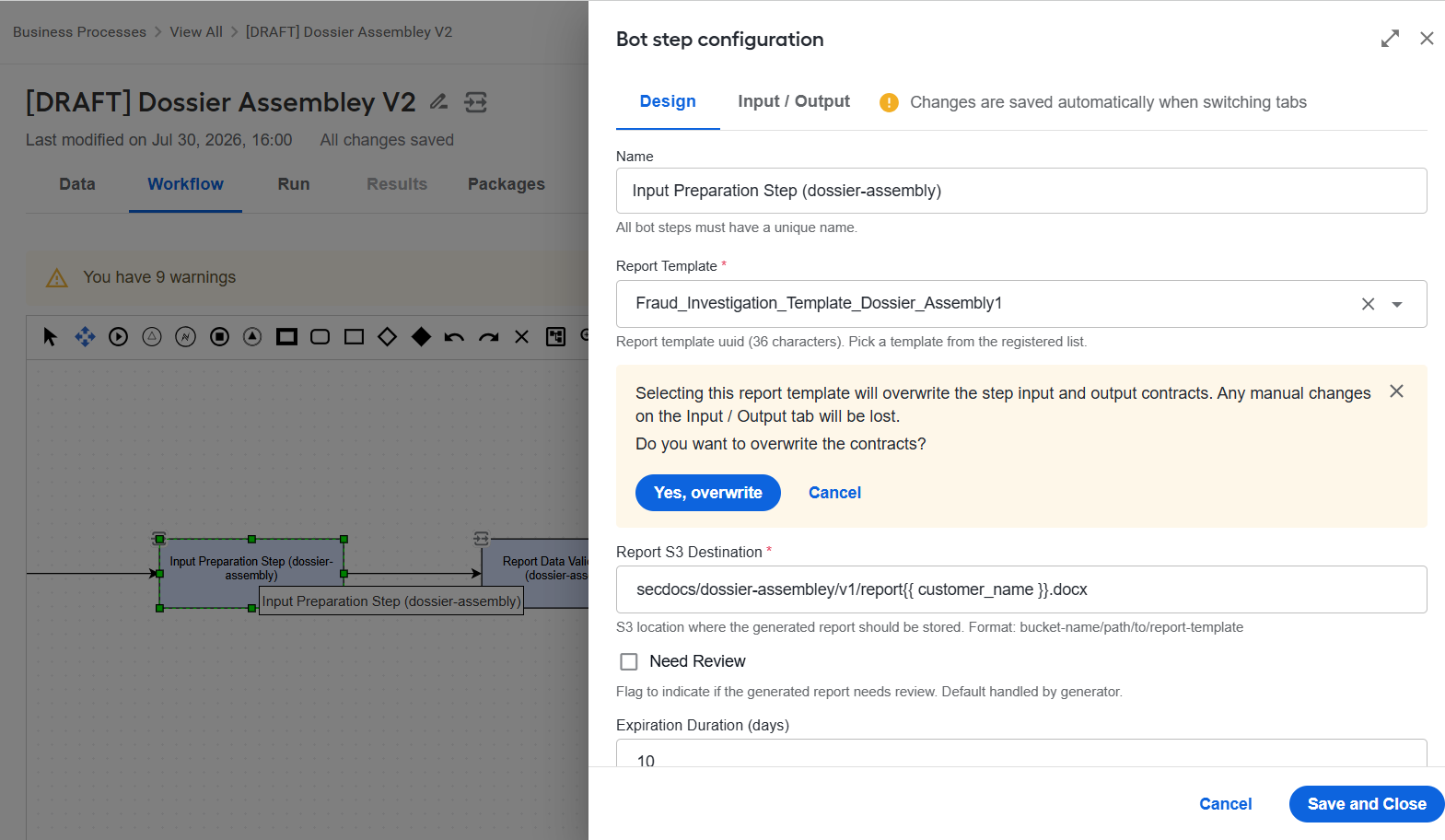
Click Yes, overwrite to apply the contracts from the selected template. Overwriting resets the existing configuration on the Input/Output tab, including manual changes.
Click Cancel to cancel the template selection and keep the existing contracts.
Delete report template
To delete one or more report templates, perform the following actions:
Select the templates you want to remove and click Delete.
In the Confirm Deletion dialog, click Delete.
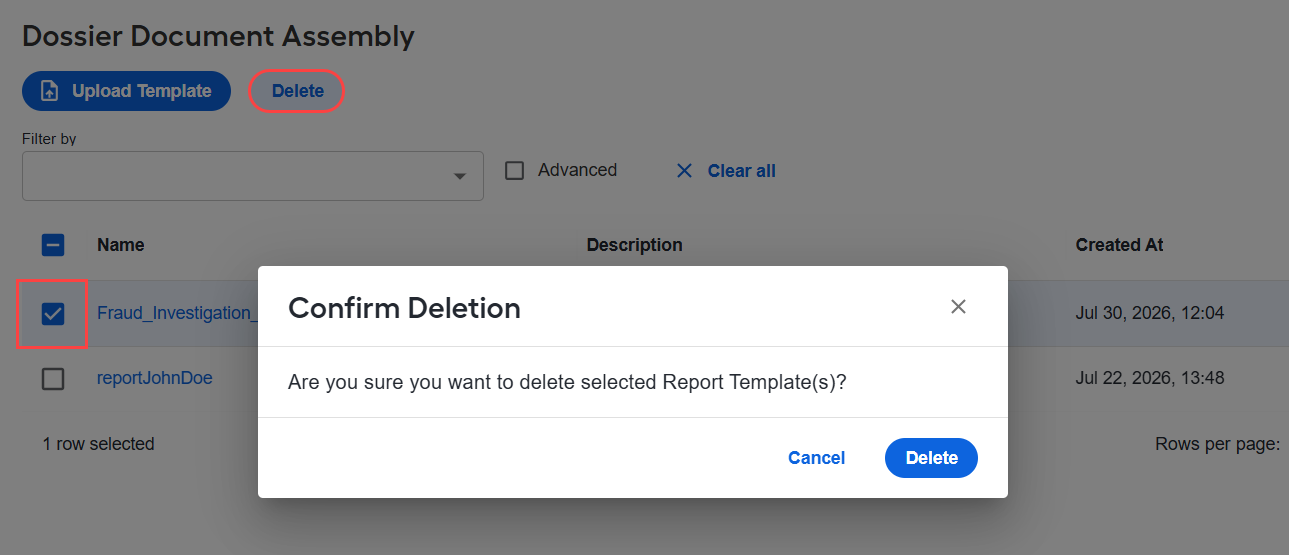
You cannot delete a report template used by a BP that has not been deleted. Open the template to identify the BPs that use it, remove the template from them, and retry the deletion.