Receive information about SAP tables
The use case shows how to get information about SAP tables. There are two scenarios each of them performing almost the same actions but with different tools.
Scenario A
Open SAP GUI and log in.
Start the
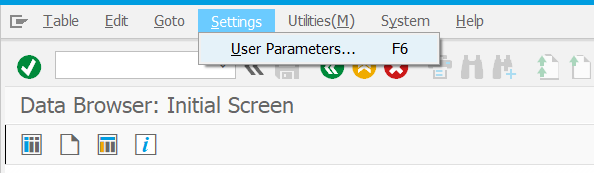
SE16transaction. Enter the transaction codeSE16into the OK Code field and press Enter.In the menu, select Settings > User Parameters.
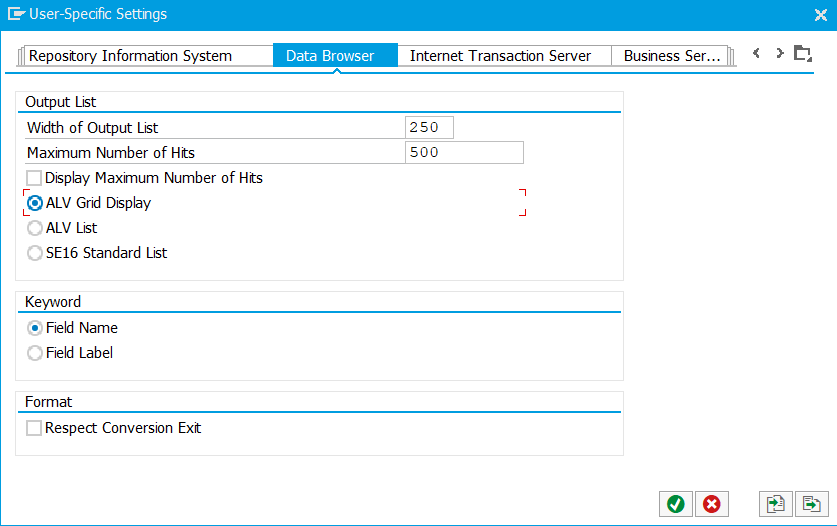
Go to the Data Browser tab, check ALV Grid Display, and press Enter / the OK button.
Enter
DD02Linto the Table Name field.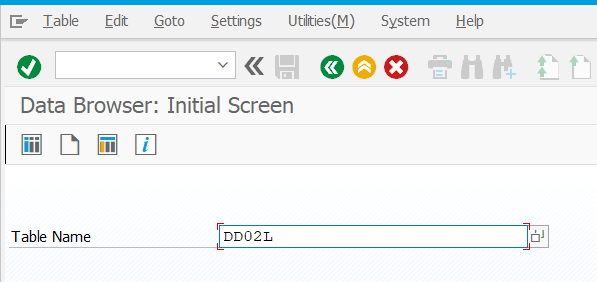
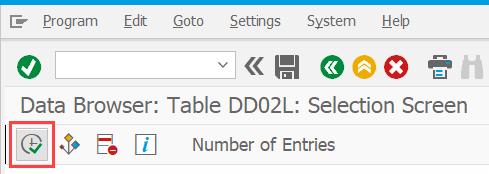
Press Number of Entries. The number you see on the screen is the number of all entries that can be copied and used in your workflow.
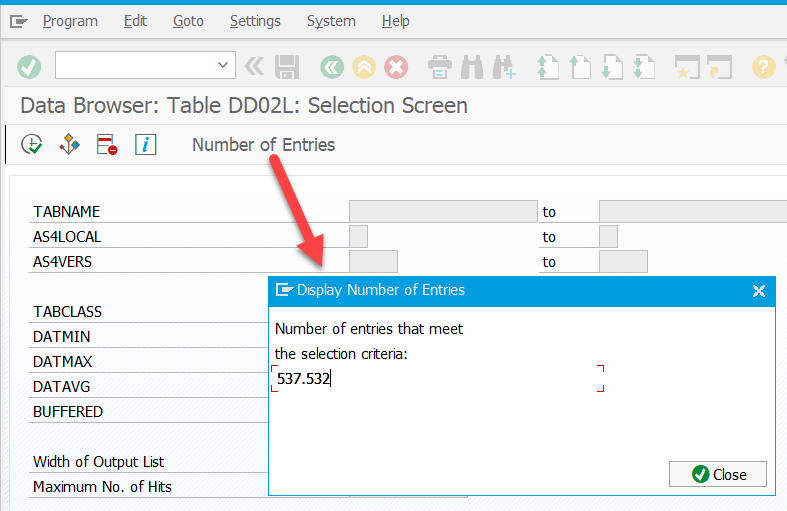
Thus, you can view the number of tables that meet your selection criteria. Enter a table name into TABNAME (for example,
TRANSPorT005 - T006) and press Number of Entries.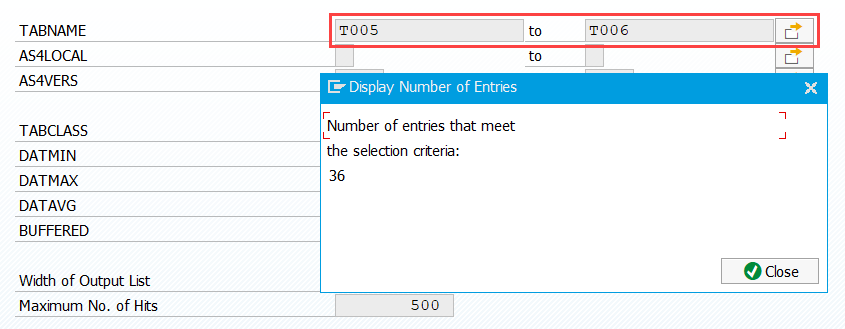
Click on the Execute button to view the selected entries.
Press Ctrl + Y for multiple selection and select all the entries in the TABNAME column.
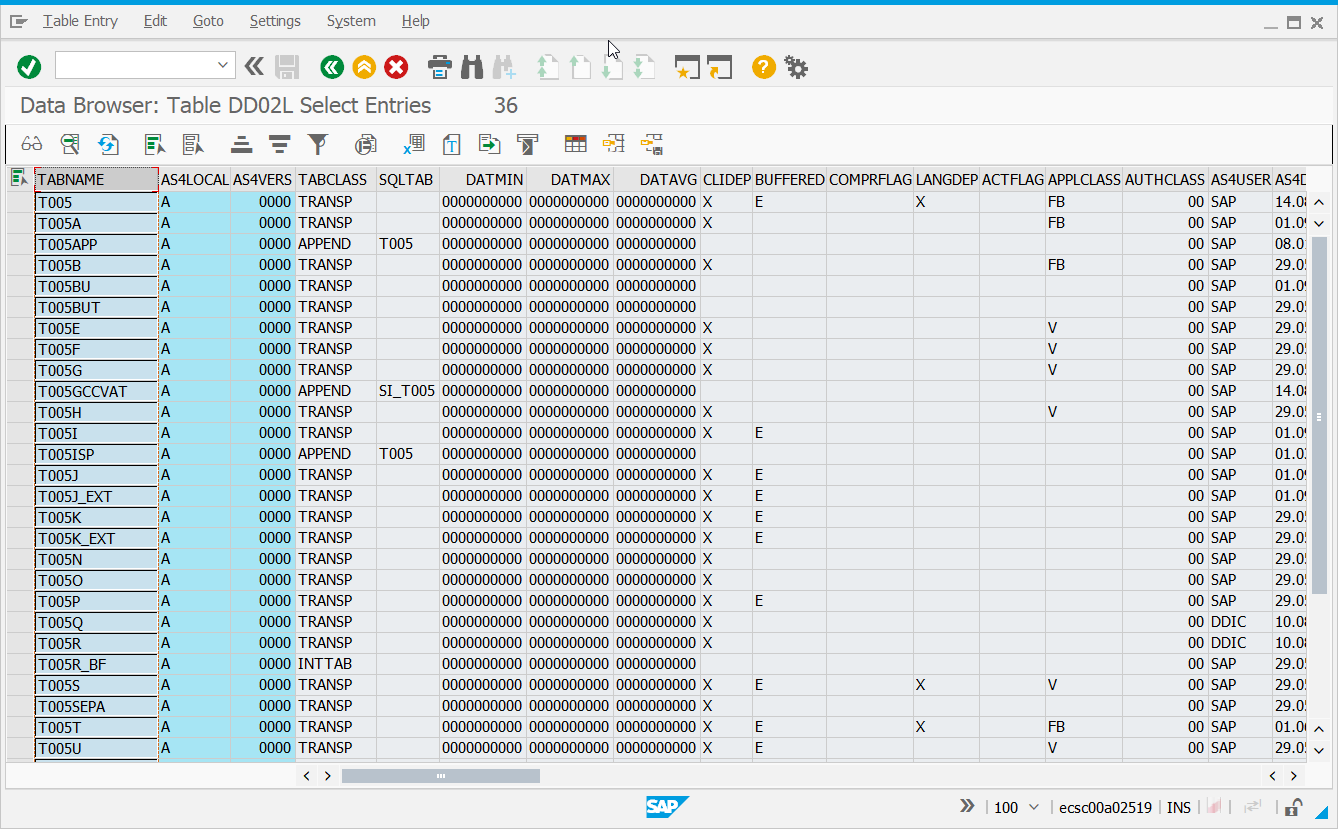
You can copy the entries and paste them, for example, into an Excel document. The same can be done for any column in the table.
Scenario B
Open SE16 via the SAP menu. Go to SAP Menu > Tools > ABAP Workbench > Overview.
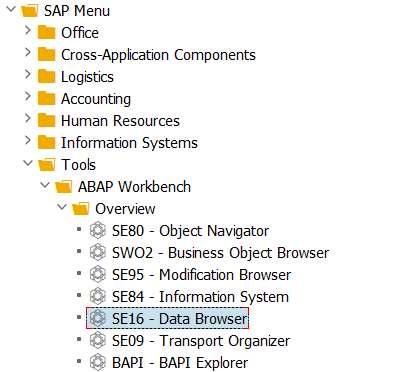
In the menu, select Settings > User Parameters.
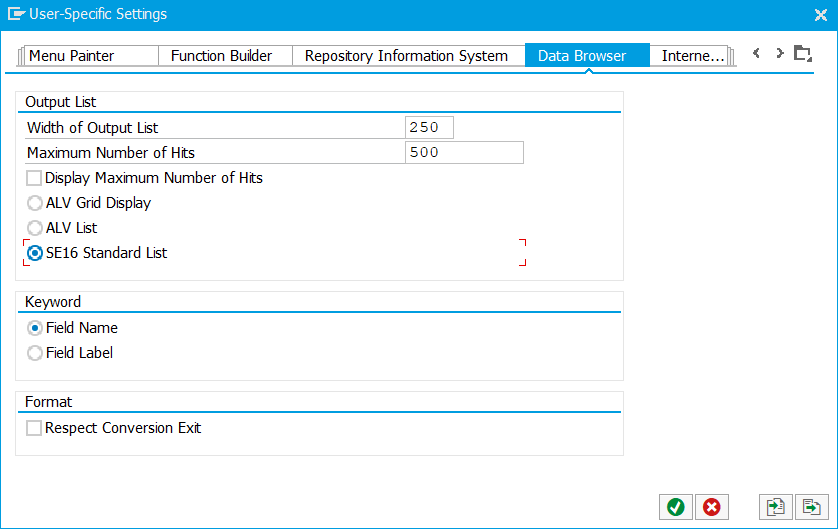
Go to the Data Browser tab, check SE16 Standard List, and press Enter / the OK button.
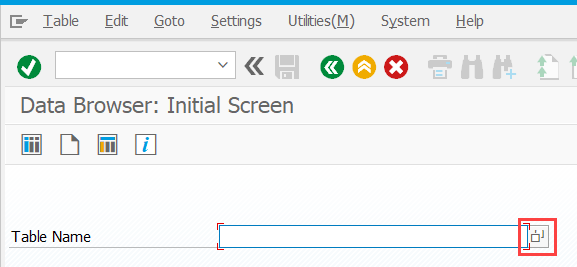
Press the button next to Table name to open the input help for the field.
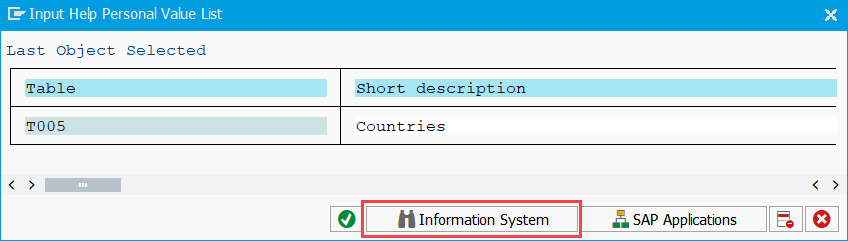
Press Information System.
Type
DD*into the Table name field and press OK.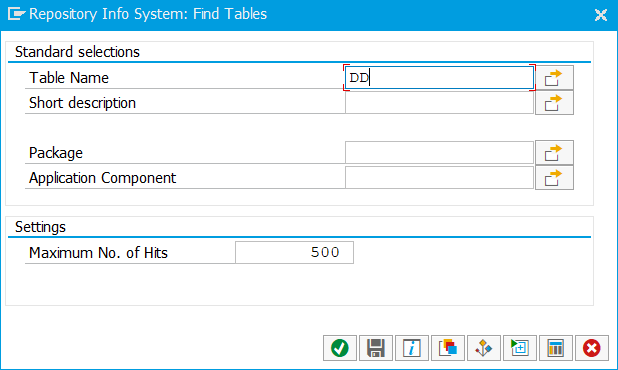
Find
DD02Lin the search results, focus on it, and press OK.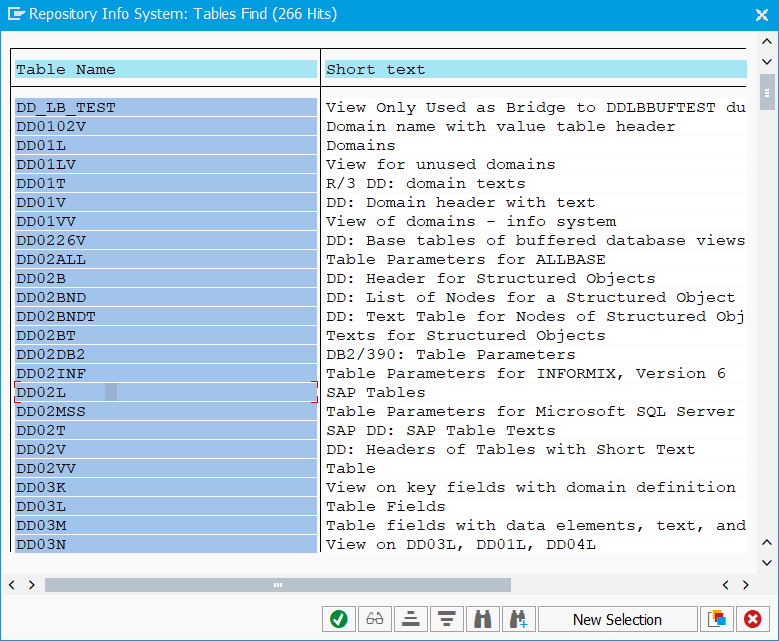
Table name should be filled with
DD02L. Click on the Table Contents button to go to the selection screen.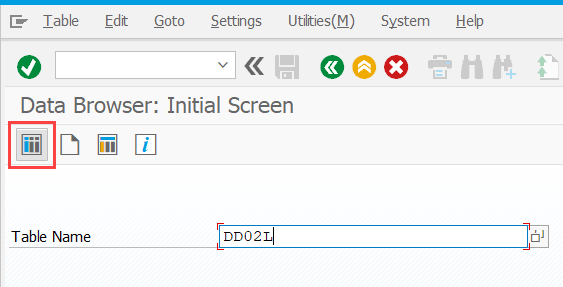
Repeat step 6 from scenario A. Ensure that number of entries is the same.
Press the search help button next to TABCLASS-LOW.
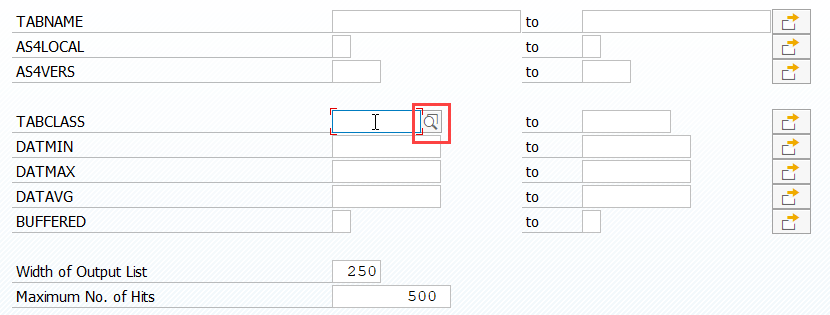
Double-click the
TRANSPentry and repeat step 7 from scenario A. Make sure the number of entries is the same as in scenario A.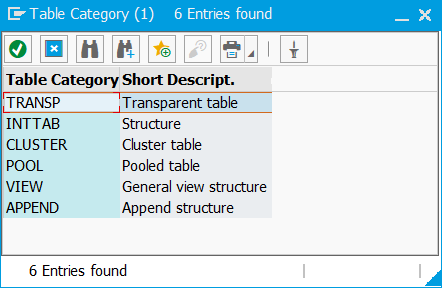
Press Multiple Selection for the TABNAME field.
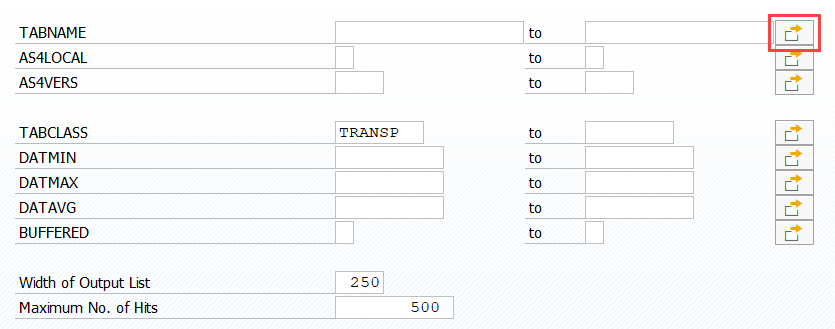
Go to the Select Ranges tab and enter
T005andT006into lower and upper limits respectively.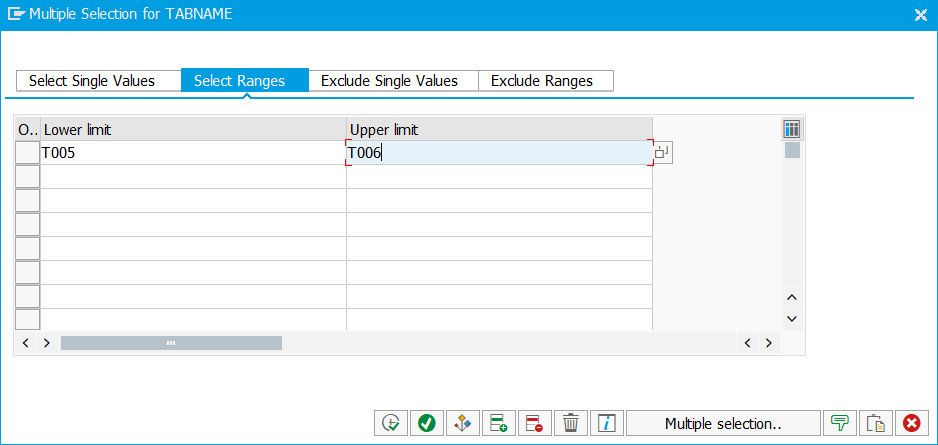
Press Copy and repeat step 7 from scenario A. Make sure the number of entries is the same as in scenario A.
Press Execute and repeat steps 8-9 from scenario A. Make sure the data is the same.