
Secrets Vault in WorkFusion Studio
Secrets Vault is an Intelligent Automation Cloud Business component designed for storing sensitive information.
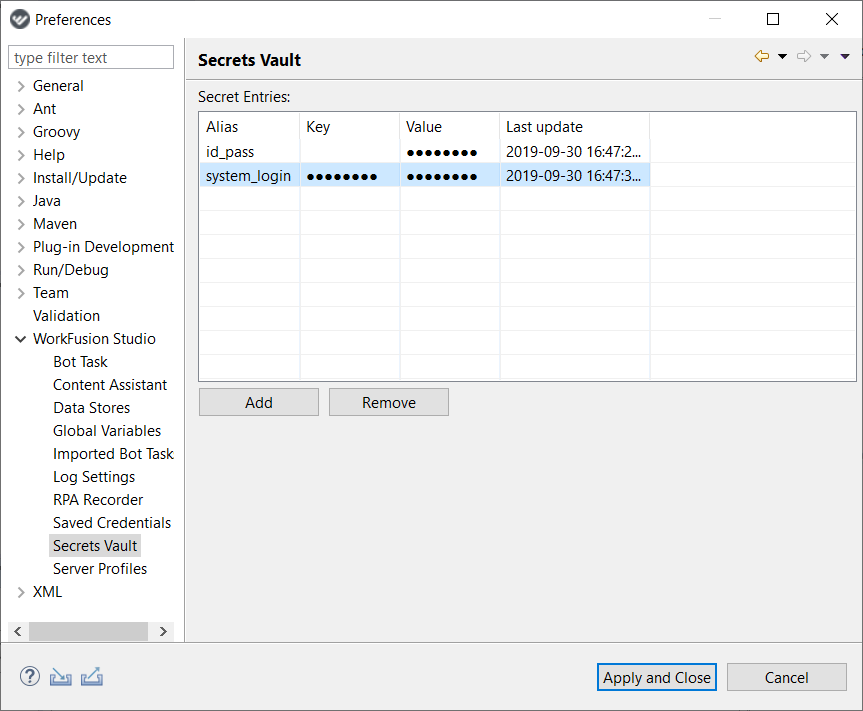
Secrets Vault contains secret entries – secured data, e.g., credentials, that can be used in your recordings and scripts. Mind that these data is not shown in recordings, logs, system files, or bot configs. Thus, Secrets Vault allows sharing scripts with other users without exposing confidential data.
To make use of Secrets Vault, you can:
- set up secret entries in WorkFusion Studio > Preferences
- manage secret entries through the Secrets Vault (HashiCorp Vault) functionality
- use secret entries in your recordings via Recorder Variables
- if you are a Business Edition user, set up secret entries in Control Tower
note
The section contains information on using Secrets Vault and managing its entries in WorkFusion Studio
Create secret entries
To set up secret entries, go to Window > Preferences > WorkFusion Studio > Secrets Vault. For more information, refer to
Preferences.
note
The data stored in Secrets Vault is not shown in recordings, logs, system files, or bot configs. It allows sharing scripts with other users without exposing confidential data.
caution
If you have Business Edition and plan to use your secret entries in Control Tower, mind certain limitations when creating a new entry:
- The following combination is not saved:
!#!. - When importing the list of secret entries,
(\)symbol is not recognized. Thus, do not use these characters in your secret entries.
Use secret entries in recordings
After creating a secret entry in Secrets Vault, you can use the Key and Value data in your recordings.
- In Recorder Variables, create a recorder variable of the Secret type.
- Select the required entry in the Default Value field. In the variables panel, the entries are represented as Alias - KEY and Alias - VALUE, no actual data is displayed.
- If currently there is no record you need in Secrets Vault, click Add Secret Entry at the bottom of the list. To learn more how to add a secret entry, see here.
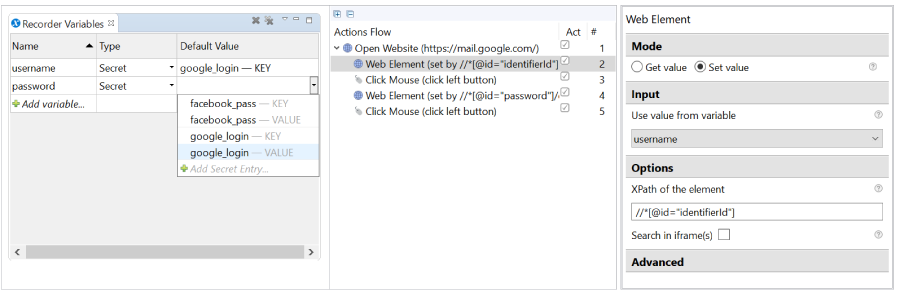 The video below shows how to use secret entries in your recordings.