
User settings
To update your license, edit profile information, set up the display language, or log out, go to the user profile menu. To access these options, click on the dropdown next to your username in the upper right corner.
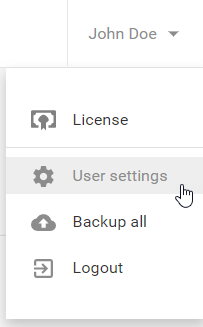
License
To activate your license, select the License option. See the activation steps here.
User settings
To make changes to your user settings, do as follows.
- Select User Settings within the available options.
- You are able to edit the following blocks:
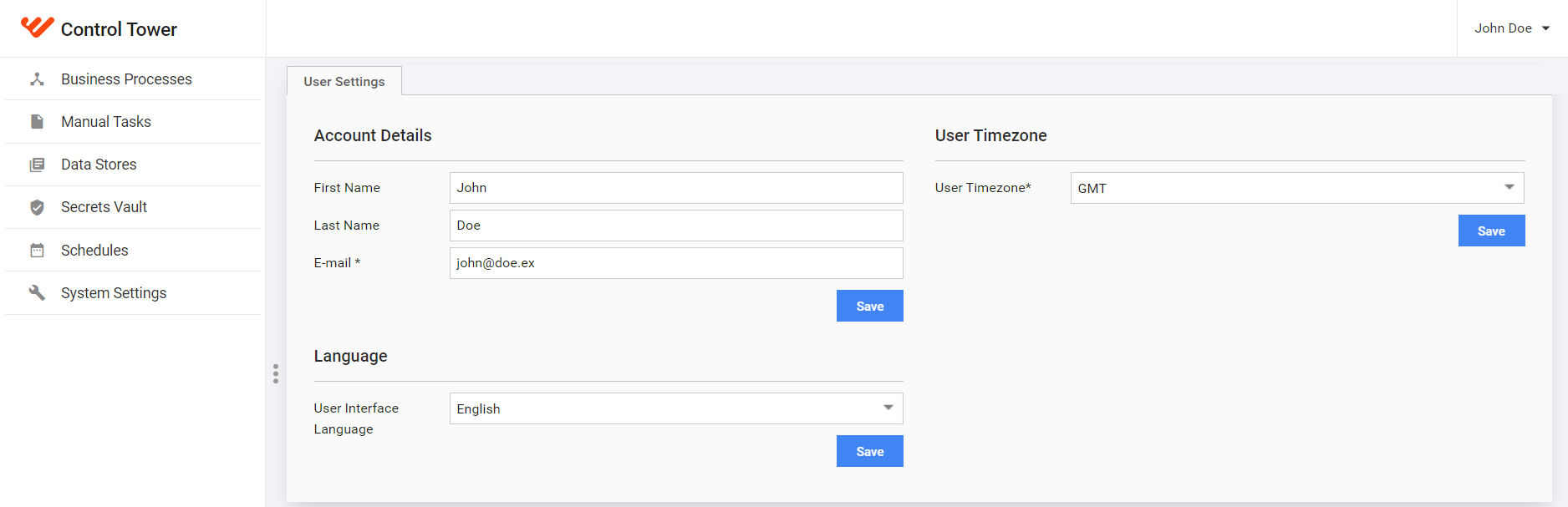
- Account Details - First Name, Last Name, E-mail
- User Timezone - the setting affects the time display in Control Tower only, not the time when business processes are performed - that is GMT, not the actual user time zone
- Language - Control Tower UI language - you can select either English, Spanish, or Japanese
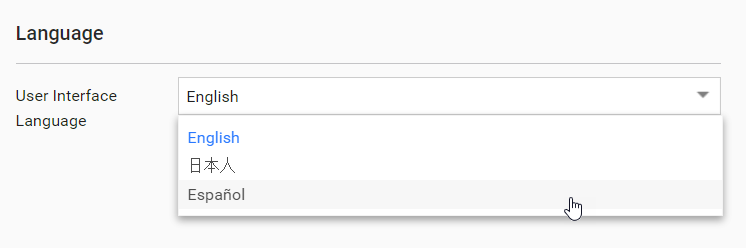
- Press Save under each block you have made changes to.
Backup
You are able to make a backup copy of all your business processes and their input data in the business process package format. It means you can copy and import your processes to another machine, where Business Edition is installed.
- Select Backup all within the available options. The backup process starts.
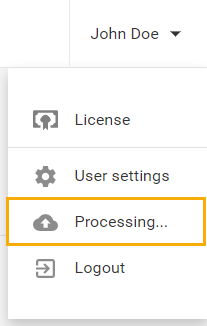
- Go to the backup folder that is configured during installation. By default, the path is C:/Users/%user_name%/Control Tower/Backup to view the files.
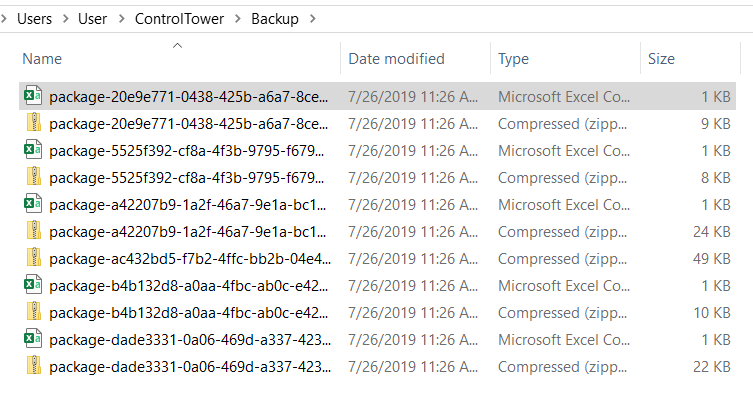
note
The backup service will clean up the backup folder before creating the backup of all business processes. It helps saving only the latest versions of your processes, as by default during the first start of Control Tower, all packages from the backup folder are imported.
caution
We recommend not to use this method, but to import your packages one by one within each business process.
Logout
To log out, select the Logout option.