View report
As a final output, the AMM skill produces a standardized narrative report that serves as an audit trail for each entity's adverse media monitoring. By default, the report is saved as a PDF. See the sample.
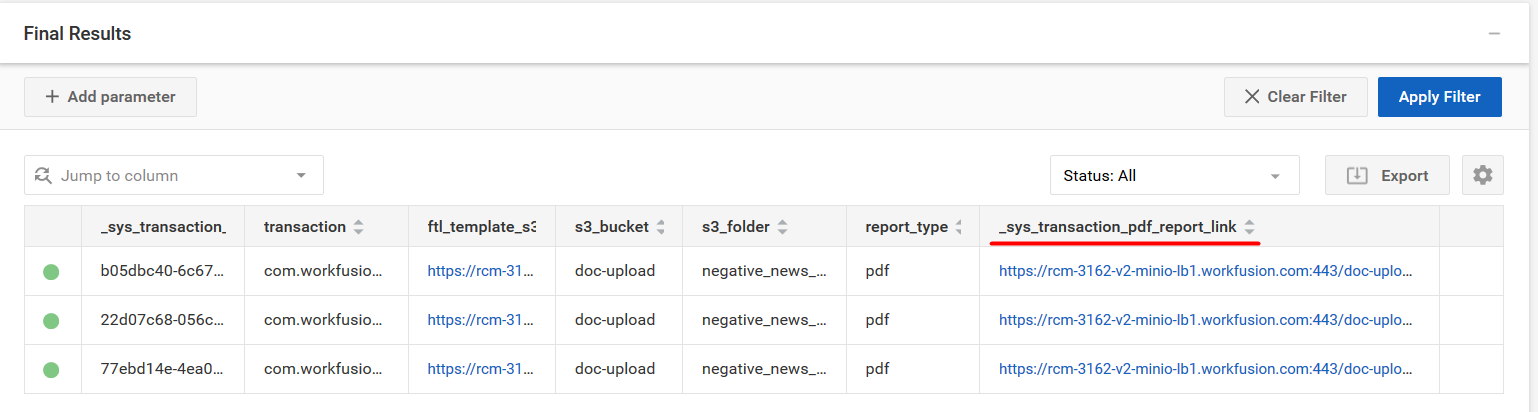
To see the final report, in Control Tower open the required Business Process, and on the Results tab, click the link in the "_sys_transaction_pdf_report_link" column.
Report structure
Basic information
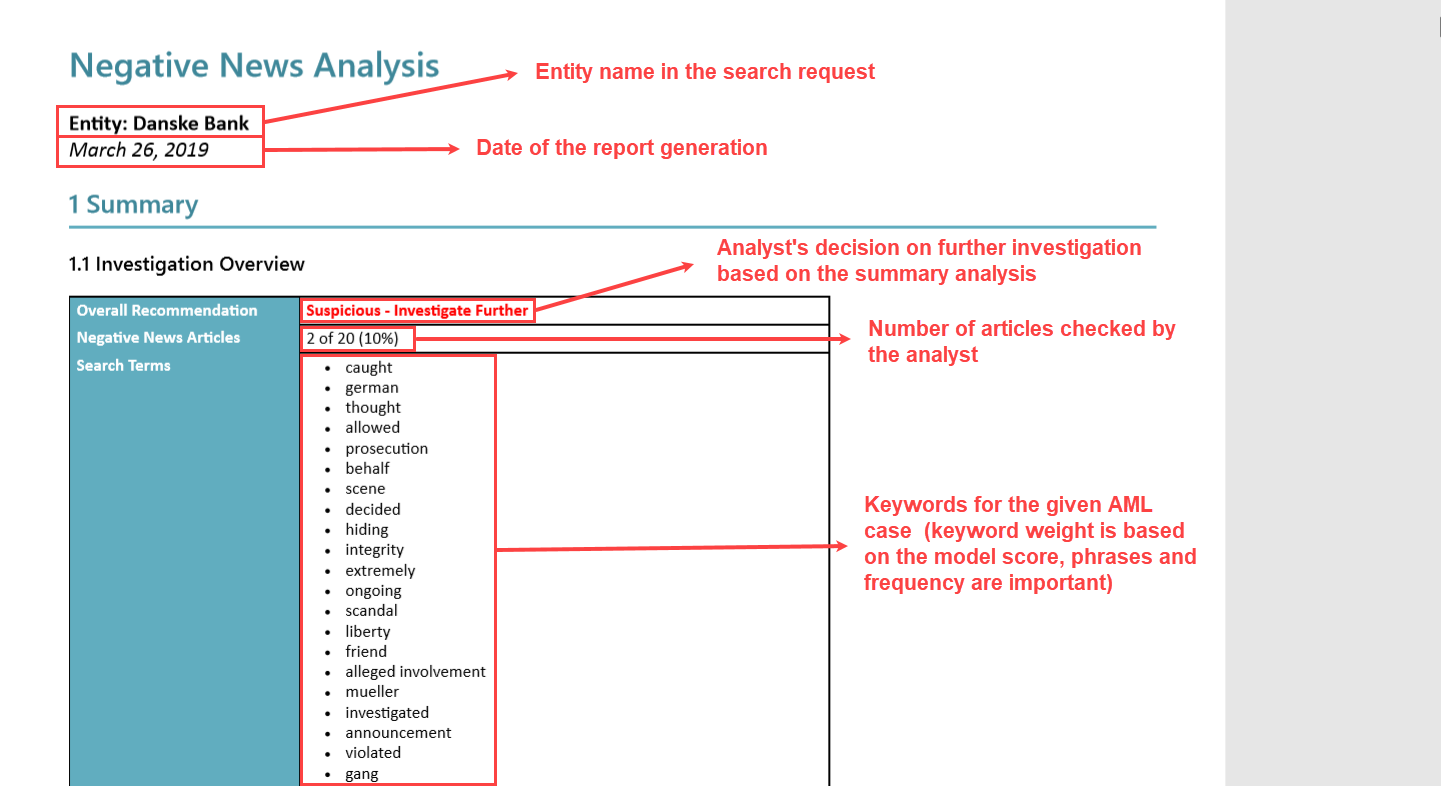
The section is placed under the Negative news Analysis title and contains the basic information about the search request, including the searched name and report creation date.
Summary of investigation
See section 1.1 on the image below. The summary contains an overall recommendation for the entity (whether to investigate further), number of articles found and reviewed, negative keywords, risk factors (high-risk countries, sanctioned jurisdictions, PEPs), analyst's name, link to structured data audit in WorkFusion Control Tower.
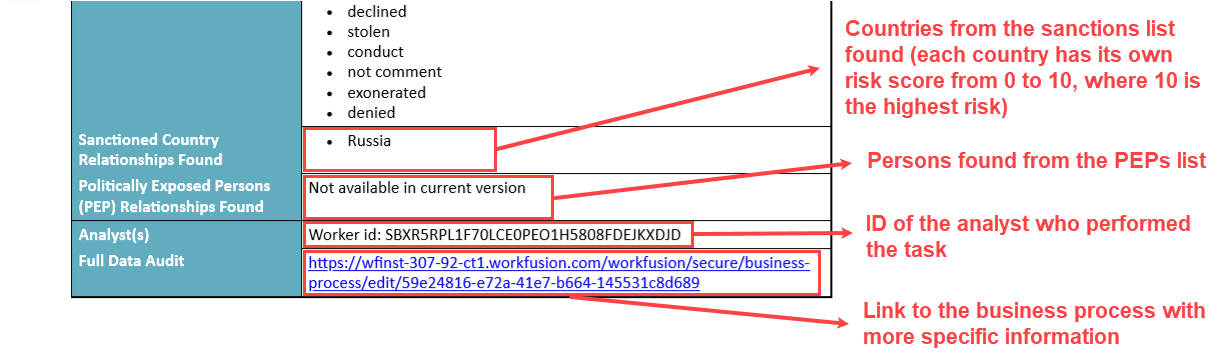
The length of the investigation overview depends on the number of keywords found.
News article summary
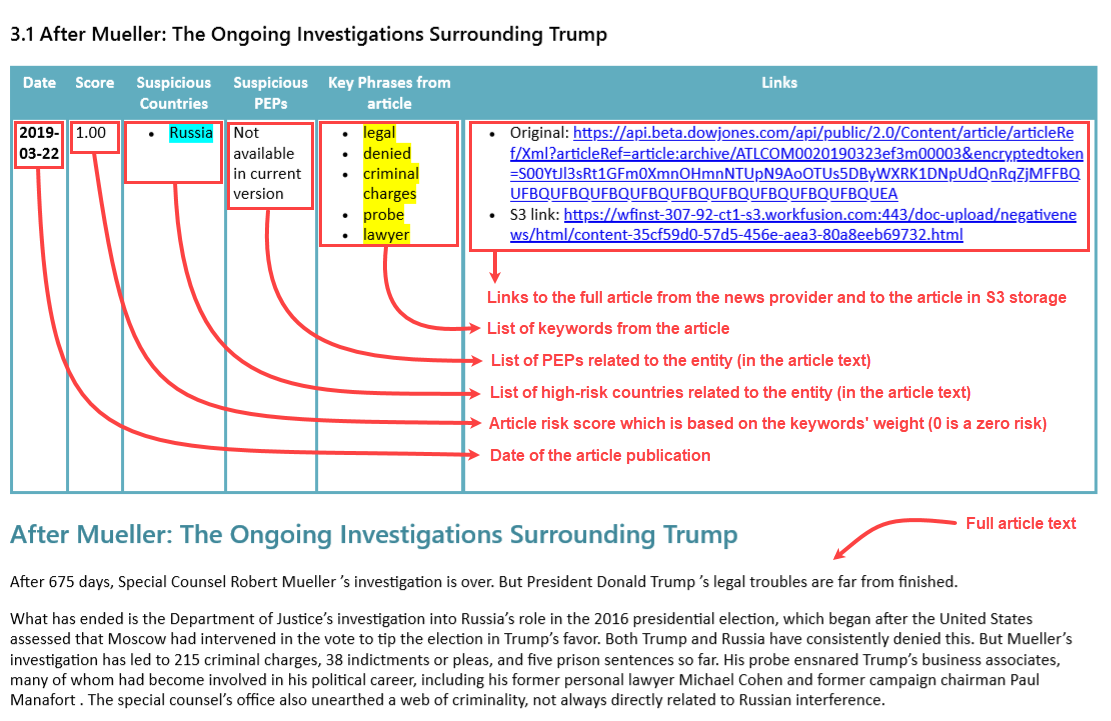
See section 1.2 on the image below. The News Article Summary section of the report represents the following information on the news article:
- Title
- Date
- Score
- Suspicious Countries
- Suspicious PEPs
- Key Phrases from an article
- Link to the original article
- Link to the articles stored in S3
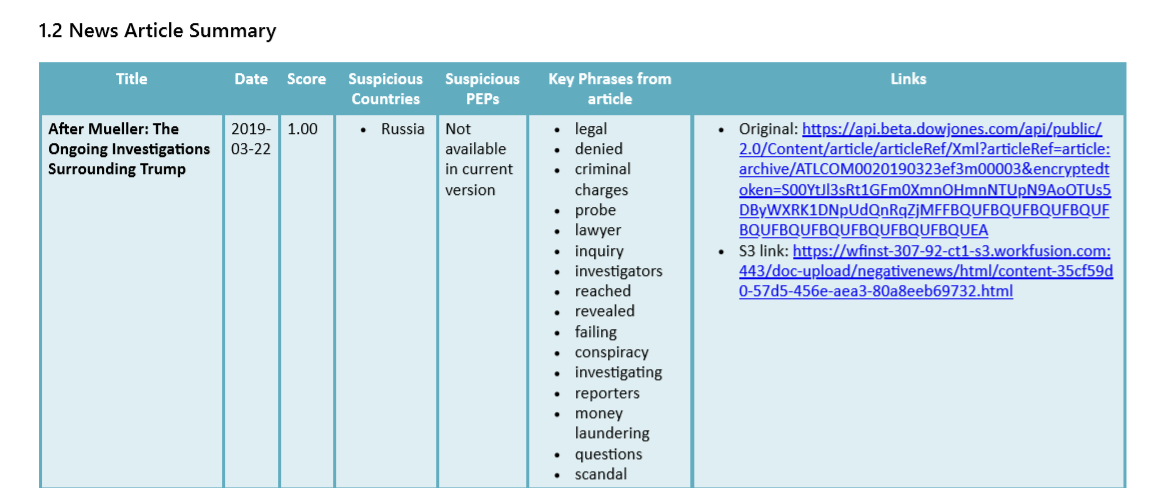
The risk score is calculated according to the Client Risk Rating Methodology doc.pdf.
The table below specifies the categories of how the retrieved articles are ranked in the output report under the model confidence score.
| Category | Color | Description |
|---|---|---|
| High risk | Red | High probability that the article is correctly marked as relevant. Study the article further |
| Medium risk | Orange | The article may be considered both relevant and irrelevant. The article may be worth reading |
| Low risk | Green | High probability that the article is irrelevant to the query. Most likely, you don't need to study it further |
| Other | Gray | The article barely contains any useful information. Skip the article |
News article detailed analysis
The section includes the full text of the article in addition to the information in News Article Summary.
Report settings
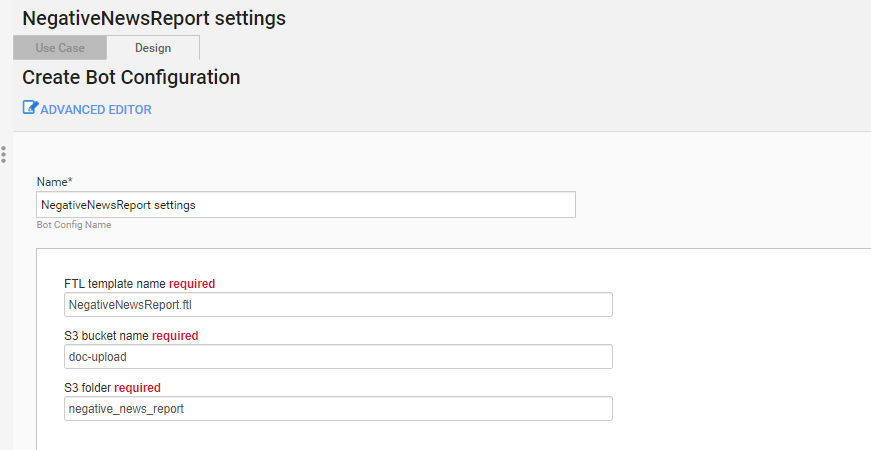
To change the report's settings, set the mandatory parameters:
In Control Tower, in the Negative News workflow, double-click the NegativeNewsReport settings step. The settings window appears below the flow.
On the Design tab, set the following parameters of the output report:
- FTL template name: the S3 link (full URL) to the FTL template. For example, https://instance.workfusion.com/intake-bucket/NegativeNewsReport.ftl.
- S3 bucket name: the S3 bucket name, where to generate the temporary HTML report, and place the final PDF report.
- S3 folder: the S3 directory, where to generate the temporary HTML report, and place the final PDF report.
The report is temporarily saved to the HTML format and is finally converted to the PDF format.