View report
The final output of the AMM solution is to generate a final report. This report serves as an audit trail and includes all sourced articles, confidence score per article, overall decision, and other data elements. It is stored inside the WorkFusion platform by default and is available either in HTML or in a reader-friendly PDF. You can configure that report to be pushed directly into an organization's internal applications, for example:
- Save into a case management or transaction monitoring system.
- Store in a shared folder.
- Use a custom connector for in-house application.
Typically, the report is only generated after an analyst has completed the investigation within Workspace. However, there are a few exceptions to this:
Use of Workspace and the Manual Task is optional and is configurable via a user interface when installing AMM or adding a new variation. If the Manual Task is not enabled, the reports will be generated as the model completes its review and analysis of each entity.
Occasionally, no search results are returned for an entity and the search criteria. When this occurs, the Manual Task is skipped, and a report is generated and stored in the same predetermined location for audit purposes. When initiating a search via the Launcher, a message with a report link is sent to the specified email address.
If the investigation was run using the core Business Process, you could find a direct link in Control Tower. To access it, open the required Business Process, and on the Results tab, click the link in the "_sys_transaction_pdf_report_link" column.

There are two report options:
- Report for a single entity
- Combined report for multiple entities or counterparty investigations
Single entity report
Investigation title and status
The title of each Adverse Media Monitoring Alert report is determined in part by the entity which was screened. Underneath the title, there is the status of the investigation. There are four possible statuses.
| Status | Description |
|---|---|
| Needs Investigation | A final decision could not be reached based on the information returned in the search results. Further escalation or investigation is needed to determine if there is a material risk. |
| True Positive | After analyzing the search results, one or more material risks were found. |
| False Positive | Material risks were not found in the search results for the entity. |
| No articles found for the entity | No search results were found for the entity based on the provided search parameters. |
The date the report was generated is included for reference.
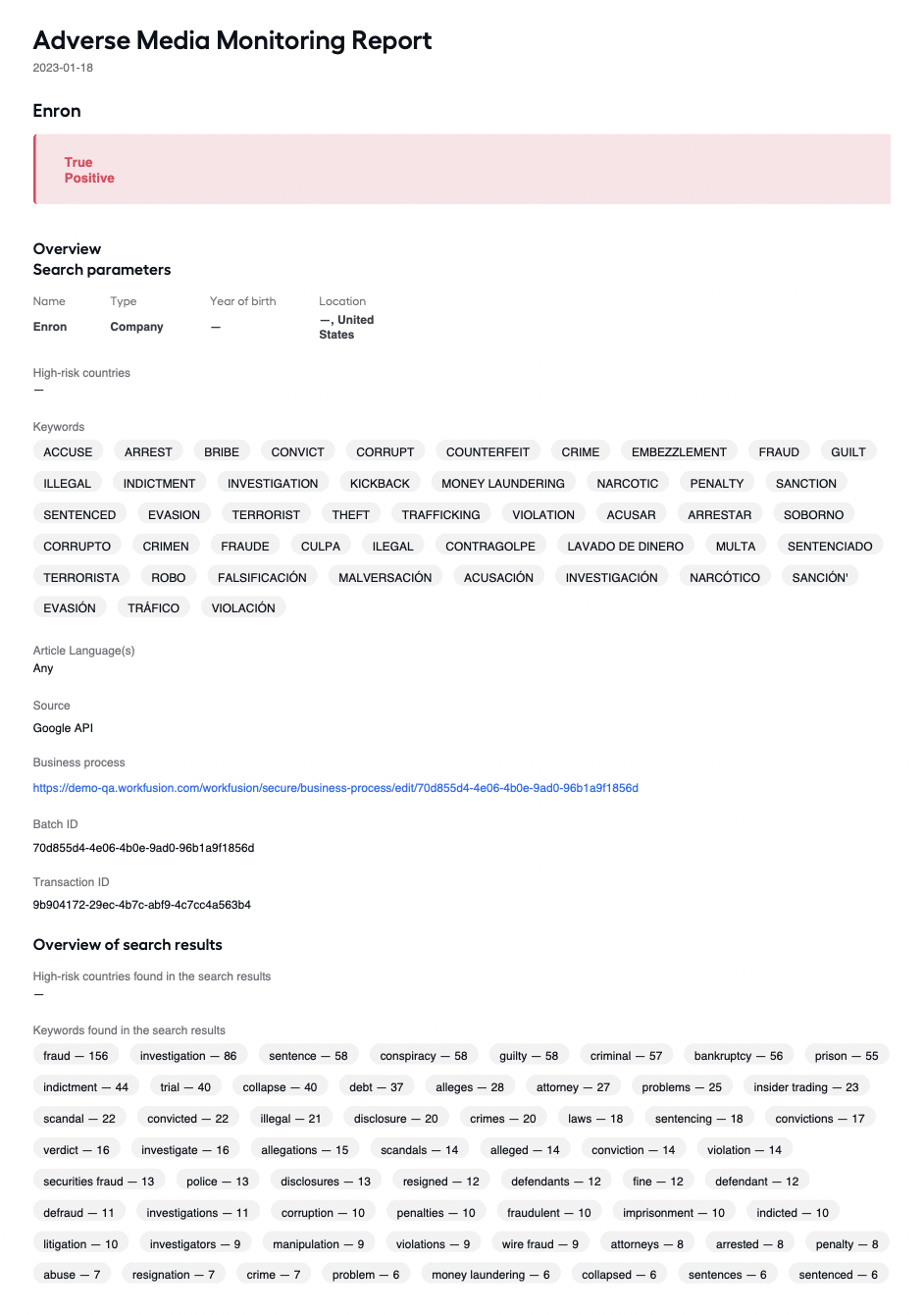
See the sample reports for Invidual and Entity.
Search Parameters
The search parameters, which were included as part of the search request, are listed:
Entity Information:
- Name
- Type (individual or company)
- Year of Birth (only applicable if entity type is an individual)
- Location
Keywords
High-risk countries
Article Languages
Media Provider
Business Process
Summary
Search Results
Search results show the risk factors (keywords and high-risk countries) found in the search results. The number next to each found keyword or high-risk country indicates the number of times the risk factor was found within the articles returned.
Reviewers
A list of all analysts who reviewed the search results is shown in Reviewers. If the machine learning model automatically reviewed an article, then "Auto" will be listed as the reviewer.
Reviewer Comment
If a comment was provided for the investigation, it would be displayed here. Additional comments may be listed with each article further below.
Article Summary
The article summary contains each article that was returned in the search. A short description of the findings includes the following:
Article Title
The link will take the user to the whole article in the Details section of the report.
Article Publication Date
Article Status & Score
Reviewer
The reviewer is set to "Auto" if the article was reviewed automatically.
Article Comment
If an analyst or the model left no comments, then "No comment provided" will be displayed.
Article snippet
A critical section from the article is included for reference.
Report Explanation
An explanation of the various terms users may encounter in the report is provided in this section for easy reference.
Details
The remainder of the report contains the full details of the investigation. The entire content from each article is shown along with the following information:
Article Title
The link leads to the entire article in the Details section of the report.
Article Publication Date
Article source
A link to the source. This is only available if the media provider is Google.
Article Status & Score
Reviewer
Note that if the article was automatically reviewed, the reviewer is set to "Auto".
Article Comment
If an analyst or the model provided no comment, then "No comment provided" will be displayed.
Article snippet
A critical section from the article is included for reference.
Customers who use Google as the Media provider may occasionally encounter articles in which the full text could not be parsed or included in the report due to latency or website downtime. A link to the source will be provided for users to navigate to the article and review the results.
Combined Report for multiple entities
The combined report includes a summary page of all entities included in a batch. A batch is one or more entities submitted as a single request.
The batch summary page includes the following:
- Batch ID
- Date the Investigation was completed. This is also the date that the report was generated.
- Entity Name
- Entity Type
- Investigation Status (per entity)
- Investigation Comment (per entity)
After the summary page, the entire individual report for the entities is included. The report's structure is the same as for the Single entity.
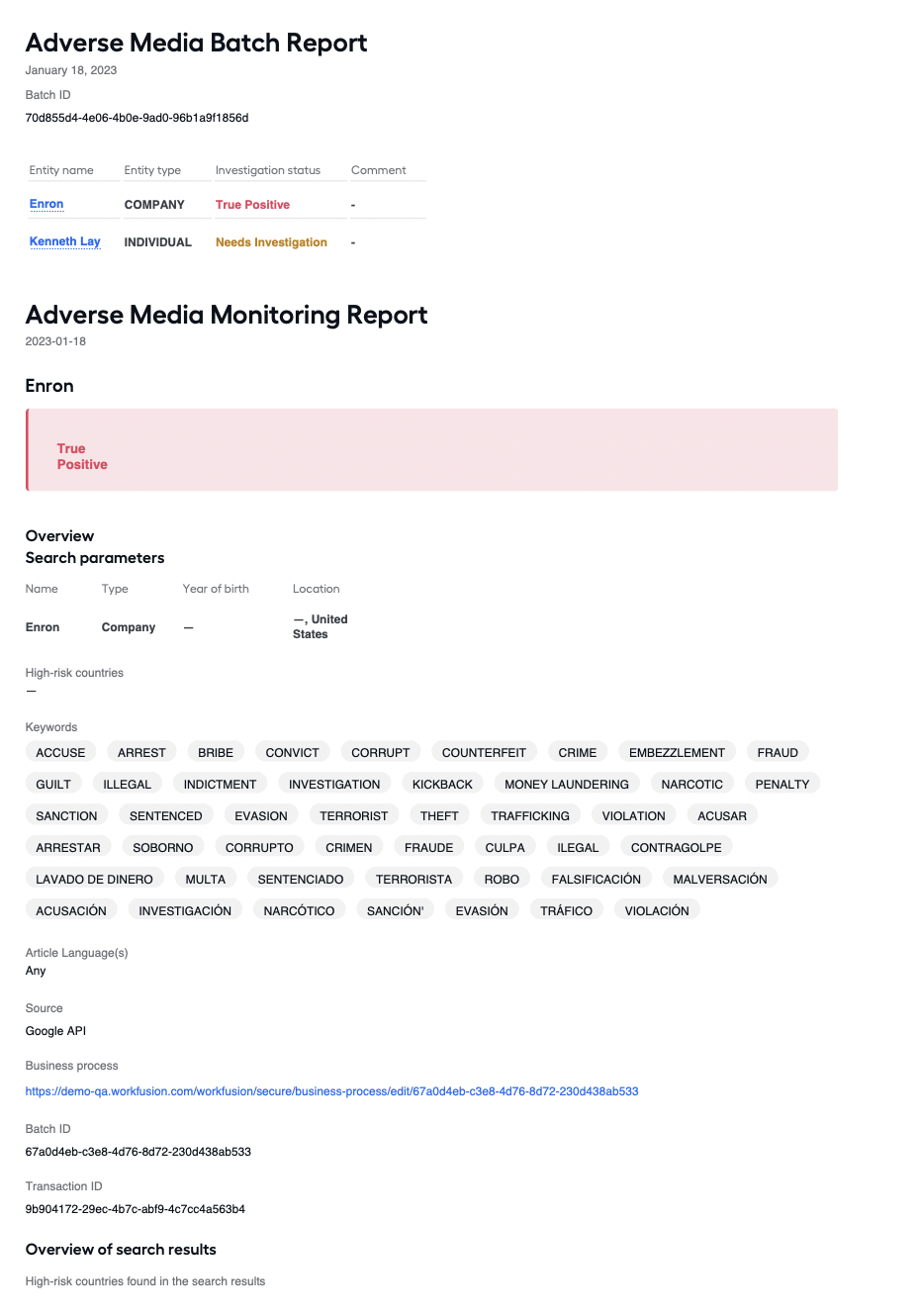
See the sample combined report for Invidual.