
Manage WorkFusion Analytics license
License type
Current Tableau version is 2018.3.2.
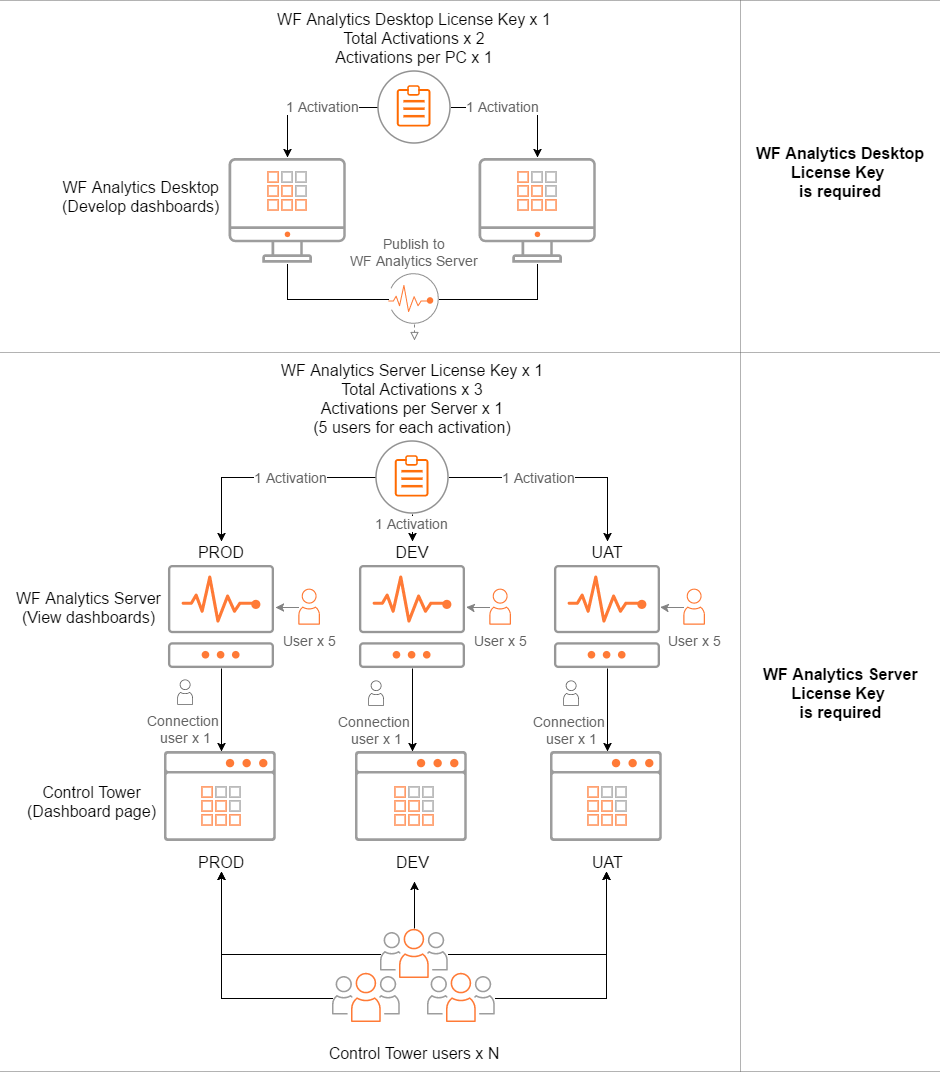
The license for Tableau Server is requested by an Account manager and provided by WorkFusion. For Intelligent Automation Cloud 10.0, you can also use the licenses that have been requested for earlier Intelligent Automation Cloud versions. The license includes three activations, for example, for DEV, UAT, and PROD. Each license is issued for one year.
If you have to change the default dashboards, you can request the Tableau Desktop license via a Service Desk ticket according to the following template.
>Dear Support Team,
>
>Please provide the Tableau license according to the following requirements:
>
>Company name: ___
>
>Number of sites: ___ (single- or multi-site license)
>
>Product type: ___ (Tableau Server or Desktop)
View product keys and license details
The current number of licensed seats and product key information for WorkFusion Analytics Server administrators can be viewed on the server web interface.
Single Site License
To view product keys: on the Analytics server, on the main menu, click Settings, and then go to the Licenses tab.

Multi Site License
To view product keys:
On the main menu, click All Sites > Manage All Sites.
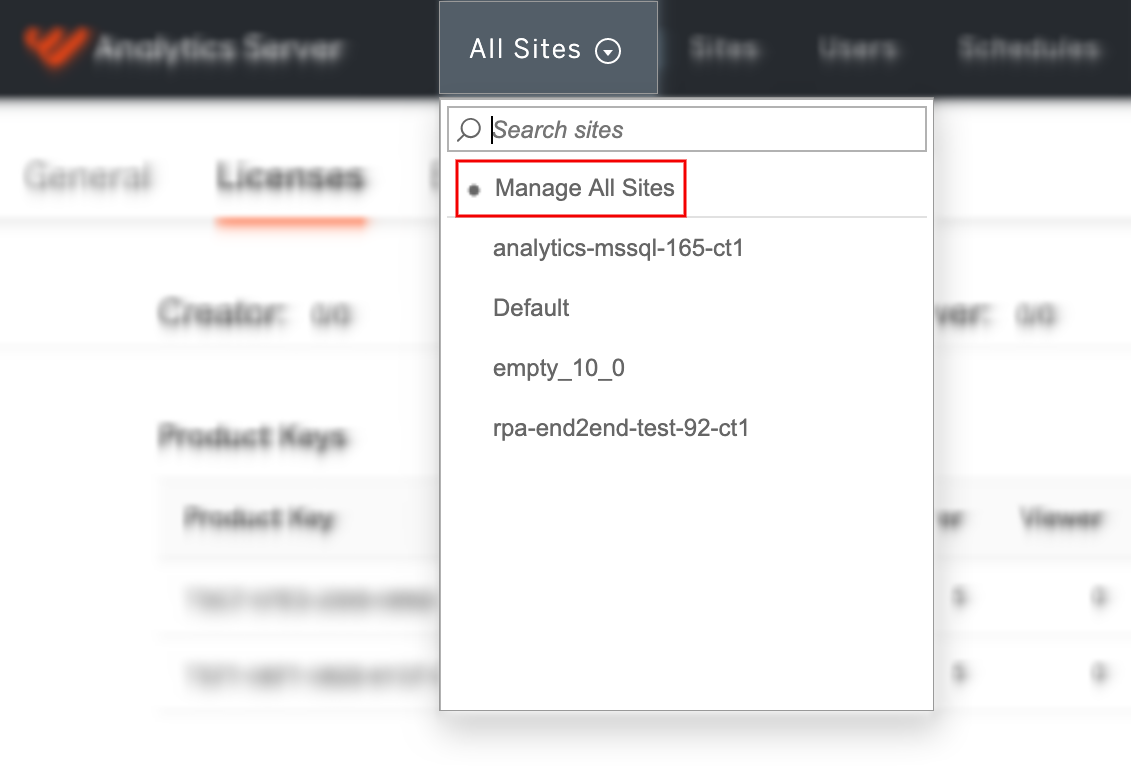
The Manage All Sites item is displayed only when you are signed in as a server administrator.
On the main menu, click Settings, and then go to the Licenses tab.
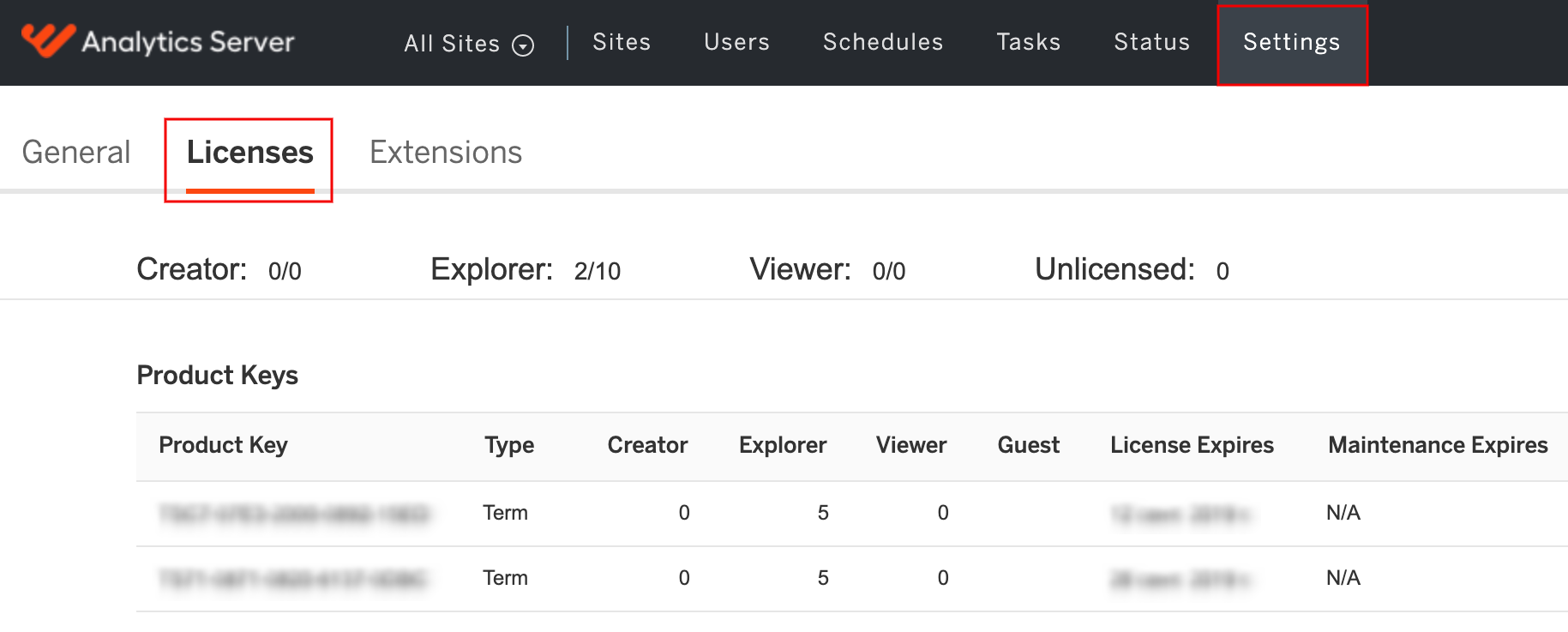
To view license details, on the main menu, click Users.
License details
The License Details page provides summarized information for all product keys installed on the server, including:
- Seat licenses total: the total number of seats – unique WorkFusion Analytics Server users – covered by all product keys
- Seat licenses in use: the total number of seats in use
- Seat licenses available: the total number of seats available
- Unlicensed users: the number of users on WorkFusion Analytics Server without a license assigned
For each Product key you can see the following information:
- Product Key: a key to activate the license.
- Seats: a number of seats covered by the license.
- Maintenance Ends: the date when the Maintenance contract expires.
- Expires: the date when the license expires.
- Valid: the license status.
Activate and deactivate products
After WorkFusion Analytics Server or WorkFusion Analytics Desktop are installed, you must activate these products. To complete the activation process, receive the WorkFusion Analytics Server and Desktop product keys from the WorkFusion team. If WorkFusion Analytics Server and Desktop are to be upgraded, deactivated keys will be used to activate the new versions.
There are two ways to activate or deactivate product keys depending whether the computer has internet access or not. Follow the official Tableau guide that best suits your scenario.
note
The account that you use to sign in to TSM must have administrative access to the local computer where Tableau Server is installed.
Activate:
Deactivate: